

 100% Security Verified | No Subscription Required | No Malware


 ChatGPT
 Perplexity
 Gemini
 Claude
 Grok
Grok
Moody outdoor video filters help photographers and filmmakers turn bright, flat nature shots into atmospheric scenes packed with tension and depth. With the Moody Outdoor Filter. Deep Wild preset in Filmora, you can instantly add dark tonality and cinematic contrast to forests, mountains, and stormy landscapes.
Whether you are shooting misty trails, overcast coastlines, or brooding woodland frames, these moody outdoor video filters give your footage a cohesive, story-driven look. Use them as a starting point, then fine-tune exposure, shadows, and color temperature to match the exact feeling you want to create.
In this article
Core Moody Outdoor Looks with Deep Wild
Deep Wild Forest Shade
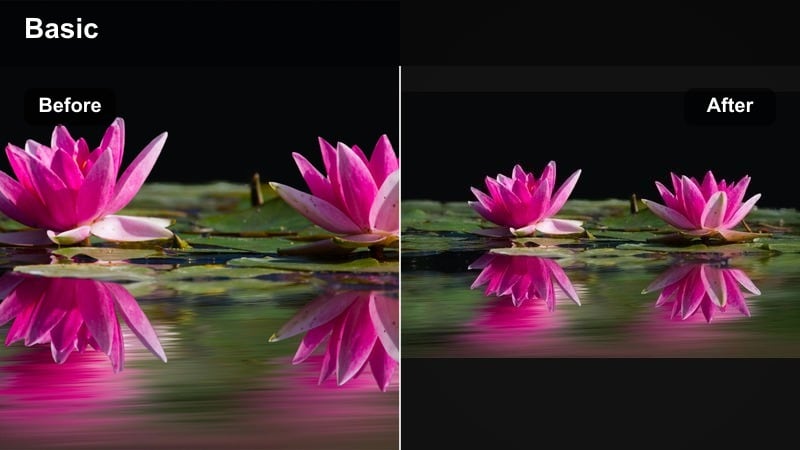
- Effect look: Muted greens with deep shadows and a cool, misty cast for dense woodland scenes
- Best for: Overcast forests, pine trails, mossy rocks, and shaded riverbanks
- Editing tip: Lower midtone brightness slightly and add a soft vignette to pull the viewer toward the path or subject.
Deep Wild Forest Shade is designed to turn bright, leafy forests into shadowy, story-rich spaces. By desaturating greens and pushing shadows deeper, it creates a cool, misty mood that feels cinematic without looking artificial. Details in bark, moss, and undergrowth remain visible, but the overall palette leans into darker tones that emphasize mystery and depth.
In Filmora, apply this moody outdoor filter to woodland hikes, mossy riverbanks, or pine trails shot under clouds. Use the color panel to nudge exposure down in the midtones, then add a subtle vignette so the eye naturally follows the path or subject. With masking, you can brighten just the trail or your subject to guide attention while preserving the brooding atmosphere around them.
Pro tip: Guide the eye through the forest with light
After applying Deep Wild Forest Shade, use Filmora’s masking to subtly brighten only the trail or your subject’s face. This contrast against the darker surroundings amplifies the moody atmosphere without losing detail.
Keep overall saturation low but push local contrast in key areas. This creates a layered, cinematic look that feels natural yet controlled.
Leverage Filmora’s AI tools to refine moody outdoor palettes
Filmora’s AI-driven color tools help photographers and filmmakers quickly test variations on the Moody Outdoor Filter. Deep Wild palette without manual grading from scratch each time. You can lock in your dark nature aesthetic while experimenting with subtle shifts in temperature, saturation, and contrast.
Use AI to auto-balance your base exposure, then apply the moody outdoor video filters on top. This workflow preserves highlight and shadow detail before you push the image toward a darker, more atmospheric outdoor look.
Try this workflow: Open your outdoor clips in Filmora and let AI suggest a balanced starting point, then layer on Deep Wild to design the exact mood you want.
 secure download

See moody outdoor filters in action on real nature footage
Testing moody outdoor video filters on your own clips is the fastest way to understand how they respond to different lighting, from overcast trails to shaded valleys. In Filmora, you can preview the Moody Outdoor Filter. Deep Wild preset live as you scrub through complex movements and exposure changes.
Compare before-and-after looks on the same frame, then tweak each filter’s intensity to match your story. The goal is to keep the scene believable while still leaning into atmospheric outdoor tension and depth.
Quick experiment: Import a short outdoor sequence, duplicate the track, and apply different Deep Wild variations side by side to quickly pick your favorite look.
secure downloadTurn your favorite moody looks into reusable presets and LUT-style workflows
Once you have dialed in a look that fits your atmospheric outdoor style, save it as a custom preset in Filmora. This lets you apply consistent dark nature grading across entire projects without rebuilding adjustments for every clip.
You can organize presets by scenario such as forest shade, stormy ridges, or twilight trails, ensuring that each sequence maintains a cohesive visual mood. These reusable settings act like your personal library of moody outdoor video filters.
Next step: Create and name a custom preset based on Moody Outdoor Filter. Deep Wild, then apply it across your next outdoor film for a unified, cinematic grade.
secure downloadDeep Wild Ridge Storm
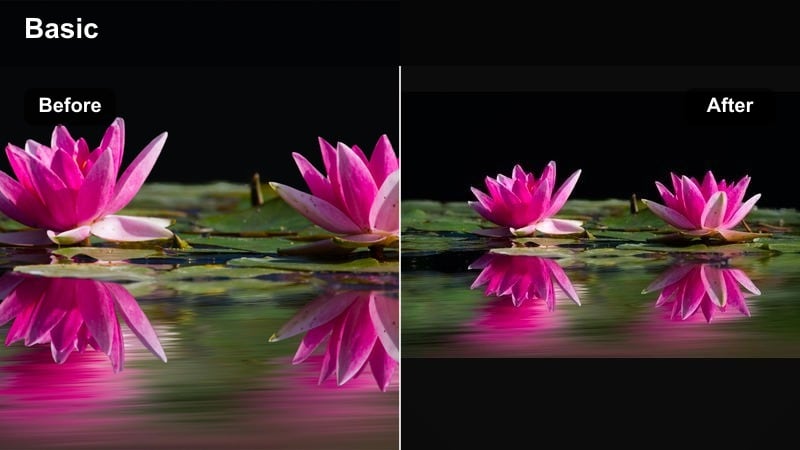
- Effect look: Darkened skies, lifted texture in clouds, and cool blues for dramatic mountain ridgelines
- Best for: Windy ridges, stormy horizons, and dramatic hiking sequences shot in changing light
- Editing tip: Drop highlights to hold cloud detail, then slightly increase clarity or sharpness to emphasize ridgeline structure.
Deep Wild Ridge Storm emphasizes the power of mountain weather, pulling down overall brightness while revealing rich detail in storm clouds. The filter cools the palette toward blue and cyan, giving ridgelines a sharp, moody silhouette that feels intense and cinematic.
In Filmora, use this look on time-lapses of incoming storms, fast-paced hiking scenes, or drone shots skimming along jagged peaks. Lower highlights to protect bright cloud edges, then add a touch of clarity or sharpness so rock textures and distant terrain stand out against the heavy sky. Slightly warming skin tones or bright gear helps your subject pop from the colder landscape.
Pro tip: Shape storm drama with highlight control
Use the filter as a base, then fine-tune highlights and whites in Filmora to keep detail in bright cloud edges. This prevents the sky from clipping and maintains a gritty, cinematic texture.
Subtly warm midtones on skin or gear so your subject stands out against the colder, moody background.
Deep Wild River Gloom
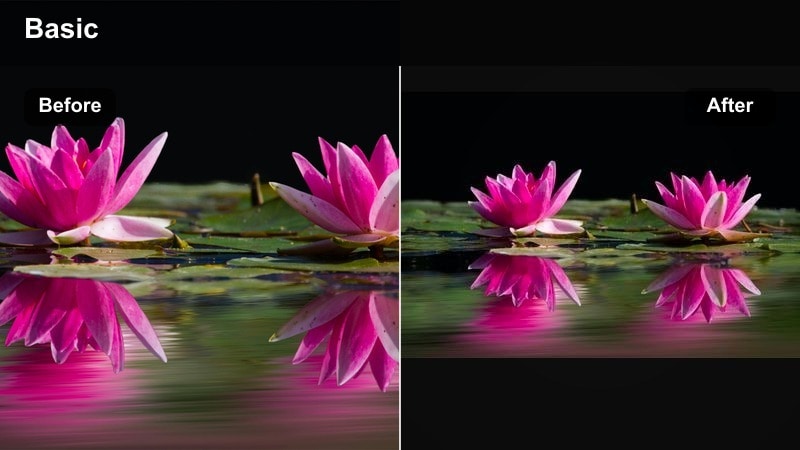
- Effect look: Cool, inky water tones with deep contrast and reduced saturation for somber river scenes
- Best for: Shadowed rivers, waterfalls in canyons, and slow-moving streams on cloudy days
- Editing tip: Use subtle slow motion and stabilize the clip in Filmora to complement the heavy, contemplative tone.
Deep Wild River Gloom transforms bright, reflective water into a cool, inky surface that feels weighty and introspective. The filter reduces overall saturation while preserving detail in ripples, rocks, and canyon walls, adding a quiet tension to river and waterfall scenes.
Apply it in Filmora to clips shot in narrow gorges, forest rivers, or overcast waterways. Pair the grade with slight slow motion and stabilization to smooth out handheld movement. Avoid aggressive sharpening; a softer, more velvety texture in the water supports the meditative mood and keeps the sequence feeling cinematic rather than documentary.
Pro tip: Combine motion and color for emotional weight
Pair this filter with slightly slower playback and subtle Filmora motion blur so water and foliage movement feel heavier and more introspective.
Avoid over-sharpening; a softer image works better with the dark, meditative atmosphere of river scenes.
Moody Outdoor Portraits in Nature
Deep Wild Faces in Fog
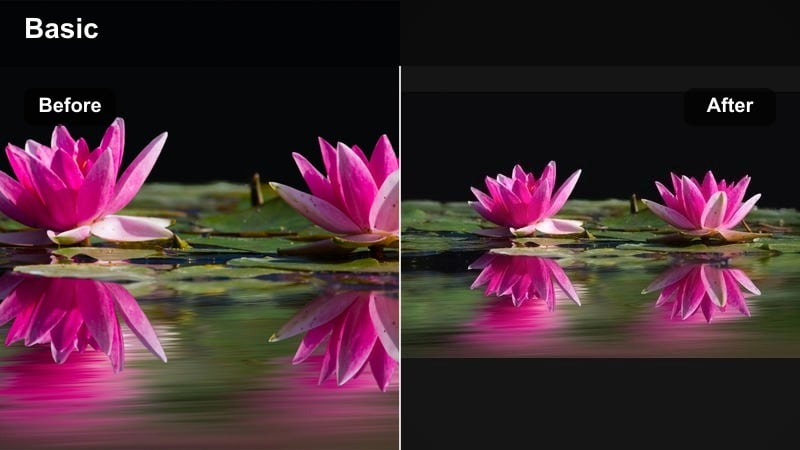
- Effect look: Soft contrast on skin with cool, lifted blacks around the subject for a cinematic fog vibe
- Best for: Portraits in misty fields, forest clearings, and early-morning trails with haze
- Editing tip: Lightly warm the midtones on skin while keeping overall temperature cool to separate the subject from the background.
Deep Wild Faces in Fog keeps your subject flattering and soft while the environment turns cool, hazy, and cinematic. Contrast on skin is gently lowered, and blacks in the background are lifted, creating a dreamy veil of fog that still feels grounded in reality.
In Filmora, use this filter for character-focused scenes in misty forests, dew-covered meadows, or early-morning hikes. After applying the look, adjust HSL or skin-tone ranges so faces stay warm and natural while the overall scene remains cool and desaturated. Combined with shallow depth of field, the background melts into gentle gradients that highlight emotion in the subject’s expression.
Pro tip: Use selective color to protect skin tones
After applying the filter, use Filmora color tools to subtly reduce blue and green impact on skin ranges. This keeps faces natural while the environment remains cool and atmospheric.
Combine with a shallow depth-of-field shot to let the moody background blur into soft gradients of color and light.
Deep Wild Trail Wanderer
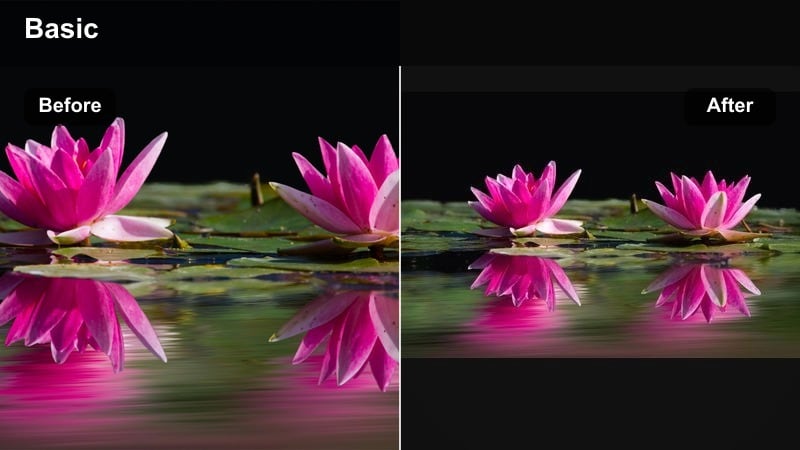
- Effect look: Muted earthy tones, darker foliage, and gentle highlight roll-off for story-driven hiker shots
- Best for: Solitary hikers, backpacking sequences, and character-driven travel films in forests or hills
- Editing tip: Add a slow push-in or subtle handheld camera movement to emphasize emotional connection to the landscape.
Deep Wild Trail Wanderer is built for narrative outdoor sequences where the landscape mirrors a character’s inner journey. It darkens foliage, mutes earthy colors, and softens highlight roll-off so nothing in the frame feels overly bright or cheerful, while still retaining enough detail for storytelling.
Apply it in Filmora to following shots of hikers, backpackers, or solo travelers moving through wooded paths or rolling hills. Use keyframed exposure to gently emphasize the subject as they move through shadows, and add a slow digital push-in to draw viewers into the moment. The result is a grounded, introspective tone that feels perfect for cinematic travel vlogs and short films.
Pro tip: Balance character and environment
Keep the overall scene dark and muted, but gently raise exposure around the subject using Filmora’s keyframed exposure adjustments.
This maintains the moody atmosphere while making sure the story still centers on the person in the frame.
Deep Wild Silhouette Dusk
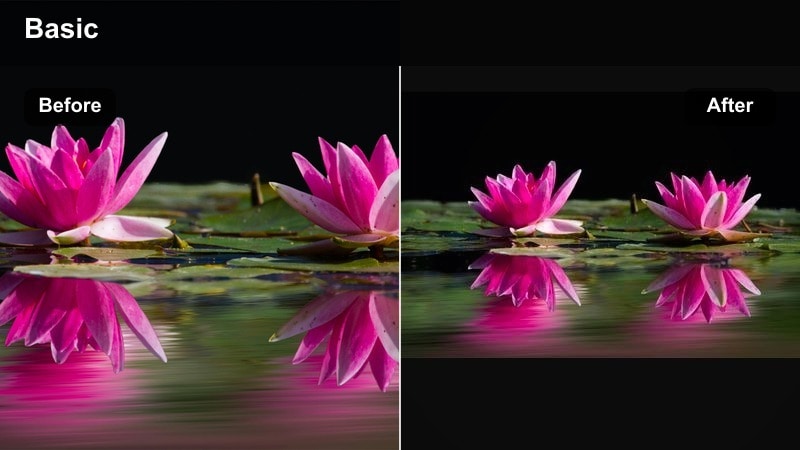
- Effect look: Crushed shadows and rich, muted colors in the sky for bold silhouettes at blue hour
- Best for: Tree-line silhouettes, cliff edges, and distant figures shot after sunset or before sunrise
- Editing tip: Lower black levels gradually until the silhouette feels solid, then fine-tune saturation in the sky for a subtle color wash.
Deep Wild Silhouette Dusk is ideal for turning simple outlines of people or trees into striking, graphic shapes against evening skies. It deepens blacks to create solid silhouettes while preserving rich but muted color in the clouds and horizon.
In Filmora, use it on wide shots of ridges, hills, or coastal cliffs shot during blue hour. Carefully lower the blacks so foreground elements become clean shapes, then adjust saturation so the sky has a soft color wash rather than neon tones. Adding a touch of film grain on top completes the cinematic dusk atmosphere.
Pro tip: Use negative space to enhance mood
Compose your shots so that the silhouetted subject occupies a small portion of the frame, leaving large areas of sky or landscape to carry the emotional weight.
In Filmora, combine the filter with a gentle film grain overlay to add texture and a nostalgic, cinematic feel.
Atmospheric Landscapes and Dark Nature
Deep Wild Misty Ridge
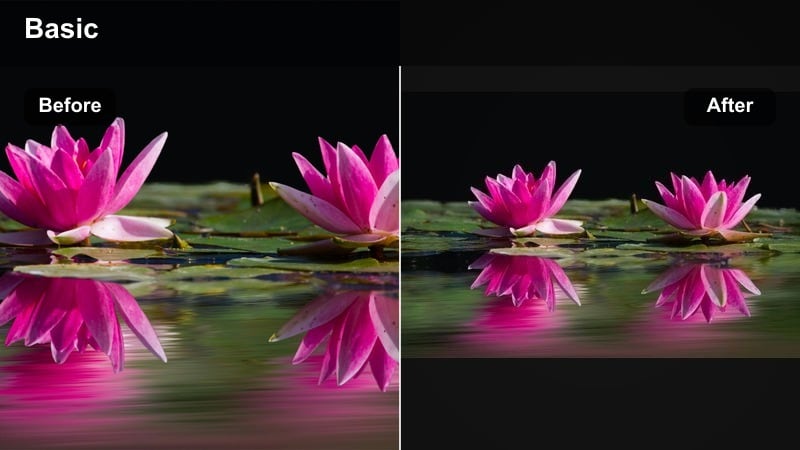
- Effect look: Softened contrast, dense midtones, and cool haze for distant layers of mountains or hills
- Best for: Foggy ridgelines, layered hills, and long-lens nature shots with depth
- Editing tip: Use Filmora’s dehaze sparingly; leave some haze to keep the moody, dreamlike feeling intact.
Deep Wild Misty Ridge focuses on the quiet poetry of layered landscapes. It softens overall contrast, enriches midtones, and cools the palette so distant hills and mountains melt gradually into atmospheric haze.
In Filmora, apply it to telephoto shots of rolling hills, mist-covered peaks, or valleys stacked one behind another. Resist the urge to overuse dehaze; leaving some softness enhances the dreamy, moody quality. Keep sharpening low, especially in the background, so viewers feel the gradual falloff into the distance.
Pro tip: Let atmospheric depth tell the story
Compose scenes with multiple depth layers, then use the filter to subtly separate foreground, midground, and background via contrast and saturation.
Avoid over-sharpening distant layers; let them stay soft so the viewer senses distance and calm tension.
Deep Wild Dark Valley
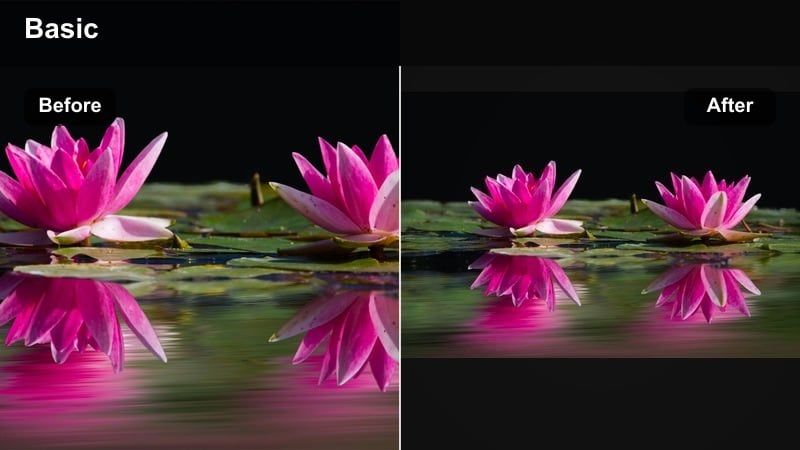
- Effect look: Deep, cool shadows in valleys with slightly lifted highlights on ridges for contrast and mystery
- Best for: Canyons, forested valleys, and steep slopes with light peeking through from above
- Editing tip: Keyframe exposure as the camera moves so dark areas stay readable but still feel heavy and dramatic.
Deep Wild Dark Valley is built for scenes where most of the frame sits in shadow while light brushes ridges or distant openings. It pushes valley shadows into cool, heavy tones while leaving highlights slightly raised on peaks and edges, creating a strong sense of mystery and vertical depth.
Use it in Filmora for drone dives into canyons, gimbal shots in forested ravines, or any composition where light from above shapes the scene. Keyframe exposure along the shot so that important details do not disappear completely, yet the overall weighting stays dark and imposing. Subtle color in the shadows keeps them rich instead of flat.
Pro tip: Use controlled darkness, not pure black
Drop shadows aggressively, but periodically check the histogram in Filmora to ensure information is not completely lost in key areas.
Introduce subtle color into the shadows, such as cool blues or greens, to avoid flat, lifeless blacks.
Deep Wild Rainfront
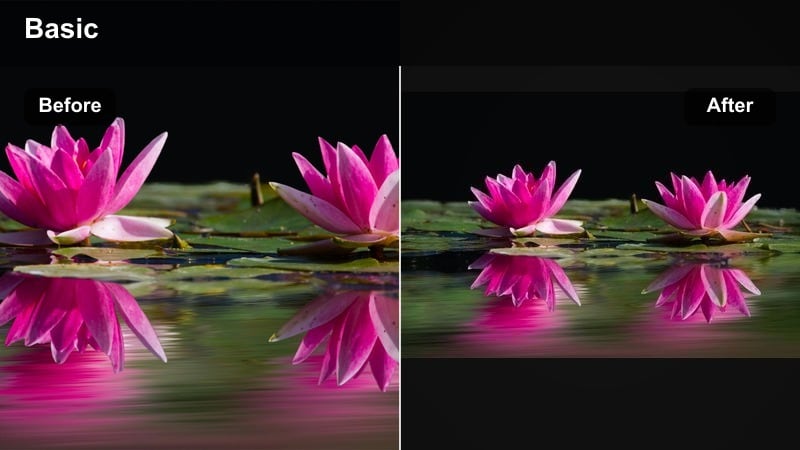
- Effect look: Cool, moody toning with enhanced texture in clouds and rain-darkened foliage
- Best for: Storm fronts, rain-soaked forests, coastline squalls, and windy cliff scenes
- Editing tip: Slow down shutter-speed motion or add subtle Filmora motion blur to raindrops and foliage for a cinematic streak effect.
Deep Wild Rainfront leans into wet, stormy conditions, pulling grays and blues into a textured, dramatic palette. It emphasizes detail in heavy clouds, slick rocks, and rain-darkened foliage so even a gloomy day looks rich and cinematic.
In Filmora, apply it to shoreline squalls, mountain storms, or forest scenes shot during or just after rain. Slightly slowing the clip and adding gentle motion blur can turn raindrops and moving branches into elegant streaks. Combined with careful sound design, the grade makes bad weather feel like a powerful storytelling tool instead of a shooting obstacle.
Pro tip: Lean into bad weather for stronger mood
Shoot into approaching storms or just after rainfall, then use this filter to accentuate wet surfaces and heavy clouds.
In Filmora, add subtle ambient sound design and slow, steady camera moves to match the steady weight of the image.
From Daylight to Nightfall: Transitional Moody Looks
Deep Wild Fading Day
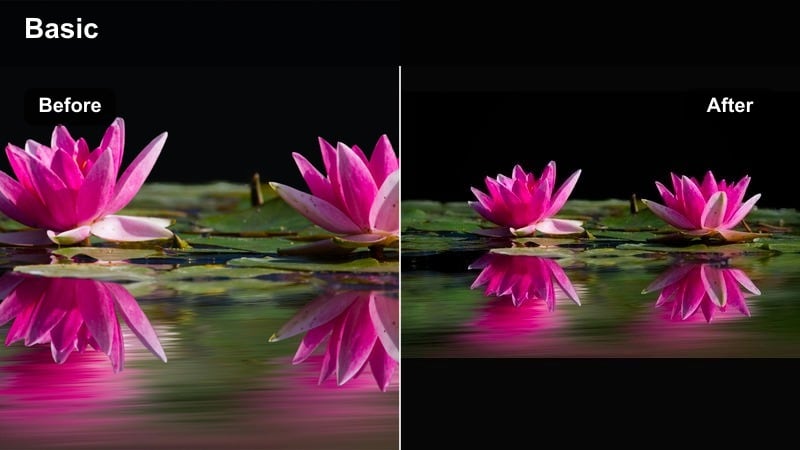
- Effect look: Gradually darkened mids, muted color, and cooler tones for late-afternoon into dusk transitions
- Best for: Golden hour turning to blue hour, end-of-day camping scenes, and time-lapse transitions
- Editing tip: Apply the filter at varying intensities across clips so your sequence feels like a natural slide into darkness.
Deep Wild Fading Day helps you tell the story of daylight slipping away. It gently darkens midtones, cools down color temperature, and mutes saturation so each shot feels one step closer to dusk than the last.
In Filmora, use it on late-afternoon hiking, campsite preparations, or sunset timelapses. Adjust the filter’s strength clip by clip, ramping it up as your sequence progresses. This creates a visual arc where the viewer can feel time passing and the mood slowly turning more introspective and dark.
Pro tip: Create a visual arc across your timeline
Place brighter clips earlier and darker clips later, then adjust filter strength so each shot gets slightly moodier than the last.
In Filmora, use cross-dissolves and subtle audio changes to reinforce the sense of time passing and day closing down.
Deep Wild Twilight Trail
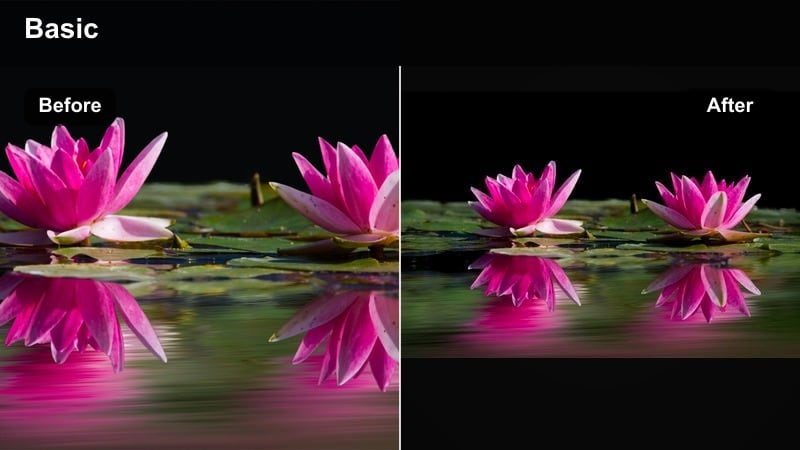
- Effect look: Low-saturation twilight hues with deep blues and subtle magenta shadows
- Best for: Twilight walks, tent setups, campfire approaches, and late-evening forest paths
- Editing tip: Boost local exposure around lanterns or headlamps to create natural focal points in the dark scene.
Deep Wild Twilight Trail preserves the delicate color remaining after sunset while deepening the surrounding darkness. Blues and gentle magentas blend in the shadows, and overall saturation remains low, giving twilight scenes a calm but mysterious character.
Use it in Filmora when your subjects move through dim trails, set up camp, or walk toward a distant light source. Raise exposure slightly around lanterns or headlamps using masks or keyframes so they become clear focal points, while the rest of the frame stays moody and subdued. A hint of glow on these practical lights can further enhance the atmosphere.
Pro tip: Let practical lights lead the viewer
Use lanterns, headlamps, or cabin windows as small bright sources that stand out against the moody darkness.
Combine the filter with Filmora’s glow effects at very low intensity to make these lights feel soft and inviting without breaking the dark atmosphere.
Deep Wild Night Watch
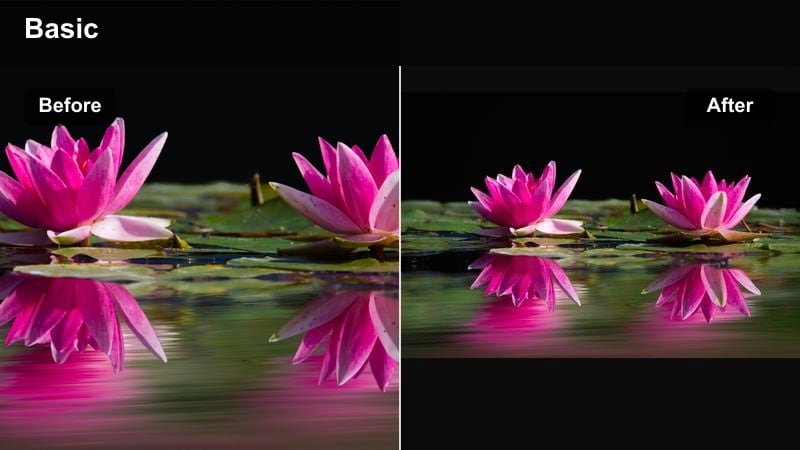
- Effect look: Crushed shadows with subtle color in the darkest areas and controlled noise for nighttime outdoors
- Best for: Campfires, stargazing, dark forest clearings, and night hikes shot with minimal light
- Editing tip: Use Filmora’s noise reduction carefully, preserving some grain to keep the scene organic and cinematic.
Deep Wild Night Watch is tailored to manage the challenges of low-light outdoor footage. It deepens shadows to near-black while keeping a touch of color and texture, so night scenes feel intentional rather than underexposed. The filter also helps keep noise under control without erasing all grain.
Apply it in Filmora to campfire circles, starry-sky silhouettes, or forest clearings lit only by a few practical lights. Use moderate noise reduction and preserve some grain to maintain an organic, filmic feel. Then, keyframe exposure and saturation so faces remain barely but clearly visible while the surrounding forest stays mysterious and dark.
Pro tip: Embrace selective visibility at night
Decide what the viewer should see clearly and let the rest fall into darkness, using the filter as your base contrast.
In Filmora, keyframe exposure, shadows, and saturation on moving shots so faces remain readable while the environment stays dark and mysterious.
Tips for Using Outdoor Moody Filters in Filmora
- Shoot slightly flatter in-camera so there is enough dynamic range to push shadows and highlights when using moody outdoor filters.
- Prioritize cloudy, foggy, or post-rain conditions to naturally support dark, atmospheric outdoor grading.
- Use slow, deliberate camera moves to match the heavy, contemplative feeling of moody nature scenes.
- Avoid oversaturating greens; keep foliage muted so skin tones, sky, or key props can stand out subtly.
- Combine small, warm light sources like headlamps or fires with cool overall grading for strong visual contrast.
- Experiment with gentle film grain and vignette in Filmora to reinforce the cinematic dark nature mood.
- Match color temperature across clips first, then apply your moody outdoor video filters for consistency.
- Use keyframed exposure changes to maintain subject visibility while the environment falls deeper into shadow.
Moody outdoor video filters like Moody Outdoor Filter. Deep Wild give photographers and filmmakers a fast, reliable way to turn ordinary nature footage into atmospheric, story-ready sequences. By carefully balancing shadows, color, and texture, you can shape forests, ridges, rivers, and night scenes into cohesive dark nature visuals that feel cinematic and intentional.
As you refine your workflow in Filmora, treat these filters as a starting point: adjust intensity, layer subtle effects, and save your own presets to match each project’s emotional tone. When you are ready to explore a different side of natural light, take the next step and experiment with an outdoor warm filter to contrast your moody looks with glowing, sunlit warmth.
secure download