

 100% Security Verified | No Subscription Required | No Malware


 ChatGPT
 Perplexity
 Gemini
 Claude
 Grok
Grok
Clean portrait video is all about flattering skin, soft details, and a natural glow that feels real on camera. With the right portrait video filters in Filmora, you can smooth imperfections, gently enhance color, and keep your personality front and center in every close-up.
Whether you film beauty tutorials, GRWM videos, or intimate talking head vlogs, these portrait video filters and effects help you create consistent, camera-ready looks without heavy retouching or complicated color work.
In this article
Soft Skin Essentials for Clean Portraits
Soft Glow Portrait
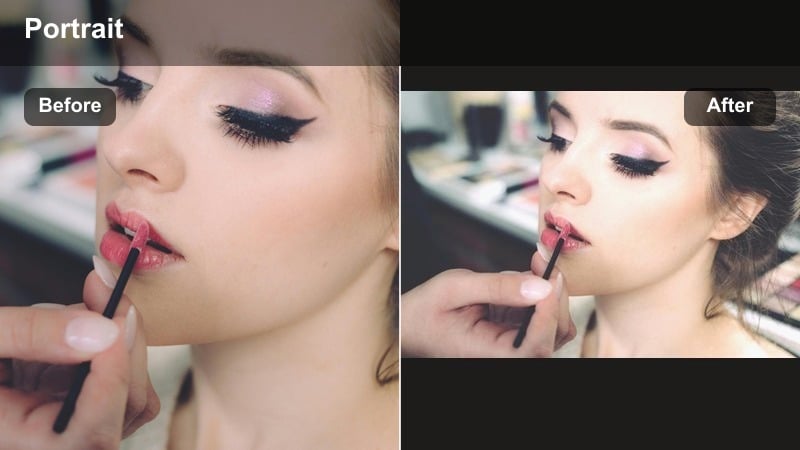
- Effect look: Subtle skin smoothing with a gentle, creamy glow and slightly lifted highlights.
- Best for: Beauty videos in natural light, GRWM routines, and overhead vanity setups.
- Editing tip: Lower the filter intensity to 40-60 percent to keep skin texture visible, especially around cheeks and forehead.
Soft Glow Portrait is ideal when you want a flattering, clean portrait video look without erasing your real skin. In Filmora, this filter lightly smooths pores, brightens highlights, and adds a soft halo of glow that works especially well with ring lights and window light setups.
Use it on close-up beauty content, GRWM intros, or skincare routines where viewers expect to see your texture but still enjoy a polished finish. Adjust intensity with the filter slider until your skin looks creamy yet detailed, then fine-tune exposure so your features remain clearly defined.
Let Filmora’s AI Find Your Best Portrait Color Balance
Filmora’s AI tools can auto-balance exposure, contrast, and skin tones before you even add a portrait video filter. This gives you a clean base so your beauty filters and face effects look more natural and less processed.
Use AI to quickly fix mixed lighting or harsh highlights, then apply your favorite portrait video effects on top for a polished, signature style that works across beauty tutorials, GRWM content, and close-up talking shots.
 secure download

Preview Portrait Video Filters on Your Face in Seconds
In Filmora, you can stack, reorder, and toggle portrait filters to see exactly how each effect changes your face video. This lets you compare soft skin, glow, and neutral styles side by side until you find the clean portrait look that matches your brand.
Once you are happy, save your favorite combinations as presets so every new beauty tutorial, talking head clip, or GRWM video starts with one click instead of building your look from scratch each time.
secure downloadCombine Portrait Filters with LUTs for a Cinematic Finish
Portrait video filters handle skin, glow, and subtle retouching, while LUTs define the overall mood and color of your scene. Filmora lets you blend both so your face stays flattering and your background feels cinematic and on-brand.
Apply a gentle portrait beauty filter first to clean up skin and exposure, then drop on a light film-style LUT to shape the atmosphere of your vlog, beauty tutorial, or talking head content without overpowering your complexion.
secure downloadNatural Skin Balance
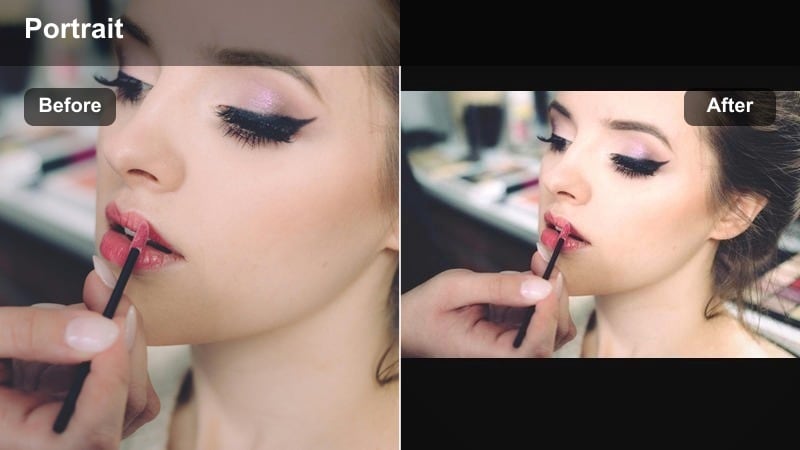
- Effect look: Balanced skin tones with light blemish softening and preserved fine details.
- Best for: Close-up talking shots, product reviews, and everyday vlogging in mixed lighting.
- Editing tip: Use the filter first, then add a tiny bit of sharpness to the eyes and brows to keep the face defined.
Natural Skin Balance is built for realistic portrait video where you want to look like yourself on camera, just a touch more even and polished. It gently evens out redness, minor blemishes, and patchy tones while preserving pores and fine details so the result is still honest.
In Filmora, apply this filter at moderate strength for talking head videos, reviews, or daily vlogs shot under different lights. Afterward, slightly boost sharpness on the eyes and brows to draw attention to your expressions without making the overall image harsh or oversharpened.
Clean Vanity Look
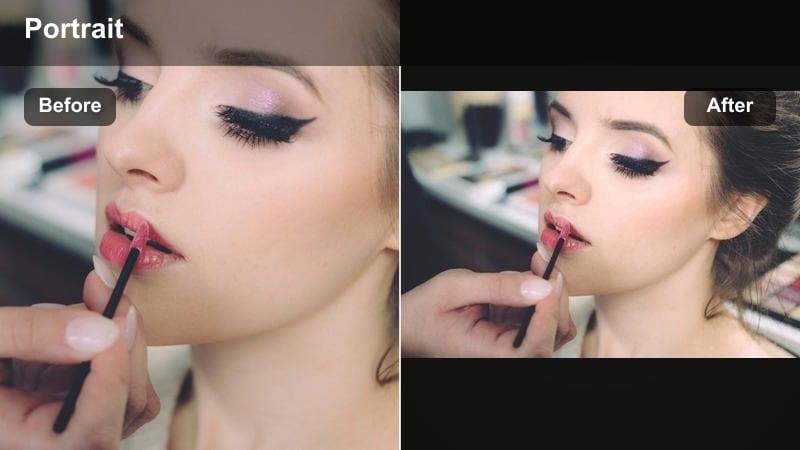
- Effect look: Bright, studio-like complexion with minimal shadows and a polished finish.
- Best for: Makeup tutorials filmed at a vanity or desk with soft key lighting.
- Editing tip: Combine with a slight vignette to keep focus on your face while hiding busy background details.
Clean Vanity Look is perfect for creators filming at makeup desks or vanities who want that studio-lit glow without heavy equipment. The filter reduces distracting shadows, brightens facial highlights, and gives skin a fresh, almost editorial finish that.flatters foundation and eye looks.
Use it in Filmora when you are showcasing products or detailed application steps. Add a subtle vignette around the frame so viewers concentrate on your face and hands, not cluttered shelves or decor behind you, and fine-tune brightness so your complexion stays luminous but not blown out.
Beauty Retouch and Glow Filters
Airbrush Lite
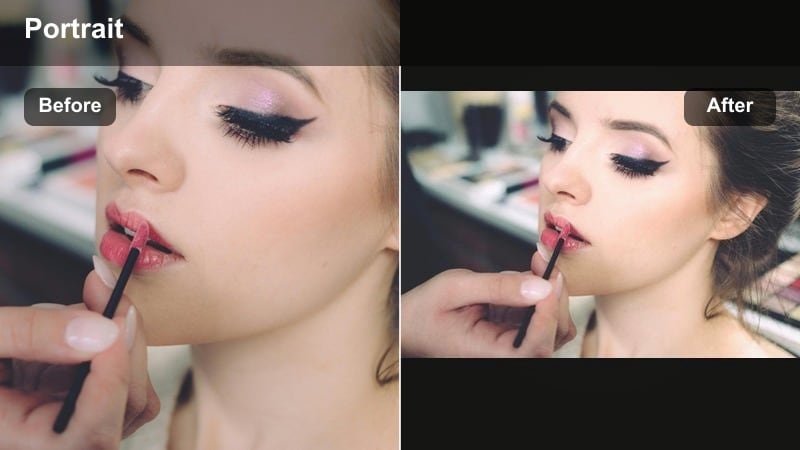
- Effect look: Gentle airbrush feel with softened pores and diffused highlights on cheeks and forehead.
- Best for: Beauty videos where you want a noticeable but not plastic-looking beauty filter.
- Editing tip: Mask out the eyes, brows, and lips if they start to look hazy so only skin areas are softened.
Airbrush Lite gives you the classic beauty filter vibe while steering clear of a plastic or over-smoothed appearance. It softens pores and fine lines and gently diffuses bright highlight areas, making foundation and contour look extra seamless on camera.
In Filmora, apply this filter to glam looks, bold eye makeup, or full-coverage foundation days. Use masks to limit the effect to skin only so your lashes, brows, and lip lines stay crisp, and adjust intensity according to skin type for the most natural airbrushed finish.
Soft Pink Glow
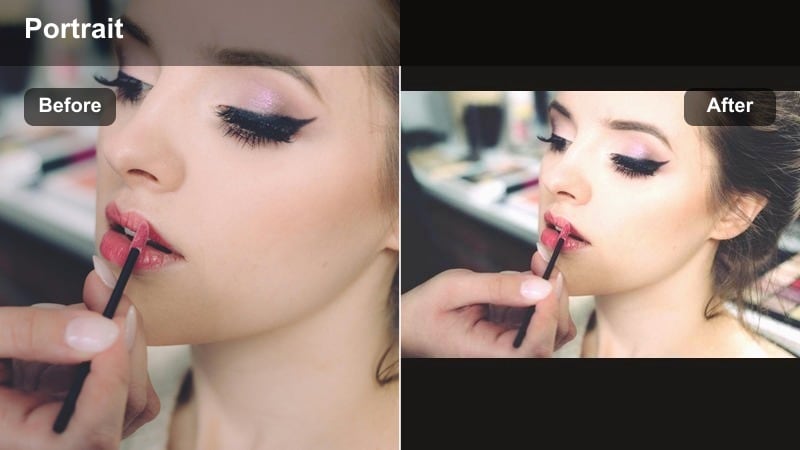
- Effect look: Soft pinkish tint with lifted skin warmth and a gentle highlight across the face.
- Best for: Romantic beauty looks, blush-focused tutorials, and feminine GRWM content.
- Editing tip: Apply the filter, then slightly desaturate reds if your blush or lipstick becomes too intense.
Soft Pink Glow adds a romantic, flattering warmth that is especially flattering for soft glam and blush-centered looks. The filter lifts midtone warmth, layers on a creamy pink tint, and gives your cheeks and nose a subtle glow that reads beautifully in portraits.
Use it in Filmora when your content leans feminine or romantic, such as date night get-ready videos or rosy eyeshadow tutorials. If your blush or lipstick starts to overpower the frame, slightly pull back overall reds and magentas in the color tools while keeping the filter glow intact.
Glass Skin Shine
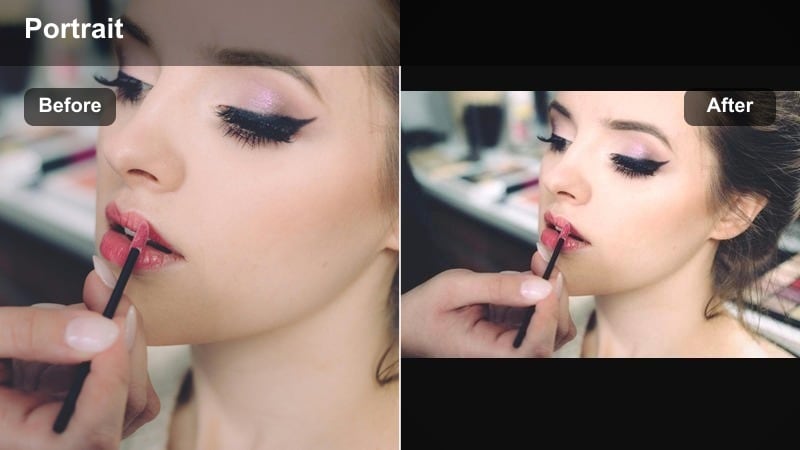
- Effect look: High clarity, glossy highlights with smooth transitions that mimic glass-skin skincare trends.
- Best for: Skincare demos, dewy foundation reviews, and close-up texture shots.
- Editing tip: Use sparingly on oily skin; combine with a bit of contrast to keep glow from looking greasy on camera.
Glass Skin Shine is designed to emphasize luminous, well-hydrated skin, reflecting the popular glass-skin trend. It enhances highlight areas, smooths gradient transitions, and keeps clarity high so viewers can still see real texture and product payoff.
In Filmora, this filter works best for skincare routines, serum demos, or dewy foundation reviews where glow is the star. Reduce intensity on very oily skin and add a touch of contrast or shadow detail so the shine looks intentional and sculpted rather than flat or greasy.
Neutral and True-to-Life Portrait Filters
True Tone Portrait
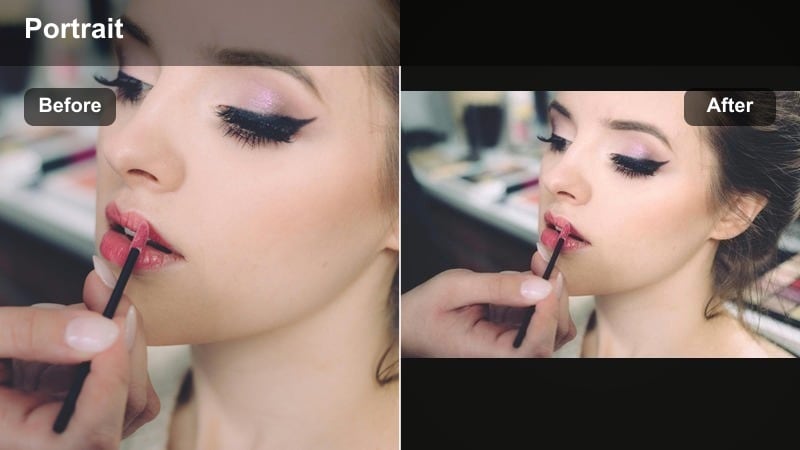
- Effect look: Accurate skin tones with subtle contrast and minimal color shift across the frame.
- Best for: Review videos, professional-style talking heads, and creator intros.
- Editing tip: Lock in white balance before applying this filter so neutral skin tones stay consistent across cuts.
True Tone Portrait is made for creators who want professional, honest color that flatters every complexion. It gently corrects skin tone shifts, evens contrast, and keeps hues neutral so your face looks natural under a wide range of lights.
Apply it in Filmora to talking head segments, intros, and sponsored content where color accuracy matters. Set your white balance first, then use this filter as your base look, adjusting exposure and subtle contrast for a clean, trustworthy portrait style viewers can rely on.
Daylight Soft Clean
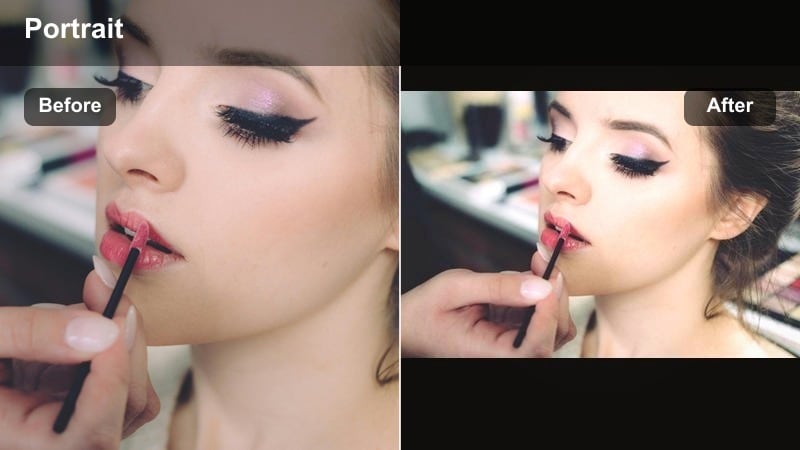
- Effect look: Soft, daylight-balanced color with mild contrast and a hint of warmth in skin tones.
- Best for: Window-lit beauty shots, minimal makeup days, and lifestyle vlogs.
- Editing tip: Slightly reduce blues in the shadows if your background light is very cool or overcast.
Daylight Soft Clean brings a gentle, airy feeling to portrait video, balancing window light and overcast conditions so your skin still looks inviting. It softens overall contrast, adds a trace of warmth, and keeps the frame easy to watch for longer videos.
In Filmora, reach for this filter when filming near windows, balconies, or bright rooms. If your background light is cold or cloudy, pull back blue tones in the shadows while keeping skin warmth intact, creating a clean, cozy look that suits casual vlogs and soft makeup days.
Studio Neutral Matte
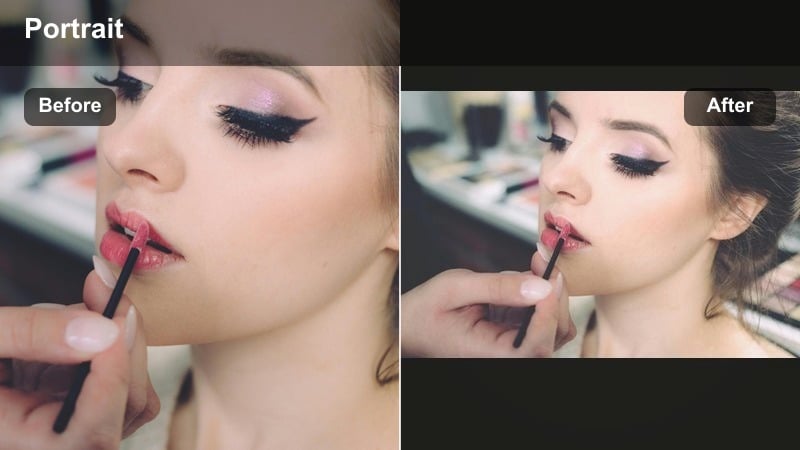
- Effect look: Soft matte finish with controlled highlights, gentle contrast, and minimal color cast.
- Best for: Studio or backdrop content, formal intros, and sponsored beauty segments.
- Editing tip: Apply a touch of clarity to hair and clothing so the matte effect is focused mostly on skin.
Studio Neutral Matte delivers an editorial, camera-ready look by toning down shine and controlling bright hotspots on the face. The result is a sophisticated matte finish that still preserves shape, depth, and natural color in your portrait video.
Use it in Filmora when filming against seamless backdrops or branded sets for intros, ads, or formal beauty content. Add a bit of clarity or sharpness to hair and wardrobe so the matte effect stays concentrated on skin, preventing the frame from feeling dull or lifeless.
Creator Signature Portrait Styles
Warm Vlogger Glow
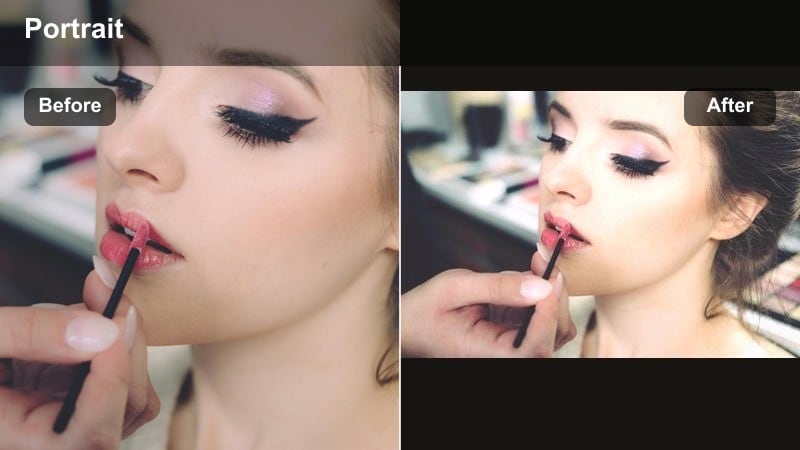
- Effect look: Golden warmth with softened shadows and a flattering glow on cheeks and nose bridge.
- Best for: Cozy room vlogs, nighttime routines, and candlelit or lamp-lit scenes.
- Editing tip: Keep saturation in check so skin stays warm but does not turn orange under warm indoor lights.
Warm Vlogger Glow wraps your portrait in a cozy, golden atmosphere that is perfect for night routines and relaxed room vlogs. It lifts warmth, softens shadows, and adds a gentle glow that pairs beautifully with lamps, candles, and string lights.
Apply it in Filmora when you want your audience to feel like they are hanging out with you in your space. Keep an eye on saturation so skin does not skew orange under very warm bulbs, and adjust selective color on hair and brows to avoid unwanted brassiness.
Creator Fresh Face
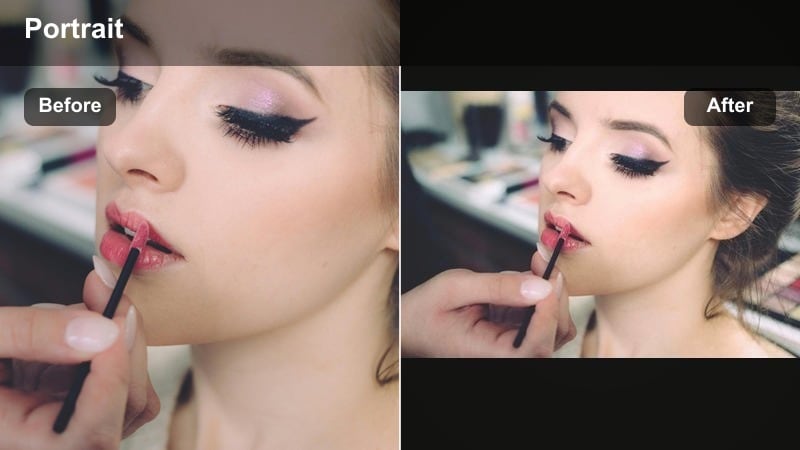
- Effect look: Clean, crisp details with mild skin smoothing and bright whites in eyes and teeth.
- Best for: Channel trailers, intro hooks, and brand collaborations where you need a polished look.
- Editing tip: Use this as your default face video filter, then layer brand-specific color looks on top if needed.
Creator Fresh Face is a go-to filter when you need to look sharp, friendly, and brand-ready in every frame. It balances brightness on your face, gently softens skin, and lifts whites in eyes and teeth for a trustworthy but polished presentation.
In Filmora, set this up as your default portrait base for intros, sponsored segments, or collabs. Once it is dialed in, you can stack LUTs or color filters on top for brand-specific moods while keeping your facial look consistent across all your videos.
Subtle Beauty Boost
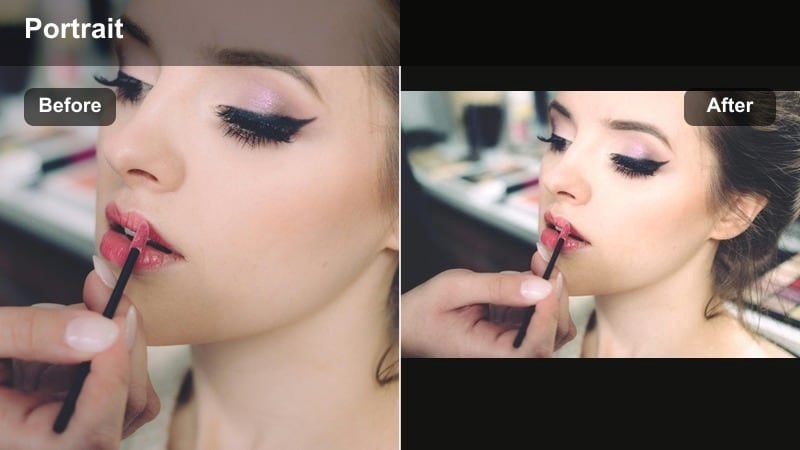
- Effect look: Very light smoothing and micro-contrast boost that makes faces pop without obvious filtering.
- Best for: Low-effort vlogs, quick talking stories, and creators who prefer almost no filter.
- Editing tip: Use at 20-40 percent intensity for a nearly invisible beauty video filter that still enhances your face.
Subtle Beauty Boost is designed for creators who want authenticity first and enhancements second. It adds just enough smoothing and micro-contrast to make your face stand out without tipping viewers off that a beauty filter is in play.
Use it in Filmora for casual storytime vlogs, quick updates, or days when you are filming with minimal makeup. Keep intensity low so freckles, texture, and real details remain visible, using the filter mainly to tidy up minor lighting issues and smooth out the overall portrait impression.
Tips for Using Portrait Video Clean Filters in Filmora
- Always check your portrait filters on both full-screen and mobile previews to make sure skin still looks natural on smaller displays.
- Record a short test clip with your usual lighting setup and try two or three filters side by side before choosing one for a full video.
- Keep some skin texture visible by avoiding 100 percent smoothing; overly perfect skin can make small imperfections more noticeable.
- If your background is colorful, choose more neutral portrait filters so skin tones do not clash with decor, LEDs, or RGB lights.
- Use Filmora masks or keyframing to limit stronger beauty filters to the face area instead of altering your entire scene.
- Adjust exposure and white balance before adding filters so portrait effects stay consistent across multiple clips.
- Save your favorite filter and color combinations as presets in Filmora to speed up editing for recurring video formats.
- Review your final export on different devices to confirm that glow, contrast, and skin tones look clean and flattering everywhere.
Clean, flattering portrait video filters can transform beauty content and close-up talking shots from casual to camera-ready without hiding who you are.
Experiment in Filmora until you find a combination of soft skin, natural glow, and true-to-life color that feels like your signature on-screen look, then save it as a preset to use on every new video.
secure download