

 100% Security Verified | No Subscription Required | No Malware


 ChatGPT
 Perplexity
 Gemini
 Claude
 Grok
Grok
The Sunset Landscape Filter: Golden Hour Glow is designed to enhance warm tones, deepen oranges, and bring out the last light of the day in your travel and nature photos. It turns flat sunsets into glowing, cinematic scenes with soft contrast and rich color.
Whether you are a traveler capturing coastal horizons or a photographer shooting mountains at dusk, this filter helps you quickly achieve a polished look with consistent warmth and color across your sunset landscapes.
In this article
Soft Warm Glow for Dreamy Sunsets
Golden Mist Glow
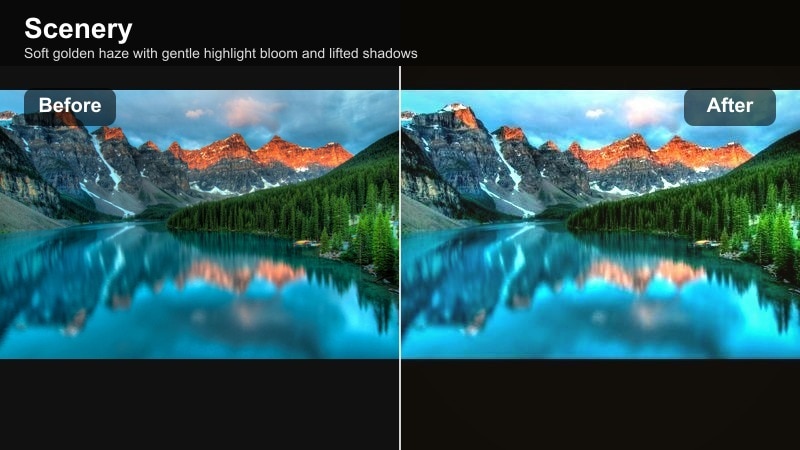
- Effect look: Soft golden haze with gentle highlight bloom and lifted shadows
- Best for: Coastal sunsets, lakeside horizons, and backlit silhouettes
- Editing tip: Lower contrast slightly and nudge clarity down to keep the misty glow natural instead of harsh.
Golden Mist Glow wraps your sunset landscape in a fine golden haze that smooths transitions between the sky and foreground. It softens harsh edges, blooms highlights around the sun, and gently lifts shadows so you keep detail without losing the dreamy feeling of golden hour.
In Filmora, use this filter on coastal or lakeside scenes where the sky and water meet. Combine it with light exposure adjustments and selective masking to keep the strongest glow in the sky while preserving clarity on rocks, piers, or silhouettes that you want to stand out in the frame.
Pro tip: Balance glow with detail in the foreground
After applying Golden Mist Glow, add a subtle local sharpening to rocks, trees, or buildings so they stand out against the dreamy sky. Use Filmora’s masking tools to keep the glow strongest in the sky and around the sun, while maintaining crisp textures in your main subject.
Dial in golden hour warmth with AI-powered color tools
Filmora’s AI color tools make it easy to fine-tune the Sunset Landscape Filter: Golden Hour Glow so every sunset feels intentional, not random. The software quickly analyzes your scene and adjusts color balance to protect details while boosting warmth.
Use AI-powered color matching to keep your sunset landscapes consistent across different locations and days. Start with the preset, then let Filmora refine tones so each clip or photo lands in the same warm, cinematic space.
Open your sunset clips in Filmora and let the AI color palette guide you toward a rich, cohesive golden hour look.
 secure download

Preview warm sunset filters instantly on your footage
Filmora lets you preview the Sunset Landscape Filter: Golden Hour Glow and related warm sunset filters in real time, so you can quickly compare soft glows, high-contrast looks, and orange sky styles before committing.
Toggle filters on and off or stack them lightly to find your ideal mix of warmth, contrast, and texture. Travelers and photographers can quickly test multiple moods without spending extra time on manual grading.
Load a sunset landscape, scroll through Filmora’s filter panel, and preview several warm looks until you find the one that fits your story.
secure downloadCombine filters and LUTs for cinematic sunset stories
Pair the Sunset Landscape Filter: Golden Hour Glow with Filmora’s LUTs to build a more stylized, cinematic color grade that still starts from a natural, warm foundation. This lets you move from simple enhancements to fully developed looks without complex workflows.
Apply the filter first to establish sunset warmth, then layer a LUT at low intensity to add character, from soft film styles to bold travel looks. This workflow keeps editing fast while giving you professional-looking results that match across a full travel sequence.
Experiment with adding a subtle LUT after your sunset filter to create a unique signature look for your travel and nature projects.
secure downloadAmber Soft Fade
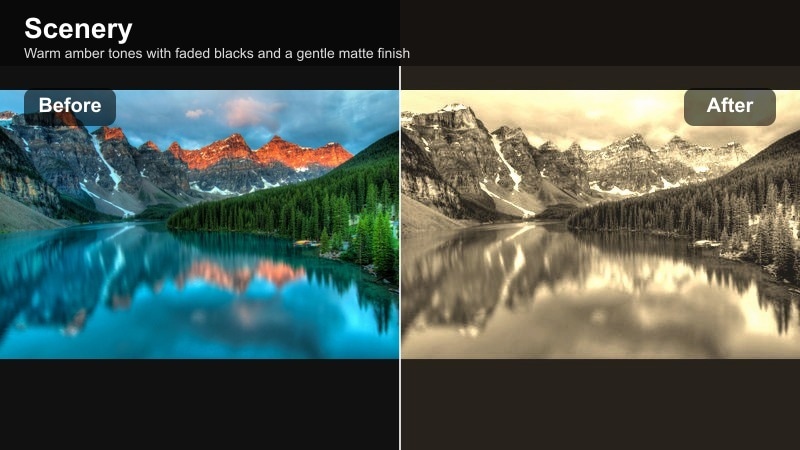
- Effect look: Warm amber tones with faded blacks and a gentle matte finish
- Best for: Minimalist horizons, beach walks, and travel story shots
- Editing tip: Pull down exposure a touch and slightly deepen vibrance to keep the amber tone rich without oversaturation.
Amber Soft Fade adds a warm amber wash over your footage, softening contrast and introducing a subtle matte finish in the shadows. This gives your sunset landscapes a relaxed, cinematic look that feels perfect for reflective travel moments and slow-paced story clips.
In Filmora, apply Amber Soft Fade to sequences of beach walks or minimalist horizons, then adjust exposure and vibrance to keep the warmth rich but controlled. Use it across multiple clips in a timeline to maintain a cohesive visual tone from shot to shot.
Pro tip: Use matte finish for storytelling sequences
Apply Amber Soft Fade across a sequence of travel clips to create a cohesive, film-like story from golden hour. Keep color temperature consistent across shots, then fine-tune saturation shot by shot so skin tones and skies feel natural.
Sunset Veil Soft
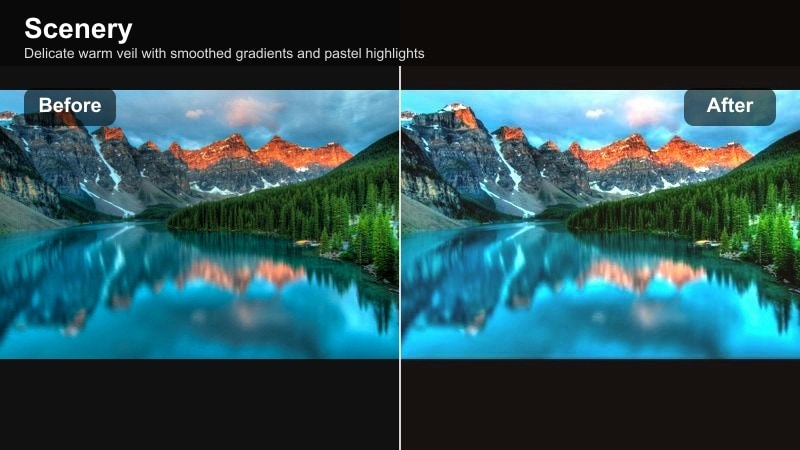
- Effect look: Delicate warm veil with smoothed gradients and pastel highlights
- Best for: Nature shots with clouds, soft-focus landscapes, and romantic scenes
- Editing tip: Reduce saturation in the blues slightly so the warm veil stands out without clashing with the sky.
Sunset Veil Soft creates a gentle warm veil that blends colors together, turning textured clouds into smooth, painterly shapes. Gradients in the sky become cleaner and more pastel, ideal for romantic scenes and soft-focus nature shots where mood matters more than hard detail.
Inside Filmora, use Sunset Veil Soft on cloud-heavy sunsets or hillside vistas, then fine-tune blue saturation to avoid conflicts between warm and cool tones. Keep contrast adjustments subtle so the smooth gradients remain intact and free from banding.
Pro tip: Preserve subtle gradients in the sky
Avoid heavy contrast adjustments after applying Sunset Veil Soft so you do not band the gradients in the sky. If you see banding, use Filmora’s grain or noise tools at a very low level to smooth transitions between colors.
Rich Golden Hour Contrast
Golden Ridge Boost
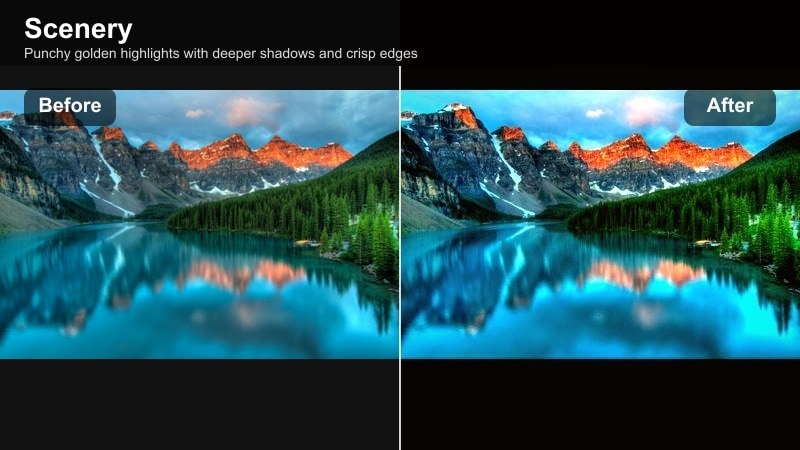
- Effect look: Punchy golden highlights with deeper shadows and crisp edges
- Best for: Mountain ridges, desert dunes, and layered landscapes
- Editing tip: Increase midtone contrast rather than global contrast to keep rich detail in both sky and terrain.
Golden Ridge Boost emphasizes the sculpted look of hills and ridges by deepening shadows while keeping sunlight intense and golden. It adds crisp edge definition and a sense of depth that works especially well on layered landscapes and dramatic terrain.
In Filmora, apply this filter to mountain or desert scenes, then adjust midtone contrast to control how bold the contours appear. Combine it with subtle vignettes and selective brightening in the mid-ground to pull viewers into the scene without losing highlight detail in the sky.
Pro tip: Shape depth with selective darkening
Use vignettes or masks to darken the edges of the frame so viewers’ eyes are drawn toward the brightest golden area. Subtly brighten the mid-ground while leaving the background slightly hazier to enhance a feeling of depth.
Copper Trail Pop
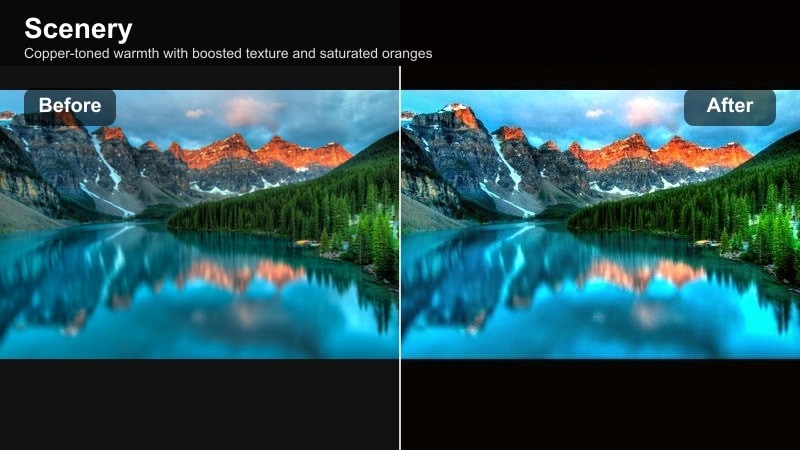
- Effect look: Copper-toned warmth with boosted texture and saturated oranges
- Best for: Hiking paths, city overlooks, and rugged travel shots
- Editing tip: Control orange and red saturation separately so skin tones do not become too intense in the warm light.
Copper Trail Pop turns walking paths and overlooks into bold, high-impact scenes with strong copper highlights and rich texture. It increases saturation in oranges while enhancing details in rocks, foliage, and pathways to make the route through the frame more visually engaging.
Use this filter in Filmora for hiking vlogs or city overlooks where you want the path and surroundings to feel energetic and adventurous. Adjust HSL controls to balance orange and red saturation so skies stay vivid while skin tones remain natural in the warm light.
Pro tip: Guide attention along the trail
Brighten the path slightly more than the surrounding scenery so viewers follow the line of travel through the frame. Use subtle blur or reduced clarity on distant elements to keep focus on the subject and trail.
Sunflare Intense
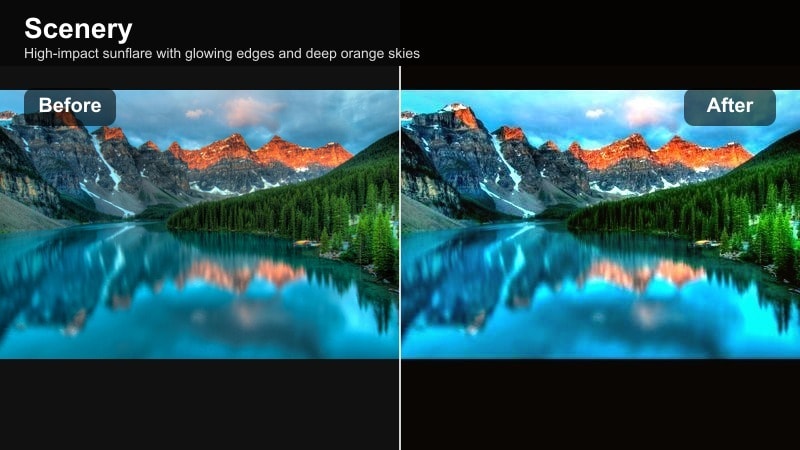
- Effect look: High-impact sunflare with glowing edges and deep orange skies
- Best for: Backlit portraits, skyline silhouettes, and dramatic closing shots
- Editing tip: Slightly lower highlights after applying the filter to recover detail around the sun and avoid clipping.
Sunflare Intense amplifies natural flares and silhouettes, pushing orange skies and glowing edges for maximum drama. It is ideal when you want the sun itself to be a dominant design element in your sunset landscapes or closing shots.
Within Filmora, use this filter on strongly backlit scenes, then pull back highlights to maintain texture around the sun. Combine it with keyframed exposure or opacity changes to build dynamic fade-outs that feel cinematic and intentional.
Pro tip: Control flare for cinematic endings
Place the sun just off-center and frame with foreground elements to create interesting flare shapes. Use Filmora’s keyframing to gradually increase the effect near the end of a clip for a cinematic fade-out.
Orange Sky Drama and Color
Tangerine Horizon
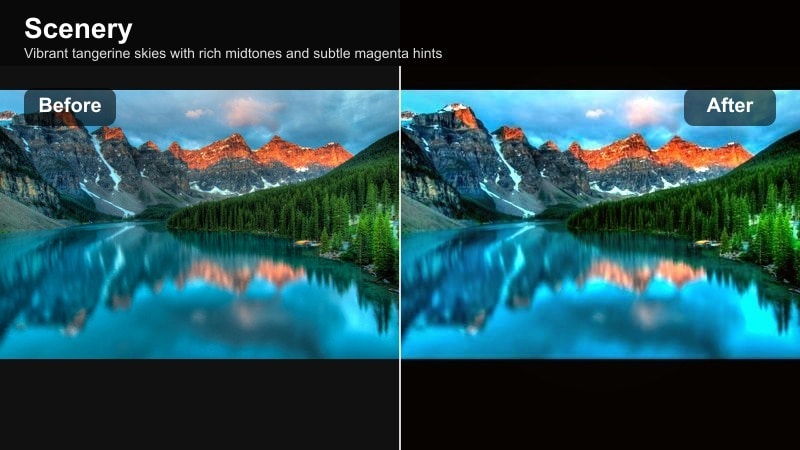
- Effect look: Vibrant tangerine skies with rich midtones and subtle magenta hints
- Best for: Open seascapes, flat horizons, and wide-angle drone shots
- Editing tip: Use a graduated filter to slightly darken the upper sky so the tangerine band near the horizon stands out.
Tangerine Horizon pushes the oranges in the sky for bold, tangerine-colored bands near the horizon while maintaining a filmic balance in the midtones. It is especially striking on open seascapes and wide drone shots where the sky dominates the composition.
In Filmora, pair this filter with wide framing and gentle gradient darkening at the top of the sky so the bright tangerine strip near the horizon becomes the hero. Keep foregrounds simple and darker so the sky carries most of the visual weight.
Pro tip: Pair with wide framing for impact
Shoot and crop wide to give the sky most of the frame, letting the tangerine color dominate the story. Keep the foreground simple and slightly darker so bold sky colors deliver the main visual punch.
Ember Cloud Drift
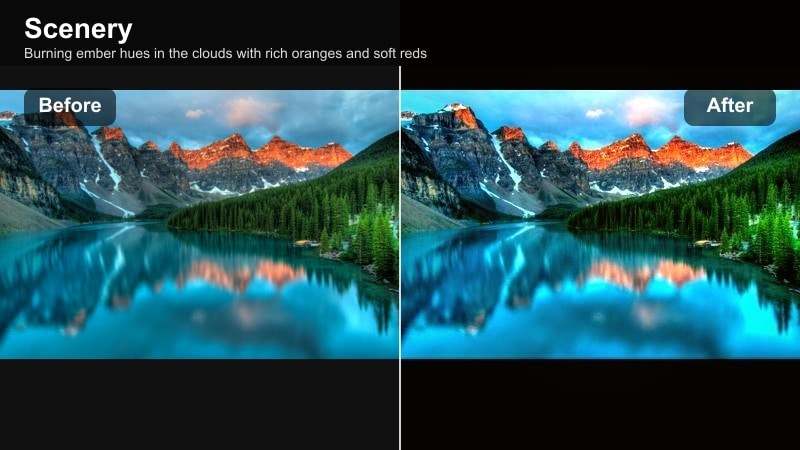
- Effect look: Burning ember hues in the clouds with rich oranges and soft reds
- Best for: Cloud-heavy sunsets, storm clearing shots, and dramatic skies
- Editing tip: Increase local clarity in the clouds but soften overall sharpening to avoid a crunchy, over-processed look.
Ember Cloud Drift intensifies color in cloud shapes, turning them into glowing embers drifting across the sky. It enhances contrast within the clouds, separating bright edges from darker interiors to create a three-dimensional, fiery effect.
Use this filter in Filmora on storm-clearing or cloud-heavy sunsets, then adjust local clarity to sculpt depth in the clouds without making them look over-processed. Subtle vignettes at the top corners can help pull attention toward the brightest ember clusters.
Pro tip: Use contrast to sculpt cloud depth
Adjust highlight and shadow contrast inside the clouds so bright edges pop against darker interiors. Apply subtle vignetting at the top corners to draw attention toward the brightest ember clusters.
Citrus Sky Balance
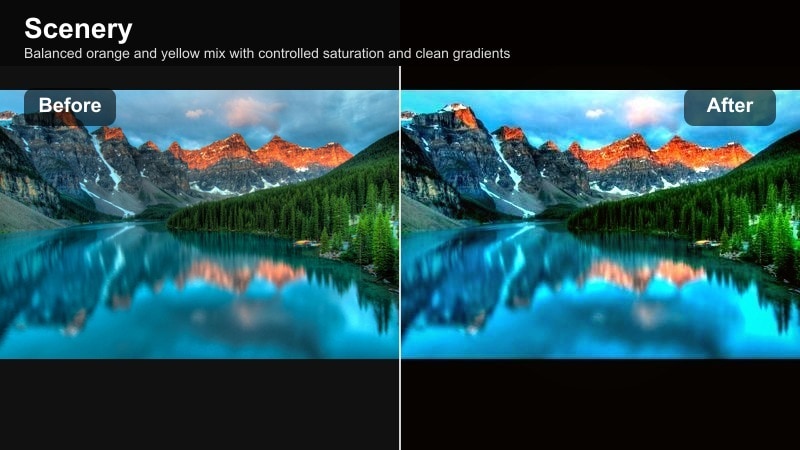
- Effect look: Balanced orange and yellow mix with controlled saturation and clean gradients
- Best for: Everyday travel sunsets, city parks, and casual nature shots
- Editing tip: Fine-tune white balance slightly cooler if the scene starts to feel too heavy or overly warm.
Citrus Sky Balance keeps orange and yellow tones vivid but controlled, ideal for natural-looking golden hour sunsets that still feel colorful. It focuses on clean gradients and moderate saturation so your images remain versatile for both social media and more polished edits.
In Filmora, apply this filter to everyday travel and park scenes, then tweak white balance slightly cooler if the frame starts to look too heavy or intense. Use it when you want warm skies that enhance the scene without overwhelming skin tones or city details.
Pro tip: Keep skin tones clean in orange light
Use HSL controls to slightly reduce orange saturation around faces while leaving the sky strong. If people look too yellow, nudge tint a bit toward magenta to restore a more natural complexion.
Travel Story Warmth and Cohesion
Wander Glow Journal
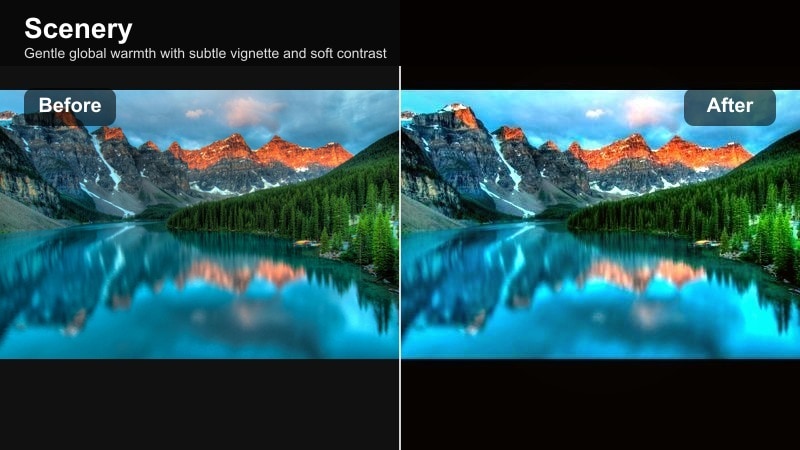
- Effect look: Gentle global warmth with subtle vignette and soft contrast
- Best for: Travel vlogs, day-to-night transitions, and handheld clips
- Editing tip: Apply the filter lightly across multiple clips, then adjust exposure clip by clip for consistency.
Wander Glow Journal adds a gentle global warmth and a light vignette that pulls attention toward the center of the frame. Soft contrast smooths transitions between highlights and shadows, creating a cohesive, journal-like feel across your travel footage.
In Filmora, apply this filter lightly to entire vlog sequences that move from day into dusk, then fine-tune exposure on each clip to keep brightness even. This approach turns a mix of locations and lighting conditions into a seamless visual story.
Pro tip: Match shots for smooth sequences
After applying Wander Glow Journal, compare adjacent clips and match brightness so cuts feel seamless. Use Filmora’s color match tool to quickly align exposure and warmth between different locations.
Rooftop Sunset City
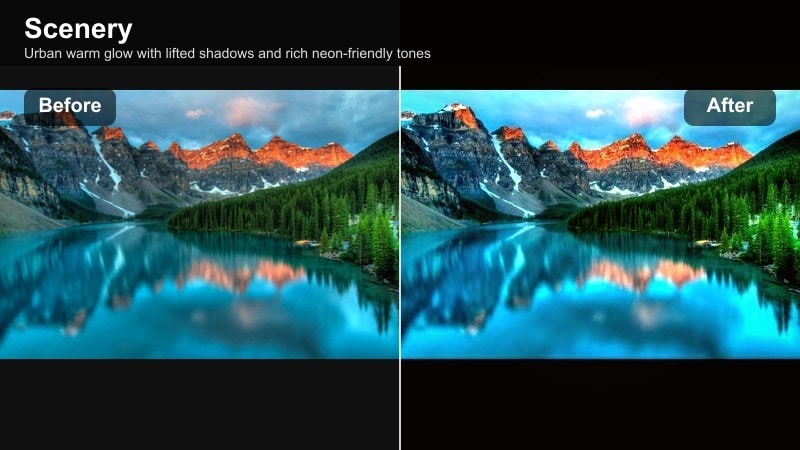
- Effect look: Urban warm glow with lifted shadows and rich neon-friendly tones
- Best for: City skylines, rooftop bars, and street views at dusk
- Editing tip: Protect highlights on building windows with slight highlight reduction to keep detail in bright spots.
Rooftop Sunset City blends warm sunset light with urban detail, lifting shadows so streets and buildings stay visible while the sky glows. It is tuned to work well with both natural light and artificial neon or city lights turning on at dusk.
Use this filter in Filmora for skyline shots, rooftop gatherings, or street scenes at golden hour, then gently reduce highlights to retain details in windows and bright signage. The result is a balanced cityscape where both sky and architecture share the spotlight.
Pro tip: Highlight your main skyline feature
Brighten the main building or landmark slightly so it becomes the visual anchor of the frame. Reduce saturation on less important areas so the warm sky and key structures stand out clearly.
Shoreline Dusk Memoir
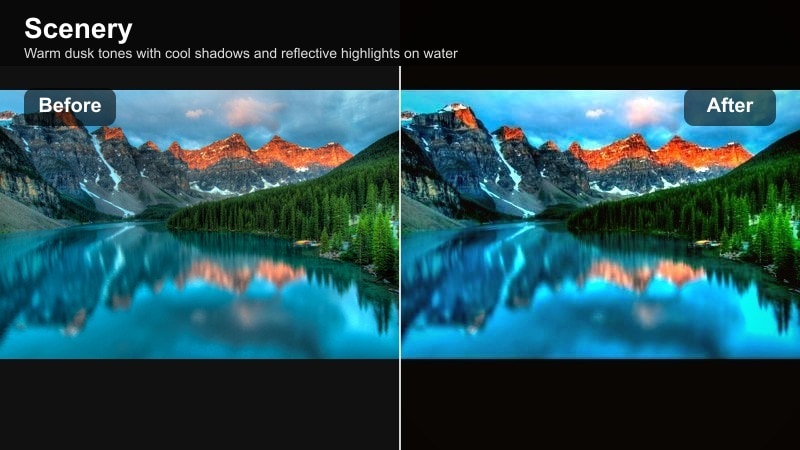
- Effect look: Warm dusk tones with cool shadows and reflective highlights on water
- Best for: Beach walks, pier views, and lakeside reflections
- Editing tip: Increase local contrast on reflections but keep overall contrast soft for a calm, nostalgic feel.
Shoreline Dusk Memoir blends warm skies with cooler, gently rendered shadows, especially in water and foreground elements. Reflections on lakes, seas, and wet sand become more pronounced, giving your dusk scenes a moody, nostalgic character.
In Filmora, apply this filter to shoreline walks, pier views, or lakeside reflections, then increase local contrast in the reflection areas to draw the eye. Keep overall contrast soft so the scene stays calm and reflective rather than harsh.
Pro tip: Emphasize reflections as leading lines
Align your frame so reflected light creates a path that leads from the bottom of the frame to the horizon. Brighten that reflection line slightly so it acts as a visual guide through the image.
Tips for Using Scenery Sunset Warm Filters in Filmora
- Expose slightly darker when shooting sunsets so highlights in the sky stay detailed once you apply warm filters.
- Keep horizons straight and place them either in the top or bottom third of the frame to give your sunset landscapes a clean, balanced composition.
- Avoid pushing saturation too high on oranges and reds; instead, use contrast and clarity to build drama in the sky.
- If your foreground is too dark, use selective brightening rather than raising overall exposure to keep the sky rich.
- Batch apply your favorite sunset landscape filter to a full travel sequence, then fine-tune each clip for smooth transitions.
- Shoot in the 15 to 30 minutes before and after sunset to capture both fiery and soft pastel variations when using warm filters.
The Sunset Landscape Filter: Golden Hour Glow gives travelers and photographers a fast way to turn ordinary dusk scenes into warm, memorable sunset landscapes, with rich oranges, soft highlights, and cohesive color.
Use it as your starting point, then refine contrast, saturation, and local adjustments in Filmora so every skyline, shoreline, and mountain view reflects the exact golden hour mood you want to share.
secure downloadNext: Try the Scenery Teal Filter for Cool Twilight Landscapes
