

 100% Security Verified | No Subscription Required | No Malware


 ChatGPT
 Perplexity
 Gemini
 Claude
 Grok
Grok
This teal landscape filter collection is designed for travel bloggers who want cool, cinematic scenery with deep ocean tones and crisp blue skies. Whether you shoot beaches, lakes, or wide sky shots, these looks help you keep water and clouds punchy while still feeling clean and modern.
Use these presets in Filmora to quickly create a consistent teal and blue style across your travel posts, Reels, and YouTube videos. Each filter below includes the ideal effect look, what scenes it works best for, and a quick editing tip so you can match the vibe of your destination in just a few clicks.
In this article
Coastal Teal Base Filters
Soft Teal Shoreline
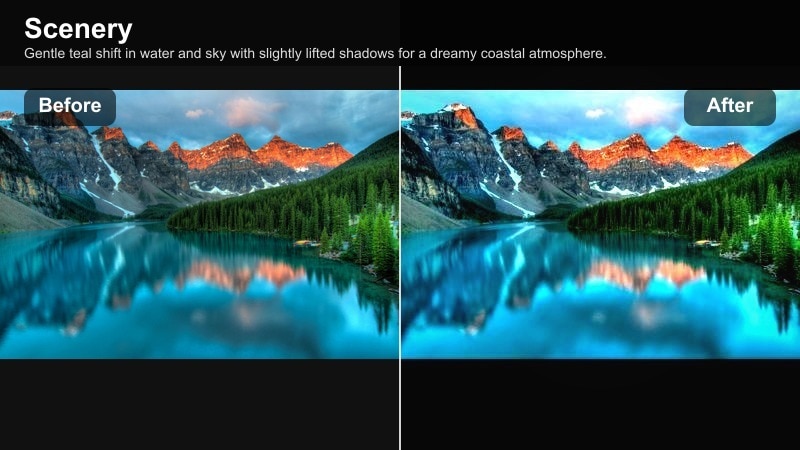
- Effect look: Gentle teal shift in water and sky with slightly lifted shadows for a dreamy coastal atmosphere.
- Best for: Bright beach days, white sand coastlines, and minimalist seaside compositions.
- Editing tip: Lower contrast slightly for hazy travel diary vibes, or increase clarity for sharper sand textures.
Soft Teal Shoreline is a subtle, travel friendly base filter that cools your beaches and horizons without pushing colors into an overly stylized look. In Filmora, it nudges blues and aquas toward teal while lifting shadows, which keeps sand and clouds soft and flattering for lifestyle focused beach content.
Use this filter on static shots of coastlines, walking clips along the shore, or simple B roll of waves lapping at the sand. If you want a dreamy journal feel, drop overall contrast a touch; for more detail oriented vlogs, raise clarity so shell patterns, footprints, and shoreline textures remain crisp while the palette stays cool and consistent.
Dial in Your Signature Teal Palette with Filmora AI
Filmora s AI driven color tools help you refine teal and blue balances in seconds, even if you are new to color grading. Start with a teal landscape filter like Soft Teal Shoreline, then let AI automatically analyze your clip and adjust exposure, white balance, and saturation to suit the lighting of each beach or coastal city.
Once you like the balance between teal water, blue sky, and natural skin tones, save the look as a custom preset so your future trips can instantly match the same travel blog aesthetic. This workflow keeps your feed cohesive without spending hours on manual grading.
Open Filmora, apply a teal landscape filter to a test clip, and let the AI color tools fine tune your ocean and sky tones automatically.
 secure download

See Teal Landscape Filters on Real Travel Clips
To find the teal style that fits your brand, drop a few beach, lake, and sky clips into Filmora and test several filters from this guide. Scrub along the timeline to see how each look reacts when the light changes or when you pan from sand to sky.
Use split screen or comparison view so you can evaluate your original footage alongside the graded versions. This helps you choose whether a soft, lifestyle teal or a deep cinematic ocean tone best matches your travel blog or YouTube channel.
Drag two or three clips to the timeline, apply different teal filters, and use split screen preview to pick the look that fits your brand.
secure download1000+ Video Filters and 3D LUTs
Beyond these teal landscape presets, Filmora includes a large library of filters and 3D LUTs so you can match blockbuster grades, pastel travel vibes, or minimalist documentary looks. You can stack a teal filter with film styles, vignettes, and glow effects to polish your travel videos quickly.
Once you land on a look you love, export it as a LUT and reuse it across future projects or other apps. Organizing your teal LUTs by mood from soft pastel to deep cinematic keeps it simple to adapt the same brand style to new destinations and seasons.
Save your finished teal grade as a LUT and build a small collection of ocean and sky focused looks you can apply to any new travel footage.
secure downloadPro tip: Balance teal water with natural skin
If you are in the frame, use Filmora s HSL controls to pull back teal from the orange range and keep your skin realistic.
Mask the filter more strongly over the water and sky while reducing its strength on your face and outfit for a professional travel look.
Deep Ocean Teal
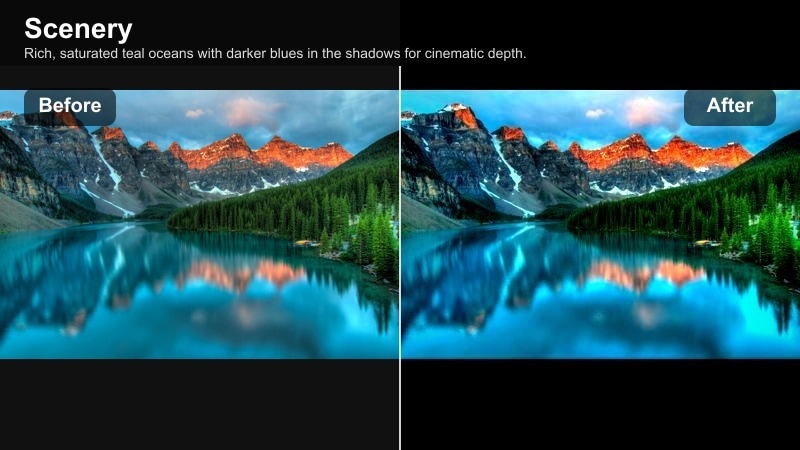
- Effect look: Rich, saturated teal oceans with darker blues in the shadows for cinematic depth.
- Best for: Rocky coasts, dramatic waves, and moody seascapes at golden hour or overcast days.
- Editing tip: Drop exposure slightly and add a small vignette to push attention toward the horizon or subject.
Deep Ocean Teal is designed to give your sea footage that moody, cinematic feel you usually see in trailers and high end travel films. It deepens blues into teal shadows while maintaining detail in the midtones, so rocks, foam, and spray still look sharp and textured.
Apply this filter in Filmora to stormy coasts, cliffside views, and slow motion wave crashes when you want drama. Lower exposure a touch, add a gentle vignette, and your viewers eyes will naturally fall on the subject or brightest part of the horizon, making your B roll sequences feel intentional and filmic.
Pro tip: Use curves to protect highlights
After applying the filter, use the curves tool to gently lower midtones while keeping highlights intact for detail in foam and clouds.
This helps your ocean waves stay textured while still feeling moody and cool toned.
Clear Lagoon Teal
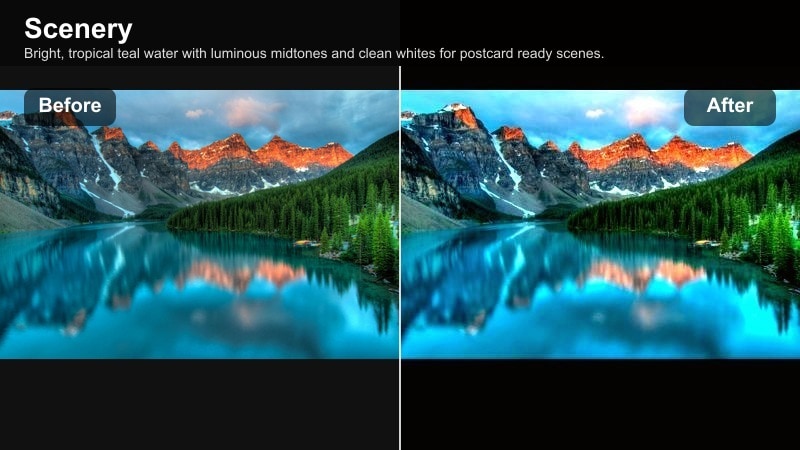
- Effect look: Bright, tropical teal water with luminous midtones and clean whites for postcard ready scenes.
- Best for: Turquoise lagoons, sandbars, and drone shots above shallow water.
- Editing tip: Increase saturation in blues and aquas only to avoid oversaturating sand, rocks, or skin tones.
Clear Lagoon Teal is built for tropical destinations where you want the water to glow without looking fake. In Filmora, it brightens midtones and shifts turquoise into a vivid teal, while keeping whites and highlights clean so boats, sandbars, and shorelines remain crisp.
This filter works especially well with aerial drone footage and overhead shots where the sea floor is visible. Boost the saturation of blues and aquas selectively, and your lagoons will stand out in thumbnails and Reels while sand, piers, and people maintain a natural, relaxed look.
Pro tip: Pair with subtle sharpening
Apply a light sharpening adjustment to bring out ripples, boats, and sand patterns under the water.
Keep radius low so details stay crisp without adding harsh halos around edges.
Sky Focused Teal and Blue Filters
Crisp Blue Sky Teal
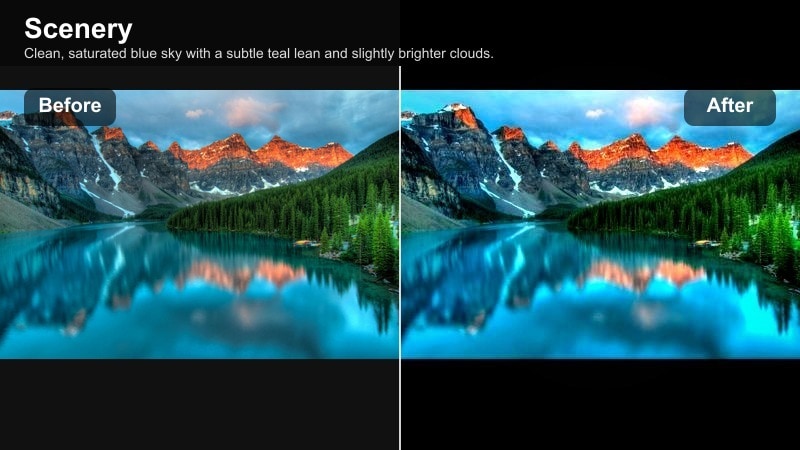
- Effect look: Clean, saturated blue sky with a subtle teal lean and slightly brighter clouds.
- Best for: Wide sky shots, skyline photos, and handheld vlog scenes outdoors.
- Editing tip: Use Filmora masks to keep buildings or people neutral while pushing the teal effect mainly in the sky.
Crisp Blue Sky Teal gives your backgrounds a polished, professional finish by intensifying the sky while preserving natural tones in the rest of the frame. It works well for travel vlogs, walking tours, and city intros where the skyline or horizon line is key to the story.
In Filmora, apply this filter and then use masking to restrict the teal boost to the sky area, leaving buildings, palm trees, or your face close to neutral. This keeps your footage clean and modern, ideal for YouTube intros, hotel walkthroughs, and day in the life travel videos.
Pro tip: Avoid banding in gradients
If sky gradients look banded after adding teal, add a slight film grain or noise layer to smooth transitions.
Export at a higher bitrate when possible so your clean blue gradients hold up on platforms like YouTube and Instagram.
Hazy Pastel Teal Sky
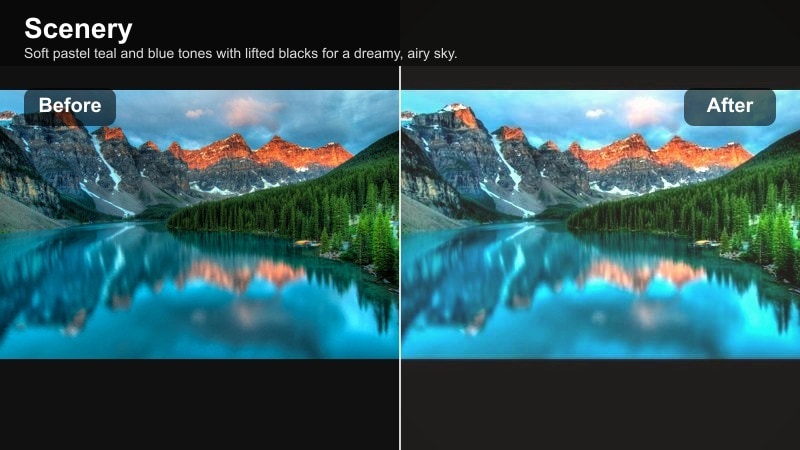
- Effect look: Soft pastel teal and blue tones with lifted blacks for a dreamy, airy sky.
- Best for: Sunset and sunrise clouds, slow travel montages, and minimalist compositions.
- Editing tip: Lower saturation slightly and use warm white balance to keep skin flattering while the sky stays pastel teal.
Hazy Pastel Teal Sky is perfect for romantic sunsets, slow travel montages, and quiet morning walks. It lifts blacks and mutes contrast, turning strong blues into soft teal gradients that look gentle and cinematic rather than bold and punchy.
In Filmora, pair this filter with a slightly warmer white balance so your skin tones do not look too cold against the teal backdrop. This combination is ideal for creators who want a calm, reflective mood for vlogs, timelapses, and B roll of city rooftops or open beaches at golden hour.
Pro tip: Stack with subtle fade
Add a curve fade to the shadows for a film like wash that pairs nicely with the pastel teal palette.
Keep contrast low to maintain the hazy, nostalgic feeling in timelapses and b roll.
Stormy Teal Overcast
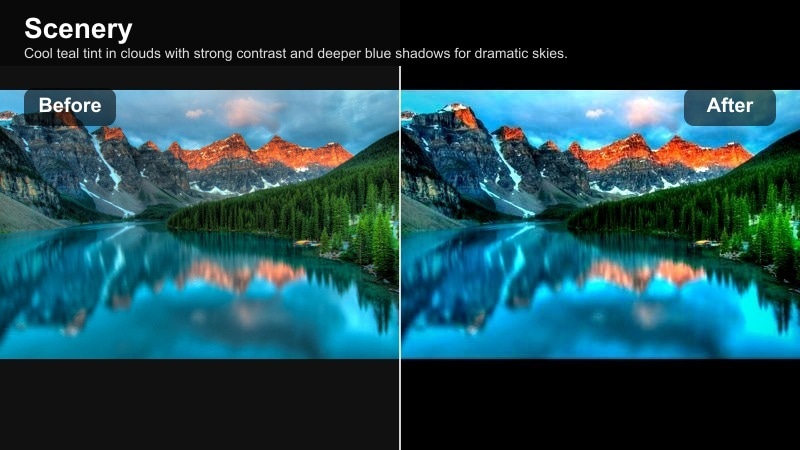
- Effect look: Cool teal tint in clouds with strong contrast and deeper blue shadows for dramatic skies.
- Best for: Stormy seascapes, mountain lakes under clouds, and moody city skylines.
- Editing tip: Increase local contrast or clarity to bring out cloud texture, then reduce saturation in greens if foliage is too neon.
Stormy Teal Overcast turns flat grey clouds into dramatic, cinematic skies with cool teal highlights and deep blue shadows. It is ideal for days when the weather looks dull in camera but you still want visually striking footage for your travel stories.
In Filmora, add this filter to coastal cliffs, mountain valleys, or urban skylines, then raise clarity to emphasize cloud structure and rain streaks. If trees or grass become too intense next to the teal sky, desaturate greens slightly so the viewer stays focused on the stormy atmosphere and your subject.
Pro tip: Use selective vignettes
Place a gentle radial vignette around your brightest cloud or subject to lead the viewer s eye.
Combine with subtle camera motion or slow zooms for emotional travel sequences in your videos.
Teal Looks for Lakes and Rivers
Mirror Lake Teal
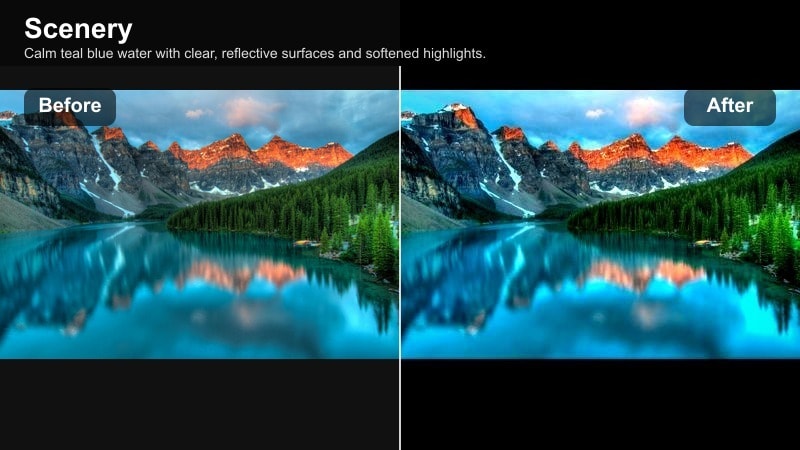
- Effect look: Calm teal blue water with clear, reflective surfaces and softened highlights.
- Best for: Still mountain lakes, sunrise reflections, and dock or cabin scenes.
- Editing tip: Lower highlights slightly to keep reflections from blowing out, then add a touch of warmth to the midtones.
Mirror Lake Teal is tuned for glassy, still waters where reflections are a key part of the composition. It cools the water into a serene teal while slightly softening highlights, helping you retain detail in mirrored mountains, forests, and morning skies.
Use this filter in Filmora on slow pans across alpine lakes, dock shots, and cabin by the water scenes. Lower highlights to protect reflections and nudge midtones a bit warmer so rocks, wooden structures, and skin tones feel inviting against the calm teal surface.
Pro tip: Compose for symmetry
Use centered framing or vertical compositions that emphasize the mirror effect of water reflections.
Apply the filter slightly stronger on the lower half of the frame to deepen teal tones in the reflection.
Forest Lake Cooler
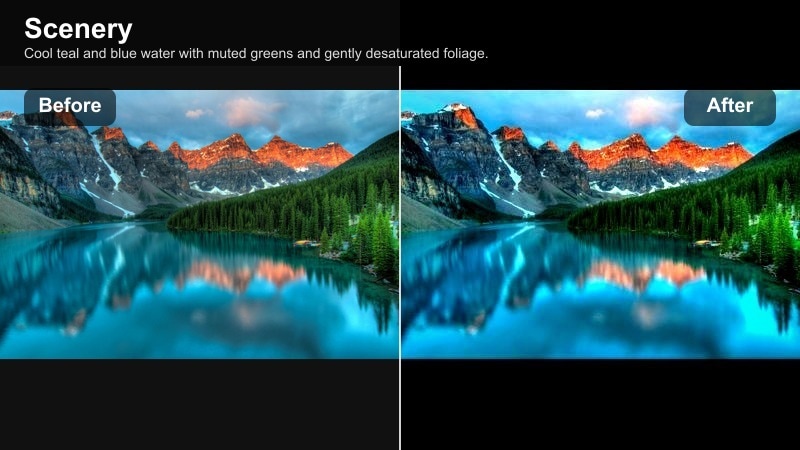
- Effect look: Cool teal and blue water with muted greens and gently desaturated foliage.
- Best for: Tree lined lakes, canoe views, and riverside hiking shots.
- Editing tip: Reduce green saturation slightly and shift toward cyan to keep the whole scene cohesive with teal water.
Forest Lake Cooler creates a cohesive color story between teal water and the surrounding forest. It cools the water into a rich teal while softly muting greens so trees, moss, and shoreline vegetation do not overpower the frame.
In Filmora, apply this look to canoe POV shots, dock views framed by evergreens, or trails that follow a river s edge. Use HSL to pull greens slightly toward cyan, allowing the entire scene to share a cool, cinematic feel that works well for hiking vlogs and nature focused travel episodes.
Pro tip: Guide the eye with color contrast
Let teal water be the most saturated color while trees and rocks stay slightly muted for natural depth.
Place your subject where teal and neutral tones meet to create an easy focal point in thumbnails.
River Current Teal
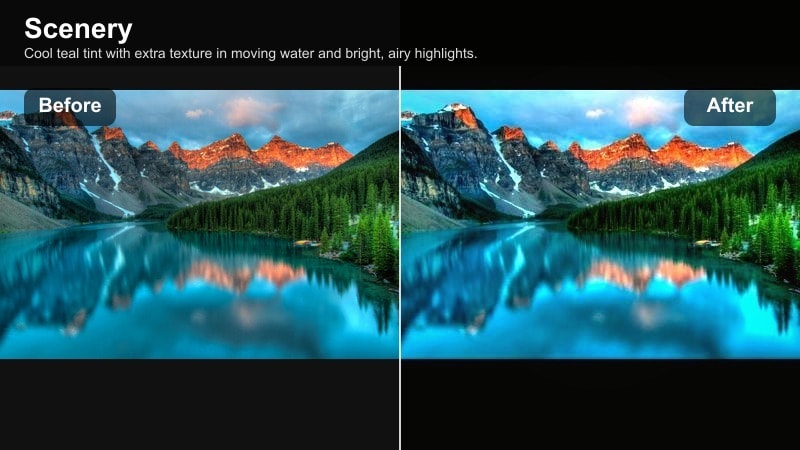
- Effect look: Cool teal tint with extra texture in moving water and bright, airy highlights.
- Best for: Fast rivers, waterfalls, and action shots like kayaking or rafting.
- Editing tip: Use a slightly faster shutter or blend with slow motion clips, then add the filter to highlight motion in the water.
River Current Teal is ideal for energetic, fast moving water scenes where you want motion and freshness to stand out. It adds a cool teal tint and emphasizes ripples and rapids by preserving texture in highlights and midtones.
In Filmora, apply this filter to rafting, canyon rivers, and waterfall B roll, then cut between wide shots and closeups using the same grade for continuity. Pair with slow motion or mixed frame rates so splashes and droplets feel crisp and dynamic against the cool, airy water.
Pro tip: Match teal intensity to motion
For fast water, push teal saturation a bit higher; for slow moving streams, keep it subtle and more pastel.
Cut between wide river shots and close ups using the same filter strength to maintain a consistent visual story.
Cinematic Travel Teal and Blue Styles
Teal Travel Vlog Base
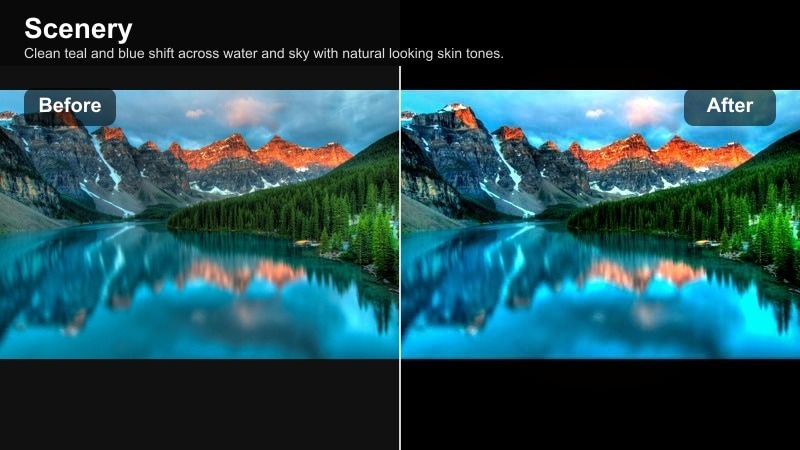
- Effect look: Clean teal and blue shift across water and sky with natural looking skin tones.
- Best for: Talking to camera on beaches, boats, piers, and lakeside promenades.
- Editing tip: Keep strength moderate and adjust white balance to match each location while the teal style stays consistent.
Teal Travel Vlog Base is your everyday workhorse filter for creating a recognizable channel aesthetic. It cools skies and water into a tasteful teal while deliberately protecting skin tones, so you can use it on talking head shots, walk and talks, and handheld updates without looking overly graded.
In Filmora, keep the filter strength moderate and use simple white balance tweaks to adapt it to sunny beaches, cloudy ports, or evening boardwalks. Once you dial in a version you love, save it as a preset so every new upload shares the same signature scenery teal blue style.
Pro tip: Save as a reusable preset
After tweaking the filter to match your channel s style, save it as a custom preset in Filmora.
Apply it as a starting point on every new trip so your audience instantly recognizes your signature teal look.
Cinematic Ocean Teal
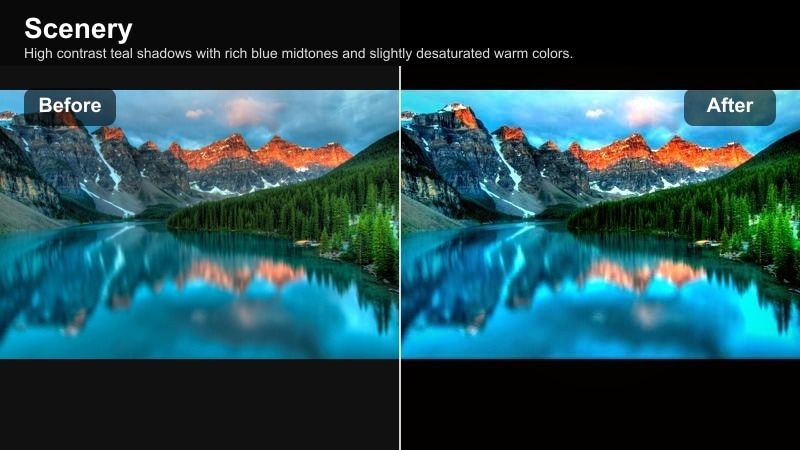
- Effect look: High contrast teal shadows with rich blue midtones and slightly desaturated warm colors.
- Best for: Slow motion waves, drone passes over the sea, and cinematic B roll transitions.
- Editing tip: Add slow push in or pan motions and sync wave hits with music beats for a strong cinematic feel.
Cinematic Ocean Teal is for moments when you want your seascapes to feel like they belong in a feature film. It increases contrast, deepens shadows into teal, and tones down warm colors, creating a dramatic, focused color palette that highlights water and sky.
Use this filter in Filmora on drone flyovers, slow motion wave shots, and transition sequences between locations. Combine it with gentle camera moves or keyframed zooms, and match wave impacts or shoreline reveals to the beat of your soundtrack for maximum cinematic impact.
Pro tip: Use LUT style layering
Stack this filter with a gentle contrast curve that lifts midtones while preserving rich shadows.
Export a short test clip and check it on both mobile and desktop to be sure the teal depth looks good everywhere.
Pastel Coastline Teal
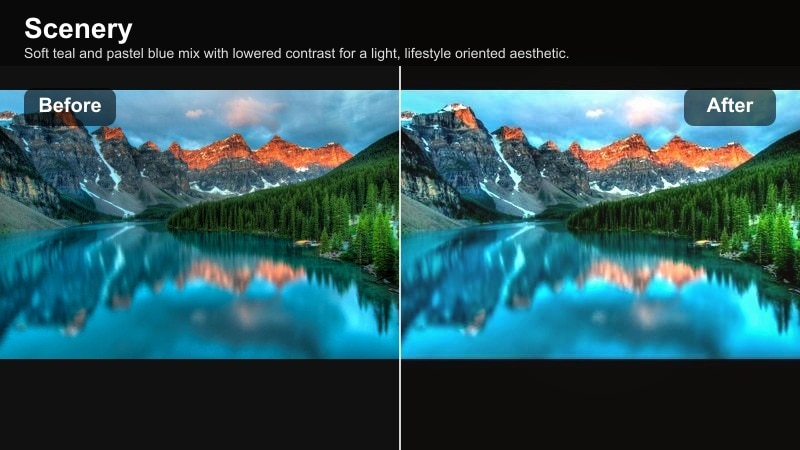
- Effect look: Soft teal and pastel blue mix with lowered contrast for a light, lifestyle oriented aesthetic.
- Best for: Beach cafes, piers, coastal towns, and everyday travel content near water.
- Editing tip: Blend the filter at lower opacity on clips with lots of people or busy streets so colors stay gentle and approachable.
Pastel Coastline Teal is aimed at lifestyle travel creators who want their coastal towns and cafe scenes to feel bright and inviting. It softens contrast and mixes teal with pastel blue, giving the water and sky a light, airy look that flatters architecture, outfits, and food shots.
In Filmora, apply this filter at full strength to simple seascapes, and at slightly lower opacity to crowded markets, promenades, or street scenes. This keeps people and storefronts soft and approachable while still tying every clip together with the same pastel teal coastline vibe.
Pro tip: Create Instagram ready sets
Apply this same pastel teal tone across both video and photos to build a cohesive grid on Instagram.
Keep exposure slightly bright and use gentle fades so the entire feed feels light and inviting.
Tips for Using Scenery Teal Blue Filters in Filmora
- Shoot slightly flatter in camera so Filmora s teal landscape filters have more room to shape your colors.
- Keep an eye on skin tones and use HSL to protect oranges while you push teal in water and sky.
- Match white balance between clips before applying teal filters for a smoother, more professional travel edit.
- Export a short test sequence and check it on your phone to be sure teal and blue tones do not look oversaturated.
- Create separate presets for sunny, cloudy, and golden hour scenes so your teal look stays consistent in every condition.
- Use masks and gradients to apply stronger teal shifts only to water and sky while keeping foreground elements neutral.
- Combine teal filters with subtle vignettes and grain to add depth and texture without overpowering your footage.
Teal landscape filters are a fast way to give your travel blog or channel a recognizable visual identity, especially when your stories are built around beaches, lakes, and wide open skies.
Experiment with a few of these Filmora filters, save your favorites as presets or LUTs, and you will be able to keep ocean and sky tones cohesive from one trip to the next with minimal editing time.
secure downloadNext: Next: Pastel Scenery Filters for Soft Travel Aesthetics
