

 100% Security Verified | No Subscription Required | No Malware

This vintage landscape filter pack is designed for photographers who love nostalgic scenery with soft fades, muted tones, and a classic film atmosphere. It transforms modern digital shots into retro travel postcards while keeping details crisp and natural.
Whether you are capturing mountain ranges at golden hour or quiet lakeside views, these filters give your footage a Kodak-inspired, cinematic finish. Use them in Filmora to quickly dial in a faded nature look that feels timeless and cohesive across an entire travel project.
In this article
Soft Faded Scenic Film Looks
Warm Pastel Haze
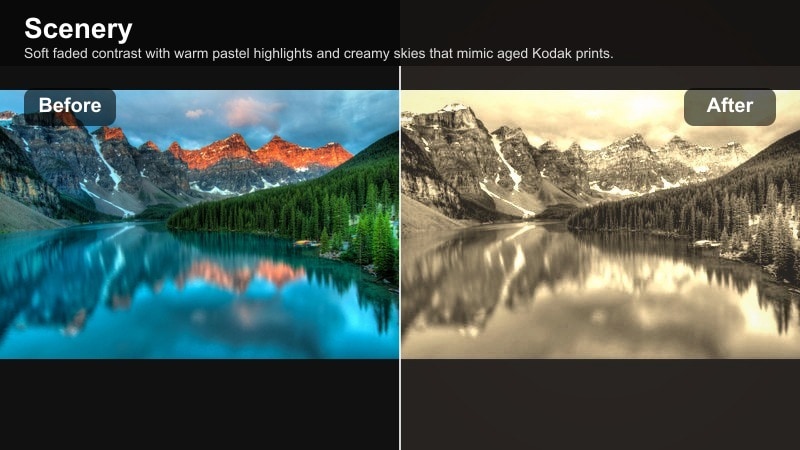
- Effect look: Soft faded contrast with warm pastel highlights and creamy skies that mimic aged Kodak prints.
- Best for: Sunset coastal scenery, pastel city skylines, and retro travel montages where warmth is key.
- Editing tip: Lower overall contrast slightly in Filmora, then raise vibrance just a touch to keep the sky gentle but not washed out.
Warm Pastel Haze wraps your landscapes in a dreamy, postcard-style glow, softening harsh digital contrast while preserving important scenic details. Creamy skies and warm pastel highlights echo aged film prints, giving modern travel clips an instant sense of nostalgia without heavy color distortion.
In Filmora, apply this filter to coastal sunsets, pastel city skylines, or any warm-hour travel footage you want to feel cinematic and gentle. Fine-tune contrast and vibrance as suggested, then adjust exposure per clip so the warm haze stays consistent across your entire sequence.
Pro tip: Balance warmth with subtle shadows
After applying Warm Pastel Haze, bring down shadows slightly to keep foreground details from looking too flat in bright landscapes.
Use a vignette at very low strength to gently guide attention toward the horizon without making the image look obviously edited.
Match Vintage Landscapes with AI-Powered Color Control
Filmora s color tools make it easy to fine-tune each vintage landscape filter so it fits your unique scenery and camera profile. Subtle adjustments to temperature, tint, and saturation help you quickly dial in the exact retro travel mood you want.
Use AI-driven color features to balance skies, foliage, and skin tones across multiple clips, so your entire travel story feels like it was shot on the same classic film stock.
 secure download

Preview Vintage Landscape Filters on Real Scenery
Test these vintage landscape presets on sample clips to see how they respond to different lighting conditions, from golden hour mountains to cloudy coastal towns.
Watching before and after comparisons helps you choose the right faded nature filter for each scene, saving time in your editing workflow.
secure downloadCombine Filters and LUTs for a Deeper Film Look
For photographers working in video, stacking filters with LUTs can push your landscapes even closer to a true analog film aesthetic. Apply a soft vintage filter first, then add a subtle LUT for nuanced color shifts.
Keep intensity low on both layers so your image does not look over-processed; the goal is a cohesive, cinematic grade that still feels natural.
secure downloadDusty Sunrise Mist
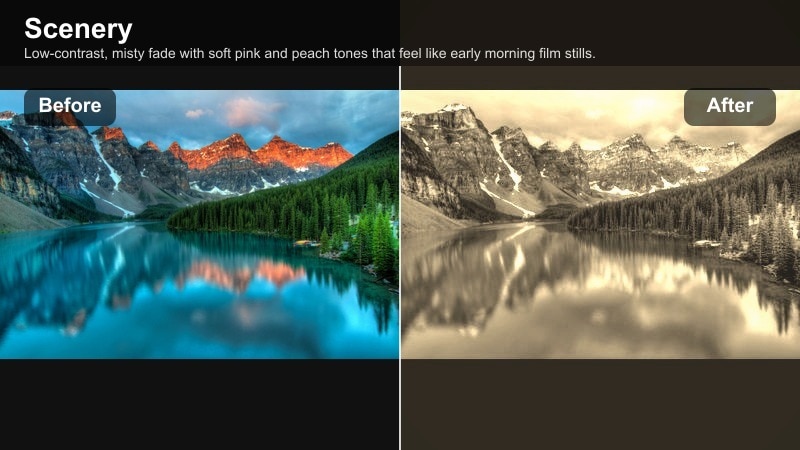
- Effect look: Low-contrast, misty fade with soft pink and peach tones that feel like early morning film stills.
- Best for: Mountain sunrises, foggy valleys, and quiet rural paths during blue hour or first light.
- Editing tip: Slightly reduce clarity for distant elements while keeping foreground sharp to enhance depth in hazy scenes.
Dusty Sunrise Mist bathes your landscapes in early-morning softness, using gentle pink and peach tones to recreate the mood of film shot at first light. The low-contrast treatment works especially well with rolling hills, fog banks, and layered mountain ranges.
In Filmora, use this filter on sunrise timelapses or slow pans over misty terrain, then selectively dial down clarity in the background to increase a sense of distance. Sharpen or enhance detail in the foreground so your main subject does not get lost in the dreamy haze.
Pro tip: Preserve texture in the foreground
Use Filmora s sharpening controls carefully on foreground rocks or grass so they stand out against the faded background.
If the sky looks too flat, add a subtle gradient mask to recover a bit of highlight detail without losing the vintage vibe.
Soft Linen Plate
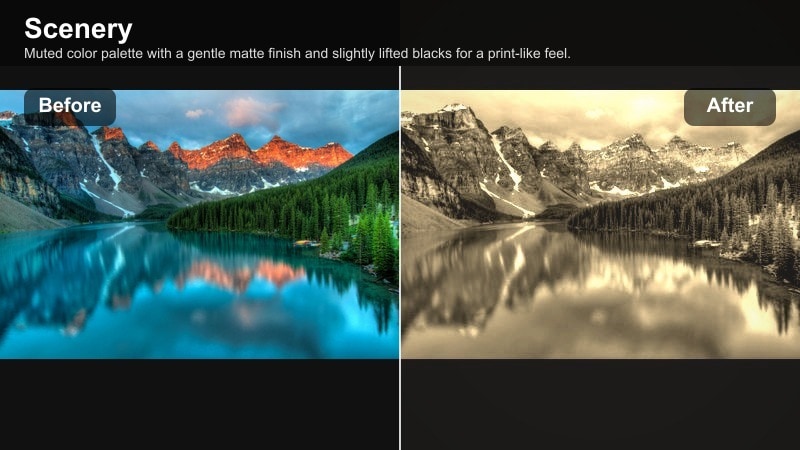
- Effect look: Muted color palette with a gentle matte finish and slightly lifted blacks for a print-like feel.
- Best for: Countryside fields, forest paths, and quiet lakes where subtle vintage mood is preferred.
- Editing tip: Use the tone curve in Filmora to add a mild S-curve while keeping the lifted black point intact for a classic film plate look.
Soft Linen Plate gives your landscapes a calm, tactile character, similar to viewing them on soft, linen-textured prints. Colors are dialed back just enough to feel timeless while lifted blacks and a matte finish smooth out harsh contrast from modern sensors.
Inside Filmora, apply this look to countryside scenes, forest walks, and lakeside views whenever you want a quiet, editorial-style grade. Copy the tone curve settings between clips, then adjust only exposure, so your entire travel chapter shares the same gentle film plate mood.
Pro tip: Match multiple clips with one curve
Copy the tone curve from one well-balanced clip and paste it onto similar shots to maintain a consistent vintage plate style.
Adjust only exposure shot by shot, leaving color and contrast mostly unchanged for a cohesive travel sequence.
Retro Kodak-Inspired Scenic Filters
Kodak Roadtrip Gold
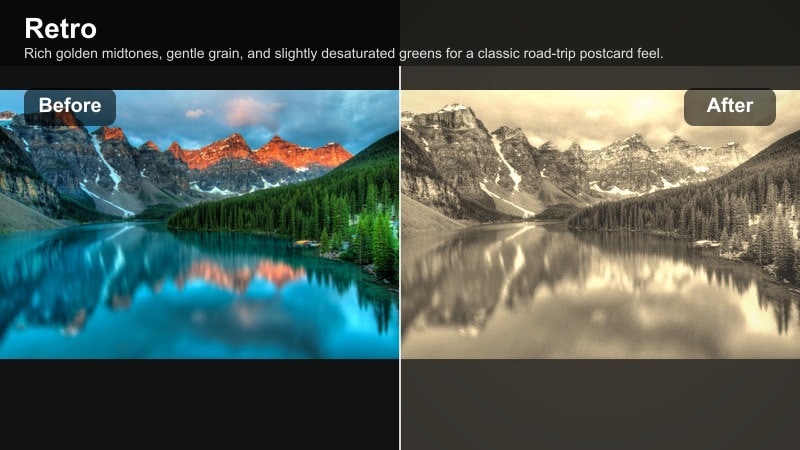
- Effect look: Rich golden midtones, gentle grain, and slightly desaturated greens for a classic road-trip postcard feel.
- Best for: Highway travel shots, desert landscapes, and sun-baked towns along a road journey.
- Editing tip: Add a touch of Filmora film grain at low strength to enhance the analog feel without overpowering fine details.
Kodak Roadtrip Gold evokes sun-soaked film from classic car journeys, emphasizing golden midtones and restrained greens. The result is a warm, travel-diary mood that flatters desert roads, wide open highways, and dusty roadside towns.
In Filmora, layer this filter on your driving shots, drone passes over desert terrain, or travel montages between locations. Introduce a light grain overlay to complete the analog illusion, and keep white balance slightly warm but believable so skies and skin still feel natural.
Pro tip: Use consistent white balance on the road
Lock in a warm but neutral white balance before applying the filter so sky and pavement tones stay believable across clips.
If roadside greenery turns too yellow, slightly reduce saturation in the yellow channel while keeping warm mids for skin and sand.
Color Print 72
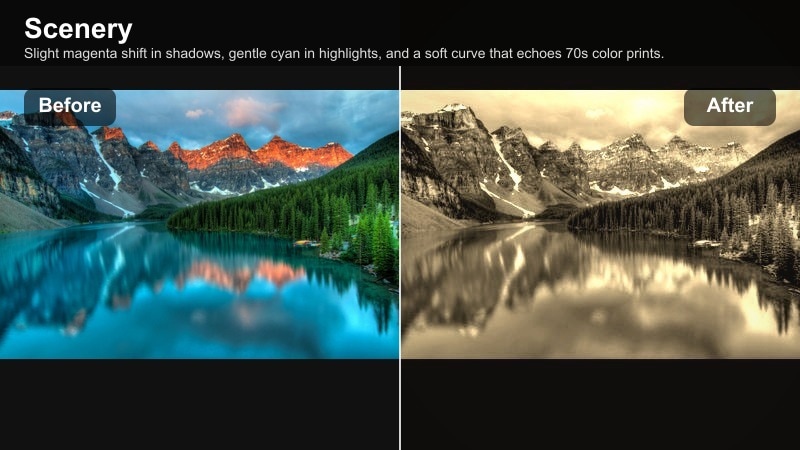
- Effect look: Slight magenta shift in shadows, gentle cyan in highlights, and a soft curve that echoes 70s color prints.
- Best for: Vintage cityscapes, seaside promenades, and classic architecture in bright daylight.
- Editing tip: Fine-tune the tint slider after applying the filter to balance skin tones if people appear in your scenic shots.
Color Print 72 brings a subtle 1970s character to your scenery, using magenta shadows and cyan-tinted highlights reminiscent of aging color lab prints. The effect works beautifully in bright city scenes, promenades, and historic architecture under strong daylight.
Apply it in Filmora to create a consistent retro city chapter, then refine tint and saturation so skin tones remain flattering when people walk through the frame. Slightly deepening blacks can add punch while still retaining the vintage color shifts.
Pro tip: Protect whites and deep blacks
If whites pick up too much color, slightly reduce saturation in the highlights using Filmora s color controls.
For deeper film-style contrast, darken the blacks a little while keeping the magenta shift subtle, avoiding color clipping.
Travel Chrome Soft
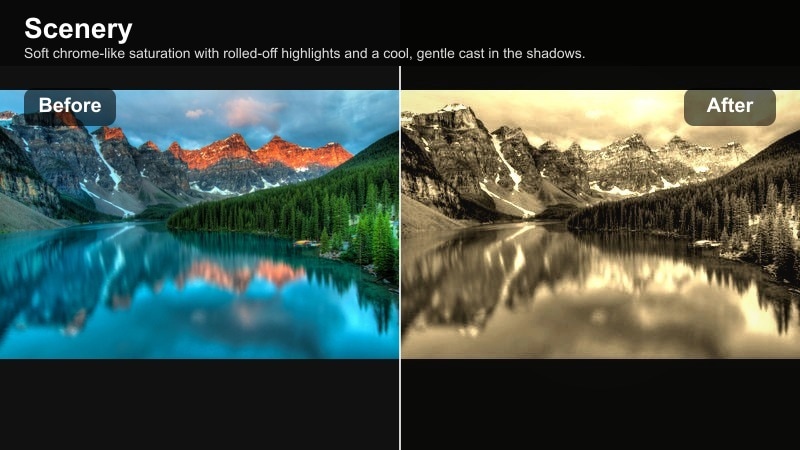
- Effect look: Soft chrome-like saturation with rolled-off highlights and a cool, gentle cast in the shadows.
- Best for: Mountain lakes, alpine villages, and bright, reflective scenery with lots of sky or water.
- Editing tip: Reduce highlights slightly to maintain cloud detail and use a subtle vignette to keep attention on the mid-frame subject.
Travel Chrome Soft channels slide-film inspiration while keeping saturation controlled and highlights smooth. It is ideal for reflective environments like lakes and snowy peaks where strong sun can easily clip clouds and water texture.
In Filmora, lower highlights and add a gentle vignette after applying this filter so viewers focus on your central subject, such as a cabin or hiker. Use HSL adjustments to tame overly bright blues, keeping the overall palette cool, refined, and cinematic.
Pro tip: Control blue saturation in skies
If skies start to look too intense, pull back blue saturation slightly to maintain a relaxed film look.
Use Filmora s HSL controls to keep water tonality close to the sky so your landscape feels naturally cohesive.
Cinematic Faded Nature Filters
Forest Cinema Fade
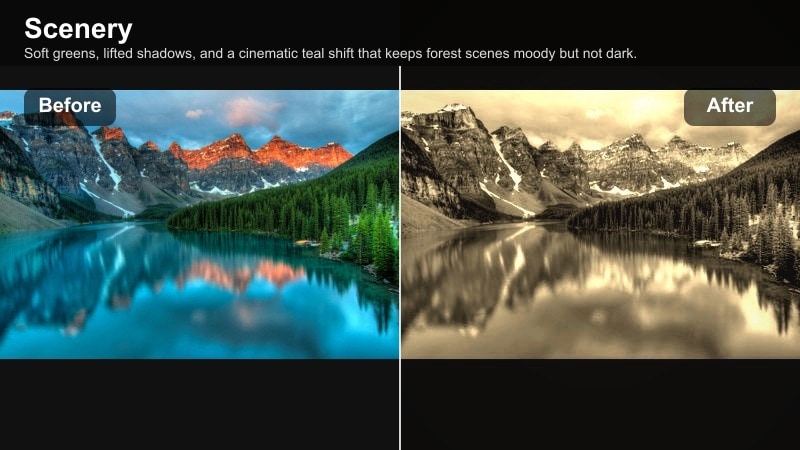
- Effect look: Soft greens, lifted shadows, and a cinematic teal shift that keeps forest scenes moody but not dark.
- Best for: Dense forests, hiking trails, and moody woodland travel sequences shot under overcast light.
- Editing tip: Lower midtone contrast slightly and add a small amount of local sharpening to leaves and branches to keep texture visible.
Forest Cinema Fade infuses woodland footage with a teal-tinted, cinematic mood while keeping shadows lifted enough to show detail. Softened greens help reduce harsh color noise and create a more polished, story-driven look.
Inside Filmora, use this filter on hiking trails, drone passes over forests, or static tripod shots under cloud cover. Reduce midtone contrast, sharpen selectively, and adjust teal intensity so foliage feels stylized yet believable, especially when people are part of the scene.
Pro tip: Keep skin tones natural in forest scenes
If people appear in your forest shots, use targeted skin-tone adjustments to remove excess teal from faces.
Balance the overall warmth slider so that foliage stays stylized while skin looks believable and flattering.
Meadow Dream Wash
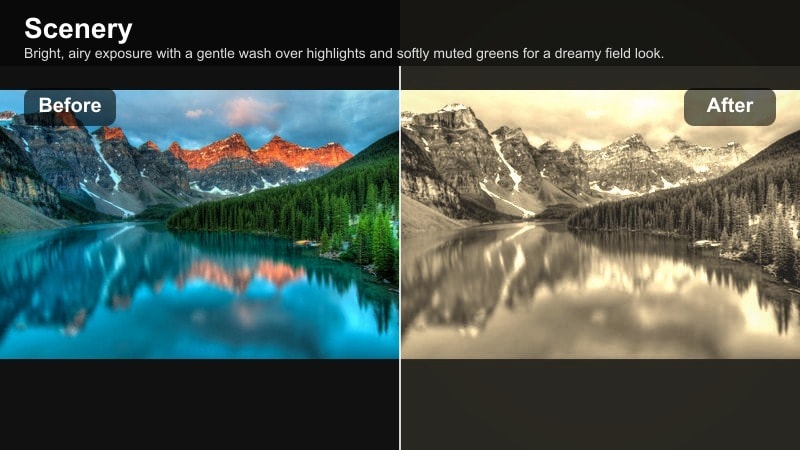
- Effect look: Bright, airy exposure with a gentle wash over highlights and softly muted greens for a dreamy field look.
- Best for: Wildflower meadows, hillside farms, and open fields during late afternoon light.
- Editing tip: Use Filmora s exposure slider sparingly and rely more on highlight control to keep clouds from blowing out.
Meadow Dream Wash is made for open, sunlit fields, adding luminous highlights and muted greens that feel like a daydream. It lifts overall brightness while retaining just enough detail so your scenery does not appear overexposed.
In Filmora, combine this filter with careful highlight management whenever you are editing wildflowers, rolling hills, or pastoral farm scenes. Add a gentle radial light on your subject to simulate sun, and keep saturation modest for an elegant, nostalgic finish.
Pro tip: Guide the eye with subtle light
Add a soft radial exposure boost over your main subject to mimic natural sunlight hitting that area.
Avoid over-whitening the sky; keep a hint of texture to maintain the film-like realism of the scene.
Coastal Fade Reel
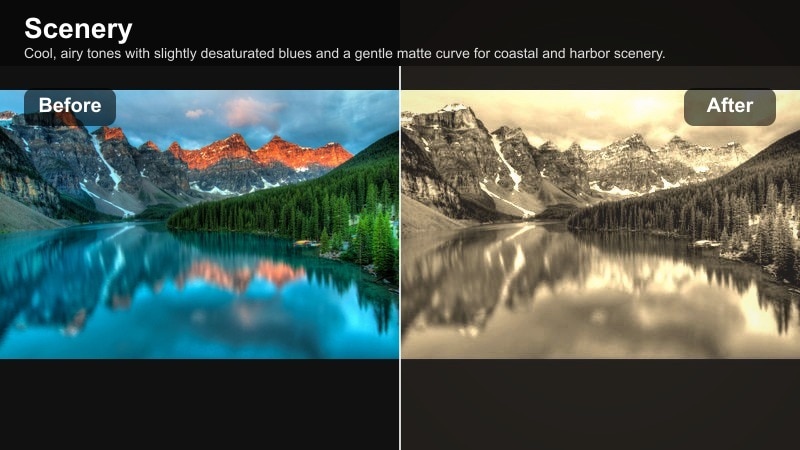
- Effect look: Cool, airy tones with slightly desaturated blues and a gentle matte curve for coastal and harbor scenery.
- Best for: Beaches, piers, seaside cliffs, and harbor cities with lots of open sky.
- Editing tip: Balance temperature so sand stays neutral while water retains a soft cinematic blue rather than bright cyan.
Coastal Fade Reel cools and softens seascapes, dialing back blue saturation and applying a matte curve that suits breezy shoreline scenes. The combination creates an easygoing, cinematic mood that flatters beaches, cliffs, and ports.
Use it in Filmora on wide establishing shots of coastlines or harbor cities, then adjust white balance so sand remains neutral while water keeps a deep, relaxed blue. Fine-tune midtone contrast if the scene feels too flat, but keep the overall fade for that filmic wash.
Pro tip: Unify sky and sea color
Use HSL controls to nudge aqua toward blue so the sea and sky sit in the same color family.
If the scene feels too flat, increase local contrast only in midtones to keep the film fade without losing depth.
Retro Travel Story Filters for Landscapes
Postcard Journey Fade
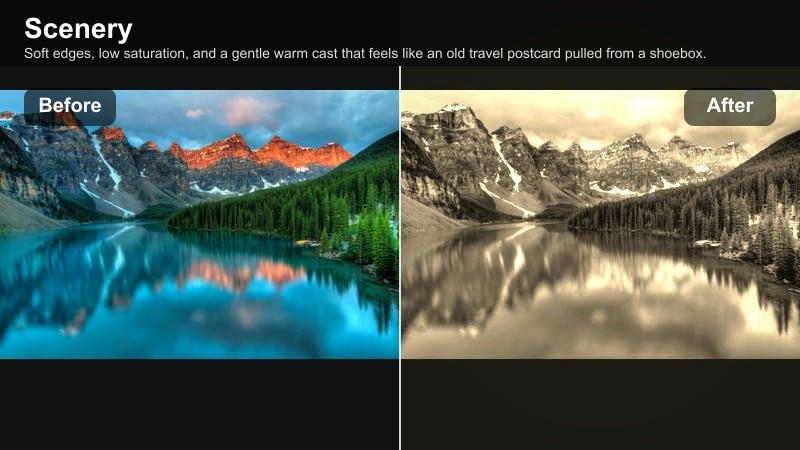
- Effect look: Soft edges, low saturation, and a gentle warm cast that feels like an old travel postcard pulled from a shoebox.
- Best for: City viewpoints, iconic landmarks, and overview shots that introduce a new travel location.
- Editing tip: Combine with a small Filmora vignette and a slightly warmer white balance to enhance the postcard nostalgia.
Postcard Journey Fade is tailored for those classic establishing views that define a city or region. Reduced saturation, softened edges, and warm toning create the impression of a well-traveled print that has faded gracefully over time.
Apply it in Filmora to your opening and closing shots around major landmarks and skyline vistas. Add a subtle vignette and gently warm the white balance so the entire frame feels inviting and nostalgic, setting the tone for the rest of your travel story.
Pro tip: Start and end your story with one look
Use Postcard Journey Fade for opening and closing shots to give your travel video a clear visual frame.
Keep mid-sequence filters in the same family of warmth and contrast so the project feels intentionally graded.
Railway Memory Film
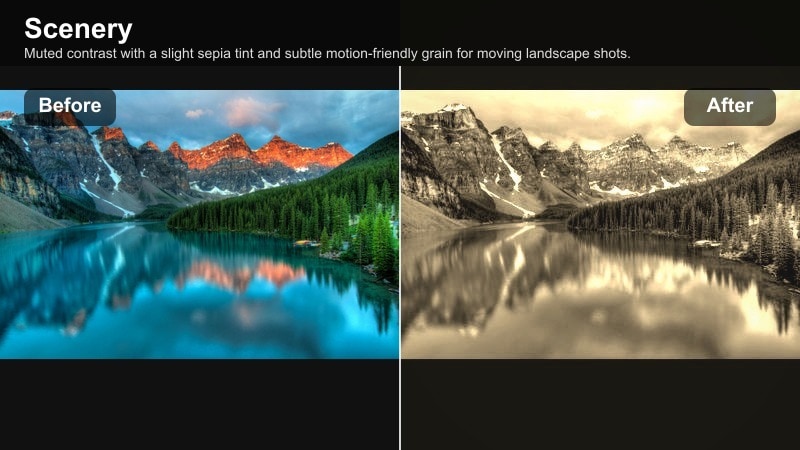
- Effect look: Muted contrast with a slight sepia tint and subtle motion-friendly grain for moving landscape shots.
- Best for: Train window views, slow car rides, and any moving landscape captured from a vehicle.
- Editing tip: Use Filmora s stabilization if needed, then apply the filter so the grain and fade sit on top of already smooth motion.
Railway Memory Film recreates the feeling of watching the world glide by from a train window, using a sepia-leaning tone and gentle grain. Lower contrast keeps fast-moving scenery from looking too sharp or digital, helping motion feel organic.
In Filmora, stabilize your clips first, then add this filter so the grain structure stays consistent across the frame. Use it on long travel transitions, passing countryside, or city outskirts glimpsed through glass for a cohesive analog travel diary effect.
Pro tip: Let motion sell the nostalgia
Keep shutter speed natural so motion blur looks organic and works with the film grain instead of against it.
Consider adding a very light film burn transition between clips to reinforce the analog travel diary feeling.
Old Town Sun Fade
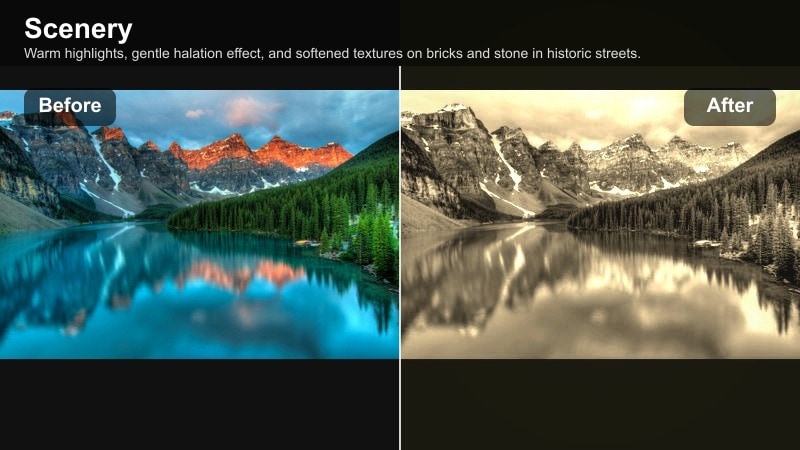
- Effect look: Warm highlights, gentle halation effect, and softened textures on bricks and stone in historic streets.
- Best for: Historic town centers, cobblestone streets, and plazas during golden hour or late afternoon.
- Editing tip: Slightly reduce clarity in the background only, keeping your main subject sharp for a filmic depth cue.
Old Town Sun Fade is designed for heritage streets and plazas, adding warm, glowing highlights and subtle halation around bright areas. Softened textures on brick and stone reinforce the sense of age, making historic locations feel even more timeless.
Use this filter in Filmora when you are walking through old towns at golden hour or exploring ancient alleyways. Reduce background clarity to push focus onto your subject, and tweak orange saturation so both skin and stone surfaces keep a natural but nostalgic color.
Pro tip: Protect skin and stone at the same time
If people walk through your frame, check that the warm highlights do not over-orange skin; adjust saturation in the orange range if needed.
For stone detail, bring texture up very slightly while keeping overall contrast low to maintain a gentle, aged appearance.
Tips for Using Scenery Vintage Faded Filters in Filmora
- Shoot slightly flatter in-camera so your vintage landscape filters have more room to shape contrast and color without clipping highlights.
- Bracket important scenic shots when possible; you can choose the exposure that responds best to your chosen faded filter in Filmora.
- Avoid over-sharpening; classic film-inspired looks benefit from a softer edge that feels more natural and nostalgic.
- Keep horizons straight before grading so the viewer can focus on the color and mood rather than perspective distractions.
- Batch-sync your favorite vintage filter settings across similar clips to maintain a consistent travel story aesthetic.
Vintage landscape filters are a fast, reliable way to turn ordinary scenic shots into retro travel memories with character and mood. By choosing a faded nature filter that fits your lighting and scenery, you can create a unified visual style that feels timeless and cinematic.
Experiment with different presets, minor color tweaks, and subtle grain inside Filmora until you find a classic film look that matches your personal travel brand, then reuse it as your go-to scenery vintage faded style for future projects.
secure download