

 100% Security Verified | No Subscription Required | No Malware

Soft gradient color video filters create a smooth, cinematic blend between tones so your footage looks polished, dreamy, and cohesive without heavy color grading skills.
These Filmora-ready presets are designed for content creators who want subtle pastel shifts, gentle sky blends, and stylish color transitions that keep skin tones natural while giving every scene a unique mood.
In this article
Soft Gradients for Golden Hour and Warm Evenings
Sunset Veil Soft Gradient
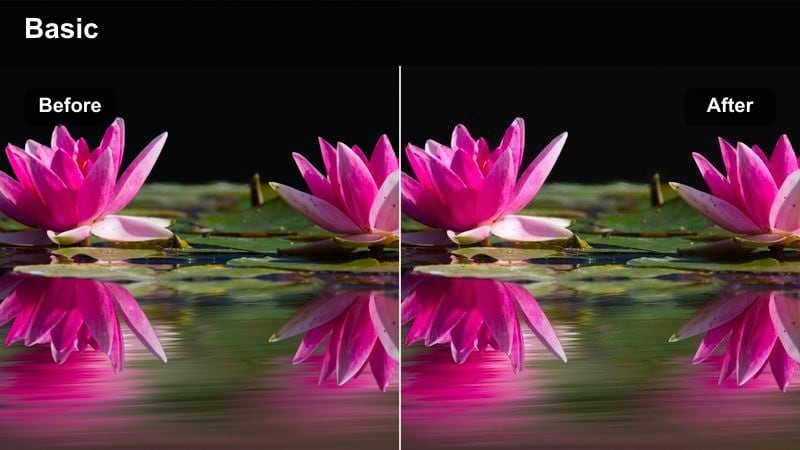
- Effect look: Warm peach and soft pink blend gently into muted orange highlights for a velvety sunset wash across the frame.
- Best for: Golden hour vlogs, outdoor portraits, and lifestyle reels shot near windows or city rooftops.
- Editing tip: Lower the filter intensity to around 60 percent and slightly boost shadows to preserve detail in darker areas.
Sunset Veil Soft Gradient wraps your footage in a warm pastel glow that feels like the last light of the day stretching across the scene. In Filmora, this filter helps smooth transitions between sky and subject so your highlights stay gentle while midtones gain a flattering warmth.
Apply it to rooftop shots, city lookbooks, or window-lit reels, then fine-tune intensity in the Effects panel to keep the gradient believable. Combine it with Filmora tools like vignettes and subtle sharpening on your subject, and adjust color wheels to prevent skin from becoming overly orange while the sky remains softly cinematic.
Use AI Tools to Match Soft Gradients Across Clips
Once you pick a favorite soft gradient color video filter, you can use Filmora s AI-driven tools to keep your look consistent across an entire edit. Apply your chosen gradient to one hero clip, then let AI handle exposure and tone matching on the rest.
Auto color matching and AI-based enhancements help you balance white balance and contrast so your gradients flow smoothly from shot to shot, even if they were filmed in slightly different lighting conditions.
 secure download

Preview Soft Gradient Filters in Real Scenes
Before committing to a full project, test each soft gradient color video filter on a short sample clip like your standard vlog intro or a quick city walk. Viewing gradients on familiar footage makes it easier to judge how they affect your channel s usual look.
Compare how warm, cool, and pastel gradients treat skin tones, skies, and interiors by toggling filter visibility on and off in Filmora s timeline. This helps you quickly pick the most cinematic, natural-looking option for your style.
secure downloadBlend Filters with High Dynamic Color LUTs
For more advanced color control, you can stack a soft gradient color video filter with a light LUT in Filmora. The gradient shapes your overall mood, while the LUT fine-tunes contrast, saturation, and dynamic range.
Start by lowering gradient intensity so it feels natural, then add a subtle LUT from Filmora s library. Adjust the effect order and strength until both elements work together instead of overpowering your original footage.
secure downloadEmber Horizon Fade
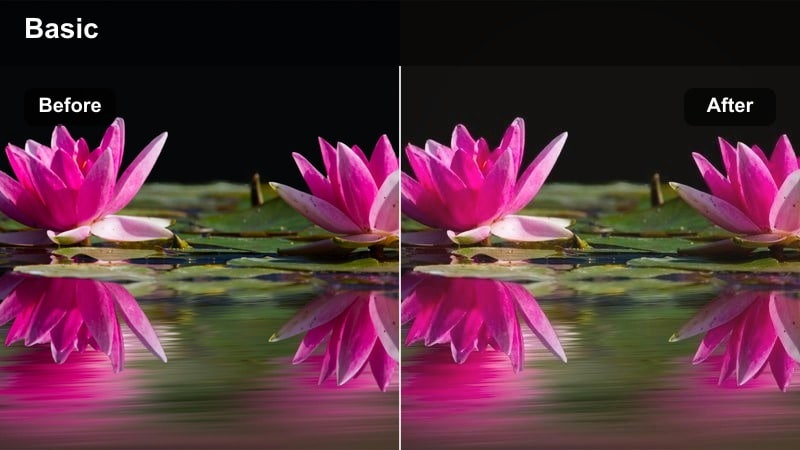
- Effect look: Soft amber at the bottom of the frame fading into neutral midtones for a cinematic dusk-like finish.
- Best for: Street b-roll, walking shots, and evening cityscapes where you want a gentle warm lift without strong contrast.
- Editing tip: Tilt the gradient angle so the warmest area follows leading lines like streets or railings to add visual flow.
Ember Horizon Fade adds a subtle dusk warmth that rises from the lower part of your frame, ideal for walk-and-talk segments and city b-roll. In Filmora, this filter helps you give life to darker sidewalks and streets while keeping the upper frame closer to neutral for balanced exposure.
Rotate the gradient inside the Effect settings so the glow follows roads, paths, or railings, enhancing depth and movement. Pair it with a slightly lowered exposure and careful highlight control so bright signs, windows, and streetlights retain detail under the warm cinematic wash.
Hazy Amber Curtain
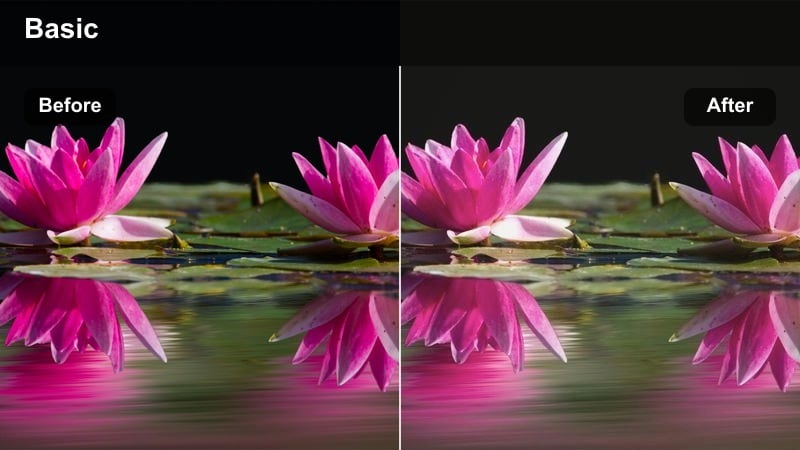
- Effect look: A soft amber-to-cream gradient that adds a hazy, dreamy curtain over the background while keeping subjects clear.
- Best for: Cozy indoor scenes, cafe shots, and product close-ups where you want warmth without overpowering details.
- Editing tip: Mask the subject lightly so faces and important details stay crisp while the gradient softens only the environment.
Hazy Amber Curtain is designed to create a warm, intimate backdrop that feels like a soft veil over cafes, bedrooms, and studio corners. In Filmora, it works especially well behind talking heads and product shots, adding depth and ambiance without flattening your subject.
Use Filmora s masking tools to keep the gradient focused on the environment while your main subject remains sharp and color-accurate. Lightly reduce saturation in the warm highlights if whites start to skew yellow, and add a touch of clarity or sharpen on the subject layer to maintain crisp details against the hazy background.
Pastel Morning Gradients for Calm, Airy Scenes
Misty Blush Gradient
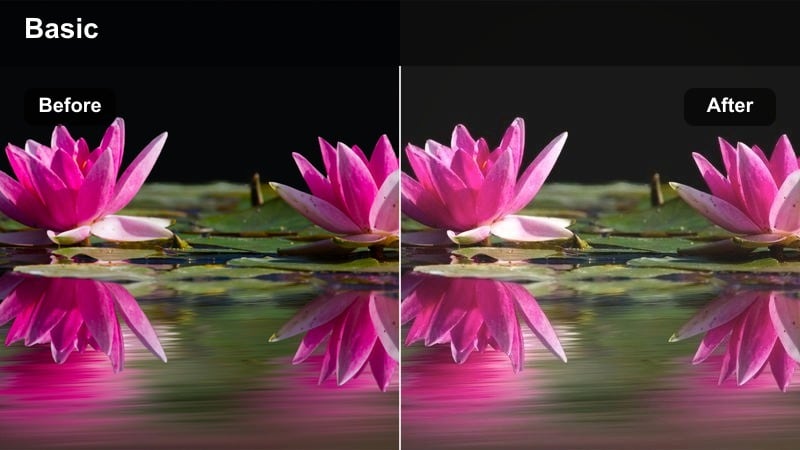
- Effect look: Soft blush pink gently bleeding into cool white highlights for a clean, airy pastel aesthetic.
- Best for: Minimal desk setups, storytelling intros, and gentle lifestyle morning routines.
- Editing tip: Push exposure slightly up and drop contrast so the gradient looks like natural diffused window light.
Misty Blush Gradient creates a light, pastel wash that feels like quiet morning light drifting across a minimal setup. In Filmora, this filter is perfect for overhead desk shots, planning sessions, and intro cards where you want a soft, welcoming palette.
Raise exposure and lower contrast slightly in the Color panel so the blush tones blend smoothly into whites, mimicking diffused daylight. Keep motion in your shots slow and compositions simple, then pair the gradient with gentle music and minimal on-screen text to maintain a calm, airy atmosphere throughout your edit.
Skyline Pastel Fade
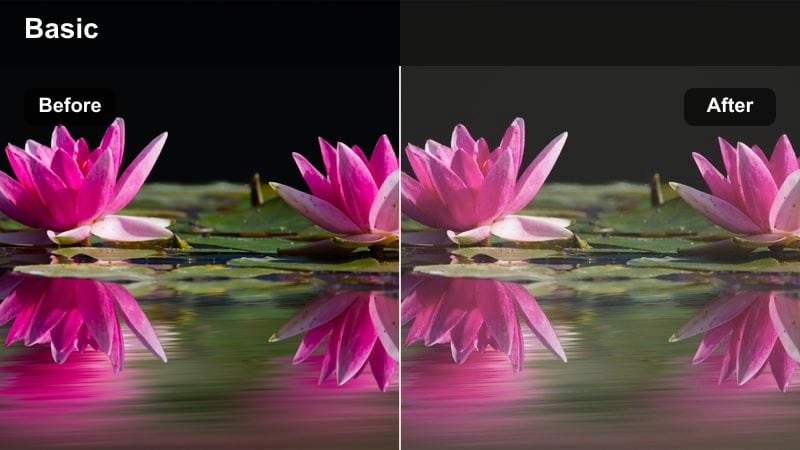
- Effect look: Soft blue at the top fading into pale lavender midtones for a dreamy pastel skyline effect.
- Best for: City balcony shots, skyline b-roll, and establishing shots for vlogs and travel edits.
- Editing tip: Align the gradient so the deepest blue hugs the upper skyline while faces and foreground stay in the lighter tones.
Skyline Pastel Fade paints your skies with a dreamy blue-to-lavender shift that makes cityscapes and balcony views feel gentle and cinematic. In Filmora, this filter is ideal for opening or establishing shots, setting a soft, modern tone before you cut to closer angles.
Adjust the gradient position so the strongest blue sits above buildings while the softer lavender falls nearer to faces and balconies. Use highlight controls to prevent pastel blues from washing out cloud detail, and if needed, add a slight sharpen effect on the skyline region so architecture stays crisp under the airy color treatment.
Cotton Cloud Soft Wash
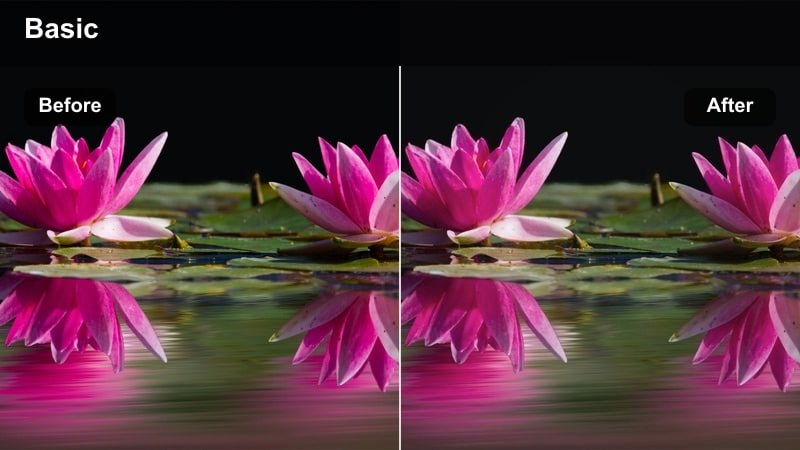
- Effect look: A gentle white-to-baby-blue gradient that mimics a lightly overcast but bright morning sky.
- Best for: Talking-head videos near windows, soft morning routines, and neutral product showcases.
- Editing tip: Slightly increase saturation of midtones so the scene still feels alive under the very soft lighting.
Cotton Cloud Soft Wash brightens your frame with a clean white-to-baby-blue gradient, creating the feeling of a soft overcast morning. In Filmora, it works especially well for tutorials, talking-head videos, and product showcases filmed near windows or light backgrounds.
To avoid your footage looking too flat, gently boost midtone saturation and add a small amount of contrast or clarity on the subject s face. Apply this filter consistently across multiple videos in a series to build a recognizable, light brand aesthetic, and consider matching lower-third text or graphic elements to the baby-blue tone for a cohesive design.
Cool-toned Gradients for City Nights and Techy Aesthetics
Neon Drift Gradient
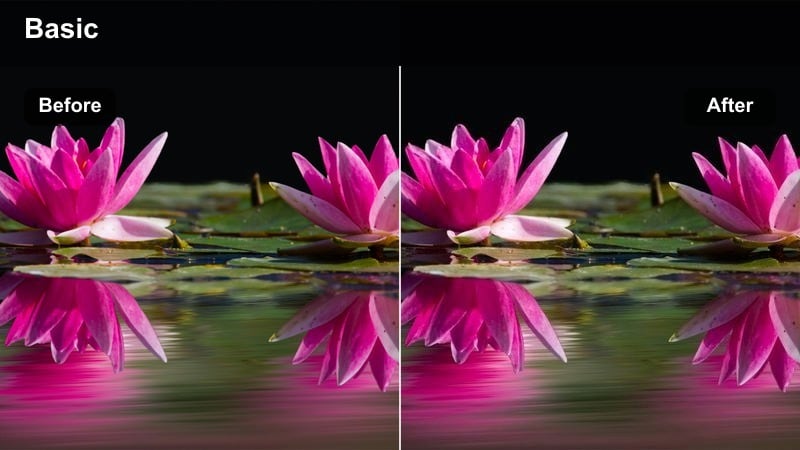
- Effect look: Soft teal shadows fading into violet highlights for a cyberpunk-inspired but still gentle night vibe.
- Best for: Night city b-roll, gaming intros, and tech product shots where you want a futuristic atmosphere.
- Editing tip: Reduce contrast so the teal and violet blend smoothly, avoiding harsh color separation in the midtones.
Neon Drift Gradient adds a stylish teal-to-violet transition that gives night scenes and tech content a subtle cyberpunk flavor without going overboard. In Filmora, it is ideal for rainy streets, RGB-lit setups, and gaming intros where you want strong color identity with soft edges.
Dial back overall contrast so the teal shadows and violet highlights melt into each other, then reduce saturation selectively on background elements so neon signs and reflections do not overpower your subject. Position your main subject where the two colors meet to naturally frame them with contrasting hues and create a polished, futuristic look.
Metro Glow Soft Shift
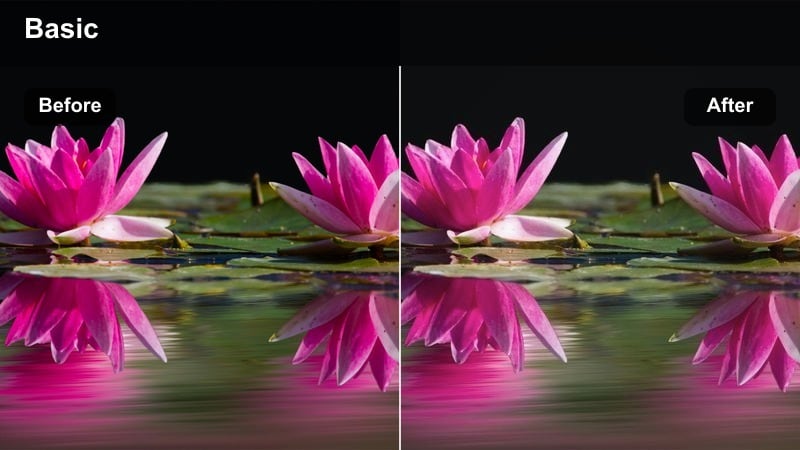
- Effect look: Deep navy at the top drifting into soft cyan midtones, giving city interiors a calm, modern polish.
- Best for: Subway platforms, office corridors, and late-night studio setups with cool lighting.
- Editing tip: Angle the gradient diagonally along leading lines like escalators or tunnel walls for extra depth.
Metro Glow Soft Shift bathes your footage in deep navy and cyan for a sleek, modern city feel that still remains soft on the eyes. In Filmora, it turns otherwise plain subway platforms, offices, or studio corners into polished, cinematic spaces.
Rotate the gradient diagonally so it follows tunnel walls, escalators, or desks, adding depth and movement to static scenes. If skin tones become too cold, add a gentle warm tint to midtones or use Filmora s HSL and skin-tone adjustments to keep faces natural while the environment stays cool and techy.
Skyline Midnight Fade
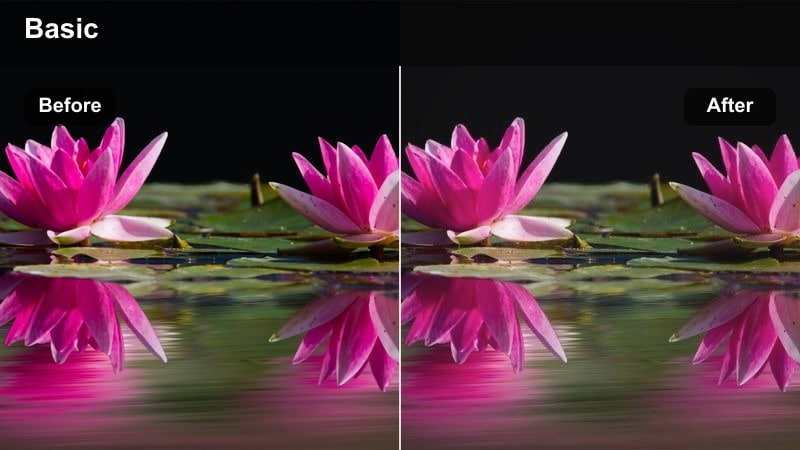
- Effect look: Rich midnight blue fading softly into muted charcoal for moody but watchable low-light scenes.
- Best for: High-rise balcony shots, city drone clips, and cinematic night outros.
- Editing tip: Increase shadow detail slightly so the gradient does not crush information in darker building areas.
Skyline Midnight Fade deepens your night skies with a rich blue-to-charcoal blend that keeps city lights moody but legible. In Filmora, it is a strong choice for drone shots, balcony views, and closing sequences where you want a dramatic, cinematic night finish.
Lift shadow detail in the Color panel so buildings and streets retain structure under the dark gradient, and keep filter intensity under control to avoid banding in the sky. Combine this look with slow push-ins or pans and a subtle vignette to draw the viewer into the depth created between bright windows and the deep midnight tones above.
Creative Gradient Overlays for Stylized Storytelling
Storytime Soft Edge
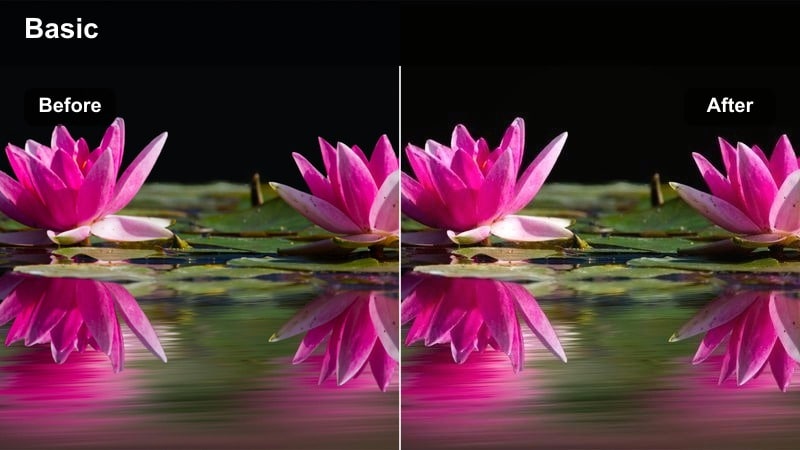
- Effect look: A gentle radial-style gradient that keeps the center neutral while edges fade into warm beige.
- Best for: Narration clips, sit-down storytime videos, and commentary content with a central subject.
- Editing tip: Position your face or main object in the neutral center so the warm edges act like a soft frame.
Storytime Soft Edge frames your subject with warm beige edges while keeping the center of the frame neutral and clear. In Filmora, this filter is great for commentary, podcasts, and storytime videos where the focus should stay firmly on a centrally framed speaker.
Center your subject where the gradient is most neutral, then use Filmora s background blur or depth-of-field tools to further separate them from the softened edges. Maintain consistent framing and this filter across episodes so the warm perimeter becomes a recognizable visual signature for your series.
Memory Lane Fadeover
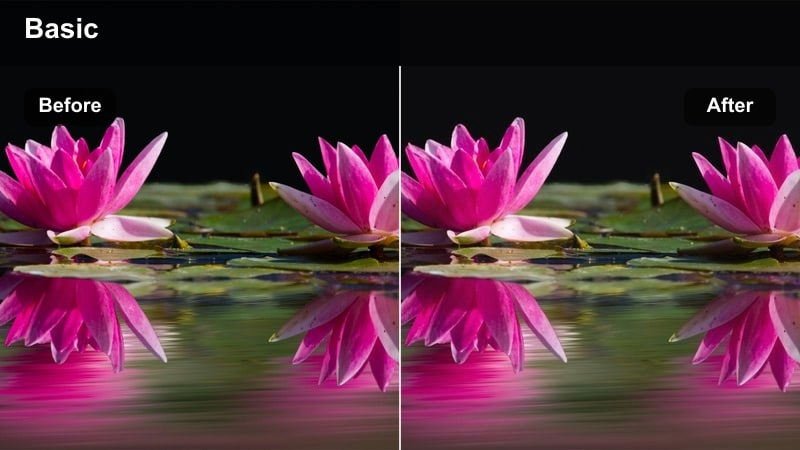
- Effect look: Soft sepia tones drift in from one side of the frame, blending into lightly desaturated colors on the other side.
- Best for: Flashback sequences, travel montages, and nostalgic recap videos.
- Editing tip: Animate the gradient direction slowly over a few seconds to create a subtle transition between present and memory.
Memory Lane Fadeover adds a gentle sepia shift from one side of the frame into more neutral, desaturated tones on the other, perfect for evoking nostalgia. In Filmora, it works beautifully in recap segments, flashback cutaways, or travel highlight reels meant to feel like distant memories.
Animate the gradient position over a few seconds so the sepia side slowly moves across the frame, visually signaling a transition between present and past. Use this filter only on memory or recap clips and contrast it with cleaner color in present-day scenes to help viewers follow your timeline without extra on-screen labels.
Creator Overlay Soft Dual
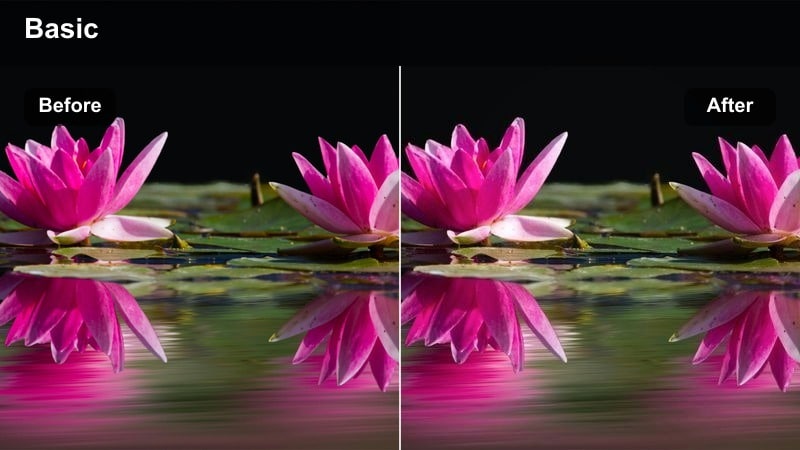
- Effect look: A dual-tone gradient where one corner leans warm and the opposite corner leans cool, meeting in a soft neutral center.
- Best for: Split-screen edits, reaction videos, and side-by-side comparison content.
- Editing tip: Place contrasting clips or elements closer to the warm and cool corners so each side has a distinct mood.
Creator Overlay Soft Dual introduces warm and cool corners that blend into a neutral center, giving you built-in contrast for comparisons and reactions. In Filmora, it is especially effective for split-screen layouts, before-and-after edits, and commentary overlaid beside referenced clips.
Position emotional or past content toward the warm corner and more analytical or present content toward the cool corner to create a subtle narrative code. Keep your main reaction or talking-head area centered where the gradient is most neutral so facial expressions remain clear and natural against balanced color.
Tips for Using Soft Gradient Color Video Filter Filters in Filmora
- Keep gradient filter intensity below 80 percent so the effect blends into the original scene instead of looking like a heavy overlay.
- Preview your edits on both phone and desktop screens, since soft gradients often appear stronger and more saturated on small, bright displays.
- Use Filmora s masking tools to protect faces and key objects when gradients make them too warm, too cool, or washed out.
- Align gradient direction with natural lines like horizons, buildings, roads, or window frames to make the color shift feel more convincing.
- Stack gradients with subtle LUTs, starting with low-strength filters and gentle LUT contrast to avoid crushing highlights or shadows.
- Save customized versions of your favorite gradient filters with tweaked angles and intensities so you can reuse them as consistent brand looks.
- Combine gradient filters with light vignettes and selective sharpening to guide attention while keeping important details crisp.
Soft gradient color video filters give content creators an easy way to add cinematic atmosphere, guide viewer attention, and build a recognizable aesthetic without advanced color-grading skills. Whether you prefer warm sunsets, pastel mornings, or cool city nights, gradients can instantly elevate otherwise simple footage.
Experiment with different warm, cool, and pastel presets in Filmora, then refine them with subtle LUTs and AI-powered color tools for a unified style across all your projects. By saving your favorite gradient combinations as reusable presets, you ll quickly develop a signature look that makes every upload feel polished and on-brand.
secure downloadNext: High Dynamic Color Lut
