

 100% Security Verified | No Subscription Required | No Malware

Soft tone color correction filters are perfect for content creators who want dreamy, low-contrast visuals without complicated grading workflows.
Below are 12 soft tone filter ideas you can recreate or adapt in Filmora to give your vlogs, lifestyle videos, and cinematic b-roll a polished, modern pastel look.
In this article
Soft Morning Light for Everyday Vlogs
Soft Morning Glow
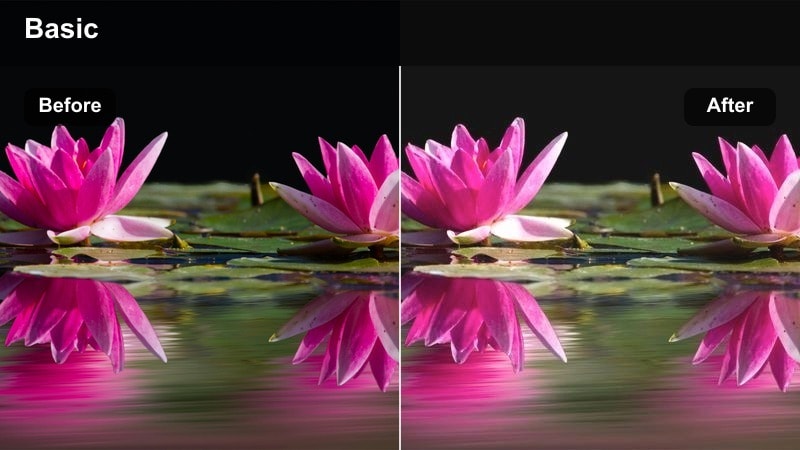
- Effect look: Low-contrast, slightly hazy highlights with gentle warm tones in the midtones.
- Best for: Morning routine vlogs, cozy desk setups, and gentle lifestyle intros.
- Editing tip: Lower contrast first, then lift shadows slightly and warm the temperature by a small amount to avoid orange skin tones.
In Filmora, Soft Morning Glow is all about making your first clips of the day feel like they are lit by a big, diffused window. Start by lowering overall contrast, then carefully raise the shadows so details in mugs, notebooks, and blankets remain visible without looking harsh. Add a small warmth shift to the white balance and boost midtone brightness just a little to create that inviting, slow-starting-the-day look.
To keep faces natural, fine-tune oranges and reds in HSL rather than cranking up temperature too far. Use Filmora masks to keep eyes, hair, and key objects sharp while applying a gentle decrease in clarity to the background. This gives your routine vlogs a soft, cinematic finish that feels polished but still realistic enough for everyday storytelling.
Speed Up Soft Tone Grading with AI Color Tools in Filmora
Filmora's AI-powered color features help you get close to a soft tone color correction look in just a few clicks, even if you are new to color grading. Let AI balance exposure and white balance for your vlog shots, then build your Soft Morning Glow style on top.
After the AI adjustment, gently reduce contrast, lower saturation, and introduce warm midtones to match the soft tone presets you like. This workflow keeps your grades consistent across different locations and cameras while saving time.
Open your clip in Filmora, run the AI color adjustment, and then refine it with a custom soft tone filter preset.
 secure download

Fine-Tune Soft Tones with HSL and Curves
To refine your soft tone filter beyond global sliders, use Filmora's HSL and curves tools. HSL lets you gently lower saturation in specific ranges like oranges and reds to protect skin, while pushing blues or teals for stylized backgrounds.
Curves help you lift blacks and soften highlights in a controlled way, building that matte, dreamy appearance without washing out the whole image. Combine these tools with Filmora's masking to treat faces differently from the background for a professional, creator-ready look.
secure downloadPreview Soft Tone Filters in Real Time
Filmora's filter library lets you stack multiple effects like glow, vignettes, and color styles to build your own soft tone correction preset. You can quickly toggle each filter to see how it affects skin tones, text overlays, and subtle background details.
Scrub through your timeline to check that your soft tone look stays consistent from clip to clip, especially when you move between indoor and outdoor scenes.
Try combining a basic color filter with a subtle glow and vignette, then save the result as your own Soft Tone Color Correction Filter.
secure downloadPastel Daybreak
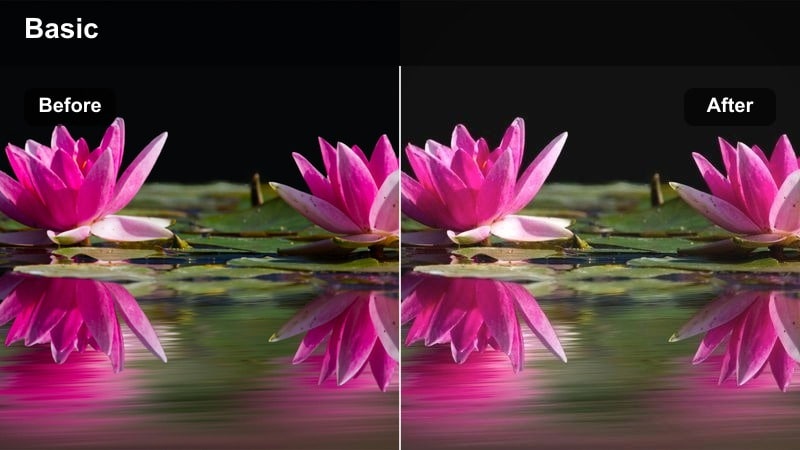
- Effect look: Cool pastel highlights with a subtle pink tint, reduced contrast, and airy exposure.
- Best for: Soft city walk vlogs at sunrise and aesthetic b-roll of quiet streets.
- Editing tip: Lift blacks slightly, add a small pink tint in the highlights, and keep saturation modest to avoid candy-like colors.
Pastel Daybreak works well when your footage includes sky gradients, light reflecting off buildings, and minimal traffic. In Filmora, start by lightening shadows and reducing contrast, then push highlight tint slightly toward magenta and add a touch of coolness in the overall temperature. This combination creates that early-morning, slightly chilly but calm mood.
To prevent the scene from looking overly stylized, keep global saturation under control and only nudge pinks and blues for that pastel feeling. You can apply a soft vignette to guide the viewer toward the subject while leaving the outer parts of the frame light and airy, ideal for aesthetic reels and walking montages.
Muted Coffee Run
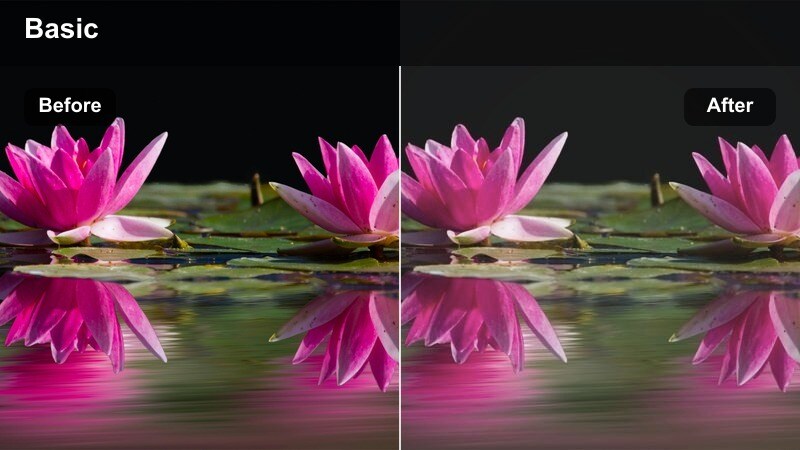
- Effect look: Desaturated neutrals, softened shadows, and a gentle creamy highlight roll-off.
- Best for: Cafe b-roll, city coffee runs, and minimalistic lifestyle content.
- Editing tip: Reduce saturation of yellows and greens, then slightly fade blacks to mimic film-like softness.
Muted Coffee Run is tailored for coffee cups, cafe interiors, and simple street details that benefit from a relaxed, editorial feel. In Filmora, pull down saturation in yellows and greens to keep signage, walls, and foliage from drawing too much attention, then lift the black point on the curve for a subtle matte look.
Use a gentle reduction of clarity to soften edges while keeping your subject in focus, and adjust midtone exposure so faces and coffee details remain easy to see. This preset pairs well with handheld shots and quick transitions, adding cohesion to vlog sequences that jump between indoor cafes and outdoor sidewalks.
Soft Indoor Lifestyle and Aesthetic Rooms
Cream Room Softener
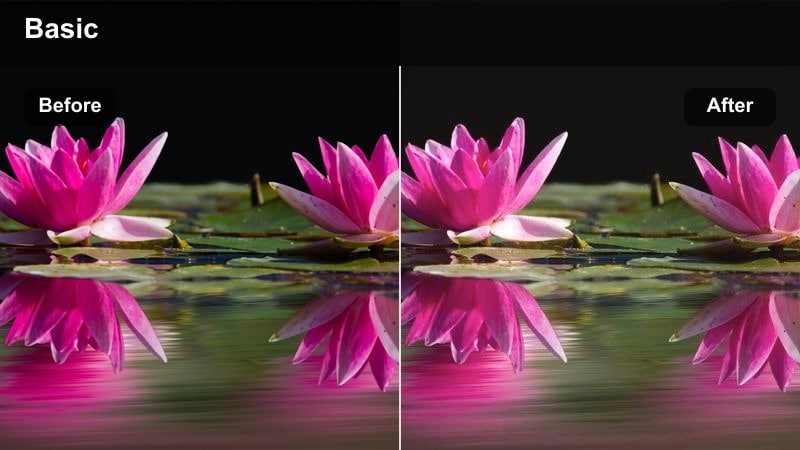
- Effect look: Warm creamy whites, softened edges, and subtly faded contrast.
- Best for: Bedroom makeovers, home office tours, and aesthetic room shots.
- Editing tip: Slightly reduce clarity, warm the white balance, and lift shadows to keep details visible in darker corners.
Cream Room Softener emphasizes cozy, styled interiors with bright, creamy whites that do not feel sterile. In Filmora, begin by setting an accurate white balance using the eyedropper on a neutral surface, then add a small amount of warmth and lift shadows so decor details in corners remain visible.
Reduce clarity and contrast just enough to hide harsh edges from furniture and textiles, which helps bedding and curtains look softer on camera. If walls start to skew yellow, fine-tune the yellow saturation in HSL while retaining pleasant skin tones and wooden accents, ensuring your room tours look both inviting and premium.
Soft Study Corner
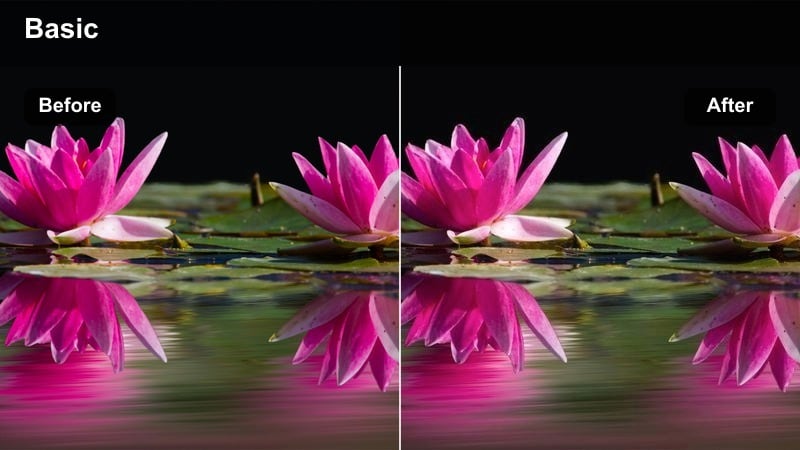
- Effect look: Gentle low contrast with slightly cool whites and relaxed saturation for screen-friendly scenes.
- Best for: Desk setups, study-with-me videos, and productivity-style b-roll.
- Editing tip: Add a subtle blue tint to highlights, keep contrast low, and avoid over-brightening monitor screens.
Soft Study Corner is designed for long-form content where viewers watch you work or study for extended periods. In Filmora, lower overall contrast and add a mild cool tint to the highlights so paper, keyboards, and desk surfaces appear clean and modern without harsh glare.
Keep monitor brightness controlled by reducing highlights or using local adjustments on the screen area, which prevents blown-out whites that distract from your workflow. Slightly reduce saturation across the image so notebooks, pens, and UI elements feel calm and cohesive, perfect for productivity-focused videos.
Linen Afternoon
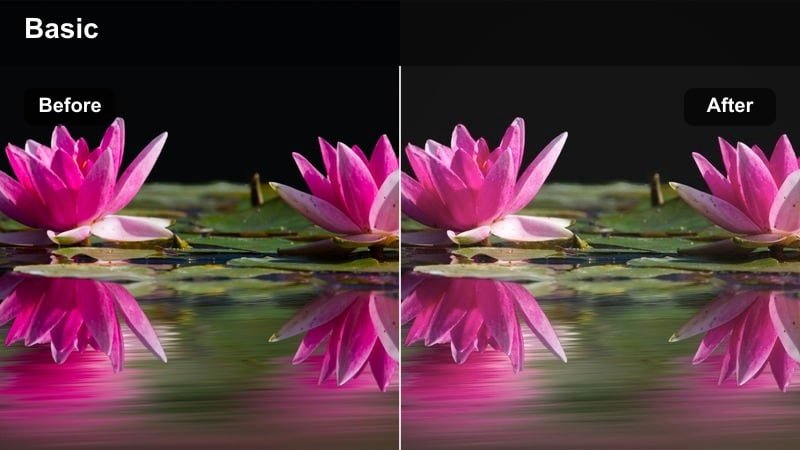
- Effect look: Matte shadows, warm beige midtones, and gentle pastel color shifts.
- Best for: Slow-living home clips, reading corners, and lifestyle aesthetic montages.
- Editing tip: Use a subtle S-curve with a lifted black point, and shift greens slightly toward olive for a modern lifestyle feel.
Linen Afternoon gives your clips that soft, editorial lifestyle style seen in slow-living content and interior reels. In Filmora, craft a delicate S-curve, lifting the black point for matte shadows while gently boosting midtones to keep faces and decor comfortably bright.
Shift greens slightly toward olive in the HSL panel to modernize plants and textiles, then warm the midtones so wood, books, and fabrics take on a beige, sunlit character. This look is ideal for montage sequences, reading nooks, and home b-roll where mood and texture are more important than punchy color.
Soft City B-Roll and Street Aesthetics
Urban Haze Soft
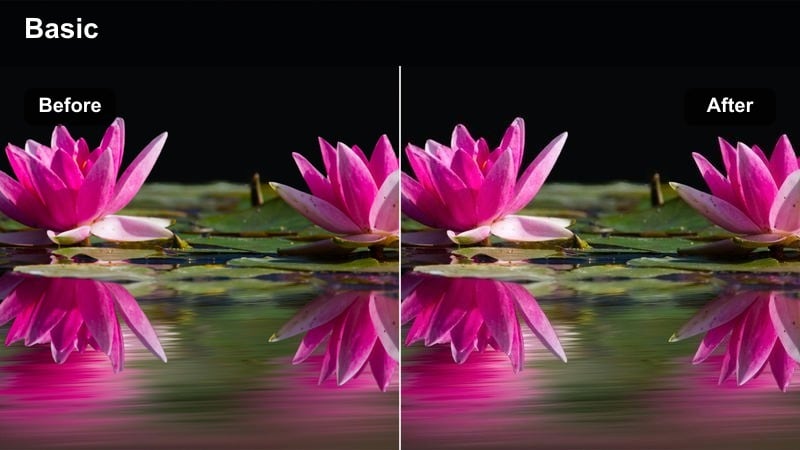
- Effect look: Muted city colors, light haze overlay, and lifted shadows for a cinematic urban feel.
- Best for: Street b-roll, city montages, and handheld walk-through shots.
- Editing tip: Reduce contrast, soften highlights, and add a very light glow to bright areas to simulate atmospheric haze.
Urban Haze Soft brings a cinematic, slightly dreamy atmosphere to busy streets without making them feel unreal. In Filmora, lower contrast and lift the darkest tones, then apply a subtle glow or bloom effect to streetlights, car reflections, and shop windows to simulate natural haze.
Desaturate primary colors a little so signs and billboards do not overpower your composition, and consider adding a mild vignette combined with the lifted blacks. This balance keeps attention near the center of the frame while preserving an overall soft, floating feeling as the camera moves through the city.
Pastel Crosswalk
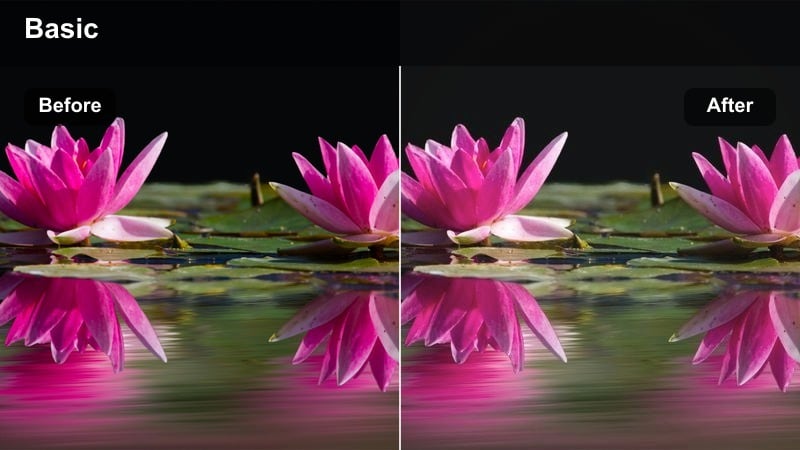
- Effect look: Soft pastel accents on signage and buildings with reduced saturation in asphalt and shadows.
- Best for: Pedestrian crossings, slow-motion walk shots, and travel reels.
- Editing tip: Slightly boost saturation in blues and reds while keeping overall saturation low for a subtle pastel pop.
Pastel Crosswalk focuses attention on clothing, signs, and architecture details while leaving streets and shadows understated. In Filmora, start with a mild reduction in global saturation, then selectively increase saturation and luminance for blues and reds so crosswalk lights, signs, and outfits stand out in a soft, pastel way.
Mute asphalt tones by lowering saturation in neutrals and dark grays via curves or HSL, and keep contrast low to avoid harsh lines. This preset pairs nicely with slow-motion walking shots and gimbal moves, giving your travel b-roll a recognizable, dreamy visual identity.
Evening Soft Streets
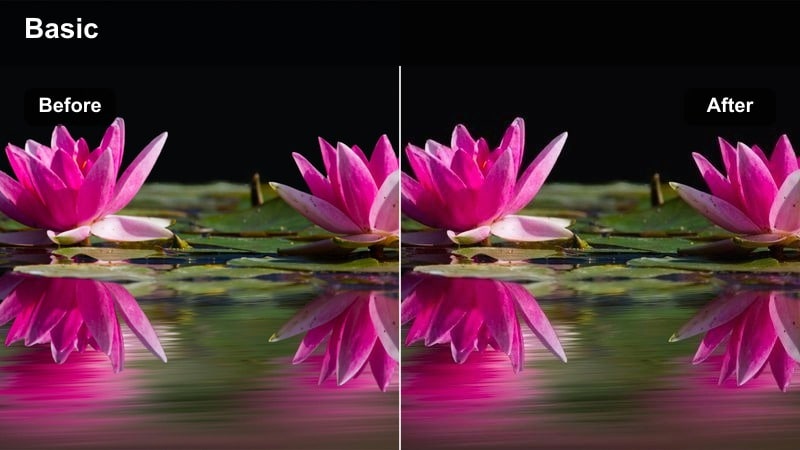
- Effect look: Softened contrast with gentle teal shadows and warm streetlight highlights.
- Best for: Blue-hour city scenes, traffic b-roll, and cinematic transitions.
- Editing tip: Split-tone shadows slightly toward teal and highlights toward warm amber, then keep contrast low for a dreamy mood.
Evening Soft Streets takes the classic teal-and-amber combination and presents it in a low-contrast, cinematic way. In Filmora, use split toning or color wheels to push shadows softly toward teal while warming the highlights toward amber, especially where streetlights and car headlights appear.
Keep contrast and clarity subdued so reflections on wet roads, building facades, and cars blend smoothly into each other. Avoid lifting shadows too far to maintain the feeling of night while using highlight roll-off or recovery to preserve detail in bright lamps, creating a moody but readable cityscape for transitions and b-roll.
Soft Portraits and Talking-Head Videos
Skin-Friendly Soft
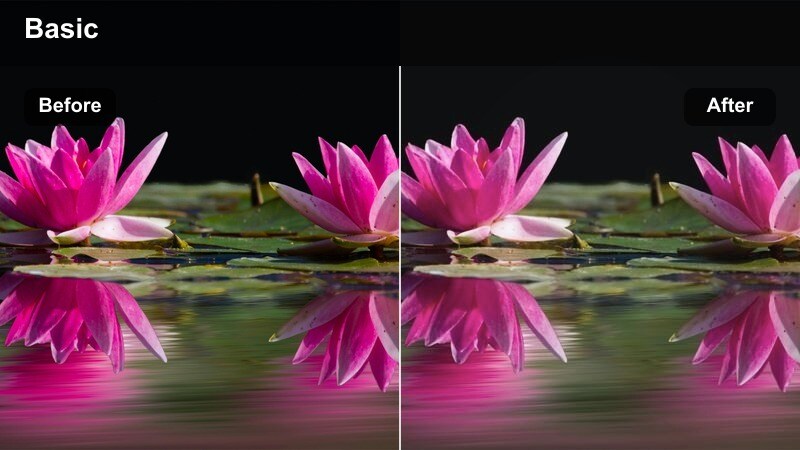
- Effect look: Low micro-contrast, natural skin tones, and slightly lifted midtones for flattering faces.
- Best for: YouTube talking-head videos, tutorials, and interviews.
- Editing tip: Lower clarity very slightly and gently smooth midtones, but keep eyes and hair sharp for a professional look.
Skin-Friendly Soft is meant to flatter faces without screaming beauty filter. In Filmora, raise midtones slightly to brighten skin, reduce clarity just a touch, and adjust the texture or skin-smoothing tools in moderation so pores are softened but still present.
Use masking to protect details in eyes, eyelashes, and hair, ensuring they remain crisp against a softer complexion. Keep white balance neutral and adjust oranges in HSL for natural skin hues, which is key for interviews and tutorial content where viewers focus heavily on your expressions.
Creator Pastel Profile
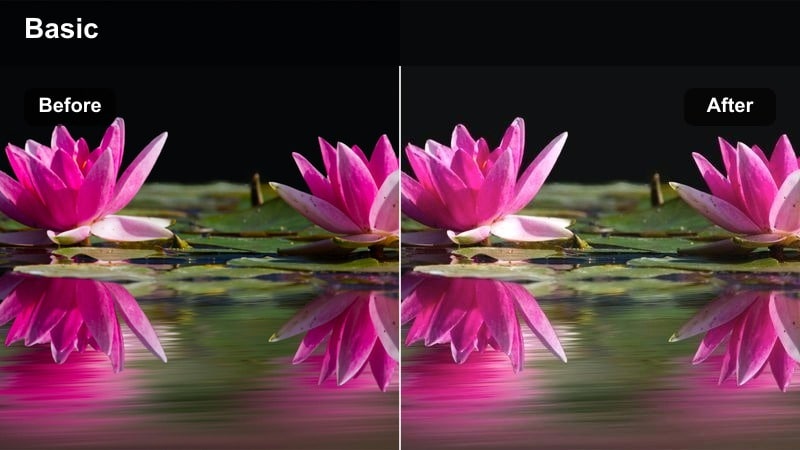
- Effect look: Gentle pastel background tones with balanced, slightly warm skin for a modern creator style.
- Best for: Channel trailers, brand intros, and social media promo videos.
- Editing tip: Lower saturation on background colors while slightly boosting luminance, keeping skin tones more neutral and present.
Creator Pastel Profile is ideal when you want your brand colors present but not overpowering. In Filmora, use HSL to reduce saturation and lift luminance on the background hues that match your brand palette, turning them into soft pastels while maintaining a clean, minimal feel.
Keep the subject slightly warmer and brighter than the background so the audience's eyes naturally lock onto the face. This look works especially well with colored LEDs or backdrop paper, and you can save it as a preset to reuse across intros, trailers, and social promos for a consistent creator identity.
Gentle Documentary Soft
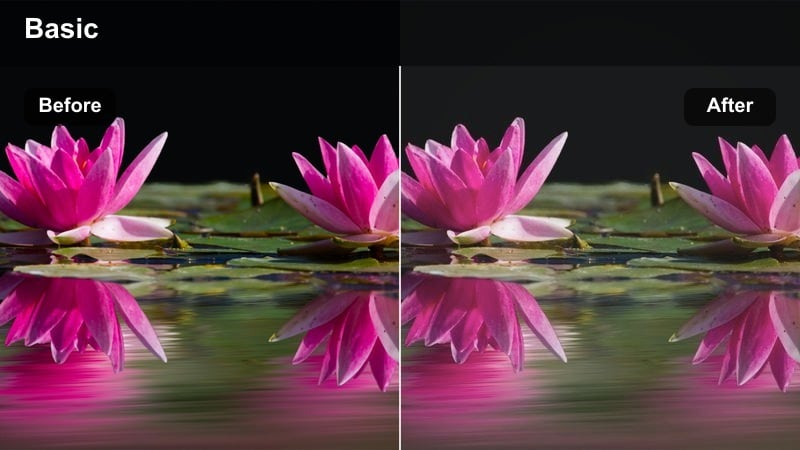
- Effect look: Neutral, slightly faded contrast with soft highlights and realistic but gentle color.
- Best for: Interviews, mini-documentaries, and personal storytelling pieces.
- Editing tip: Aim for a subtle fade in the blacks, maintain neutral white balance, and avoid heavy color shifts to keep authenticity.
Gentle Documentary Soft aims for a restrained, timeless look where story and emotion are the priority. In Filmora, make a small lift in the black point and reduce contrast just enough to tame harsh lines while preserving a neutral white balance so colors remain believable.
Avoid bold color shifts and instead rely on slight saturation reductions and soft highlight roll-off to keep attention on the subject's face and gestures. Apply the same soft tone preset across A-roll and B-roll so the entire piece feels cohesive, whether you are cutting between interviews, archival shots, or everyday lifestyle footage.
Tips for Using Soft Tone Color Correction Filter Filters in Filmora
- Shoot slightly underexposed when planning a soft tone grade so highlights have room to stay smooth and gentle.
- Keep global saturation lower than usual, then selectively boost key colors like skin or branding elements.
- Use curves to lift blacks instead of relying only on the contrast slider for a more controlled matte look.
- Add softness mostly through reduced contrast and clarity rather than heavy blur, which can look unprofessional.
- Always check your soft tone filter on both bright outdoor clips and dim indoor scenes to confirm it is versatile.
- Save soft tone presets for specific scenarios like city b-roll, talking heads, and room tours instead of one universal look.
- When working with log or flat footage, correct exposure and white balance first before applying any soft tone filters.
- Use Filmora's split-screen or side-by-side preview to compare your soft tone grade with the original footage.
Soft tone color correction filters can transform everyday footage into gentle, cinematic visuals that fit modern vlogs, lifestyle content, and storytelling videos.
Once you are comfortable shaping soft tones in Filmora, you can take your grading further by exploring a classic film color LUT for deeper, more stylized looks across your projects.
secure downloadNext: Classic Film Color Lut
