

 100% Security Verified | No Subscription Required | No Malware

These street fashion vlog color LUT-inspired filters are designed for creators who film outfits, lookbooks, and daily city life and want an instantly cohesive visual style without complicated color grading.
Use these looks to keep skin tones flattering, outfits sharp, and city backdrops stylishly on-brand across your entire fashion vlog series.
In this article
Bright Daytime City Street Style
Urban Fresh Matte
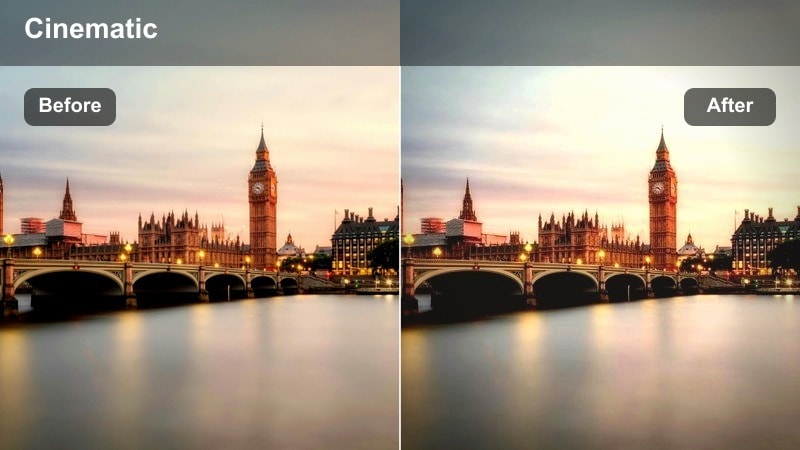
- Effect look: Soft matte finish with lifted shadows and gentle contrast for clean daytime outfits.
- Best for: Casual street looks filmed in open shade or overcast city streets.
- Editing tip: Lower highlights slightly to keep white sneakers and light shirts from blowing out in bright sidewalks.
Urban Fresh Matte is ideal when you want your daytime city clips to feel relaxed and stylish without harsh contrast. In Filmora, this type of look lifts the shadows and slightly fades blacks, which softens lines on pavement, buildings, and jackets while keeping outfits easy to read on small screens.
Apply this filter to full-body walking shots, cafe B-roll, and chill outfit check-ins where you want a cohesive, minimal aesthetic. If your footage was captured in flat overcast light, combine the filter with a touch of added sharpness on clothing details so denim, stitching, and accessories still look defined.
Match Your Street Fashion Aesthetic with AI Color Assistance
Filmora-style AI color tools can automatically read your outfit clips and suggest balanced adjustments, so your skin stays natural while your clothing and city backgrounds keep their attitude. This is especially helpful when you shoot across multiple streets, cameras, or days but still want a single signature look.
Once you have picked a favorite street fashion vlog color LUT-inspired filter, use AI color matching to keep that same palette across your intro, walk-throughs, and B-roll. You get consistent neutrals, controlled contrast, and repeatable tones without building complex node trees or masks by hand.
 secure download

Preview Street Fashion Filters in Real Time
Filmora filter previews let you scroll through looks like Urban Fresh Matte and Neon Avenue Punch right on your clip, so you can judge how they treat denim, prints, and skin before you commit. This makes it easy to test a few options on the same walking shot or outfit spin without copying settings between timelines.
After previewing, you can quickly dial exposure and white balance until your chosen filter locks into the aesthetic you want for the whole episode. Matching different scenes becomes as simple as reusing the winning filter preset on new clips.
secure download1000+ Video Filters and 3D LUTs
Filmora includes a large library of filters and 3D LUTs that you can stack on top of each other to design your own street fashion grade. Start with a subtle LUT for overall toning, then add one of these vlog-style filters to fine-tune contrast, saturation, and the way your outfits render on screen.
Because you can save custom presets, it is easy to apply the same combination of filters and LUTs to future videos, giving your channel a recognizable, cinematic city style without rebuilding the look every time.
secure downloadClean Street Neutral
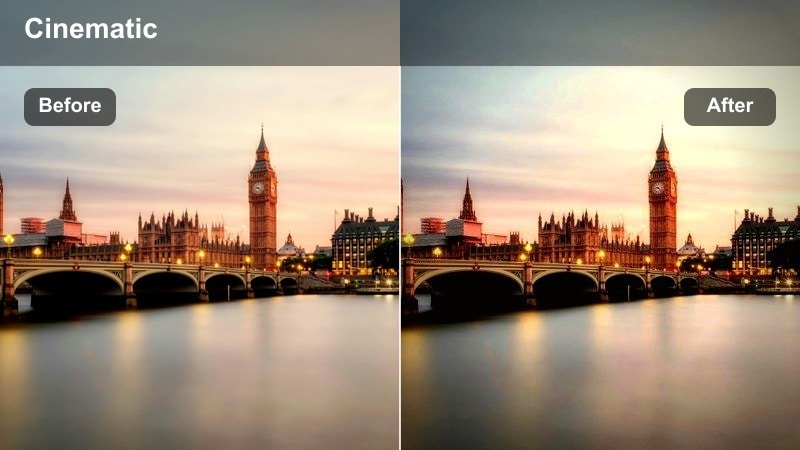
- Effect look: Balanced neutrals with subtle saturation for realistic yet polished city color.
- Best for: Try-on clips, walking shots, and B-roll where clothing colors must stay accurate.
- Editing tip: Use the HSL controls to nudge specific clothing hues without ruining the overall neutral base.
Clean Street Neutral keeps your footage close to how the scene looked in real life while smoothing out distracting color shifts from storefronts or cloudy skies. In Filmora, this type of filter gently refines contrast and saturation so brand logos, textures, and fabrics remain true to life for lookbooks or sponsored content.
Apply it when filming hauls, outfit breakdowns, or detailed close-ups where viewers care about exact color, such as denim washes or sneaker accents. If you need a bit more punch for thumbnails, pair the filter with small HSL boosts on your main outfit hue while leaving skin tones and backgrounds almost untouched.
Sunlit Sidewalk Pop
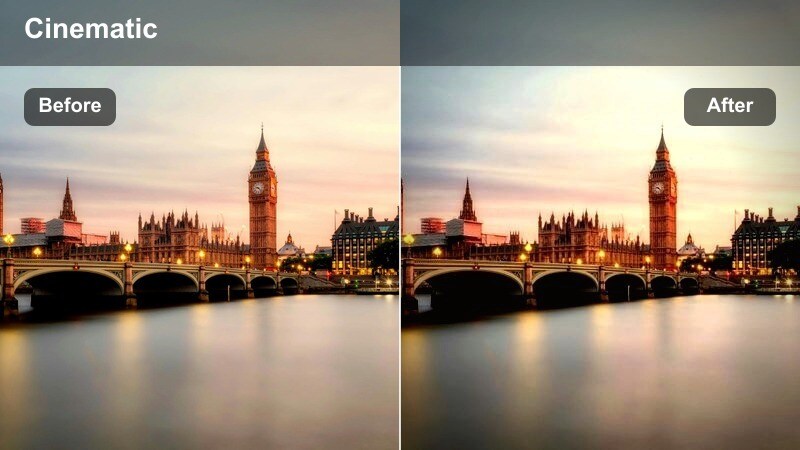
- Effect look: Vibrant color pop with crisp contrast and bright highlights for sunny streets.
- Best for: High-energy walking shots, outfit transitions, and slow-motion hair flips in direct sun.
- Editing tip: Pull down saturation on warm tones slightly if skin starts looking too orange in midday light.
Sunlit Sidewalk Pop is built for those high-energy city sequences where you want every color to jump off the screen. In Filmora, the boosted contrast and vivid tones cut through harsh daylight, making prints, accessories, and reflective details stand out even on small mobile displays.
Use this look on crosswalk transitions, spin shots, and quick cuts of bags, shoes, and jewelry when the sun is strong. To protect skin tones, consider adding a gentle color correction effect before the filter, then slightly decreasing orange and red saturation so your audience sees bold outfits without oversaturated faces.
Golden Hour Outfit Showcases
Warm Alley Glow
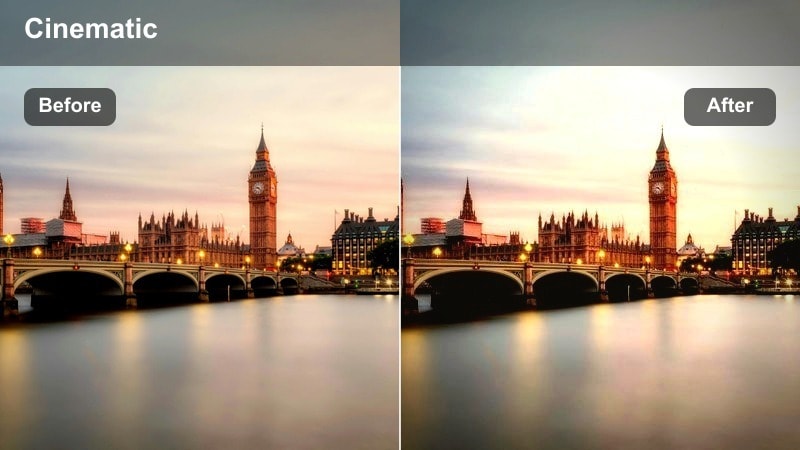
- Effect look: Soft golden warmth that enhances evening sun on skin and fabric.
- Best for: Golden hour outfit reveals shot in side streets and back alleys.
- Editing tip: Add a touch of fade to the blacks to create a dreamy, editorial street magazine feel.
Warm Alley Glow leans into the natural warmth of golden hour, wrapping your subject in soft light while keeping city textures cozy and flattering. In Filmora, it subtly tints highlights and midtones toward gold, which can make hair, jewelry, and reflective fabrics look especially luxurious on camera.
Apply this filter to slower, more cinematic shots such as leaning poses, close-ups of accessories, and walk-and-turn sequences in narrow alleys. If your camera exposure is slightly cool or flat, first nudge temperature a bit warmer, then layer this look to get a cohesive, editorial finish that feels intentional across the whole scene.
Sunset Sidewalk Amber
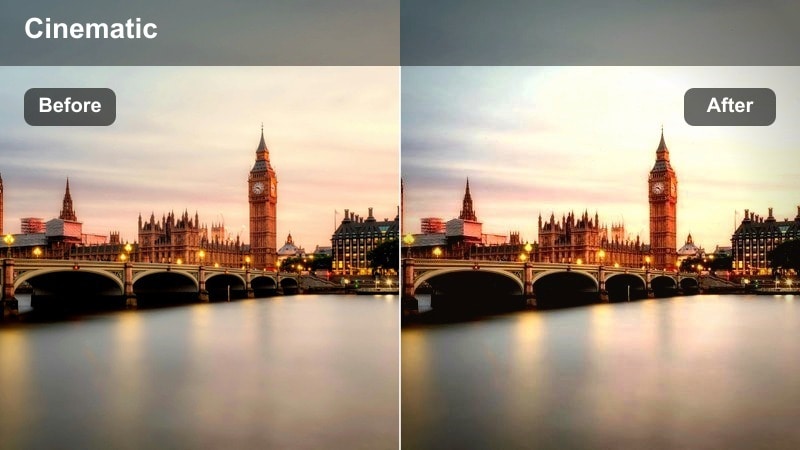
- Effect look: Amber-tinted highlights with gentle contrast for cinematic sidewalk walks.
- Best for: Slow walking shots and dynamic outfit transitions against glowing city streets.
- Editing tip: Boost midtone saturation instead of global saturation to keep asphalt and buildings from becoming too intense.
Sunset Sidewalk Amber gives your evening walks a cinematic, almost film-like glow while keeping city structures calm in the background. In Filmora, the filter focuses its warmth on highlights and midtones, which helps faces and outfits feel cozy without turning the entire frame orange.
Use it for tracking shots along long sidewalks, lens flares from the setting sun, and in-between moments as you move between locations. If your footage includes a lot of concrete and glass, adjust the midtone saturation slider instead of global saturation so your outfit benefits from the amber lift while the environment stays refined and not overly colorful.
Golden Crosswalk Chic
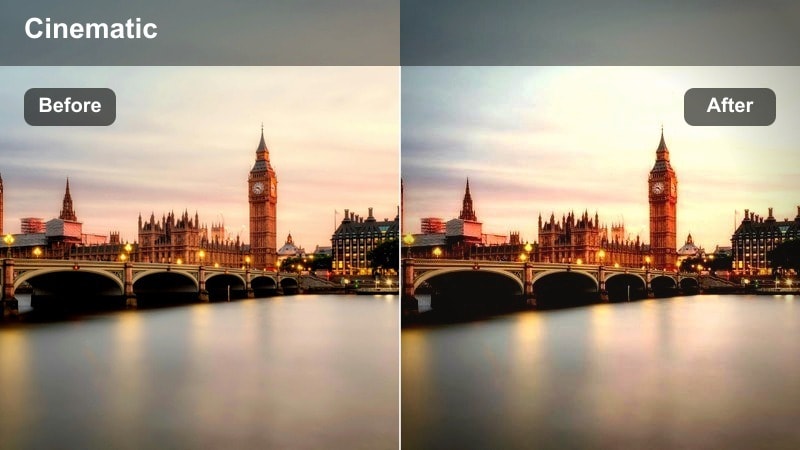
- Effect look: Stylish warm highlights with punchy contrast and deeper shadows.
- Best for: Fashion walk-throughs shot on busy crosswalks during late afternoon.
- Editing tip: Add motion blur or speed ramps to crosswalk clips while keeping contrast strong for a fashion editorial vibe.
Golden Crosswalk Chic is built to turn everyday traffic crossings into bold editorial sequences, with high contrast and rich warm highlights. In Filmora, this look deepens shadows to emphasize lines from crosswalk stripes, building edges, and long evening shadows, making your outfit the graphic focal point.
Apply it to straight-line walks, power strides, and group shots where you want the city to feel dynamic and stylish. Consider pairing the filter with speed ramps or subtle motion blur in post, so the strong contrast and golden tones transform simple B-roll into a polished fashion set piece.
Neon Nights and City Lights
Neon Avenue Punch
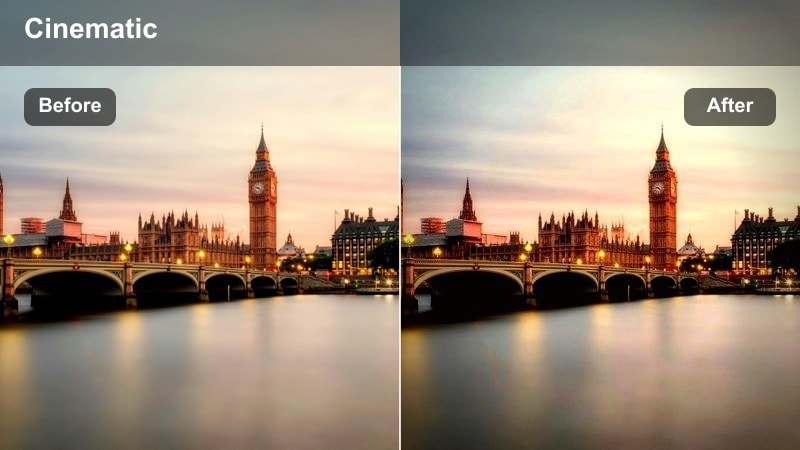
- Effect look: Bold saturation and high contrast tuned for colorful neon city signs.
- Best for: Nighttime streetwear fits shot under bright storefronts and billboards.
- Editing tip: Reduce luminance of blues and cyans slightly to keep neon signs from overpowering your outfit.
Neon Avenue Punch intensifies the glow of signs, storefronts, and traffic lights while keeping your outfit readable in the chaos of city nights. In Filmora, this filter lifts saturation and contrast specifically where neon colors live, so your backgrounds look energetic without losing shape.
Use it when you are styling bold streetwear, reflective fabrics, or metallic accessories that catch colored light. To keep viewers focused on you, consider reducing the luminance of strong blues and cyans in the color tools so the signage does not blow out, then add a small vignette to center attention on your pose and movement.
Midnight Subway Cool
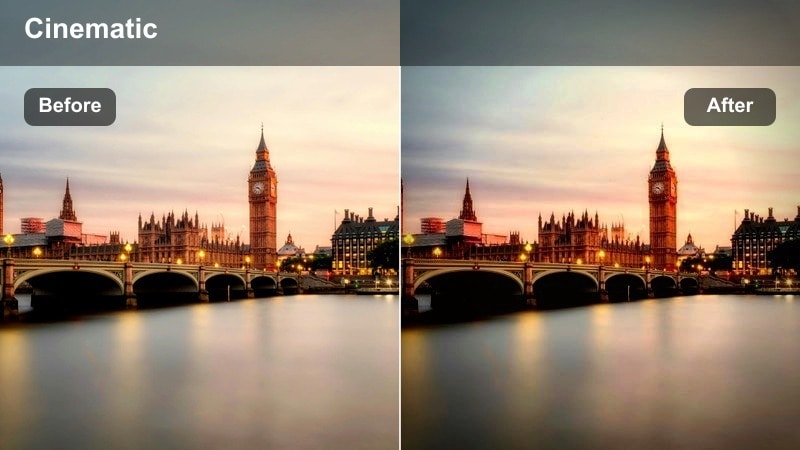
- Effect look: Cool-toned shadows with neutral midtones for subway and underground spaces.
- Best for: OOTD clips on platforms, escalator shots, and train arrival B-roll.
- Editing tip: Lift shadows slightly to preserve detail in dark coats and black boots without flattening the whole frame.
Midnight Subway Cool balances the often messy lighting of underground stations by cooling down shadows while keeping skin tones and clothing midtones neutral. In Filmora, this gives tunnels and platforms a sleek, urban edge without turning your face or outfit gray.
Apply it to escalator rides, platform walks, and close-ups near tiled walls or train doors. If you are wearing darker pieces like black coats and boots, gently raise the shadow slider after applying the filter so you regain texture in the fabric while preserving the moody, late-night vibe of the environment.
City Rooftop Noir
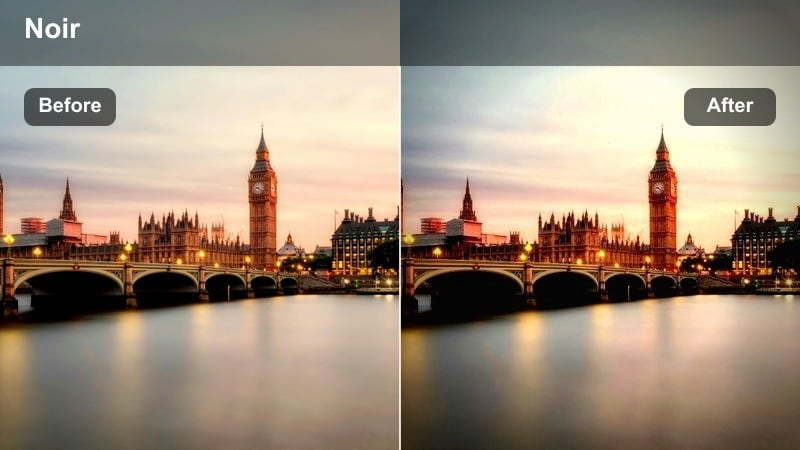
- Effect look: Moody contrast with deep shadows and subtle cyan highlights on city lights.
- Best for: Night rooftop outfit showcases with skyline backgrounds.
- Editing tip: Add a tiny bit of grain and a vignette to enhance the cinematic, noir-inspired fashion feel.
City Rooftop Noir is tailored for skyline shots, blending inky shadows with cyan-tinted highlights for a cinematic, late-night mood. In Filmora, this filter emphasizes contrast while protecting key details in your silhouette, helping your outfit stand out against windows, signs, and towers in the distance.
Use it for slow walk-ins toward the camera, profile poses along railings, and wide shots where the city becomes part of your styling story. A light layer of film grain and a subtle vignette can reinforce the noir feel, making the final edit perfect for dramatic lookbooks or music-driven fashion montages.
Minimal Studio and Lookbook Corners
Loft Lookbook Soft
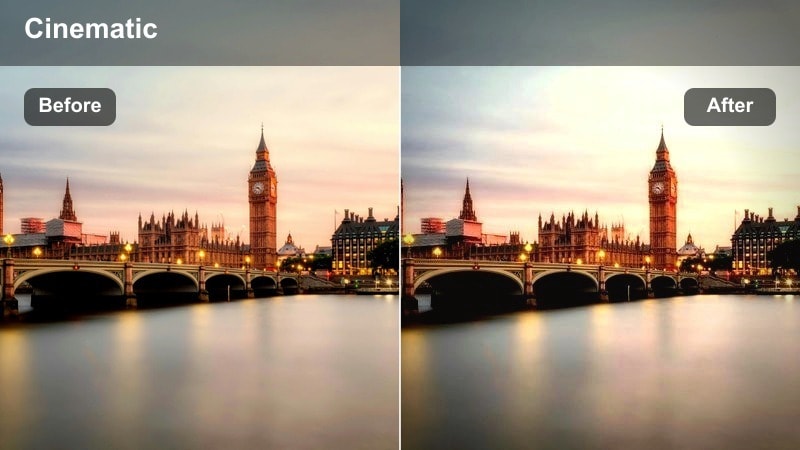
- Effect look: Soft, low-contrast toning with bright whites for clean studio corners.
- Best for: Lookbook intros, talking segments, and mirror outfit checks indoors.
- Editing tip: Use slight negative clarity on the background only to separate your outfit while keeping your face sharp.
Loft Lookbook Soft is designed to keep indoor spaces airy, bright, and minimal so your outfits remain the main focus. In Filmora, the filter slightly lowers contrast and smooths transitions between highlights and shadows, which helps white walls, curtains, and props blend into a clean backdrop.
Apply it for sit-down intros, outfit voiceovers, and static try-ons in small studio corners or apartments. Consider masking or selectively softening just the background with a negative clarity adjustment while keeping your face and clothing crisp, giving a subtle depth-of-field effect even if you filmed on a simple camera or phone.
Brick Wall Editorial
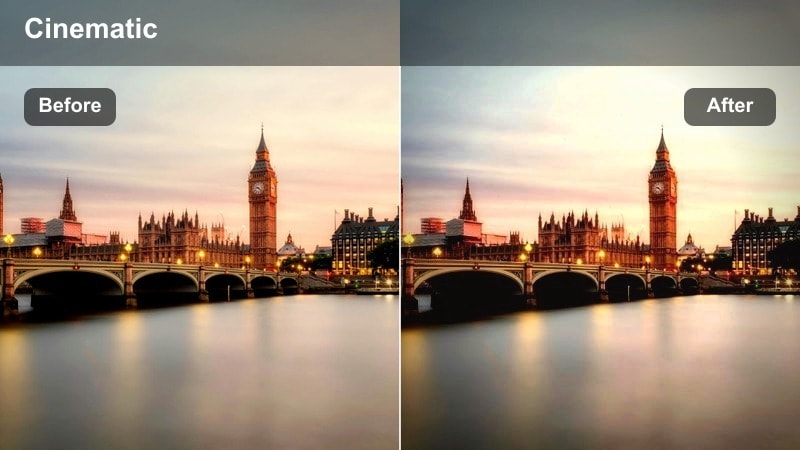
- Effect look: Crisp contrast with slightly muted colors for an editorial street backdrop.
- Best for: Standing outfit shots against brick, concrete, or metal urban textures.
- Editing tip: Drop overall saturation a touch and selectively boost your outfit's main hue to keep attention on your styling.
Brick Wall Editorial turns textured backgrounds into a stylish frame by pairing firm contrast with subtly muted overall color. In Filmora, this gives bricks, concrete, and metal surfaces a sophisticated, magazine-style finish that supports your outfit without stealing focus.
Use this filter for portrait-style stand-ups, lookbook transitions, and still poses where the wall is a big part of the composition. After applying, try reducing global saturation slightly, then pushing only your key outfit color through HSL, so the viewer's eye goes straight to your styling choices instead of the environment.
Mirror Corner Clarity
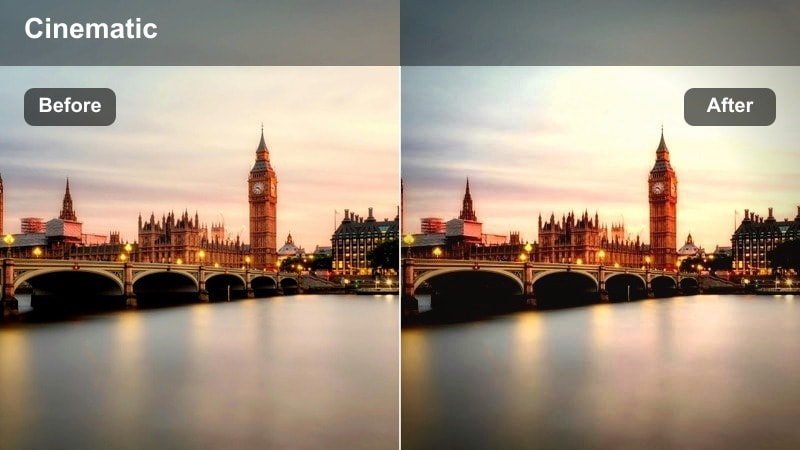
- Effect look: Clean, bright toning with extra clarity on edges for mirror and room shots.
- Best for: Mirror OOTDs, room corner outfit checks, and vertical social edits.
- Editing tip: Reduce clarity slightly on skin while keeping it higher on clothing and room details for flattering sharpness.
Mirror Corner Clarity is tuned for small indoor spaces where you are filming through or into a mirror, often in vertical format. In Filmora, the filter brightens the overall frame and adds edge clarity so outfit lines, seams, and shoe shapes look defined even if your room is tight or dim.
Apply it to everyday OOTD mirror clips, quick fit checks, and social-first edits where viewers pause on details. If the added clarity makes skin texture too visible, use localized adjustments or an extra effect layer to soften just the face while leaving clothing and room decor sharp and structured.
Tips for Using Street Fashion Vlog Color Lut Filters in Filmora
- Shoot a short reference clip at each location and test two or three filters in Filmora before recording full outfit sequences.
- Lock white balance in-camera so your chosen street fashion vlog color LUT-inspired filter behaves consistently across all shots.
- Use one primary filter for the bulk of the video and only change looks when you clearly switch time of day, neighborhood, or setting.
- After applying stronger filters, dial back saturation and contrast slightly to keep skin tones natural and flattering.
- Save custom presets once you tweak a filter so you can reuse the same aesthetic on future fashion vlog episodes with one click.
- Combine filters with Filmora LUTs sparingly, starting with subtle LUTs and building up contrast and color only as needed.
- Check your graded clips on both phone and desktop screens to make sure outfits and textures remain clear in different viewing conditions.
- When editing sponsored looks, prioritize neutral, color-accurate filters so brand fabrics and logos match real-life tones.
These street fashion vlog color LUT-inspired filters give content creators an efficient way to keep outfits, city scenes, and skin tones cohesive across an entire series. With just a few clicks, you can adapt your look from bright sidewalks to moody rooftops while staying true to your channel identity.
Pick a core look for daytime, golden hour, and night, then save your favorite Filmora presets so you can drop them onto new footage instantly. Over time, this consistent grading style becomes part of your personal brand, helping viewers recognize your videos in their feed at a glance.
secure download