

 100% Security Verified | No Subscription Required | No Malware


 ChatGPT
 Perplexity
 Gemini
 Claude
 Grok
Grok
These street portrait cinematic LUT-style filters for Filmora are crafted for content creators who want a polished, filmic look straight out of the edit, without complex color grading.
From gritty neon nights to soft golden-hour streets, each preset is tuned to enhance skin tones, balance urban lighting, and give your street portraits a cinematic edge that stands out on social platforms.
In this article
Cinematic Looks for Dusk Alley Street Portraits
Moody Amber Glow
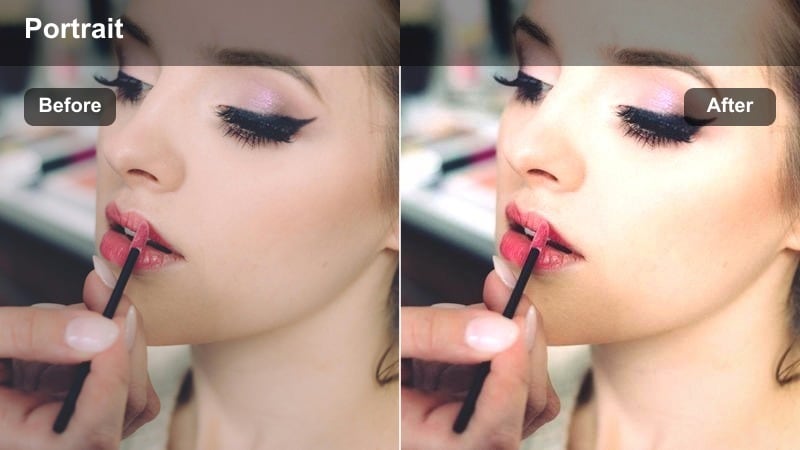
- Effect look: Warm amber highlights with lifted blacks for a soft, moody film look in evening city alleys.
- Best for: Backlit portraits in narrow streets or alleys around sunset with mixed warm and cool light sources.
- Editing tip: Lower overall contrast slightly and add a subtle vignette to keep attention on the subject's face.
Moody Amber Glow wraps your dusk alley portraits in cinematic amber light while protecting natural-looking skin tones. In Filmora, it gently lifts the blacks and warms the highlights so brick walls, streetlamps, and backlit hair all feel cohesive and filmic rather than harsh or contrasty.
Apply this filter to clips shot against streetlamps or shop windows, then fine-tune exposure and vignette in the Color and Effects panels to keep the brightest area around the face. If ambient orange lighting is already strong, pull back temperature and slightly desaturate reds so the amber look feels intentional and not overly saturated.
Match Street Portrait Filters with AI Color Tools
Pair your favorite street portrait cinematic LUT-style filters with Filmora AI color features to quickly fix exposure and white balance before you start stylizing. A clean base ensures your warm ambers, cool teals, and copper tones stay controlled across every shot in a sequence.
Once your base tones look natural, stack filters, adjust skin with HSL and skin-tone tools, and save your own presets tuned to the way your city looks at dusk, night, or golden hour.
 secure download

Preview Filters on Real Street Portrait Footage
Before you commit to a full look, test these filters on short clips of your subject walking through alleys, crosswalks, or past neon signs. Watching how the tones change as they move between light sources makes it easier to pick the filter that best fits your story.
Use Filmora split-screen preview or snapshot comparison to line up different versions side by side, then pick the one that keeps skin tones natural while giving the background the strongest cinematic style.
secure download1000+ Video Filters and 3D LUTs
Beyond these street portrait cinematic looks, Filmora includes a large library of filters and 3D LUTs for everything from fashion videos to travel vlogs. You can layer effects, control intensity, and combine them with masking and keyframing to refine your final grade.
Once you dial in a look that works for your channel, save it as a preset so every new project starts from the same consistent cinematic base without rebuilding your grade from scratch.
secure downloadGritty Charcoal Fade
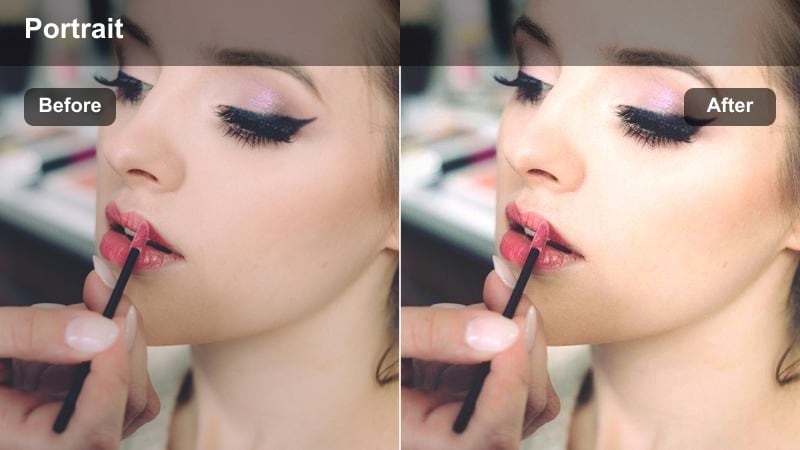
- Effect look: Desaturated charcoal tones with a slight fade and crisp midtones for a street editorial feel.
- Best for: Moody portraits in rough alleys, stairwells, and textured concrete backdrops shot in overcast or late dusk.
- Editing tip: Boost clarity and texture carefully on jackets and walls while leaving skin slightly softer for contrast in detail.
Gritty Charcoal Fade strips down your palette to muted greys and deep shadows, ideal for turning simple alleys and stairwells into editorial backdrops. The lifted blacks and crisp midtones create a modern, magazine-style finish that still preserves enough detail in eyes and facial features.
In Filmora, apply this filter to overcast or dusk footage where colors feel flat, then refine the fade curve so blacks rise just enough to feel filmic. Add selective clarity on clothing, hair, and walls while keeping skin a bit softer, and finish with a light film grain effect to make the overall look feel intentional and cinematic.
Rust Lantern Hue
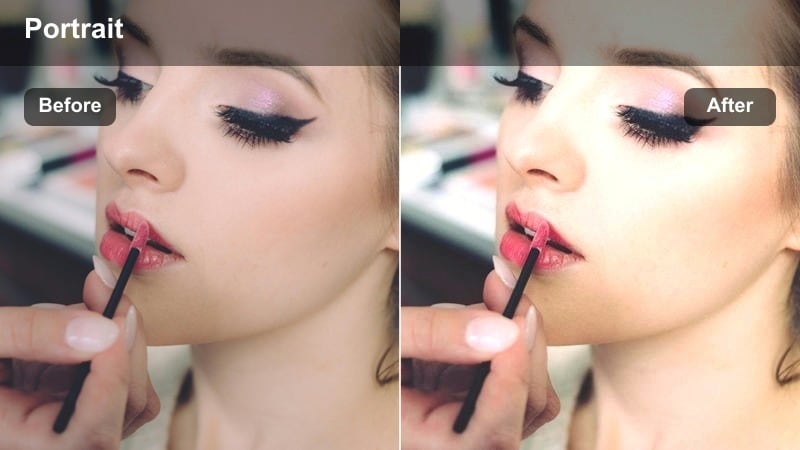
- Effect look: Earthy rust midtones with soft orange streetlight glow and preserved neutral skin tones.
- Best for: Alleyway portraits under streetlamps, door lights, or signage with warm tungsten bulbs.
- Editing tip: Use selective color to pull back orange saturation in highlights if signs or lamps become too dominant.
Rust Lantern Hue is designed for those classic single-streetlamp setups, adding earthy rust tones to walls and midtones while keeping faces believable. The filter leans into tungsten warmth without turning everything neon orange, so brick, metal, and pavement gain a vintage, cinematic character.
Use this look in Filmora when your subject is standing beneath doorways, balconies, or lantern-style lights. After applying, adjust HSL or selective color to dial back oversaturated oranges in the brightest highlights and use a subtle radial mask to lift exposure on the face so it stands out against the deep, warm background.
Neon Night Crosswalk Portrait Filters
Neon Teal Dream
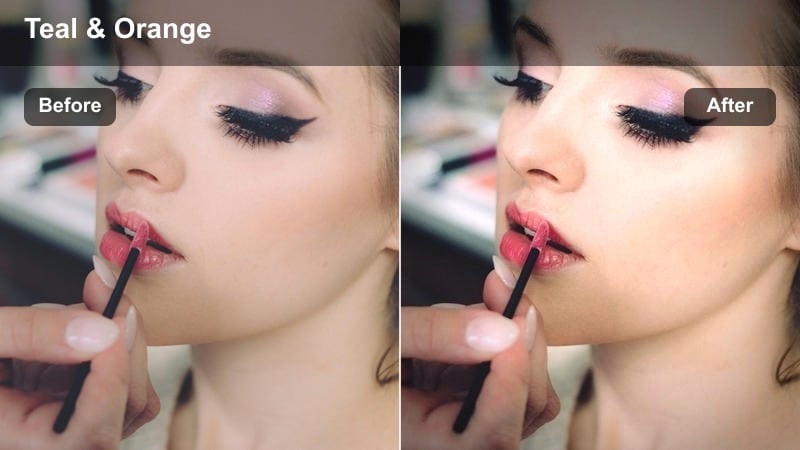
- Effect look: Teal and cyan shadows with magenta accents for a classic cyberpunk street portrait vibe.
- Best for: Night portraits at crosswalks, bus stops, and storefronts with bright neon or LED signage.
- Editing tip: Lower saturation for teal in the HSL panel if dark jackets look too electric compared to the subject's skin.
Neon Teal Dream gives your night city clips that cyberpunk-inspired teal-and-magenta split, pushing shadows cooler while letting neon signage glow. It is perfect for shots where LED boards and traffic lights are already colorful, turning ordinary sidewalks and crosswalks into futuristic sets.
Apply this filter in Filmora to footage where your subject stands near bright signs or passing cars, then use color masking to protect skin from aggressive teal shifts. If jackets or asphalt turn overly electric, reduce teal and cyan saturation in HSL so the stylized background supports, rather than overpowers, your subject.
Midnight Film Matte
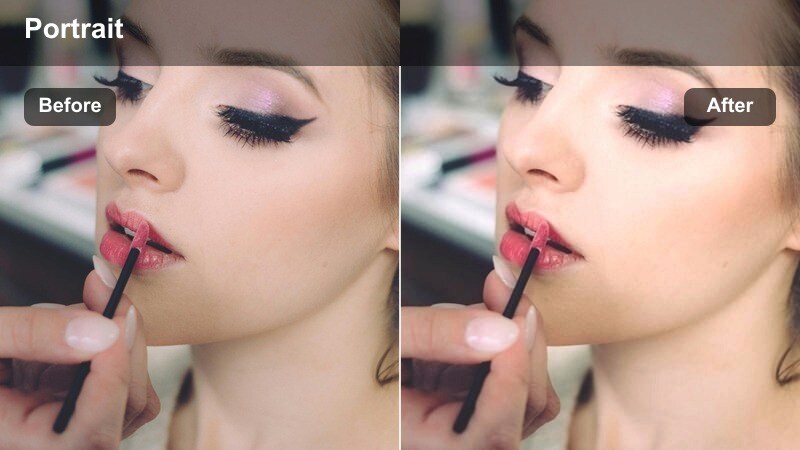
- Effect look: Soft low-contrast night look with cool shadows and gentle highlight roll-off for a filmic mood.
- Best for: Handheld street portraits by crosswalks and intersections with car headlights and traffic lights.
- Editing tip: Lift shadows slightly to reveal detail in dark clothing while adding a vignette to frame the subject.
Midnight Film Matte softens the aggressive contrast of night footage, cooling shadows and gently rolling off highlights from headlights and traffic signals. The look is ideal when you want a more relaxed, film-like atmosphere instead of a high-contrast, digital sharpness.
Inside Filmora, add this filter to handheld intersection shots and then fine-tune the tone curve so you keep detail in clothing and hair without losing the matte character. Lower highlight contrast to avoid clipping bright lights, add a vignette around the frame, and subtly sharpen eyes and facial features for a pleasing cinematic balance.
Taxi Glow Highlight
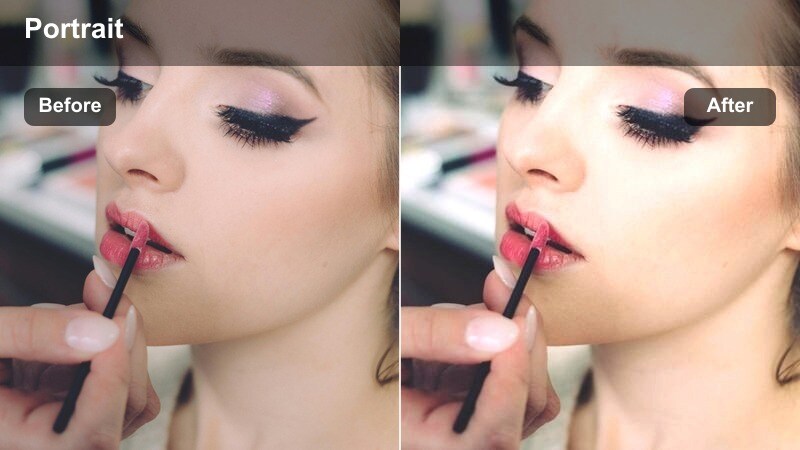
- Effect look: Warm yellow highlights paired with cool city shadows for dynamic night energy.
- Best for: Street corners with taxis, passing traffic, and reflective wet roads at night.
- Editing tip: Increase saturation in yellows slightly to make headlights and taxi signs pop without affecting skin tones.
Taxi Glow Highlight leans into the contrast between bright yellow lights and cool city shadows, perfect for busy corners where cabs, buses, and streetlights zoom through the frame. The filter makes headlights and signage pop while preserving a cool, urban mood in the darker areas.
Use this look in Filmora when your subject waits near the curb or crosses a busy street. Boost yellow saturation and local contrast around reflective surfaces like wet pavement or glass, then rely on masks to keep the subject's face clean and natural while the streaks of light behind them carry the high-energy vibe.
Soft Golden Hour Sidewalk Portrait Filters
Sunset Skin Soft
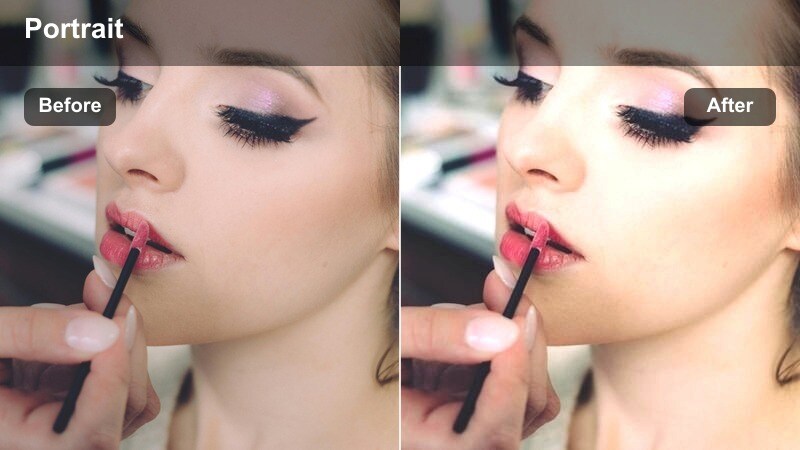
- Effect look: Warm golden highlights with gentle contrast and soft skin-friendly tones.
- Best for: Late afternoon sidewalk portraits with sun flares, long shadows, and backlit hair.
- Editing tip: Reduce clarity slightly on the subject's face while keeping clothing and pavement sharper for a cinematic depth.
Sunset Skin Soft is all about flattering, warm light that keeps skin tones creamy and natural while boosting golden flares around hair and edges. It lowers harsh contrast just enough to make sidewalk and building textures feel cinematic without distracting from the person in frame.
Apply this filter in Filmora to clips shot during late afternoon or early golden hour, then reduce clarity on the face using masks or portrait tools while maintaining crispness on clothing and pavement. Adjust warmth and exposure in a circular mask around the face for a subtle spotlight effect that leads the viewer's eye straight to your subject.
Copper City Haze
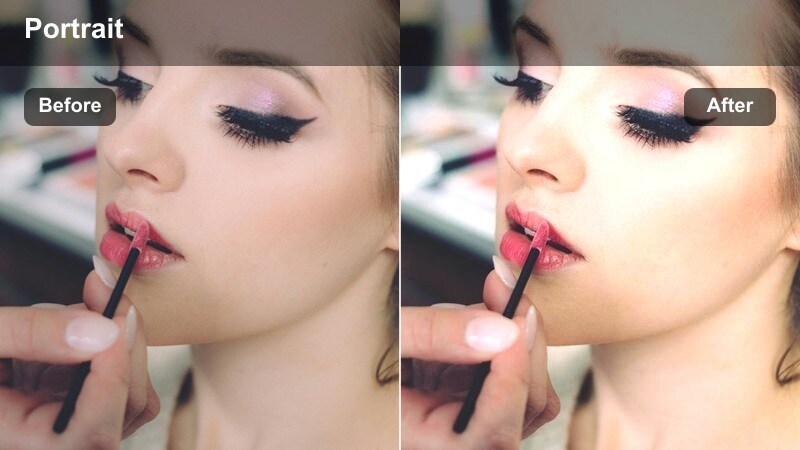
- Effect look: Copper-tinted midtones with mild haze and low contrast for a nostalgic street-film feel.
- Best for: Sidewalk portraits shot through glass, bus stops, or railings during late afternoon.
- Editing tip: Increase dehaze slightly if backlight is too strong, then re-add softness using Filmora's blur or glow tools.
Copper City Haze adds a warm copper tint and gentle atmospheric softness, ideal for portraits framed through windows, bus stops, or reflections. The low contrast and slight haze create a nostalgic, film-inspired impression of city sidewalks and commuting scenes.
In Filmora, combine this filter with shots where light passes through glass or crosses the lens to create flares. If the backlight overwhelms detail, use Dehaze or exposure controls to pull back the brightest areas, then reintroduce softness with subtle blur or glow so your subject's eyes stay sharp while the background feels dreamy and layered.
Urban Pastel Porch
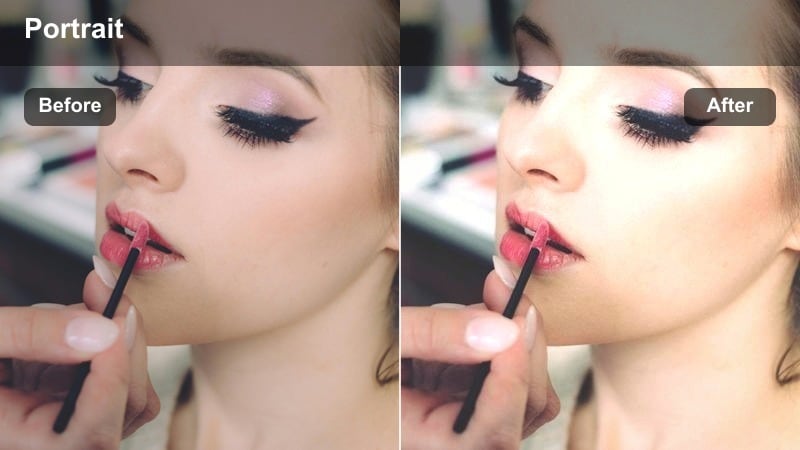
- Effect look: Soft pastel highlights with slightly muted contrast and gentle color shifts toward peach.
- Best for: Street portraits on steps, stoops, and small porches with soft natural light.
- Editing tip: Lower saturation for greens and blues so clothing and backgrounds do not overpower the pastel palette.
Urban Pastel Porch shifts your palette toward soft peach and pastel highlights, perfect for portraits on townhouse steps, stoops, or small porches. The muted contrast keeps the overall scene airy and clean, which works especially well for lifestyle or fashion-forward street content.
After applying this preset in Filmora, use HSL to gently desaturate greens and blues from plants, doors, or clothing that might compete with the pastel cast. If skin skews too pink, nudge the orange hue slightly toward yellow and fine-tune saturation until the subject looks natural while the environment stays dreamy and cinematic.
Moody Rainy Crosswalk Portrait Filters
Wet Asphalt Cinema
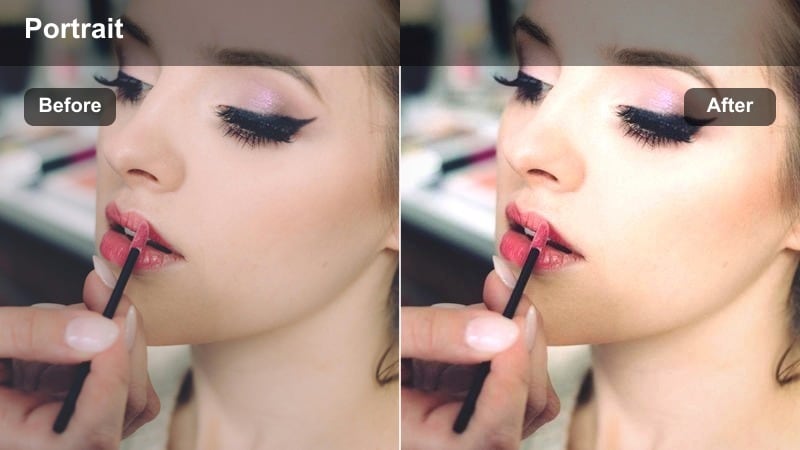
- Effect look: Deep cool contrast with glossy highlights and rich reflections on wet streets.
- Best for: Rainy or post-rain crosswalk portraits with puddles and reflective asphalt.
- Editing tip: Increase local contrast on reflections only to keep the subject's skin smooth but the ground detailed.
Wet Asphalt Cinema amplifies the drama of rainy streets, deepening cool tones while emphasizing the glossy reflections in puddles and on asphalt. It turns otherwise gloomy weather into a cinematic asset, especially when traffic lights and storefronts bounce color into the ground.
In Filmora, use this filter on crosswalk or street-corner shots taken right after a shower. Add a mask over the lower part of the frame to bump local contrast and saturation in reflections, while keeping the subject's skin smoother and less contrasty. A subtle vignette from the top of the frame helps guide the viewer's attention toward the subject and the reflective street surface beneath them.
Umbrella Noir Frame
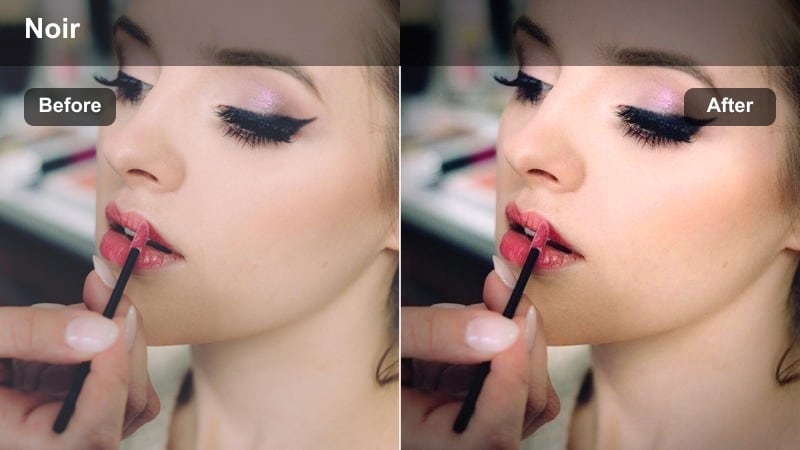
- Effect look: High-contrast noir-inspired look with cool shadows and strong subject separation.
- Best for: Portraits shot under umbrellas near city lights or shop windows on rainy nights.
- Editing tip: Add a dark vignette and slightly increase sharpness on the umbrella edges to frame the subject's face.
Umbrella Noir Frame leans into a classic noir aesthetic with bold contrast, cool shadows, and a strong focus on the face framed by the umbrella. Raindrops and reflections turn into dramatic texture while the subject stands out against the darker surroundings.
Apply this filter in Filmora for night shots under umbrellas near bright windows or signs, then deepen the vignette so the umbrella naturally frames the brightest area around the face. Slightly sharpen the edges of the umbrella and add a touch of film grain so the noise in shadows feels intentional and fits the moody, noir storytelling.
Misty Sign Glow
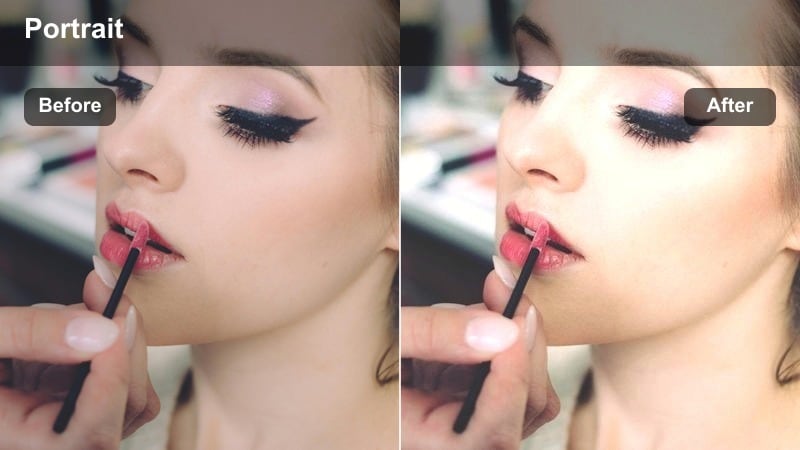
- Effect look: Soft glowing highlights from street signs with slightly muted contrast and a cool haze.
- Best for: Rainy crosswalk portraits near bright store signs, billboards, or bus stop ads.
- Editing tip: Use a glow effect on the brightest sign areas only, then gently reduce contrast so the mist feels natural.
Misty Sign Glow transforms bright signage and billboards into soft, atmospheric light sources, perfect for rainy evenings where moisture in the air diffuses the glow. The overall contrast is slightly muted, helping mist, droplets, and reflections feel cohesive and cinematic.
Inside Filmora, use this filter when your subject stands near illuminated ad boards or bus stop panels. Add glow selectively to the brightest areas while masking out the face to keep it sharp and readable, then pull down global contrast a touch so the mist and highlights merge smoothly rather than appearing harsh or overexposed.
Tips for Using Street Portrait Cinematic Lut Filters in Filmora
- Shoot street portraits slightly underexposed at night so highlights from signs and headlights stay controllable once filters are applied.
- Lock white balance in-camera to avoid color shifts between shots when you apply the same cinematic filter across a sequence.
- Use masks to protect skin tones when pushing strong teal, magenta, or copper looks on urban backgrounds.
- Always test filters on a close-up shot of the face first, then adjust saturation so eyes and lips do not appear oversaturated.
- Add subtle film grain after color work to help blend digital noise and make cinematic contrast feel more natural.
- For vertical content, center the subject's face where contrast is highest so filters enhance, not distract from, your main focal point.
With the right combination of cinematic filters, your street portraits can move from flat city footage to polished, film-inspired visuals that fit any platform.
Experiment with these presets, tweak them to match your local street lighting, and save your own versions so every urban portrait project starts with a consistent street portrait cinematic LUT base look.
secure download