

 100% Security Verified | No Subscription Required | No Malware


 ChatGPT
 Perplexity
 Gemini
 Claude
 Grok
Grok
Street portrait filters help you turn fast, unpredictable city moments into polished, cinematic portraits with just a few clicks. Instead of fighting mixed lighting, neon signs, and harsh shadows, you can use Filmora filters that are tuned specifically for faces shot in urban environments.
Below you will find a curated set of Filmora street portrait filters designed for street photographers, portrait creators, and urban content creators working in street photography, urban portraits, and city lifestyle shoots. Each entry includes its effect look, best use case, and a quick editing tip so you can get consistent results without over-editing your images.
In this article
Moody Street Portrait Filters for Urban Storytelling
Gritty Shadow Contrast
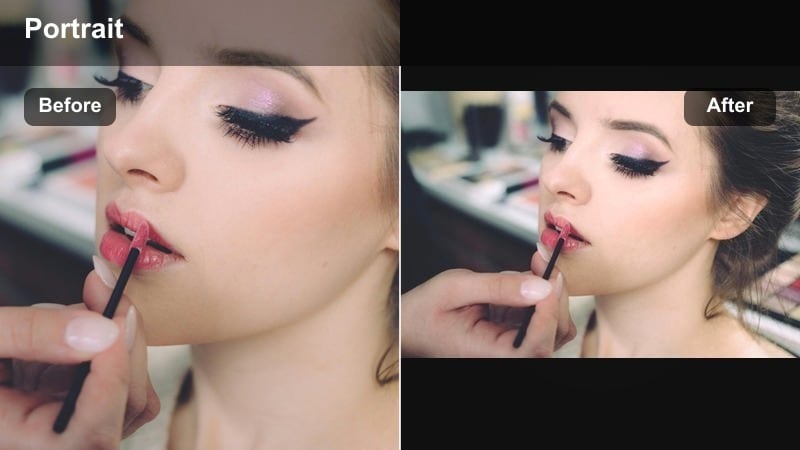
A raw, high-contrast look that adds tension and drama to urban portraits shot in hard light.
- Effect look: Crunchy contrast with deep shadows that emphasize facial structure and street textures.
- Best for: Backlit alley portraits, rainy evenings, and scenes with strong side light or harsh street lamps.
- Editing tip: Lower the filter strength to around 60-70 percent and slightly lift the blacks to avoid losing detail in dark hair and clothing.
Gritty Shadow Contrast is ideal when you want your city portraits to feel raw and intense without losing control of the image. In Filmora, this filter carves out cheekbones, jawlines, and clothing folds, while also pulling detail out of brick walls, metal, and asphalt for a strong urban texture.
Use it on portraits shot in alleys, under bridges, or beside hard-edged sunlight where natural contrast is already high. After applying the filter in Filmora, fine-tune exposure and blacks so the subject remains readable, then add light sharpening around the eyes to keep the face as the emotional focal point.
Pro tip: Balance grit with skin detail
When using Gritty Shadow Contrast, add a subtle skin smoothing adjustment after applying the filter so the face stays clean while the background remains textured.
If the image still feels too harsh, reduce clarity on the midtones only and use a radial mask around the face to keep eyes and lips sharp.
Let AI Match Your Street Portrait Color Style
Filmora s AI-powered color tools can analyze your favorite street portraits and suggest filters or adjustments that match the same mood. This is especially useful when you want consistent color across different locations and lighting conditions.
Load a reference shot with the street portrait vibe you love, then apply AI color matching to quickly align your new urban portraits with that style. Tweak intensity and skin tones afterward so your final look feels intentional, not generic.
 secure download

Preview Street Portrait Filters on Real Urban Shots
Before committing to a look, test Filmora street portrait filters on sample clips or stills from your latest walk. Seeing each filter on real-world scenes helps you understand how it handles mixed light, traffic, and crowded backgrounds.
Cycle through different filters like moody noir, neon-driven styles, and clean commercial looks, then adjust intensity sliders until you find the right balance between style and realism.
secure downloadTurn Your Favorite Street Filters into LUT Workflows
Once you find a street portrait filter that matches your brand, you can build a workflow around it by combining it with LUTs for different cameras or lighting setups. This keeps your style steady, even when you shoot with multiple devices.
Apply a technical LUT to normalize footage first, then layer your preferred street portrait filter on top for creative color. Fine-tune exposure and skin tones afterward, and save the stack as a reusable preset.
secure downloadMuted City Matte
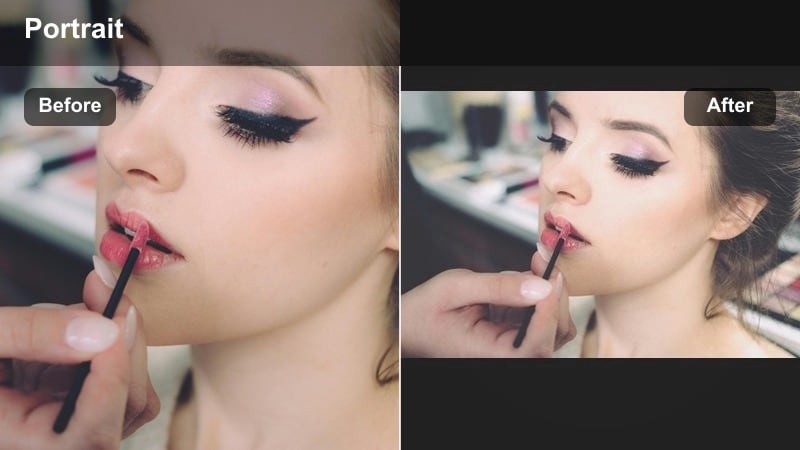
A calm, cinematic matte filter that makes busy streets feel softer and more minimal.
- Effect look: Soft, desaturated tones with a gentle matte finish that flattens extremes in highlights and shadows.
- Best for: Overcast street portraits, subway platforms, and minimalistic city lifestyle shots.
- Editing tip: Use the tone curve to slightly boost midtone contrast after applying the filter so the face does not look washed out.
Muted City Matte is perfect when you want your subject to feel calm and cinematic in the middle of visual noise. In Filmora, it softens highlight spikes from windows, cars, and sky while muting saturated billboards or signage that can otherwise steal attention.
Apply this filter to clips from cloudy days, underground stations, or flat-light sessions where you want a gentle, editorial finish. After grading, use Filmora s tone curve to subtly lift midtones for the face, and consider adding a slight vignette so the viewer s eye stays on the subject rather than the background.
Pro tip: Protect skin while desaturating
When skin starts to look dull, selectively increase saturation in orange and red channels while keeping blues and greens muted for the background.
For vertical content, slightly increase exposure and add a tiny bit of warmth so faces stay inviting on bright phone screens.
Noir Street Portrait
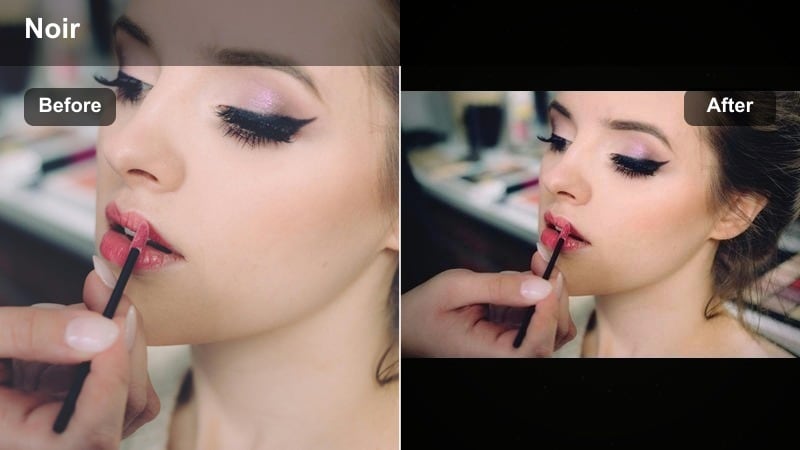
A dramatic monochrome filter that turns city light and shadow into graphic, story-driven portraits.
- Effect look: High-contrast monochrome with rich blacks and crisp highlights that mimic classic film noir.
- Best for: Night streets, window light portraits, and silhouettes against bright city signage.
- Editing tip: Fine-tune the luminance of orange and yellow channels to control how bright the skin appears in black and white.
Noir Street Portrait is built for night scenes and high-contrast situations where color distracts from mood. In Filmora, this filter converts your footage to a punchy black and white that emphasizes geometry, shadow shapes, and facial expressions.
Use it for portraits lit by a single shop window, glowing billboard, or street lamp to create classic noir vibes. After applying the filter, adjust orange and yellow luminance to brighten or deepen skin, and add a slight vignette so the face and eyes pop against the city lights.
Pro tip: Shape the light with vignettes
After applying Noir Street Portrait, add a subtle vignette and shift its center toward the subject s face to guide attention.
Increase local contrast around the eyes and lips only, so the expression cuts through busy nighttime backgrounds.
Colorful Urban Portrait Filters for Neon and City Lights
Neon Glow Skin Tone
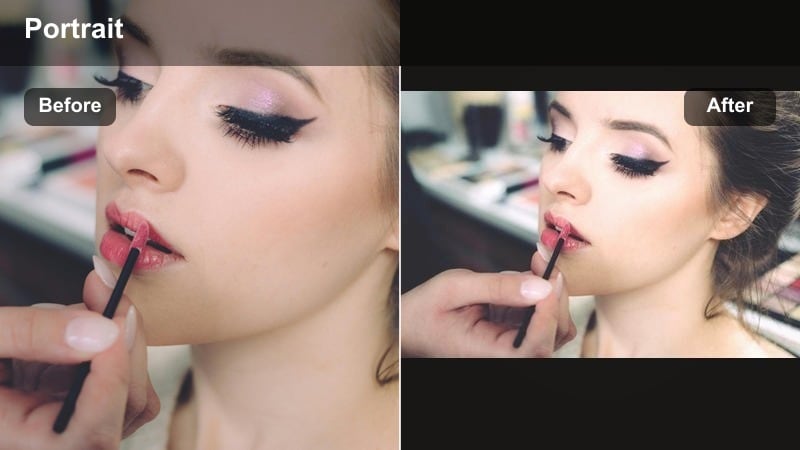
A vibrant neon filter that separates natural skin from intense city colors for clean, modern portraits.
- Effect look: Punchy neon colors with controlled skin tones, keeping faces natural while signs and lights stay vivid.
- Best for: Night markets, neon signs, LED-lit storefronts, and reflective puddles after rain.
- Editing tip: Lower saturation in the magenta channel if purple neon starts bleeding into skin, and slightly reduce highlights.
Neon Glow Skin Tone is tailored for nightlife and neon-heavy environments where you want the city to glow without turning skin into unnatural colors. In Filmora, this filter boosts saturated signage, LEDs, and reflections while keeping complexions grounded and believable.
Apply it to footage from night markets, arcades, or cyberpunk-style streets, then refine magenta and red saturation to control color spill on faces. Combine the filter with slight highlight reduction so signs stay readable and reflections carry detail instead of blowing out.
Pro tip: Use reflections to amplify color
Position your subject near glass or puddles so the Neon Glow Skin Tone filter has more colorful surfaces to enhance.
If highlights clip on reflective areas, lower the filter intensity and reduce whites instead of pulling down overall exposure.
City Sunset Portrait
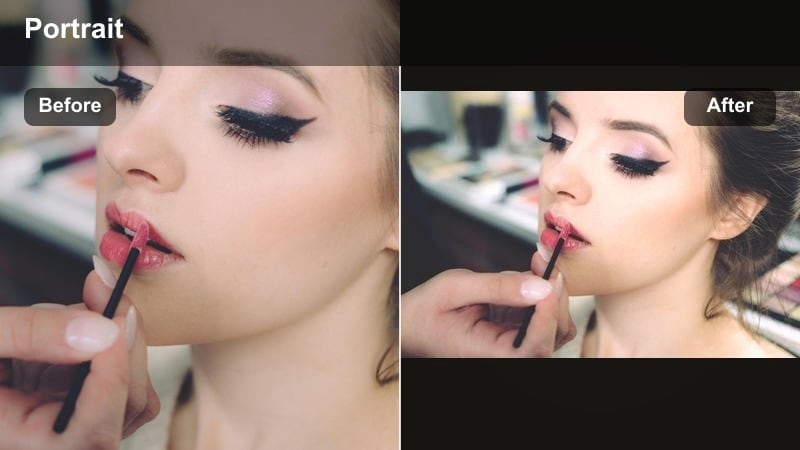
A warm cinematic filter that adds romantic, sunset-like glow to city portraits and lifestyle shots.
- Effect look: Warm, golden color grade that simulates sunset even when the light is slightly flat or mixed.
- Best for: Golden hour rooftop sessions, bridge walk portraits, and city lifestyle reels.
- Editing tip: If the image feels too orange, cool the temperature a little and add a warm tint only to highlights in color grading.
City Sunset Portrait is made for golden-hour storytelling, but it can also fake a soft sunset when the light is not ideal. In Filmora, this filter wraps the subject in a gentle amber glow while keeping shadows neutral enough that the scene does not look overly tinted.
Use it on rooftops, bridges, and skyline views to add warmth and emotional weight to your portraits. After applying the filter, balance white balance and highlight tint so skin remains flattering, and consider increasing saturation slightly on midtones to help clothing and city details feel rich but not oversaturated.
Pro tip: Match warmth to wardrobe colors
For outfits with strong reds or yellows, lower saturation slightly so the City Sunset Portrait filter does not overpower the frame.
For cooler outfits like blues and blacks, push warmth a bit more and raise midtone saturation to separate the subject from the skyline.
Urban Pastel Portrait
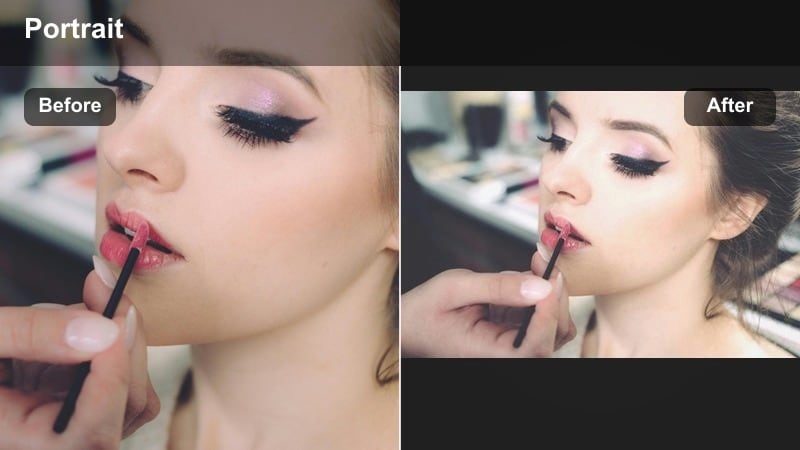
A light, pastel filter that turns busy city streets into soft, airy backdrops for portraits.
- Effect look: Soft pastel colors, slightly lifted blacks, and gentle contrast for dreamy city portraits.
- Best for: Brunch street scenes, lifestyle fashion shoots, and content for bright social feeds.
- Editing tip: Increase clarity only on the subject while keeping the background soft to maintain the pastel mood.
Urban Pastel Portrait is designed for light, lifestyle-focused content that needs a bright, friendly aesthetic. In Filmora, the filter rounds off contrast, mutes harsh primary colors, and lifts shadows just enough to create a dreamy pastel base.
Apply it to sidewalk cafes, shopping districts, or colorful neighborhoods to turn chaotic backgrounds into soft gradients of color. After grading, use selective clarity and sharpness on the subject while leaving the background a bit softer, so the pastel look stays intact but the portrait remains crisp where it counts.
Pro tip: Control color clutter
If too many colors compete in the frame, selectively desaturate greens and yellows while keeping skin-friendly oranges intact.
Use a slight blur or depth effect on the far background so the subject remains the clean focal point in a pastel environment.
Clean and Natural Street Portrait Filters
True Skin Street
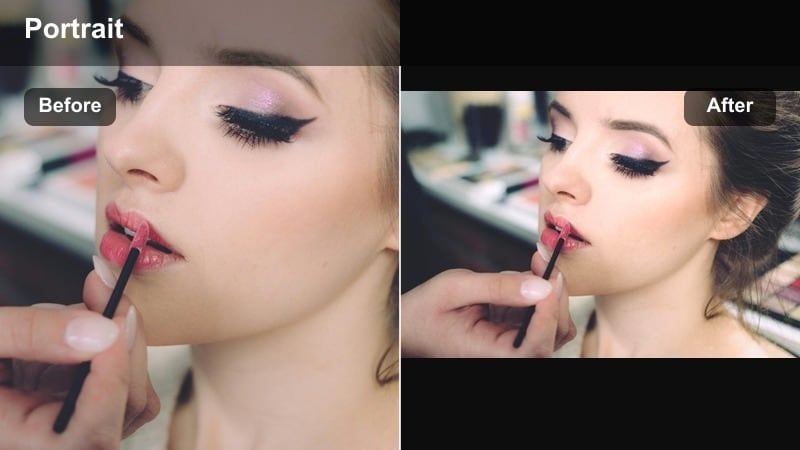
A realistic, documentary filter that protects authentic skin tones in unpredictable street lighting.
- Effect look: Neutral contrast and color with slight skin tone refinement to handle mixed city lighting.
- Best for: Daytime sidewalks, parks by the street, and documentary-style urban portraits.
- Editing tip: Use a subtle HSL adjustment to push oranges slightly toward a natural tan and reduce green color cast from reflections.
True Skin Street is your go-to when authenticity matters and you want your subject to look how they do in real life. In Filmora, it normalizes mixed lighting from buildings, trees, and reflections while giving skin a gentle polish that still feels natural.
Use it for documentary sessions, candid portraits, and brand content where true-to-life color is key. After applying the filter, fine-tune orange hues for believable skin and dial back any green spill from nearby glass or foliage to keep complexions clean.
Pro tip: Work fast with batch consistency
Apply True Skin Street as a base grade across a full street session, then make minor exposure tweaks per image.
For fast social delivery, export a small batch test to check how skin looks on both phone and desktop, then adjust warmth globally if needed.
Soft Window Portrait
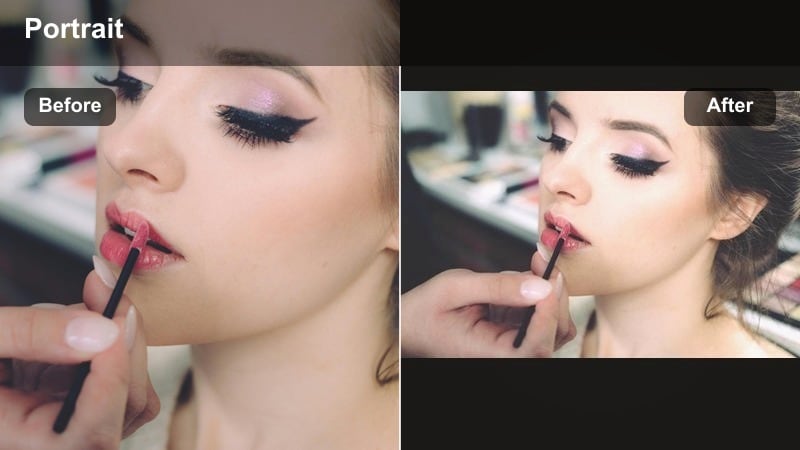
A flattering filter that enhances soft natural light on faces in window and storefront portraits.
- Effect look: Gentle highlights and slightly softened contrast with focus on flattering facial light.
- Best for: Cafe windows, bus stops, and shopfront reflections with soft or diffused light.
- Editing tip: Add a subtle radial exposure boost on the face so it stays bright even when the background is busy.
Soft Window Portrait is built for portraits shot through or beside glass, where natural light wraps gently around the subject. In Filmora, it smooths contrast and tames specular highlights so skin looks soft without losing detail.
Use it for lifestyle coffee-shop sessions, transit stops, or storefront browsing scenes to emphasize relaxed, candid emotion. After applying the filter, add a small radial exposure and clarity boost around the face so it stands out from layered reflections and background shapes.
Pro tip: Use reflections creatively
Combine Soft Window Portrait with angled shooting positions so reflections add depth without overpowering the subject.
If reflections become distracting, reduce clarity and saturation in the background only while keeping the face sharp and bright.
Clean City Portrait
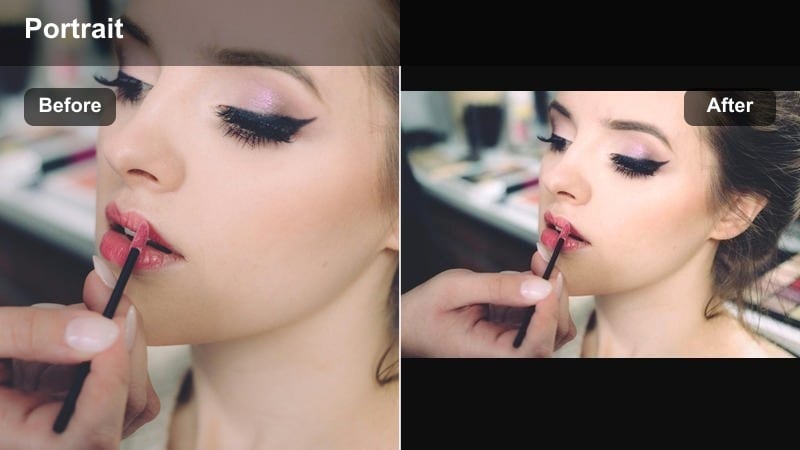
A polished urban filter that keeps portraits clean and professional for commercial or branding work.
- Effect look: Crisp, modern color with subtle contrast and light vibrance, ideal for commercial-feeling portraits.
- Best for: Brand collaborations, city lifestyle campaigns, and profile images for professional use.
- Editing tip: Fine-tune white balance using a neutral part of the scene, such as concrete or a gray building, before applying the filter.
Clean City Portrait is optimized for polished, client-ready imagery where clarity and color accuracy matter. In Filmora, it delivers a modern, bright look that suits websites, campaigns, and professional profiles without leaning too stylized.
Use it for influencer shoots, branded street campaigns, or any city portrait that may sit next to logos or product visuals. Start by neutralizing white balance on concrete or neutral walls, then apply the filter and adjust vibrance so clothing and brand colors stay true but still pop.
Pro tip: Keep brand colors accurate
When shooting for clients, check how their brand colors look after applying Clean City Portrait and adjust HSL channels if logos shift too much.
Export a short preview clip or a few stills and compare them with brand guidelines to ensure the grade supports, not changes, their palette.
Cinematic Street Portrait Filters with Story-Driven Looks
Teal and Orange Blocks
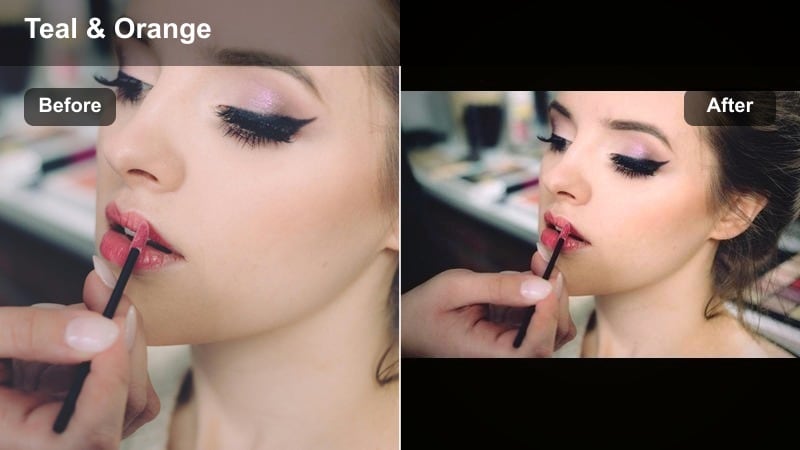
A bold cinematic filter that leans into teal and orange contrast for dramatic city portraits.
- Effect look: Classic teal shadows and warm skin tones that create instant cinematic separation between subject and city.
- Best for: Underpasses, parking garages, and streets with a lot of gray concrete or blue-toned environments.
- Editing tip: Reduce saturation of teal slightly for portraits where the background feels too stylized or distracts from facial expression.
Teal and Orange Blocks brings a movie-style grade to your urban portraits by cooling shadows while keeping skin warm and inviting. In Filmora, it quickly creates color contrast between your subject and gray or blueish city structures, adding depth and drama.
Apply it in tunnels, garages, or shaded streets where the environment already leans cool. Then, if the teal feels too heavy, roll back its saturation and adjust midtone contrast so faces stay expressive and do not disappear into the grade.
Pro tip: Frame for color contrast
Look for backgrounds with natural teal or blue hints, like distant buildings or shade, so the filter has more to work with.
If no teal exists, shift the hue of neutral shadows slightly toward cyan before applying the filter for a stronger cinematic feel.
Cinematic Rain Street
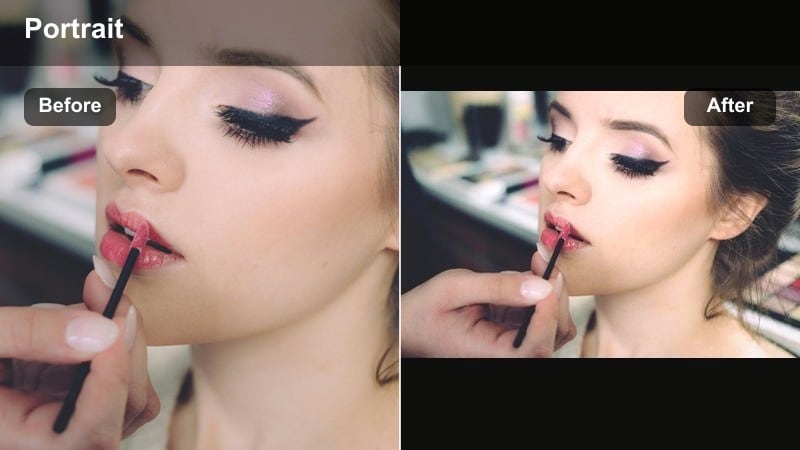
A rain-friendly filter that turns wet city streets into reflective, cinematic backdrops for portraits.
- Effect look: Cool, moody tones with subtle bloom in highlights and extra depth in wet surfaces.
- Best for: Rainy nights, umbrella portraits, and wet sidewalks that reflect city lights.
- Editing tip: Increase contrast slightly but keep highlights under control so reflections retain color and texture.
Cinematic Rain Street is designed to make the most of bad weather by emphasizing reflections, glows, and cool city ambience. In Filmora, it deepens blues and cyans while blooming highlights from cars, signs, and windows to create a cinematic rain-soaked feel.
Use it on nighttime or blue-hour rain portraits where umbrellas, puddles, and wet roads are part of the story. After applying the filter, tame highlights so colorful reflections remain detailed, and adjust local contrast around the subject so they do not get lost in the atmospheric background.
Pro tip: Lean into reflections and motion
Have your subject stand near puddles or moving traffic lights so Cinematic Rain Street can amplify depth and color.
If motion blur from cars feels messy, use masks to keep the subject crisp while allowing the background to stay soft and dynamic.
City Film Portrait
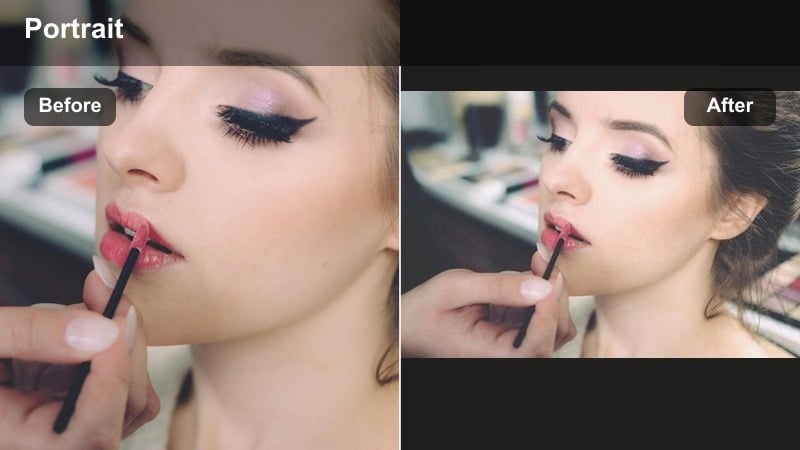
A filmic filter that adds analog character to modern city portraits without overdoing the vintage look.
- Effect look: Subtle film-inspired fade with gentle grain and slightly shifted colors reminiscent of 35mm street photography.
- Best for: Story-driven street portraits, zine-style sequences, and narrative shorts.
- Editing tip: Keep grain strength modest and avoid heavy sharpening so the film-like softness is preserved.
City Film Portrait brings a classic street photography vibe to digital footage with a tasteful blend of fade, grain, and color shifts. In Filmora, it softens the harshness of modern sensors and adds character without making the image feel overly retro or stylized.
Apply it to narrative sequences, BTS clips, or photo-style edits where you want continuity and mood across multiple shots. Keep grain and sharpening gentle so the analog softness remains, and consider using the same filter intensity across the whole sequence to tie the story together.
Pro tip: Sequence for narrative impact
Use City Film Portrait across a series of clips or photos so the filmic tone ties your street story together from start to finish.
Alternate wider environmental frames with tighter portraits and keep the same filter intensity for a cohesive, analog-inspired set.
Tips for Using Street Portrait Filters Filters in Filmora
- Shoot slightly flatter in-camera so your street portrait filters have more dynamic range to work with.
- Protect highlights around faces, billboards, and windows because blown-out areas are hard to recover even with strong filters.
- Always check how your urban portrait filter looks on skin, not just background colors, before applying it across a whole session.
- Adjust filter intensity instead of stacking too many effects, which can make city portraits look over-processed.
- Save your favorite street portrait settings as presets so you can apply the same look to both photos and vertical video content.
- Test your grades on both desktop and mobile screens to ensure contrast and saturation feel balanced in real-world viewing conditions.
Street portrait filters make it far easier to handle the wild mix of color, contrast, and light you find in cities, whether you are shooting quick candid frames or planned lifestyle sessions. By choosing looks that match your story from gritty noir to pastel lifestyle you can keep your style recognizable across different locations and times of day.
Test a few of these Filmora street portrait filters on your next city walk, refine the ones that fit your brand, and save them as go-to presets. Once you are comfortable with these foundations, you are ready to explore more advanced cinematic street portrait filters that push your urban storytelling even further.
secure download