

 100% Security Verified | No Subscription Required | No Malware

Street portraits live or die by mood, and on Instagram that mood is all about clean tones, gritty textures, and a strong urban aesthetic. With the right street portrait filters for Instagram, you can turn quick city snaps into scroll stopping portraits that feel cinematic and intentional.
Below are 12 Filmora style filters built for Instagram photographers, urban aesthetics creators, and street style accounts. Each one is tuned for everyday city scenes, from golden hour crosswalks to late night neon, so your feed feels cohesive without losing that real street energy.
In this article
Clean Urban Base Filters for Street Portraits
Clean City Soft Contrast
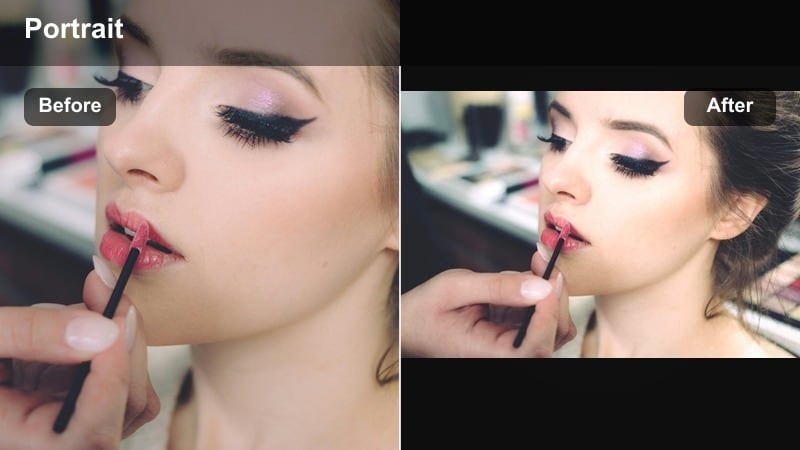
- Effect look: Soft contrast, slightly lifted blacks, and clean neutral colors that keep skin tones natural while still feeling polished.
- Best for: Daytime Instagram street portraits in open shade, city travel content, and lifestyle outfit shots on neutral backgrounds.
- Editing tip: Lower contrast slightly for harsh midday sun and nudge vibrance up instead of saturation to keep colors subtle but alive.
Clean City Soft Contrast is the kind of base filter you can rely on for almost any city portrait. It smooths out harsh contrast, keeps colors neutral, and protects skin tones so your subject always looks fresh and intentional rather than over edited. On Instagram, this translates into a bright, modern aesthetic that does not distract from outfits, expressions, or location details.
In Filmora, apply this filter early in your workflow, then fine tune exposure and white balance to match each street or corner. Because the look is subtle and balanced, you can safely stack additional creative filters, LUTs, or local adjustments on top without breaking your overall urban aesthetic. It is ideal for creators who want a clean, editorial style grid that still feels grounded in real city light.
Pro tip: Start every street portrait edit with a clean base
Use a soft contrast filter like this as your first layer, then fine tune exposure and white balance before stacking stronger creative looks on top.
Keeping a consistent base helps your urban aesthetic stay cohesive across different locations, lighting conditions, and outfits in your Instagram feed.
Match Your Street Portrait Filters with Smart Color Tuning
Filmora’s AI driven color tools help you fine tune each street portrait filter so it works across different cities, lighting conditions, and camera types. Instead of rebuilding your look from scratch, you can adapt one favorite preset to cloudy alleys, neon nights, or hazy golden hour in seconds.
Use AI color matching to keep your Instagram street filter consistent across both photos and reels. This is especially useful for urban aesthetics creators who want a recognizable signature style that survives venue changes, weather shifts, and mixed indoor outdoor lighting.
 secure download

Preview Street Portrait Filters on Real Urban Scenes
Before you commit a look to your entire grid, test Filmora’s street portrait filters on sample city footage and portraits. The live preview lets you see how each filter reacts to skin tone, textured walls, sidewalks, and storefront glass in real time.
Switch quickly between clean, moody, and warm presets to decide which street portrait effect tells the right story for your brand or campaign. This speeds up your workflow and keeps your Instagram feed cohesive without hours of trial and error.
secure downloadTurn Street Portrait Filters into Reusable LUTs
Once you dial in a street portrait filter that works for your account, save it as a LUT so you can reuse that exact look across future edits. This is ideal for Instagram photographers handling both photo and video content who want perfect color continuity.
Apply your saved LUTs to new shoots, reels, and city travel content to keep your main feed, stories, and highlights visually synced. With a small library of signature LUTs, you can respond faster to trends while staying true to your street portrait style.
secure downloadUrban Neutral Skin
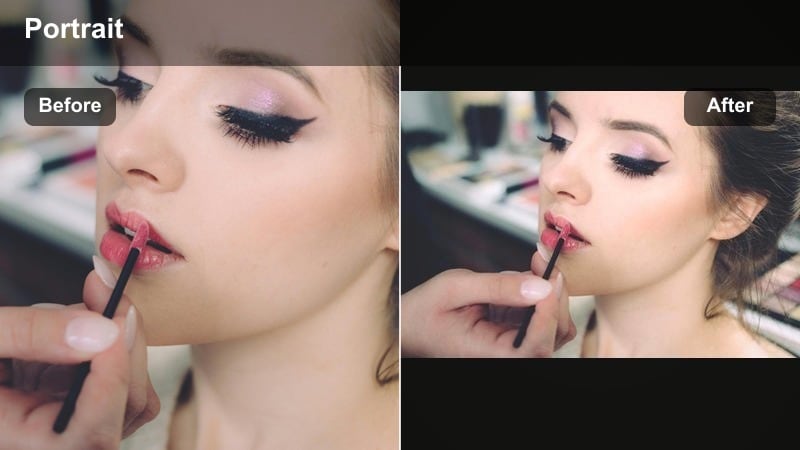
- Effect look: Balanced, low saturation city tones with carefully protected skin highlights and minimal color cast.
- Best for: Portraits shot near colorful walls, busy intersections, or storefronts where background colors can overpower the subject.
- Editing tip: After applying the filter, use HSL to slightly reduce orange and yellow saturation if skin looks too intense, then raise luminance for a soft glow.
Urban Neutral Skin is designed for complex city color, where graffiti, signage, and storefronts can pull attention away from your subject. The filter calms those strong hues while preserving clean, flattering skin so your portraits stay people first even in the loudest environments.
In Filmora, combine this filter with targeted HSL adjustments and masks to keep faces bright and neutral while letting the background stay slightly desaturated. It is ideal for Instagram feeds that mix fashion, travel, and documentary moments but still want consistent, natural looking skin tones across every post.
Pro tip: Protect skin tones in complex city color
When shooting near graffiti, billboards, or neon, always prioritize skin tone accuracy over background saturation.
Use this filter as a base, then add local adjustments to the background only if you want extra pop without affecting the face.
Subtle Street Film
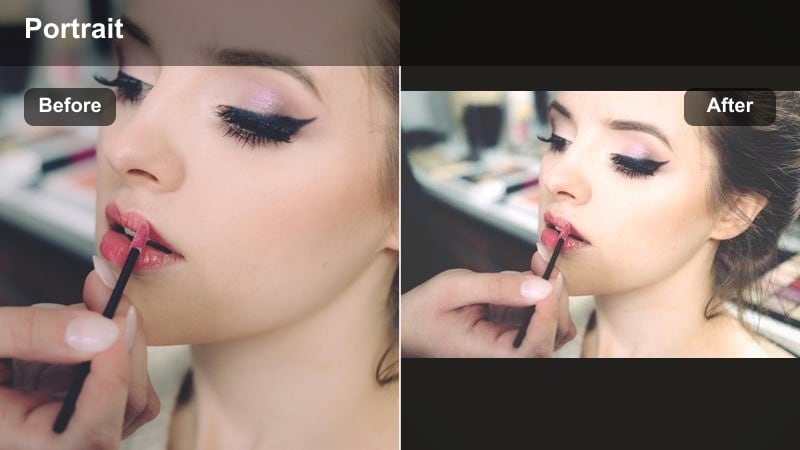
- Effect look: Gentle film style fade with muted primaries, slightly warm highlights, and a soft grain feel.
- Best for: Everyday walk around portraits, behind the scenes content, and casual city travel posts that need a timeless mood.
- Editing tip: Keep clarity moderate to avoid crunching the filmic softness; if you want more detail, increase texture instead of sharpness.
Subtle Street Film adds quiet nostalgia to your portraits without pushing into heavy retro styling. Colors soften, highlights warm slightly, and a film like fade smooths busy streets so the frame feels cohesive and timeless.
Within Filmora, pair this filter with a light grain overlay and gentle vignettes for an analog inspired street diary look. It is perfect for carousels and reels where you want your city stories to feel consistent, intimate, and a bit cinematic without overwhelming your grid with aggressive color grades.
Pro tip: Use film softness to calm busy urban scenes
When the background is visually noisy, a film style fade can unify colors and reduce distraction while keeping the subject sharp.
This is especially helpful for Instagram grids where you want subtle texture and character without harsh digital contrast.
Moody Urban Aesthetic Filters
Midnight Crosswalk
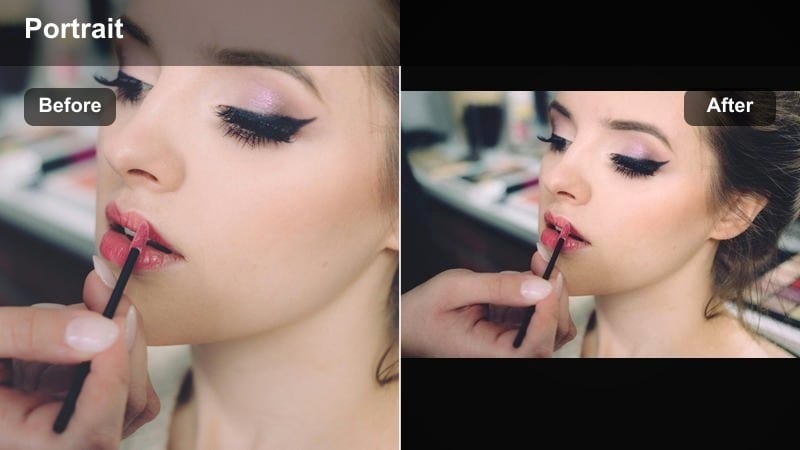
- Effect look: Deep contrast, cool shadows, and rich highlights that make streetlights and reflections pop at night.
- Best for: Nighttime street portraits, rain soaked sidewalks, and city light reflections in windows or puddles.
- Editing tip: Lower blacks slightly for even more depth, then use radial blur or vignette around the face to keep focus in low light scenes.
Midnight Crosswalk leans into the drama of city nights, intensifying contrast while cooling shadows so streetlights, signage, and reflections feel cinematic. It turns ordinary crosswalks and wet sidewalks into visually striking backdrops for moody portraits.
In Filmora, use this filter with selective vignettes and masks to keep faces clear while the environment falls into cooler blues and deep blacks. It works especially well for Instagram reels where you want quick, atmospheric cuts of city life that still preserve skin detail in low light.
Pro tip: Expose for highlights when using high contrast night filters
Slightly underexpose your shot so streetlights and signage keep their detail once the filter boosts contrast.
You can always raise shadows in editing, but clipped highlights are almost impossible to recover cleanly.
Alleyway Matte
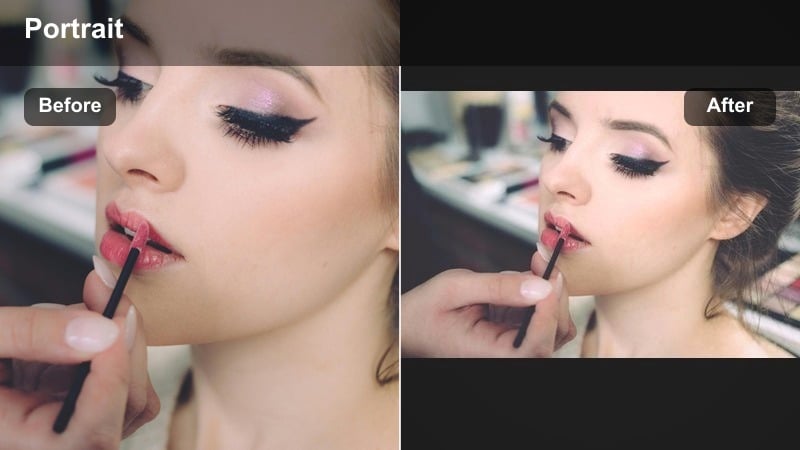
- Effect look: Matte blacks, cool green shadows, and a touch of fade that gives backstreets and side alleys a cinematic tone.
- Best for: Edgy fashion portraits, moody alley shots, and street style accounts that lean into darker, grungier vibes.
- Editing tip: Add a tiny bit of noise or grain after applying the filter to enhance the cinematic, gritty texture without overdoing it.
Alleyway Matte is built for hidden city corners, stairwells, and backstreets. The filter lifts blacks, cools shadows, and adds a faint fade so cluttered alleys feel intentional and cinematic rather than messy.
Apply it in Filmora when you want a grunge leaning, editorial look that keeps your subject grounded in texture and shadow. Combined with a slight grain layer and shallow depth of field, it is ideal for Instagram fashion portraits, lookbooks, and mood driven reels shot away from main streets.
Pro tip: Use matte blacks to hide messy backgrounds
Lifting the blacks slightly hides distracting details in dark areas, making cluttered alleys look intentional instead of chaotic.
Combine this with a lower depth of field in camera so the viewer reads mood first and details second.
Metro Noir
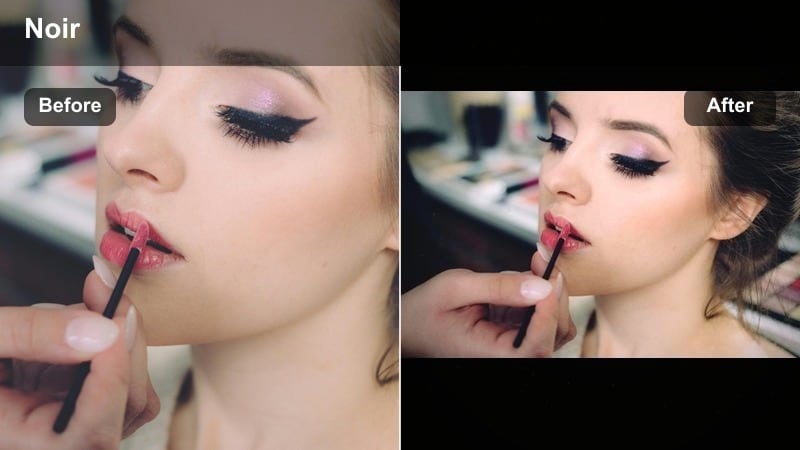
- Effect look: High contrast, near monochrome color palette with muted hues and subtle warm skin against cooler surroundings.
- Best for: Subway platforms, parking garages, underpasses, and any urban spot with strong directional light and deep shadows.
- Editing tip: If colors feel too muted, gently increase individual color saturation for reds or blues only to guide the viewer’s eye.
Metro Noir turns transit hubs and underpasses into graphic, story rich locations. The filter mutes most colors, boosts contrast, and keeps skin slightly warmer than its surroundings so your subject stands out amid concrete, metal, and shadow.
Inside Filmora, pair Metro Noir with deliberate framing that emphasizes lines, staircases, and harsh light. It is powerful for black and white adjacent looks on Instagram, where you want drama and shape but still appreciate a hint of controlled color to guide the viewer’s attention.
Pro tip: Let geometry and light do the storytelling
With a noir style look, pose your subject so leading lines, stairs, or railings frame the face rather than clutter the scene.
Take a few steps back and include more environment; the strong filter will keep the frame visually unified for Instagram.
Warm City Glow and Golden Hour Filters
Golden Blocks
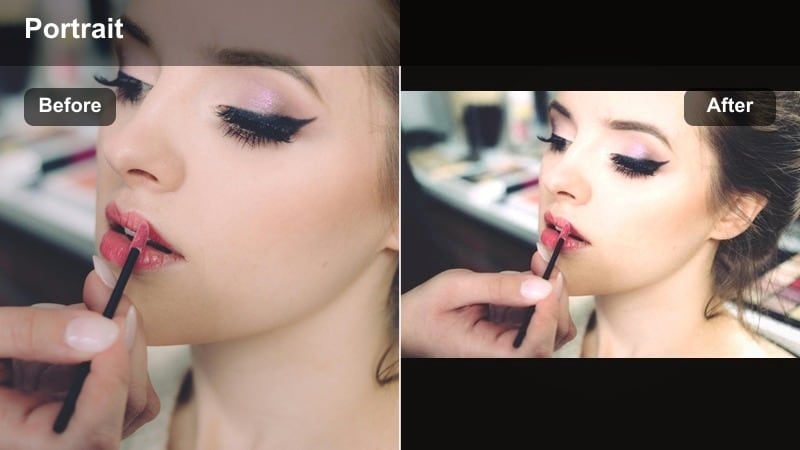
- Effect look: Warm highlights, soft shadows, and gentle saturation that enhances late afternoon light on buildings and skin.
- Best for: Golden hour Instagram street portraits, rooftop sessions, and sunlit crosswalks with long shadows.
- Editing tip: Use the temperature slider sparingly after applying the filter; let tint adjustments balance greens and magentas instead.
Golden Blocks is designed to amplify natural golden hour light without turning everything orange. Highlights glow, shadows stay soft, and saturation gently lifts so your portraits feel dreamy but still realistic.
In Filmora, this filter pairs beautifully with rooftop b roll, backlit walking shots, and static portraits on sun kissed corners. Use it across a series of posts or reels to build a sun drenched, cinematic urban aesthetic that feels consistent from frame to frame.
Pro tip: Angle your subject into the light for maximum glow
Have your subject turn slightly toward the sun so the filter’s warm highlights catch cheekbones and hair edges.
If the background gets too bright, reframe so tall buildings block part of the sun and create more flattering side light.
Sunset Asphalt

- Effect look: Coppery warmth in highlights with cool, slightly blue asphalt shadows for a strong complementary color feel.
- Best for: Street style outfit photos in open streets, crosswalk portraits, and city travel content during late day.
- Editing tip: Boost contrast a touch and add a subtle vignette to pull attention away from bright road markings or signage.
Sunset Asphalt leans into a classic warm skin, cool street color story. It pushes highlights toward copper while keeping asphalt and deeper shadows cooler, creating instant contrast that flatters outfits and skin tones.
Inside Filmora, use this filter for full body outfit shots, walking clips, and travel reels that feature a lot of road or pavement. The complementary tones read clearly on small screens, making your portraits pop in the Instagram feed without heavy editing.
Pro tip: Use crosswalks and road markings as graphic elements
Position your subject between lines or near painted arrows so the contrasting tones guide the viewer toward the face.
Shoot slightly from above to emphasize patterns on the ground while the filter unifies the color story.
Coffee Run Warmth
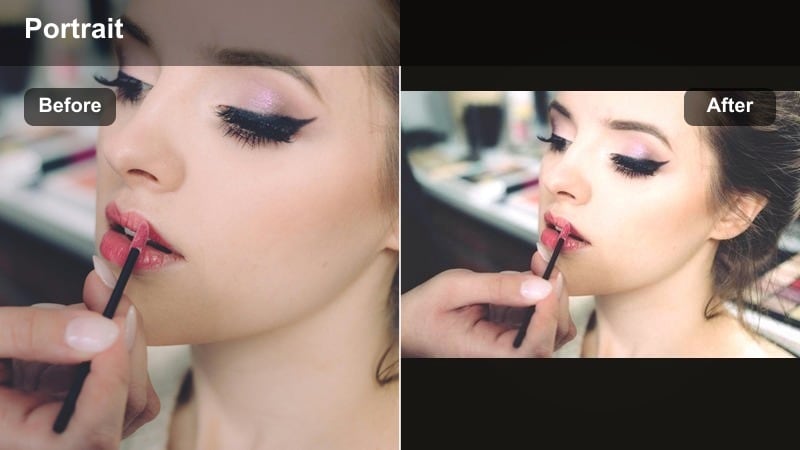
- Effect look: Soft warm cast, gentle highlight roll off, and cozy browns that flatter cafes, sidewalks, and brick walls.
- Best for: Lifestyle street portraits, coffee shop doorways, and casual city errands styled for Instagram stories and posts.
- Editing tip: Drop saturation on yellows slightly if storefront lights feel too strong, and use selective sharpening on eyes and lips only.
Coffee Run Warmth is built for approachable, lifestyle oriented city content. It adds a soft, cozy warmth to skin, brick, and wood while smoothing highlights so shop windows and cafe signs do not overpower the frame.
In Filmora, apply it across everyday clips of walking, chatting, or grabbing coffee to create a relatable urban story series. Because the look is gentle, it works perfectly for Instagram stories, reels, and main feed posts that aim to feel cinematic yet down to earth.
Pro tip: Build a relatable lifestyle series with one filter
Use the same warm look across multiple cafe and sidewalk portraits to create a consistent mini series on your grid.
Vary your framing and angles instead of your color style so followers recognize your signature urban aesthetic instantly.
Creative Street Portrait Effects for Instagram
Neon Haze Portrait
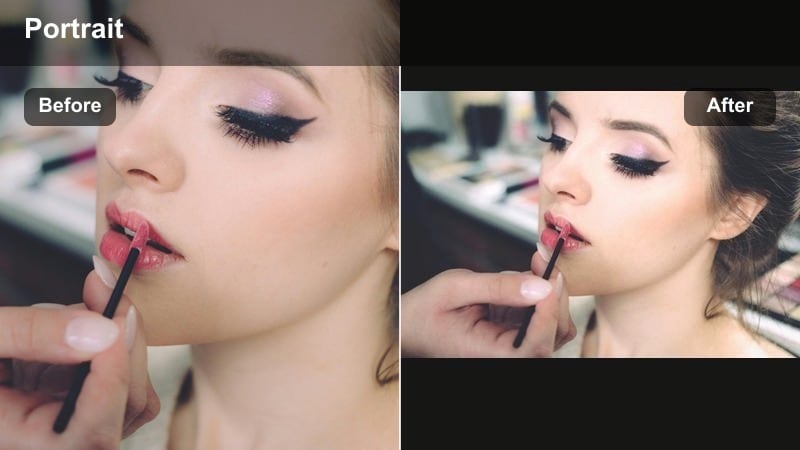
- Effect look: Soft bloom on bright colors, punchy neon tones, and cool magenta shadows that make lights feel dreamy and futuristic.
- Best for: Night markets, neon signs, arcade fronts, and reflective glass where city lights surround your subject.
- Editing tip: Lower dehaze slightly for extra glow, then use a mask to keep the subject’s face crisp and readable for Instagram viewers.
Neon Haze Portrait turns dense city light into a dreamy, futuristic halo around your subject. It blooms highlights, saturates neon, and cools shadows so signs, reflections, and LED strips blend into a soft, colorful atmosphere.
In Filmora, apply this filter to close ups shot near windows, bus stops, or storefronts, then mask around the face to retain sharpness. It is a powerful choice for eye catching Instagram profile shots and short reels where glowing color and haze carry the mood.
Pro tip: Shoot through glass and reflections to maximize neon haze
Place your subject close to shop windows or bus stops to capture layered reflections that this filter will amplify.
Ask them to lean slightly toward the glass so colored light spills across their face while the background stays abstract.
Cinematic Sidewalk
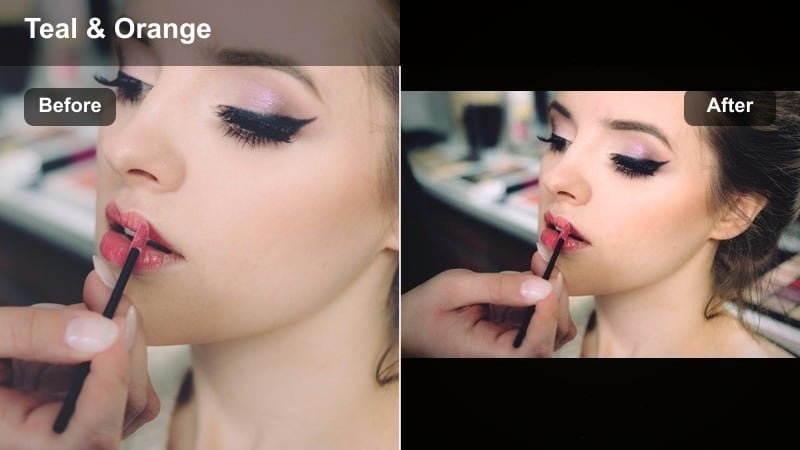
- Effect look: Teal shadows, warm skin highlights, and film inspired contrast that pushes casual street scenes toward movie stills.
- Best for: Walking portraits, over the shoulder shots, and transitional reels between locations in the city.
- Editing tip: Slow down saturation on greens to keep the teal shadow look clean, and fine tune highlight roll off to avoid shiny skin.
Cinematic Sidewalk applies a modern teal and warm skin grade that instantly makes everyday streets feel like movie sets. Shadows lean teal, skin stays bright and warm, and contrast finishes the frame with a polished, cinematic punch.
Use it in Filmora on walking shots, over the shoulder moments, and scene transitions in your reels to tie separate locations together with one strong color identity. On Instagram, this filter is perfect for creators who want their feed to look like a continuous film still sequence.
Pro tip: Think in sequences, not single frames
Use this cinematic filter on a set of similar shots to build a visual sequence you can cut into reels or carousels.
Keep movement consistent between frames so the color grade feels like one continuous scene when people swipe or scroll.
Grainy Corner Story
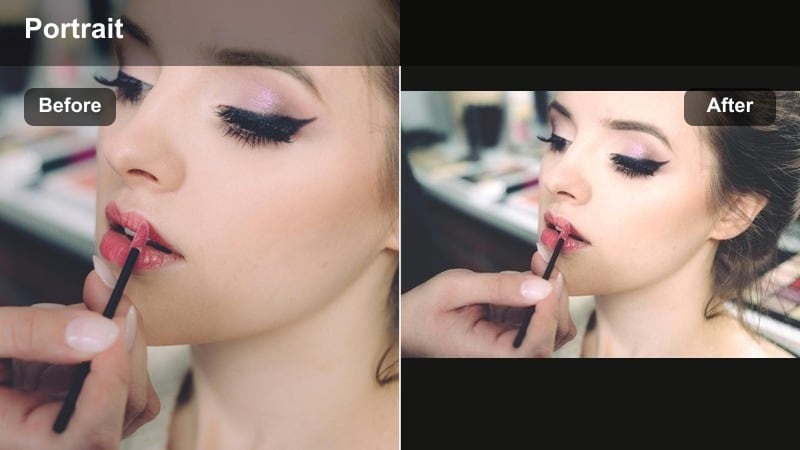
- Effect look: Raised grain, subtle fade, and slightly muted colors that lean into documentary inspired street portrait storytelling.
- Best for: Candid corner portraits, bus stop scenes, and layered street environments with lots of human detail.
- Editing tip: Do not over sharpen; let the grain provide texture and use local contrast only on the subject’s face and clothing.
Grainy Corner Story gives your portraits a documentary, photojournalistic feel. Color steps back, grain steps up, and the overall image feels more like a captured moment than a styled shoot.
Inside Filmora, it is ideal for street stories built from short clips or stills where movement, gestures, and small details matter. Use it to create carousels and reels that feel authentic and observational, especially when you want followers to focus on human moments rather than glossy perfection.
Pro tip: Embrace imperfection for more authentic street portraits
Leave some motion blur, odd framing, or background clutter when using a grain heavy filter to keep the image feeling honest.
Your audience will connect more with believable city moments than overly polished poses, especially in documentary style posts.
Tips for Using Street Portrait Instagram Filters in Filmora
- Shoot in soft side light or open shade whenever possible so your street portrait filters have balanced skin tones to work with.
- Keep ISO as low as possible at night to avoid muddy shadows before adding moody or grain heavy filters.
- Frame with extra background space; you can crop tighter for Instagram once you see how the filter treats edges and vignettes.
- Use one or two core filters across a series of posts to build a consistent urban aesthetic rather than changing looks every upload.
- Fine tune white balance manually after applying a filter, especially under mixed neon or storefront lighting.
- Experiment with subtle blur, vignettes, and radial masks to pull attention back to the subject after strong color grading.
- Save your favorite settings as custom presets or LUTs so you can apply them fast to new street portraits and reels.
- Batch edit sets of images shot in the same location to keep color and contrast consistent for carousels.
Choosing the right street portrait filters for Instagram is less about finding a flashy effect and more about building a repeatable look that fits your city, your subjects, and your story. With Filmora’s mix of clean bases, moody grades, and creative urban looks, you can shape a consistent aesthetic that still leaves room to experiment.
Test a few of these styles on your next set of instagram street portraits, refine them with AI tools, and save your favorites as reusable presets or LUTs. Over time, your audience will start to recognize your signature street portrait effect before they even read your handle.
