

 100% Security Verified | No Subscription Required | No Malware

Sunset footage can look flat and lifeless straight out of the camera, especially on phones. The right Instagram-style filters and LUT-inspired looks can instantly bring back the golden, peachy, and moody dusk tones you saw with your eyes.
This guide rounds up 12 cinematic sunset video filters for Instagram that you can emulate in Filmora to perfect your sunset posts, reels, and dusk aesthetic content while keeping skin tones natural and skies dramatic.
In this article
Warm Golden Hour Sunset Filters
Soft Honey Glow
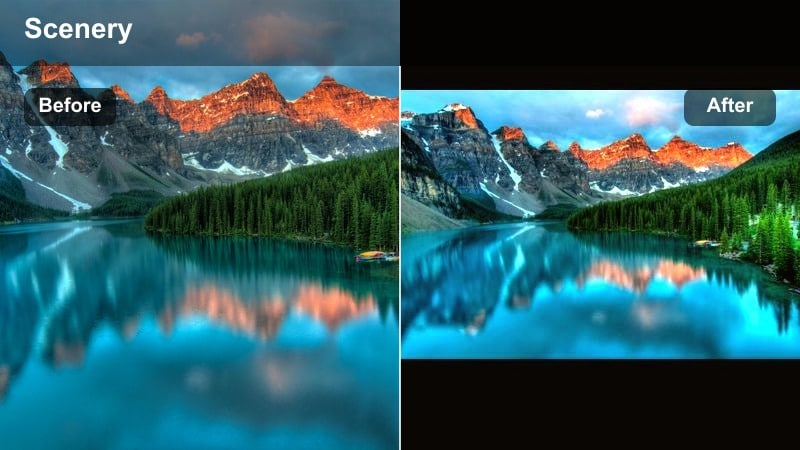
- Effect look: Warm, low-contrast filter that wraps your sunset in soft honey tones with gentle highlights.
- Best for: Handheld sunset walks, slow-motion beach clips, and romantic couple reels at golden hour.
- Editing tip: Raise warmth slightly, lower clarity a touch, and add a subtle vignette to keep eyes on the horizon line.
Soft Honey Glow is your go-to when you want that creamy golden hour vibe without harsh contrast. In Filmora, start by nudging the temperature warmer, lowering contrast a bit, and softening clarity so transitions in the sky feel smooth and flattering on both landscapes and faces.
Finish the look by adding a gentle vignette and a minor lift to shadows so details in the foreground are visible but do not compete with the glowing horizon. This makes sunset walks, beach moments, and couple reels feel cozy and cinematic while staying ready for Instagram compression.
Pro tip: Keep skin tones natural in golden hour shots
If faces look too orange after warming your clip, pull saturation down selectively in orange tones rather than cooling the entire image. In Filmora, combine the color temperature slider with HSL controls so skies stay golden while skin remains believable and flattering.
Golden Pop Contrast
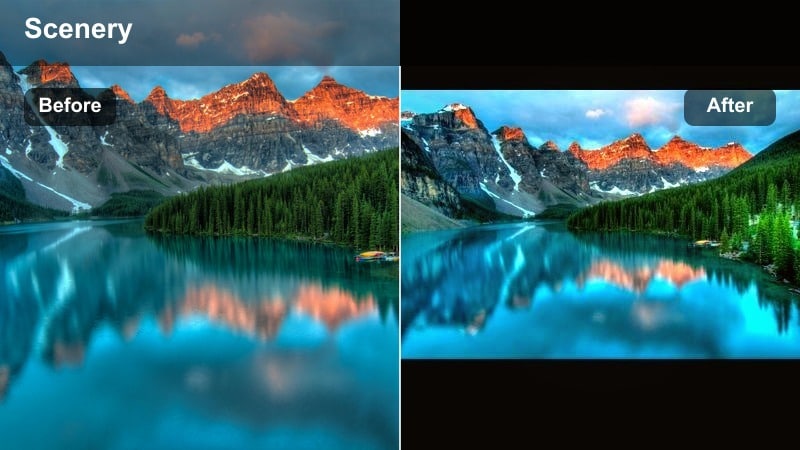
- Effect look: Punchy golden filter with deeper blacks and boosted midtone contrast for bold silhouettes.
- Best for: Palm tree silhouettes, city rooftop sunsets, and strong horizon lines that benefit from extra punch.
- Editing tip: Increase contrast and a bit of dehaze, then slightly pull down highlights to keep the sun from clipping.
Golden Pop Contrast is ideal when your sunset already has strong shapes like skylines or palm trees and you want them to stand out in the feed. In Filmora, increase overall contrast, deepen blacks, and add a touch of dehaze to reinforce edges and make clouds more defined.
To keep the sun and bright clouds from blowing out on Instagram, pull back highlights and whites slightly while maintaining saturation in yellows and oranges. This gives you a dramatic, poster-like golden hour look that looks crisp on mobile screens without losing detail.
Pro tip: Match contrast to your final viewing device
Since most followers watch reels on bright phone screens, a slightly stronger contrast curve often looks better than a flat grade. Preview your clip at full brightness on your phone and tune contrast in Filmora until details in shadows are still visible without losing impact.
Peachy Skin Sunset
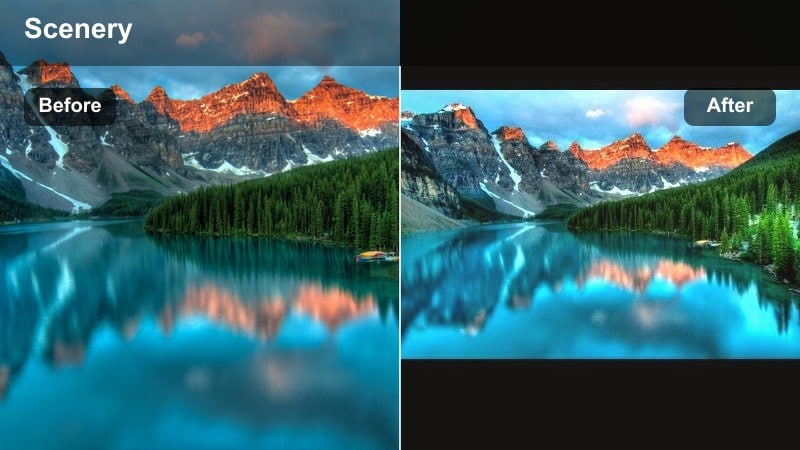
- Effect look: Soft golden-peach filter that flatters skin while gently enhancing pink and orange dusk clouds.
- Best for: Portrait reels, talking-to-camera sunset stories, and fashion content against the sky.
- Editing tip: Use a subtle blur or skin-smoothing effect, then softly boost magenta and red in the sky for a dreamy finish.
Peachy Skin Sunset is tuned for creators who appear on camera and want both the sky and their face to look polished. In Filmora, keep contrast moderate, warm the temperature slightly, and then use HSL or color correction to nudge reds and magentas for that soft peach atmosphere in the clouds.
Apply Filmora skin-smoothing or a light blur selectively to faces so they stay clean and flattering, while sharpening is reserved for the horizon and details in the background. This balance keeps your subject looking professional and influencer-ready without sacrificing the beauty of the dusk sky.
Pro tip: Balance peach skies with neutral whites
If white clothing or props pick up too much color, use Filmora’s HSL or color masking to keep them close to neutral. This separation keeps your sunset aesthetic intact without making everyday items look artificially tinted.
Moody Dusk and Blue Hour Filters
Indigo Dusk Aesthetic
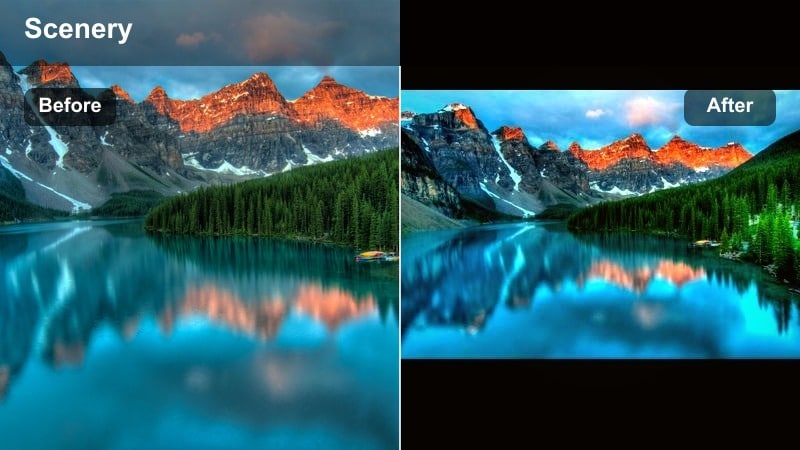
- Effect look: Cool, moody dusk filter with indigo shadows and soft cyan highlights for late-evening vibes.
- Best for: City lights at blue hour, quiet street scenes, and cinematic solo walk reels.
- Editing tip: Slightly lower exposure, lift shadows a bit, and add blue into the shadows while keeping midtones near neutral.
Indigo Dusk Aesthetic turns fading sunlight into a cinematic evening atmosphere, perfect for reflective or moody reels. In Filmora, pull overall exposure down slightly, then raise shadow levels to retain detail in dark areas while introducing a blue tone in the shadows for that indigo mood.
Keep midtones and skin tones relatively neutral so the cool shift stays mostly in the darker regions and brightest highlights. This separation helps your subject remain realistic while the streets, buildings, and sky take on a stylized, filmic dusk aesthetic suited for Instagram stories and reels.
Pro tip: Preserve contrast in low-light dusk clips
Avoid over-brightening dark dusk footage; lifting exposure too much introduces noise and kills the mood. Instead, selectively lift only the shadows and add a hint of clarity so your dusk aesthetic remains rich and cinematic.
Amber-to-Midnight Shift
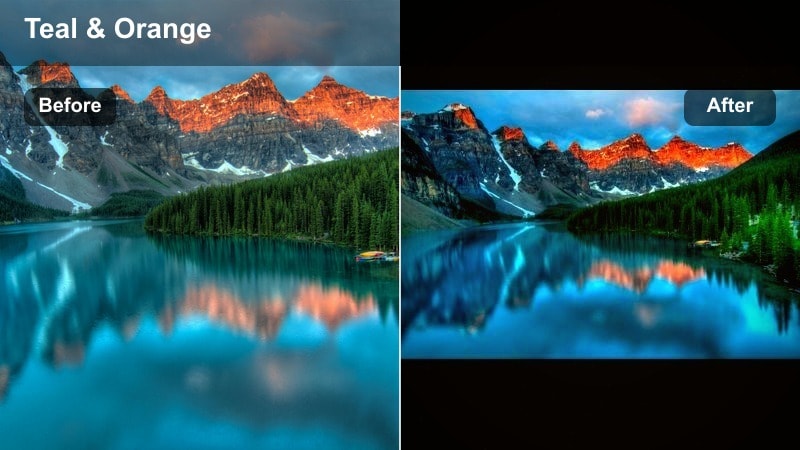
- Effect look: Gradient-style look that keeps warm sunset highlights but shifts shadows toward deep teal and navy.
- Best for: Time-lapse sunsets, drone passes, and transitions from day to night in a single reel.
- Editing tip: Use Filmora’s color wheels to push warm tones in highlights and cool tones in shadows for a cinematic split-tone feel.
Amber-to-Midnight Shift gives your footage a dual personality, combining warm sunset light with cooler shadows that hint at oncoming night. In Filmora, use color wheels or color correction to warm up highlights and upper midtones while steering shadows toward teal or navy.
This split-toned style works especially well for timelapses or drone clips where the sky changes over time, making the entire sequence feel more dramatic and story-driven. Subtle adjustments go a long way, so increase saturation and color shifts carefully to avoid cartoonish tones.
Pro tip: Use split toning to guide the viewer’s eye
By warming highlights and cooling shadows, you naturally lead attention to the brightest parts of the frame. Adjust intensity slowly; small changes in highlight and shadow hue make a big difference on Instagram-sized screens.
Noir Sunset Grain
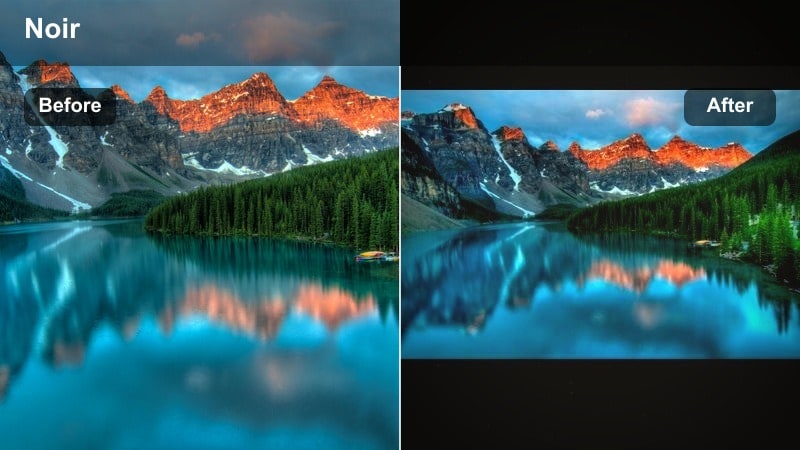
- Effect look: High-contrast dusk filter with muted colors, added grain, and a slight fade in blacks for a filmic vibe.
- Best for: Story-driven sunset reels, moody travel vlogs, and noir-style city sunsets.
- Editing tip: Drop saturation in most colors, raise contrast, and add a light film grain overlay to avoid digital harshness.
Noir Sunset Grain is designed for creators who want a narrative, cinematic feel rather than bright, colorful sunsets. Start in Filmora by lowering saturation across the board, then deepen contrast and slightly fade the blacks so shadows look rich but not fully crushed.
Add a subtle grain overlay or Filmora film grain effect to introduce texture that softens digital edges, especially in skies and building details. This aesthetic makes your reels feel like frames from a moody indie film and suits voiceover stories or text-heavy edits.
Pro tip: Control grain strength for vertical video
On small screens, heavy grain can look like compression noise instead of a stylistic choice. Dial in a subtle grain amount in Filmora and always preview at 100 percent zoom to ensure the texture remains intentional.
Soft Pastel and Dreamy Sunset Filters
Cotton Candy Horizon
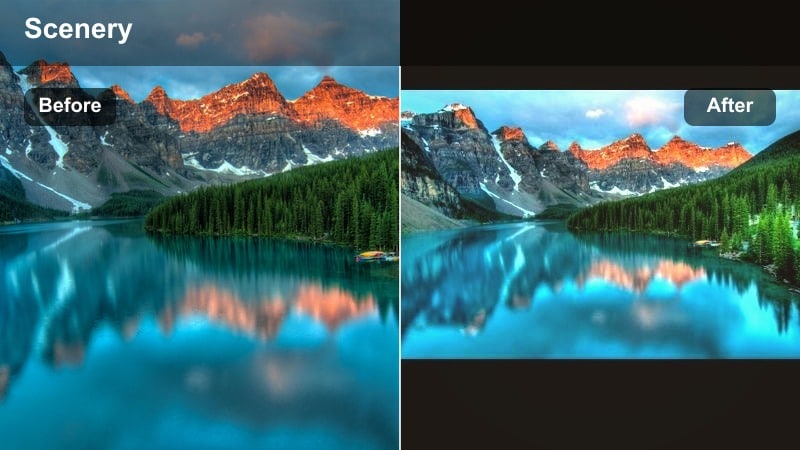
- Effect look: Low-contrast pastel filter that lifts blacks and boosts pink and lavender tones in the clouds.
- Best for: Minimalist sea horizons, calm sky pans, and dreamy aesthetic reels with soft music.
- Editing tip: Reduce overall contrast, push tint slightly magenta, and reduce clarity to soften fine details.
Cotton Candy Horizon pushes your skies into a soft, pastel world with pink and lavender gradients. In Filmora, reduce overall contrast and raise black levels to create a gentle, matte finish, then push tint a bit toward magenta and softly increase saturation in pinks and purples.
Lower clarity or add a small blur to remove harsh edges so clouds look like painted strokes instead of crisp shapes. This works beautifully for slow pans over the ocean or minimalist sunrise-to-sunset reels where mood and color are more important than fine detail.
Pro tip: Avoid banding in pastel sky gradients
Strong pastel edits can create visible color steps in skies, especially on compressed reels. Add a small amount of film grain or noise in Filmora to smooth gradients and hide banding artifacts.
Rose Gold Haze
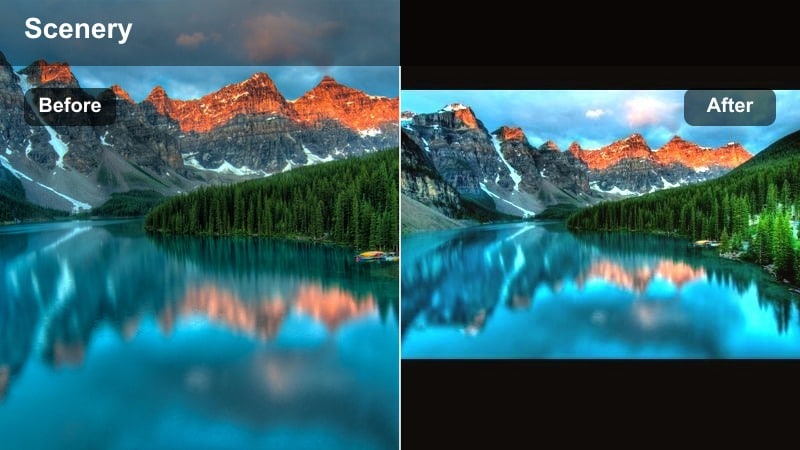
- Effect look: Warm, rosy filter with lifted midtones and a gentle glow effect for dreamy bokeh sunsets.
- Best for: Lens-flare-heavy clips, backlit portraits, and lifestyle sunset content with soft focus.
- Editing tip: Use glow or bloom sparingly around highlights, and lower sharpness to keep the overall image velvety.
Rose Gold Haze adds a romantic, luminous feel to any backlit sunset scene. In Filmora, warm the clip slightly, lift midtones, and use a glow or bloom effect centered on bright areas like the sun or bokeh lights to create a halo-like shimmer.
Reduce overall sharpness or apply a softening effect to keep this glow from looking harsh, especially on skin and hair. This style pairs perfectly with lifestyle, fashion, and couple content where the emotional tone is just as important as the view.
Pro tip: Keep glow effects subtle in vertical framing
Too much glow can bleed into faces and text overlays, making reels look fuzzy. In Filmora, apply a light glow only to the brightest areas and fine-tune threshold so important details stay sharp.
Creamy Pastel Coast
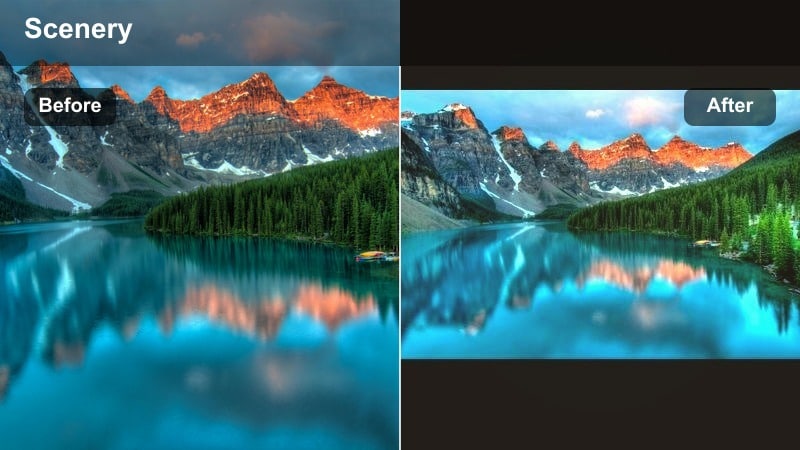 <
<- Effect look: Soft, slightly matte filter that leans towards creamy yellows and pale pinks with gentle saturation.
- Best for: Coastal sunset reels, travel montages, and wide-angle landscape pans.
- Editing tip: Lower saturation in greens, gently boost warmth, and reduce contrast to keep the whole frame airy.
Creamy Pastel Coast is made for beaches and wide horizons, where you want everything to feel light, calm, and inviting. In Filmora, gently warm the image, lower contrast, and raise black levels a touch so shadows never get too intense.
Use HSL to pull back saturation in greens and other distracting hues, letting creamy yellows and soft pinks define the mood. This creates a cohesive pastel palette that works well across travel montages and multi-clip reels.
Pro tip: Desaturate distractions in the frame
Bright clothing or signage can pull attention away from your sunset gradients. Use selective color controls in Filmora to desaturate specific hues while leaving sky tones rich and dreamy.
Cinematic LUT-Inspired Sunset Filters
Golden Film LUT Style
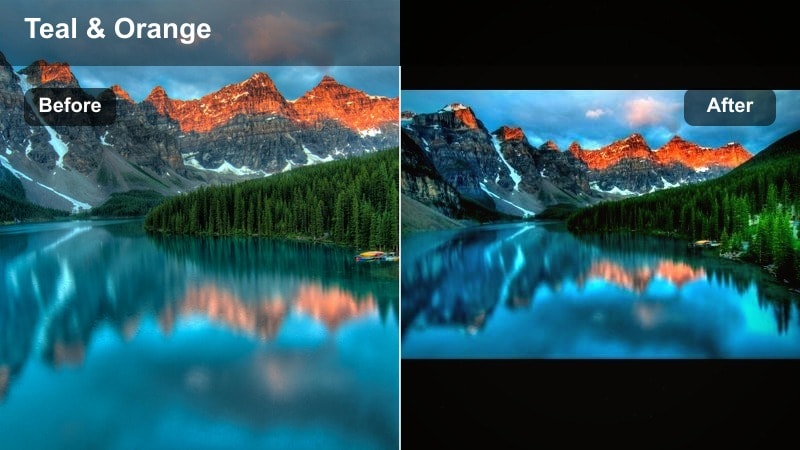
- Effect look: Cinematic golden filter inspired by film LUTs, with rich colors, deep contrast, and subtle teal shadows.
- Best for: Travel reels, drone passes, and any epic sunset sequence you want to feel like a movie trailer.
- Editing tip: Start with a neutral base, then gradually increase saturation and contrast while cooling shadows for a teal-and-gold balance.
Golden Film LUT Style delivers that classic teal-and-gold cinema look often seen in blockbuster trailers. In Filmora, correct exposure and white balance first, then push overall saturation and contrast to bring out the depth in the sky and landscape.
Add a cool tone to shadows and keep highlights warmly golden, using color wheels or LUT-style corrections. The result is a bold, polished grade that makes even simple horizon shots feel like cinematic establishing scenes in your Instagram reels.
Pro tip: Grade in stages for a clean LUT-style look
First fix exposure and white balance before pushing stylized teal and gold tones. This layering approach avoids muddy colors and keeps your sunset filter looking like a polished LUT rather than an over-edit.
Desert Sunset LUT Vibe
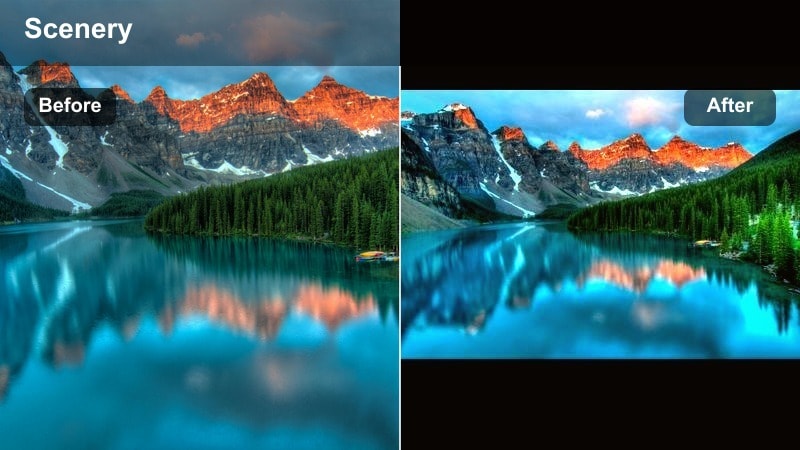
- Effect look: Earthy, contrasty grade with warm browns, dusty oranges, and slightly muted blues for desert-style sunsets.
- Best for: Mountain silhouettes, desert roads, and landscapes with rocks, sand, or earthy textures.
- Editing tip: Pull saturation from greens, deepen oranges, and add a touch of fade in the blacks for a stylized film look.
Desert Sunset LUT Vibe is built for rugged, earthy scenes with rocks, sand, or mountains. In Filmora, reduce green saturation, boost oranges and browns, and deepen contrast to highlight textures in the terrain while keeping the sky softly muted.
Introduce a slight fade in the blacks to avoid overly harsh shadows, which also helps your footage feel more like film than digital. This aesthetic works well across entire travel reels where you want a unified, warm desert palette from clip to clip.
Pro tip: Unify your color palette across a reel
Apply the same LUT-inspired filter to all clips in a sequence and then fine-tune per clip rather than starting from scratch each time. This keeps your entire reel visually cohesive, which performs better in feeds and on the Explore page.
Urban Neon Sundown
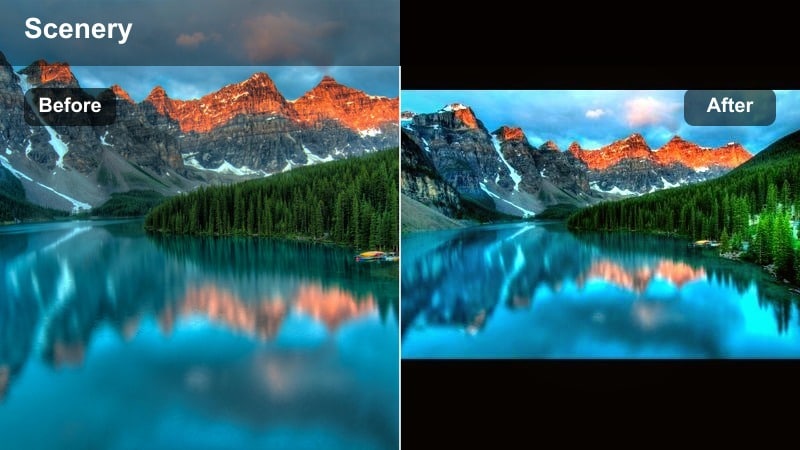
- Effect look: Stylized sunset filter that pushes oranges and magentas while boosting neon sign colors and cool ambient light.
- Best for: City streets with signs, reflections, and traffic lights during sunset or early night.
- Editing tip: Increase saturation in reds and magentas, raise contrast, and slightly cool overall temperature to let neon tones pop.
Urban Neon Sundown gives your city sunsets a vibrant, nightlife-ready glow by amplifying both the sky and artificial lights. In Filmora, slightly cool the overall temperature, then selectively increase saturation in reds, magentas, and neon colors while boosting contrast for extra punch.
This treatment makes street signs, reflections, and car lights glow against a rich magenta-orange sky, ideal for creators focused on street photography or urban lifestyle content. Keep an eye on clipping in the brightest areas so details do not disappear under heavy saturation.
Pro tip: Protect highlights in city sunset clips
Signs, car lights, and the sun itself can easily blow out when you boost saturation and contrast. Use highlight recovery and gently pull down whites in Filmora so neon details remain visible and not just pure white blobs.
Tips for Using Sunset Video Instagram Filter Filters in Filmora
- Shoot slightly darker than you think at sunset so you can recover highlights in Filmora without losing sky detail.
- Lock white balance on your phone or camera during sunset clips to avoid color shifts that are hard to fix later.
- Film in 4K when possible so you can crop vertical frames for reels without losing sharpness after grading.
- Keep your horizon as level as possible; strong sunset edits highlight crooked framing even more.
- Use subtle camera movement like slow pans or tilts so filters and color shifts feel smooth rather than distracting.
- Export a high-bitrate version from Filmora, then let Instagram compress once instead of repeatedly re-uploading.
- Test your sunset filter on at least three different clips before saving it as a preset to ensure it works consistently.
- Avoid overusing sharpening on sunset skies because it can amplify noise and compression artifacts in gradients.
With a curated set of golden, pastel, dusk, and LUT-inspired sunset video filters, you can turn quick phone clips into scroll-stopping Instagram posts and reels that feel polished and intentional.
Build two or three go-to sunset looks in Filmora, save them as presets, and apply them across all your dusk aesthetic content so your entire grid glows with a cohesive sunset style.
 secure download

