

 100% Security Verified | No Subscription Required | No Malware

Sunset light changes quickly, making it hard to keep your footage warm, balanced, and cinematic from shot to shot. Sunset video filters in Filmora help you lock in a consistent golden hour look with just a few clicks.
Whether you are a photographer filming b-roll, a travel vlogger capturing evening cityscapes, or a content creator recording beach sunsets, these curated filters and LUT-style grades will give your orange skies and evening landscapes a rich, glowing finish.
In this article
Warm Glow Sunset Filters
Soft Golden Haze
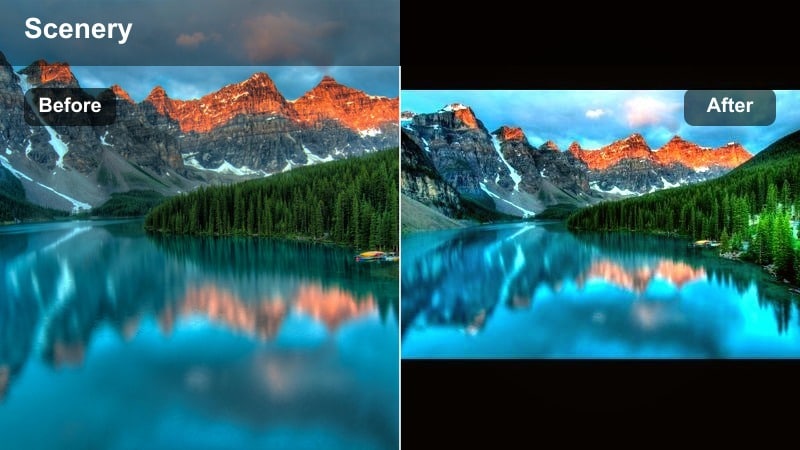
- Effect look: A gentle golden wash that warms midtones while keeping highlights soft and slightly diffused.
- Best for: Beach sunsets, romantic travel vlogs, handheld shots of people against the sky.
- Editing tip: Lower contrast slightly and reduce clarity to enhance the hazy glow while preserving skin softness.
Soft Golden Haze wraps your sunset footage in a smooth, golden wash that gently lifts warmth in the midtones while keeping highlights silky and non-harsh. It is ideal when you want that dreamy golden hour feel without pushing saturation so far that skin tones and clouds start to look artificial.
In Filmora, apply Soft Golden Haze to your clips, then fine-tune intensity with the filter strength slider until the glow feels natural. Combine it with light contrast reductions and a touch of reduced clarity to enhance the atmospheric, cinematic haze, especially for beach walks, couple moments, or slow panning shots facing the setting sun.
Match Sunset Shots with AI Color Tools
Sunset light can swing from bright orange to deep blue within minutes, which makes continuity a challenge for photographers, travel vloggers, and content creators. Filmoras AI color tools help you match clips shot at different moments so your final edit feels consistent from start to finish.
Use AI-driven color matching to take your favorite graded sunset clip and automatically apply a similar palette to the rest of your sunset shoots, golden hour photography sequences, and evening landscapes.
 secure download

Preview Sunset Filters in Real Time
Filmora lets you preview multiple sunset video filters and golden hour looks directly on your timeline before committing to any one grade. This is perfect when you are testing different moods for the same beach, city, or mountain scene and want to see results instantly.
Cycle quickly through warm, pastel, and cinematic sunset styles, adjust intensity with a single slider, and see immediately how each filter affects skin tones, skies, and foreground detail without interrupting your edit flow.
secure download1000+ Video Filters and 3D LUTs
Beyond sunset grades, Filmora includes a full library of 1000+ video filters and cinematic 3D LUTs so you can combine golden hour looks with stylized creative effects. From subtle tone curves to bold teal-and-orange palettes, you can build a complete visual identity for your travel and vlog content.
Use HSL and curves in Filmora alongside these LUTs to fine-tune specific color ranges like oranges, reds, and blues, making sure your sunset skies stay rich while skin tones and landscapes remain balanced.
secure downloadAmber Evening Contrast
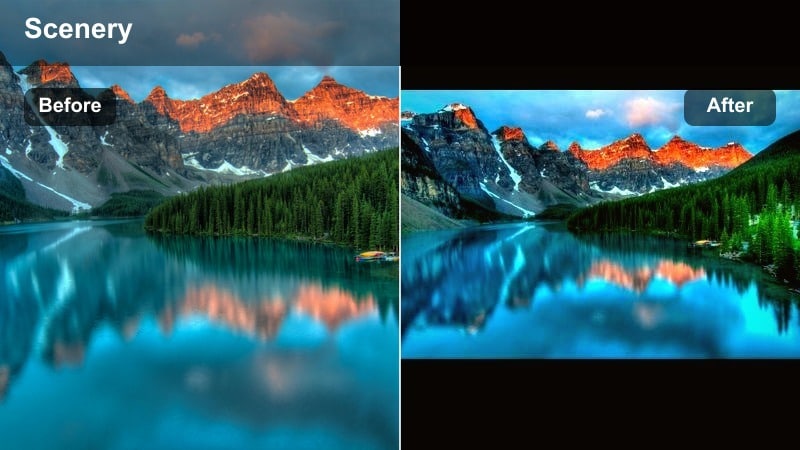
- Effect look: Punchy warm contrast with deep shadows and rich amber highlights that make the horizon pop.
- Best for: City skylines, mountain silhouettes, dramatic travel b-roll at the end of the day.
- Editing tip: Increase saturation in oranges but pull back overall vibrance to avoid neon colors in the sky.
Amber Evening Contrast is built for bold, dramatic sunsets where you want the horizon line and skyline to stand out. It deepens shadows while adding rich amber highlights, making silhouetted buildings, peaks, and treelines feel more three-dimensional against the glowing sky.
Inside Filmora, apply this filter to your hero skyline or mountain shot first, then adjust contrast, saturation, and exposure until you get the exact drama you want. Copy and paste these settings to your other clips, making minor exposure tweaks per shot to keep buildings recognizable and skies consistently punchy across your travel sequence.
Warm Skin Sunset
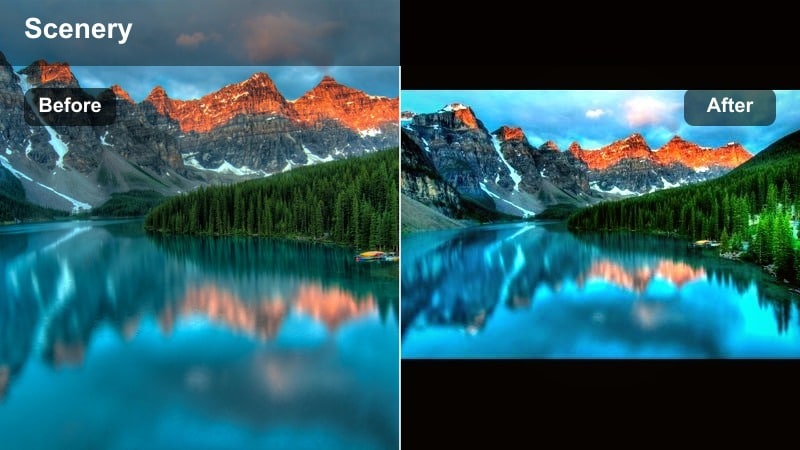
- Effect look: Balances golden skies with natural, flattering skin tones and gently lifted shadows.
- Best for: Travel vlogs, lifestyle reels, portraits filmed during golden hour with people in the frame.
- Editing tip: Use the skin tone slider or HSL tools to keep reds under control while letting oranges stay rich.
Warm Skin Sunset is optimized for people-first footage, keeping faces natural while preserving the rich warmth of the sky. It lifts shadows slightly so details in hair, clothing, and backgrounds remain visible without sacrificing the golden glow.
In Filmora, add this filter to any vlog or portrait clip shot at sunset, then tweak HSL or skin tone controls to avoid overly red or orange faces. Expose your footage a touch brighter for skin, then use masks or gradients if necessary to darken the sky, ensuring your subjects remain the focus while the sunset stays cinematic.
Orange Sky Video Grades
Deep Orange Horizon
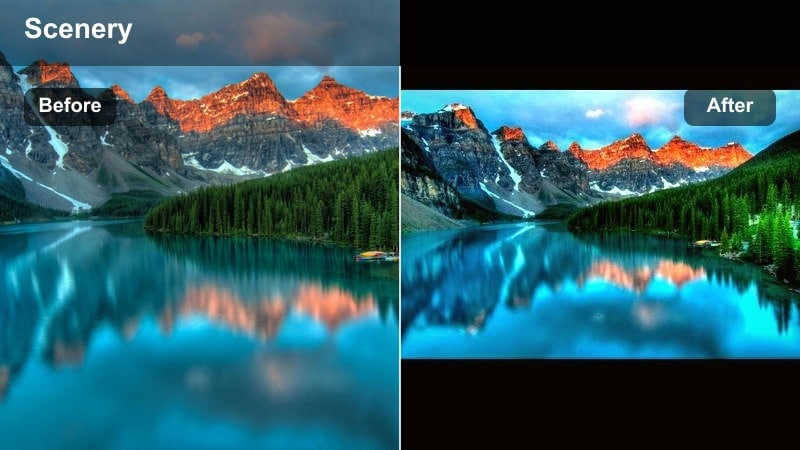
- Effect look: Intense orange and red saturation near the horizon with cooler shadows for strong separation.
- Best for: Dramatic ocean sunsets, drone shots over water, long-lens landscape compressions.
- Editing tip: Use gradient masks to keep the foreground neutral while pushing rich color into the sky only.
Deep Orange Horizon pushes saturation and contrast primarily in the horizon band, making the sun and its surrounding glow the main star of the frame. With cooler shadows in the foreground, your eye naturally travels to the brightest, warmest part of the scene.
Apply this grade in Filmora to ocean vistas, cliff views, or telephoto shots where the sun sits just above the water or hills. Use gradient masks to confine the strongest orange and red shifts to the upper portion of the frame so your foreground stays more neutral and avoids color cast on rocks, buildings, or people.
Copper Clouds
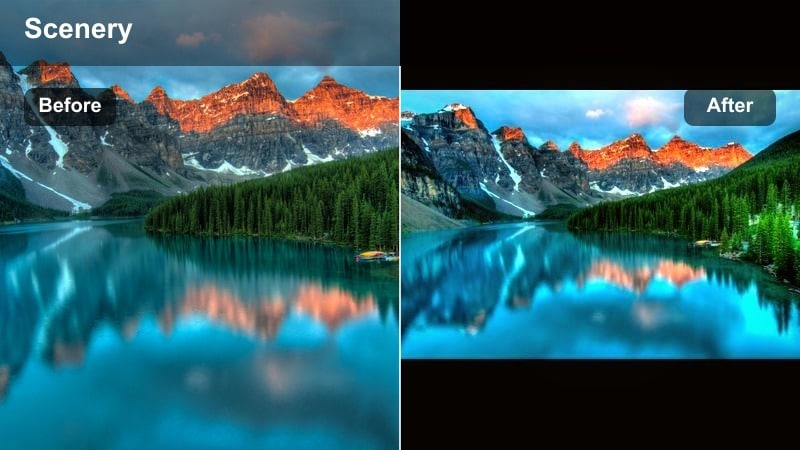
- Effect look: Soft copper highlights in clouds with magenta undertones and a cinematic, low-contrast roll-off.
- Best for: Cloud-heavy sunsets, timelapses, slow pans across mountains and valleys.
- Editing tip: Reduce clarity slightly and add a bit of fade to mimic filmic softness in the clouds.
Copper Clouds focuses on the texture and color of the sky, shifting highlights into a copper tone with subtle magenta undertones. The lower contrast roll-off makes large cloud formations feel cinematic, especially when they are moving slowly across the frame.
In Filmora, apply Copper Clouds to timelapses, tripod shots, and sweeping pans, then ease clarity and add a small amount of fade to reinforce the film-inspired softness. This filter works particularly well combined with speed ramping, turning a simple sky into a polished, dreamy transition for your travel edits.
Orange City Glow
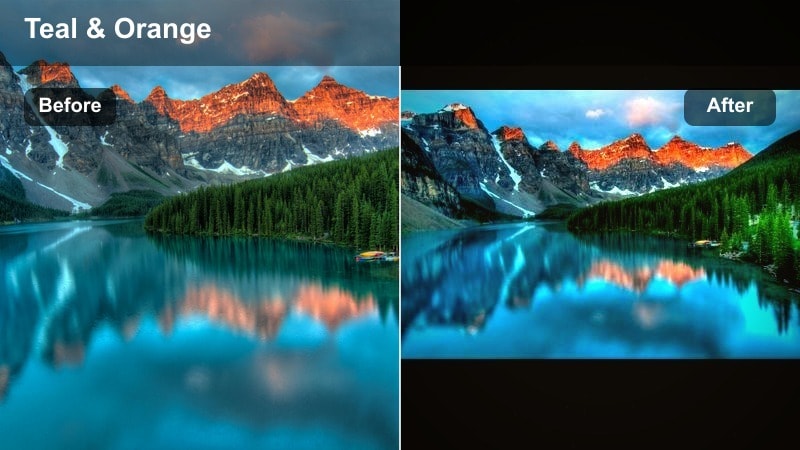
- Effect look: Rich orange sky balanced with neutral buildings and slightly teal city shadows for a modern grade.
- Best for: Urban travel vlogs, rooftop sunsets, city drone flyovers during blue-to-gold transitions.
- Editing tip: Add a subtle teal shift to shadows while keeping midtones mostly neutral for a stylized yet clean city look.
Orange City Glow separates sky and architecture so your orange sunset sits behind cooler, neutral-toned buildings. The slight teal push in city shadows gives you a contemporary, cinematic vibe without overwhelming your footage with stylization.
Use this filter in Filmora on rooftop b-roll, drone passes, and street-level city shots captured during the blue-to-gold transition. With the HSL panel, keep blues and greens in signs and windows from becoming too distracting, ensuring the primary color story remains the orange sky versus cooler structures.
Soft Golden Hour Filters
Pastel Golden Hour
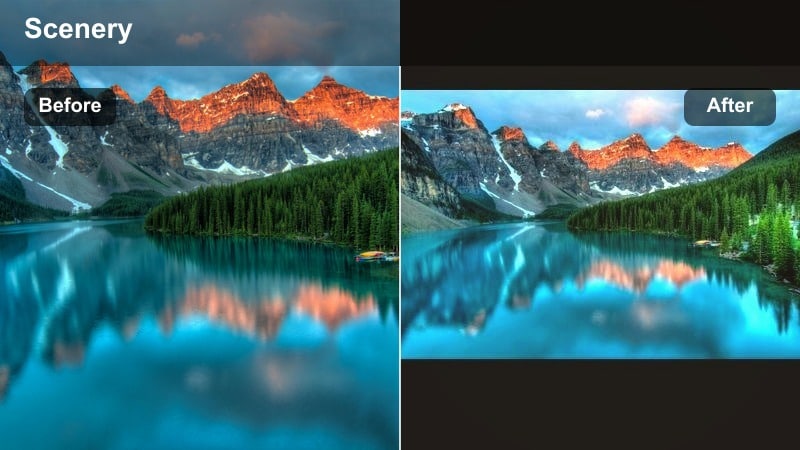
- Effect look: Low-contrast pastel tones with gentle warmth and slightly lifted blacks for a light, airy mood.
- Best for: Lifestyle reels, fashion lookbooks, travel content with a soft and romantic aesthetic.
- Editing tip: Lift the black levels a touch more and add a minor vignette to keep the frame from feeling washed out.
Pastel Golden Hour turns strong sunset colors into softer, more delicate hues, ideal for romantic or lifestyle driven edits. By lifting blacks and reducing overall contrast, it creates an airy, filmic appearance without losing the essence of golden hour.
Apply this filter in Filmora to handheld fashion shots, field walks, and slow-motion movement sequences. If your image starts to feel too flat, gently increase black levels and add a subtle vignette so your subject remains the visual anchor while the pastel sky and background wrap the frame in warmth.
Sun-Kissed Travel
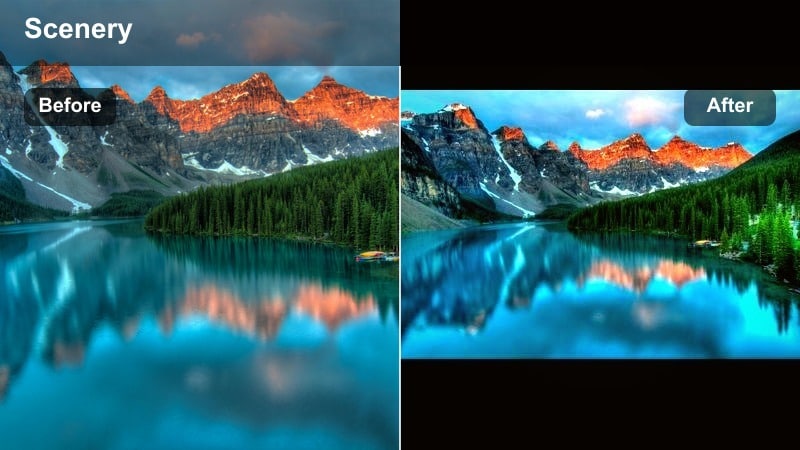
- Effect look: Warm highlights and midtones with slightly cooler, clean shadows to keep detail in landscapes.
- Best for: Travel montages, handheld walk-and-talk vlogs, scenic road trip sequences.
- Editing tip: Add gentle motion blur or stabilization to smooth handheld clips, then fine-tune warmth to match each location.
Sun-Kissed Travel is a versatile look designed for fast-paced travel edits where lighting and locations change quickly. It emphasizes warm highlights and midtones while keeping shadows clean and slightly cool, preserving detail in roads, rocks, foliage, and buildings.
In Filmora, make Sun-Kissed Travel your base preset for sunset sequences, then tweak white balance and exposure per clip. Apply stabilization or slight motion blur to handheld shots for a smoother, more cinematic feel, and save your adjusted look as a custom preset to maintain a consistent visual identity across your channel.
Gentle Haze Backlight
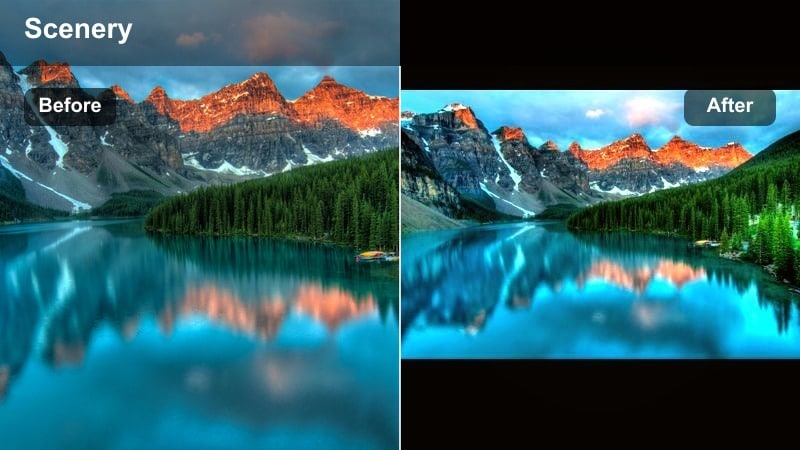
- Effect look: Soft glowing backlight with a subtle veil over highlights and preserved contrast in subjects.
- Best for: Backlit portraits, silhouettes, travel couple shots with the sun directly behind them.
- Editing tip: Use masks to keep haze mostly in the sky and edges while maintaining clarity on faces and key details.
Gentle Haze Backlight is tailored to shots where the sun sits directly behind your subject, creating halos and flares. It introduces a controlled veil over highlights, increasing the sense of glow while keeping your subject sufficiently sharp and readable.
Within Filmora, apply this filter to backlit portraits, then use masks to limit the heaviest haze to the sky and frame edges. Slightly reduce highlights before adding the effect so you avoid blown-out halos, and feather your masks generously for seamless transitions between crisp subjects and soft, glowing backgrounds.
Cinematic Sunset LUT-Style Filters
Teal Shadow Sunset
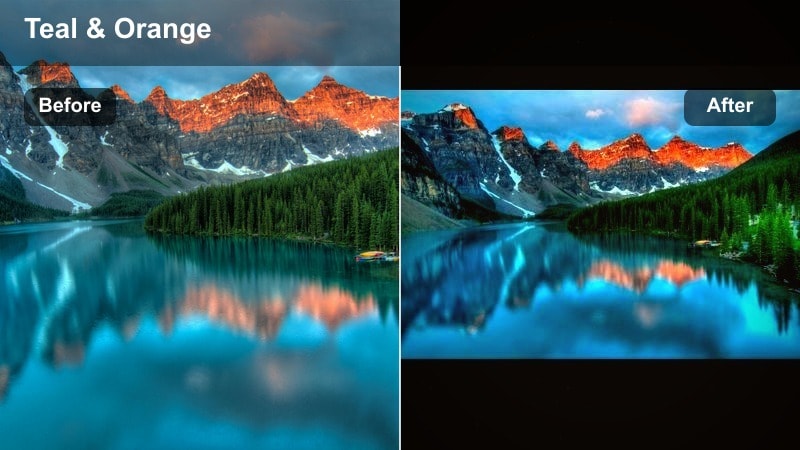
- Effect look: Teal-tinted shadows contrasted with fiery warm highlights for a modern blockbuster sunset grade.
- Best for: Cinematic travel intros, drone reveals, car shots and dynamic movement near sunset.
- Editing tip: Keep white balance slightly neutral to avoid overly orange skin when pushing the teal and orange split.
Teal Shadow Sunset introduces the classic teal-and-orange split, shifting shadows to teal while letting highlights burn with vibrant orange. This creates strong color contrast and depth, ideal for cinematic intros and high-energy travel sequences.
Use this LUT-style filter in Filmora on drone reveals, car drives, and gimbal moves as the sun dips toward the horizon. Keep white balance closer to neutral so skin tones do not become overly orange, and use curves to ensure midtones stay relatively natural while skies and deep shadows carry the stylized color work.
Film Emulation Sunset
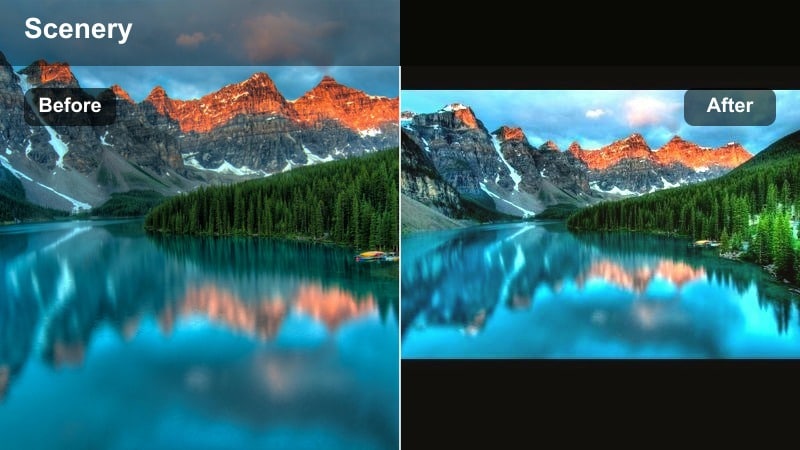
- Effect look: Muted primaries, gentle warm cast, and soft highlight roll-off inspired by classic negative film stocks.
- Best for: Narrative travel stories, cinematic b-roll sequences, and moody evening landscapes.
- Editing tip: Add a touch of grain and slightly fade blacks to sell the filmic illusion on digital footage.
Film Emulation Sunset dials back digital sharpness and saturation, giving your sunset scenes a nostalgic, analog character. Primaries become more muted, highlights roll off smoothly, and a light warm cast unifies the image.
In Filmora, pair this filter with a subtle grain effect and a small black-level fade to mimic scanned film. It works particularly well for story-driven travel edits or moody sequences where you want viewers to focus on emotion and atmosphere rather than ultra-vivid color.
Moody Twilight Shift
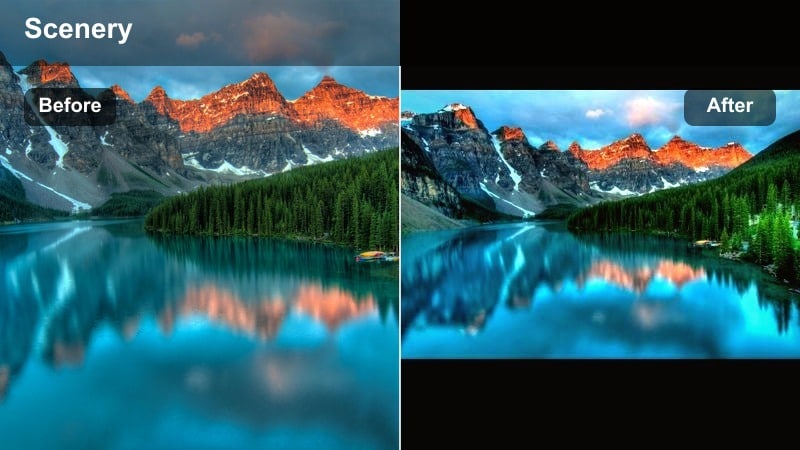
- Effect look: Shifts warm sunset into cooler, moody twilight tones while keeping a hint of warmth near the horizon.
- Best for: Evening blue hour transitions, cityscapes after sunset, reflective or emotional story beats.
- Editing tip: Lower saturation in the blues and add subtle contrast so night tones feel rich instead of flat.
Moody Twilight Shift gradually converts golden hour warmth into cool, cinematic twilight blues while preserving a faint glow at the horizon. It is perfect for bridging the gap between day and night in your edits and emphasizing more reflective story beats.
Apply this filter in Filmora to shots captured just after sunset, especially city streets and skylines. Reduce blue saturation slightly and introduce modest contrast to maintain depth in night tones, then crossfade between warm and twilight-graded clips to create smooth visual transitions from sunset into evening.
Tips for Using Sunset Video Filter Filters in Filmora
- Shoot slightly underexposed at sunset to protect highlight detail in the sky, then lift shadows in Filmora when you apply your sunset video filter.
- Always white-balance your clips before testing sunset filters so you compare grades on a clean, neutral base instead of correcting mistakes later.
- Create different versions of your sunset grade for people-focused shots and pure landscapes, then save each as a named preset in Filmora.
- Use Filmoras scopes to monitor saturation levels in reds and oranges so your glowing skies stay vibrant without clipping or banding.
- Combine filters with gradient masks to target the sky separately from the foreground, keeping skin tones and buildings natural while the horizon glows.
- Export a short 10 to 15 second test sequence with several sunset video filters and review it on your phone to judge how it looks on a typical viewer screen.
- Stack a subtle base filter with a lighter LUT on top, then adjust opacity to blend them into a cohesive, natural-looking sunset grade.
- When cutting between multiple cameras, match exposure first, then apply the same sunset video filter to unify color and contrast across angles.
Sunset video filters make it simple to keep golden hour footage warm, cinematic, and consistent, even when the light is changing quickly between shots.
Experiment with several of these warm, orange sky, and LUT-style filters in Filmora, then save your favorite combination as a custom preset to speed up every future sunset shoot, travel vlog, and evening landscape edit.
secure downloadNext: Best Sunset Video Filters for YouTube and Travel Vlogs
