

 100% Security Verified | No Subscription Required | No Malware


 ChatGPT
 Perplexity
 Gemini
 Claude
 Grok
Grok
Repurposing your best TikTok clips for YouTube and Shorts only works if the color and vibe still feel native to the platform. Thoughtfully tuned filters can bridge the gap so your cross-posted videos look intentional instead of recycled.
Below are 12 Filmora-ready filter ideas designed to mimic popular TikTok aesthetics while staying optimized for YouTube compression, thumbnails, and Shorts browsing behavior.
In this article
Bright Daylight Vlogs and IRL Moments
Sunlit Soft Pop
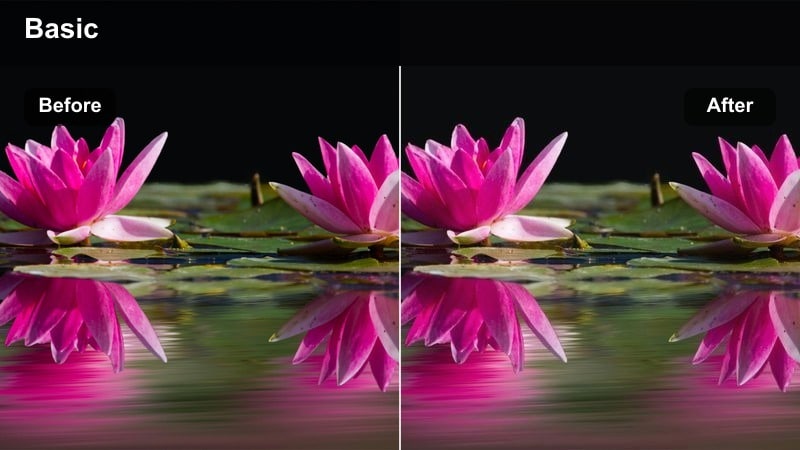
- Effect look: Clean, bright TikTok-style pop with softened contrast and subtle vibrance boost that holds up in YouTube compression.
- Best for: Daylight vlogs, talking-head clips, unboxings, and any IRL Shorts where you want skin to look smooth but still natural.
- Editing tip: Lower the contrast slightly for harsh midday sun and push a tiny bit of warmth in the color temperature to match TikTok's cozy vlog vibe.
In Filmora, Sunlit Soft Pop is ideal when you need a single go-to filter for bright, everyday clips that will appear on both TikTok and YouTube. Apply it to soften harsh daylight, even out skin tones, and add just enough punch so your thumbnails and Shorts previews look clean without appearing over-edited.
Use this look on your main vlog timeline, then fine-tune exposure with the basic color sliders and save it as a custom preset. Once saved, you can drop the same Sunlit Soft Pop preset onto repurposed TikTok clips so your cross-platform uploads feel cohesive while still looking native to YouTube.
Use AI to Match TikTok and YouTube Color
Filmora's AI color matching can analyze one of your favorite TikTok clips and transfer a similar color style to your YouTube or Shorts timeline. This helps you quickly align brightness, contrast, and overall mood without manually tweaking every slider.
Import a reference TikTok, run AI color match on a selected YouTube clip, and then adjust exposure and skin tones until the two versions feel visually aligned. Save the result as a reusable preset so you can apply the same TikTok-style filter to future YouTube Shorts in a single click.
 secure download

Preview Filters on Vertical Projects
Before you lock in a filter, always test it on a 9:16 vertical sequence so you can see how it interacts with tighter framing, subtitles, and overlays on Shorts. Scrub through bright and dark moments to make sure exposure and saturation stay balanced when the scene changes quickly.
Working this way inside Filmora lets you tailor TikTok-style looks to YouTube's browsing environment, where clips are often viewed at small sizes and with busy on-screen elements. Adjust contrast, sharpening, and text placement until everything stays readable and smooth on a phone screen.
secure download1000+ Video Filters and 3D LUTs
Filmora includes a large library of built-in filters and 3D LUTs that can instantly give your YouTube Shorts a TikTok-style finish. You can stack multiple effects, adjust their strength, and then save the combination as your own branded look.
Once you have a style that matches your TikTok presence, export it as a LUT so you can reuse the same aesthetic across other editors and cameras. This keeps your color grading consistent whether you shoot on a phone for TikTok or a mirrorless camera for long-form YouTube videos.
secure downloadCrisp City Day
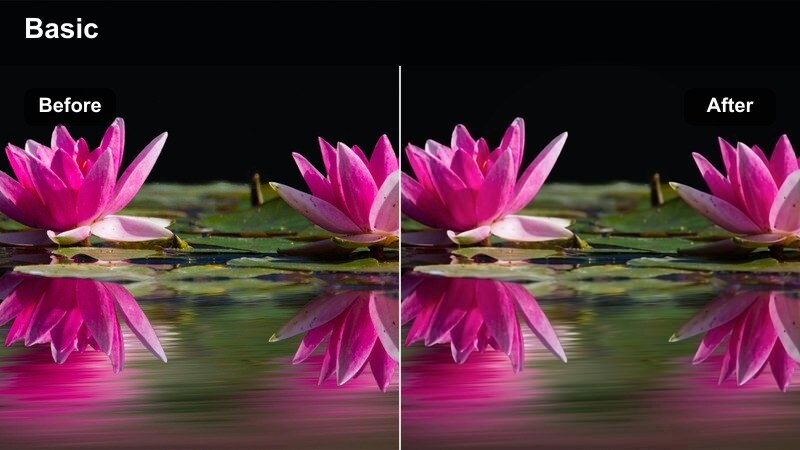
- Effect look: Cool-tinted daylight filter with crisp edges and clear shadows that keep street details sharp on YouTube.
- Best for: Street vlogs, urban POV walks, city b-roll, or travel clips where buildings and signs need to stay readable in vertical frame.
- Editing tip: Slightly lower saturation on reds to avoid overblown traffic lights and signage when upscaled as Shorts or 16:9 crops.
Crisp City Day in Filmora is built for urban footage where detail matters, such as storefronts, signs, and architecture. Apply this filter to give your city walks a modern TikTok feel while keeping lines, text, and small objects clean when viewers watch in 1080p or higher on YouTube.
After applying the filter, use Filmora's saturation and HSL controls to tame red and orange tones so they do not overpower the frame. This prevents traffic lights, clothing, or billboards from clipping once YouTube compresses your upload and helps your Shorts look sharp across different devices.
Pastel Street Vlog
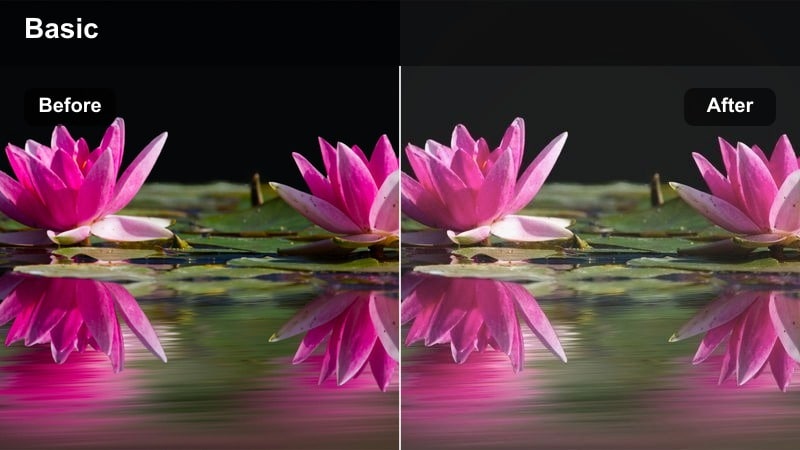
- Effect look: Low-contrast pastel filter that softens city colors into a dreamy TikTok aesthetic without losing detail for YouTube.
- Best for: Aesthetic day-in-the-life vlogs, campus walks, coffee runs, and lifestyle B-roll in bright city streets.
- Editing tip: Lift the blacks slightly to get a hazy feel and reduce highlight saturation to keep skies smooth on Shorts.
Pastel Street Vlog gives your lifestyle content a soft, dreamy look that is popular on TikTok while still being clear enough for longer YouTube viewing. Use it when you want gentle color and low contrast that makes everyday scenes feel cinematic but not overly stylized.
In Filmora, raise the black level to create a subtle haze, then refine highlight roll-off so bright skies and sidewalks do not band or clip. Combine the filter with Filmora's skin tone tools to keep faces warm and flattering, even as the rest of the frame leans into muted, pastel tones.
Neon Nights and Low-Light City Clips
Neon Glow Streets
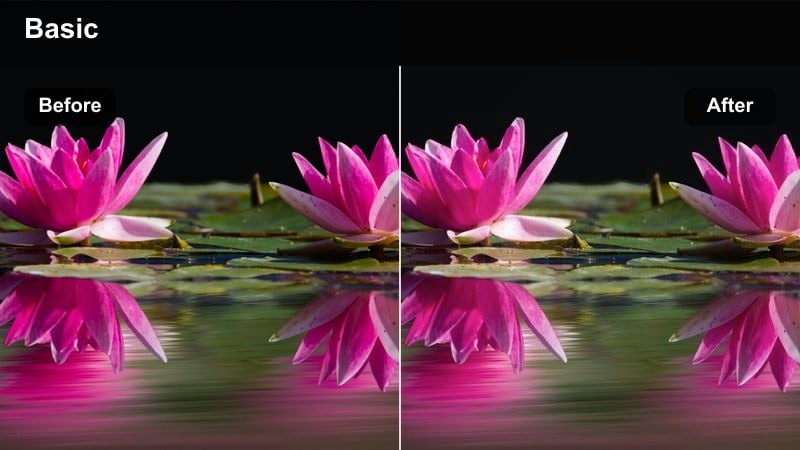
- Effect look: Punchy neon filter that enhances signs and LED billboards while protecting shadows from turning into noisy blobs.
- Best for: Nighttime city walks, nightlife b-roll, car window POVs, and cyberpunk-style TikTok edits repurposed for YouTube Shorts.
- Editing tip: Use selective saturation to boost blues and magentas only, then add light vignette so viewers focus on the brightest sign or subject.
Neon Glow Streets is designed for nightlife content where colorful lights and deep shadows carry the mood. Apply it to amplify neon signs and LED reflections while keeping dark areas controlled so your YouTube uploads do not turn into noisy mush.
Inside Filmora, combine the filter with light noise reduction before increasing contrast or sharpening. Then, use HSL adjustments to selectively enhance blues and magentas so your scene feels vibrant without oversaturating skin or street surfaces, and finish with a subtle vignette to guide viewer attention.
Cinematic Midnight Drive
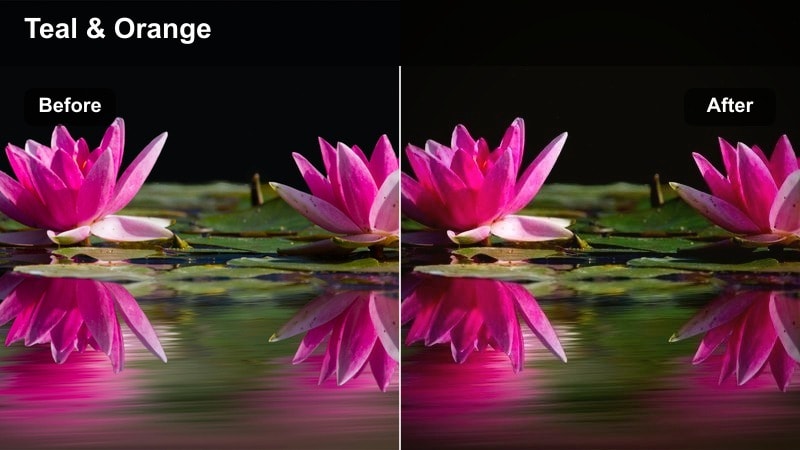
- Effect look: Moody teal-and-amber night filter with cinematic contrast that makes car interiors and city lights feel dramatic.
- Best for: Car vlogs, late-night story times, driving POVs through lit city streets, and confession-style TikTok clips adapted to horizontal YouTube.
- Editing tip: Bring up exposure on faces while keeping the background slightly underexposed so the subject stays readable in small Shorts previews.
Cinematic Midnight Drive gives your in-car footage a polished, movie-inspired teal-and-amber palette that works for both Shorts and longer story-time videos. It is especially effective when your lighting comes mainly from streetlights, dashboard screens, and passing traffic.
Apply the filter in Filmora, then use masks or the face enhancement tools to subtly lift exposure on your subject without flattening the background. Keep the environment a bit darker so the city lights stay dramatic, and test your edit at phone size to ensure your face remains clear in tiny Shorts previews.
Lo-Fi City Night
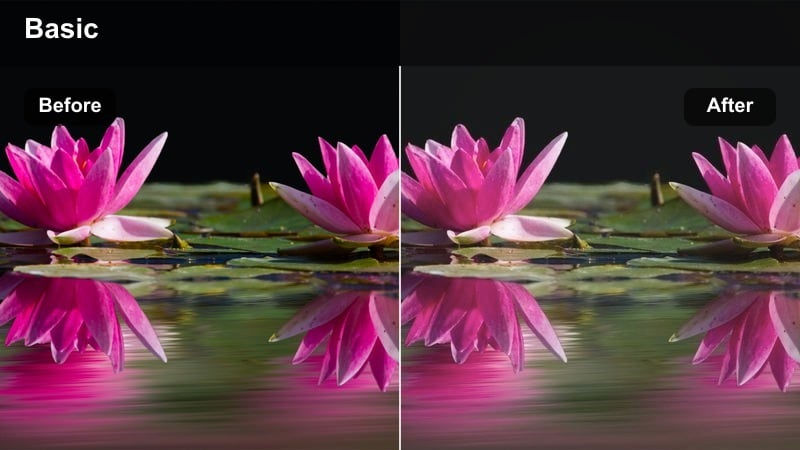
- Effect look: Soft, slightly faded night filter with reduced clarity and gentle color shifts that mimic lo-fi TikTok edits.
- Best for: Lo-fi beats over city b-roll, night walks, skate edits, and aesthetic filler clips between talking segments.
- Editing tip: Dial down clarity and micro-contrast, then add a tiny bit of film grain so the fade looks intentional instead of just blurry.
Lo-Fi City Night is perfect for atmospheric night b-roll that supports music or voiceover, especially when you want a relaxed TikTok-style mood. It softens edges and lowers contrast so city scenes feel nostalgic and understated rather than hyper-digital.
After you apply the filter in Filmora, reduce clarity and micro-contrast a touch more, then introduce a fine film grain layer to make the softness feel designed, not like a camera issue. Pair it with subtle zooms or slow pans so the motion and grade match the calm energy of your lo-fi soundtrack.
Indoor Creator Studios and Home Setups
Creator Studio Clean
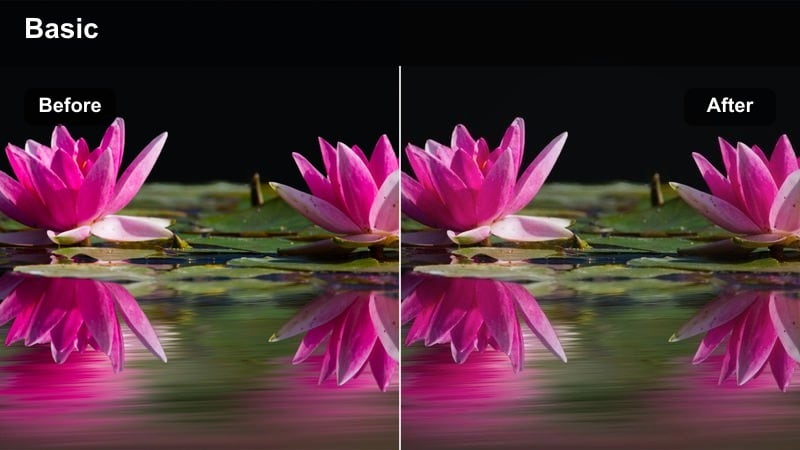
- Effect look: Neutral, slightly brightened studio filter that keeps walls, shelves, and RGB lights accurate for multi-platform branding.
- Best for: Desk setups, tutorials, commentary videos, and green-screen Shorts filmed in the same room but posted to TikTok and YouTube.
- Editing tip: White-balance to your key light first, then add a subtle S-curve contrast so your face stands out against monitors and decor.
Creator Studio Clean is your baseline filter for any controlled indoor setup where accurate, repeatable color matters. It adds a gentle boost in brightness and contrast so your face and background props pop, while keeping your room colors true to life on both platforms.
In Filmora, use this look as a starting point and adjust white balance based on your main key light, not your RGB accents. Once you like the overall tone, save it as a named preset tied to your studio so you can drop it onto all of your TikTok and YouTube clips for a consistent channel identity.
RGB Gamer Room
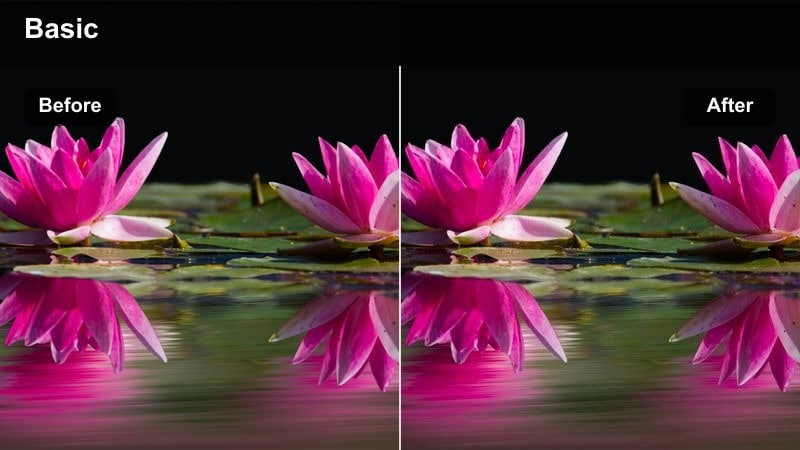
- Effect look: Punchy, saturated RGB filter that deepens blacks and makes colored lights pop without crushing facial detail.
- Best for: Gaming commentary, streaming highlights, reaction videos, and Shorts cutdowns from Twitch or TikTok Live recordings.
- Editing tip: Protect skin tone by masking your face and rolling back saturation there, while allowing full saturation on background LEDs.
RGB Gamer Room emphasizes the vivid lighting in streaming and gaming setups while preserving enough detail on your face for commentary and reactions. It adds richness to LED strips, keyboards, and monitors so your room feels as dynamic on YouTube as it does in live TikTok clips.
Apply the filter in Filmora, then use masks or the skin tone tool to keep your face from going neon while leaving the background lights fully saturated. Enhance contrast slightly to deepen blacks around your rig, but always preview at mobile size to ensure compressed Shorts still show clear expression and eye detail.
Cozy Bedroom Chat
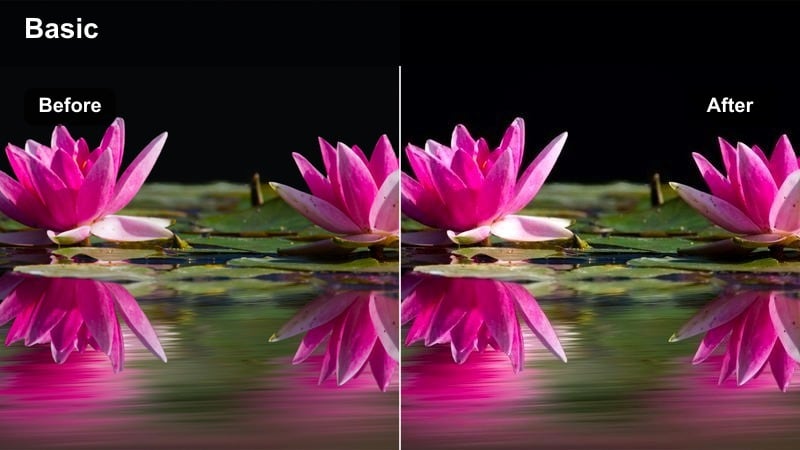
- Effect look: Warm, soft indoor filter with lifted shadows that make small bedrooms feel inviting on both TikTok and YouTube Shorts.
- Best for: Story times, personal updates, mental health chats, and Q&A clips filmed on beds or sofas with ambient room lighting.
- Editing tip: Add a subtle glow to highlights and lower saturation on oranges so warm lamps do not turn your walls overly yellow.
Cozy Bedroom Chat is tuned for intimate, low-pressure talking-head clips where viewers are focused on your story or advice. It lifts the shadows and leans into warm tones so even a small, dim room feels welcoming and on-brand for TikTok and YouTube audiences.
In Filmora, apply the filter and then add a slight highlight glow for lamps or fairy lights, dialing down orange saturation to keep the warmth under control. Adjust overall exposure based on the tone of your content, slightly brighter for casual updates and a little darker for more serious or reflective topics.
Branding Shots, B-Roll, and Product Close-Ups
Brand Consistent Pop
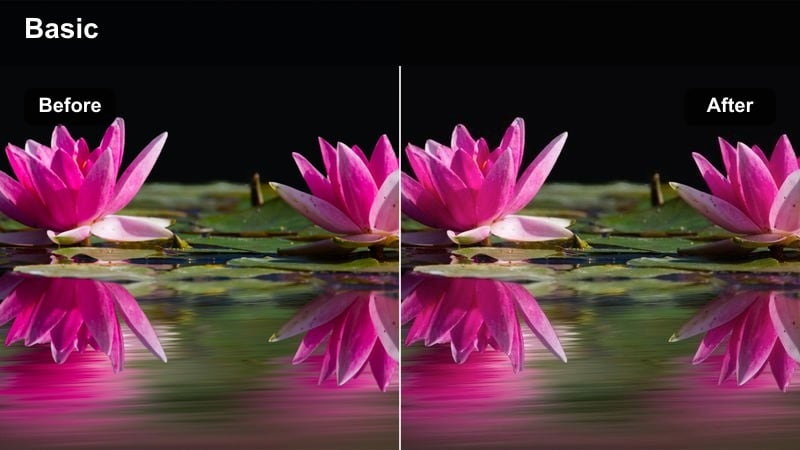
- Effect look: High-clarity, medium-saturation filter that keeps brand colors faithful across TikTok, YouTube, and channel banners.
- Best for: Logo animations, branded intros, sponsor segments, and channel trailers where your color palette must match everywhere.
- Editing tip: Use scopes to lock in brand color accuracy, then save this as your default filter for all future cross-platform exports.
Brand Consistent Pop is meant to be your branding workhorse for any clip that features logos, overlays, or channel colors. It prioritizes faithful color reproduction with enough contrast and clarity to keep graphics crisp in YouTube thumbnails, Shorts previews, and TikTok feeds.
In Filmora, apply this filter to your intro, outro, and sponsor scenes, then open the scopes to confirm that your primary brand hues match your design files. Once you are happy with the balance, save it as a master preset so every new TikTok or YouTube export that includes your brand assets uses the exact same look.
Product Showcase Gloss
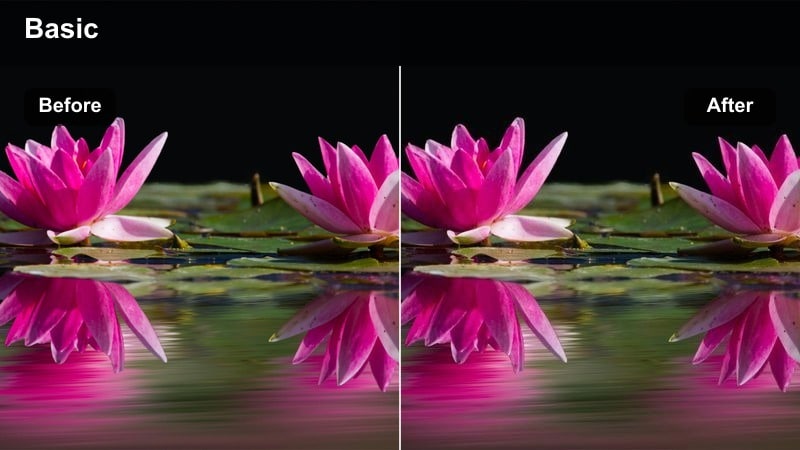
- Effect look: Glossy, high-contrast filter that emphasizes highlights and edge detail on gadgets, clothing, and branded items.
- Best for: Sponsored Shorts, affiliate product close-ups, desktop gear tours, and vertical ads adapted from TikTok to YouTube.
- Editing tip: Use subtle sharpening and clarity instead of just contrast so the product looks premium without overly crunchy edges.
Product Showcase Gloss is tailored for gear and product content where you want items to look premium and tactile on screen. It enhances reflections, edges, and textures so viewers can appreciate details even in quick Shorts or small in-feed previews.
Apply the filter in Filmora, then fine-tune with moderate sharpening and clarity rather than heavy global contrast to avoid halos and artifacts. Keep your key features centered in the 9:16 frame and consider adding slight motion blur to fast pans so compression on YouTube and TikTok does not smear fine detail.
Smooth Transition B-Roll
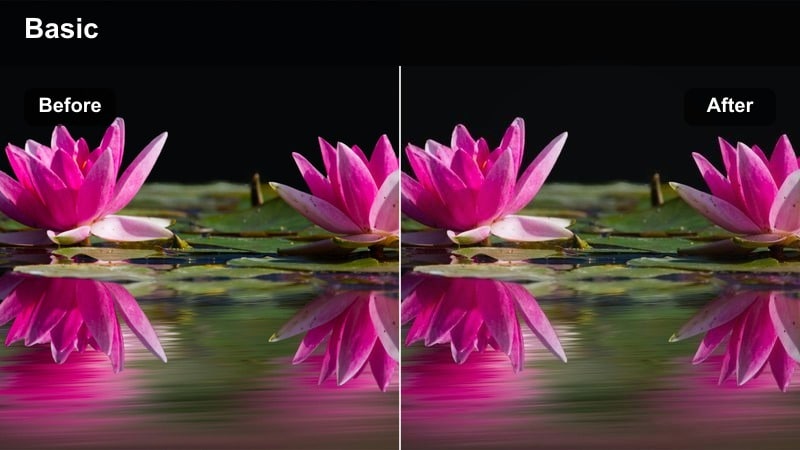
- Effect look: Balanced, versatile filter with moderate contrast and saturation that makes whip pans and match cuts feel seamless.
- Best for: Scene transitions in Shorts, establishing city shots, desk b-roll, and filler clips you reuse across TikTok and YouTube playlists.
- Editing tip: Apply the same filter to both sides of a transition clip so color and contrast do not jump between platforms or scenes.
Smooth Transition B-Roll is a flexible, middle-of-the-road filter created to glue different scenes together without drawing attention to the grade. It works equally well on city exteriors, desk setups, and filler shots you recycle across TikTok, Shorts, and longer YouTube videos.
In Filmora, apply this look consistently to both the outgoing and incoming clips around a whip pan, match cut, or zoom transition. Keeping contrast and saturation steady across these elements helps your edits feel professional and prevents jarring color shifts when viewers move between platforms.
Tips for Using Cross-Platform Tiktok To Youtube Filters Filters in Filmora
- Design one master filter for your channel and apply slight variations instead of starting from scratch for every clip.
- Check your graded video on both phone and desktop to make sure text and faces stay clear in Shorts and long-form.
- Avoid over-saturating reds and oranges, which can easily clip or look blotchy once YouTube recompresses your upload.
- Batch-edit TikTok reposts by applying the same YouTube filter preset to multiple clips in one project.
- Use scopes in Filmora to verify that your luminance stays within safe ranges for bright Shorts thumbnails.
- Keep your subject in the center third of the frame when grading, as extreme edges may be cropped differently on platforms.
- Export a short 10–15 second test clip with your new filter and upload it unlisted to review how YouTube handles the color.
- Create different presets for daylight, indoor, and night city scenes while maintaining the same overall brand tone.
Purpose-built filters make it much easier to move TikTok clips into YouTube and Shorts without losing the style your audience already recognizes. With a few core looks tuned for typical scenes, you can preserve your brand while still respecting how each platform compresses and displays video.
Start with one or two of the scene-based looks above, turn them into Filmora presets, and refine them as you see how they perform across devices. For deeper control, explore Filmora's tools for building custom LUTs and stacking targeted adjustments on top of your base filters so every new upload feels consistent and intentional.
secure download