

 100% Security Verified | No Subscription Required | No Malware


 ChatGPT
 Perplexity
 Gemini
 Claude
 Grok
Grok
This curated set of urban street crossing cinematic filters is designed for content creators who want their city footage to look bold, stylish, and story-driven straight out of Filmora.
From blue-hour crosswalks to rainy intersections and sunlit cross streets, these presets help you turn everyday city scenes into cinematic sequences with consistent mood and color.
In this article
Blue-Hour Crosswalks and Commuter Rush
Neon Crosswalk Glow
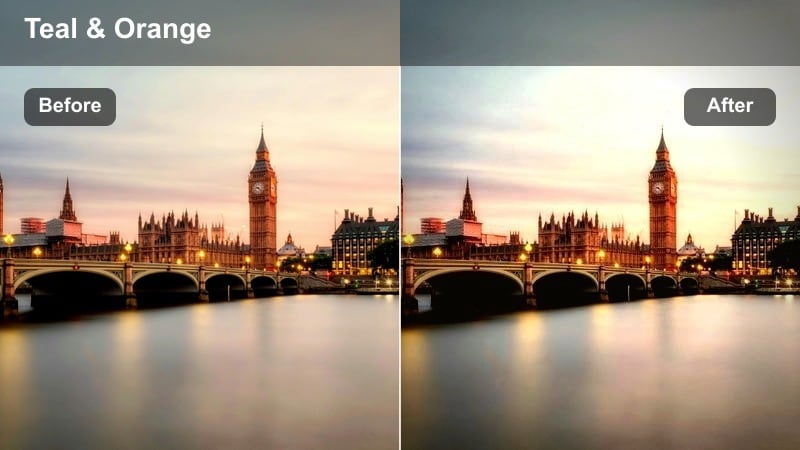
- Effect look: Soft teal shadows with neon accents that make traffic lights and storefront signs pop against darker streets.
- Best for: Evening walk-throughs at busy intersections, commuters waiting at signals, and handheld street vlogs under neon.
- Editing tip: Slow your footage to 60–70 percent speed and add a subtle film grain overlay to enhance the dreamy neon atmosphere.
Neon Crosswalk Glow gives your blue-hour city shots a stylized neon wash that instantly feels cinematic. By gently cooling shadows and amplifying colored lights, it helps crosswalk stripes, traffic signals, and signage stand out without crushing detail in darker areas.
In Filmora, apply this preset to clips with strong light sources, then fine-tune exposure so highlights stay vibrant but not blown out. Combine it with subtle film grain, smooth slow motion, and soft transitions to turn simple intersection B roll into atmospheric sequences that fit vlogs, travel films, and short narrative moments.
Speed up grading with AI-assisted Filmora tools
Apply these urban street crossing cinematic filters as a base, then use Filmoras AI color and tone tools to quickly unify exposure and white balance across different intersections and lighting conditions.
With AI-driven color matching, you can keep neon signs, streetlights, and skin tones consistent from shot to shot, even when you filmed at different times of day or under mixed lighting.
 secure download

Preview your filter choices before committing
Before locking in a look for your project, drop a short sequence of crosswalk clips onto the Filmora timeline and cycle through multiple filters. Watching them back to back lets you see how each preset handles traffic lights, storefront signs, and the mix of warm and cool tones.
Use split-screen preview or snapshots to compare before and after views so you can quickly decide which cinematic style best fits your channels visual identity.
secure download1000+ Video Filters and 3D LUTs
Beyond these urban street crossing cinematic filters, Filmora includes a large library of creative filters and 3D LUTs you can stack for layered looks. Start with a preset that sets your contrast and mood, then gently add LUTs to tweak color separation between buildings, skies, and road surfaces.
When you discover combinations that match your city storytelling style, save them as custom presets so every future project can share the same signature grade in just a few clicks.
secure downloadCommuter Fade Film
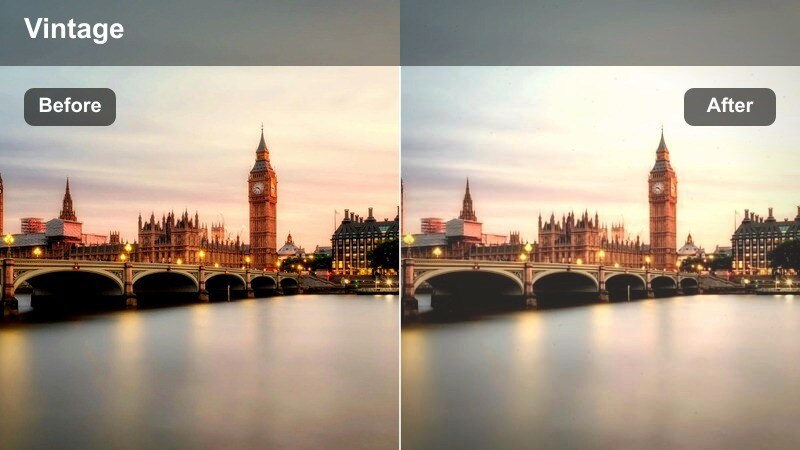
- Effect look: Muted contrast with soft halation around streetlights, reminiscent of vintage commuter film stock.
- Best for: Wide shots of office workers crossing large avenues, escalators leading to street level, and subway exits opening onto crosswalks.
- Editing tip: Combine with a 2.35:1 letterbox and a gentle fade-in to mimic the pacing of narrative film openings.
Commuter Fade Film tones down harsh city contrast and wraps bright sources in a soft glow, which gives rush-hour crossings a nostalgic, story-first feel. It is ideal when you want to focus more on patterns of movement and human stories than on clinical sharpness.
In Filmora, pair this preset with cinematic black bars and slower cuts to create an opening sequence for vlogs, city portraits, or short films. If the picture feels too flat on your monitor, selectively add a mild S-curve to midtones while leaving highlights soft so you keep the vintage commuter vibe.
Teal Steel Avenue
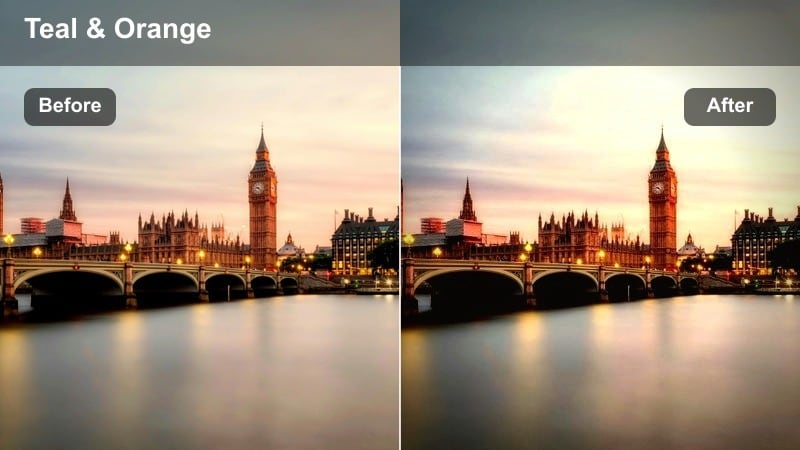
- Effect look: Cool teal overall cast with slightly lifted blacks, giving concrete and metal surfaces a polished, cinematic edge.
- Best for: Urban B-roll of high-rise intersections, crosswalk shots from above, and tracking shots along busy city blocks.
- Editing tip: Shoot a bit underexposed and let the filter recover shadows so the teal tint feels rich instead of washed out.
Teal Steel Avenue is designed to stylize glass, metal, and concrete, turning ordinary intersections into sleek, cinematic environments. The raised blacks and teal wash help skyscrapers, railings, and asphalt feel cohesive while still leaving room for clean highlights.
Apply this preset inside Filmora to overhead or drone-style crosswalk shots, then use selective color tools or skin tone protection so faces remain natural. Slightly underexpose in camera or pull exposure down before adding the filter, then raise shadows carefully so the teal grade stays dense and modern rather than faded.
Rain-Soaked Streets and Reflections
Midnight Rain Crosswalk
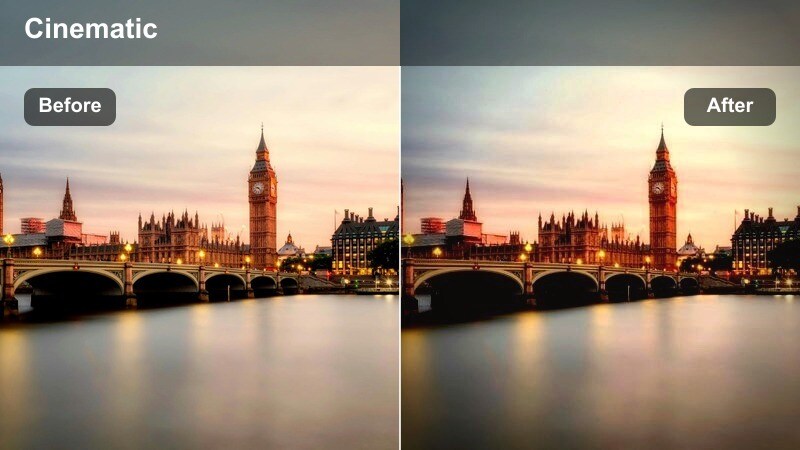
- Effect look: Deep contrast with saturated reflections in puddles and glossy asphalt, emphasizing night rain textures.
- Best for: Nighttime rain scenes at intersections, umbrellas moving through traffic lights, and slow-motion car passes.
- Editing tip: Lower your highlights slightly and boost clarity in midtones to bring out raindrops and reflective details.
Midnight Rain Crosswalk pushes contrast and saturation to make every puddle and reflection feel rich and dramatic. It accentuates colored traffic lights and car brake lights, which helps create a vivid mood for night rain sequences.
In Filmora, combine this preset with high-frame-rate slow motion and detailed sound design to emphasize raindrops, footsteps, and rolling tires. Gently reduce highlight levels and add a touch of midtone clarity so wet asphalt textures, umbrellas, and reflections read clearly without losing the cinematic darkness.
Hooded Drifter Mist
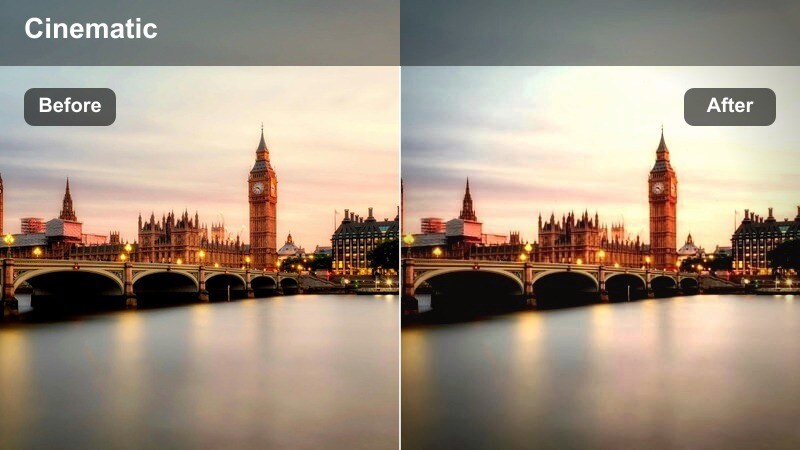
- Effect look: Low-contrast matte blacks with a gentle cool haze, giving rainy alleys and sidestreets a mysterious tone.
- Best for: Solo subjects crossing empty streets late at night, moody b-roll of side crossings, and narrative walking shots.
- Editing tip: Add a vignette and desaturate background colors slightly so your subject in a hood or coat becomes the clear focal point.
Hooded Drifter Mist wraps your nighttime city frames in a soft, cool haze that is perfect for lonely or introspective character moments. The matte blacks lower overall contrast just enough to make mist, drizzle, and soft streetlights blend together smoothly.
In Filmora, apply this preset to narrative walking shots, then add a vignette and pull saturation down on the environment so your subject stands out. Reduce overall sharpness slightly and use backlighting when possible, letting the filter amplify the glow around silhouettes for a cinematic, mysterious feeling.
Reflected Signs Bloom
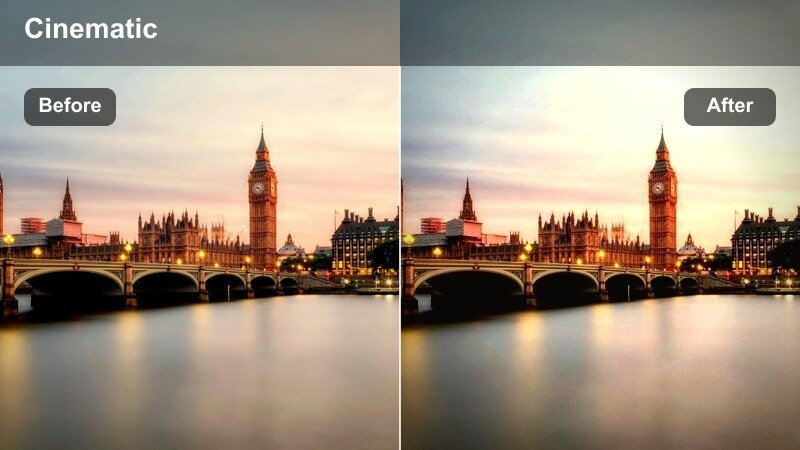
- Effect look: Soft bloom on bright signage, rich saturation in reflections, and slightly warmer midtones for cozy rainy nights.
- Best for: Street-level shots of crosswalks beside convenience stores, restaurants, and glowing billboards after rainfall.
- Editing tip: Increase saturation of reds and yellows selectively while keeping blues calmer to avoid overpowering the frame.
Reflected Signs Bloom adds warmth and glow to storefronts, billboards, and window lights, turning rainy crosswalks into inviting, cinematic environments. The subtle bloom effect softens harsh LEDs, while saturated reflections make puddles and wet asphalt visually engaging.
Use this filter in Filmora on low-angle shots that emphasize reflections near crosswalks. After applying it, selectively boost warm tones and control blues so the frame stays colorful but balanced, then cut between close reflections and wider views of the intersection to build a rhythmic, city-night montage.
Daytime Crossings and City Flow
Sunlit Cross-Street Cinema
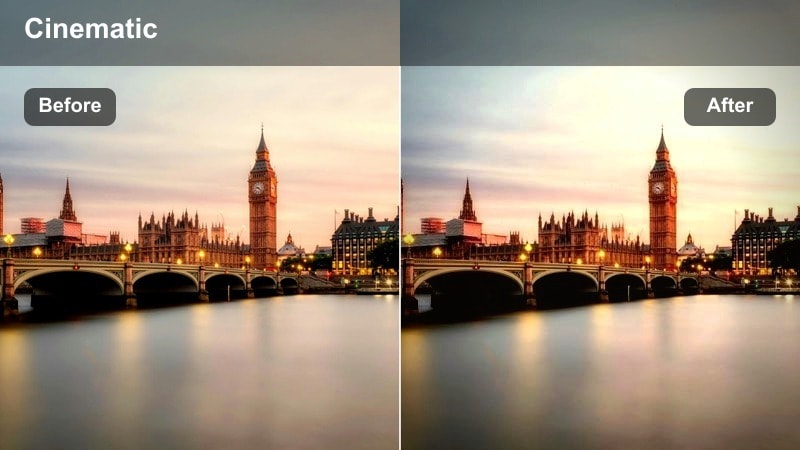
- Effect look: Clean, bright highlights with gently warmed skin tones and crisp contrast suitable for daytime city movement.
- Best for: Daylight walk-and-talk content, time-lapses of pedestrians at major crossings, and establishing shots of busy corners.
- Editing tip: Use gentle camera motion blur or speed ramping to match the energetic mood of daytime traffic and pedestrians.
Sunlit Cross-Street Cinema is tuned for bright daytime intersections, lifting highlights while keeping skin tones warm and flattering. The result is a clean, modern city look that works well for lifestyle vlogs, travel content, and energetic B roll.
In Filmora, apply this preset to both real-time and time-lapse clips of crosswalk activity, then experiment with speed ramps and motion blur effects to enhance the sense of flow. If your footage was shot in harsh sun, pull whites down slightly and let the filter handle contrast so details in buildings and crowds stay visible.
Crosswalk Documentary Neutral
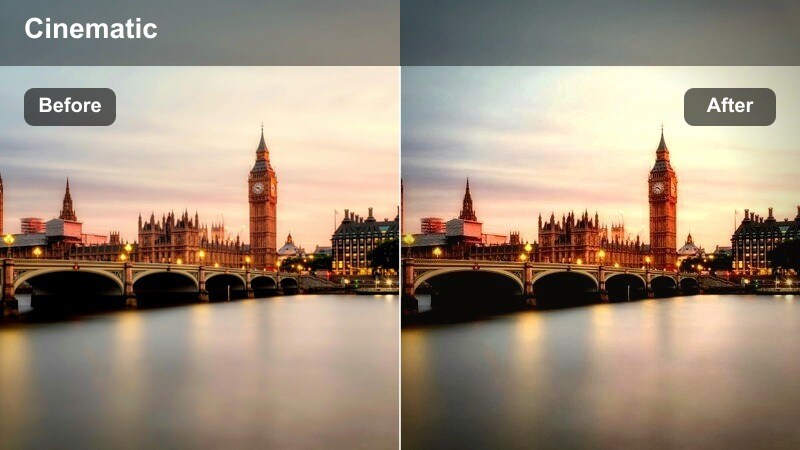
- Effect look: Balanced, neutral color grade with mild contrast that preserves real-world city colors for documentary-style pieces.
- Best for: Street interviews near crossings, observational b-roll of traffic flow, and urban lifestyle vlogs needing natural tones.
- Editing tip: Pair with clean audio and minimal music to keep the focus on authentic city sound and story rather than stylization.
Crosswalk Documentary Neutral is built for realism, keeping colors and contrast close to what you saw on location while smoothing out minor inconsistencies. It is ideal when you want your audience to feel like they are really standing at the intersection with you.
Use it in Filmora as a base grade across all your clips, then add only subtle local adjustments for exposure or white balance. Because the look is intentionally understated, lean on strong composition, natural ambient sound, and storytelling edits to carry your documentary or vlog-style city sequences.
Shadow Lane Contrast
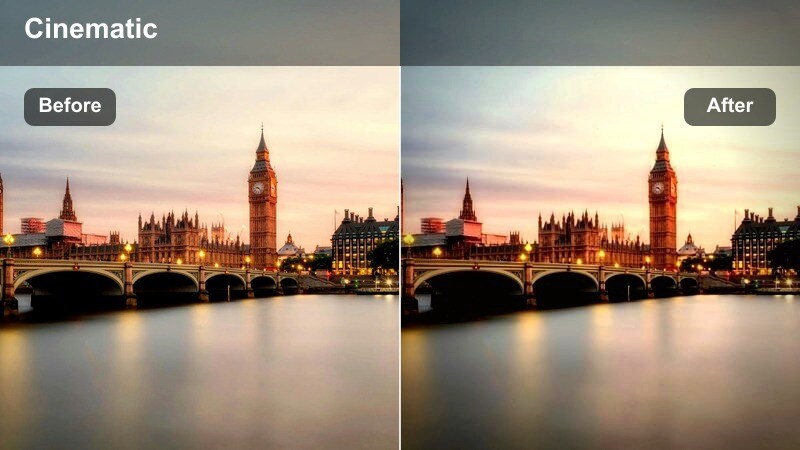
- Effect look: Punchy contrast that emphasizes the interplay of light and shadow between tall buildings and crosswalks.
- Best for: Streets where sunlight cuts sharply between skyscrapers, crossing shots with bold striped patterns, and dramatic noon angles.
- Editing tip: Expose for highlights and let shadows go deeper; this filter will preserve shape while enhancing graphic contrast.
Shadow Lane Contrast is made for cities with strong, angular light, turning crosswalk stripes and building shadows into bold graphic elements. It deepens dark areas while preserving highlight detail, giving your midday shots a dramatic, high-impact style.
Inside Filmora, use this preset on overhead or diagonal views of intersections where lines and shadows dominate the composition. Expose your footage for highlights, then let the filter push shadows as needed, and stabilize your clips slightly to keep the striking patterns crisp and visually satisfying.
Stylized Night Narratives and Character Moments
Lonely Crossing Noir
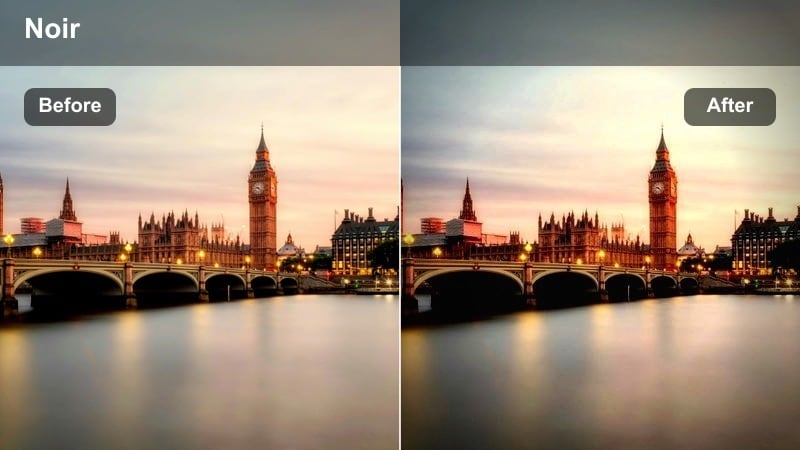
- Effect look: High-contrast monochrome with deep blacks and bright streetlights for a classic noir city crossing style.
- Best for: Narrative scenes featuring lone characters at crosswalks, late-night walks, and detective-style B-roll.
- Editing tip: Keep camera movements slow and deliberate; use longer cuts to let the noir shadows and light patterns breathe.
Lonely Crossing Noir strips away color and leans into stark blacks and bright light sources, evoking classic film noir at modern intersections. It emphasizes silhouettes, reflections, and the geometry of crosswalks under streetlights.
Apply this preset in Filmora to character-driven night scenes, then slow your pacing with longer shots and minimal camera movement. Avoid cluttered frames so silhouettes read cleanly, and fine-tune contrast until the balance between deep shadows and glowing highlights feels dramatic but not clipped.
Cinema Orange Crosswalk
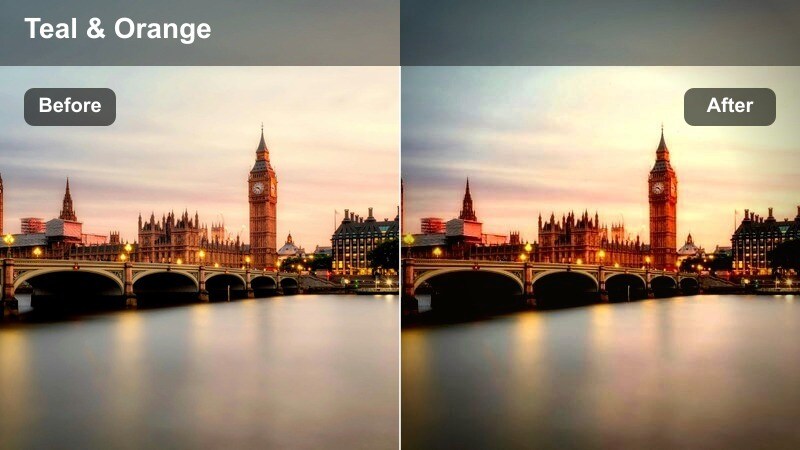
- Effect look: Warm, cinematic orange highlights with balanced teal shadows for a modern blockbuster street scene.
- Best for: Hero walks across intersections, fashion-focused city b-roll, and music video shots with strong character presence.
- Editing tip: Add a slight push-in or parallax movement using Filmora's keyframing tools to enhance the cinematic framing.
Cinema Orange Crosswalk delivers a classic teal-and-orange color scheme that instantly makes your talent feel like the star of a modern city film. Warm highlights flatter skin tones and clothing, while cooler shadows keep the environment stylish and cinematic.
In Filmora, use this filter on hero walks, fashion moments, and music video shots at crosswalks, then add subtle push-ins or parallax effects with keyframes to enhance depth. If the look feels too strong, gently reduce saturation or intensity while keeping contrast high so your subject still commands attention.
Urban Crossing Anamorphic Soft
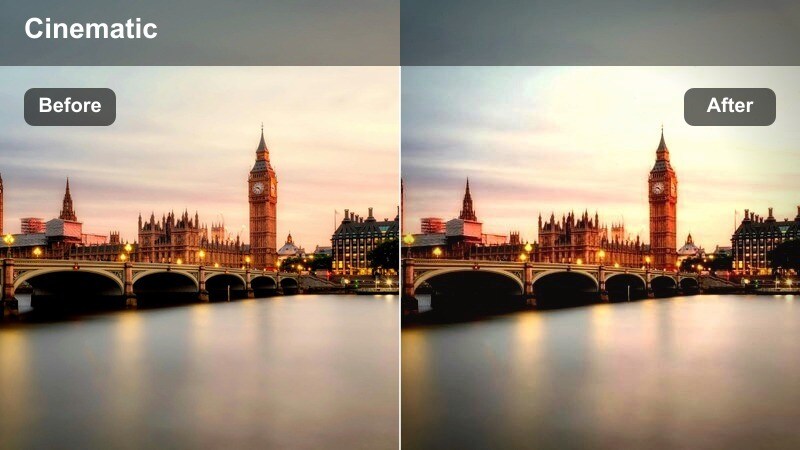
- Effect look: Soft highlight bloom with subtle horizontal streaks and cooler midtones that mimic anamorphic city lenses.
- Best for: Night drives through intersections, characters crossing in front of oncoming headlights, and cinematic b-roll with strong light sources.
- Editing tip: Introduce gentle handheld shake or slight lens distortion plugins to sell the illusion of real anamorphic glass.
Urban Crossing Anamorphic Soft emulates the bloom and streak of anamorphic lenses, especially when headlights, streetlights, and signs enter the frame. It cools midtones slightly, giving night crossings a refined, cinematic sheen without heavy color stylization.
In Filmora, aim this preset at shots with visible light sources, then add subtle handheld motion or lens distortion effects to enhance the illusion of real anamorphic glass. Keep exposure just under clipping so highlights bloom instead of blowing out, and cut these stylized shots into your edit as key narrative or transition moments.
Tips for Using Urban Street Crossing Cinematic Filter Filters in Filmora
- Shoot a short reference clip at each key intersection and test multiple filters in Filmora before committing to a full project grade.
- Keep frame rates and shutter speeds consistent so motion in crosswalks stays smooth and matches the cinematic tone of your chosen preset.
- Capture both wide establishing shots and tight details of feet, signals, and reflections so you can build dynamic pacing with the same filter applied.
- If skin tones look off, adjust white balance first, then fine-tune contrast or saturation within the preset controls.
- Match your music tempo to the visual rhythm of pedestrians and traffic, reinforcing the mood each filter creates.
- Mix stylized filters with neutral ones to separate narrative sequences from documentary-style or vlog moments in the same project.
- Use Filmoras keyframes to subtly ramp filter intensity when transitioning between locations, times of day, or emotional beats.
- Layer in city sound effects like crosswalk beeps, footsteps, and car engines so the audio supports the atmosphere set by your color grade.
These urban street crossing cinematic filters give content creators a fast way to transform ordinary intersections into visually cohesive, story-ready city scenes.
Apply them as your base look in Filmora, then fine-tune exposure, color, and grain so every crosswalk in your timeline feels like part of the same cinematic world.
secure download