

 100% Security Verified | No Subscription Required | No Malware

Urban street filters in Filmora let you turn everyday city moments into gritty, cinematic stories with bold contrast, textured shadows, and moody color grades tailored to concrete, neon, and nightlife.
Whether you are shooting fast-paced street photography, documenting urban exploration, or capturing city culture for YouTube, these curated filters and grades help you define a consistent, recognizable urban visual style.
In this article
Gritty Concrete Noir Urban Street Filters
Concrete Noir Crush
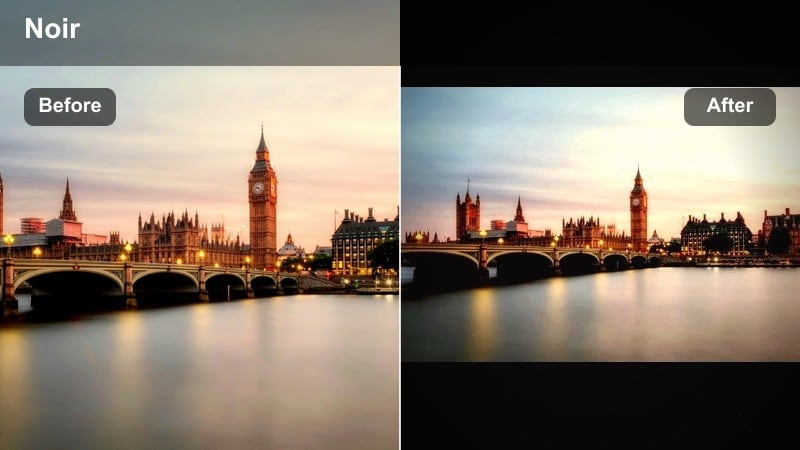
- Effect look: High-contrast, deep shadows with muted midtones and subtle film grain for a hard-edged urban noir feel
- Best for: Night street photography, rainy alleyways, underground subway footage, and moody city vlogs
- Editing tip: Lower exposure slightly, then gently lift blacks to keep detail in deep shadows while preserving the hard contrast
Concrete Noir Crush is built for nights when the city feels sharp and unforgiving. In Filmora, this filter digs into the deepest shadows, carves out silhouettes, and lets street lights, windows, and signage slice through the darkness with bold contrast and subtle grain for a filmic noir feel.
Use it on nighttime walk-and-talks, wet asphalt, or subway exits where light spills into dark spaces. Apply the filter, then fine-tune exposure and black levels so faces stay readable while backgrounds fall into graphic shapes. Add a slight vignette and you will have a classic concrete-noir city look that works across stills, B-roll, and narrative scenes.
AI-Assisted Urban Color Control in Filmora
Filmora s AI-powered color tools help you quickly balance exposure, correct white balance, and keep your gritty city clips looking consistent from shot to shot before you layer on heavy urban filters.
Use AI color matching to align different cameras or lighting conditions across your street sequences, then stack Concrete Noir Crush or other filters on top for a polished, cohesive urban aesthetic without manual grading on every clip.
 secure download

See Urban Street Filters in Action
Before committing to a look, preview how your clips react to different concrete, neon, and daylight street filters in Filmora. Watching before-and-after transformations helps you choose grades that fit your story instead of over-stylizing your footage.
Load a short test sequence with walking shots, building details, and close-ups, then apply several filters side by side. Comparing contrast, saturation, and skin tones directly in the preview window makes it easier to lock in a signature urban mood for your project.
secure download1000+ Video Filters and 3D LUTs
Filmora includes a huge library of creative filters and 3D LUTs so you can mix subtle corrections with bold looks for any city environment. Stack an urban LUT for overall color, then dial in a street-style filter to refine contrast, grain, and texture.
Once you have built a look you love, save it as a custom preset. That way your street photography edits, urban exploration videos, and YouTube intros all share the same recognizable city grade with just a couple of clicks.
secure downloadSubway Grit Matte
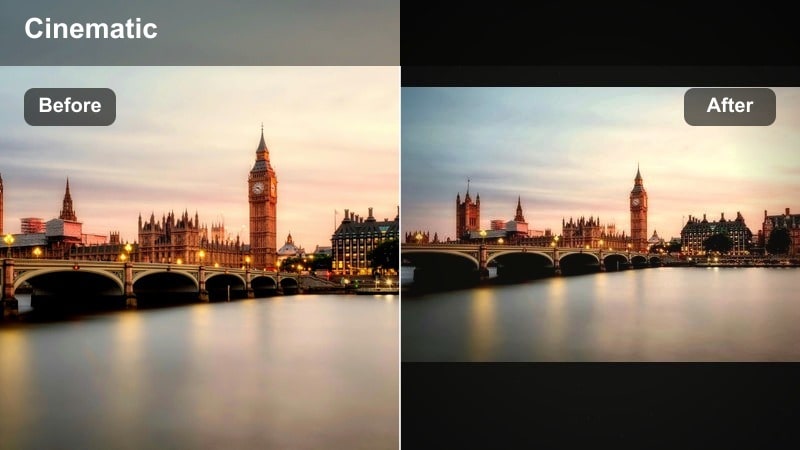
- Effect look: Low-contrast matte blacks, creamy highlights, and desaturated colors with a greenish urban cast
- Best for: Underground train platforms, escalators, tunnels, and handheld walk-and-talk sequences
- Editing tip: Add a touch of clarity or sharpness to faces and signage to keep important details crisp against the flattened contrast
Subway Grit Matte pulls harsh contrast down and introduces a subtle greenish cast that feels right at home in tiled tunnels and fluorescent-lit platforms. In Filmora, it is ideal for handheld sequences where you want to keep detail but smooth out the intensity of mixed lighting.
Apply this filter to escalator rides, train arrivals, and transitional clips in your edit. After adding it, slightly increase clarity or sharpness on adjustment layers or selectively on faces and signs so your subject stands out against the softened, gritty environment.
Back Alley Fade
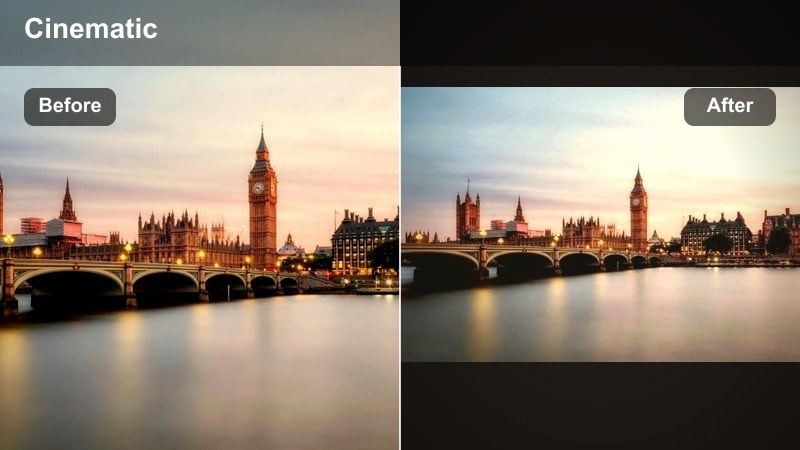
- Effect look: Soft faded blacks, warm highlights, and a hint of brownish tint for a cinematic back-alley glow
- Best for: Back streets, graffiti walls, candid portraits, and slow-motion street details
- Editing tip: Reduce saturation in greens and yellows slightly to keep the warm tint from feeling too vintage or stylized
Back Alley Fade turns cluttered, sometimes harsh spaces into warm, story-rich locations. The lifted blacks and gentle brownish tint soften the frame, while warm highlights make windows, posters, and skin tones feel lived-in and cinematic.
Use it in Filmora for character introductions, close-ups of graffiti, or slow-motion shots of feet, hands, and details. After applying, fine-tune green and yellow saturation so the overall warmth feels modern rather than retro, and pair with slower cuts or chill music to reinforce the relaxed, cinematic alley mood.
Neon Night and City Lights Filters
Neon Pulse Pop
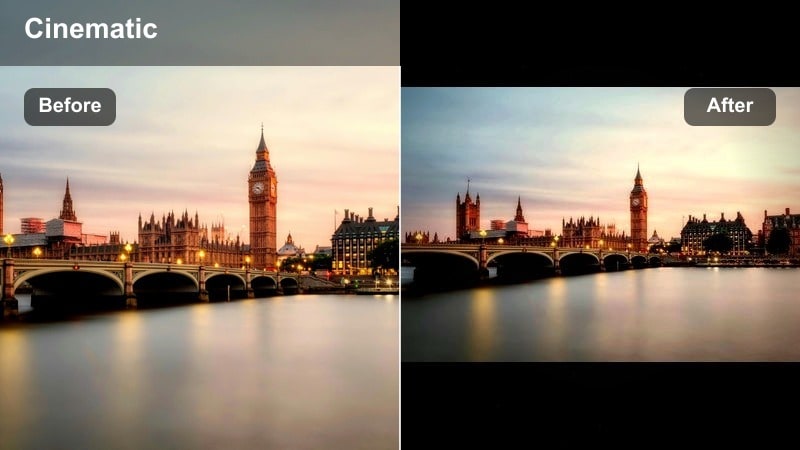
- Effect look: Punchy saturation on blues, pinks, and purples with crisp contrast and cool shadows for neon-heavy scenes
- Best for: Downtown nightlife, bar districts, neon signs, and cyberpunk-inspired street sequences
- Editing tip: Use selective color tools to keep skin tones natural while letting neon signs and reflections stay extra vibrant
Neon Pulse Pop is designed for streets soaked in colored light. It boosts blues, pinks, and purples while keeping shadows cool and defined, so every sign, LED strip, and shop window feels electric without losing shape.
In Filmora, drop this filter on night vlogs, bar hops, or cyberpunk B-roll, then use color correction to protect skin tones from going too magenta. Combine with slight sharpening and stabilized handheld footage for a tight, energetic neon look that cuts perfectly to music.
Cyber Street Glow
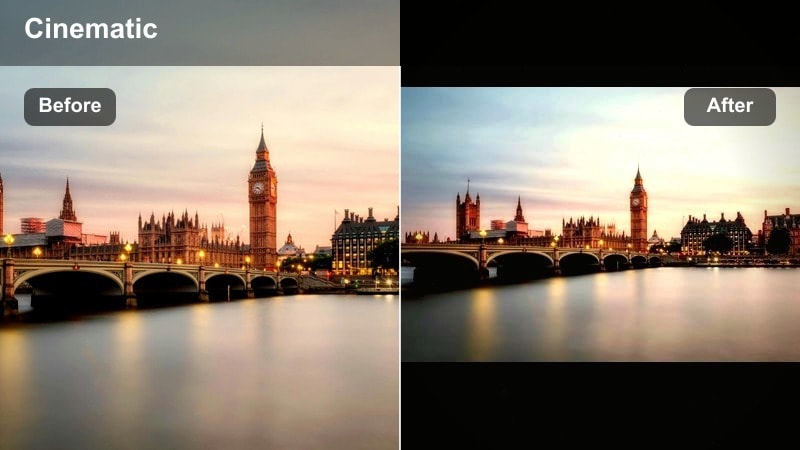
- Effect look: Teal shadows and magenta highlights with gentle glow around bright lights and lifted blacks
- Best for: Rainy nights, light trails, long-exposure crosswalks, and futuristic city b-roll
- Editing tip: Add a light bloom or glow effect to bright areas only, then dial back clarity for a dreamy cyber-city look
Cyber Street Glow leans into a classic teal-magenta sci-fi palette, lifting blacks and adding glow so every highlight blooms softly. It works especially well on wet pavement, reflective glass, and long exposures where light streaks through the frame.
Apply it to your night sequences in Filmora, then layer a subtle bloom effect on the brightest parts of the image. Reducing clarity a bit will smooth out fine detail and complete the dreamy cyber-city aesthetic, perfect for intros, transitions, and stylized B-roll.
Night Market Hues
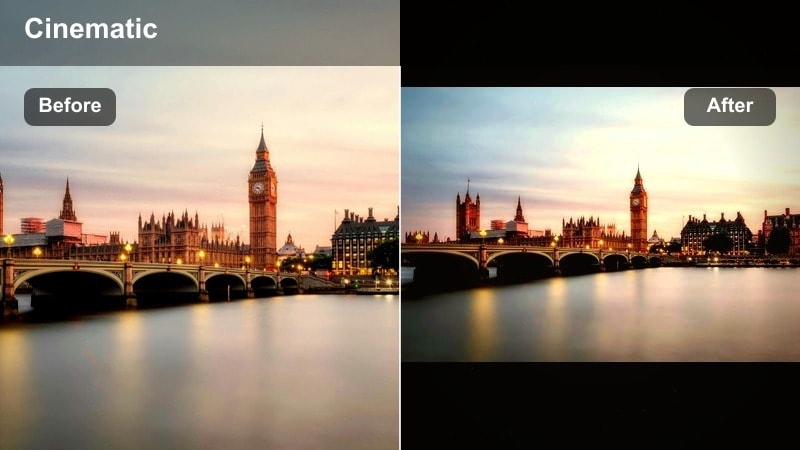
- Effect look: Rich warm highlights with preserved midtone detail and subtle contrast for colorful night markets
- Best for: Street food stalls, outdoor markets, cultural festivals, and handheld vendor portraits
- Editing tip: Use a slight vignette and subtle noise reduction so busy backgrounds feel atmospheric rather than chaotic
Night Market Hues is tuned for glowing bulbs, steam, and colorful signage in crowded city markets. It pushes highlights warm and keeps midtones detailed, so food, fabrics, and faces all stand out without blowing out the scene.
In Filmora, apply it to walk-throughs and vendor interactions, then add a gentle vignette to guide attention toward your main subject. Light noise reduction on high-ISO clips will help the filter maintain clarity while preserving the atmosphere of a busy night market.
Daylight Urban Street and City Culture Filters
City Contrast Clean
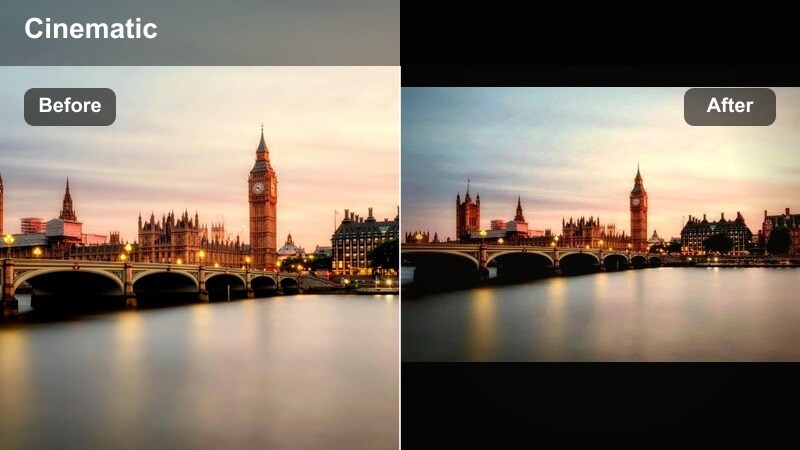
- Effect look: Clean, bright contrast with neutral color balance, crisp edges, and subtle sharpening for clear urban detail
- Best for: Daytime street walks, architecture shots, cityscapes, and travel vlog b-roll
- Editing tip: Protect highlights by slightly pulling them down, then raise shadows a touch to keep faces and textures readable
City Contrast Clean is your go-to filter for honest, documentary-style city footage. It keeps colors neutral, enhances detail in buildings and streets, and adds just enough sharpening to make edges pop without looking over-processed.
Use it in Filmora for travel vlogs, establishing shots, and timelapses. After applying, reduce highlights slightly to protect bright skies and windows, then lift shadows to keep sidewalks, faces, and storefronts easy to read in a single, polished daytime look.
Urban Culture Soft
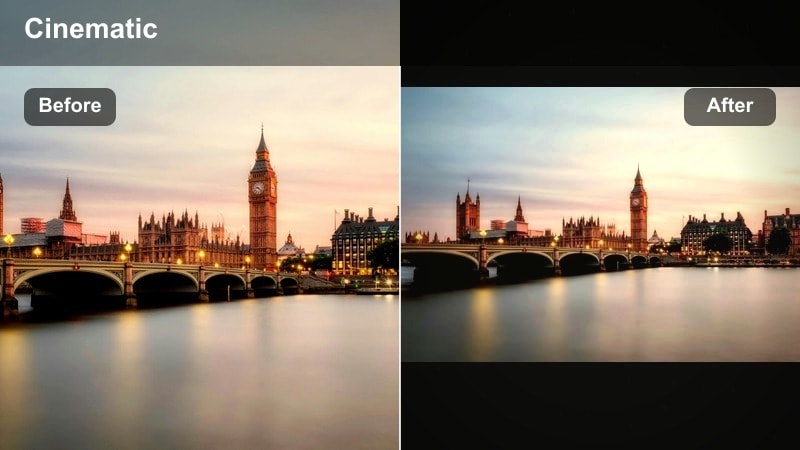
- Effect look: Gentle contrast, soft highlights, and slightly muted saturation that flatters skin tones and murals
- Best for: Street portraits, murals, performers, skaters, and city culture mini-documentaries
- Editing tip: Add a light warm temperature shift and boost vibrance instead of saturation for more natural color expression
Urban Culture Soft is designed for people-focused street stories. It eases off harsh contrast, calms saturation, and smooths highlights so performers, artists, and passersby look flattering next to bold murals and urban art.
In Filmora, apply it to interviews, buskers, and skate sessions, then nudge the temperature slightly warmer and increase vibrance instead of saturation to keep colors expressive yet realistic. This creates a friendly, cinematic tone that suits mini-docs and social content.
Crosswalk Hustle
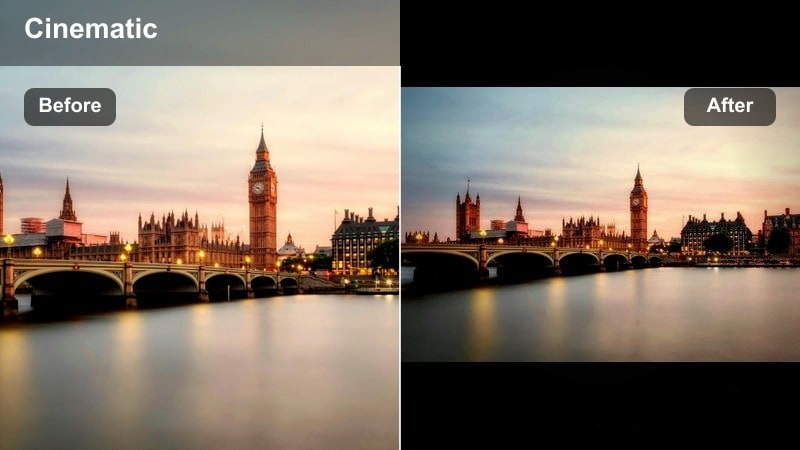
- Effect look: Punchy micro-contrast and slightly cooler tones that emphasize movement and busy daytime streets
- Best for: Crowded intersections, bike commuters, time-lapse crosswalks, and urban b-roll transitions
- Editing tip: Use speed ramping or time-lapse with this filter to turn everyday movements into dynamic transitions between scenes
Crosswalk Hustle adds edge and energy to busy daytime scenes. The cooler tones and extra micro-contrast make patterns in traffic, pedestrians, and bikes stand out, turning ordinary intersections into kinetic visuals.
Use it in Filmora on time-lapses, hyperlapses, or short handheld bursts, then combine with speed ramping or jump cuts on motion. This creates high-energy transitions between locations in vlogs, travel videos, and city montages.
YouTube-Ready Urban Street Presets and Color Grades
Creator Street Log Boost
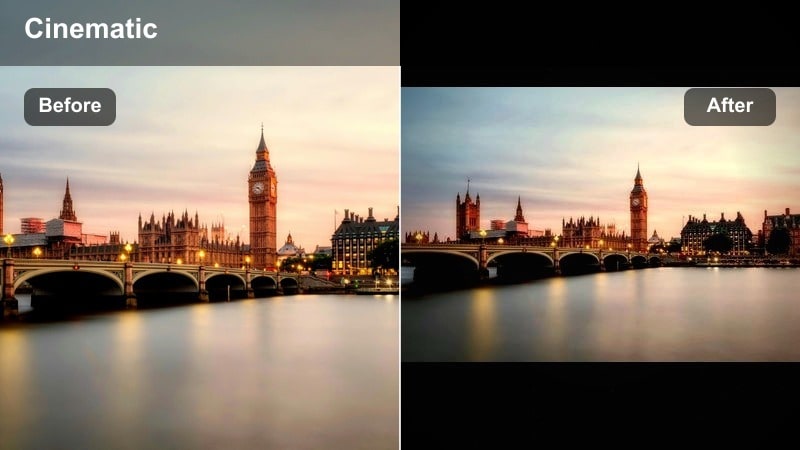
- Effect look: Designed for log or flat footage, adding balanced contrast, clean color, and subtle vibrance for YouTube
- Best for: Urban YouTube vlogs, talking-head intros in the city, and creator b-roll shot in log profiles
- Editing tip: Apply this preset first on your log footage, then fine-tune white balance and exposure before adding extra effects
Creator Street Log Boost is built as a fast base grade for creators shooting in log or flat profiles. It restores contrast and color without overcooking your footage, leaving room for additional stylized filters or LUTs.
In Filmora, drop this preset on all your log clips at the start of grading. Adjust white balance and exposure per shot, then, if needed, layer an urban filter lightly on top to shape mood while keeping your YouTube content clean and consistent.
City B-Roll Motion Pack
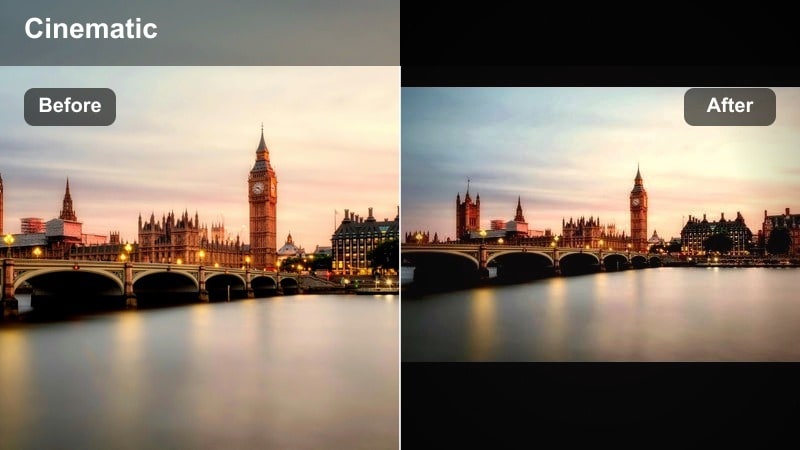
- Effect look: A punchy but controlled color grade tuned for quick cuts, whip pans, and handheld b-roll sequences
- Best for: Fast-paced YouTube intros, travel reels, and urban exploration highlight sequences
- Editing tip: Cut on motion, then apply this preset to the sequence and slightly adjust contrast shot-by-shot for seamless flow
City B-Roll Motion Pack is optimized for high-energy edits filled with fast cuts and camera movement. It punches contrast and saturation just enough to keep details crisp as you cut quickly between scenes.
Use it in Filmora on compiled B-roll sections such as channel intros or travel recaps. Lay down your edit first, cutting on action, then apply the preset to the entire sequence and tweak contrast slightly on problem shots so the whole montage feels unified and impactful.
Urban LUT Signature Grade
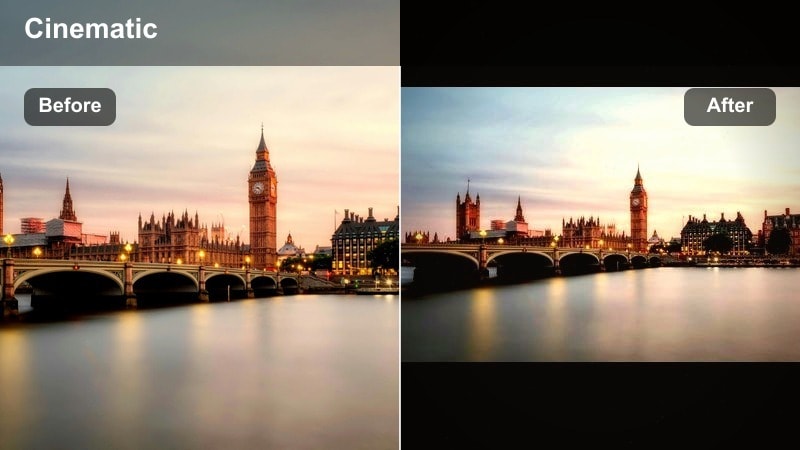
- Effect look: A signature-style LUT-inspired filter combining cool shadows, warm skin tones, and cinematic contrast tuned for online platforms
- Best for: Channel-wide branding, series intros, and city-centric playlists on YouTube or social platforms
- Editing tip: Apply lightly at first, then blend with Filmora s intensity controls so it complements, not overpowers, your footage
Urban LUT Signature Grade is designed to become your channel s recognizable city look. By mixing cool shadows with warm, flattering skin tones and cinematic contrast, it feels polished yet streetwise across many kinds of footage.
In Filmora, apply it gently on top of a basic correction and adjust intensity until it enhances rather than dominates your clips. Test it on vlogs, B-roll, and thumbnails, then save a customized version as your house style for everything you publish from the city.
Tips for Using Urban Street Filter Filters in Filmora
- Shoot in flat or log profiles whenever your camera allows, giving Filmora s urban street filters more latitude to shape contrast and color.
- Expose for the highlights in neon or night scenes so bright signs and street lights keep detail after you apply punchy filters.
- Keep white balance consistent while shooting each scene to avoid unwanted color jumps once you add filters and LUTs in Filmora.
- Organize your clips into day, sunset, and night folders or bins so you can quickly batch-apply the most suitable urban filters.
- Start with subtle filter intensity and increase gradually, especially for YouTube, to avoid crushed shadows or oversaturated colors after compression.
- Combine Filmora s AI color correction with urban filters: correct first, stylize second for cleaner, more professional results.
- Use masks and keyframes to apply strong urban looks only to certain parts of the frame, such as backgrounds, while keeping faces more natural.
- Save your favorite filter and adjustment combinations as custom presets so every new street project starts with your signature city style.
Urban street filters in Filmora give street photographers, urban filmmakers, and city explorers a fast path to gritty, cinematic visuals that still feel authentic to real city life.
Build a small toolkit of favorite presets, adjust them to your camera and shooting style, and apply them consistently so every urban project carries your signature street look.
secure download