

 100% Security Verified | No Subscription Required | No Malware


 ChatGPT
 Perplexity
 Gemini
 Claude
 Grok
Grok
If your YouTube channel lives in alleys, skate spots, subway platforms, and neon corners, you need more than a basic color boost. You need urban street filters for YouTube that lock in gritty contrast, moody shadows, and raw texture without crushing skin tones or hiding city detail.
Below are 12 Filmora street YouTube filters designed for YouTube urban creators and street vloggers, grouped by vibe and shooting scenario. Each comes with a suggested use case and a quick editing tip so you can drop them on your footage, tweak fast, and keep your upload schedule moving.
In this article
High-Contrast City Day Filters
Gritty Day Crunch
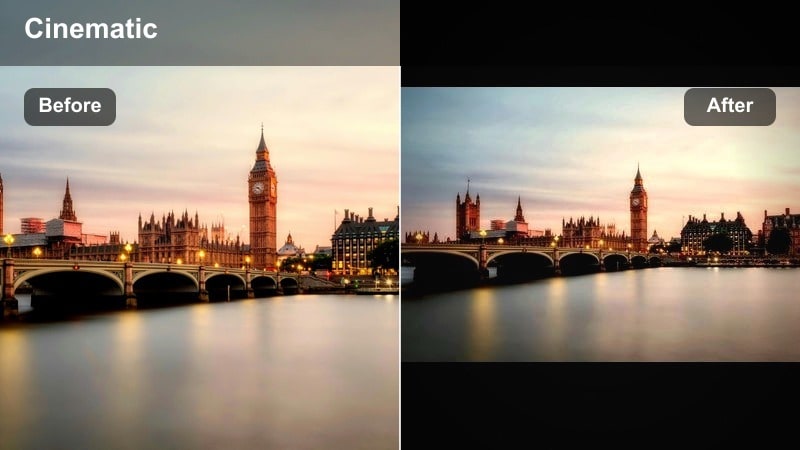
- Effect look: Hard contrast with crisp detail, slightly muted saturation, and subtle grain for street-documentary vibes.
- Best for: Midday street vlogs, sidewalk interviews, street food runs, and fast walking shots in busy districts.
- Editing tip: Lower the contrast slider by 5-10 points if your camera already has strong in-camera contrast to avoid clipping highlights on white walls or cars.
Gritty Day Crunch is built to handle harsh daylight where most city vloggers struggle with blown-out skies and flat, lifeless streets. In Filmora, this street YouTube filter tightens micro-contrast so pavement lines, building textures, and clothing details snap into focus while a touch of grain gives your footage a documentary-style edge. Because saturation is slightly muted, the look feels tough and urban instead of overly colorful or cartoony.
Use this filter as your go-to gritty vlog grade when you are shooting quick run-and-gun content in busy downtown areas. Drop it on an adjustment layer above your walking-and-talking clips, then pull down the contrast if your camera profile is already punchy. Combine it with highlight recovery and a tiny boost to warm midtones for skin, so your subject stays natural while the city around them feels sharper and more intense. This balance keeps your uploads fast to edit but still visually consistent across episodes.
Speed up your street grades with AI-driven color control
Filmora s AI tools can quickly analyze your urban footage and push it toward a consistent street style, even if you shoot across different blocks, cameras, or days. Auto-balancing exposure and white balance with AI helps you avoid fighting strange color shifts from storefront lights, reflective windows, and bright skies.
Once the AI has normalized your clip, you can apply a gritty street filter like Gritty Day Crunch or any other look from this guide and trust that it is working from a solid, neutral base. This reduces the time you spend fixing color problems and frees you up to focus on pacing, B-roll, and storytelling in your city vlogs.
 secure download

Test-drive 12 urban street filters on your next vlog
These 12 Filmora filters are tuned around common YouTube city setups, from busy crosswalk monologues to moody subway B-roll and rooftop explorations. Instead of committing to one look forever, you can try different street grades on the same sequence and see which one supports your story and personality best.
Apply them on adjustment layers so you can toggle filters on and off across entire sequences, then combine them with basic color tweaks or keyframed intensity changes. This lets a scene evolve visually, for example starting clean and bright, then fading into a grittier look as your story gets more serious.
secure download1000+ video filters and 3D LUTs for endless urban looks
Beyond these 12 street-focused filters, Filmora includes a large library of presets and 3D LUTs you can stack to build your own YouTube urban LUT style. You can start with a cinematic LUT as a base, then layer a gritty matte filter or a neon-focused grade on top at lower intensity to fine-tune the atmosphere.
Because Filmora lets you adjust opacity and combine multiple filters, it is easy to turn a generic city clip into a signature look that matches your thumbnails and channel art. Save your favorite combinations as custom presets so every new vlog can snap into your branded style in a few clicks.
secure downloadUrban Pop Clean
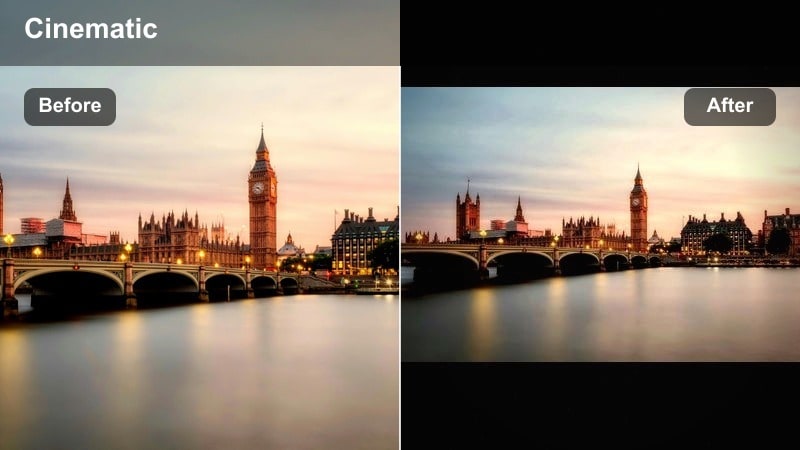
- Effect look: Clean and bright street grade with boosted primary colors, crisp edges, and soft contrast for a modern vlog feel.
- Best for: Daily city vlogs, shopping district walks, B-roll of street signs, murals, and outdoor coffee scenes.
- Editing tip: Use Filmora s HSL controls to selectively push reds and yellows for storefronts and food while keeping blues and greens more neutral for a balanced feed aesthetic.
Urban Pop Clean is your filter when you want your city to feel inviting and colorful without losing the authenticity of real streets. In Filmora, it lifts exposure slightly, sharpens edges, and nudges primary colors so murals, signs, and clothing stand out while concrete and sky stay controlled. The softer contrast curve keeps shadows from getting too heavy, which is ideal for YouTube creators who prefer a bright, lifestyle-oriented vibe.
Use it for cafe meetups, shopping trips, or everyday walk-and-talks where you want to highlight the energy and color of your neighborhood. After applying the filter, fine-tune reds and yellows in HSL so food shots, storefronts, and skin tones look vibrant but not oversaturated. Keeping blues and greens more neutral helps your grid and thumbnails stay cohesive even when you jump between different locations in one vlog.
Dusty Concrete Matte
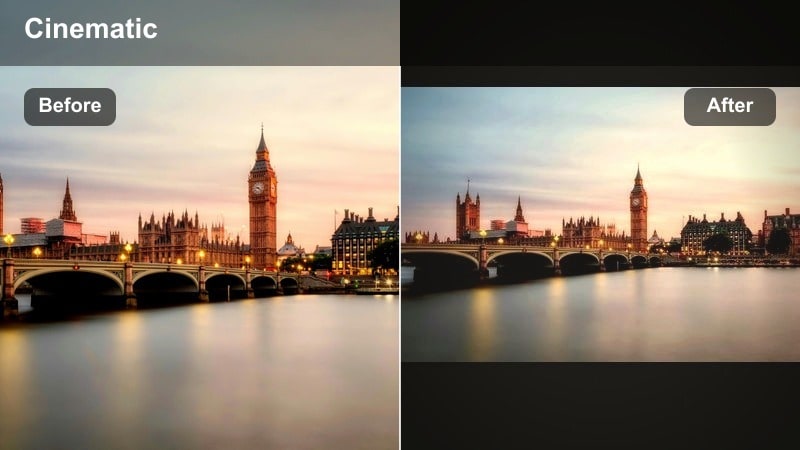
- Effect look: Low-contrast matte look that softens highlights, cools shadows slightly, and adds a dusty city haze on bright scenes.
- Best for: Architectural B-roll, rooftop shots, static tripod frames of intersections, and cinematic intro sequences.
- Editing tip: Reduce overall saturation by a few points and slightly deepen blacks to keep the matte look moody rather than washed out, especially on gray buildings.
Dusty Concrete Matte takes hard city lines and turns them into calm, cinematic frames that feel almost like still photography. It lifts the black point and rolls off highlights, so glass reflections and sky glare become gentle instead of harsh. This works especially well in Filmora for rooftop shots, static tripod angles of junctions, or slow slider moves that you want to use as breathing room between high-energy vlog segments.
After applying the filter, experiment with a small reduction in saturation and a subtle black-level push so your image looks thoughtfully matte rather than simply flat. This creates a soft, hazy canvas where you can overlay text, titles, or location tags. Add gentle keyframed opacity fades at the start and end of these clips to turn them into natural visual transitions that reset your viewer before the next section of your city vlog.
Night, Neon, and Low-Light Filters
Neon Grit Glow
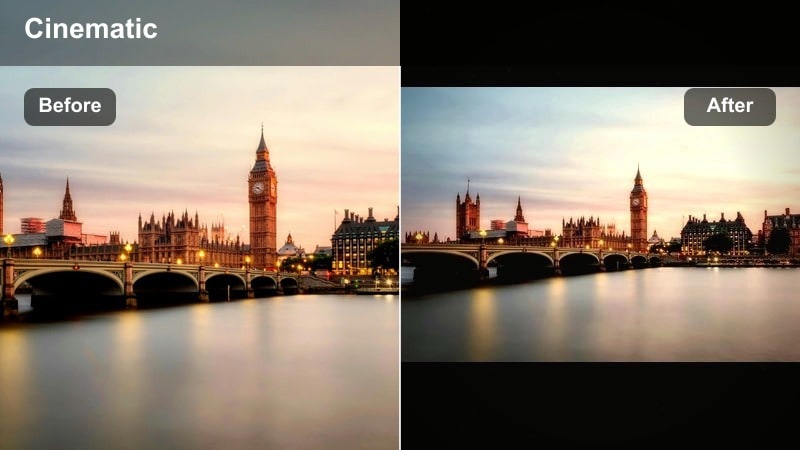
- Effect look: Deep contrast with lifted blacks, punchy neon colors, and a slight glow around bright signs and streetlights.
- Best for: Night market vlogs, late-night skate sessions, and B-roll of neon shop signs or traffic lights.
- Editing tip: Dial back the glow effect on faces and increase sharpness slightly so people stay clear while backgrounds feel dreamy and electric.
Neon Grit Glow is designed for nightlife creators who shoot under signs, traffic lights, and storefront LEDs. In Filmora it deepens the overall contrast, but keeps blacks a touch lifted so your footage does not crumble into pure black. The highlight glow adds a halo around bright elements, transforming regular night streets into eye-catching, neon-soaked backdrops that look great in YouTube thumbnails and intros.
Use it when you are filming night markets, bar hopping, or late-night skating through lit avenues. Apply the filter, then use Filmora s masking or strength controls to keep the glow effect mostly on the background while boosting sharpness on faces and boards. Exposing slightly darker in-camera and then raising the shadows in post will give the filter more room to enhance neon color without blowing out important details.
Shadow Alley Noir

- Effect look: High-contrast, desaturated noir style with cool shadows and minimal color for a cinematic alleyway mood.
- Best for: Moody storytelling vlogs, narrative sequences, alleyway explorations, and underground parking lots.
- Editing tip: Use Filmora s vignetting tool with a soft radius to focus attention on the subject while the filter deepens surrounding shadows.
Shadow Alley Noir strips away most of the color from your city, replacing it with dramatic contrast and cool-toned shadows. It is ideal in Filmora when you are crafting more narrative-driven sequences, like monologues in an alley or explorations of dim garages and back streets. The desaturated treatment pushes viewers to focus on expressions, movement, and light rather than distractions in the background.
After adding the filter, combine it with a subtle vignette to draw attention to your subject in the center of the frame. Light noise reduction before grading will keep deep shadows clean instead of muddy or overly noisy. If your footage is extremely dark, slightly reducing overall contrast and lifting blacks can preserve more detail while still maintaining the noir-inspired tension you want for these scenes.
Late Train Ambience
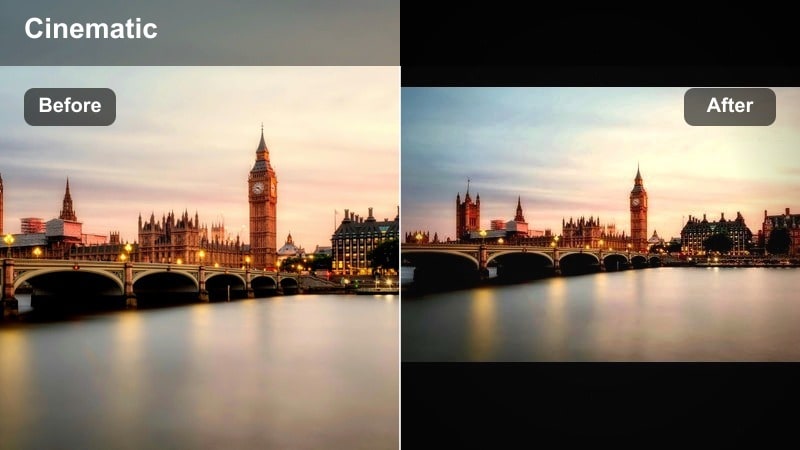
- Effect look: Soft, cool-toned low-light look with lifted shadows, gentle contrast, and subtle teal in midtones.
- Best for: Subway rides, bus rides, station waiting shots, and quiet late-night walk-and-talk segments.
- Editing tip: Lower the clarity or sharpness slightly to make harsh overhead fluorescent lights feel smoother and more cinematic.
Late Train Ambience is perfect for all the in-between moments of your vlog, like sitting on a train, waiting at a platform, or walking through dim corridors. In Filmora it lifts shadows and tames harsh low-light contrast, smoothing out noise-prone areas so the footage feels calmer and more watchable. The slight teal cast in the midtones creates a cool, reflective mood that pairs well with ambient audio and slower pacing.
Drop this filter onto your transit B-roll and late-night reflections, then dial back clarity to soften fluorescent fixtures and metal surfaces. You can add slow push-ins or pans to keep the visual energy moving while the grade stays understated and atmospheric. Pairing this look with clear ambient sound effects like train rumbles or station announcements helps you build immersive sequences without needing constant on-camera dialogue.
Gritty Vlog Storytelling Filters
Raw Journal Grade
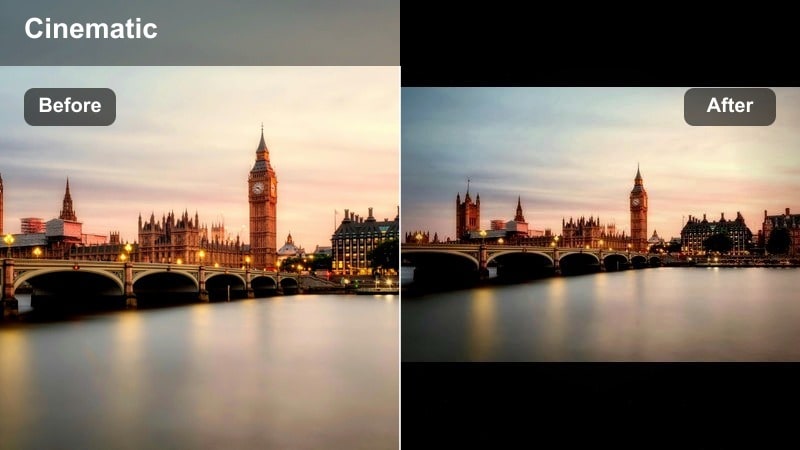
- Effect look: Muted colors, slightly lifted blacks, and light grain to mimic raw handheld documentary footage.
- Best for: Personal storytime vlogs, walk-through-the-city monologues, and reflective pieces about city life.
- Editing tip: Keep camera movement natural and avoid over-stabilizing so the documentary-style grit and grain complement the handheld feel.
Raw Journal Grade embraces imperfection to make your stories feel more personal and candid. In Filmora it softens saturation, gently raises blacks, and adds a touch of grain to mimic the texture of old-school documentary footage. This combination is powerful for moments when you are opening up about your life, sharing lessons learned in the city, or talking directly to your audience during a quiet walk.
Apply this filter across your talking segments and intercut with handheld B-roll of sidewalks, intersections, or apartment exteriors. Try not to over-stabilize or over-sharpen; a bit of shake and softness makes the grade feel intentional and emotionally honest. Leaving in minor focus shifts and exposure changes enhances the sense that viewers are right there with you in the moment instead of watching something overly polished.
Brick Dust Contrast
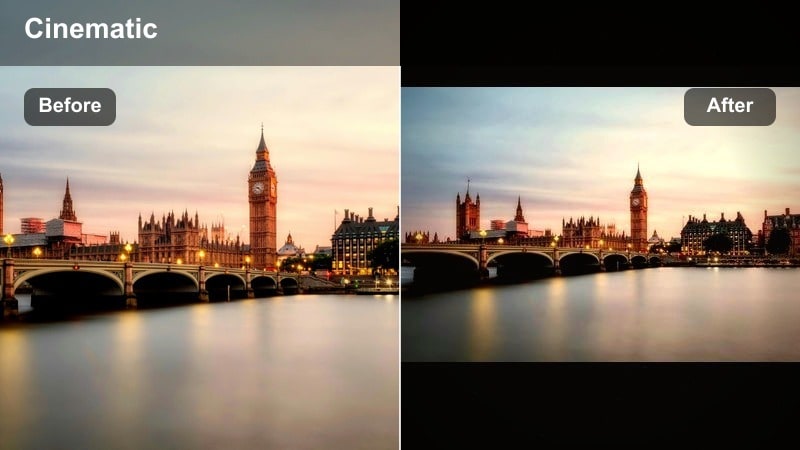
- Effect look: Warm midtones, crisp micro-contrast, and slightly desaturated greens for a grounded, urban-brick feel.
- Best for: Walkthroughs of historic neighborhoods, graffiti walls, skate spots, and stairway hangouts.
- Editing tip: Use Filmora s color mask or adjustment layers to keep skin tones closer to neutral while letting walls and streets carry the warm grit.
Brick Dust Contrast is built to celebrate the texture of your city: brick, asphalt, tags, and railings. In Filmora it pushes warmth into the midtones, boosts fine contrast, and tones down greens so grime, foliage, and signage do not overpower the overall frame. The result is a gritty yet inviting look that makes walls, stairwells, and skate spots feel like characters in your vlog.
Use this filter on walk-through sequences and texture-focused B-roll like slow tilts along brick walls or pans across graffiti pieces. Apply it with adjustment layers so you can keep your skin tones slightly more neutral while the environment carries the extra warmth and grit. These textured clips also work well as backgrounds for simple titles or location markers that help structure your episode into recognizable chapters.
Overcast Block Soft
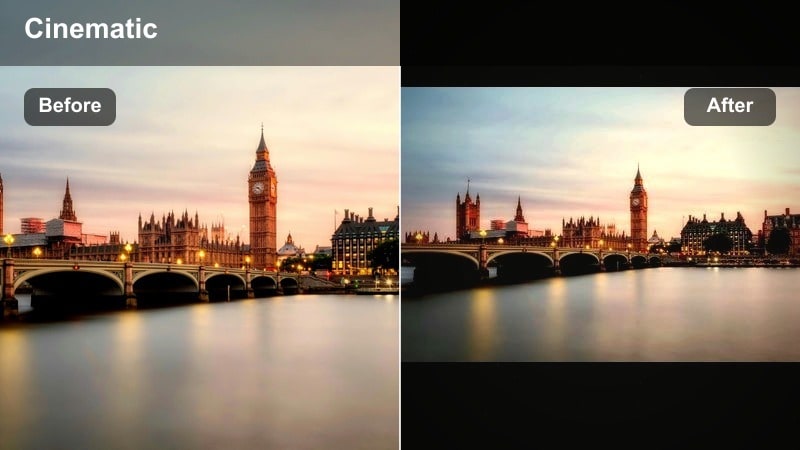
- Effect look: Soft-contrast gray-day grade with slightly cool shadows and gentle midtone lift for cloudy street sessions.
- Best for: Rainy-day vlogs, umbrella walks, overcast skate sessions, and slow-paced city wander videos.
- Editing tip: Add a light raindrop or dust overlay in Filmora and reduce saturation slightly for a melancholic, slow-city mood.
Overcast Block Soft turns flat, gray weather into an emotional backdrop instead of something that ruins your footage. The filter lowers contrast, cools shadows a touch, and lifts midtones so details in wet pavement, umbrellas, and cloudy skies remain visible. In Filmora this is ideal for slower-paced vlogs where you are reflecting, daydreaming, or just wandering without a strict plan.
Once the filter is applied, consider nudging saturation down and layering a subtle raindrop or dust overlay for atmosphere. This helps you build a consistent rainy-day identity for your channel if your city is often cloudy. By collecting a small library of overcast B-roll, all graded with Overcast Block Soft, you will always have moody cutaways ready to bridge between different scenes or topics.
Cinematic Urban Exploration Filters
Concrete Cinema Teal
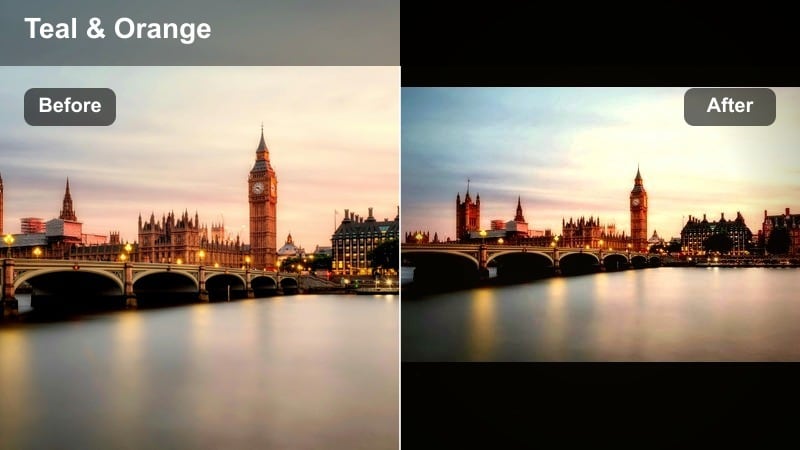
- Effect look: Teal shadows with warm skin tones, medium-high contrast, and a cinematic curve tuned for cityscapes.
- Best for: Urban exploration channels, rooftop missions, long-lens building shots, and city hyperlapses.
- Editing tip: Shoot slightly flatter in-camera, then use this filter as your base and fine-tune saturation and midtone warmth to match your thumbnail style.
Concrete Cinema Teal gives you that classic blockbuster-style teal-and-warm look tailored specifically for dense city scenes. In Filmora it cools down shadows toward teal while preserving warmth in skin and windows, creating strong color contrast that draws attention to people and light sources. The curve is tuned for skylines and building lines, making it a natural fit for rooftop missions, urbex, and long-lens city shots.
Use this filter as a base look across your exploration channel so your uploads feel cinematic and consistent. Shoot in a flatter picture profile when possible, then apply the filter and adjust saturation and midtone warmth until the look fits your branding and thumbnail color palette. Save the result as a custom preset in Filmora so both A-roll and B-roll can quickly share the same premium urban feel.
Tunnel Chrome Cool
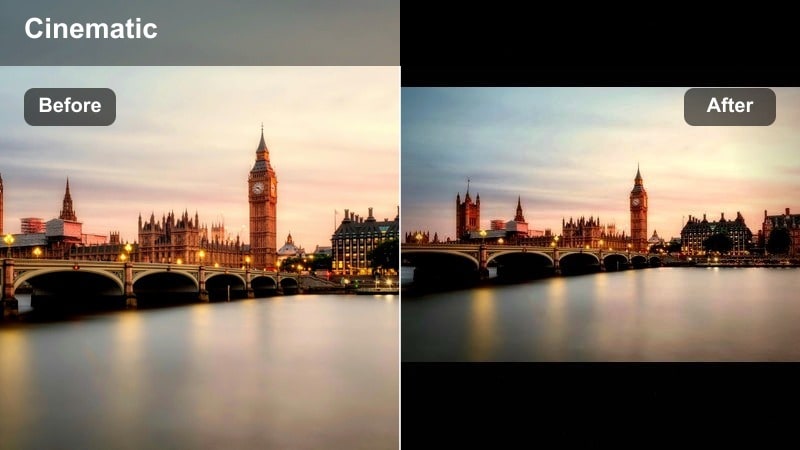
- Effect look: Cool metallic toning with crisp highlights, strong clarity, and slightly desaturated colors for industrial spaces.
- Best for: Parking garages, tunnels, abandoned factories, stairwells, and overhead highway structures.
- Editing tip: Reduce saturation of greens and yellows in HSL so grime and signs do not overpower the cool chrome-surface aesthetic.
Tunnel Chrome Cool is made for industrial environments where concrete, steel, and repeating patterns dominate the frame. In Filmora it boosts clarity and crispness, adds a cool metallic tone, and dials back overall saturation so colored signs and grime do not distract from the graphic shapes of beams and pillars. This makes tunnels, garages, and flyovers feel like stylized sets instead of ordinary locations.
When grading, lower the saturation of greens and yellows to keep the focus on geometry, light pools, and leading lines. Combine the filter with slow, deliberate pans or dolly moves that follow railings and ceiling lines, guiding the viewer deeper into the structure. This approach works especially well for intros, outros, or chapter breaks in urban exploration episodes.
Golden Tram Haze
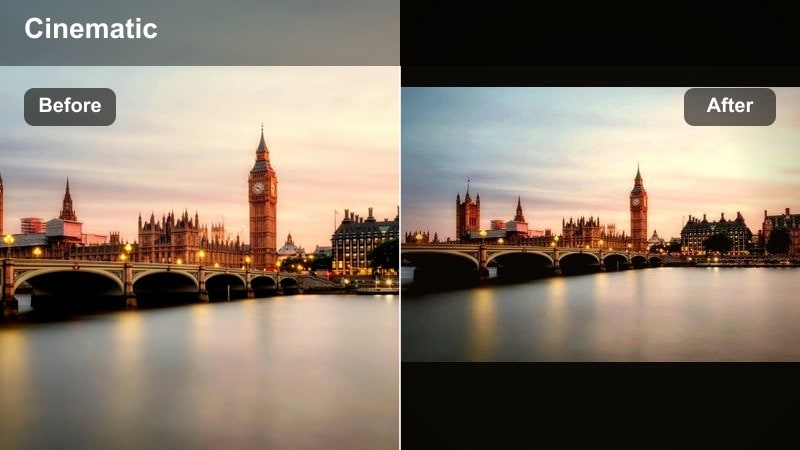
- Effect look: Warm golden highlights, gentle halation around bright edges, and a soft lift in midtones for sunset and blue-hour streets.
- Best for: Golden hour tram rides, bus windows, sunset crosswalks, and romantic city moments.
- Editing tip: Lower exposure slightly and increase highlight roll-off before adding the filter so sun flares and reflections look smooth, not blown out.
Golden Tram Haze is your go-to for blue-hour and golden hour sessions when the city starts to glow. In Filmora it wraps highlights in a gentle halo, warms the entire frame, and lifts midtones to keep faces and building details visible against bright skies. The result is a dreamy, nostalgic atmosphere that works beautifully for date-night vlogs, travel episodes, or reflective city montages.
To get the best results, slightly underexpose in-camera and soften highlight roll-off before applying the filter so flares and reflections do not blow out. Use it on window shots from trams or buses, slow crosswalk sequences, and skyline B-roll, then cut them to music with a mellow, nostalgic tone. This creates mini travel-film moments inside your regular vlogs without needing complex color grading skills.
Tips for Using Urban Street Youtube Filter Filters in Filmora
- Shoot slightly flatter in-camera so your urban street filters have room to shape contrast and color without clipping details.
- Use adjustment layers in Filmora to apply one filter across multiple clips for faster, more consistent grading on city vlogs.
- Always correct white balance first, especially under mixed street lighting, before deciding which gritty vlog grade suits the scene.
- Keep an eye on skin tones; use HSL tools to adjust oranges separately so gritty grades do not make people look unnatural.
- Export a few graded frames as stills and use them for thumbnail design so your filters and thumbnails share the same visual language.
- Test two or three filters on the same sequence and compare them side by side in Filmora s preview to find the look that best fits your channel identity.
- Keyframe filter intensity around scene changes to smoothly transition from bright day looks to grittier night or indoor grades.
Urban street filters for YouTube help you give your city vlogs and exploration videos a consistent, recognizable style without spending hours on manual grading each upload.
Pick one or two favorite grades from this list, save them as presets in Filmora, and use them as your base look while you experiment with even bolder urban street filters for TikTok and other short-form platforms.
secure download