

 100% Security Verified | No Subscription Required | No Malware


 ChatGPT
 Perplexity
 Gemini
 Claude
 Grok
Grok
The Urban Street Shadows Cinematic Filter pack is designed for content creators who want gritty, atmospheric city visuals with deep contrast, rich shadows, and controlled highlights that keep neon signs and street lamps glowing.
Use these Filmora filters to shape your urban footage into stylized micro-stories, from rainy alleys and subway platforms to rooftop views and busy intersections, all with a cohesive cinematic street aesthetic.
In this article
Dusky Streets and Alleyways
Grit Noir Alley
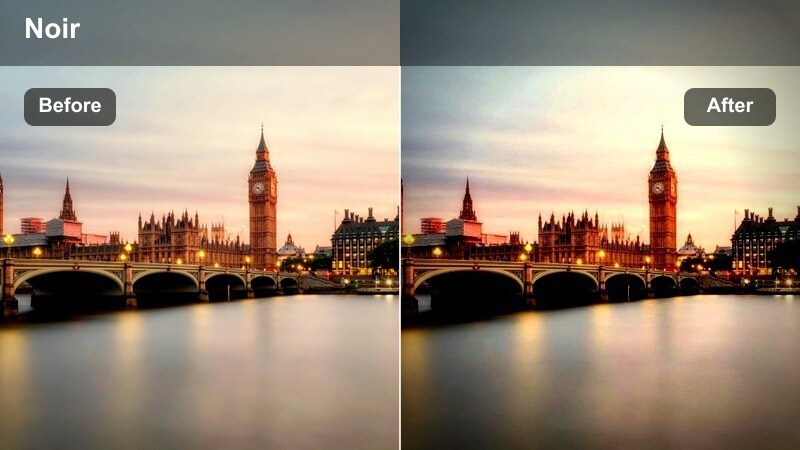
- Effect look: High contrast, muted colors, and dense shadows that carve strong silhouettes along the street.
- Best for: Handheld alley shots, urban B-roll, and moody walk-and-talk scenes at dusk.
- Editing tip: Lower overall exposure slightly, then add a subtle vignette to keep focus on your subject in the frame center.
Grit Noir Alley pushes your alleyway footage toward a classic street noir look, with desaturated tones and thick shadows that naturally sculpt silhouettes. It is ideal when you want the environment to feel harsh and unforgiving while still keeping your subject readable against the background.
In Filmora, apply this filter to sequences that connect different parts of your city story, like walk-ups to a location or introspective solo walks. Tweak midtones and vignettes in the Color panel to protect skin while letting bricks, graffiti, and puddles fall into a rich, cinematic darkness.
Pair the Urban Street Shadows Cinematic Filter presets with Filmora AI color tools to quickly unify exposure and color from alleys, rooftops, and neon storefronts. AI Color Palette helps you match tones between clips shot on different days or cameras so your street story feels visually continuous.
Once AI has done the heavy lifting, you can fine-tune contrast and shadow density with your chosen preset, keeping every frame locked into the same moody urban world.
 secure download

To really understand how each urban street shadows cinematic filter behaves, test them on real-world city clips inside Filmora. Use footage of crosswalks, subway platforms, and rainy intersections to see how each preset handles neon highlights, headlight flares, and inky shadows.
With split screen previews, you can compare your ungraded source to several variations at once, quickly finding the combination of contrast and color that matches each story beat in your edit.
secure downloadAfter dialing in your favorite Urban Street Shadows look, you can layer Filmora LUTs on top to lock in a signature color style. Use LUTs to steer your city into teal and orange, magenta night vibes, or cool steel blues while keeping shadows and contrast governed by the filter itself.
This stackable approach makes it easier to adjust or replace your color mood later without rebuilding contrast from scratch, especially useful on longer city projects or episodic content.
secure downloadWet Pavement Shadow Glow
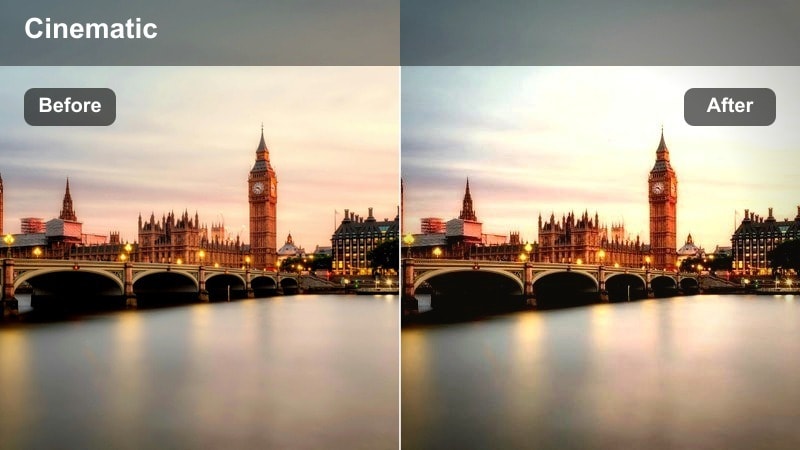
- Effect look: Soft glow on highlights with inky shadows that emphasize reflections on wet asphalt.
- Best for: Rainy streets, after-storm sequences, and reflective ground B-roll at blue hour.
- Editing tip: Slow your footage slightly and add gentle motion blur so reflections feel smooth and cinematic.
Wet Pavement Shadow Glow is built to make rain-soaked streets feel like a character in your story, pushing reflections and specular highlights while keeping the rest of the frame moody. The subtle bloom on lights turns even ordinary shopfronts and car trails into painterly streaks of color.
In Filmora, use this preset on tracking shots along the curb or low-angle B-roll pointed at the road to stretch neon and traffic lights across the frame. Combine it with optical flow slow motion and a touch of noise reduction so the deep shadows stay clean while the glowing highlights stay smooth and immersive.
Backlit Crosswalk Silhouette
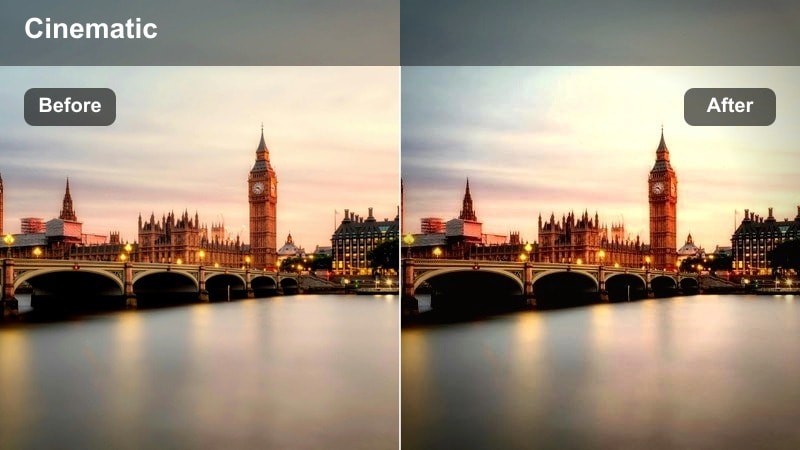
- Effect look: Bright backlights from cars and storefronts with subjects falling into crisp silhouettes across the street.
- Best for: Crosswalks, pedestrian traffic, and establishing shots in busy commercial blocks.
- Editing tip: Time your cuts on footsteps or traffic light changes to match the strong graphic feel of the silhouettes.
Backlit Crosswalk Silhouette transforms busy crosswalks into bold graphic scenes where people become dark shapes against glowing signage and headlights. It works especially well for intros and transitions, instantly signaling a bustling city energy without relying on close-up detail.
Apply this filter in Filmora to overhead or low-angle shots of intersections, then trim clips according to the rhythm of footsteps, car movements, or traffic light switches. Fine-tune highlight and white levels to prevent clipping so your silhouettes stay clearly outlined against the brightest parts of the frame.
Subways, Bridges, and Overpasses
Subway Shadow Tunnel
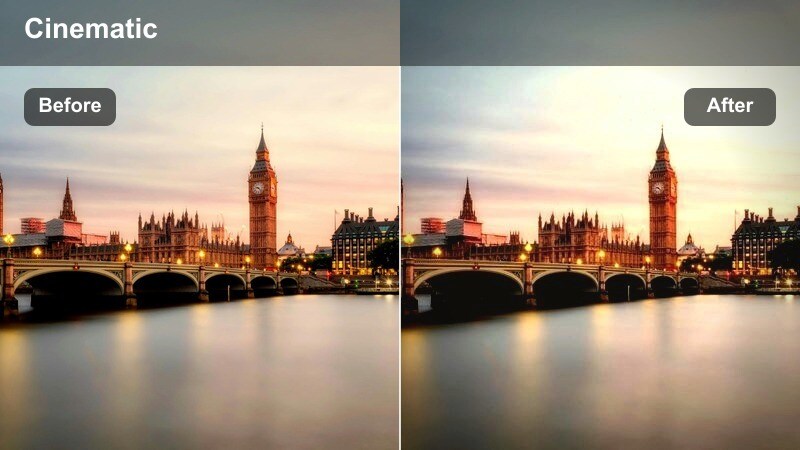
- Effect look: Cool-toned shadows with gentle green cast and harsh overhead highlights along the tunnel.
- Best for: Subway platforms, train arrivals, and tunnel walk-throughs with directional light.
- Editing tip: Stabilize slight hand shake to keep lines of the platform and tunnel dramatic and straight.
Subway Shadow Tunnel leans into the industrial chill of underground stations, embracing fluorescent greens and hard shadows. It accentuates tunnel lines and vanishing points so your viewer feels pulled down the platform toward arriving trains or receding crowds.
Inside Filmora, pair this filter with subtle stabilization to keep the geometry of the tunnel strong and cinematic, even on handheld shots. Use HSL or color tuning to gently warm faces while leaving walls and ceilings cool, creating a striking contrast between human subjects and their concrete surroundings.
Underpass Concrete Drift
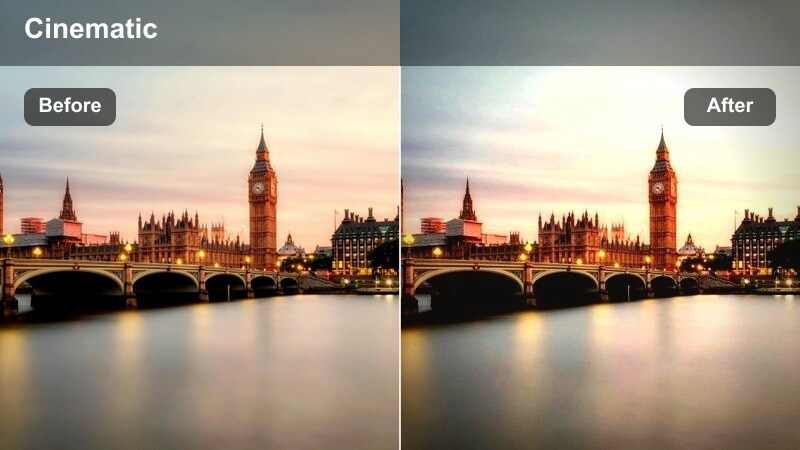
- Effect look: Flat midtones with crushed blacks and slightly warm highlights for a textured concrete mood.
- Best for: Skate sequences, cyclists, and car tracking shots beneath overpasses and flyovers.
- Editing tip: Layer in subtle sound design like distant traffic and echoing voices to match the cavernous visuals.
Underpass Concrete Drift is designed to emphasize the raw architecture of flyovers and viaducts, blending warm highlights on your subject with heavy shadows in the background. Crushed blacks and gritty midtones bring out concrete texture and make movement under the overpass feel edgy and grounded.
Use this preset in Filmora for skate montages, cycling runs, or automotive clips traveling through layered shadow. Combine it with micro-contrast adjustments and masked exposure around your subject, so they stand out clearly while the environment stays dark and imposing.
Bridge Rivets Noir
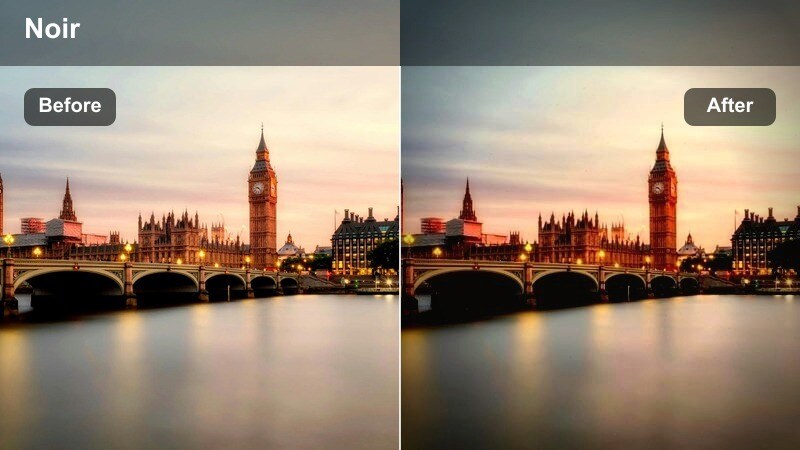
- Effect look: Monochrome leaning filter with steel blues and stark blacks, emphasizing lines and rivets.
- Best for: Bridge walkways, drone passes near urban bridges, and industrial skyline shots.
- Editing tip: Use slow pans and tilts that follow the bridge lines to complement the graphic, linear contrast.
Bridge Rivets Noir gives your footage a near-monochrome industrial feel, cooling tones toward steel blue and pushing shadows into solid blacks. It highlights beams, cables, and rivets so bridges become bold graphic elements cutting across your skyline or river shots.
In Filmora, apply this filter to time-lapses, drone flyovers, or character walks across long spans. Add gentle pans that follow the bridge structure, and use gradient masks to keep the sky slightly brighter than the deck, so silhouettes and lines read clearly in every frame.
Neon Nights and Sidewalk Energy
Neon Shadow Halo
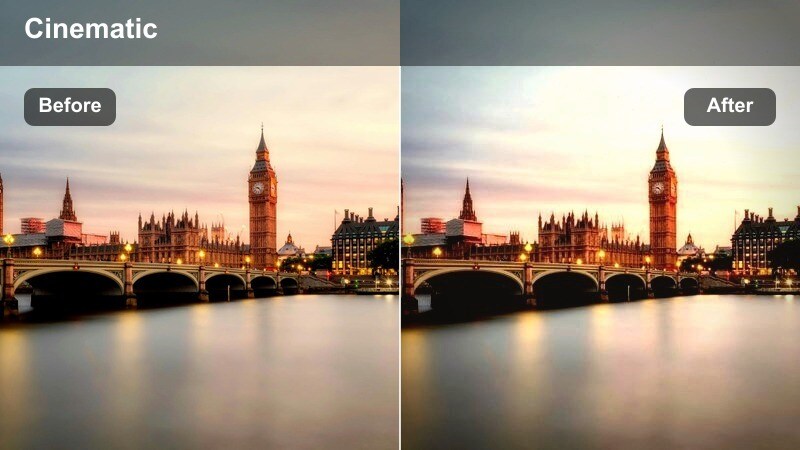
- Effect look: Punchy neon colors with deep blacks and a light bloom around glowing signs and windows.
- Best for: Nightlife streets, bar fronts, and handheld walk-throughs past neon-lit storefronts.
- Editing tip: Reduce saturation in non-neon hues so the colored signs become the clear focal point of each shot.
Neon Shadow Halo turns busy nightlife streets into stylized color fields, letting signs and window light glow against near-black surroundings. Deep contrast and controlled bloom create a dreamlike halo around your brightest elements without losing the underlying city grit.
Apply this preset in Filmora to walk-and-talks past clubs, bars, and arcades, then selectively desaturate neutral tones so neon takes over the frame. Adjust highlight roll-off and saturation to keep text and tube shapes readable, even when colors are pushed hard for maximum impact.
Corner Store Midnight
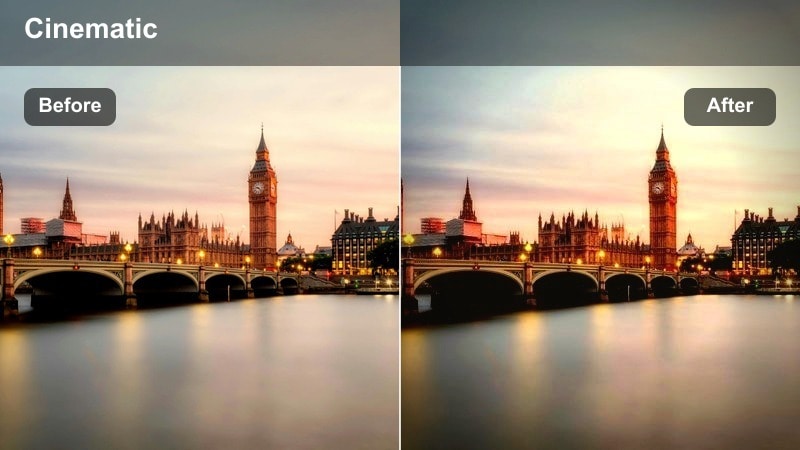
- Effect look: Warm store interiors framed by cool exterior shadows for contrast between inside and outside worlds.
- Best for: Convenience store entrances, late-night snack runs, and character moments by glowing windows.
- Editing tip: Shoot slightly underexposed from outside looking in, then lift midtones with this filter to protect the window highlights.
Corner Store Midnight is built for intimate late-night scenes where characters linger outside bright shop windows. The filter emphasizes the warmth of interior light while keeping sidewalks and surrounding buildings cool and shadowy, visually separating interior safety from the exterior city.
In Filmora, use masks to keep the doorway or window as the main luminous area, subtly darkening everything else. This is perfect for reflective beats in vlogs or narrative shorts, where you want viewers to lock onto a subject silhouetted against a glowing convenience store or diner.
Sidewalk Bokeh Drift
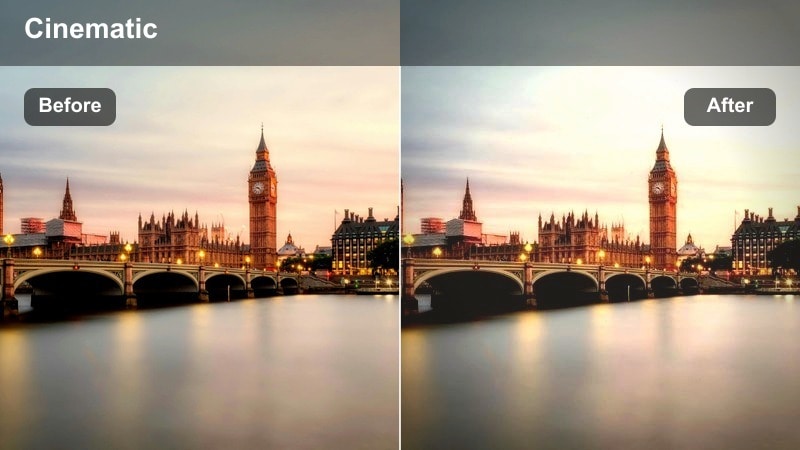
- Effect look: Softened highlights and pastel-leaning street lights with preserved shadow depth and gentle color fade.
- Best for: Shallow depth-of-field shots of walking subjects, cafe fronts, and city date sequences.
- Editing tip: Add a slight slow motion and keep camera movements smooth to let bokeh orbs drift across the frame.
Sidewalk Bokeh Drift softens streetlights into creamy orbs and pastel tones while keeping foreground silhouettes and shadows defined. It is ideal for romantic city walks, lifestyle content, or any sequence where you want the background to melt into a painterly wash of color.
Use this preset in Filmora on telephoto or fast-prime shots with lots of depth of field separation. Apply light denoising before grading, then adjust glow and saturation so faces stay clean and legible while the surrounding bokeh drifts smoothly through your frame in slow motion.
Rooftops, Intersections, and Long Lenses
Rooftop Shadow Panorama
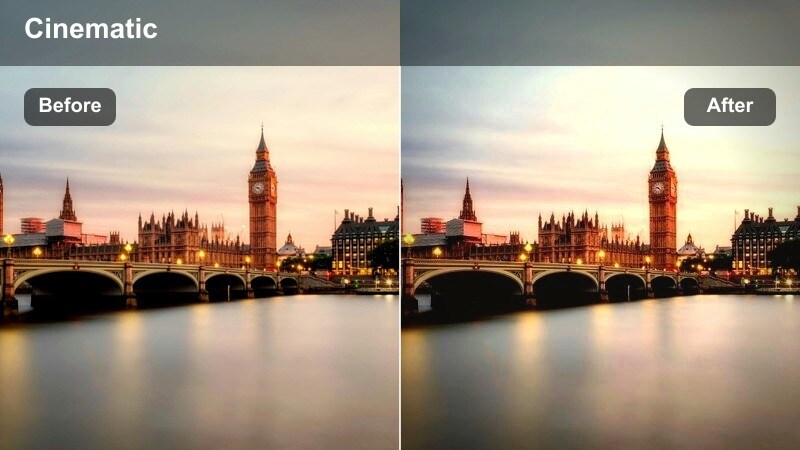
- Effect look: Crisp skyline edges, slightly cooled shadows, and gentle fade in the far distance for city depth.
- Best for: Rooftop views, establishing shots, and time-lapses of city skylines at golden hour into blue hour.
- Editing tip: Dial in subtle speed ramps on time-lapse shots so cloud and traffic motion sync with your soundtrack.
Rooftop Shadow Panorama is tailored for sweeping city vistas, sharpening building edges while gently cooling shadows to add scale and depth. A soft atmospheric fade in the background helps distant structures separate from the foreground without distracting halos or noise.
In Filmora, apply this filter to skyline establishing shots and rooftop time-lapses that open or close scenes. Use gradient exposure tools to protect sky detail, then introduce speed ramps and subtle camera motion so cloud drift and light trails align with your music or sound design.
Intersection Shadow Grid
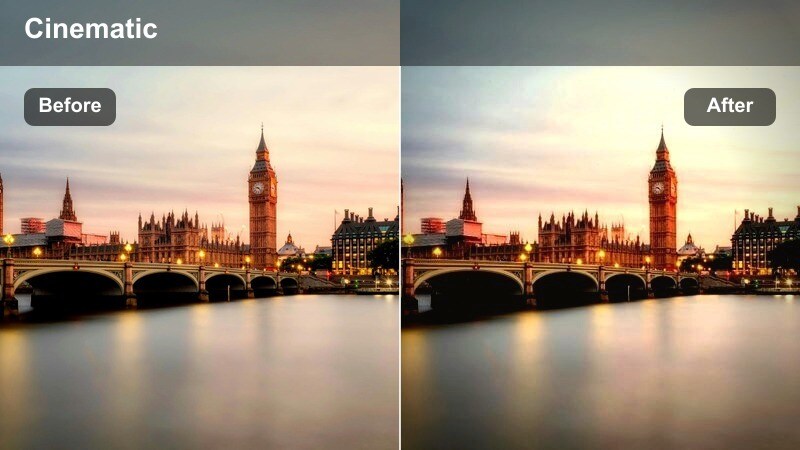
- Effect look: High contrast aerial look with dark building blocks and bright street lines forming a grid.
- Best for: Overhead shots from rooftops, parking structures, or drones capturing city intersections.
- Editing tip: Hold on still frames slightly longer so viewers can absorb the graphic patterns created by the streets and cars.
Intersection Shadow Grid turns top down intersections into bold, map-like compositions where streets, crosswalks, and shadows form a rigid grid. The enhanced contrast between building masses and bright roadways makes aerial or high-angle shots feel like animated graphic design.
Use this preset in Filmora to highlight traffic flow, pedestrian patterns, or the geometry of your city. Desaturate most elements except brake lights and signals, then linger an extra beat on key frames so viewers can read the abstract patterns before cutting to closer coverage.
Telephoto Shadow Compression
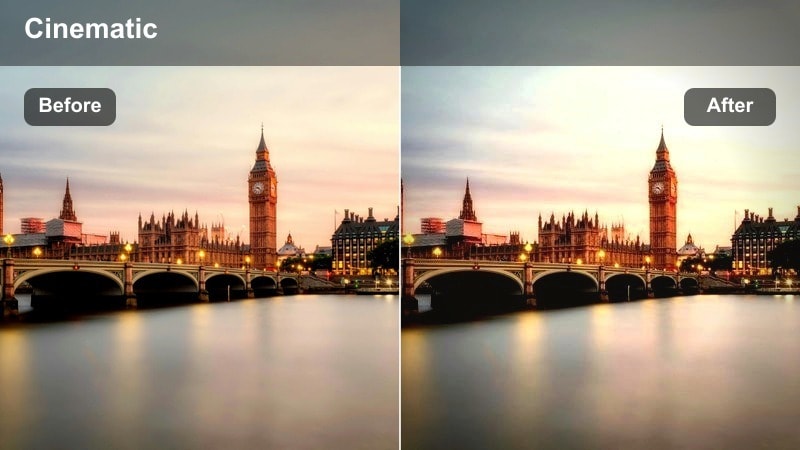
- Effect look: Compressed city layers with lifted shadow detail and controlled contrast for long-lens shots.
- Best for: Telephoto shots down long streets, stacked apartment facades, and traffic rows at distance.
- Editing tip: Use gentle contrast and clarity to avoid making compressed buildings look too harsh or artificial.
Telephoto Shadow Compression is optimized for long lens city shots where buildings and traffic stack tightly together. It lifts shadow detail just enough to separate layers while keeping contrast smooth, preventing the scene from turning into a harsh wall of bricks and windows.
In Filmora, drop this filter onto push-ins down avenues, static telephoto frames, or compressed skyline details. Avoid extreme sharpening, and instead add a touch of grain over the entire frame to blend crisp foregrounds with hazier backgrounds, minimizing banding in the sky and distant haze.
Tips for Using Urban Street Shadows Cinematic Filter Filters in Filmora
- Shoot slightly darker than usual so street highlights and neon signs stay under control when you add contrast-heavy urban filters.
- Keep ISO as low as possible because heavy shadows and gradients in night city scenes reveal noise quickly during grading.
- Use leading lines like sidewalks, bridges, and building edges to guide the eye through your shadowy compositions.
- Combine slow motion with handheld shots to tame micro-shakes and make gritty urban motion feel intentional.
- Group similar scenes on your timeline and apply one urban street shadows cinematic filter across the whole group for consistency.
- Add subtle ambient city sound layers to match the mood the filter creates, like distant sirens, trains, or cars on wet pavement.
- Avoid over-sharpening dark footage, as it can bring out compression artifacts in shadow areas.
- If your subject blends into the background, use masks and local exposure adjustments instead of undoing the overall shadowy look.
The Urban Street Shadows Cinematic Filter presets give content creators a fast way to turn everyday city footage into cohesive, narrative-ready visuals packed with depth and atmosphere.
Experiment with stacking these filters, AI adjustments, and LUTs in Filmora until the streets, rooftops, and intersections in your project feel like a single unified urban world.
secure download