

 100% Security Verified | No Subscription Required | No Malware


 ChatGPT
 Perplexity
 Gemini
 Claude
 Grok
Grok
Warm portrait video filters are perfect for beauty creators and lifestyle vloggers who want soft, flattering skin tones and cozy, golden vibes in every frame. In Filmora, a few thoughtful filter choices can instantly transform flat footage into cinematic portraits that glow like sunset light.
Below you will find a curated set of warm portrait video filters designed for golden hour portraits and summer vlogs. Each style includes the ideal use case and an editing tip, so you can quickly match the mood of your footage and keep your skin tones looking natural, creamy, and radiant.
In this article
Soft Golden Glow Portrait Filters
Honey Soft Glow
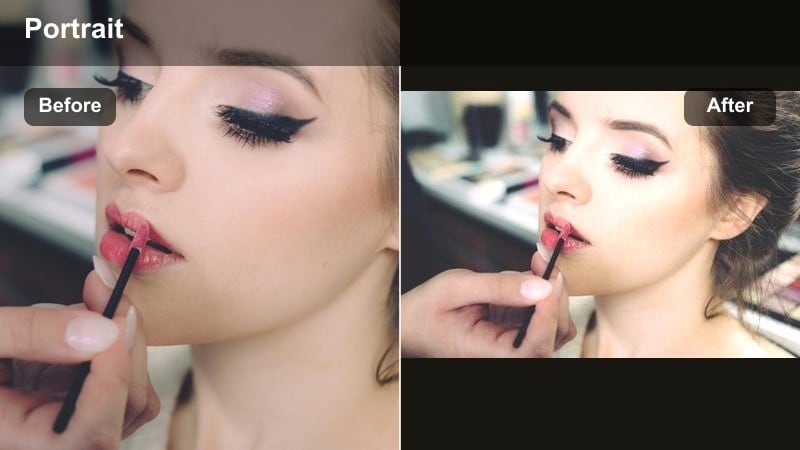
- Effect look: Gentle warm wash that adds a honey tinted glow and subtly lifts midtones for smoother, flattering skin.
- Best for: Soft beauty talk-throughs, close-up makeup tutorials, and cozy bedroom vlogs filmed in natural light.
- Editing tip: Reduce filter intensity to around 60-70 percent and lower contrast slightly so pores and texture stay natural, not plastic.
Honey Soft Glow is ideal when you want your portrait footage to feel creamy and luminous without losing your natural features. In Filmora, this filter bathes midtones in a subtle honey tint, gently brightening the face while keeping shadows soft and flattering for most skin types.
Apply Honey Soft Glow on a separate adjustment layer above your clips so you can quickly tweak intensity per scene. For sit-down beauty content, pair it with slight exposure adjustments and Filmora skin-tone tools to keep the warmth consistent as lighting shifts between takes.
Pro Tip: Balance Honey Glow with Natural Highlights
If your highlights start to look too yellow, drop overall saturation slightly and add a touch of cool in the shadows with the color correction tools.
For consistent skin tone across a whole video, copy this filter and paste attributes to all clips, then fine tune exposure per shot.
Let Filmora’s AI Help You Nail Warm Skin Tones
Filmora’s AI driven color tools can quickly analyze your footage and suggest a balanced base before you add any warm portrait video filters. This helps you avoid strange color shifts and keeps your skin tone close to reality.
Use AI to auto correct exposure and white balance first, then layer your favorite warm filter from this list. The result is a polished, golden portrait effect that still looks like you, just upgraded.
 secure download

Preview Warm Portrait Filters in Real Time
In Filmora, you can hover over filters in the Effects panel to preview how each look will change your portrait clip. This is the fastest way to compare multiple warm skin tone filters side by side.
Try stacking a soft warm filter with a subtle vignette and slight blur on a duplicate layer to create a custom glow that perfectly suits your channel aesthetic.
secure downloadSave Warm Portrait Looks as Reusable Presets
Once you dial in a warm portrait look you love, save it as a custom preset or export your settings as a LUT. This lets you apply the same golden skin tone style to every new video with one click.
Using consistent presets across golden hour portraits and summer vlogs creates a recognizable brand look that your audience will associate with your channel.
secure downloadPeach Blush Portrait
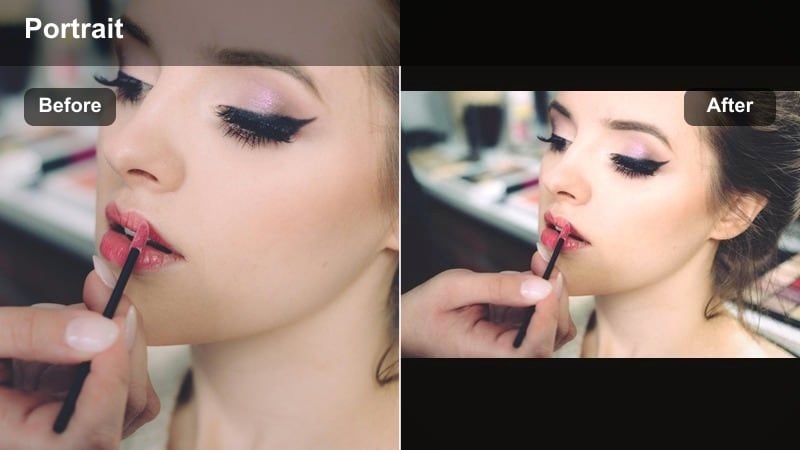
- Effect look: Warm peachy tint that adds a subtle blush to cheeks and lips while keeping whites and backgrounds clean.
- Best for: GRWM videos, skincare routines, and handheld lifestyle clips in softly lit rooms or cloudy daylight.
- Editing tip: Add a light vignette and lower clarity just a touch to push attention to the face and make the peach tones feel dreamy.
Peach Blush Portrait lightly boosts reds and oranges in midtones so your natural flush and lip color look softer and more romantic on camera. It is particularly flattering for close-up beauty content where you want healthy warmth without extreme saturation.
Inside Filmora, apply this filter and then fine tune the HSL panel to keep reds from drifting too orange on your particular undertone. Because the filter leaves whites and neutrals clean, it works well in minimalist rooms, skincare setups, and lifestyle vlogs with white bedding or walls.
Pro Tip: Preserve Natural Lip and Blush Color
If lips or blush become too orange, lower the reds in HSL and increase magenta slightly to keep them looking cosmetic rather than sunburned.
Film a quick skin tone reference clip near a window and use it to test and lock your preferred Peach Blush Portrait intensity for repeat videos.
Golden Skin Soft Focus
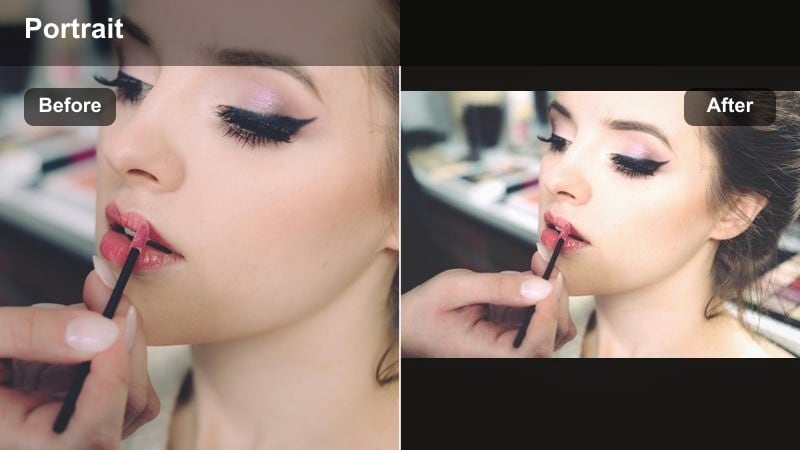
- Effect look: Creamy soft focus with a warm tint on highlights and gentle roll-off that flatters fine lines and texture.
- Best for: Mature beauty content, sit-down storytelling vlogs, and close-up product demos shot on mid-range cameras or phones.
- Editing tip: Keep sharpening low and avoid extra skin smoothing so the natural softness from the filter can do the flattering work.
Golden Skin Soft Focus reduces micro-contrast and adds a thin golden veil, which helps soften lines and minor imperfections while still showing true skin. In Filmora, it is a great option when your raw footage feels too harsh or clinical, especially under hard LED lights.
Apply this filter and then adjust overall sharpness and noise reduction very gently so you do not over-soften the image. For storytelling vlogs, combine it with a mild vignette and lower saturation in the background so viewers stay focused on facial expressions and product details.
Pro Tip: Use Soft Focus for Flattering Close-ups
When filming very close, pull exposure down a fraction to avoid blown highlights on the nose and forehead under this warm filter.
Pair with subtle background blur from your camera or Filmora lens blur to separate the subject and keep attention on the face.
Golden Hour Warm Portrait Filters
Sunset Kiss Portrait
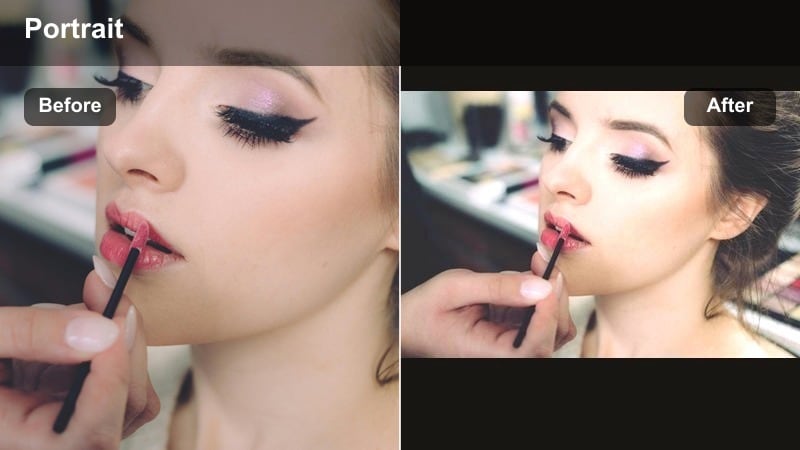
- Effect look: Sunset inspired warmth with rich oranges in the highlights and a soft amber glow across the face.
- Best for: Golden hour portraits outdoors, couples shots, and dreamy lifestyle b-roll near windows or balconies.
- Editing tip: Lower orange saturation a bit and lift shadows to keep details in hair and clothing from turning too dark or too orange.
Sunset Kiss Portrait amplifies existing warm light, making late afternoon rays look deeper and more cinematic. In Filmora, it shifts highlights toward amber while preserving midtone detail so your face looks bathed in genuine sunset glow.
Use this filter on outdoor portraits where you are already working with warm natural light, or fake a sunset look indoors by filming near a warm lamp and window. Adjust the filter intensity per shot to prevent over-saturation, and use Filmora masks if you need to dial back warmth on the sky while keeping your face glowing.
Pro Tip: Match Filter to Real Sunset Light
Shoot facing away from the sun and let the light wrap around the face so the Sunset Kiss Portrait filter can enhance natural highlights instead of fighting harsh shadows.
If the sky goes too orange, mask the subject and apply slightly lower intensity to the background layer for a balanced sunset face video look.
Golden Hour Glam
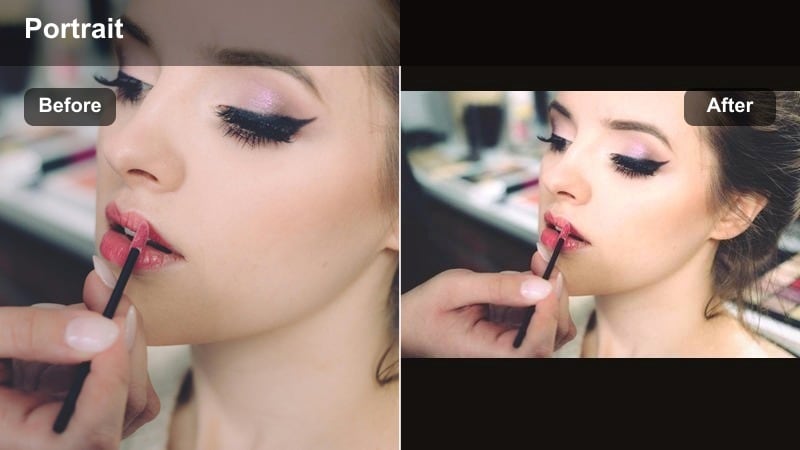
- Effect look: High glam golden sheen with boosted highlights and a touch of contrast for glossy, editorial style portraits.
- Best for: Hair flips, outfit transitions, and high energy summer vlogs filmed during late afternoon sunlight.
- Editing tip: Use keyframes to slightly increase filter intensity as the clip progresses so the glam effect feels like it is building with the shot.
Golden Hour Glam elevates your footage with stronger highlights and punchier contrast, making skin, hair, and accessories catch the light dramatically. In Filmora, it creates an editorial feel that suits reels, transitions, and fashion-focused shots.
Apply the filter, then refine highlight and shadow sliders to keep facial features visible even under bright light. For dynamic sequences, animate both the filter intensity and exposure with keyframes so the golden glam look ramps up as you spin, flip your hair, or reveal an outfit.
Pro Tip: Control Shine on Oily Areas
If forehead or nose shine becomes distracting, lower overall highlights and gently darken specific areas using keyframed masks.
For reels and shorts, combine Golden Hour Glam with a slight speed ramp to match energetic movements and make the filter feel dynamic.
Amber Summer Portrait
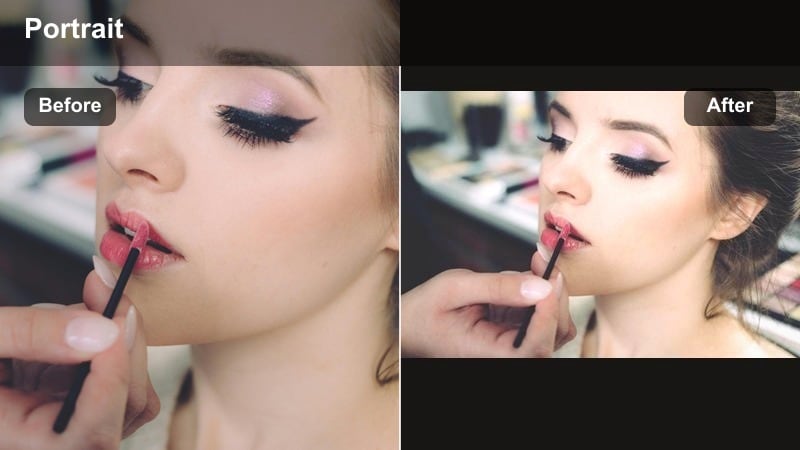
- Effect look: Soft amber cast that deepens tans and warms midtones while keeping whites and teeth looking natural.
- Best for: Beach days, rooftop hangouts, and casual group portraits in bright summer vlogs.
- Editing tip: Dial down saturation in the yellows to avoid neon grass or overcooked sand while keeping skin deliciously warm.
Amber Summer Portrait adds vacation-ready warmth by slightly deepening tans and enhancing sun-kissed skin. In Filmora, this filter is great for outdoor vlogs where you want a cohesive amber mood without making sand, grass, or sky look unrealistic.
Because group shots often mix many skin tones, apply this filter and then use Filmora’s HSL controls to fine tune yellows and oranges. If the environment gets too saturated, desaturate background colors while leaving skin tones intact so your friends remain the focus of the frame.
Pro Tip: Keep Teeth and Whites Looking Clean
Use HSL controls to slightly desaturate yellows and reduce warmth in highlights if eyes and teeth start to look off white.
For group shots with different skin tones, add a second, lower intensity copy of the filter on a duplicate track and selectively mask for the palest faces.
Cozy Indoor Warm Portrait Filters
Candlelit Portrait Glow
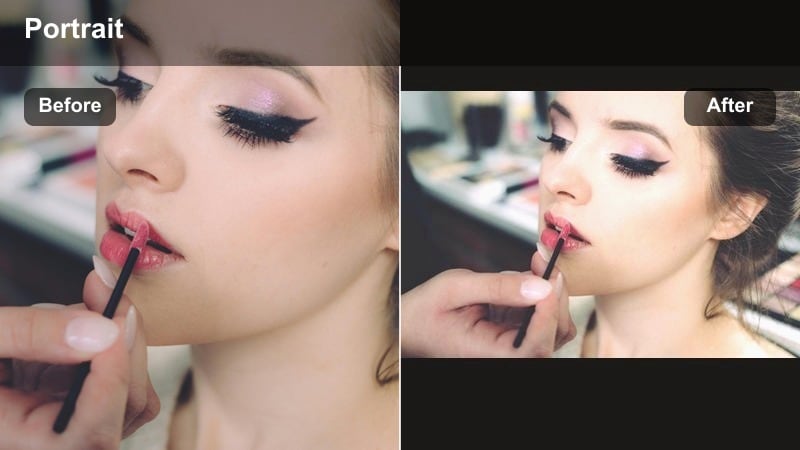
- Effect look: Deep cozy warmth with soft, candlelike highlights and slightly lifted blacks for a moody yet flattering feel.
- Best for: Nighttime bedroom vlogs, self care routines, and aesthetic desk or reading shots with practical lights.
- Editing tip: Lower contrast and add a touch of film grain so the warm glow feels organic rather than digital.
Candlelit Portrait Glow simulates the soft, flickering feel of real candles by warming highlights and softening dark areas. In Filmora, it works especially well in low-light setups lit by lamps, candles, or LED strips, giving your scenes a cozy, intimate vibe.
Place this filter on clips where you want mood over brightness, then gently raise shadows so your facial features are still readable. Add a subtle film grain effect and slightly reduce clarity to emulate analog warmth and avoid the plasticky look you sometimes get from digital low light.
Pro Tip: Avoid Muddy Indoor Shadows
If shadows begin to look muddy, slightly cool the shadow color and raise shadow brightness so facial features stay defined.
Combine the filter with a soft key light or ring light set to low warmth to keep enough detail for beauty focused content.
Latte Room Portrait
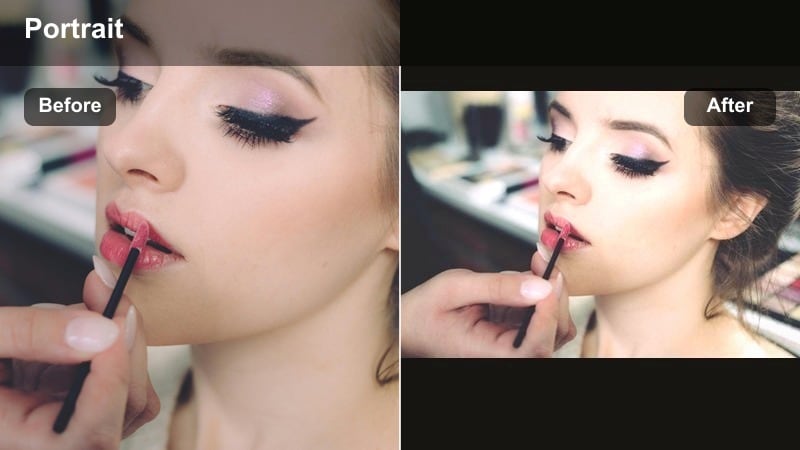
- Effect look: Neutral to warm latte inspired tones that give skin a milky beige glow and soften busy backgrounds.
- Best for: Desk vlogs, study with me sessions, and coffee shop lifestyle clips with mixed lighting.
- Editing tip: Desaturate distracting background colors and keep the face slightly brighter than the environment for a cozy, editorial blog feel.
Latte Room Portrait gives indoor scenes a creamy, coffeehouse-inspired palette by warming neutrals and slightly muting harsh colors. In Filmora, this is ideal when your room has a lot of mixed lighting and clutter that you want to feel softer and more intentional.
After applying the filter, use color correction to nudge overall white balance slightly warm and reduce saturation on any bold decor. Brighten your face by a small amount versus the background to create a subtle editorial look while maintaining a comfortable, at-home atmosphere.
Pro Tip: Unify Mixed Indoor Lighting
If overhead lights are too cool, slide the overall white balance warmer before applying the filter to avoid greenish shadows.
For cafe scenes, softly blur the background so the latte color cast feels intentional and frames the subject rather than competing with them.
Cozy Blanket Warmth
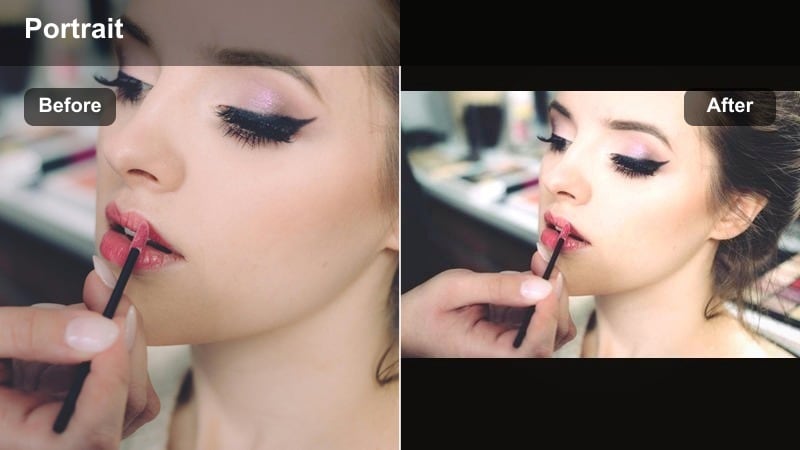
- Effect look: Soft brownish warmth with gentle contrast that makes blankets, sweaters, and interior textures feel inviting.
- Best for: Slow morning routines, couch vlogs, and wellness content with lots of home decor in frame.
- Editing tip: Lift blacks just a little and lower saturation in greens so indoor plants and fabrics do not overpower the skin tone.
Cozy Blanket Warmth leans into earthy browns and soft contrast to make home textures look plush and comforting. In Filmora, it pulls together blankets, wooden furniture, and neutral decor into a cohesive, inviting palette while keeping skin pleasantly warm.
Use this filter on slow, intimate vlogs or wellness content where you want your environment to feel like part of the story. Gently adjust blacks and green saturation so plants and patterned fabrics support the mood without pulling focus away from your face.
Pro Tip: Make Skin the Hero in Cozy Shots
If your warm decor is stealing attention, create a subtle mask around the face and increase brightness and sharpness there only.
Reduce saturation in oranges a bit so skin stays natural while keeping the overall cozy warmth in fabrics and furniture.
Cinematic Warm Portrait Filters
Sunflare Cinematic Portrait
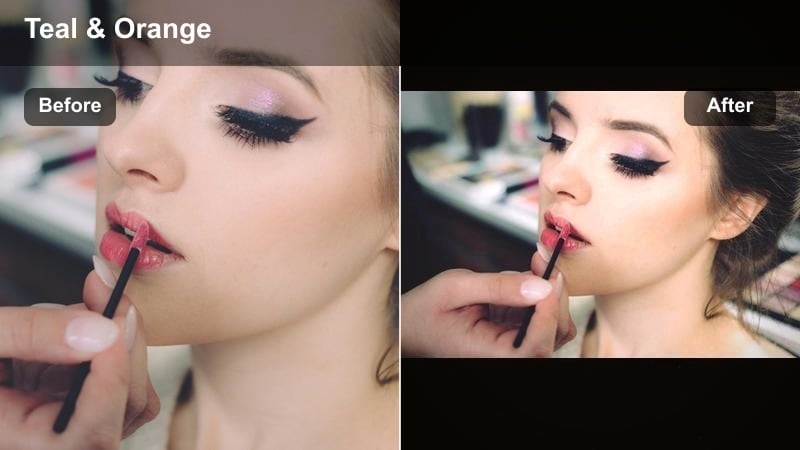
- Effect look: Cinematic warm highlights with gentle teal in the shadows and subtle sunflare style blooming around bright areas.
- Best for: Travel vlogs, slow motion hair shots, and artistic portrait sequences with backlight or lens flares.
- Editing tip: Use the filter on a duplicate layer and mask just the highlight areas to control how intense the flare and glow appear on the face.
Sunflare Cinematic Portrait combines warm highlights with cooler shadows to create a modern, dual-tone cinematic grade. In Filmora, bright areas take on a glowing, flare-like bloom that looks especially striking when you shoot against the sun or a bright window.
To keep the effect refined, duplicate your clip, apply the filter to the upper layer, and mask in only the brightest regions. This lets you protect skin detail while still enjoying the dreamy backlit glow that feels tailor-made for travel montages and expressive close-ups.
Pro Tip: Protect Detail in Warm Highlights
If details in hair or jewelry disappear, slightly lower highlight brightness and add micro contrast with Filmora’s local contrast tools.
For reels, trim each warm cinematic clip to just the strongest movement or expression so the glow feels intentional and impactful.
Bronze Sculpt Portrait
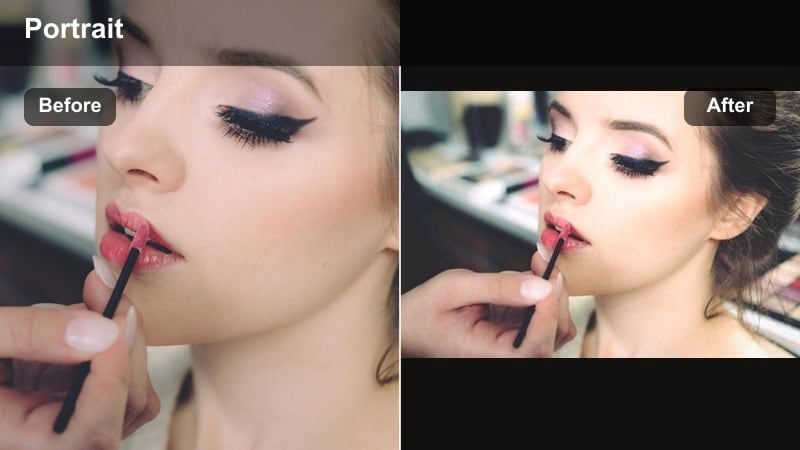
- Effect look: Bronzed warmth that deepens contours and adds subtle depth around cheekbones and jawline.
- Best for: Contouring tutorials, high fashion face shots, and editorial style portraits with controlled lighting.
- Editing tip: Keep exposure slightly lower and avoid heavy face smoothing so the natural sculpting effect from the filter remains visible.
Bronze Sculpt Portrait works like digital contouring, slightly darkening midtones and enriching bronzy hues to emphasize bone structure. In Filmora, it is a powerful choice for makeup tutorials and editorial portraits where your contour work needs to read clearly on camera.
After applying the filter, reduce overall exposure a touch to maintain depth and avoid washing out your sculpting. Skip aggressive smoothing tools, and instead let the filter plus careful lighting define cheekbones, jawlines, and temples for a strong, polished result.
Pro Tip: Match Filter with Makeup Contour
If your contour appears too strong, reduce filter intensity or use HSL to lower saturation in oranges and browns around the cheeks.
Shoot a quick before and after clip to confirm that the filter enhances, not hides, your highlight and contour placement on camera.
Cinema Amber Portrait
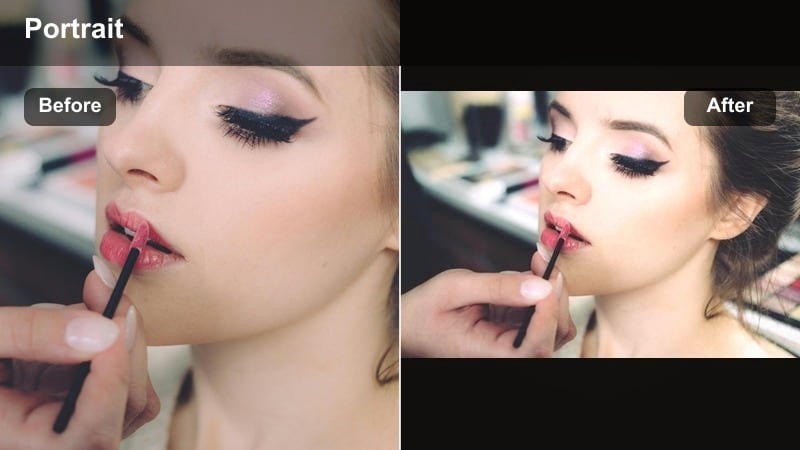
- Effect look: Rich amber cinema tones with soft contrast and slightly desaturated colors for a film inspired portrait look.
- Best for: Short film style monologues, narrative lifestyle sequences, and emotional close-ups.
- Editing tip: Lower saturation slightly and add a narrow letterbox to complete the cinematic feel without losing skin detail.
Cinema Amber Portrait delivers a filmic, story-driven mood by bathing your footage in warm amber while gently muting overall color. In Filmora, it is perfect for dialogue, emotional storytelling, and any portrait sequence where you want viewers to focus on expression rather than bright backgrounds.
Apply this filter and then slightly reduce saturation and increase contrast only enough to keep skin readable. Add letterbox bars using Filmora overlays to reinforce the cinematic frame, and keep the same settings across related clips so your entire sequence feels cohesive.
Pro Tip: Keep Emotional Shots Natural
Reduce filter intensity for crying or emotional scenes so real skin texture and expression stay front and center.
Use consistent Cinema Amber Portrait settings across all related clips to keep your storytelling sequence visually unified.
Tips for Using Portrait Warm Tone Filters in Filmora
- Film a short, well lit reference clip of your face and use it to test warm filters so you can spot any issues with undertone shifts or teeth color.
- Keep white balance slightly on the warm side in camera and let Filmora filters fine tune the final look instead of fixing overly cool footage.
- Avoid stacking too many intense warm effects together; start with one main filter and then adjust exposure, contrast, and saturation around it.
- For outdoor golden hour shots, expose a little darker than usual to protect highlight detail before applying sunset style warm filters.
- When editing group portraits, check how each skin tone reacts to the filter and reduce intensity if anyone starts to look too orange or red.
- Use Filmora’s masking tools to apply different filter intensities to background and subject when strong warm casts affect skies or decor.
- Combine warm portrait filters with subtle vignettes and slight blur on a duplicate layer to add focus without overprocessing skin.
- Save your favorite warm filter combinations as presets so every new beauty or lifestyle video starts from a consistent base look.
Warm portrait video filters can turn simple beauty clips and lifestyle vlogs into golden, flattering visuals that feel intentional and on brand. By choosing the right filter for your light, location, and mood, you can enhance skin tones while keeping them natural and true to you.
Start by testing a few of these Filmora presets on your favorite golden hour portraits or summer vlogs, then save your winning combination as a reusable look. Once your warm portrait style is locked in, every new video will instantly match your aesthetic with almost no extra color work.
secure downloadNext: Cool Portrait Video Filters: Fresh Tones for Clean Skin Looks
