

 100% Security Verified | No Subscription Required | No Malware

Turn polished YouTube videos into scroll-stopping Instagram content with filters that match vertical, fast-paced IG culture. Instead of re-editing from scratch, you can drop smart filters and LUTs on your existing footage and instantly adapt it for Reels, Stories, or the grid.
These Filmora filter ideas focus on quick color, contrast, and vibe changes so multi-platform and repurposing creators can optimize the same video for different audiences without losing quality or wasting hours in manual color grading.
In this article
Cinematic Filters for Repurposing Long-Form YouTube to Instagram
Soft Cinematic Lift
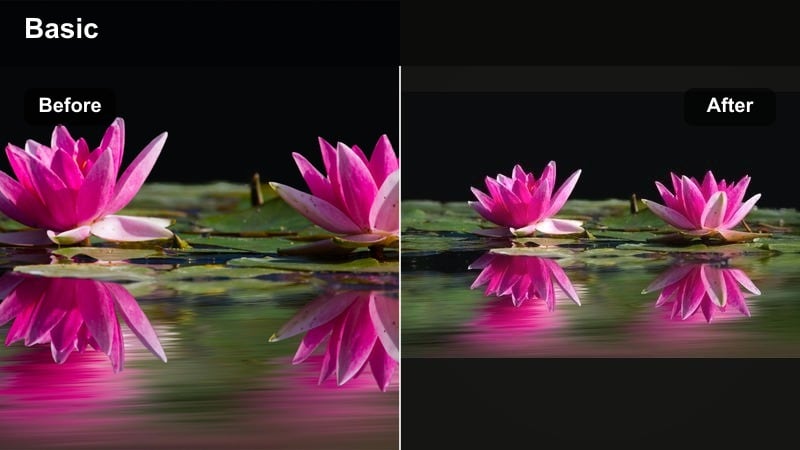
- Effect look: Gentle contrast, soft highlights, and subtle color warmth to make horizontal YouTube footage feel dreamy and cinematic on Instagram.
- Best for: Talking-head explainers, cinematic b-roll, repurposed vlogs and tutorials where you want a polished but friendly feel.
- Editing tip: Lower the filter intensity to around 40-60 percent, then slightly boost midtone saturation so faces stay natural when cropped to vertical.
This soft, cinematic filter is ideal when you want your YouTube uploads to feel more like intentional Instagram Reels than simple reposts. By easing off heavy contrast and adding a touch of warmth, your talking heads, vlogs, and b-roll keep detail while looking smoother and more flattering on small mobile screens.
In Filmora, drop the filter onto your repurposed clip, set your aspect ratio to 9:16, and dial strength down to mid-range so skin tones do not look overly processed. Then nudge midtone saturation up and fine-tune highlights to keep faces bright without blowing out details, especially when you crop closer for Reels and Stories.
Match Filters to Your Brand with AI-Powered Color Tools
Filmora s AI-driven color tools can help you turn this cinematic look into a custom brand-ready filter that works across both YouTube and Instagram. Instead of guessing, you can nudge temperature, tint, and saturation until the filtered clip matches the colors already performing well on your grid.
Sample a few posts from your Instagram feed, then adjust Filmora s color controls and AI-assisted tools until your repurposed YouTube clips echo the same tones and contrast. Once you are happy with the match, save the look as a preset so future YouTube-to-Instagram conversions instantly align with your visual identity.
 secure download

Preview Filters in Vertical Before You Export
To be sure this cinematic lift really works on Instagram, preview it in a vertical layout before exporting. In Filmora, switch your aspect ratio to 9:16 or 4:5 so you can see exactly how the filter interacts with cropped framing, Story UI, and Reel-safe zones.
This workflow lets you catch crushed shadows, clipped highlights, and awkward crops early. You can adjust filter strength, exposure, or reframing while you still have full control on the timeline, instead of discovering issues after upload.
secure downloadTurn Your Favorite IG Look into a Reusable LUT-Style Preset
Once you love how this soft cinematic look performs on both YouTube and Instagram, lock it in as a reusable preset in Filmora. This effectively becomes your own LUT-style filter that you can apply in one click whenever you repurpose content.
Saving it as a preset means future uploads stay visually consistent without extra manual grading. You can trim a highlight from a long YouTube video, drop your preset on it, and instantly get an IG-ready Reel, Story, or post that fits your established style.
secure downloadPro Tip: Keep skin tones flattering after cropping
When moving from YouTube to Instagram, faces often become larger in frame due to vertical cropping. Keep contrast lower in shadows to avoid harsh lines under eyes and around the mouth.
If Filmora offers skin-tone or HSL controls, slightly desaturate reds and oranges after applying the filter. This preserves the cinematic look without turning skin too orange on mobile screens.
Contrast Pop for Small Screens
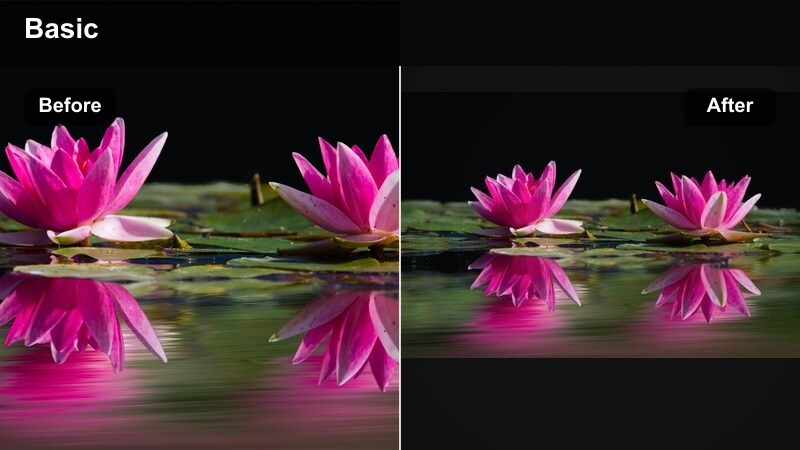
- Effect look: Boosted contrast and crisp edges that help detailed YouTube scenes read clearly on small Instagram screens.
- Best for: Tech reviews, gaming highlights, DIY, and craft tutorials where you need sharp detail and clear texture in vertical or square formats.
- Editing tip: Use the filter first, then slightly reduce clarity on faces only using masks so the background stays sharp but people look natural.
This contrast-forward filter is designed to keep text overlays, UI elements, and product details sharp when your YouTube content is squeezed into Instagram s smaller canvas. It adds punch to edges and midtones so intricate scenes remain readable even as Reels and grid posts autoplay in a busy feed.
In Filmora, apply the filter to your repurposed sequence before you add subtitles or graphics. Use a mask to isolate faces and lower clarity or sharpness in those regions, keeping people flattering while backgrounds, devices, and on-screen text stay crisp and high-impact.
Pro Tip: Compensate for Instagram compression
Because Instagram compresses video more aggressively than YouTube, a small contrast boost before export can help preserve clarity after upload.
In Filmora, apply the filter, then add a slight sharpening boost and keep export bitrate high. This keeps text, product edges, and UI details crisp even after compression.
Film Matte Story Look
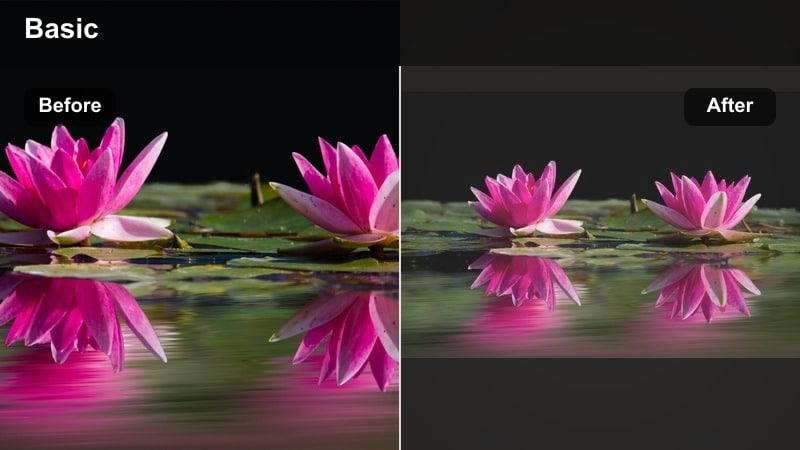
- Effect look: Subtle film grain, faded blacks, and a matte finish that give repurposed clips an editorial Story aesthetic.
- Best for: Lifestyle vlogs, fashion hauls, travel diaries, and moody storytelling content ported from YouTube to IG Stories.
- Editing tip: Combine with a slight vignette and crop safe zones for text so you can overlay captions without losing readability.
This matte film-style filter softens the contrast of your longer YouTube vlogs and hauls, giving them a more editorial feel that matches Instagram Stories and Reels. Faded blacks and a hint of grain make the shots feel intentional and cinematic instead of like raw screen-recorded reposts.
In Filmora, start by switching your sequence to a 9:16 aspect ratio and reframing key shots so faces and outfits sit in the Story safe zone. Then apply the matte filter, add a gentle vignette, and leave negative space where Story text, stickers, and polls will live so your overlays remain legible.
Pro Tip: Design with Story UI in mind
Instagram overlays UI elements at the top and bottom of Stories, so keep critical details and faces in the central safe zone when you crop.
Before applying the filter, set your aspect ratio to 9:16 in Filmora and use guides to keep your subject centered. Then apply the matte film filter and check that text and stickers remain readable.
Filters That Make YouTube Footage Feel Native to Instagram
Vibrant Feed Booster
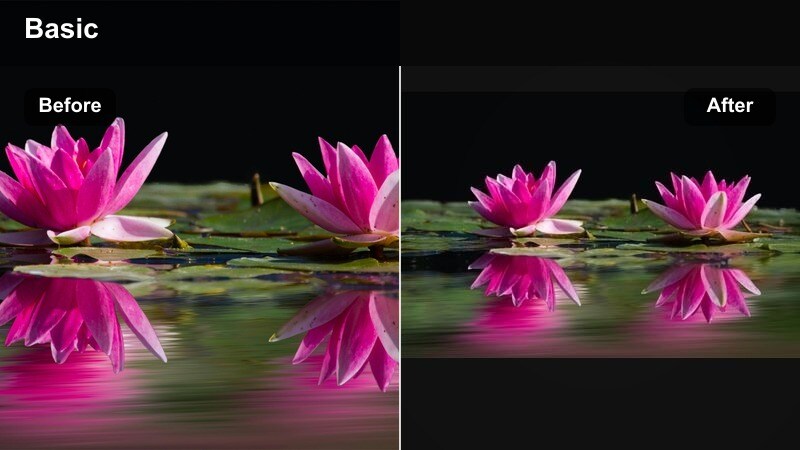
- Effect look: Rich, punchy colors and bright mids that help YouTube clips blend into colorful Instagram feeds.
- Best for: Beauty, food, lifestyle, and product videos where color is key and you need a bold, eye-catching feed.
- Editing tip: Reduce saturation in the shadows to avoid muddy darks, then add a touch of warmth to highlights for a cohesive grid look.
This vibrant filter is tailored to Instagram s love for bold, saturated visuals. It pushes color in a controlled way so repurposed YouTube clips stand out among photos and carousels in your grid, especially in beauty, food, and product niches where rich tones signal quality.
Inside Filmora, apply the filter, then refine it with HSL, lowering saturation in the shadows so dark areas stay clean. Add a small warmth boost to highlights and export a test frame to compare against your existing grid, adjusting any standout colors before batch-applying it to multiple repurposed clips.
Pro Tip: Match your overall grid aesthetic
If you already have a signature Instagram color style, fine-tune this filter s temperature and saturation to sit between your warmest and coolest posts.
Export a still frame with the filter applied, compare it to your current grid, and adjust HSL for any colors that feel out of place before batching across multiple repurposed clips.
Clean Neutral Creator
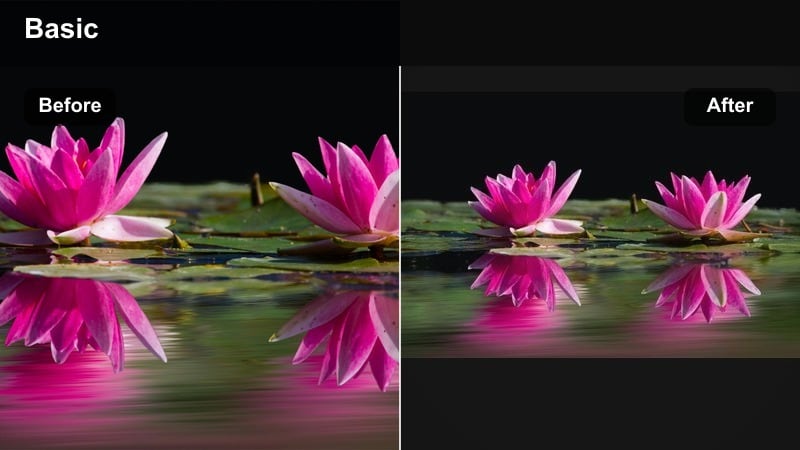
- Effect look: Balanced contrast, neutral color tones, and soft highlights that feel modern and minimal on Instagram.
- Best for: Educational carousels, repurposed YouTube shorts, talking-head tips, and minimalist brand accounts.
- Editing tip: Dial the filter strength back to around 30-50 percent and use it as a base layer so text overlays and graphics remain the visual focus.
This clean, neutral filter suits educators, coaches, and minimalist brands who want their message to stand out more than their color grading. It adds subtle polish to YouTube clips without overwhelming white text callouts, diagrams, or lower-third graphics that drive engagement on Reels.
In Filmora, use this style as a low-intensity base layer after you convert your layout to 9:16 or 4:5. Keep contrast moderate so white or light-colored text overlays remain crisp, and if needed, gently darken the background via curves instead of increasing saturation, ensuring legibility on any device.
Pro Tip: Prioritize legibility over heavy styling
For tip-driven content, filters should support your message, not compete with it. Keep contrast moderate so any white text pop-ups stay clear.
In Filmora, add the filter first, then check your overlays on a phone screen. If text looks washed out, slightly darken the background using curves rather than adding more saturation.
Urban Creator Vibes
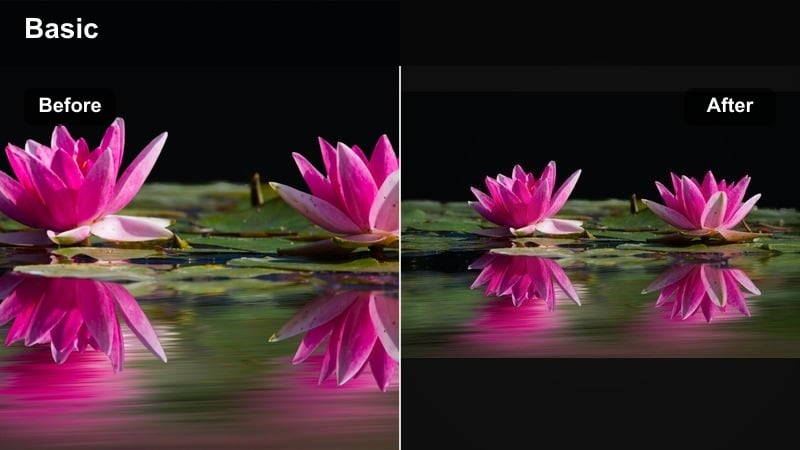
- Effect look: Cool shadows, slight teal shift, and crisp highlights that bring an urban creator aesthetic to repurposed videos.
- Best for: Street photography breakdowns, skate clips, city vlogs, and creator lifestyle videos brought from YouTube to Reels.
- Editing tip: Use masking to keep skin tones closer to neutral while letting the background take most of the teal and cool tones.
This cool-toned urban filter instantly updates YouTube city vlogs, street edits, and lifestyle content so they feel at home in short-form creator culture on Instagram. Teal shadows and cool highlights add style while preserving enough clarity for fast-moving scenes and handheld shots.
In Filmora, apply the filter, then protect natural skin by masking faces and dialing back teal shifts in the orange and red ranges with HSL. This way, the streets, walls, and sky take most of the stylization, while people stay healthy and natural even under mixed city lighting.
Pro Tip: Protect natural skin tones in stylized looks
Strong teal and blue shifts can make faces look sickly if applied globally, especially in mixed lighting.
In Filmora, apply your urban filter first, then use HSL to selectively pull back teal from orange and red ranges while preserving the cool stylized background.
LUT-Style Filters to Bridge YouTube and Instagram Color
Soft Brand LUT Bridge
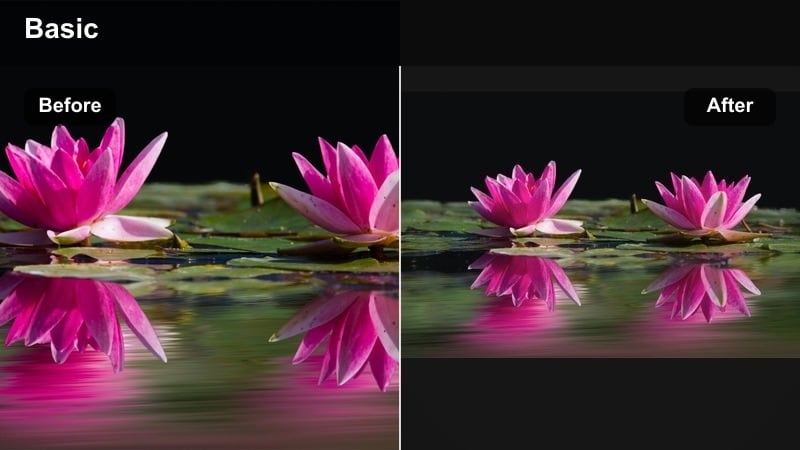
- Effect look: A LUT-style filter that gently harmonizes color between your YouTube channel and Instagram account for brand consistency.
- Best for: Creators with a defined brand palette who repurpose videos across YouTube, Instagram, and other platforms.
- Editing tip: Apply this LUT-style filter at a low intensity on both platforms so your content feels related without being overly processed.
This soft brand LUT-style filter is perfect when you want viewers to recognize your content instantly, whether it appears as a long YouTube video or a quick Reel. It subtly aligns tones and contrast so every platform feels like part of one unified brand experience.
In Filmora, use this look as a shared baseline: keep intensity low on both YouTube and Instagram, then tweak contrast and saturation per platform. A slightly flatter grade can serve YouTube s longer watch times, while a modest boost in vibrancy helps the same LUT feel punchy in Instagram s fast-scrolling feed.
Pro Tip: Use one master look, then fine-tune per platform
Start with a single brand LUT-style filter in Filmora, then adjust contrast and saturation differently for YouTube and Instagram exports.
Keep YouTube versions slightly flatter for larger screens and longer watch times, while boosting Instagram versions for faster mobile viewing and small thumbnails.
Warm Creator LUT Glow
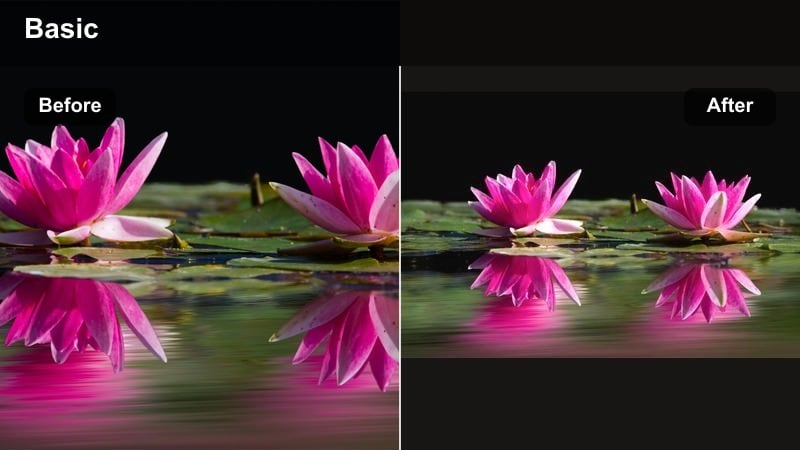
- Effect look: A warm, inviting LUT-inspired glow that brightens skin tones and adds soft color to repurposed clips.
- Best for: Coaching content, behind-the-scenes creator clips, Q and A sessions, and community updates repurposed as Reels or Stories.
- Editing tip: Expose slightly darker in Filmora before applying the filter to avoid clipping highlights when the warm LUT glow kicks in.
This warm LUT glow adds a friendly, human touch to talking-head content repurposed from YouTube. It gently brightens faces and introduces inviting color that is ideal for coaching, mentorship, or community Q and A sessions on Instagram.
When editing in Filmora, lower exposure a bit before adding the LUT-style filter so highlights do not blow out once warmth and glow are applied. Afterward, inspect whites and UI elements, making sure they remain clean so your captions, stickers, and graphics continue to look professional.
Pro Tip: Balance warmth with neutral whites
Warm LUTs can make whites and UI elements look off if pushed too far, especially on IG where overlays and captions are bright.
After applying the filter, use Filmora s white balance or HSL tools to pull magenta and yellow back slightly from whites so your graphics stay clean.
Moody Reel LUT
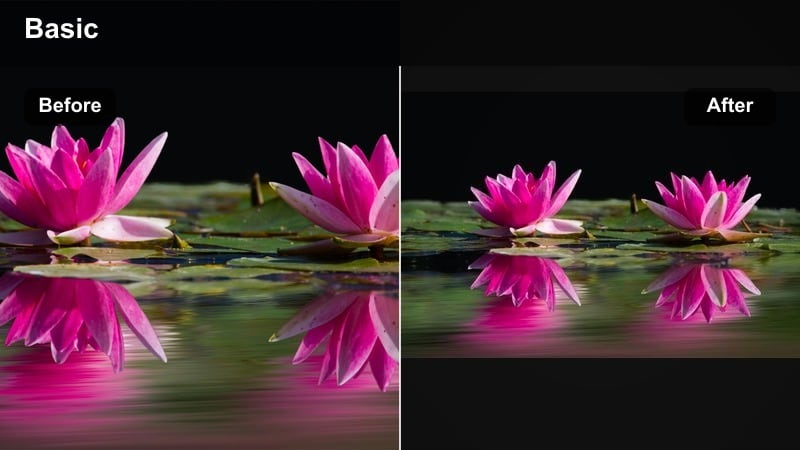
- Effect look: Deep shadows, muted highlights, and rich color separation that give repurposed videos a moody, cinematic Reel feel.
- Best for: Emotional storytelling, travel sequences, slow b-roll, and music-driven edits cut down from longer YouTube uploads.
- Editing tip: Apply this LUT-style filter after your main exposure correction so dark areas stay detailed instead of crushing to black.
This moody LUT-style filter turns slices of your long-form YouTube travel or storytelling content into dramatic, cinematic Reels. By deepening shadows and muting highlights, it creates a focused, emotional atmosphere, especially when paired with music-driven edits and slow-motion b-roll.
In Filmora, correct your exposure and white balance first so you retain detail in low-light areas. Then add the moody LUT filter and fine-tune blacks and shadows using curves, ensuring the image looks rich and intentional instead of simply underexposed.
Pro Tip: Use moody looks strategically in your content mix
A feed full of only dark, moody clips can feel heavy. Mix these LUT-style Reels with brighter, neutral content for balance.
Batch-edit a set of intentional, story-driven clips with this filter, then alternate them with lighter, informational Reels to keep your grid engaging.
Workflow-Focused Filters for Fast Repurposing
Quick Fix Repurpose Filter
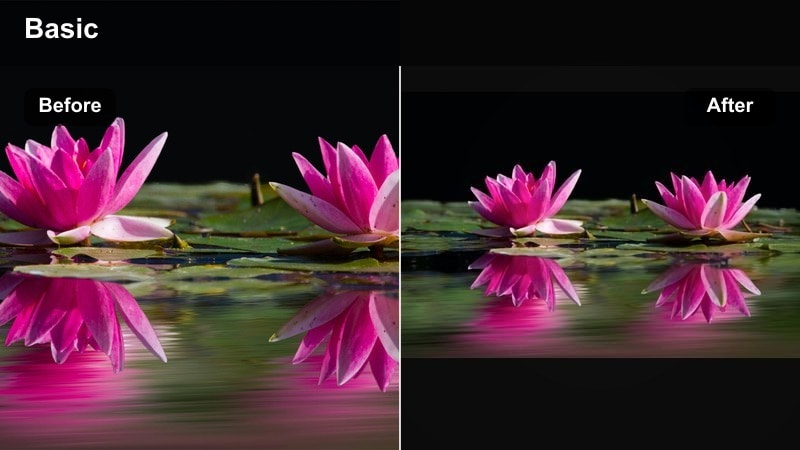
- Effect look: A balanced all-rounder filter that corrects flat YouTube color and modernizes it for short-form Instagram content.
- Best for: Busy repurposing creators who want one reliable look for a variety of clips, from tutorials to casual vlogs.
- Editing tip: Set this as a favorite preset in Filmora so you can apply it in one click whenever you trim a YouTube segment into a Reel.
This quick-fix filter is your everyday workhorse for turning older or flatter YouTube uploads into fresh Instagram content. It adds modern contrast and color without going too stylized, so it fits everything from tutorials and talking heads to casual vlogs.
In Filmora, favorite this preset and apply it as soon as you bring a YouTube segment into a 9:16 timeline. Once it is on, you only need small exposure or saturation tweaks per clip, allowing you to repurpose large back catalogs into consistent Reels in far less time.
Pro Tip: Build a repeatable repurposing preset
Combine this filter with a default crop, audio level, and subtle sharpening, then save as a custom preset in Filmora.
Use that preset as your starting point every time you convert a YouTube clip to Instagram so your workflow stays fast and your visuals remain consistent.
Text-Safe Overlay Filter
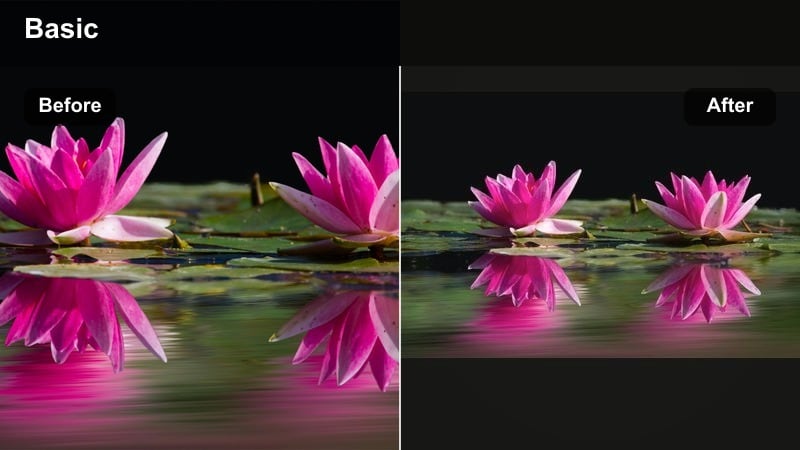
- Effect look: Soft contrast and slightly darkened backgrounds that make captions, subtitles, and stickers easy to read.
- Best for: Repurposed educational YouTube clips where callouts, lists, and subtitles drive engagement on Reels.
- Editing tip: Apply the filter, then use a subtle blur or darkening mask behind key text zones to guarantee readability on any background.
This text-safe filter prepares your YouTube explainers and how-tos for heavy on-screen text on Instagram. By gently darkening backgrounds and taming contrast, it creates a clean canvas where subtitles, bullet lists, and callouts remain readable even on bright or busy footage.
In Filmora, add the filter, then place gaussian blur or darkening masks behind planned text areas, particularly around the center and lower third of the frame. Test on a phone to confirm that your captions and stickers stay legible without needing heavy outlines or drop shadows.
Pro Tip: Design text around Instagram s safe areas
Keep titles in the upper-middle part of the frame and lower-thirds text above the Reel caption layer to avoid UI overlaps.
Combine this filter with Filmora s guides and safe-zone overlays so your repurposed clips stay clear on every phone size.
Batch Repurpose Style
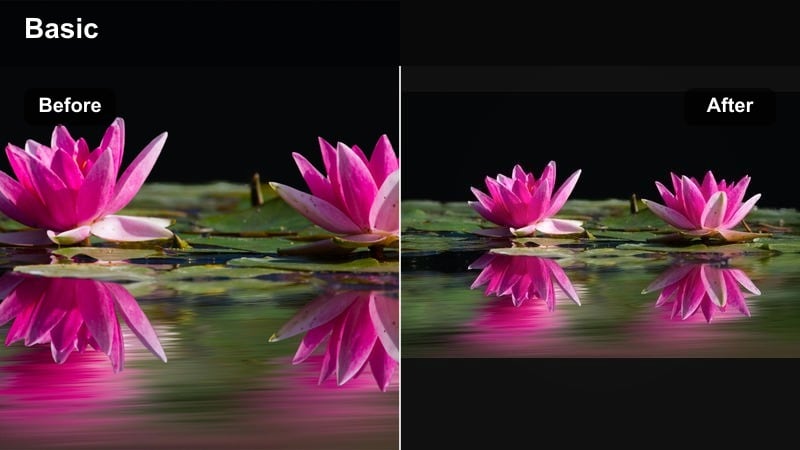
- Effect look: Consistent global adjustments with gentle contrast and color tweaks that work across many different shooting conditions.
- Best for: Cross-platform editing sessions where you convert several YouTube videos into a week of Instagram Reels in one batch.
- Editing tip: Test on three very different clips first. Once it works on all of them, apply the filter to your full batch and only fine-tune outliers.
This batch-friendly filter is designed to hold up across clips shot in different lighting and locations, making it ideal for repurposing sessions where you cut a week or more of Reels from multiple YouTube uploads. It brings subtle coherence without overcorrecting tricky shots.
In Filmora, test the look on a bright scene, a darker indoor scene, and a mixed-light clip. When you are satisfied it works on all three, apply it across your batch, then only tweak exposure or white balance on clips that still stand out, keeping your workflow efficient.
Pro Tip: Create a batch-first repurposing pipeline
Organize your clips by lighting conditions and content type before applying this filter so you can batch-tweak groups instead of fixing each clip individually.
Export test Reels and view them inside the Instagram app on your phone to confirm the style still works after compression and UI overlays.
Tips for Using Youtube Video Filter Instagram Filters in Filmora
- Always crop and reframe your YouTube footage for 9:16 or 4:5 in Filmora before judging how a filter looks for Instagram.
- Keep a separate export preset for Instagram with slightly higher saturation and contrast than your standard YouTube export.
- Limit yourself to one or two core filter styles across most repurposed clips to avoid a chaotic, inconsistent Instagram grid.
- Test filtered clips on a real phone screen inside the Instagram app so you can see how compression and UI overlays affect the final look.
- When in doubt, reduce filter strength instead of pushing it to 100 percent to preserve natural skin tones and readable text.
- Use Filmora masks to protect faces from heavy color shifts in stylized filter
