



 100% Security Verified | No Subscription Required | No Malware


 ChatGPT
 Perplexity
 Gemini
 Claude
 Grok
Grok
Working with large collections of visual content means you often have a growing number of images to sort, understand, and reuse. While manually checking each image to identify its subjects, objects, scenes, and other details can take time, an AI image analyzer can automate this process by examining the content and extracting useful information from each image.
If you’ve been looking for a way to analyze photos, generate descriptions, identify visual elements, or organize media more efficiently, this article will show you what an AI image analyzer can do. Take a look at how AI image analysis works, some online tools you can try, and how the same technology can be useful for video projects.
In this article
Part 1. What is an AI Image Analyzer?
Can you imagine having to sort through hundreds of images for a project to figure out what they contain and which ones are actually relevant? This is the reality of what many creators used to deal with when working with large media libraries. Now, an AI image analyzer can take on much of this work by examining images and identifying useful details such as objects, subjects, scenes, and text.
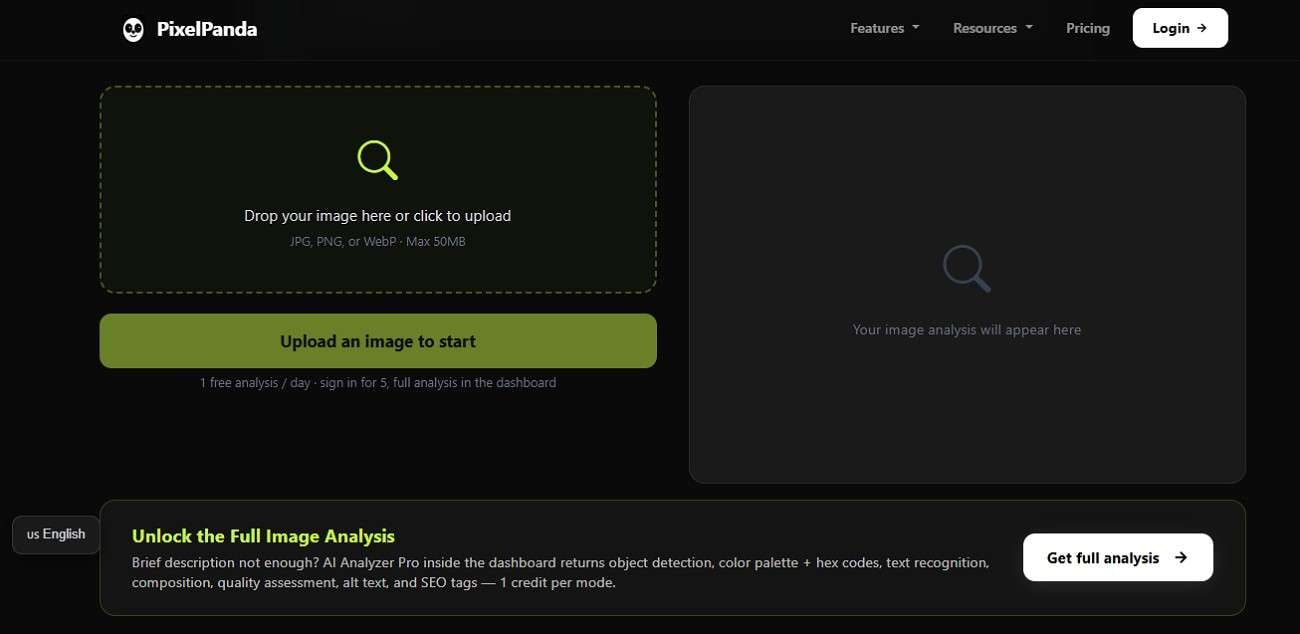
At a basic level, AI image analysis involves processing an image and recognizing patterns within it. Modern vision models can interpret more than individual pixels. They can connect visual features to higher-level concepts, such as recognizing that a group of pixels represents a car, a person sitting on a bench, or text displayed on a sign.
From the information it gathers, an AI analyzer can then generate descriptions, identify objects and scenes, and create searchable tags or keywords, depending on what the tools specialize in.
What Can You Use an AI Image Analyzer For
- Organizing large photo libraries: Identify subjects, scenes, objects, and other visual characteristics to make images easier to sort.
- Creating alt text and descriptions: Generate an initial description of an image for accessibility or content management.
- Evaluating composition and visual details: Ask AI to describe elements such as colors, lighting, composition, or visual style.
- Checking image content: Quickly understand what appears in an image without manually inspecting every file.
- Adding searchable tags and keywords: Turn visual information into text-based descriptions that can make assets easier to find.
Part 2. AI Photo Analyzer Tools for Different Use Cases
There are plenty of AI image analyzer tools online, but each one has a different focus. Some can check what an image contains, while others can describe the image in more detail. Below are a few options you can try, depending on what you need from an AI photo analyzer.
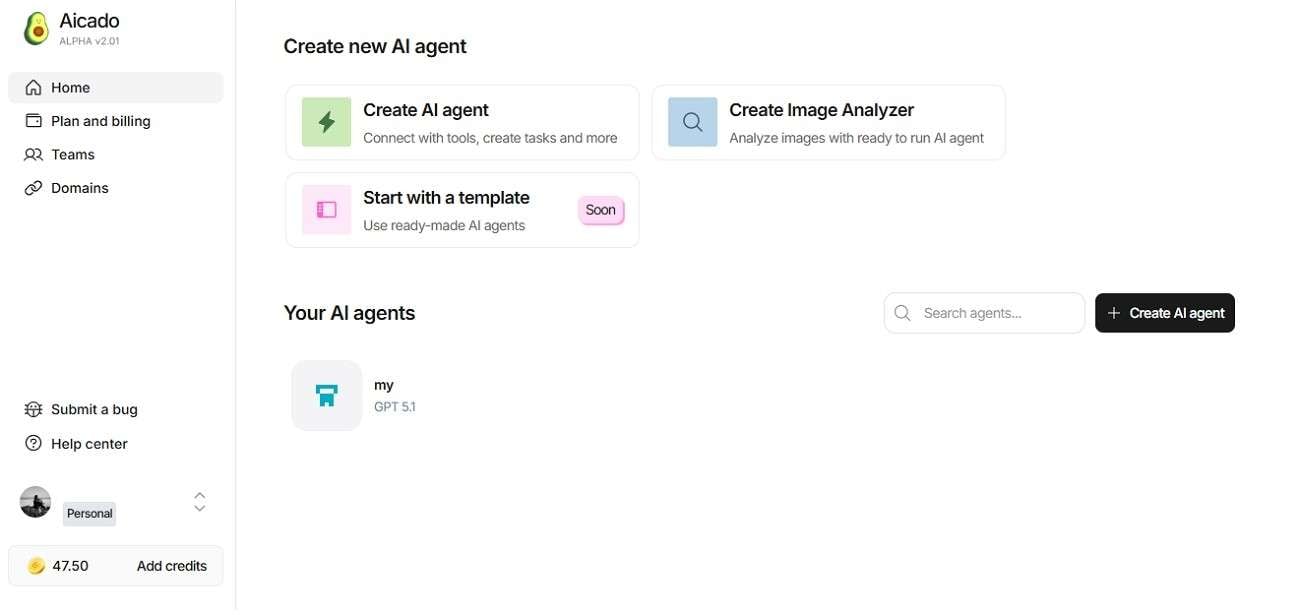
1. MetaData2Go: Detect NSFW Content
MetaData2Go is best known for its file metadata tools, but it also offers AI-based image analysis. Its AI image analyzer can detect potentially NSFW content, the number of people present, and estimate the age of people in an image. You get a quick overview of what type of content an image contains without having to inspect it manually.
Highlights
- Mainly focused on analyzing people in images
- Free to use (limited usage), with banner ads
- May sometimes mistake exposed skin for nudity
- Estimates people’s ages and counts
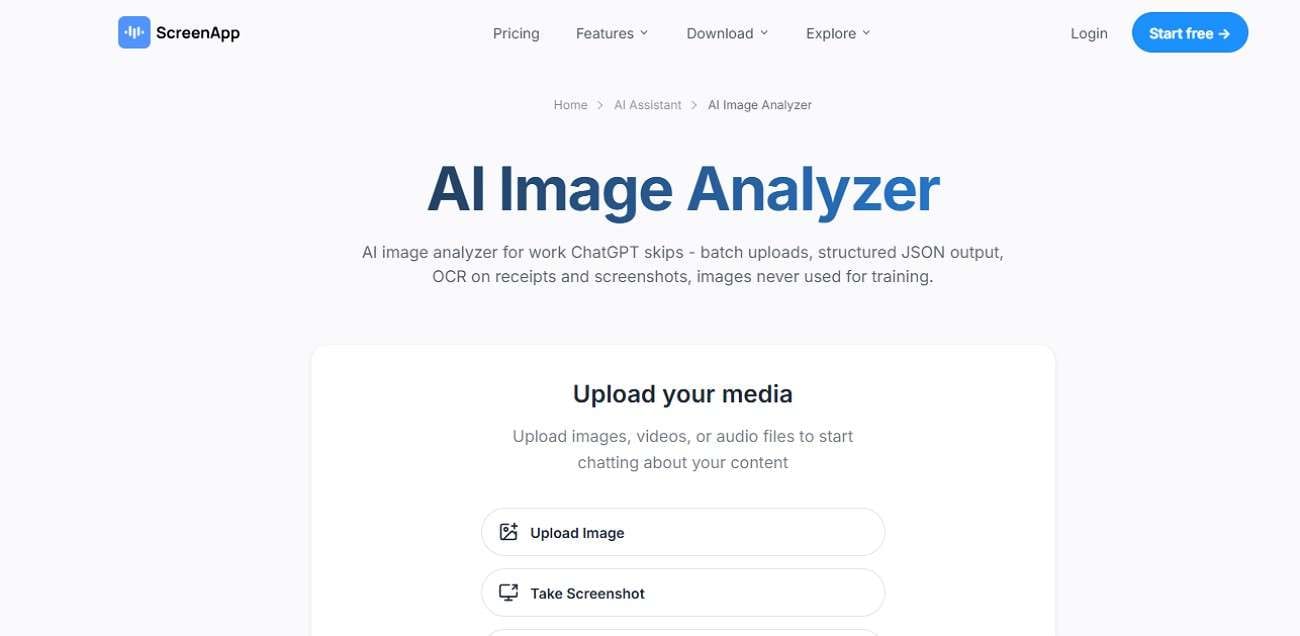
2. Poe: Analyze Objects, Text, & Scenes
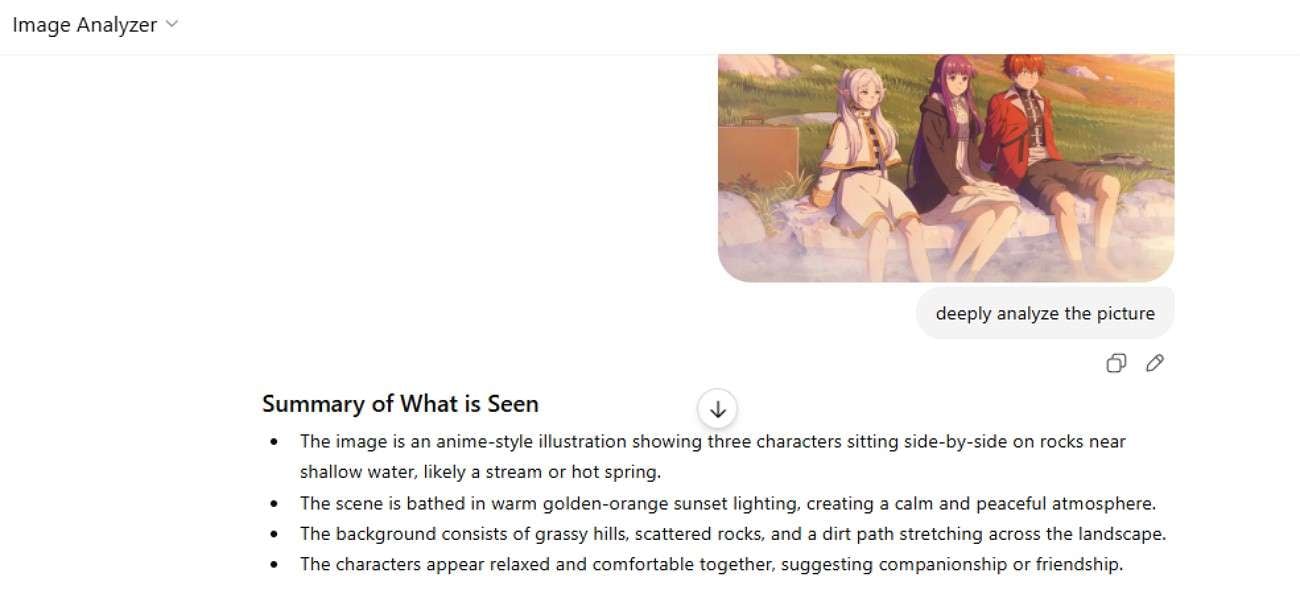
Poe offers a free AI photo analyzer bot that lets you upload an image and ask specific questions about it. Rather than producing only one fixed description, you can guide the analysis based on what you want to know.
For example, you can ask it to identify objects, describe a scene, extract visible text, examine a color palette, or comment on the composition. You can also continue asking questions about the same image after receiving the initial result.
Highlights
- Requires sign-in
- Available for free
- Provides detailed analysis and key findings
- Analyzes one image at a time
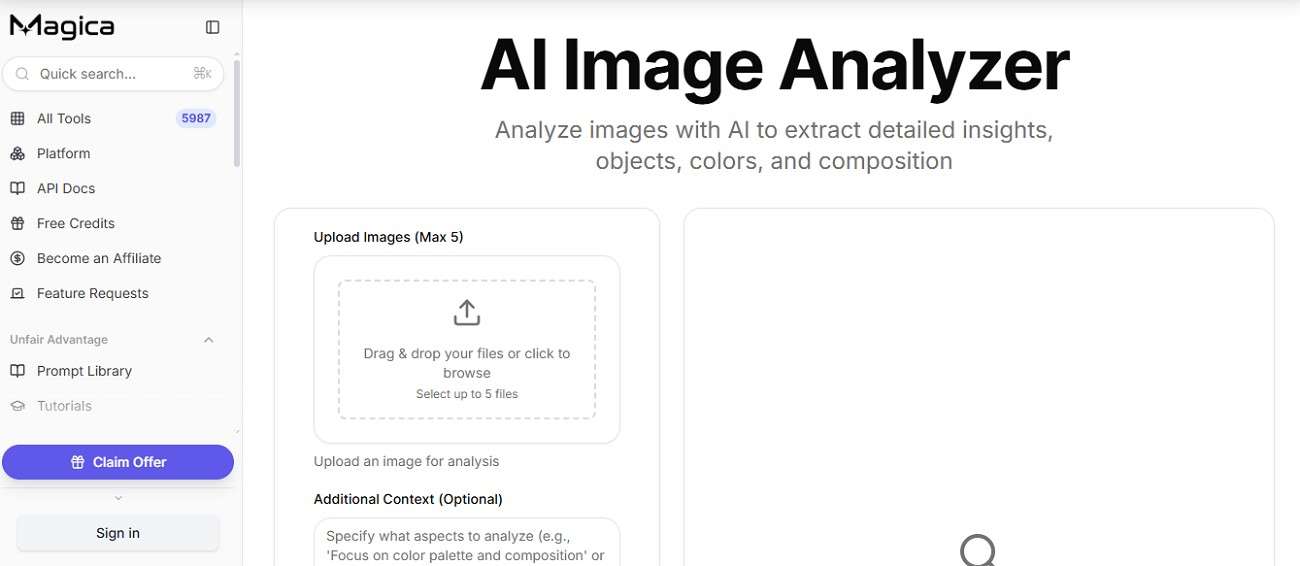
3. DescribeImage.ai: Generate Image Descriptions & Captions

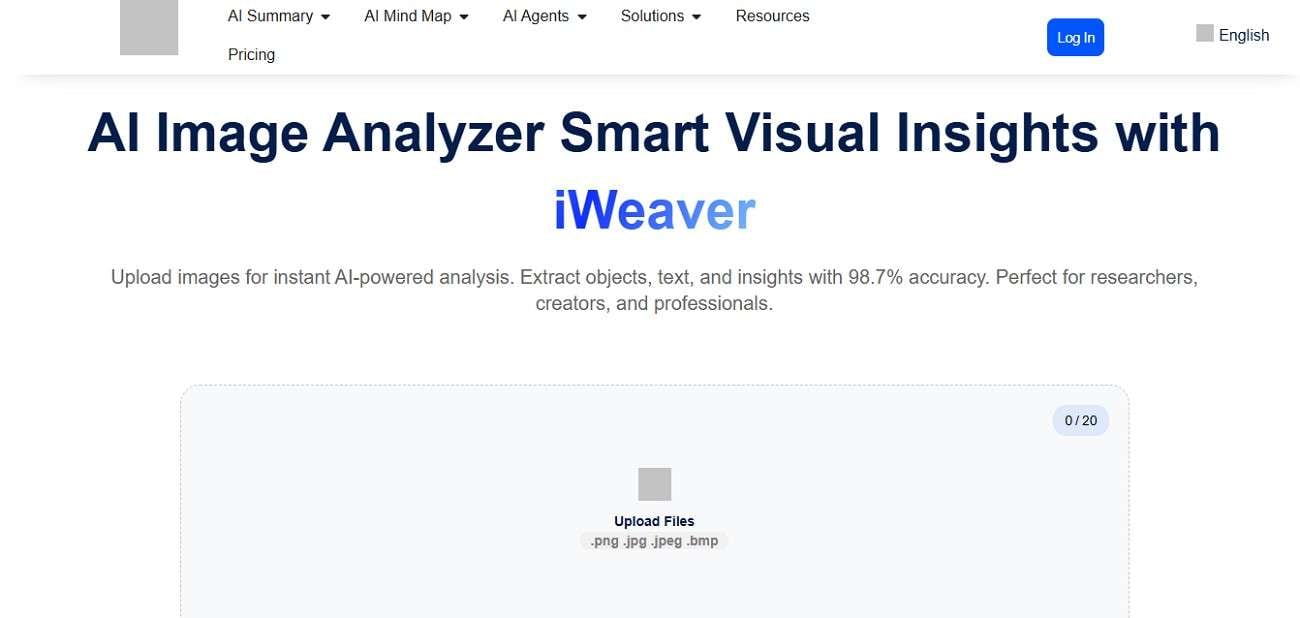
DescribeImage.ai AI photo analyzer focuses on turning images into text. You can upload an image and select different analysis modes, including detailed descriptions, object recognition, art style analysis, text extraction, and caption generation. It also supports custom questions and multiple description modes.
Highlights:
- Sign-in required
- Supports single and multiple images, with up to 9 images at once
- Supports common image formats, including JPG, PNG, WebP, BMP, HEIC, and HEIF
- Single-image analysis is free, while analyzing multiple images requires payment
- Supports image URLs as an input option
Part 3. Make Use of AI Image Analysis in a Video Project
The AI photo analysis tools above work well when you want to inspect individual or multiple images. But what if your images are part of a larger video project, and you also have dozens or hundreds of video clips to sort through?
Using separate tools for different types of media can be a hassle and make it harder to keep your assets organized before you start editing. Instead, you can use Wondershare Filmora to analyze your visual assets directly within a video editing environment.
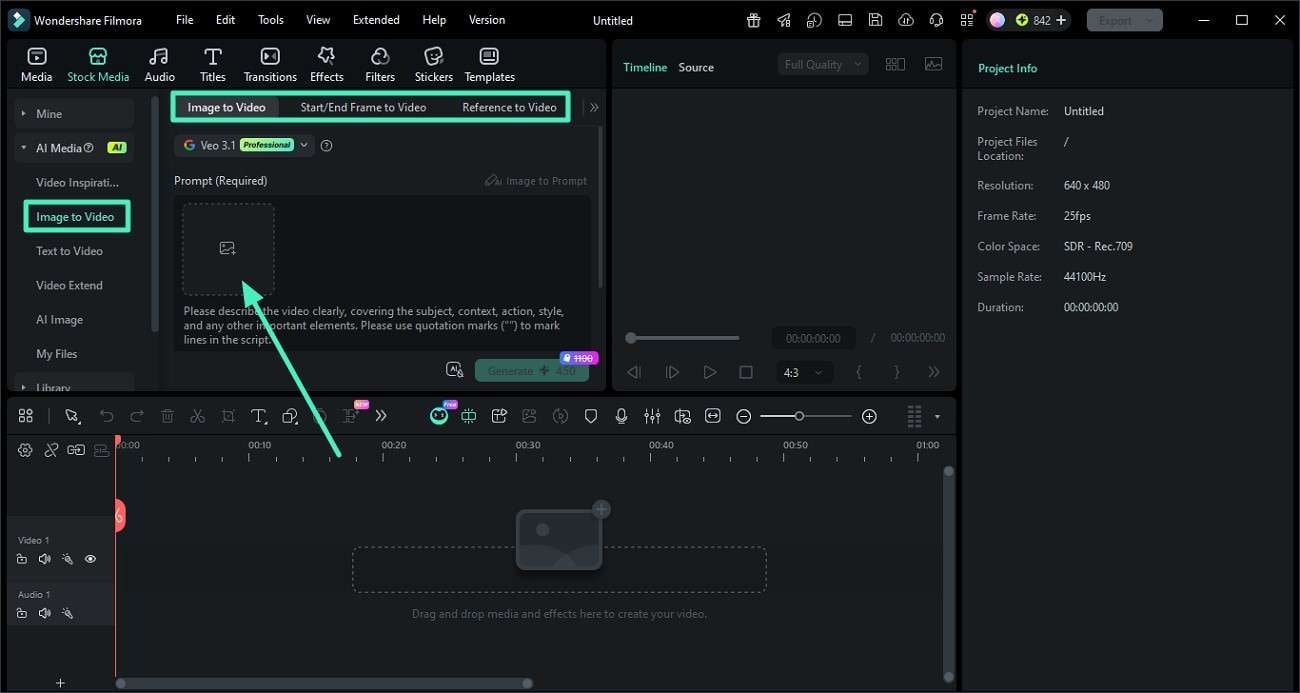
Filmora: Video Editor with Built-in AI Image & Video Analyzer
Filmora features AI Media Analysis that’s designed for creators who need to work through large or unorganized collections of media. Rather than describing a single photo, it brings some of the benefits of video AI analytics into the editing process. AI Media Analysis analyzes imported images and videos, then turns the visual information into searchable data for finding and reviewing assets.
The feature is powered by Qwen3.7 Flash, a multimodal vision-language model that supports both image and video input. If you’re an editor who works with both photos and video clips, this is a feature you can’t miss. It can analyze and organize different types of media in one place, making it more useful for larger video projects than a standalone AI photo analyzer.
1. Batch Analyze and Find Relevant Assets
Filmora AI Media Analysis supports batch analysis, so you can process multiple imported files at once. There’s no need to manually open every file just to check what it contains. Just put everything into the editor, and the feature will analyze and generate information you can use to search, filter, review, and organize your assets before assembling your final edit.
2. Identify Subjects, Objects, and Scenes
AI Media Analysis can identify different elements within your media, including subjects, objects, scenes, and locations. Since filenames rarely tell you what’s actually in a clip or image, AI-generated descriptions and tags give you more information to work with.
3. Generate Keywords
Not sure what to put in your tags or search terms to find the right footage later? Filmora AI Media Analysis can automatically generate relevant keywords based on what appears in your media. You can then use these keywords to search and filter your library instead of going through each file manually.
4. Get AI-Powered Editing Suggestions
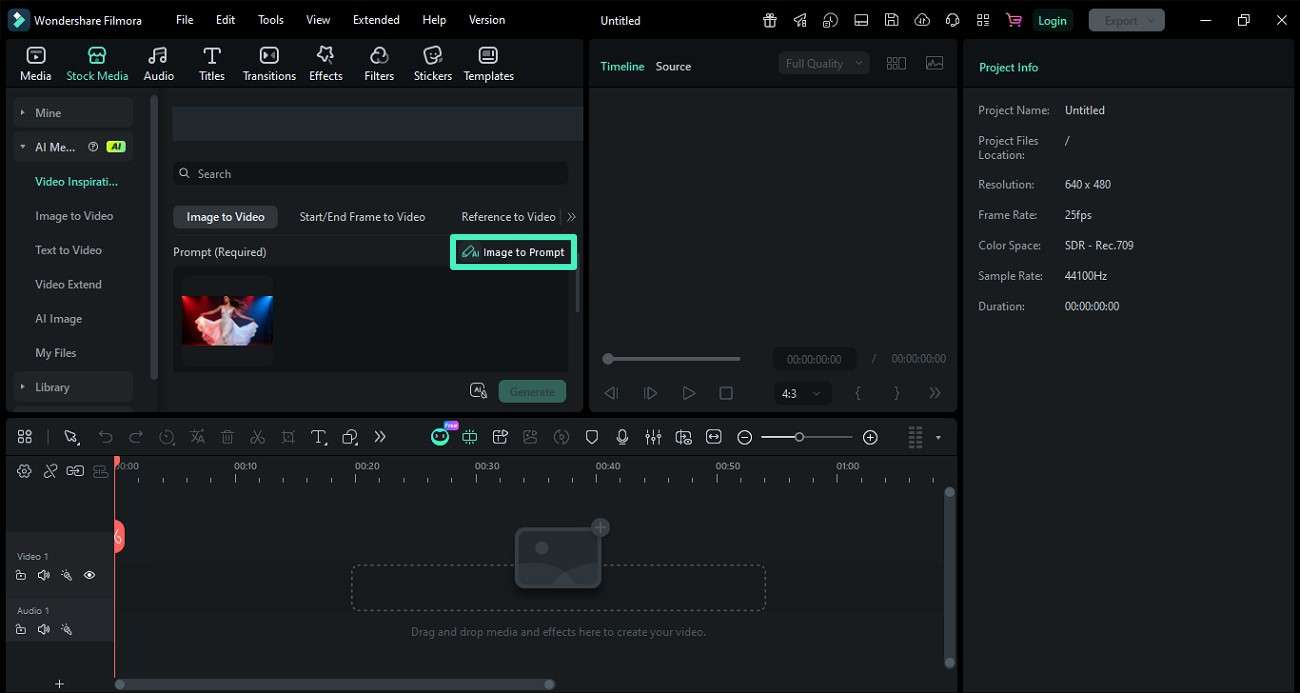
AI Media Analysis can also provide information beyond basic descriptions. Depending on the analyzed media, it can surface useful sections, identify lower-quality material, and provide AI markers, notes, or edit-related suggestions. You’ll also get a quality score for analyzed media, which can help you quickly spot clips that may be more suitable for your project.
Part 4. How to Analyze Image/Videos for Your Project in Filmora
Before you begin, install the latest version of Filmora to make sure you can access AI Media Analysis. Once everything is ready, follow these steps to analyze your image or video files in Filmora.
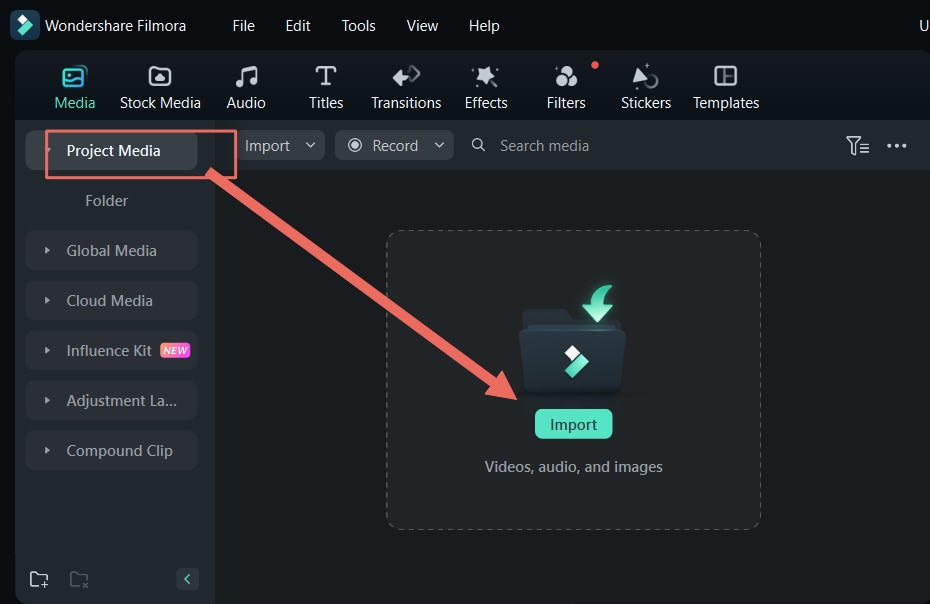
- Step 1. Import media to Filmora
Open a new project and add the videos you want to analyze to the Media panel. You can import several files at once if you’re working with a large collection.
- Step 2. Open AI Media Analysis
Select the videos you want Filmora to analyze. Then, right-click your selection and choose AI Media Analysis from the menu.
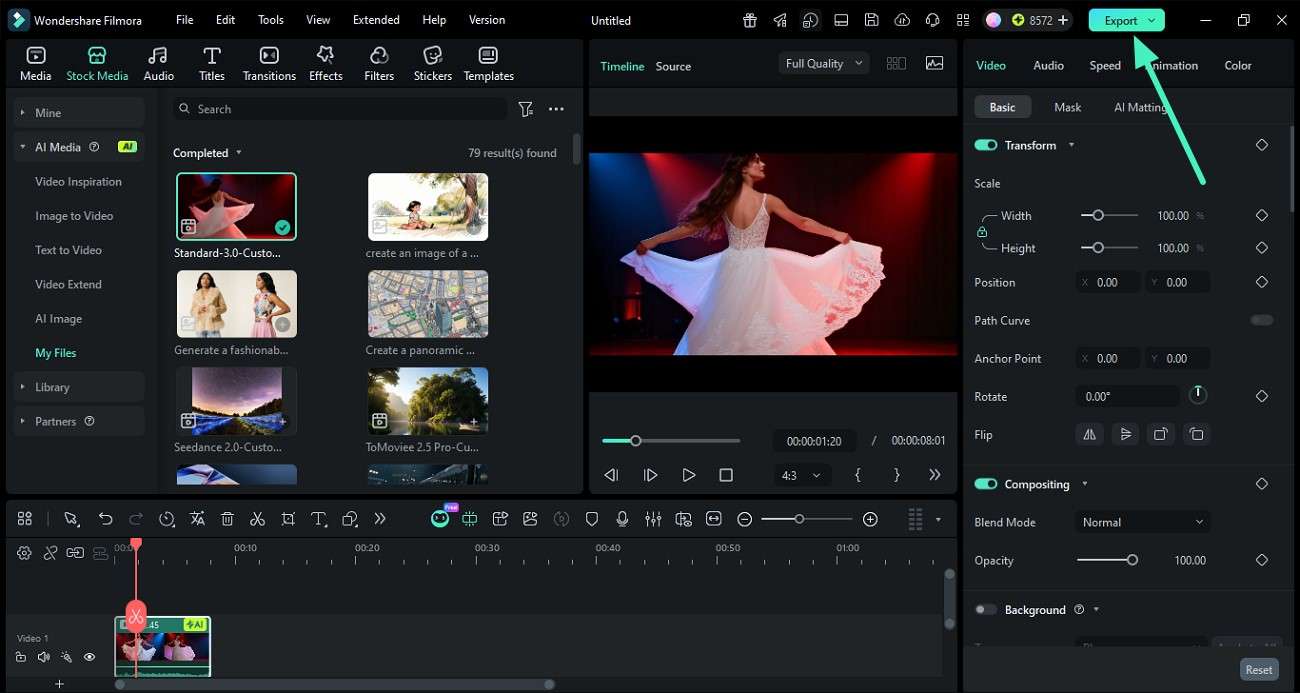
- Step 3. Start the analysis
Filmora will open a window listing the selected clips and showing the AI credits needed for the analysis. Check the details, then click Generate to start.
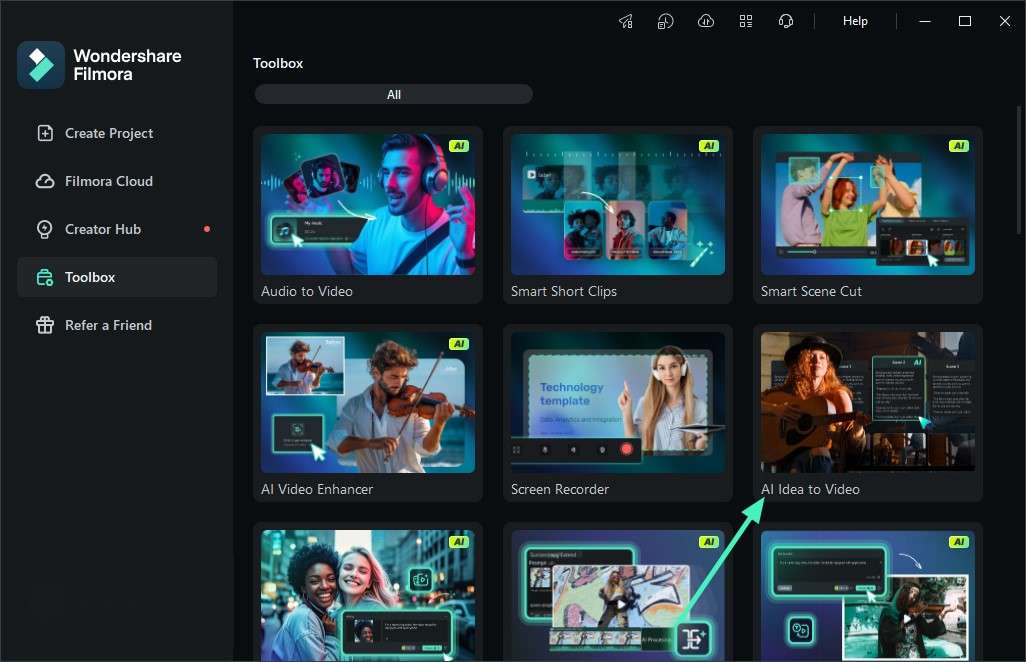
- Step 4. Review the results
Once the analysis is finished, Filmora will notify you. Go to Media > Media Analysis Result to view the information generated for your videos.
Conclusion
An AI image analyzer can save time when you need to understand, organize, or search through visual content. Different tools are suited to different tasks, from checking image content and generating descriptions to identifying objects, scenes, and text.
If your project includes both images and video, a tool like Filmora can be more practical since you can analyze your media within the same editing environment. The right option depends on the type and amount of media you work with, as well as how much analysis you need.
