



 100% Security Verified | No Subscription Required | No Malware


 ChatGPT
 Perplexity
 Gemini
 Claude
 Grok
Grok
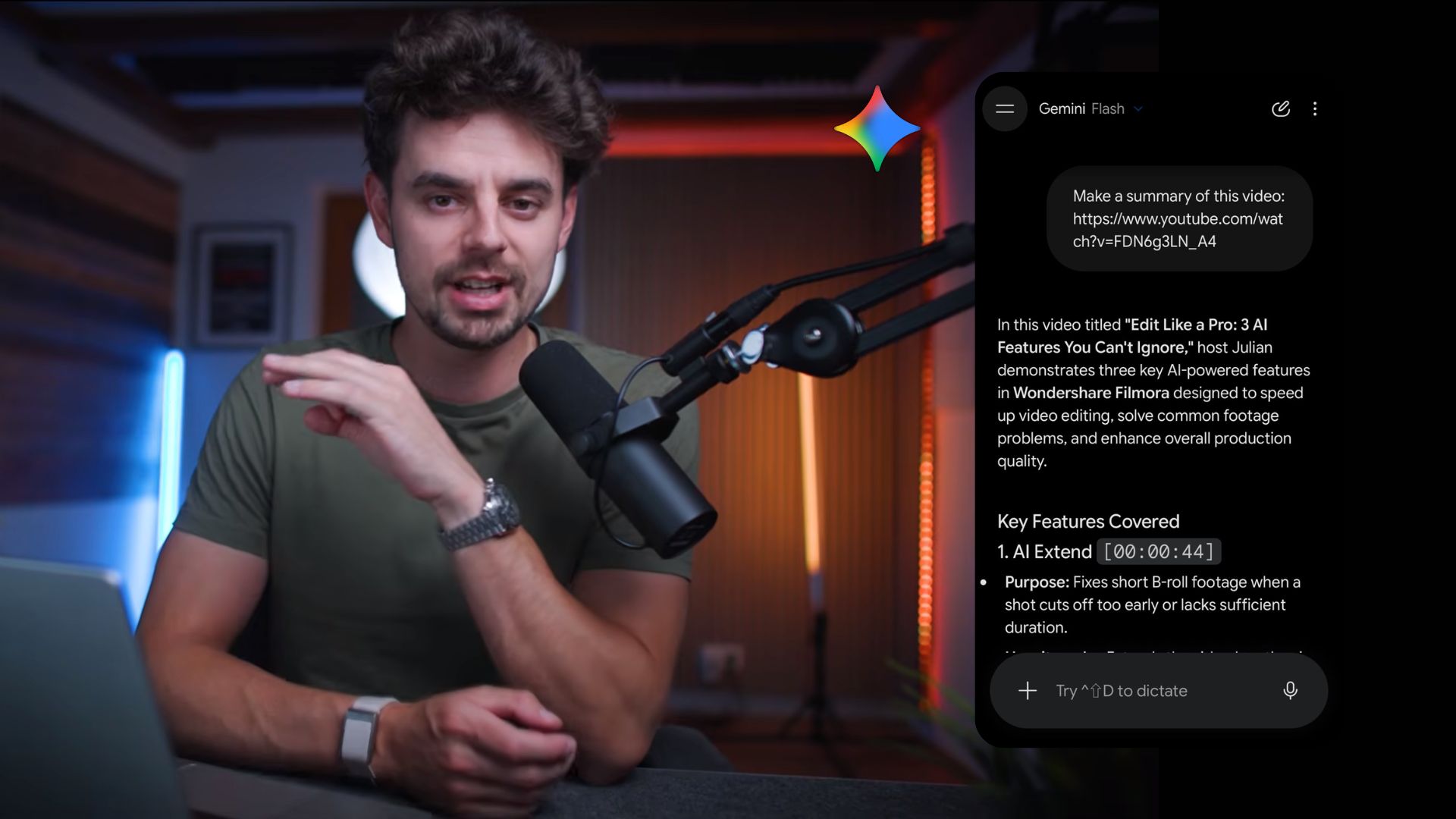
After becoming widely known for working with text and images, Google Gemini can now analyze video content too. It can understand what happens in a video, answer questions about specific scenes, summarize the footage, and identify useful details such as objects, actions, spoken content, and timestamps.
For anyone working with large amounts of footage, Gemini video analysis can reduce the time spent manually reviewing clips. But like any tool, it has some limitations worth knowing before you rely on it. Find out how Gemini video analysis works, what it can do, what to expect from its limitations, and an alternative for analyzing and editing videos in one workspace.
In this article
Part 1. What Is Gemini Video Analysis?
Most people know Gemini can write emails or summarize documents, but far fewer realize you can hand it a video file or a YouTube link to get useful information from what you watch. Gemini video analysis is a multimodal video-understanding capability that lets Gemini process a video's visual content, audio, and spoken information to answer questions about what happens in the footage.
When you need something from a video, you can ask Gemini to find it instead of watching the entire video yourself. It’s convenient, and the time you save can be put toward reviewing, editing, or working on other parts of your project.
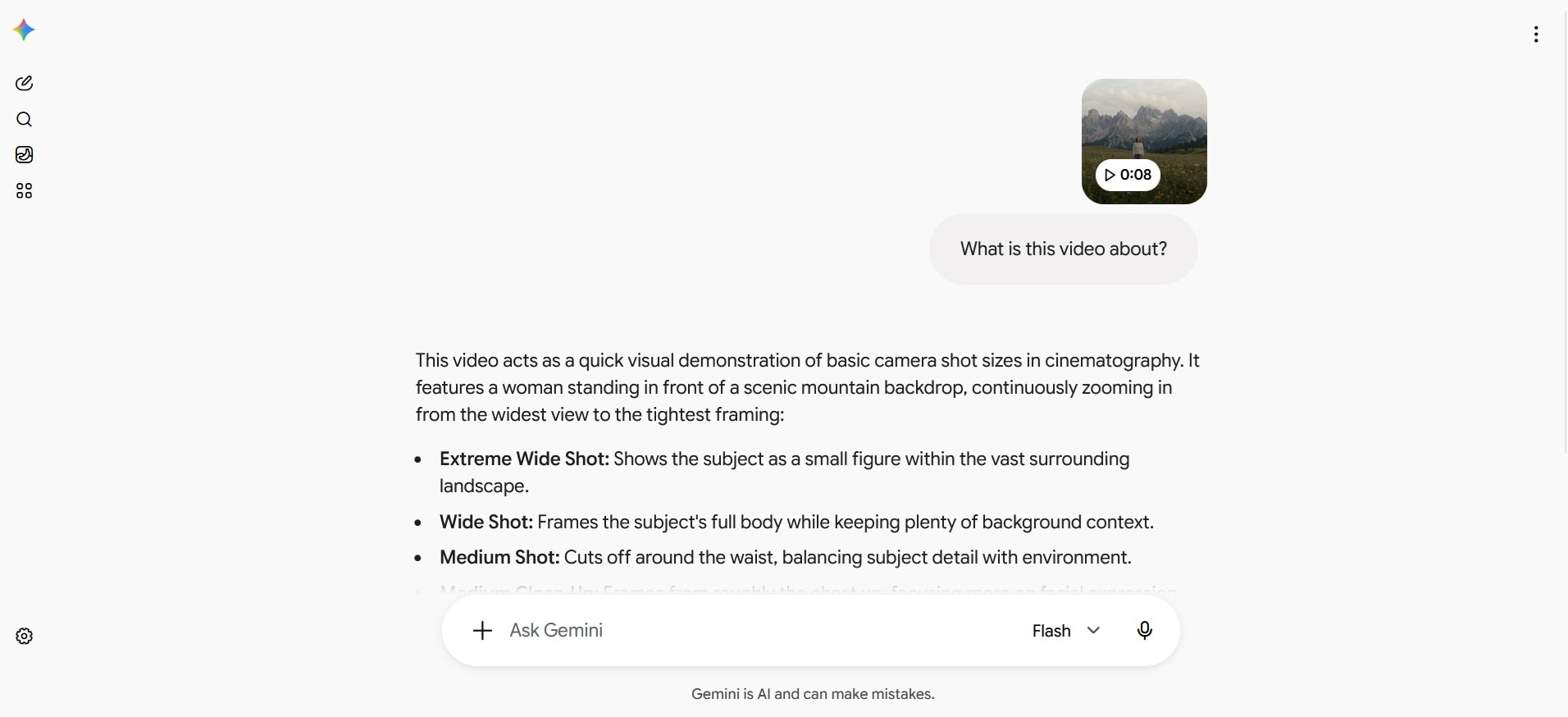
How It Works
Gemini video analysis works much like how you usually interact with Gemini. It’s available at:
- Gemini app: The simplest option for uploading a video and asking questions about it.
- Google AI Studio: A convenient way to test prompts and experiment with Gemini’s video analysis capabilities.
- Gemini API: For developers who want to add video analysis to their own app or workflow.
Google also plans to use Agentic Video Understanding to power YouTube’s upcoming Ask YouTube feature, which will let users ask questions about videos directly from the watch page.
A Part of Google’s Video Analysis Tools
Google Gemini AI video analysis is actually part of Gemini’s broader multimodal video understanding capabilities. By default, Gemini processes video by sampling frames at regular intervals. However, the newer Agentic Video Understanding feature now lets supported Gemini models actively search and inspect the parts of a video that are relevant to your prompt rather than processing the video continuously at a fixed rate.
On top of that, Google also offers Google Cloud Video Intelligence, a separate service designed for developers who need structured information from videos, such as detected objects, people, text, logos, and speech.
|
What It Is |
Main Purpose |
|
|
Gemini Video Understanding |
Gemini’s standard capability for processing video content, including visual frames, audio, and spoken information. |
Analyze videos, answer questions, summarize footage, extract information, and refer to specific timestamps. |
|
Agentic Video Understanding |
A newer Gemini video-processing mode; cuts down token usage by up to 88%. |
Find relevant moments more efficiently, particularly in long-form or targeted video analysis. |
|
Google Cloud Video Intelligence |
A separate Google Cloud service for programmatic video analysis and metadata extraction. |
Detect and label elements such as objects, people, logos, text, speech, and shot changes. |
These tools can sound similar when you’re looking for Google video analysis, so it’s important not to confuse Google Cloud Video Intelligence with Gemini’s video analysis capabilities.
Part 2. How to Use Google Gemini to Analyze a Video
You can use Google Gemini video analysis capabilities in a few different ways depending on how you want to work.
Method 1: Analyze a Video With Google Gemini
The Gemini app is a free way you can analyze videos with Gemini. For YouTube links, you can only submit public videos, not private or unlisted ones. For video files, there are also limits on file size and video length:
|
Standard |
Google AI Pro |
Google AI Ultra |
|
|
File Size |
Up to 2 GB |
Up to 2 GB |
Up to 2 GB |
|
Video Length |
Up to 5 minutes |
Up to 1 hour |
Up to 1 hour |
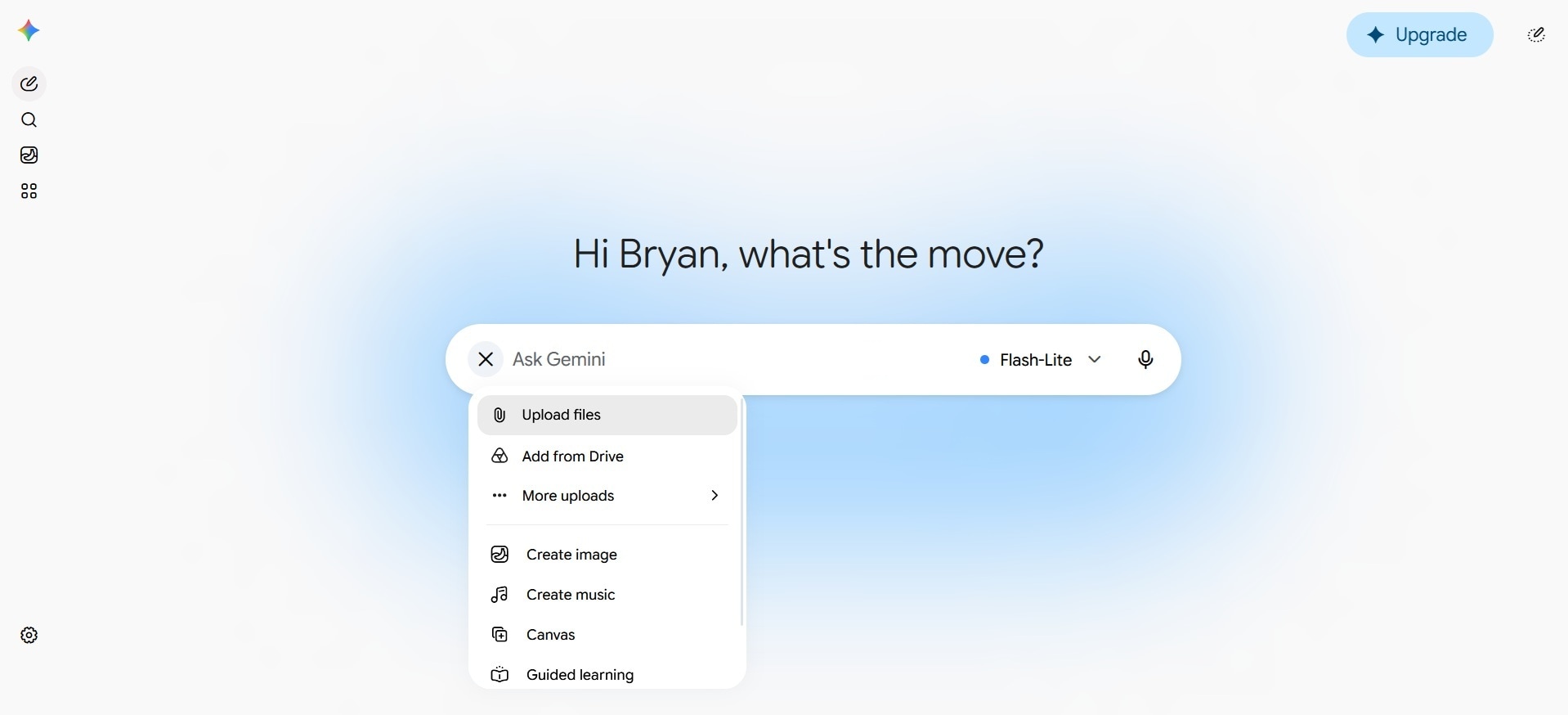
- Step 1. Upload or add your video to Gemini
In Gemini’s chat, click the add a file option and upload your video. You can also paste a YouTube link or upload a video from Google Drive.
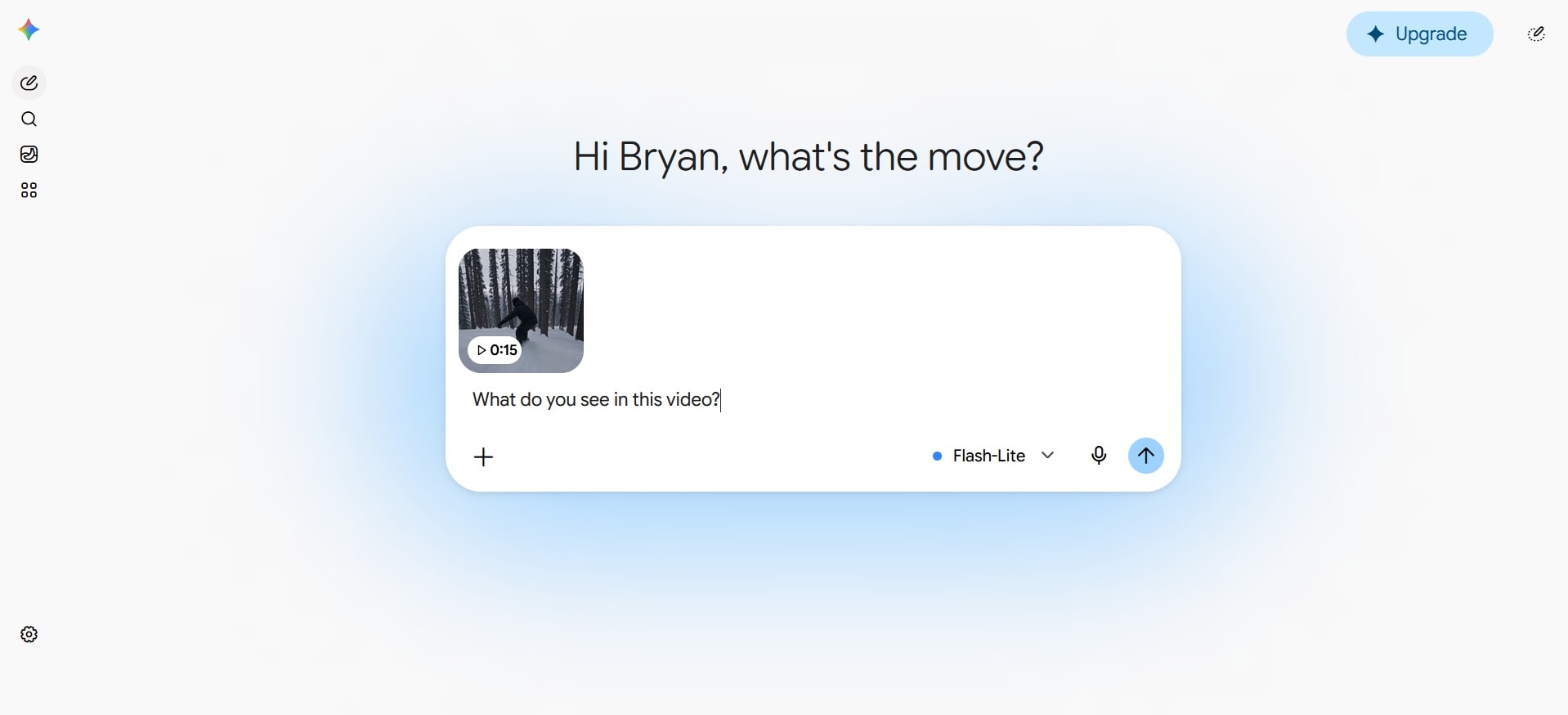
- Step 2. Ask Gemini what you need
Ask Gemini what you want to know about the footage. For example, you can ask it to summarize the video, explain a scene, or find when something happens.
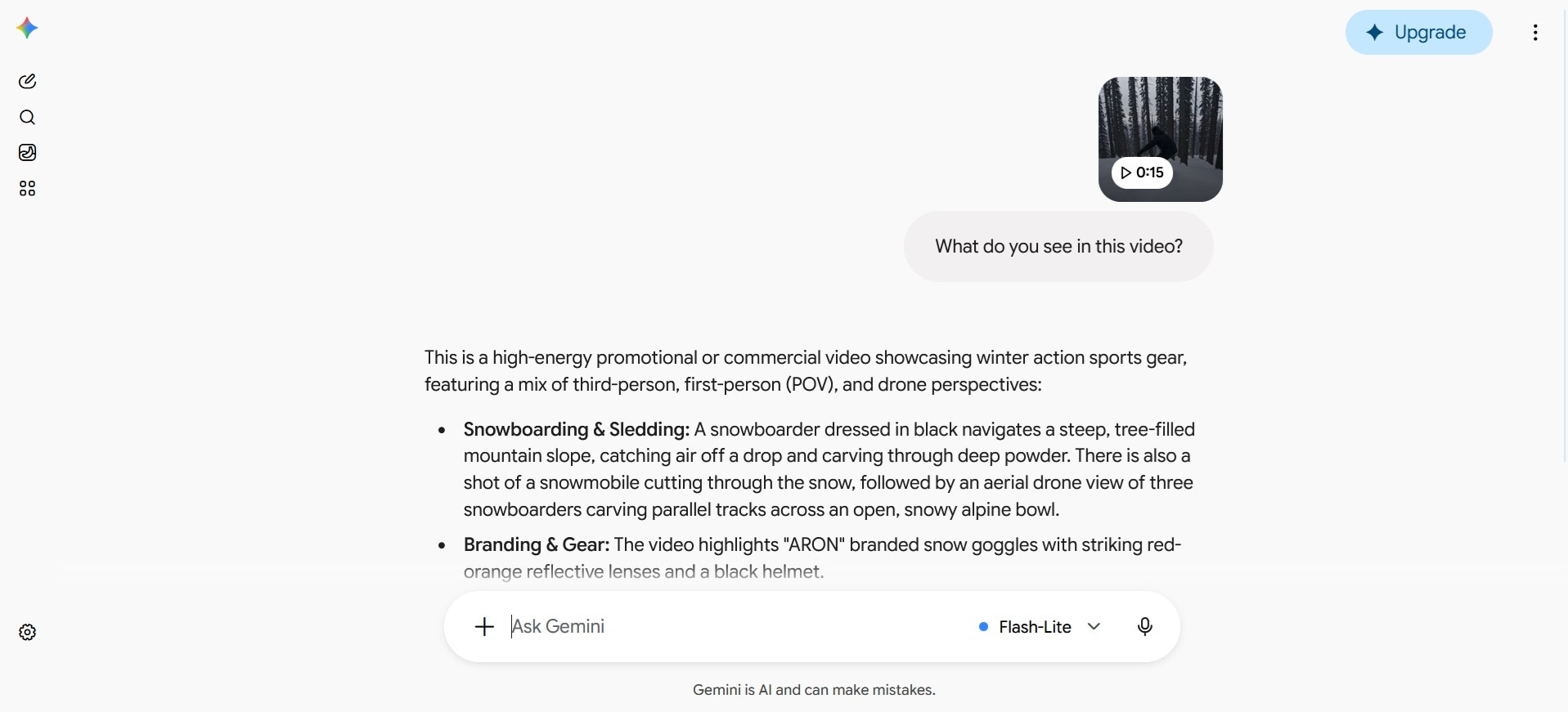
- Step 3. Review Gemini video analysis
Gemini analyzes the video and returns an answer. It can also provide relevant timestamps for questions about specific moments.
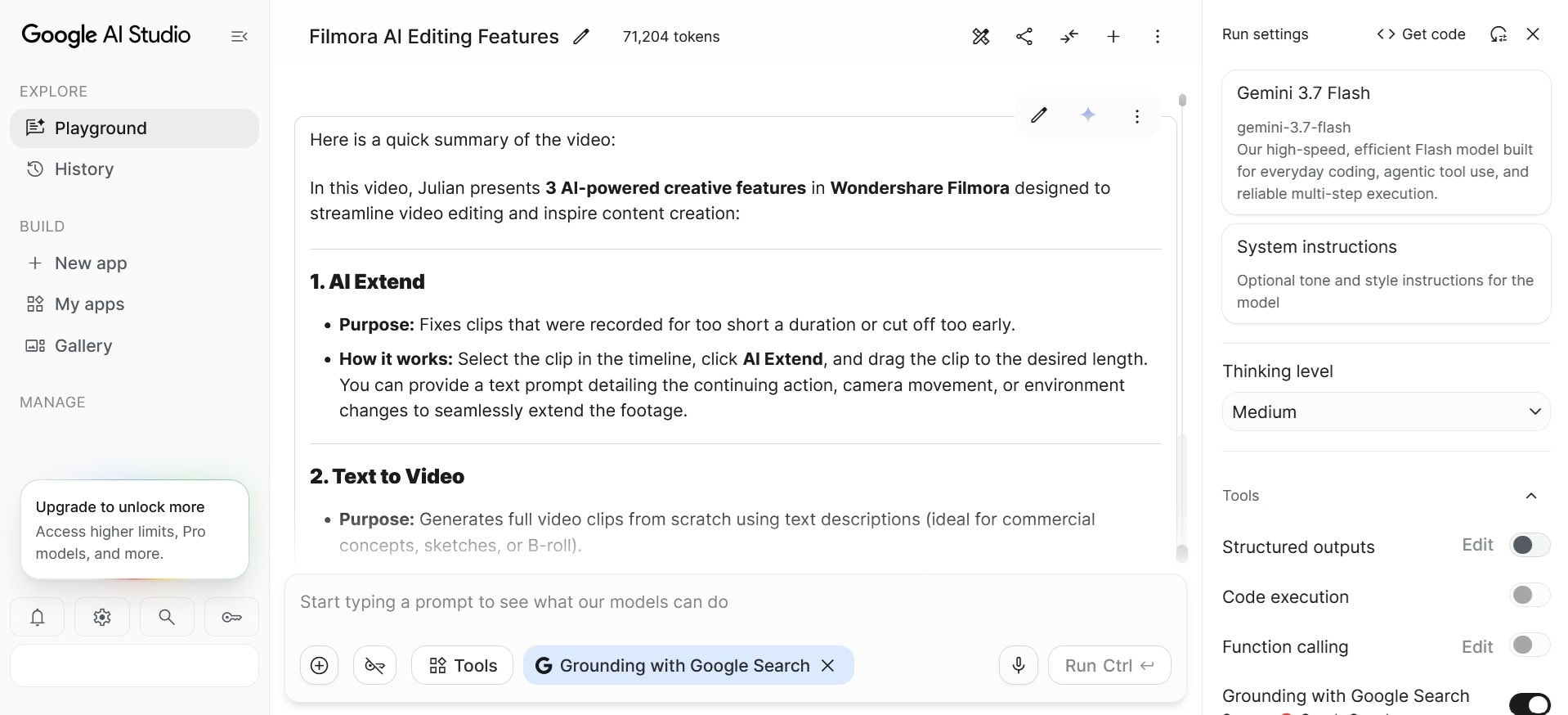
Method 2: Analyze a Video With Google AI Studio
AI Studio is another option to analyze videos with Gemini, especially if you want to compare static versus agentic processing side by side. Some of the models are free to use, while others are available for paid use only. Google may also require some new users to set up prepaid billing before using certain models or features.
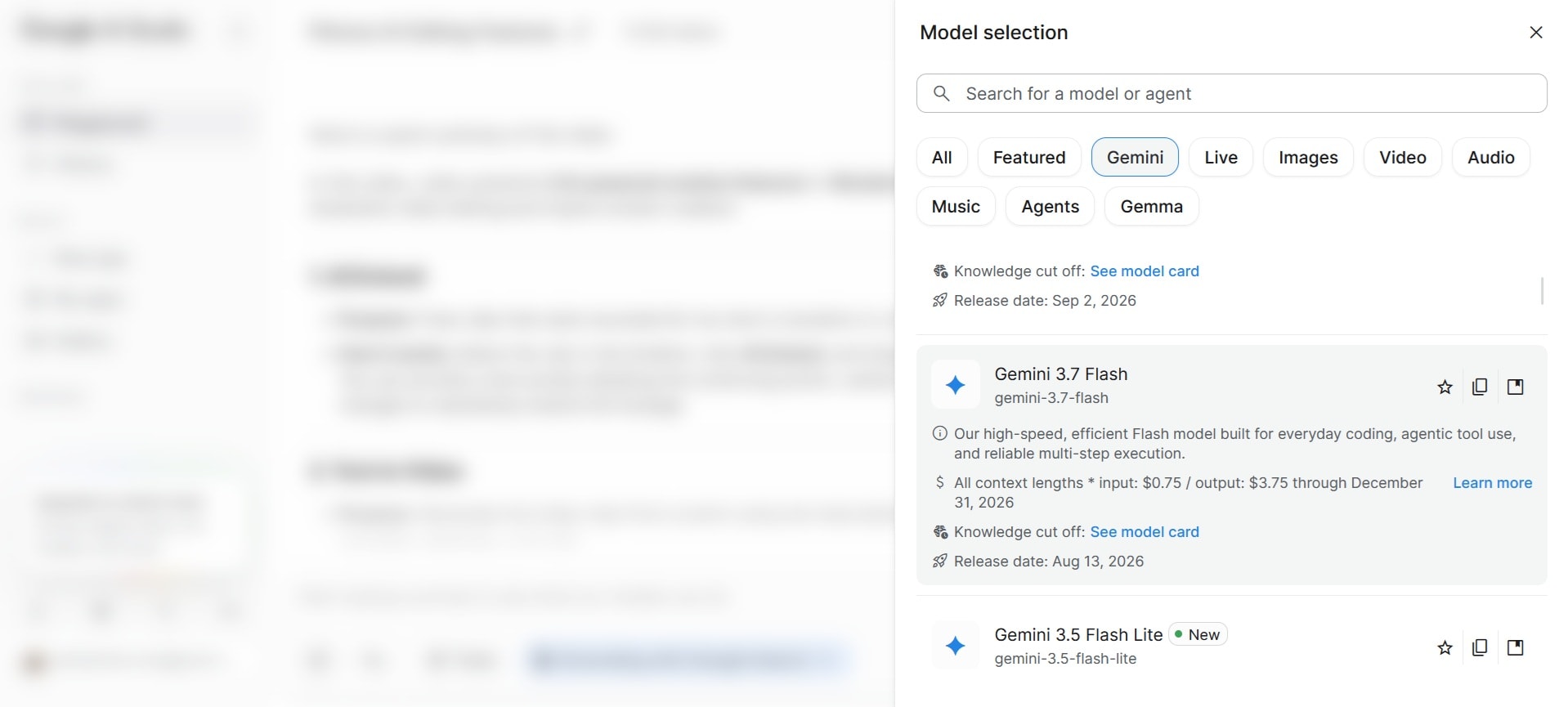
- Step 1. Select a model from AI Studio
Open Google AI Studio and start a new prompt. Then, select a model you want to use.
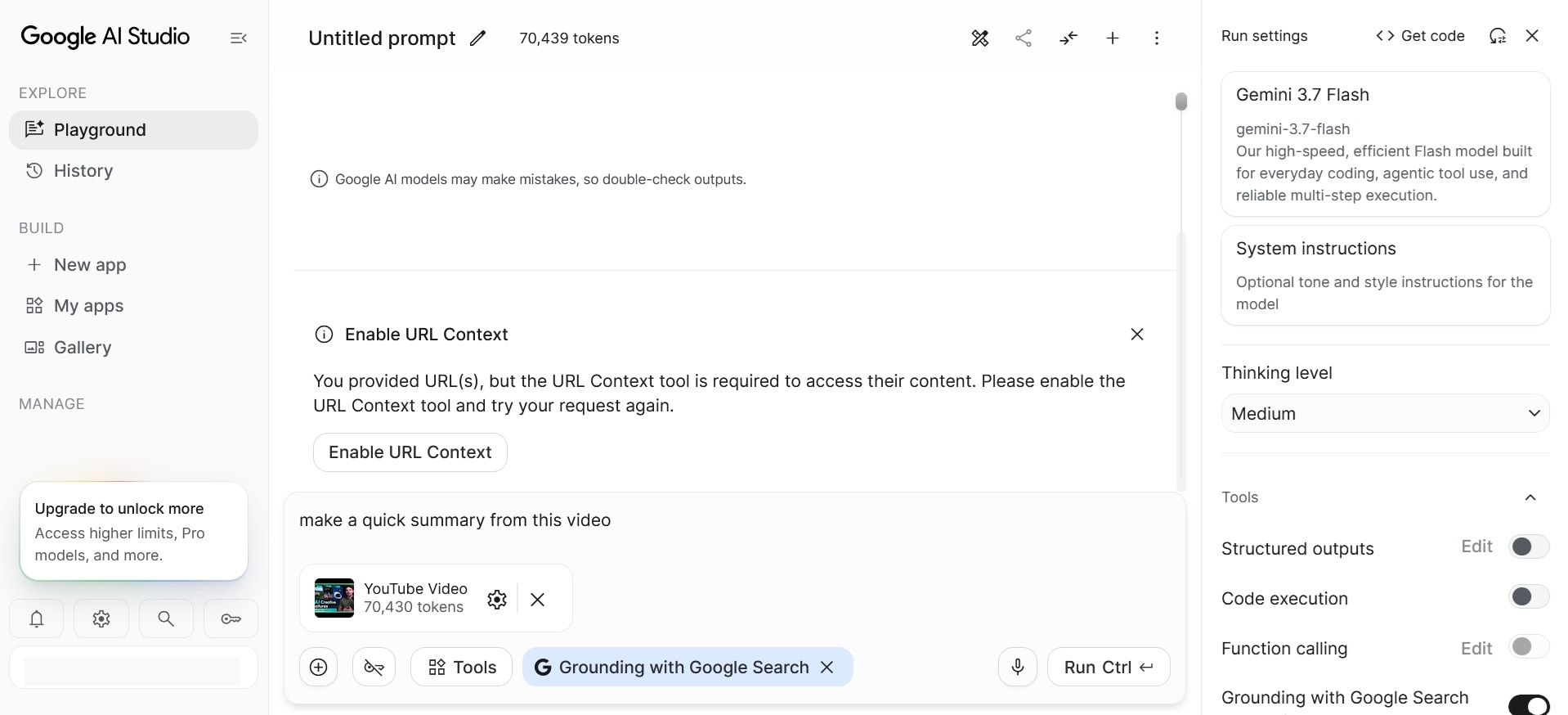
- Step 2. Upload video to AI Studio
Upload the video or paste the YouTube URL for Gemini to analyze. After that, tell Gemini what you want it to find or explain in the video and submit your request.
- Step 3. Review the analysis on AI Studio
Review the response and ask follow-up questions if you need more specific information.
Method 3: Analyze Videos With the Gemini API
For developers, the input for video analysis with the Gemini API can come from four sources:
|
Input Method |
Max Size |
Recommended Use Case |
|
Files API |
20GB (paid) / 2GB (free) |
Large files (100MB+), long videos (10min+), reusable files. |
|
Cloud Storage Registration |
2GB (per file, no storage limits) |
Large files (100MB+), long videos (10min+), persistent, reusable files. |
|
Inline Data |
< 100MB |
Small files (<100MB), short duration (<1min), one-off inputs. |
|
YouTube URL |
- |
Public YouTube videos. |
To start analyzing videos with the Gemini API, you can also set it up through Google AI Studio.
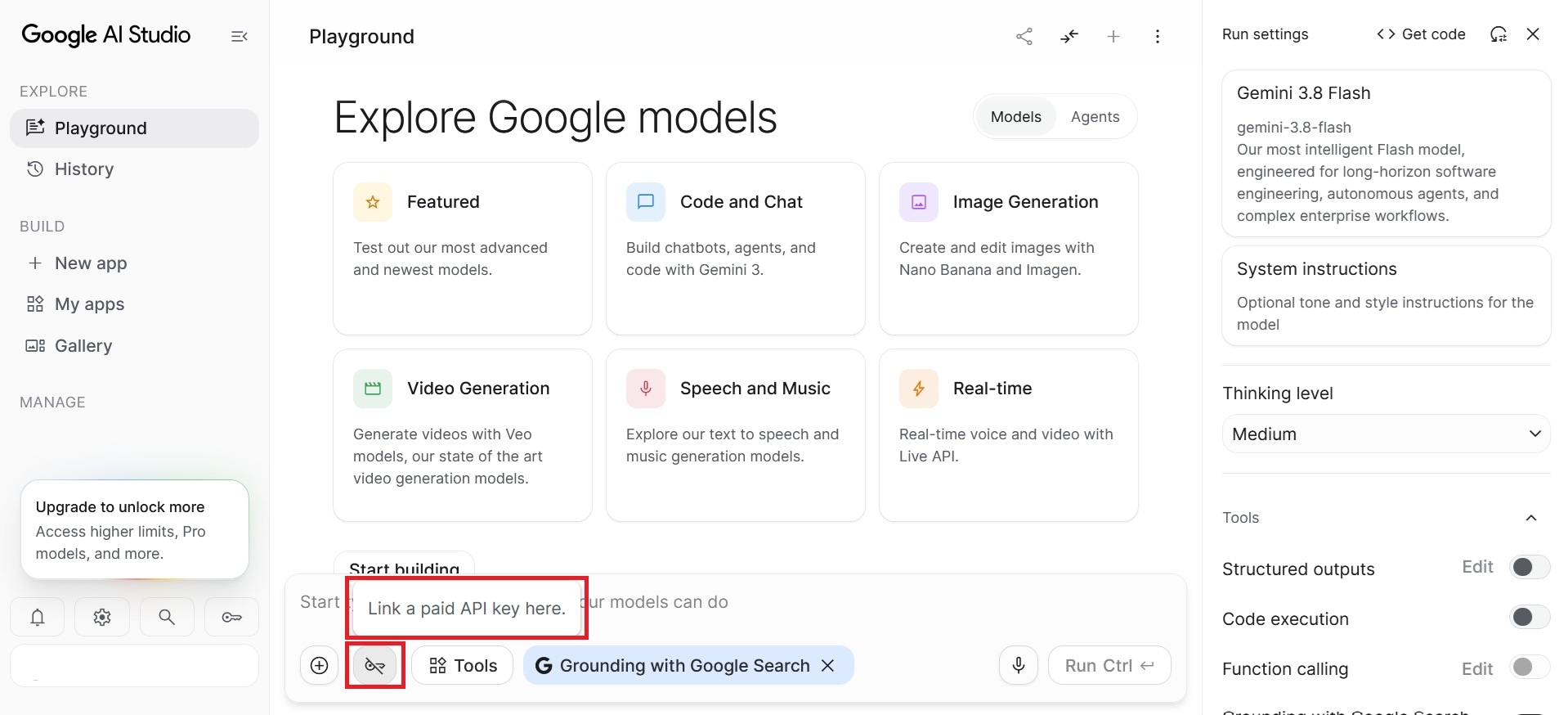
You can then create a new project and API key, or import an existing project, before setting up billing for the paid tier.
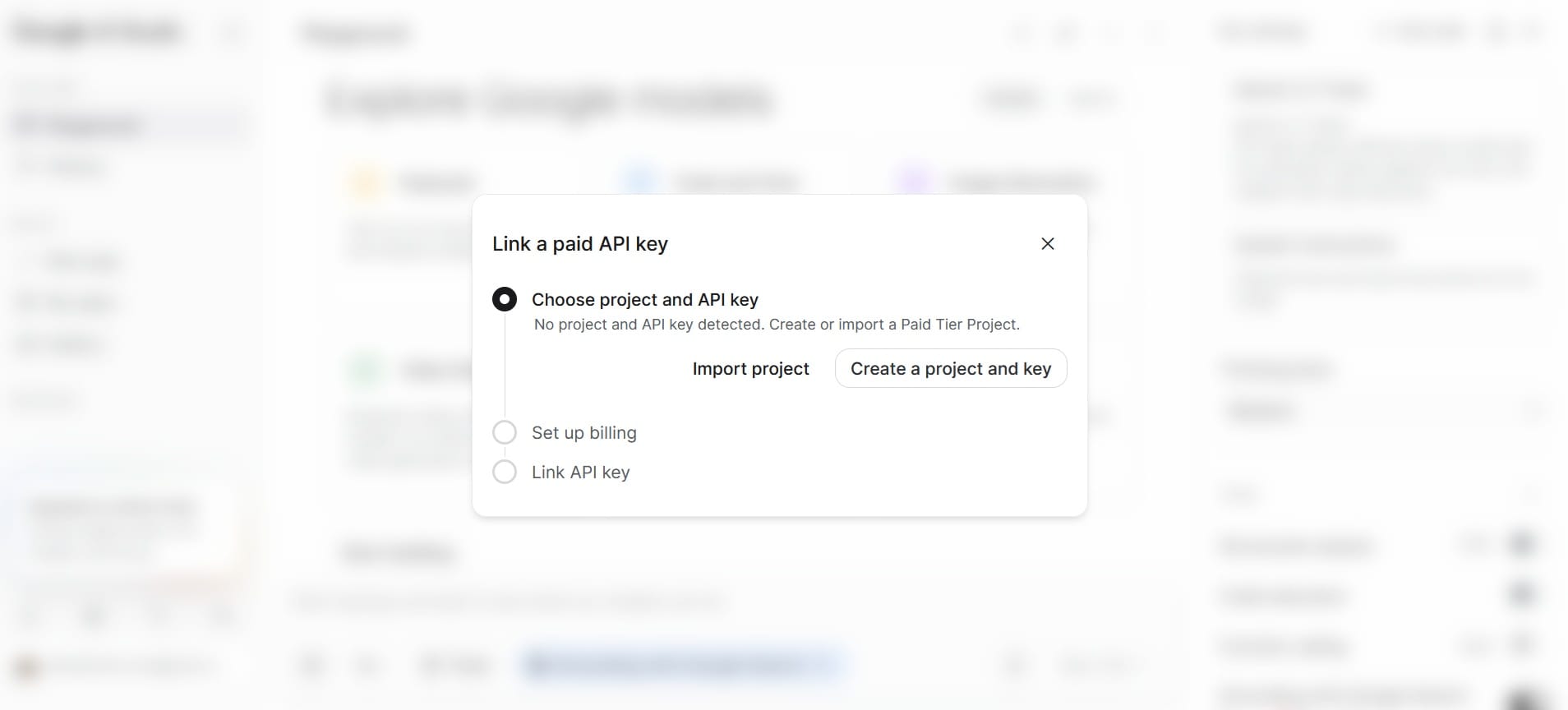
The rest of the steps are basically similar. Use the Files API to upload your video and wait for the video to finish processing.
For supported models, you can enable Agentic Video Understanding through the API by setting the video processing mode to agentic. According to Google, the feature can dynamically decide what parts of the video to inspect and whether to use frames, audio, or transcripts.
Part 3. What Can Gemini AI Video Analysis Do?
The type of information Gemini can pull from a video varies. It depends largely on what you ask it to look for. To give you some ideas, here are some common ways you can use Gemini AI video analysis:
|
Use Cases |
Examples |
|
Video summarization |
Get a quick overview of the main events, topics, or key points in a video. |
|
Answer specific questions |
Ask questions about what happens, what someone says, or what appears at a particular point in the video. |
|
Scene understanding |
Describe a scene, explain what is happening, or identify changes between different parts of the video. |
|
Object/action recognition |
Identify visible objects, people, and actions, such as a person picking up an item or a car entering a scene. |
|
Timestamp analysis |
Find when a specific event, scene, or piece of information appears and ask Gemini to refer to the relevant timestamp. |
|
Transcribe audio |
Extract spoken content from a video or ask questions about what was said. |
|
Content extraction |
Pull out specific information from the footage, such as key points, examples, names, or other details relevant to your prompt. |
|
Structured analysis |
Ask Gemini to organize its findings into a specific format, such as a list, table, JSON structure, or timestamped summary. |
Part 4. Limitations to Know Before Relying on Gemini Video Analysis
As useful as Gemini's video analysis can be, it still has some technical limitations worth knowing before you rely on it. Some of what we found are:
- Small text and fine details can be difficult to read. Gemini may have trouble with tiny text or other details that are difficult to see in individual frames. Google recommends higher media resolution for text-heavy video and small visual details.
- AI-generated answers can be inaccurate. Gemini may misunderstand something in the footage or provide an incorrect interpretation, so important information should be checked against the original video.
- Clipping and custom frame rates only work in static mode. If you want to set a specific start/end offset or a custom FPS, you'll need to switch off agentic processing for that request.
- Content safety filters. Gemini has built-in safety protections that can block certain requests or responses involving restricted content.
- Video processing can use a lot of tokens. Although Agentic Video Understanding can reduce token usage, longer or higher-resolution videos require more processing, which can increase token consumption and API costs.
All in all, always remember that Gemini's video analysis capability is not a replacement for manual review in every situation. If you need frame-level accuracy, detailed visual inspection, or a final decision based on subtle footage, it’s safer to use Gemini only as an analysis aid and verify the result yourself against the original video.
Bonus for Editors: Analyze Videos and Edit in the Same Workspace
If your goal is to analyze footage from a large collection of videos and images, Wondershare Filmora is the tool that keeps both media analysis and video editing in the same workspace. Its AI Media Analysis feature can identify people, scenes, locations, actions, spoken content, and other key information, along with tags, descriptions, editing suggestions, and more.
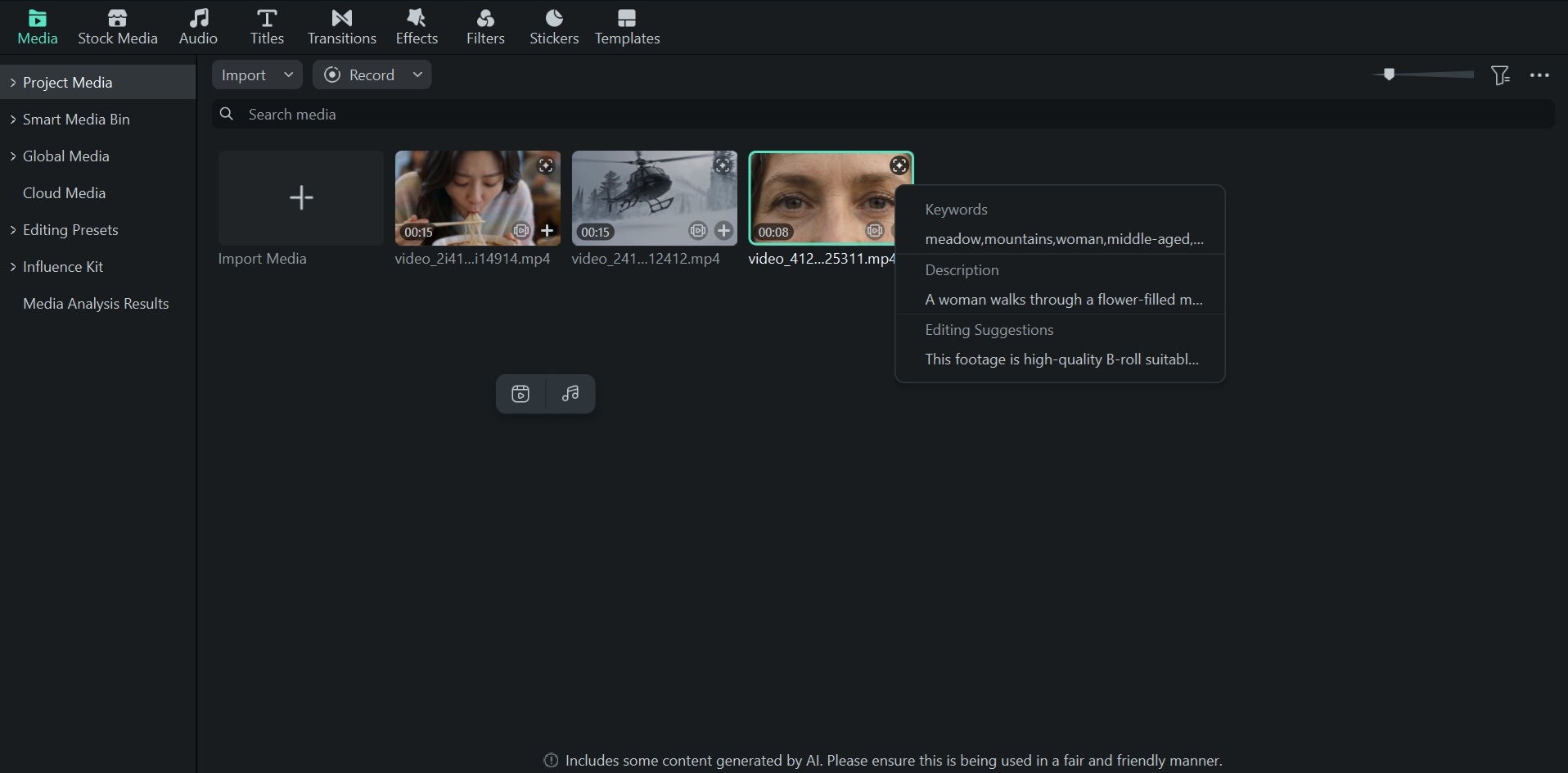
Compared with how Gemini analyzes video, Filmora’s feature is built specifically around the editing process. It’s particularly useful for large, disorganized footage collections where you need to review, filter, and locate specific shots before or during an edit.
With Filmora AI Media Analysis, you can:
- Analyze video and image content. You can get AI-generated tags and descriptions for subjects, objects, scenes, actions, emotions, spoken content, and other details.
- Find useful footage faster. You can use keywords and related terms to narrow down your footage and find relevant material more quickly.
- Get editing suggestions. The AI-generated suggestions can provide a better overview of the footage and help you assess which materials may be useful for your edit.
- Continue editing in Filmora. After reviewing the analysis results, you can use the relevant footage directly in Filmora and continue working on your project.
- Batch analyze your media. Filmora supports analyzing large amounts of footage in one go, so you don’t have to upload and review each clip one-by-one.
How to Analyze Videos in Filmora
Make sure you have the latest version of Filmora installed to use the AI Media Analysis feature. Then, follow the steps below to analyze your videos.
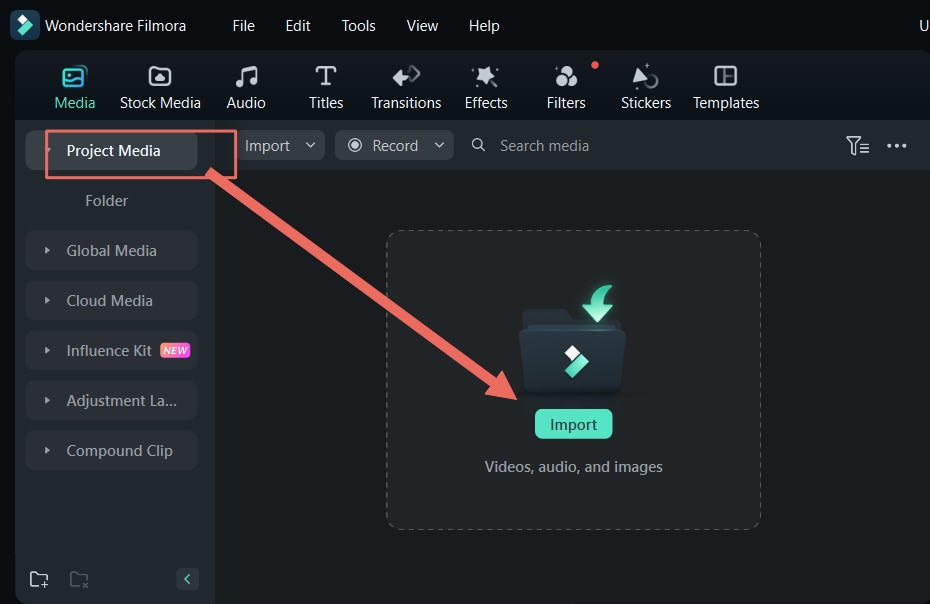
- Step 1. Import video to Filmora
Create a new project and import the videos you want to analyze into the Media panel. You can add multiple videos at once if you have a large collection to review.
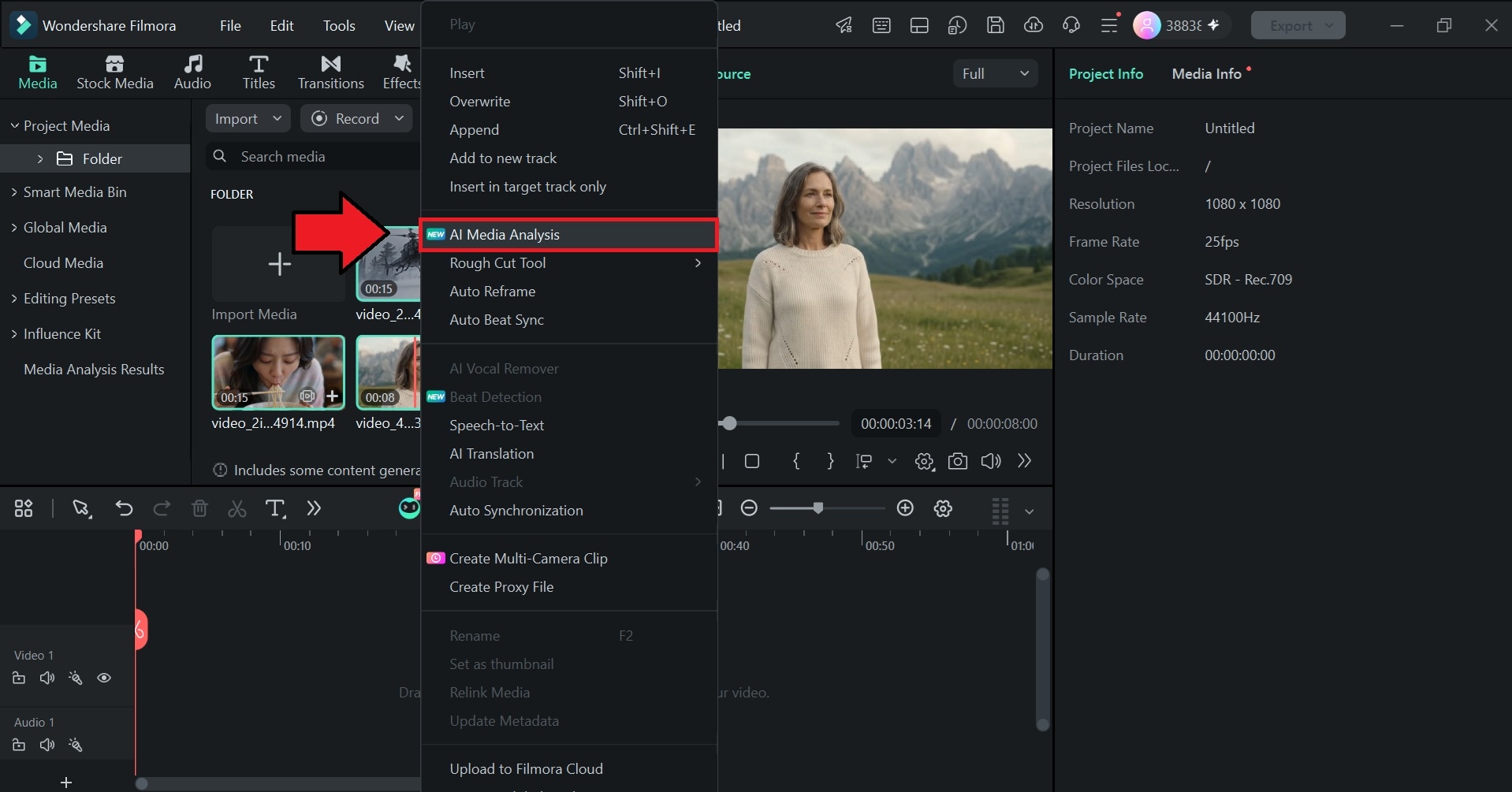
- Step 2. Access Filmora AI Media Analysis
Select the videos you want to analyze. Filmora supports batch analysis, so you can select multiple videos at once. Right-click the selected videos and choose AI Media Analysis.
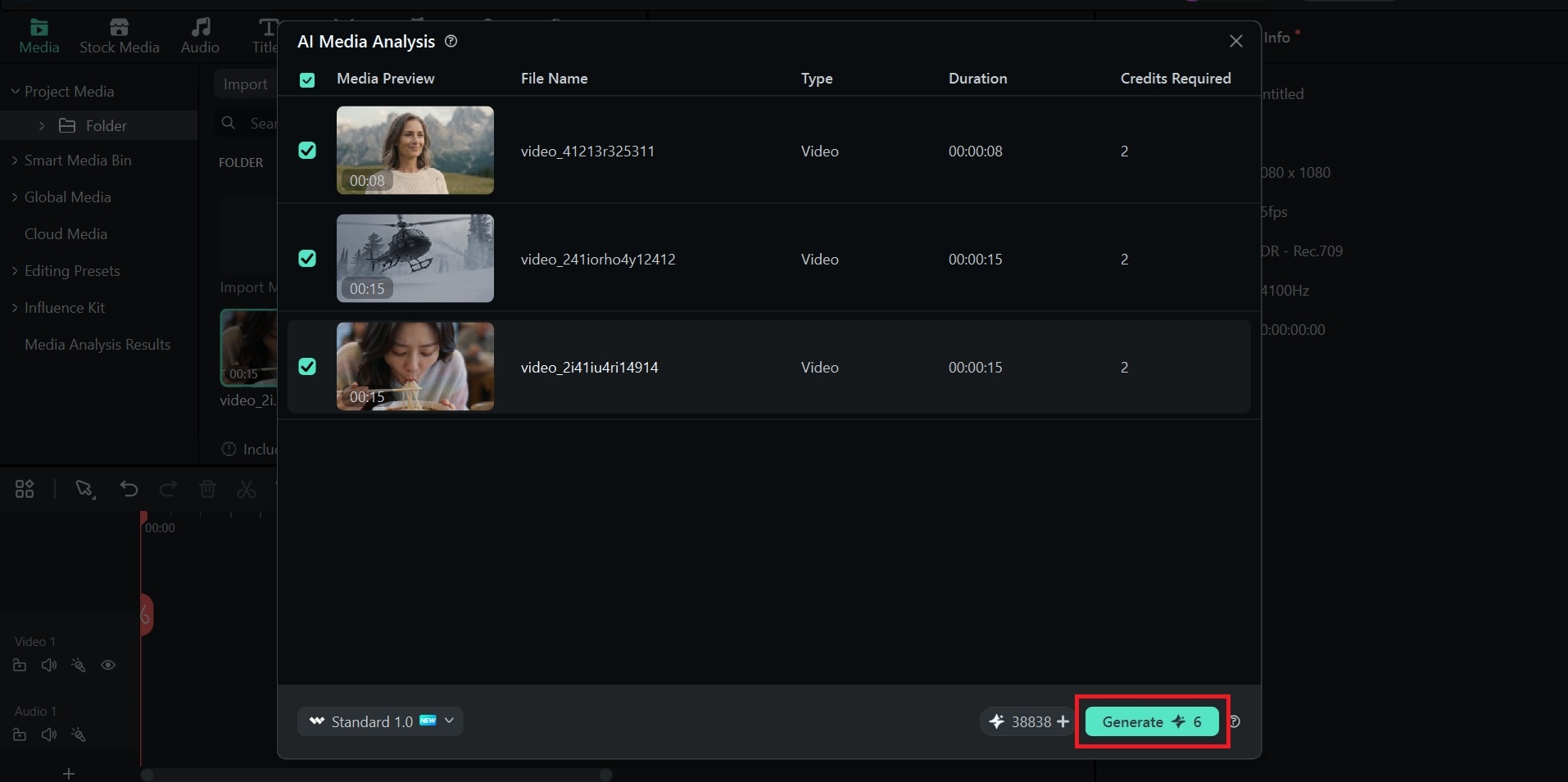
- Step 3. Select media and start generating
A new window will appear showing the clips you selected and the number of AI credits required for the analysis. Review the details and click Generate to proceed.
- Step 4. Review Filmora video analysis result
Filmora will notify you when the analysis is complete. You can view the results under Media > Media Analysis Result, where you can review the AI-generated information for your videos.
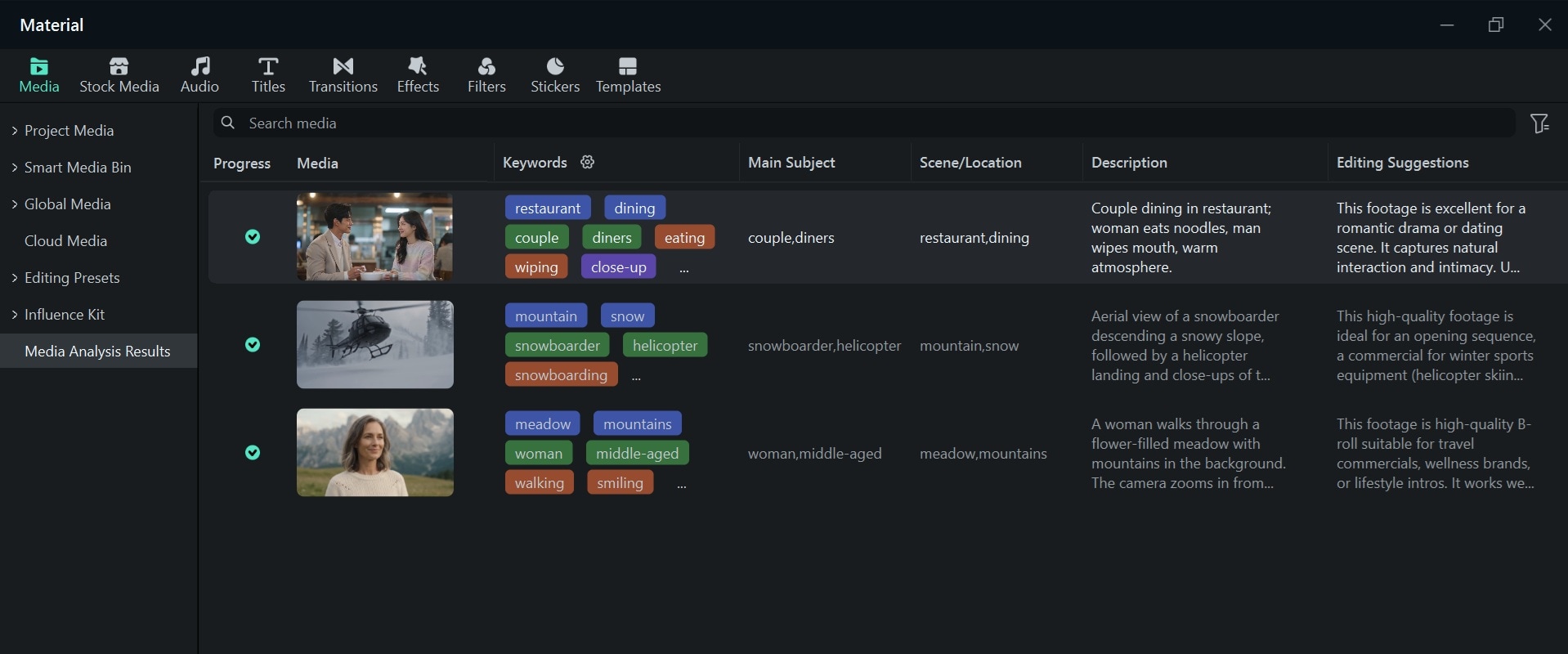
From the analysis results, you can make editing decisions based on the AI suggestions, shortlist relevant materials, and quickly identify the clips you want to use in your project.
Conclusion
Now, you can use Gemini to analyze videos whenever you need to find information, understand what happens in the footage, or get a quick summary. No matter how long the video is or how many details you need to find, Gemini AI video analysis saves you from getting stuck watching everything by yourself.
Just leave it to Gemini to find, summarize, and explain the information you need for you. And even if your case is more focused on editing, Filmora AI Media Analysis can help you review large amounts of media by providing AI-generated tags, descriptions, editing suggestions, and scores to help you find and assess relevant materials directly within the editing workspace.
