

 100% Security Verified | No Subscription Required | No Malware


 ChatGPT
 Perplexity
 Gemini
 Claude
 Grok
Grok
You find an old photo online and want to recreate the same style using AI. However, you struggle to explain every detail in words to the image creation tools. Many creators and content marketers face this challenge every day. That is where AI image description tools become incredibly useful. These tools can analyze photos and generate accurate text prompts within seconds.
They not only help in saving time but also improve overall creative results. Learning how to describe an image with AI can simplify your workflow especially if you are creating digital art. This article discusses the top ways to generate an image to description AI for high-quality end results.
In this article
Part 1. What Is an AI Image Describer and How Does It Work?
An image describer is a smart tool that analyzes pictures and converts visual details into written text. It can identify objects and other objects without manual checking. Many creators now usetools thatgenerate prompts from images to create accurate descriptions of digital content faster.
How Does It Work?
Behind every accurate AI-generated description is a combination of advanced technologies working together. Here is a closer look at how AI image describers actually work behind the scenes:
- Image Recognition Technology: The technology analyzes the uploaded image and automatically recognizes the objects and more that are visible.
- Computer Vision Processing: Advanced computer vision models that examine patterns and the composition of images to see what is in them in detail.
- Natural Language Generation: The system can instantly translate visual information into human language descriptions and detailed instructions after analyzing the picture.
- Context Understanding: Tools today are contextually aware and can deliver more meaningful and realistic image descriptions for the actions.
- Prompt Optimization System: Certain platforms optimize the created text into prompts that are easy for AI systems, such as image generators and creative processes.
Part 2. 4 Ways to Describe an Image with AI
There are multiple effective methods you can follow to describe an image for content creation. Let's explore 4 practical ways to describe an image with AI that make the process simple and accurate.
Method 1: Wondershare Filmora
One of the reliable methods to describe a photo is by using tools like Filmora. The image-to-prompt feature of this tool efficiently analyzes the image using advanced technology. It then converts the visuals into descriptive text to perform further modifications. This helps users turn any image into usable text prompts for editing and AI art generation.
Filmora integrates this capability directly into its image-to-video feature to instantly apply generated prompts to videos. The tool also supports smart enhancement features like auto scene detection, which improve the accuracy of the final output.
 secure download

Steps for Converting an Image to a Description Using Filmora
Read the steps provided below to learn how to use Filmora to describe a photo using its interface::
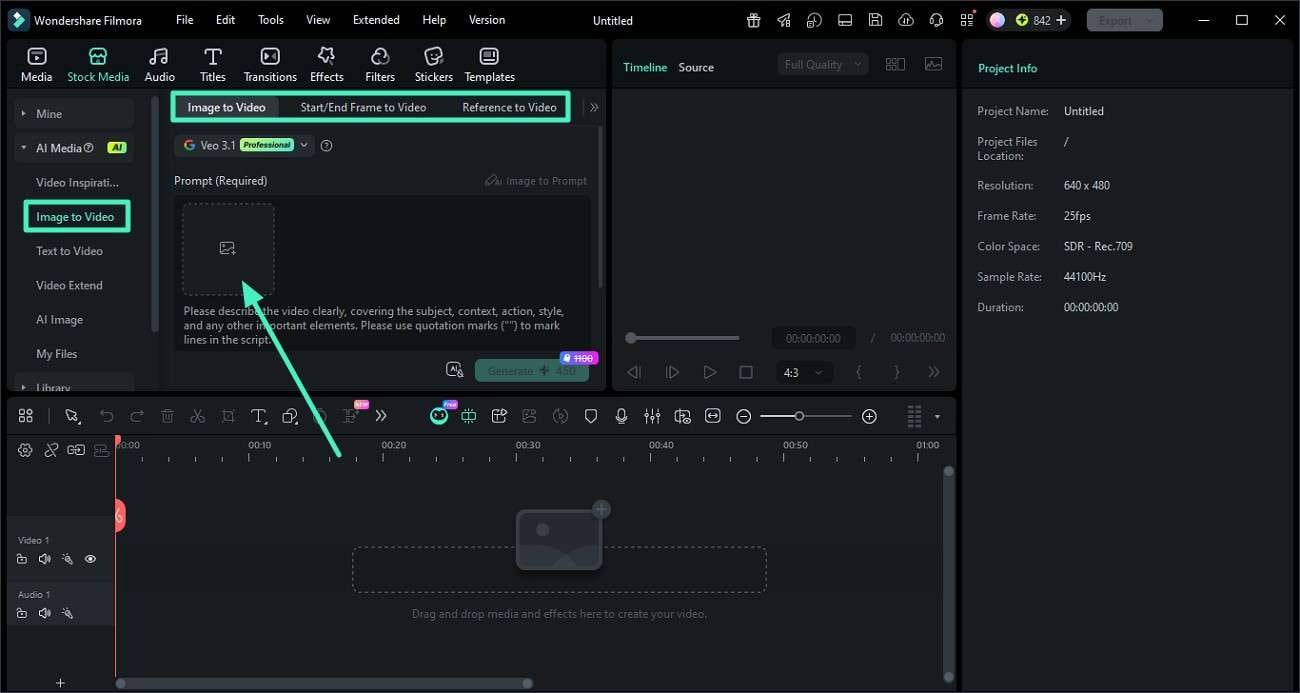
Step 1. Access Image to Video Feature
Launch Filmora on your device and create a new project from the homepage. Now, head to the "Image to Video" section on the left and select the mode. Import the image using the designated option.
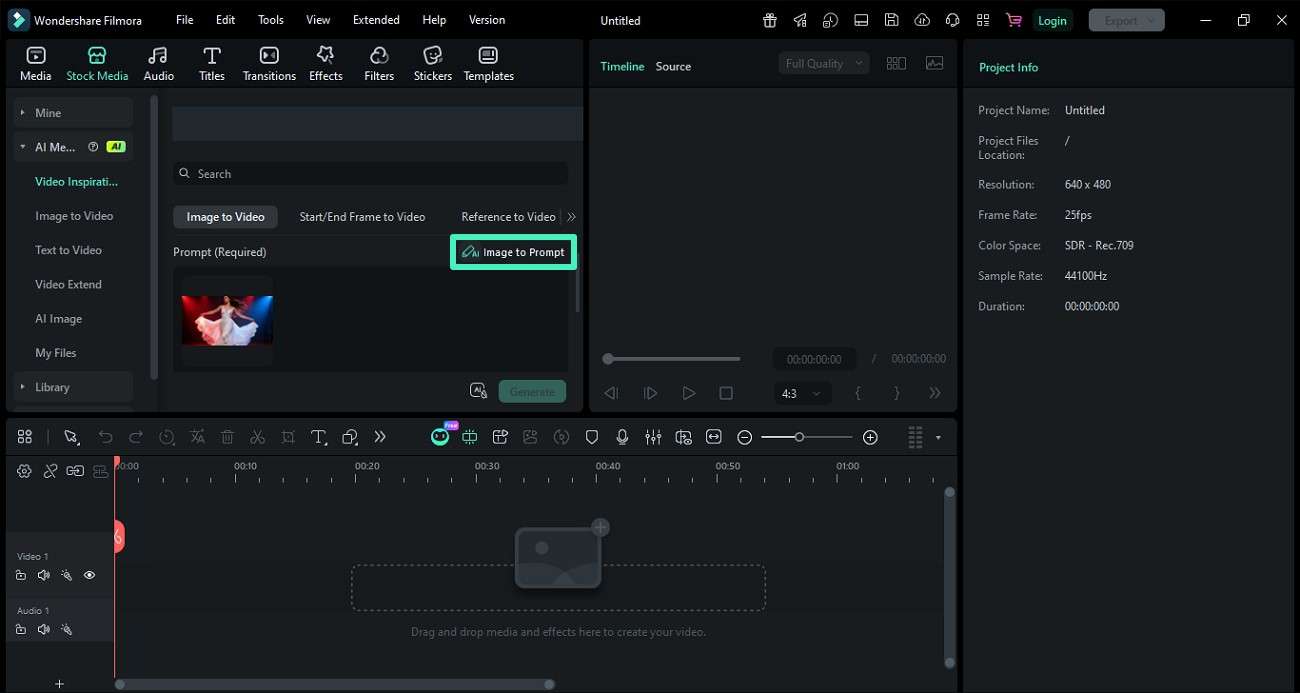
Step 2. Choose Image to Prompt Feature
Once the image is imported, choose the "Image to Prompt" option to let the tool generate an image description.
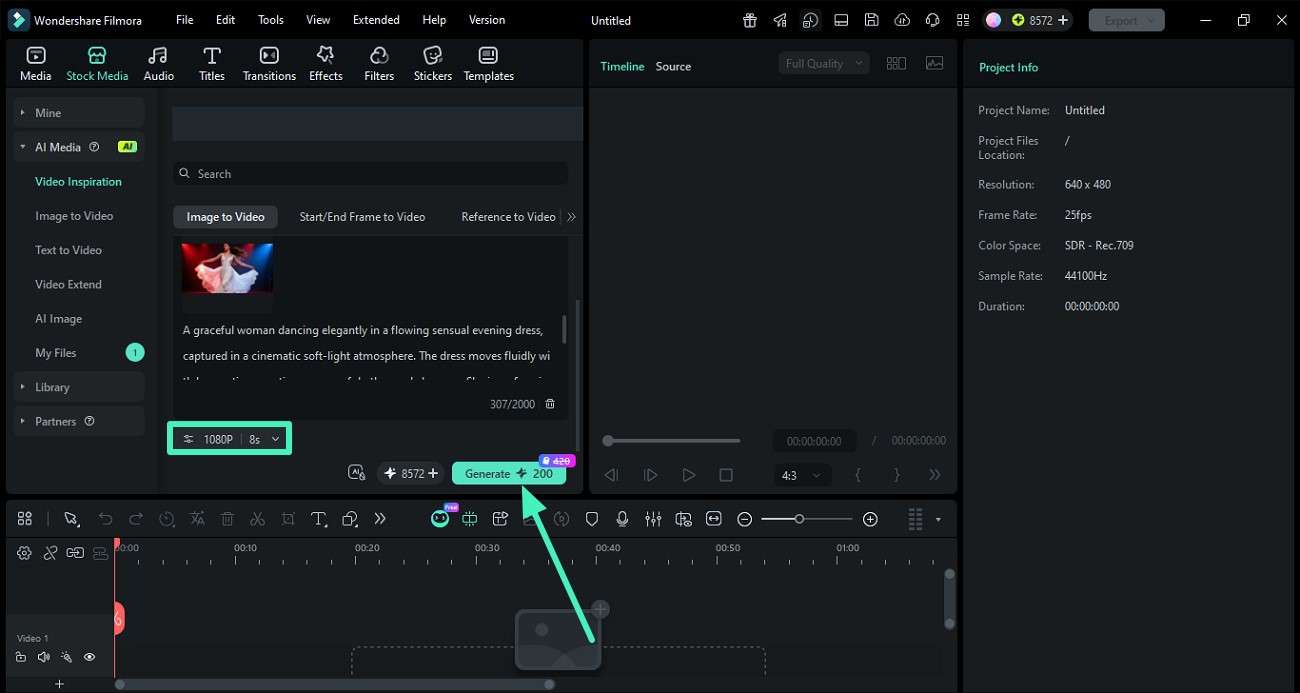
Step 3. Generate Video From Prompt
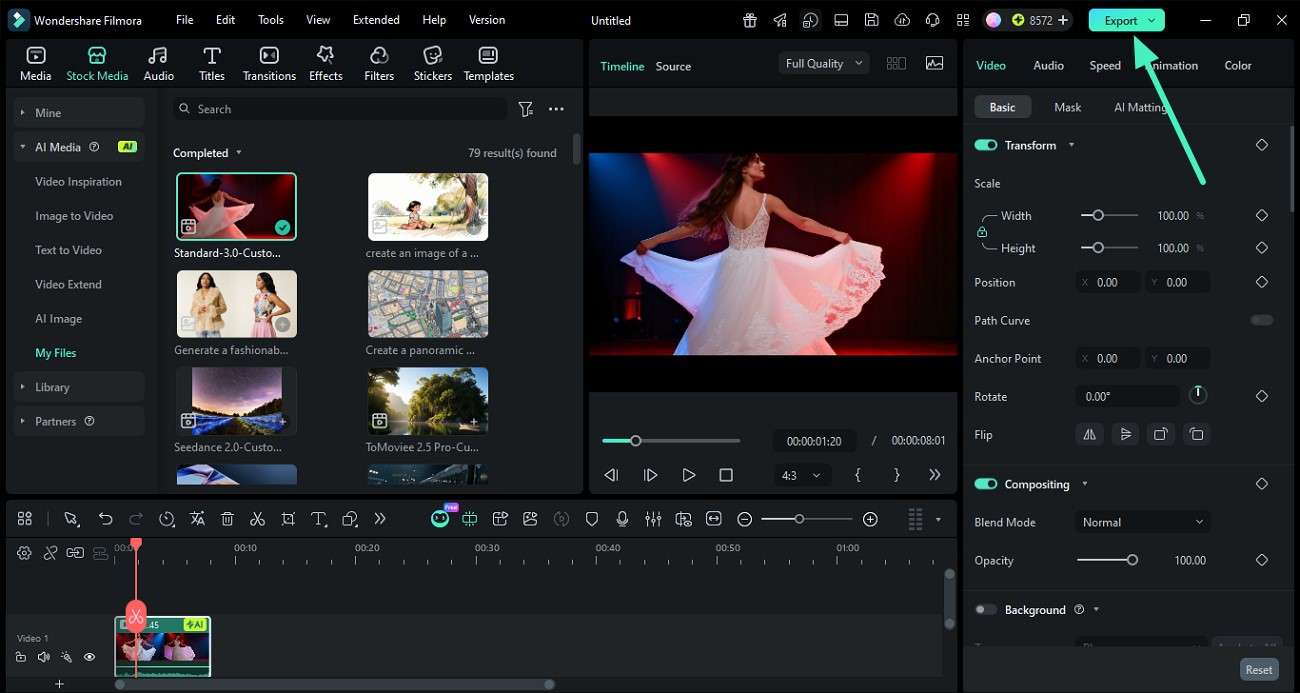
The generated prompt will appear within the window. Modify it according to your preferences and then press the "Generate" button to start generating videos. You can select the resolution and duration for the video before pressing Generate.
Step 4. Preview Video and Save Results
Once the video is generated, preview it within the preview window and save it to the device using the "Export" button.
 secure download
 Method 2: Use Free Online AI Tools
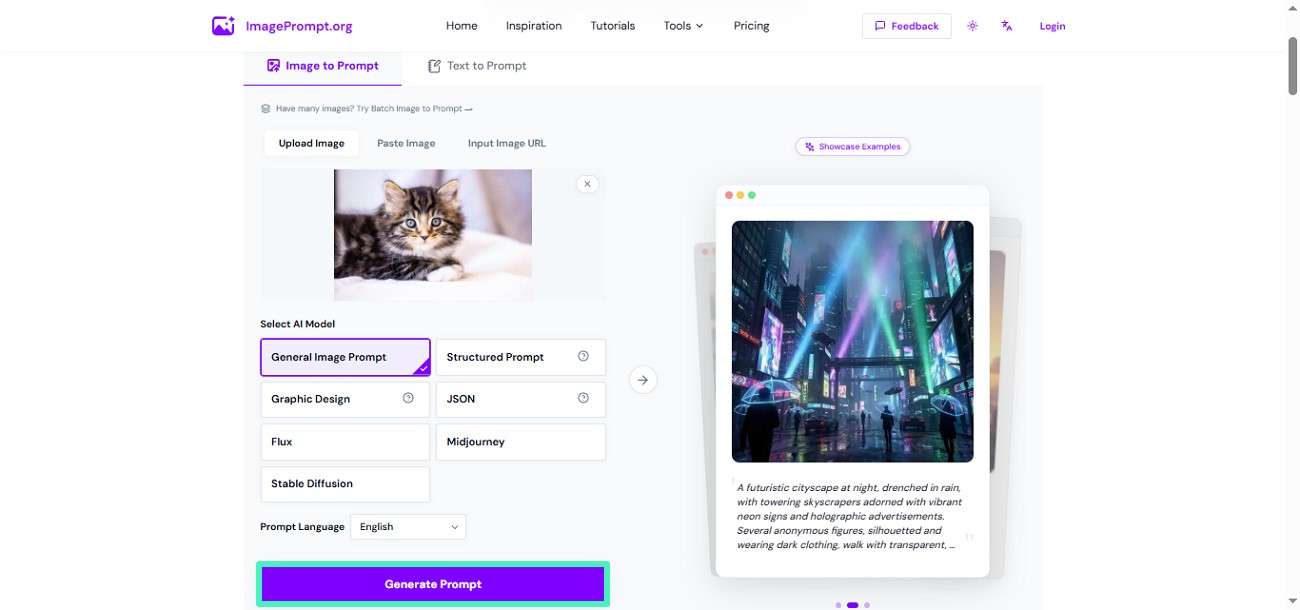
If you want a quick and reliable way to describe a picture, online tools make the process much easier and faster. One of the most convenient options is ImagePrompt.org's free image-to-prompt tool, which is designed for users who need accurate AI-generated descriptions without any technical effort. Read the steps mentioned below to learn how to use this tool for image description generation:
Step 1. Access the tool on your web browser and upload the photo using the designated option. Select the AI model from the options provided and choose the language for the text. Press the "Generate Prompt" button to execute the process.
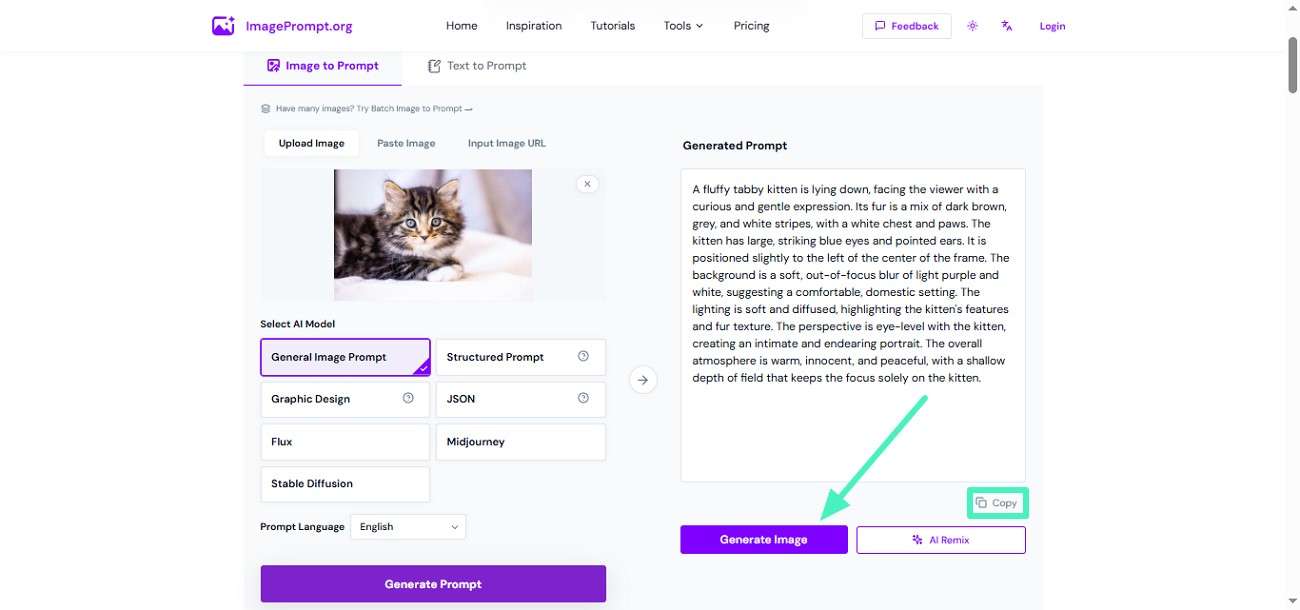
Step 2. Once the text description is generated, copy the text and paste it wherever you want. Alternatively, press the "Generate Image" button to create a picture across the description.
Method 3: Use AI Assistants
Another effective method to describe an image is by using artificial intelligence assistants. These tools can analyze uploaded images or user-provided details and generate clear descriptions in seconds. They are especially useful for creating captions and forming creative prompts for design or content work. Follow the instructions provided below to learn how to use these tools to describe a photo:
Using ChatGPT
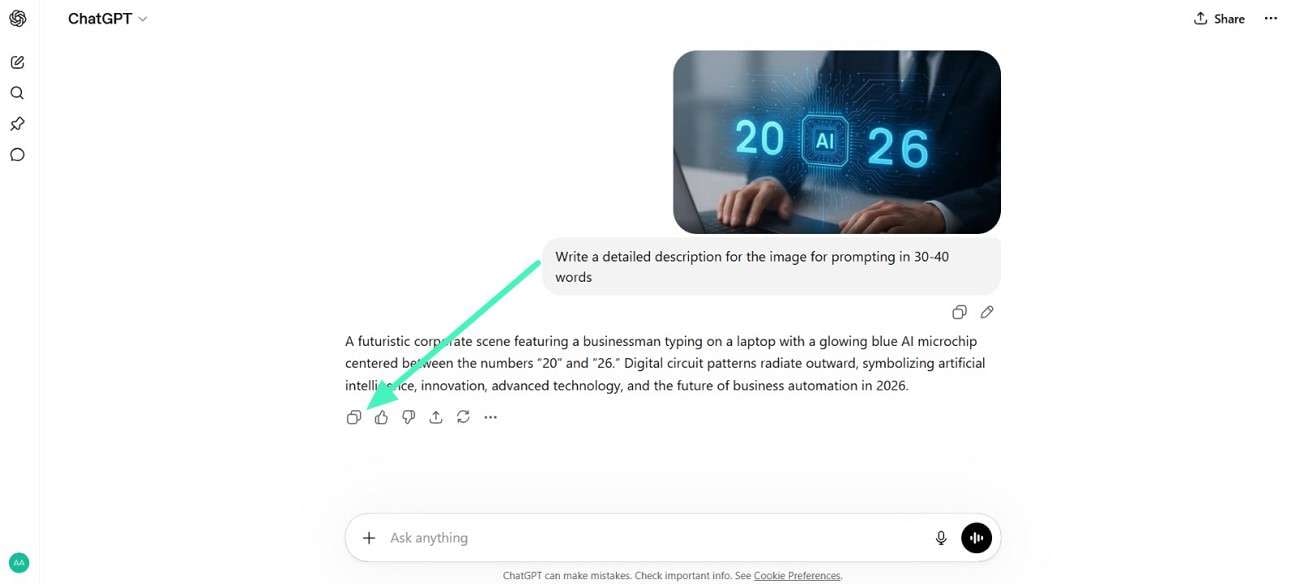
Instructions: Use the "+" icon to upload the photo for description generation to the tool's interface.. Now write the prompt for the asking tool to generate the description for the image. Press the send icon to execute, and the platform will instantly generate a detailed description for the image.
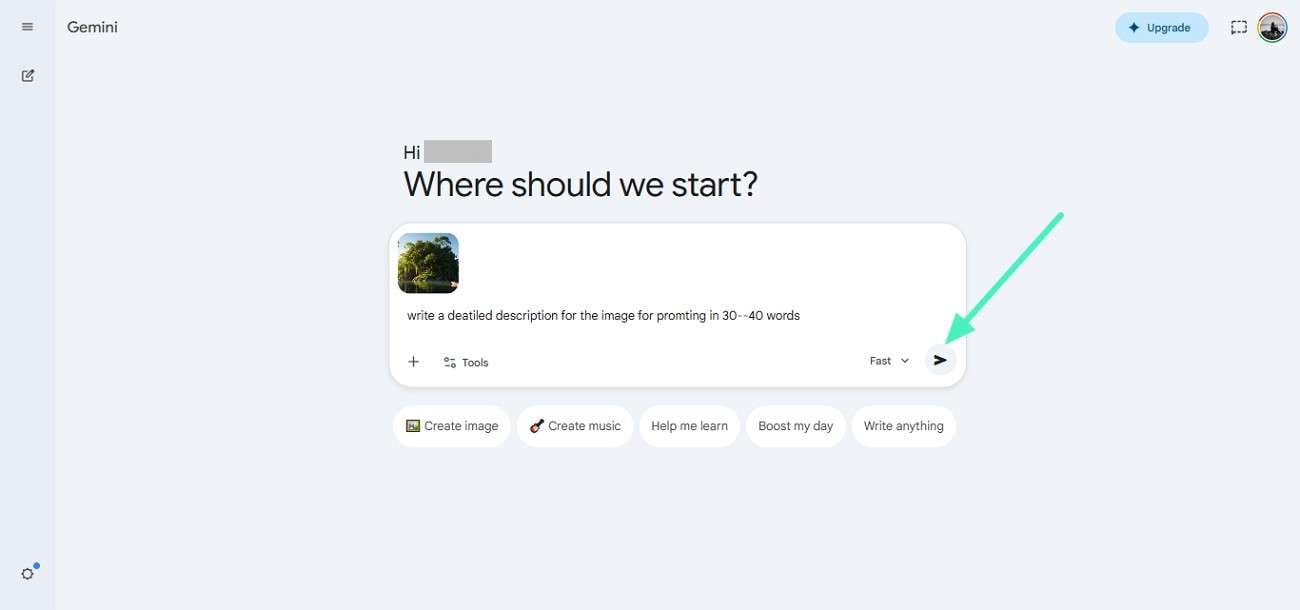
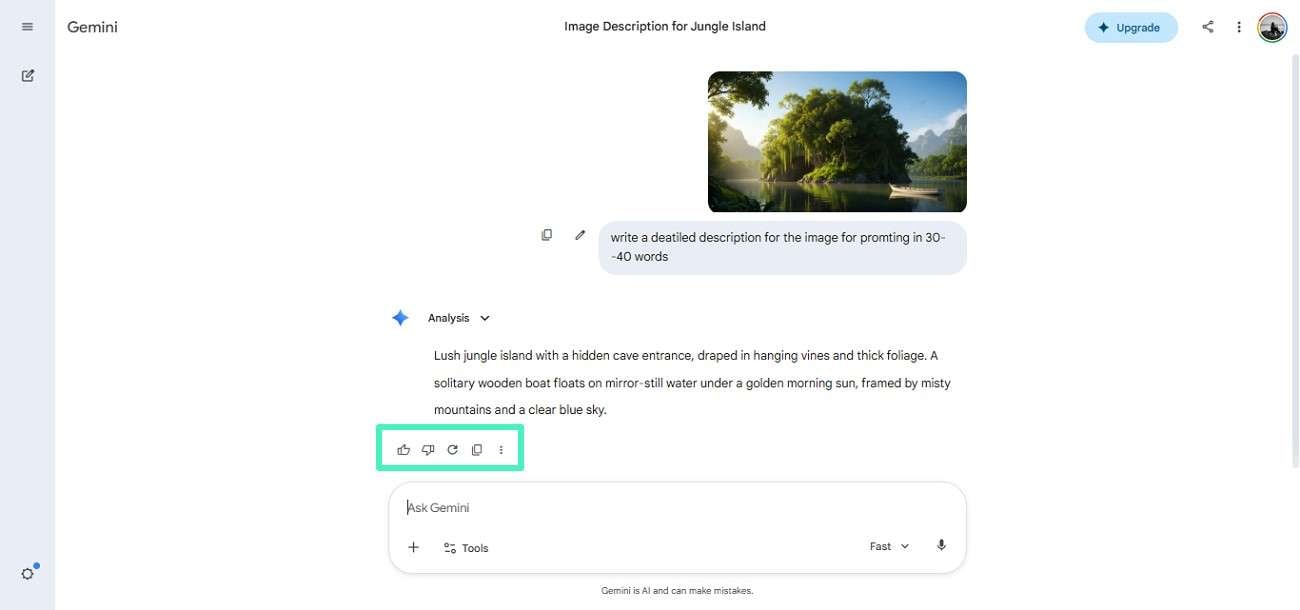
Using Gemini
Step 1. The process is quite the same for this platform, as you simply upload the image and ask the AI to generate a description across it. Hit the "Send" button to execute the process.
Step 2. Click the "Copy" icon to copy the generated description or tap on "Regenerate" to generate the description again.
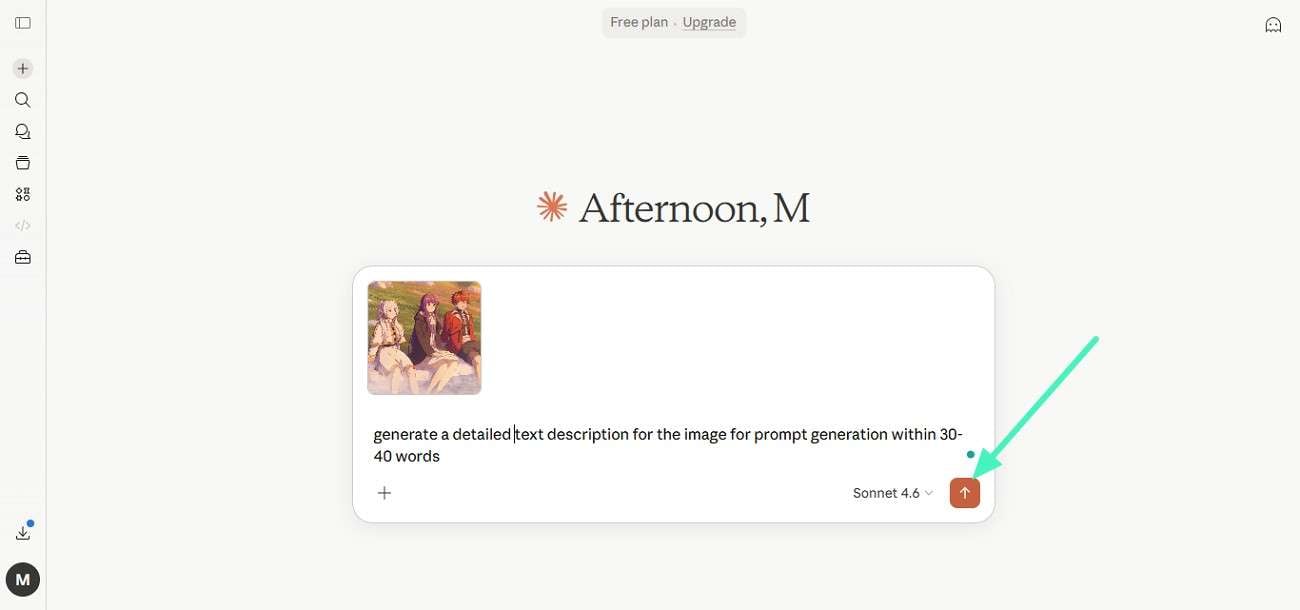
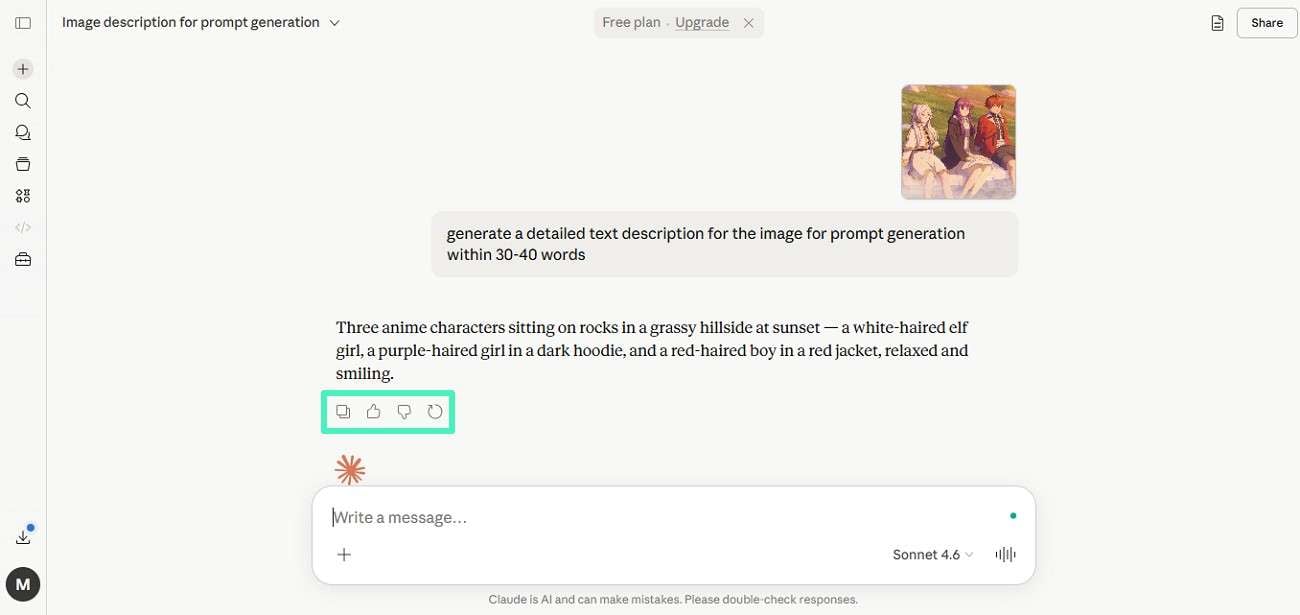
Using Claude
Step 1. Upload the image to the platform's interface using the "+" icon. Now, add a text prompt and hit the "Send" button to continue.
Step 2. Copy the generated prompt and paste it wherever you want for further generation.
Method 4: Run Open-Source Models Locally
Running open-source models locally is one of the most flexible options for advanced users who want full control. Instead of relying on online tools, you can use platforms like ComfyUI and Ollama to process images and generate detailed AI descriptions directly on your system.
ComfyUI is a node-based interface that lets you build custom AI workflows visually. You can connect vision models like Ollama to generate image captions without complex coding. Follow the steps mentioned below to learn how to use this method:
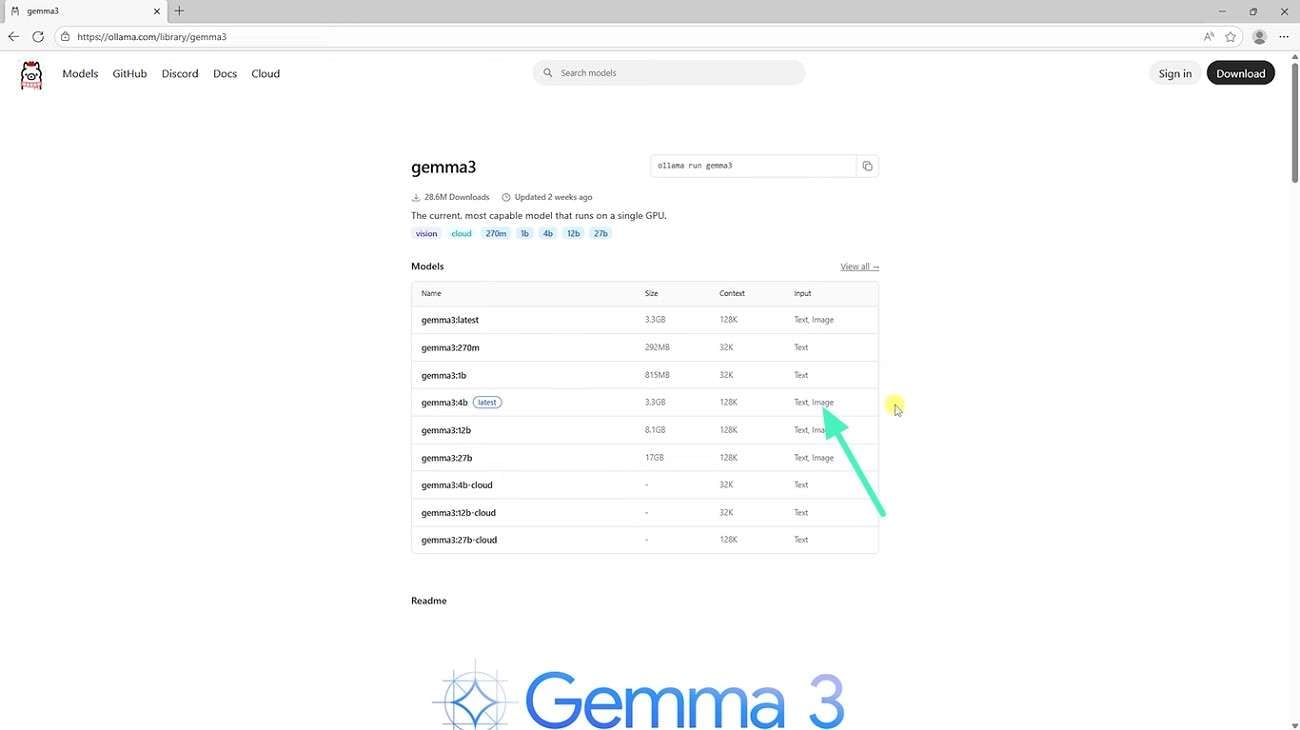
Step 1. Access the Ollama website online and download the image-to-text model from there.
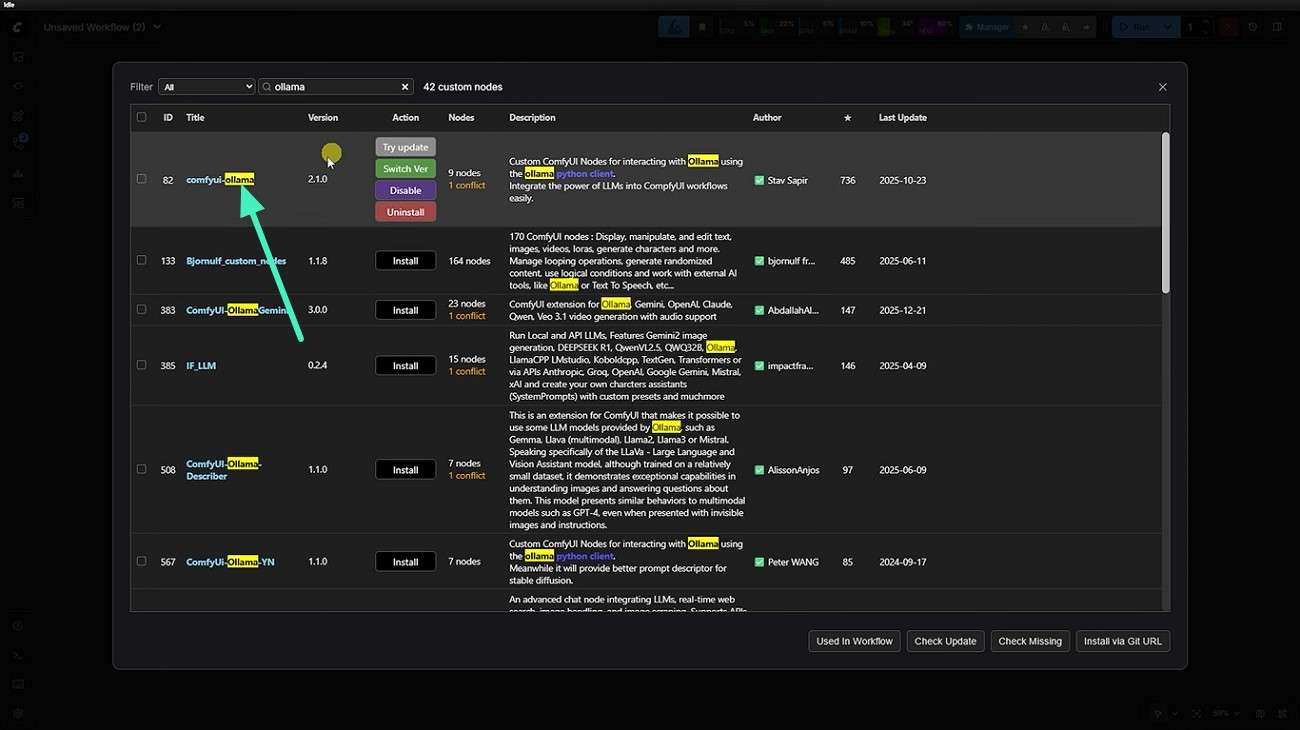
Step 2. Open the ComfyUI interface and search for the Ollama model that you downloaded to integrate it into the system.
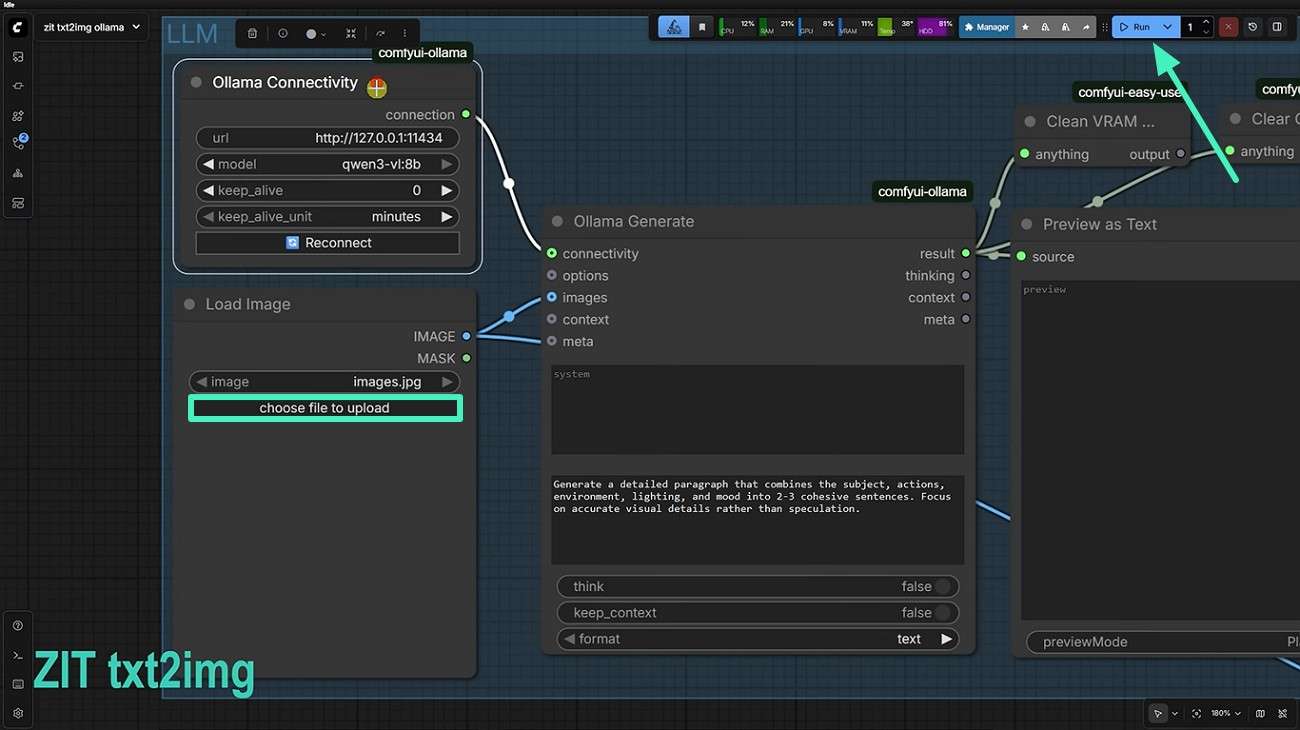
Step 3. Join and connect the image, text, and Ollama nodes within the workspace. Press the "Choose File to Upload" option to upload your image. Next, enter the text prompt in the "Ollama Generate" node and hit the "Run" button.
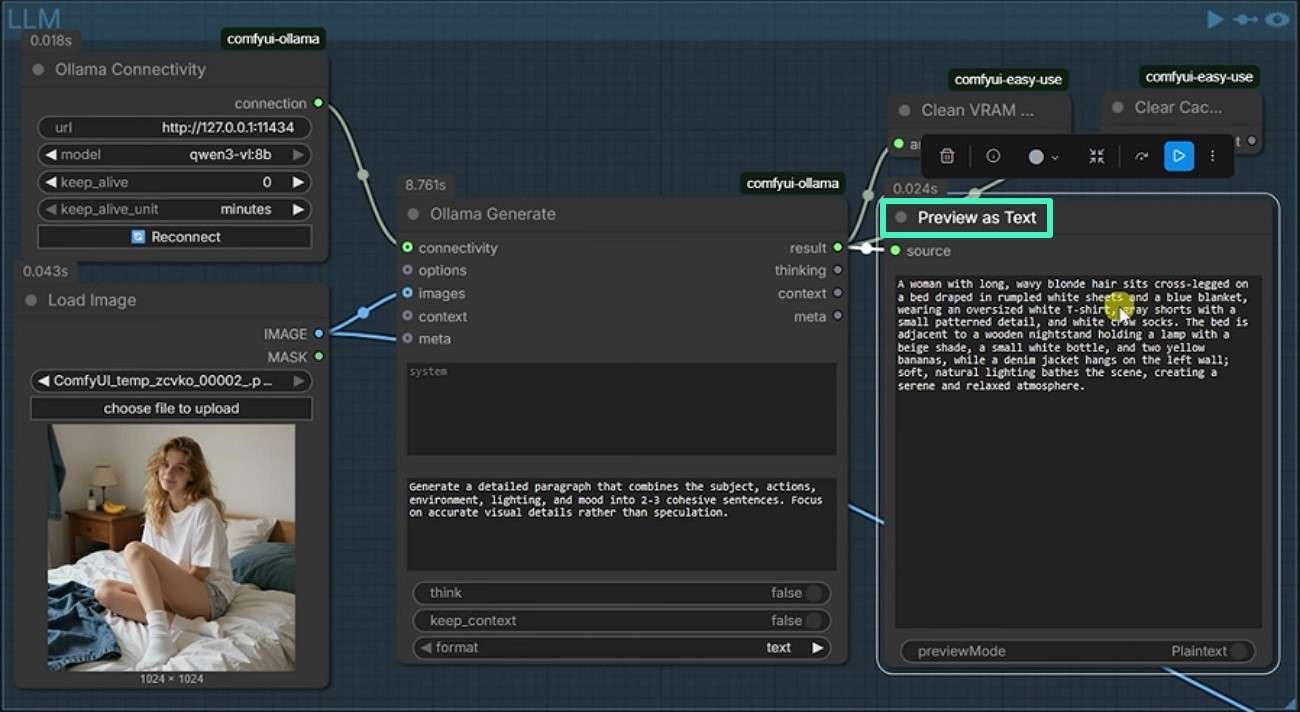
Step 4. The text across the uploaded image will be added in the "Preview As Text" node to further copy and save it.
Part 3. Comparison of the 4 Methods: Which One Should You Choose?
Choosing the right method depends on your goals with several ways available to describe images using AI. Here's a clear comparison of all four methods side by side to make the decision easier:
| Method | Ease of Use | Speed | Features | Best For |
| Wondershare Filmora | Very Easy | Very Fast | AI image-to-prompt, editing integration, resolution control, multilingual support | Content creators and editors |
| Free Online AI Tools | Easy | Fast | Basic image-to-text conversion, quick access | Beginners and casual users |
| AI Assistants | Moderate | Fast | Context-aware descriptions, creative prompts, flexible output | Writers and marketers |
| Open-Source Models | Complex | Moderate | Full customization, offline processing, model control | Developers and researchers |
Part 4. How to Write Better Prompts for AI Image Description
The quality of your results depends heavily on how you structure your prompts once you start using AI tools to describe an image. Here are some practical tips to improve your prompts for AI image description:
- Clarity First: Clearly state what you want the AI to focus on, such as objects, background, or emotions in the image.
- Add Context: Mention the reason for your creation to the tool for accurate results.
- Use Structured Requests: Ask for output in bullet points or paragraph forms for better readability.
- Define Tone: Specify what type of tone you want, such as professional or even general.
Conclusion
All in all, users learned how to use image-to-description AI using different methods. Each approach offers unique benefits depending on skill level and purpose. Wondershare Filmora is one of the reliable options for a complete and seamless experience. It offers powerful AI accuracy with easy editing and creative control in one platform.
secure download Frequently Asked Questions
-
1. What is the best way to describe an image using AI?
The best way to describe an image in text varies with your preferences. Using tool like Wondershare Filmora is highly recommended for accurate and fast AI-powered image descriptions. -
2. Can beginners use AI tools to describe images?
Most tools, including Filmora and online AI platforms, are beginner-friendly and require no technical skills. Users can generate detailed image descriptions in no time with these tools. -
3. Do AI image description tools work offline?
Advanced workspaces like ComfyUI offer offline generation of descriptions from images. You can integrate different LLMs into the interface and create text prompts accordingly. -
4. Which tool gives the most accurate results?
Wondershare Filmora is one of the tools that offers accurate and structured outputs by combining AI analysis with smart editing features in one platform.
