

 100% Security Verified | No Subscription Required | No Malware


 ChatGPT
 Perplexity
 Gemini
 Claude
 Grok
Grok
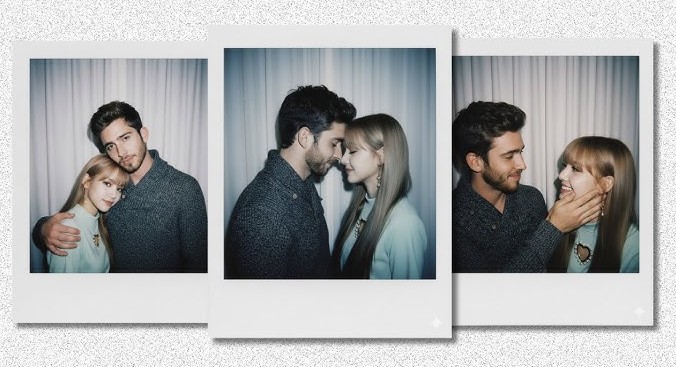
The Polaroid Gemini AI trend is taking over social media, with users everywhere creating dreamy, vintage-style photos using Gemini AI. These images look cool with soft tones, white borders, and that nostalgic charm. People are now using it in fun ways. This includes photos of them hugging their younger self, cozy couple photos, etc.
What makes it even more exciting is how easy it is to do. With just a few words and your favorite photos, you can turn simple pictures into beautiful, retro-style masterpieces.
In this guide, we’ll show you how to create your own Polaroid photos. And to make it even easier, we have put together some creative Gemini AI polaroid prompts you can try out.
Part 1: How to Make Polaroid Photos Using Gemini AI
Creating your own Polaroid photo using Gemini AI is super easy. Just follow these steps:
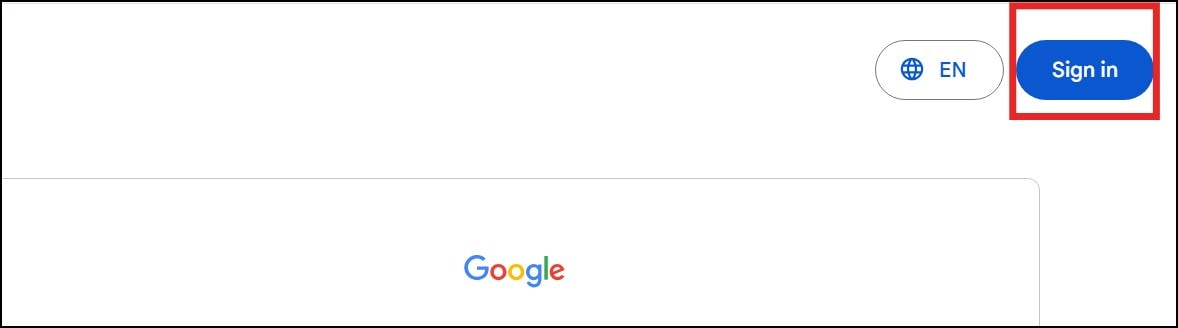
Step 1: Go to Google Gemini
- Visit Google Gemini on your device
- If you prefer an app, you can download Gemini from your device’s App
- Then, sign in with your Google account
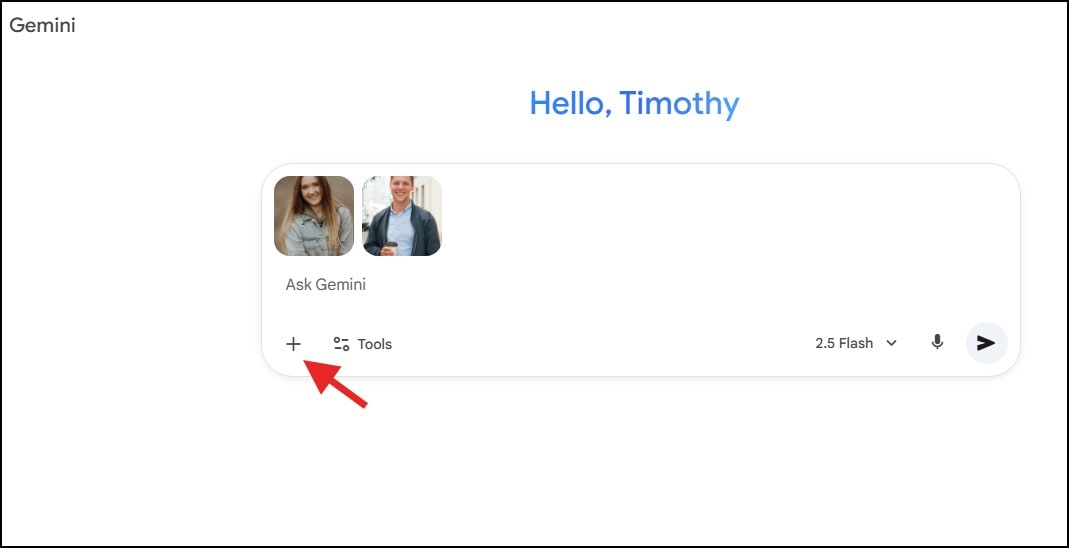
Step 2: Upload the Two Photos You Want to Combine
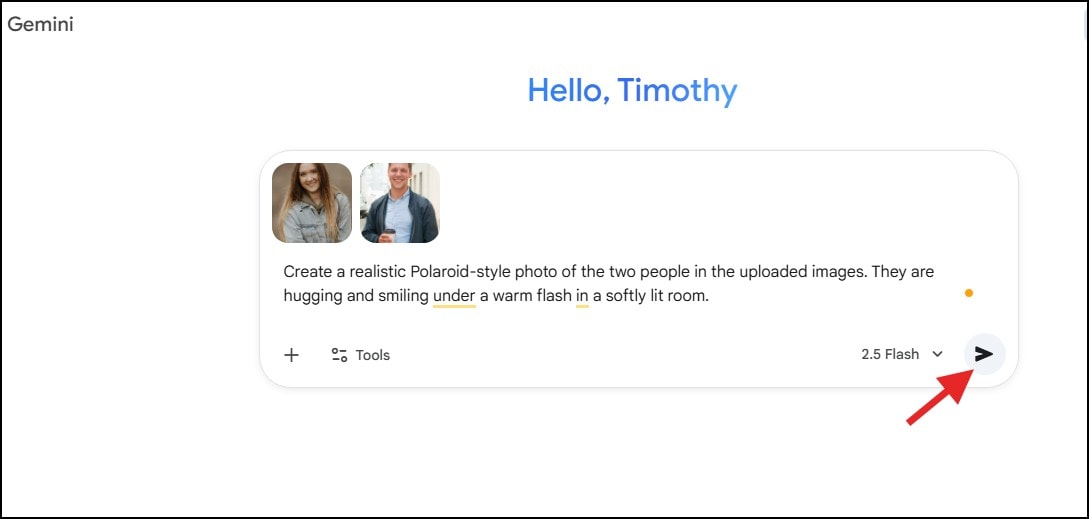
- Once signed in, tap or click the “+” icon in the textbox to upload images.
- Select two photos that you want to experiment with
- For best results, make sure the pictures are clear and show the faces and upper body
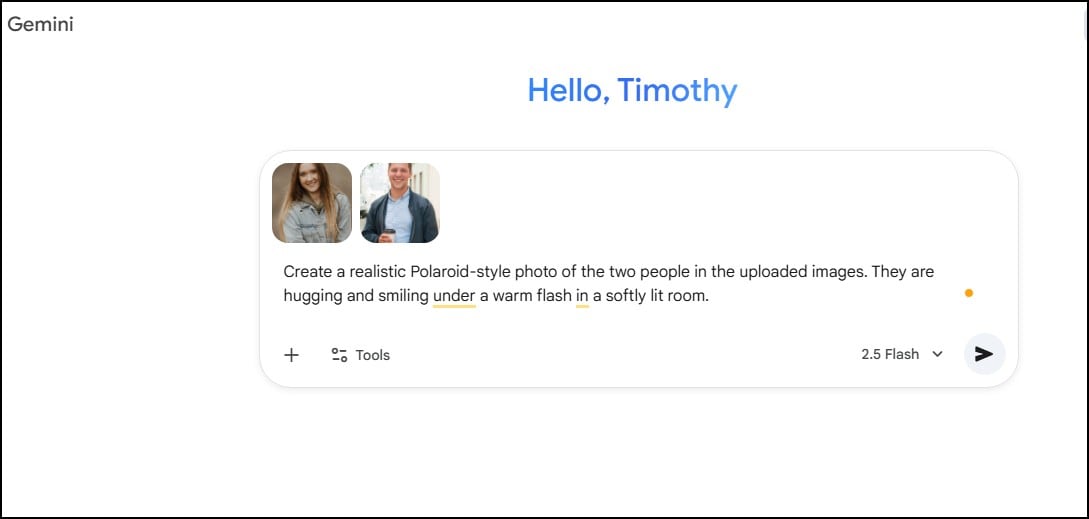
Step 3: Write or Paste Your Polaroid Prompt
- In the text box, type a descriptive polaroid Gemini AI prompt or paste one from our list below.
- Be specific about details like lighting, pose, and emotion to get a realistic result.
Example prompt:
“Create a realistic Polaroid-style photo of the two people in the uploaded images. They are hugging and smiling under a warm flash in a softly lit room.”
Step 4: Generate and Download Your Polaroid Image
- Press Enter or click on the Arrow
- Then, wait a few seconds while Gemini creates your Polaroid photo.
- Once the image is created, tap on it image and click the Download icon in the top-right corner.
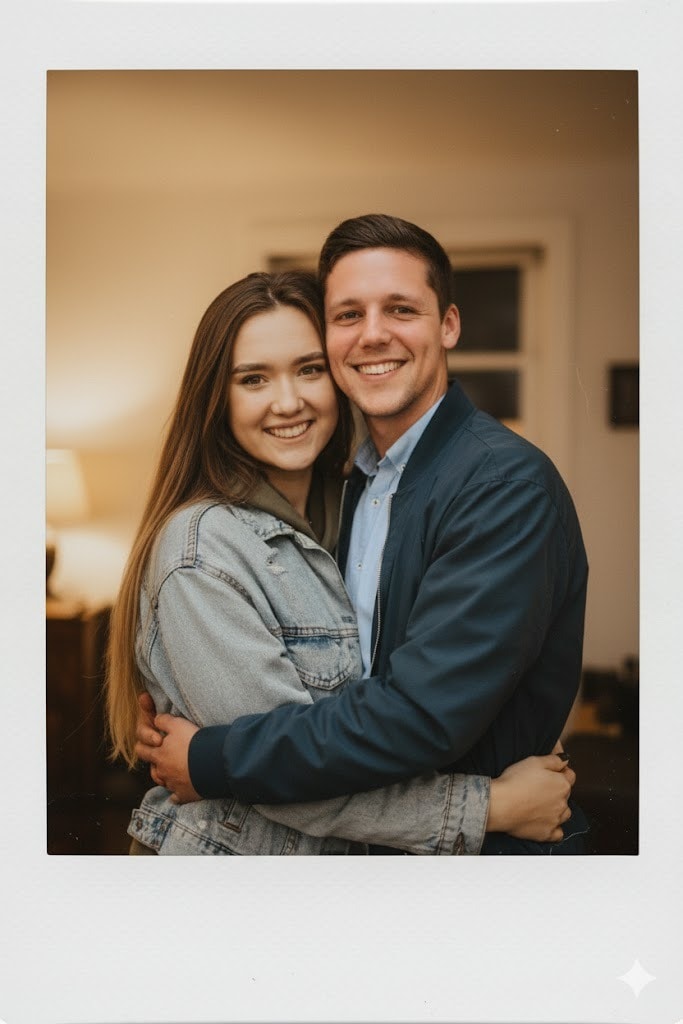
Here is a sample of a polaroid photo generated by Gemini AI:
Part 2: More Ways to Join the Gemini AI Polaroid Trend
Gemini AI is great for Polaroid-style images, but Wondershare Filmora takes it to the next level. It gives you more control to enhance, stylize, and animate your Polaroid photos within the same software.
Filmora is an all-in-one media editing/creation platform that combines powerful video/photo smart AI tools. If you would like to create more realistic Polaroid photos, then Filmora’s AI Image is what you need.

 secure download

And with the integration of the Nano Banana AI model on Filmora’s AI Image tool, the image quality is just top-notch.
Here’s how to create Polaroid-style images using Filmora’s Nano Banana model:
Step 1: Launch Filmora and Open Stock Media
- Open Filmora on your device and wait for it to load.
- Click “New Project” to enter the editing dashboard.
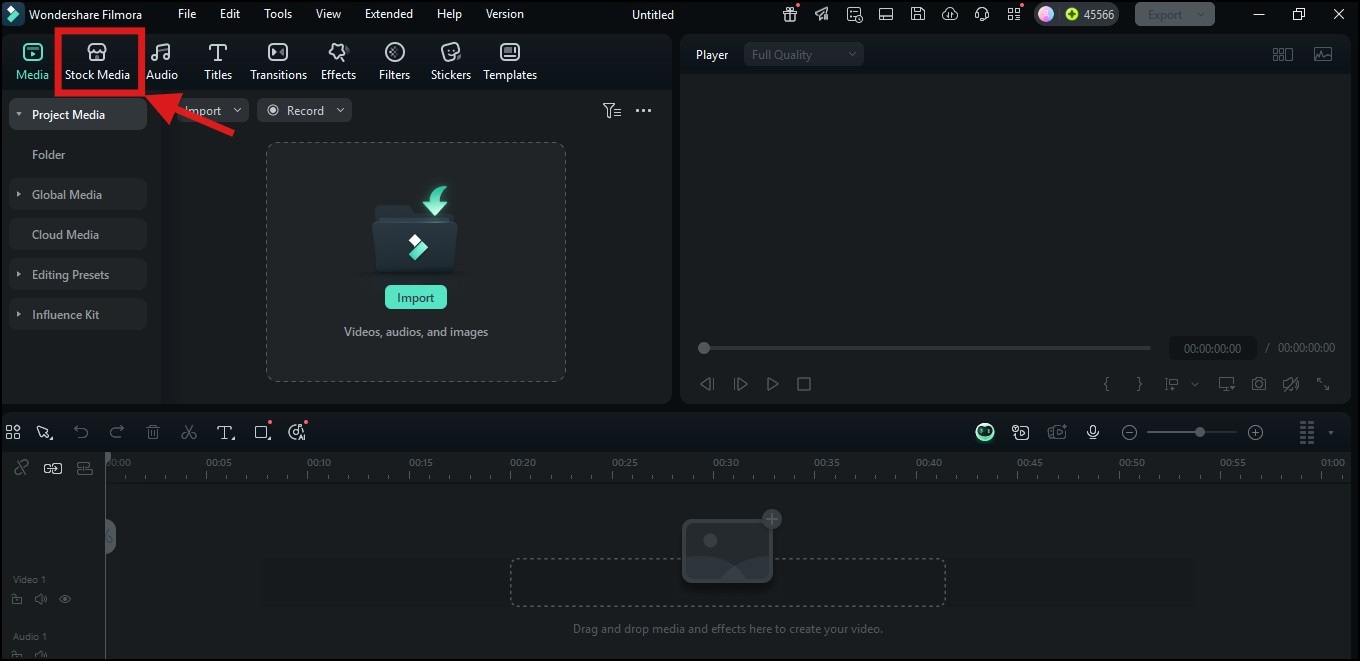
- On the top-left panel, click “Stock Media.” This will open a library where you can access AI tools and media resources.
 secure download
 Step 2: Access the AI Image Feature
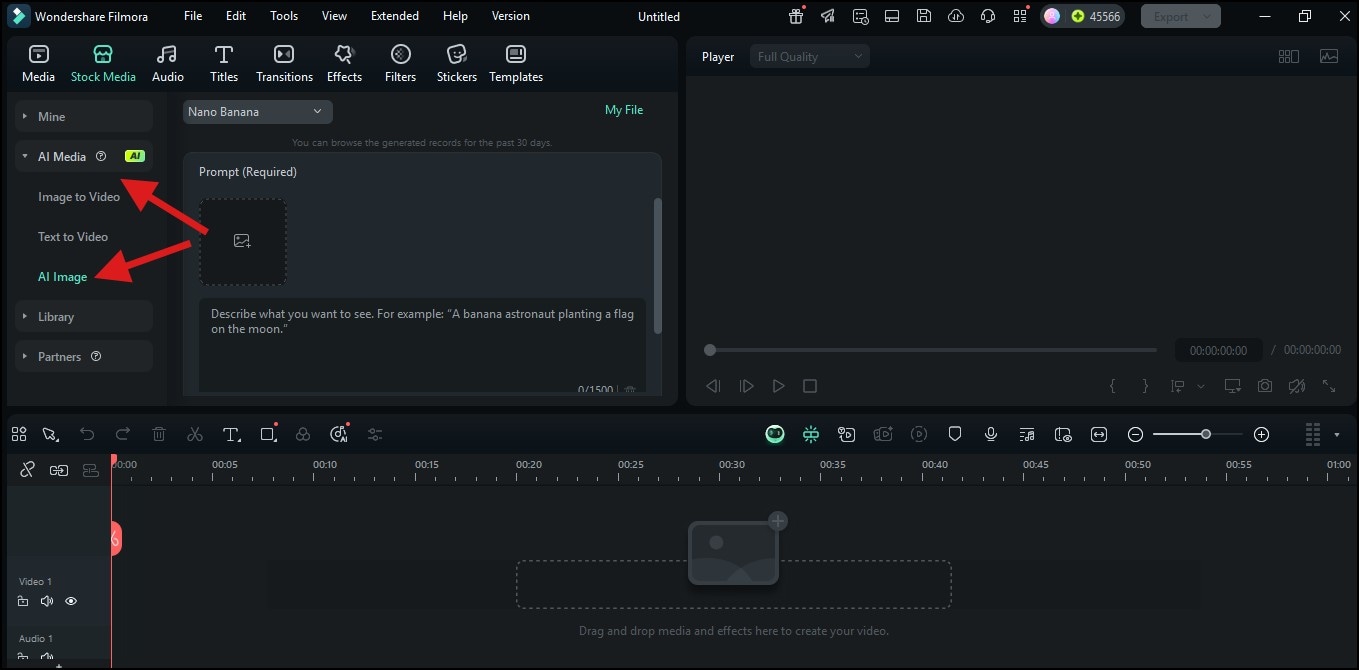
- After opening Stock Media, look at the left-hand menu and click the “AI Media” button.
- From the drop-down list, select “AI Image.”
Step 3: Import Images and Input Prompts
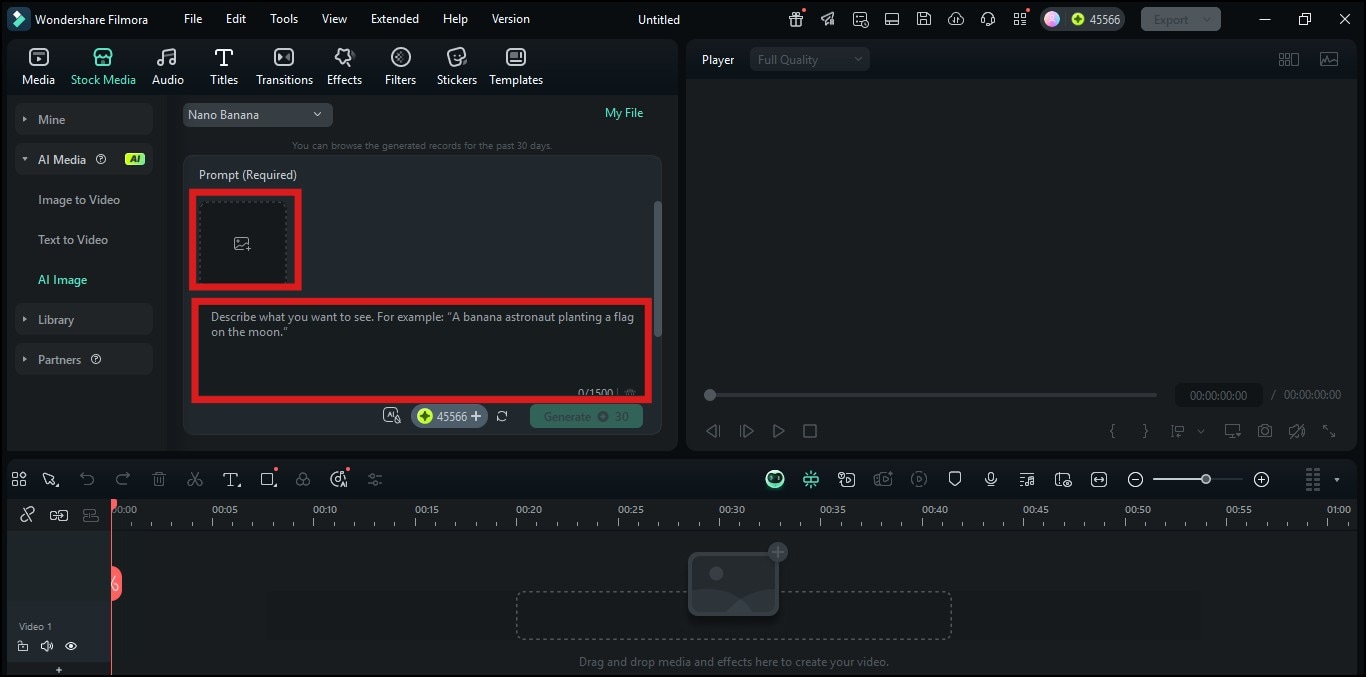
- Upload the images you want to transform into a Polaroid photo.
- Then, type a detailed description of your Polaroid effect in the textbox.
Step 4: Generate and Customize Image Image
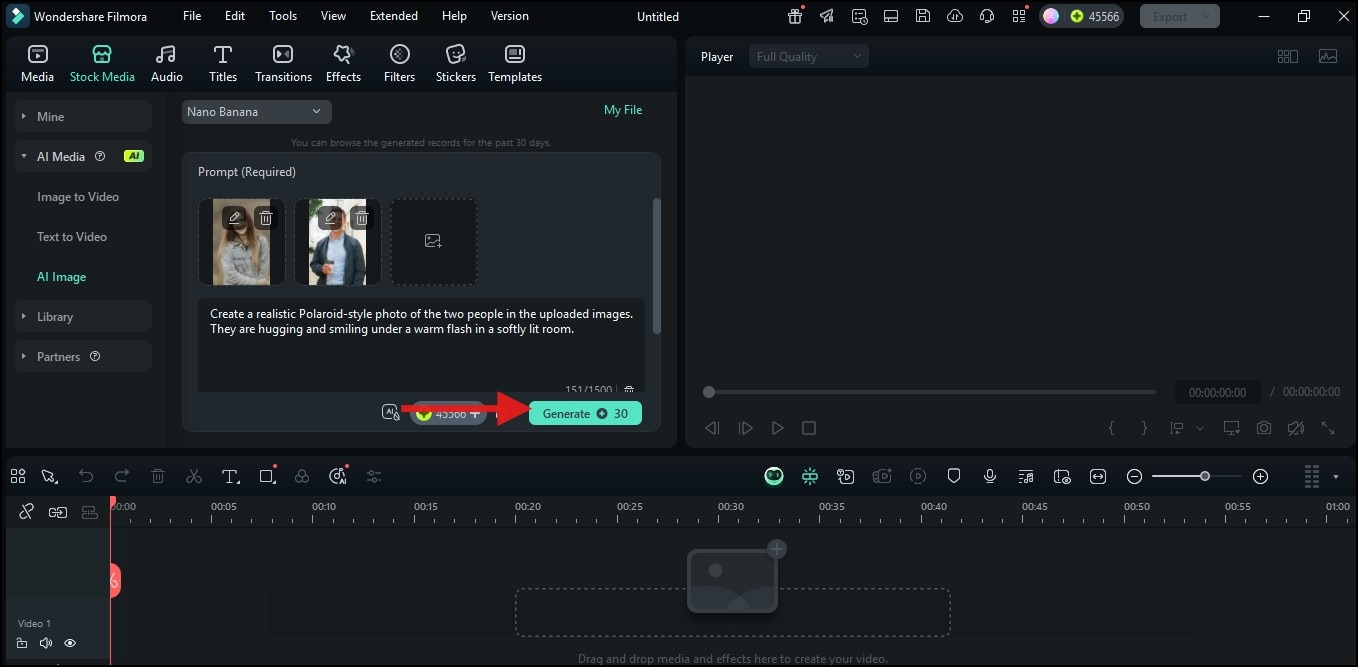
- Click “Generate” to let Filmora’s AI create your Polaroid photo.
- Wait a few seconds for the Nano Banana model to process your prompt.
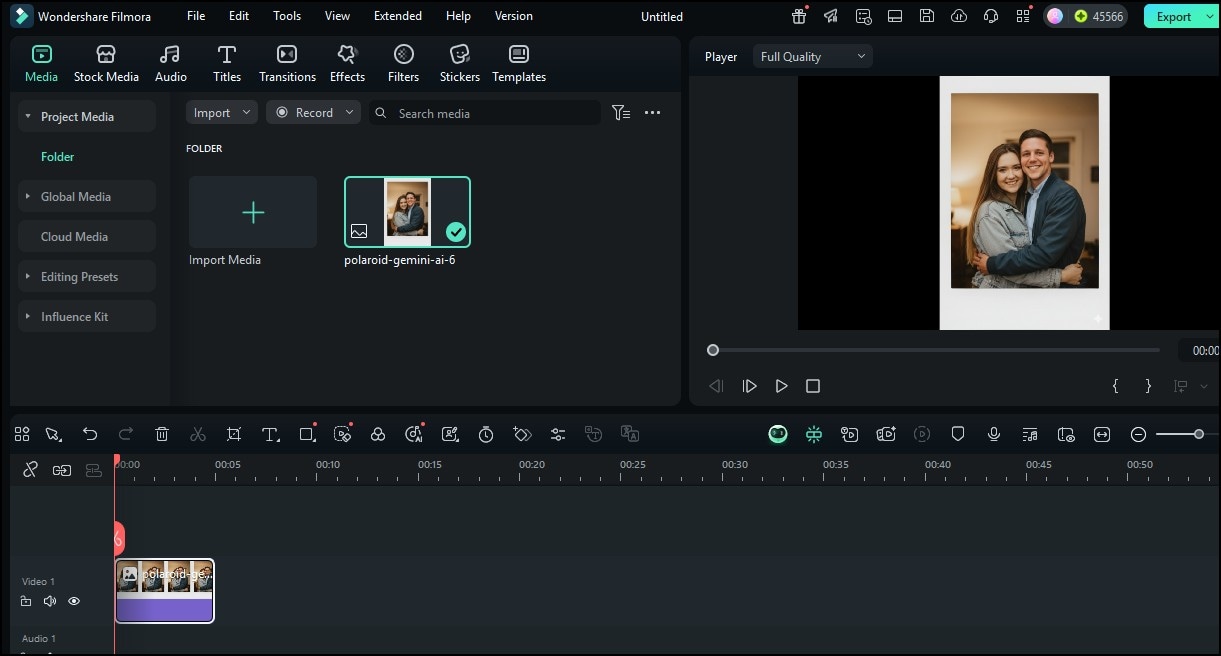
- Once the image has been generated, click on it and drag it down to the editing timeline.
- From here, you can use other editing tools on Filmora to add text, adjust brightness, apply filters, or insert a watermark.
- Once satisfied, click “Export” in the top-right corner.
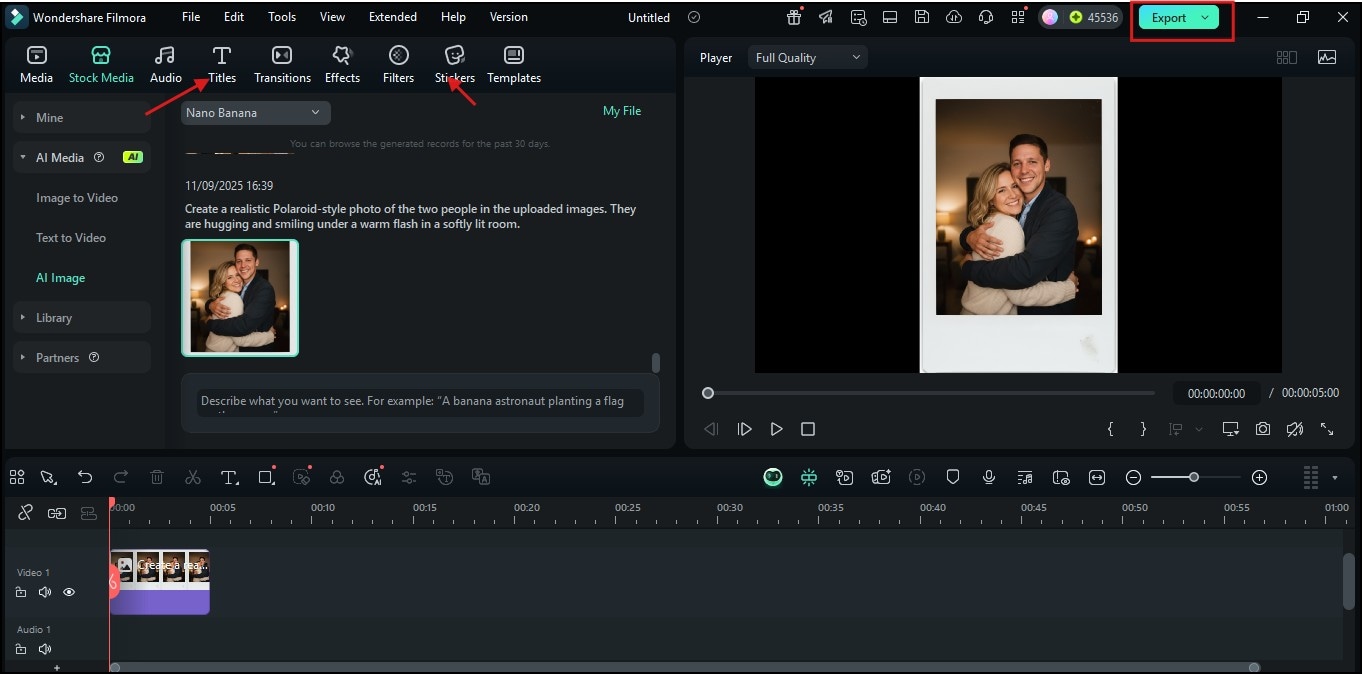
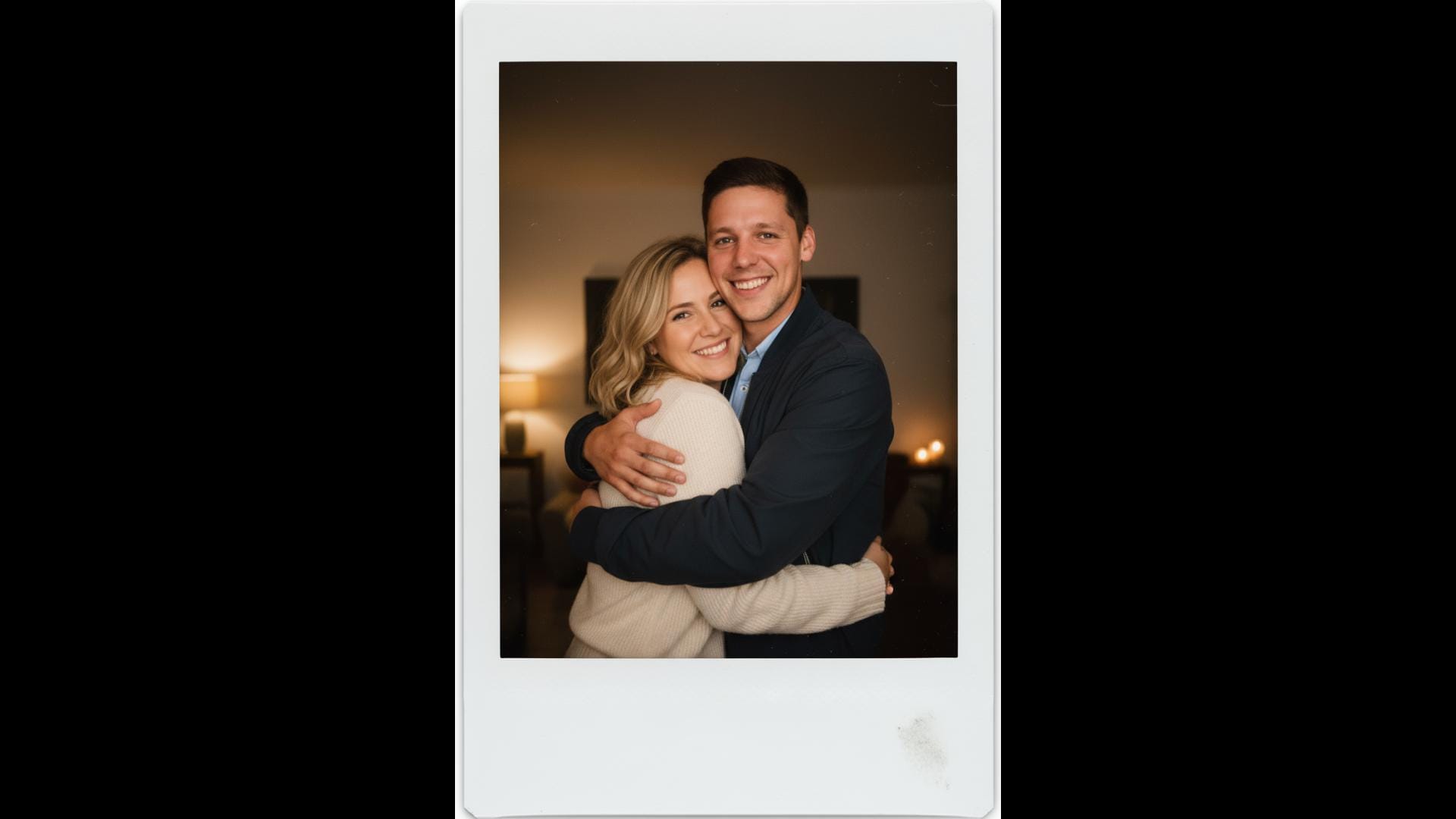
Below is a sample of an AI Polaroid image that was generated using the Nano Banana AI model on Filmora:
Part 3: 10+ Creative Gemini AI Polaroid Prompts You Should Try
So far, you have learnt how to use both Gemini and Filmora to create amazing polaroid photos. However, you will not get the best results if you don't know how to prompt these tools properly. Luckily, we’ve saved you the stress of cracking your brain for the right prompts.
Below are amazing Gemini AI polaroid prompts for you to try out. Depending on the vibe you need, we have 5 categories you can pick from.
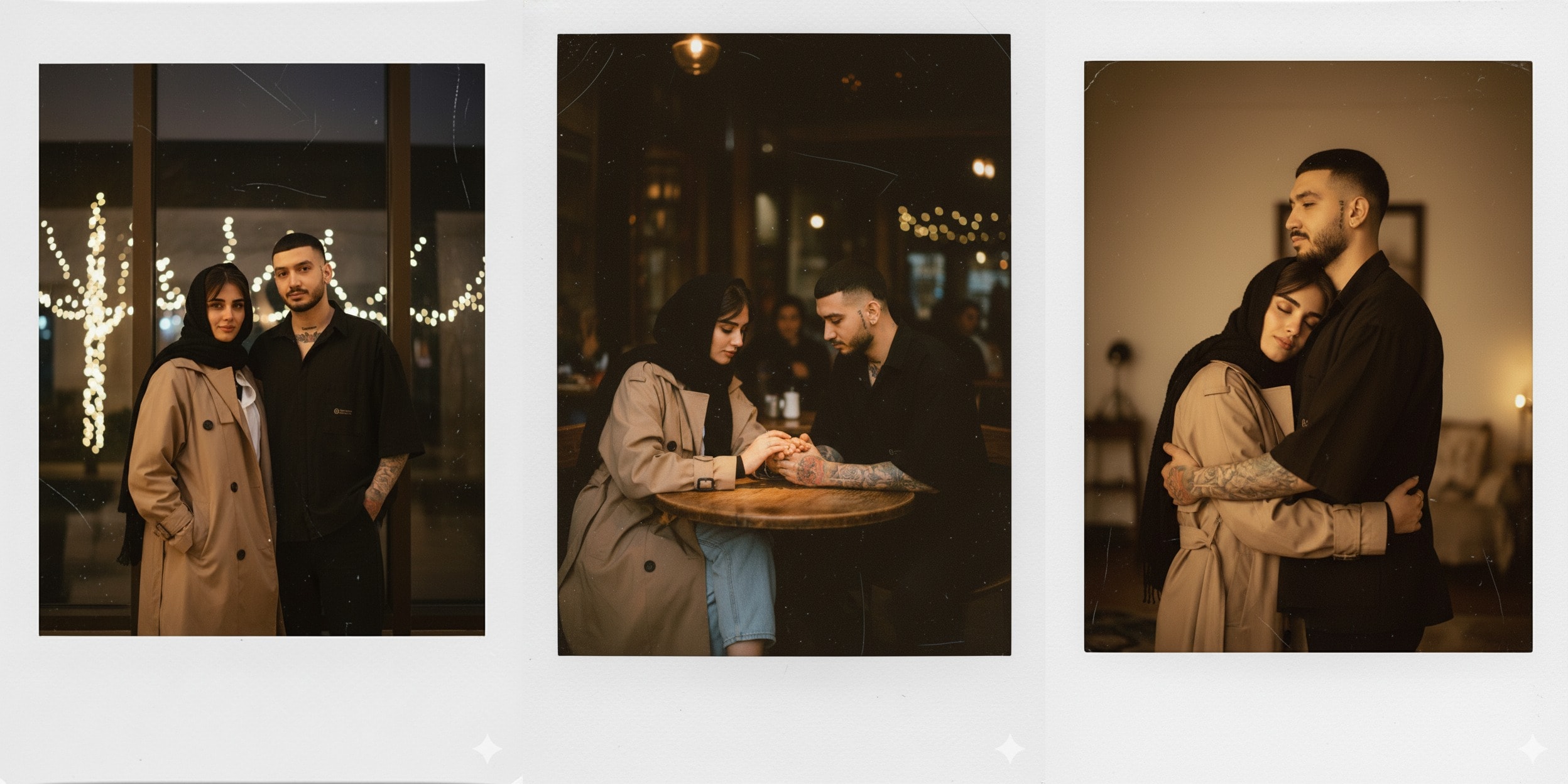
Romantic & Emotional Polaroids
- Turn these two images into a Polaroid of a couple standing near a window at night, fairy lights outside, and a warm flash on their faces.
- Create a Polaroid of two lovers sitting in a dimly lit café, gentle flash on their hands touching, and a slight film grain.
- Generate a Polaroid of two people sharing a quiet hug under soft golden light, dreamy vintage tone, and cozy background.
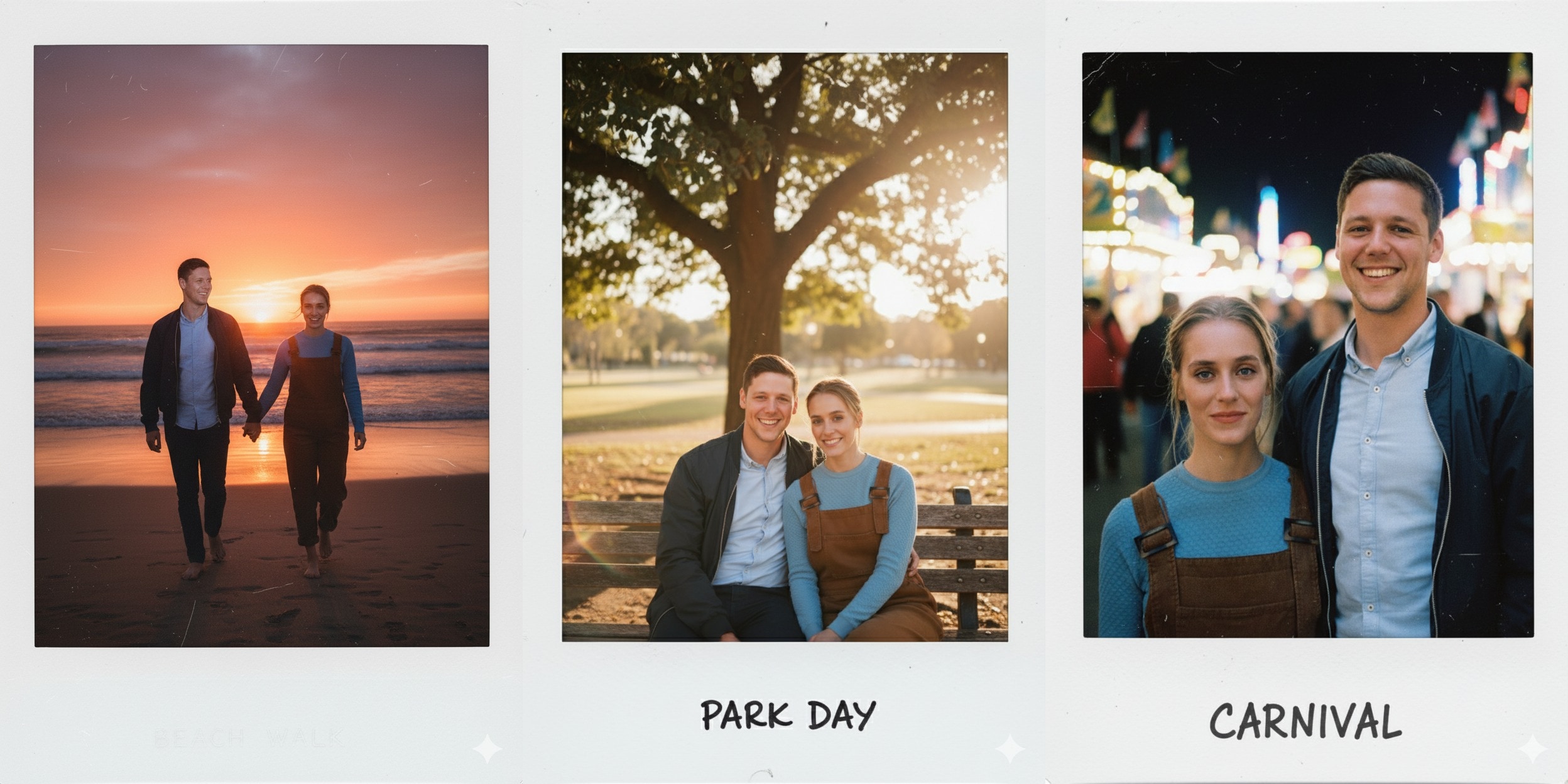
2. Outdoor & Adventure Polaroids
- Make a Polaroid-style image of two people walking on the beach at sunset, warm sky tones, and bright flash on their faces.
- Turn these two images into a Polaroid taken in a park during golden hour, gentle sunlight filtering through trees, and natural smiles.
- Generate a Polaroid of two friends at a carnival, colorful blurred lights in the background, and a strong flash for that film-like effect.
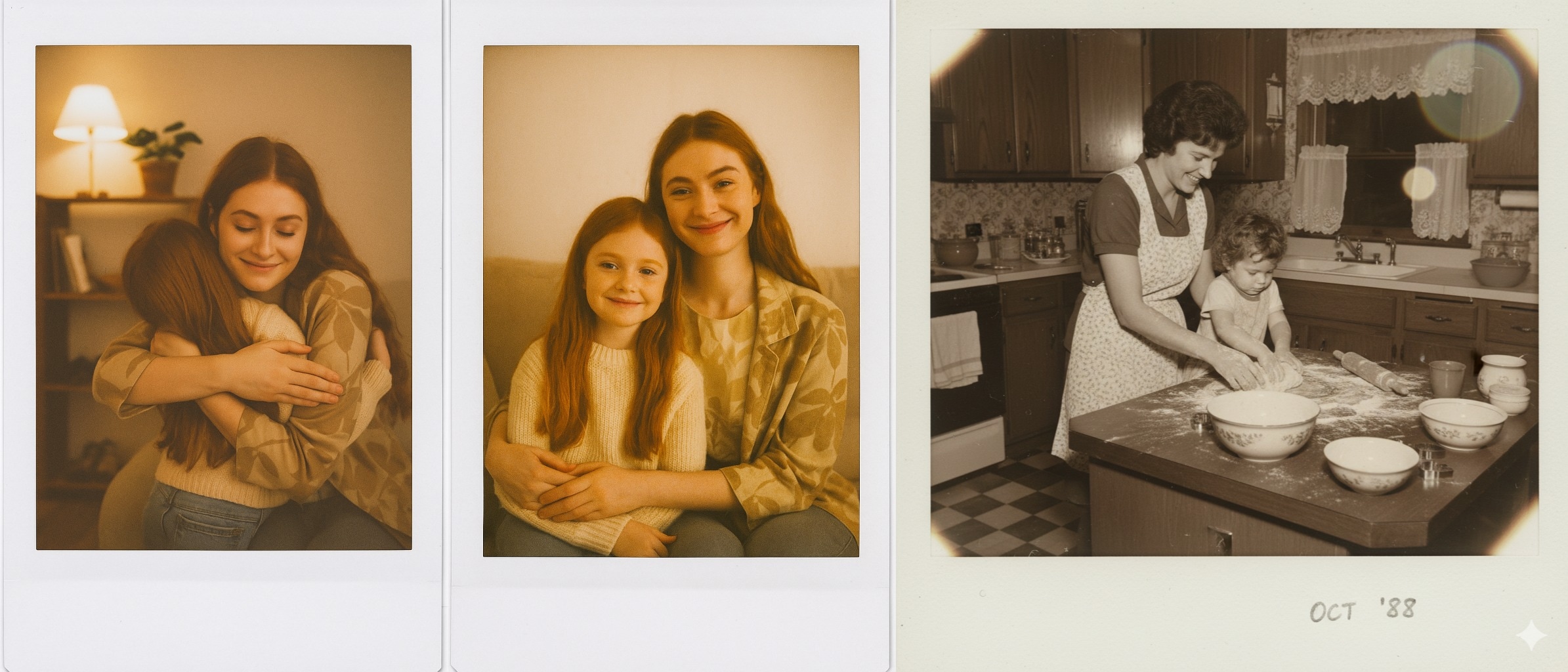
3. Nostalgic & Family Polaroids
- Create a Polaroid of an adult hugging their younger self in a cozy living room, warm lighting, and soft vintage tones.
- Generate a Polaroid photo of two family members sitting together on a couch, natural smiles, faded film texture, and warm colors.
- Turn these images into a Polaroid of a parent and child baking in the kitchen, with gentle flash reflections, and a nostalgic atmosphere.
Cinematic & Moody Polaroids
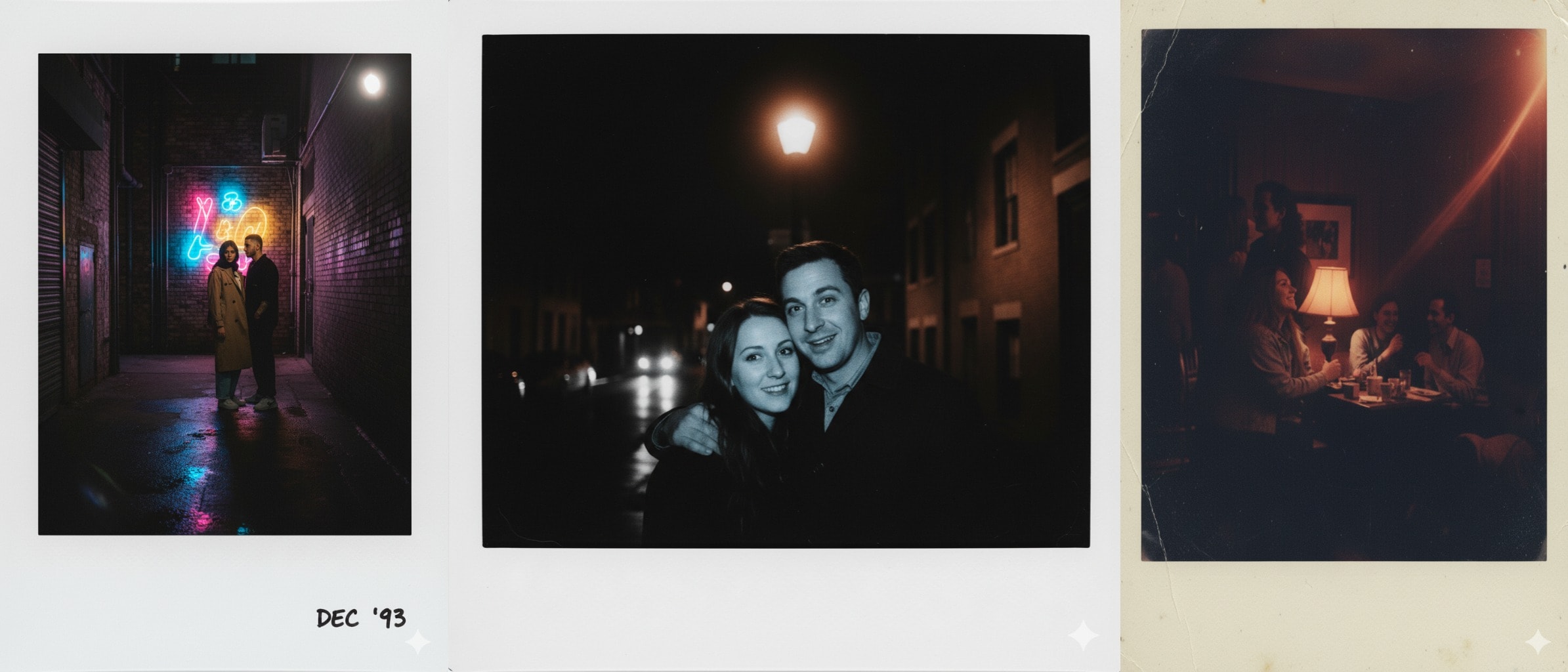
- Create a Polaroid of two people standing near a neon sign at night, deep shadows, vivid reflections, and realistic flash lighting.
- Make a Polaroid of these photos under one streetlight, cinematic contrast, and bold flash on the faces.
- Generate a Polaroid in a dark indoor room, with moody colors, visible lens flare, and faded vintage border.
Bonus Part: How to Turn Your AI Polaroid Photos into Cool Animations
Conclusion
Creating Gemini AI Polaroid photos is a fun and simple way to turn your memories into something nostalgic and artistic. With just a few images and a detailed prompt, you can instantly get that vintage Polaroid feel using Gemini AI.
Beyond the photos, Filmora also lets you convert the photos into fun clips. That is a very unique way to join the trend. So, if you are ready to bring your AI Polaroid photos to life, try out Filmora today
secure download 