100% Security Verified | No Subscription Required | No Malware

Christmas content does not have to look generic this year. You do not need a perfect setup or fancy decorations to make a Christmas tree video that feels personal. With Wondershare Filmora, you can create an AI Christmas tree from everyday inputs, like a pet photo, a family shot, or a simple idea, then turn it into a clean visual that is ready to post.
The fun part is the flexibility. You can try to create Xmas tree or add a snow effect on Christmas tree with AI, both on your mobile and desktop. Let's start by generating the tree first with Filmora's AI tools, then decorate it with snow and other effects.
In this article
Part 1. Core Creation: Generate Your Christmas Tree with Filmora's "AI Features"
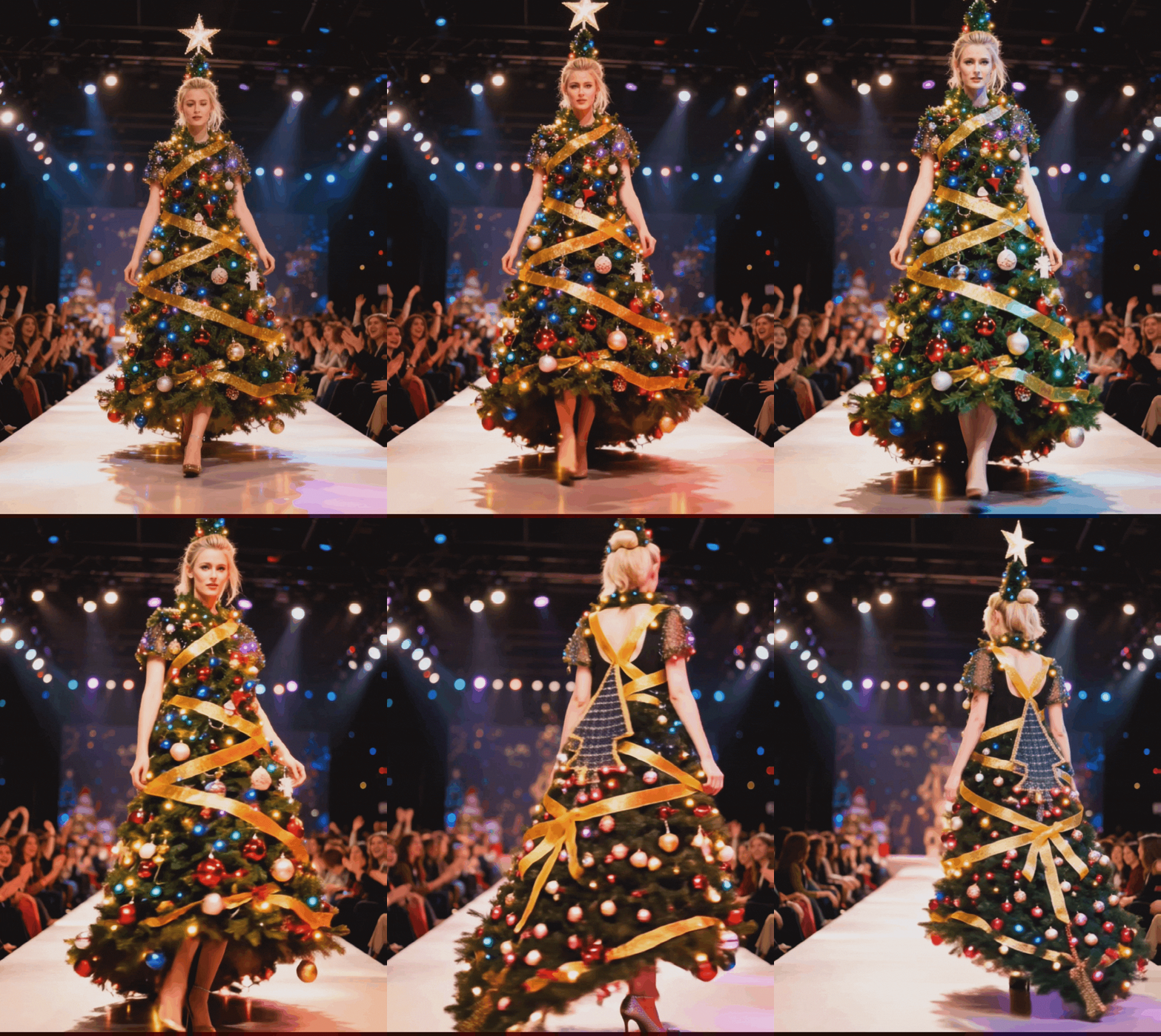
A good Christmas video starts with one clear focus: the tree. Filmora helps you build that base quickly, even if you only have one photo on your phone. You can turn a casual shot into a Christmas tree AI visual, then shape it into a clean clip that is ready to post. After the tree is created, it is easier to add a Christmas tree effect and other holiday elements later.
 Secure Download
Module 1: AI Creative Templates (Mobile Focus)—Turn Anything into a Christmas Tree
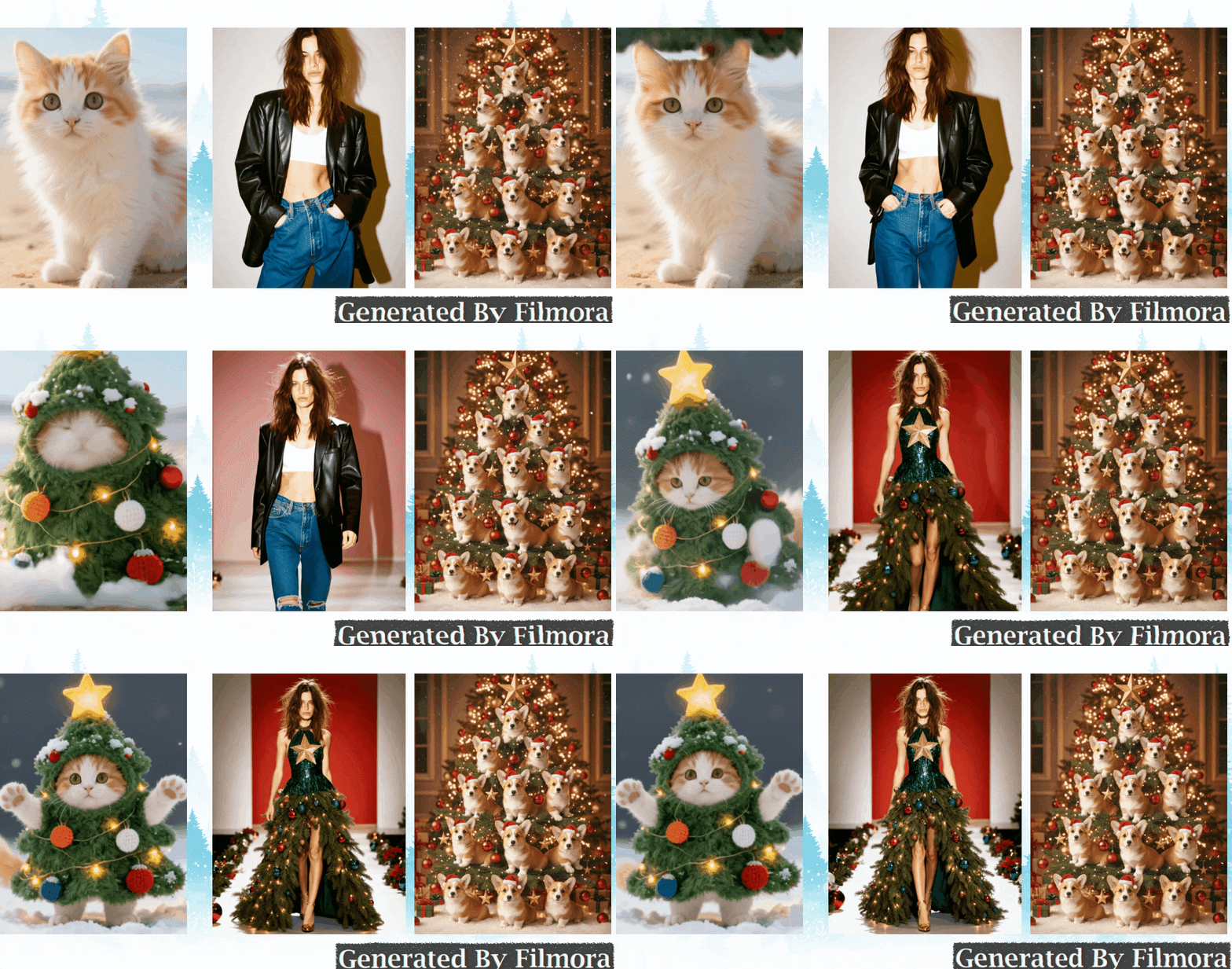
You can try turning pets into Christmas trees for a cute reveal, transforming a family photo, couple shot, or selfie into a tree-themed look. Another way to try is to use Christmas tree outfits that make a portrait look tree-inspired.
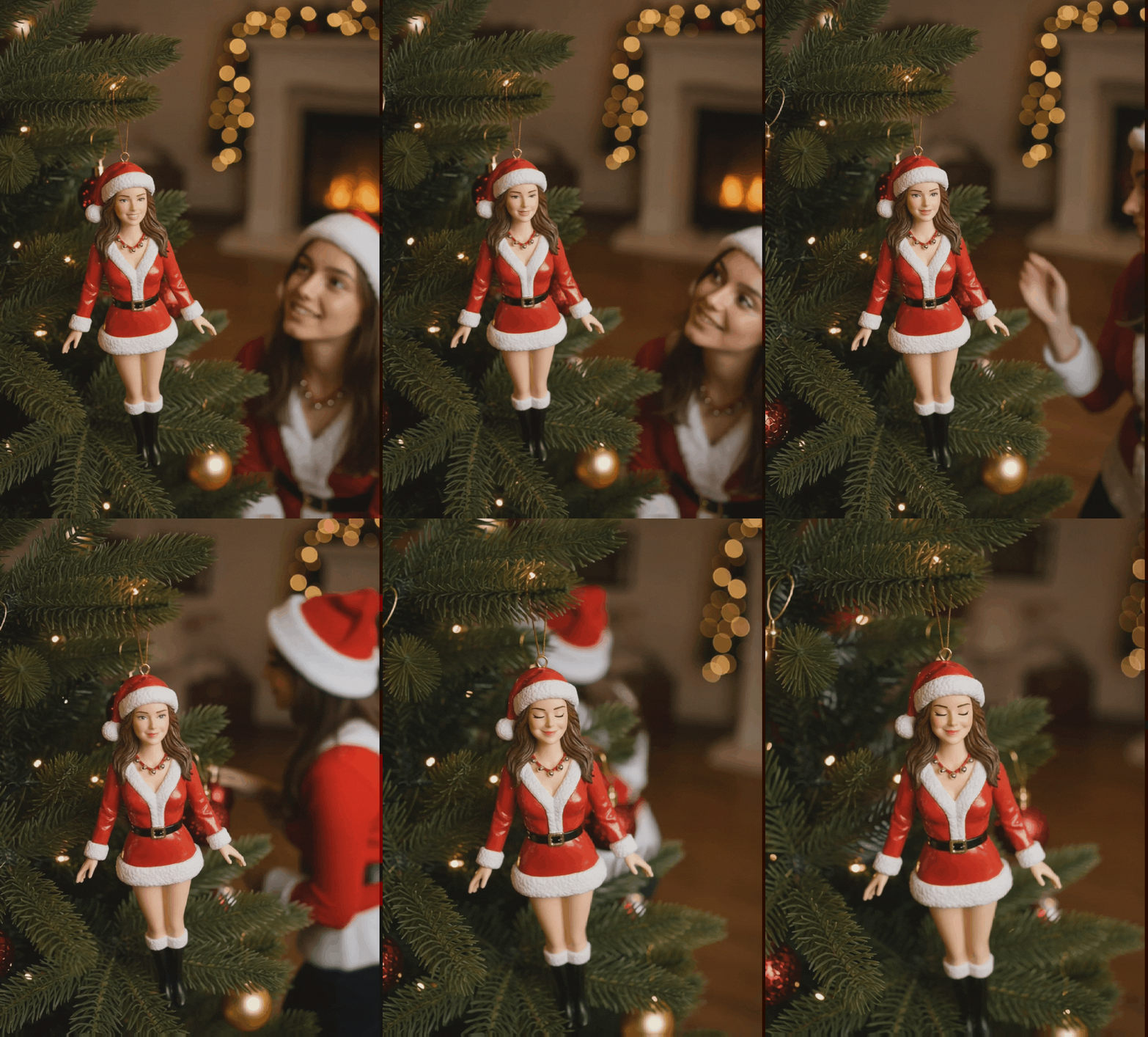
The photo-based option is a simple way to create an AI Christmas tree moment that still feels personal, because it starts from a real memory.
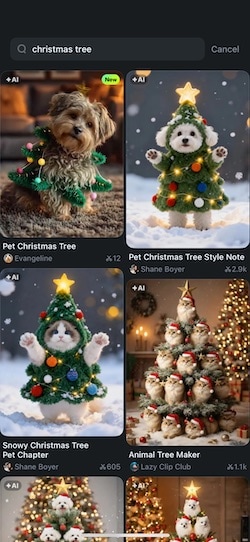
Create an AI Christmas tree on Filmora mobile
- Step 1: Open Filmora & Find a Christmas Tree Template
- Step 2: Choose a Template You Like
- Step 3: Upload Your Pet Photo & Generate
- Step 4: Preview, Edit & Export
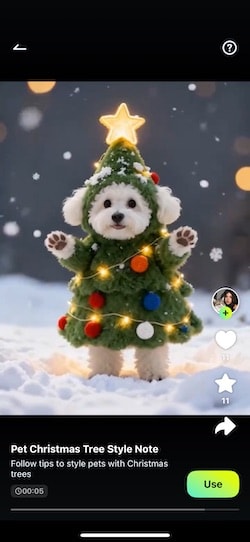
Tip: Customize the prompt for a more personal look, such as adding "golden lights," "red ornaments," or a "cozy indoor scene."
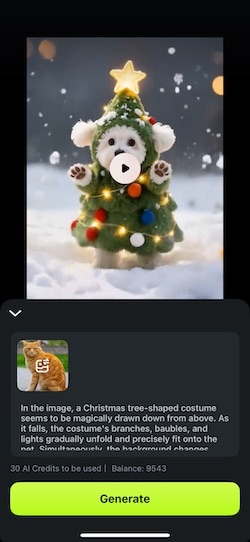
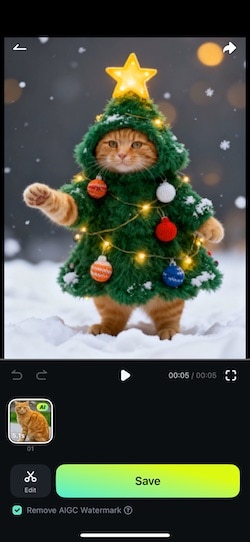
Module 2: AI Image & Text to Video—Craft an AI Art Christmas Tree
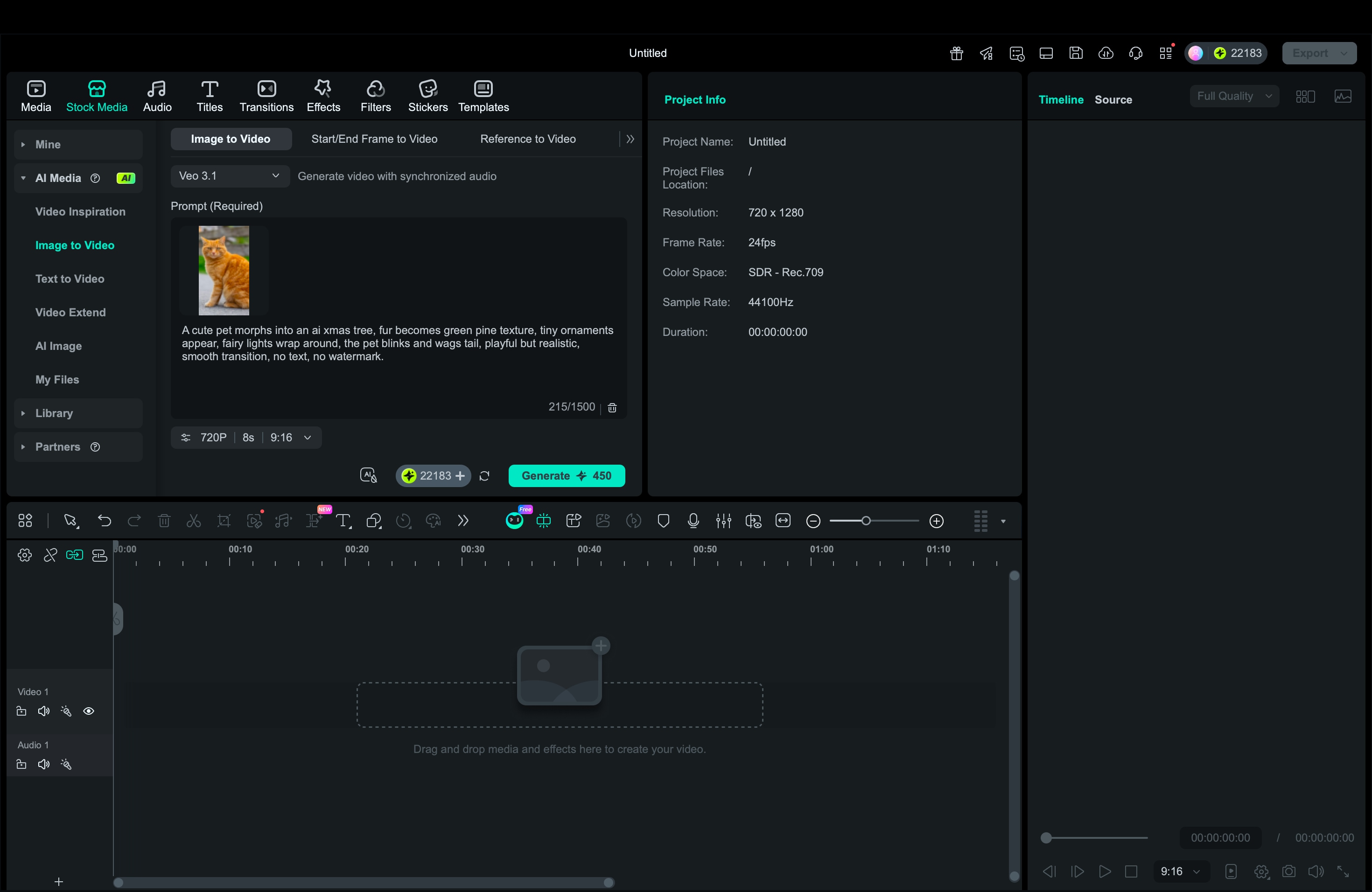
After trying AI Creative Templates, you can switch to Filmora's creation tools for a more custom look. In this module, Filmora lets you generate an AI Christmas tree in two ways: Image to Video and Text to Video.
- Image to Video is great when you already have a reference image, and then you animate it into a smooth Christmas tree AI clip.
- Text to Video works better when you want to create the whole scene from a prompt, as a cinematic AI Xmas tree reveal with your own style and mood.
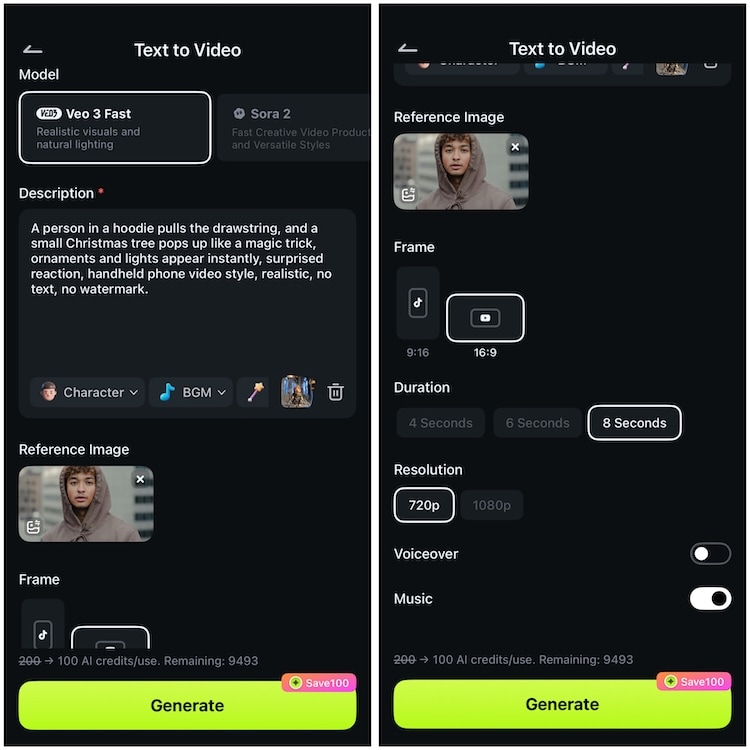
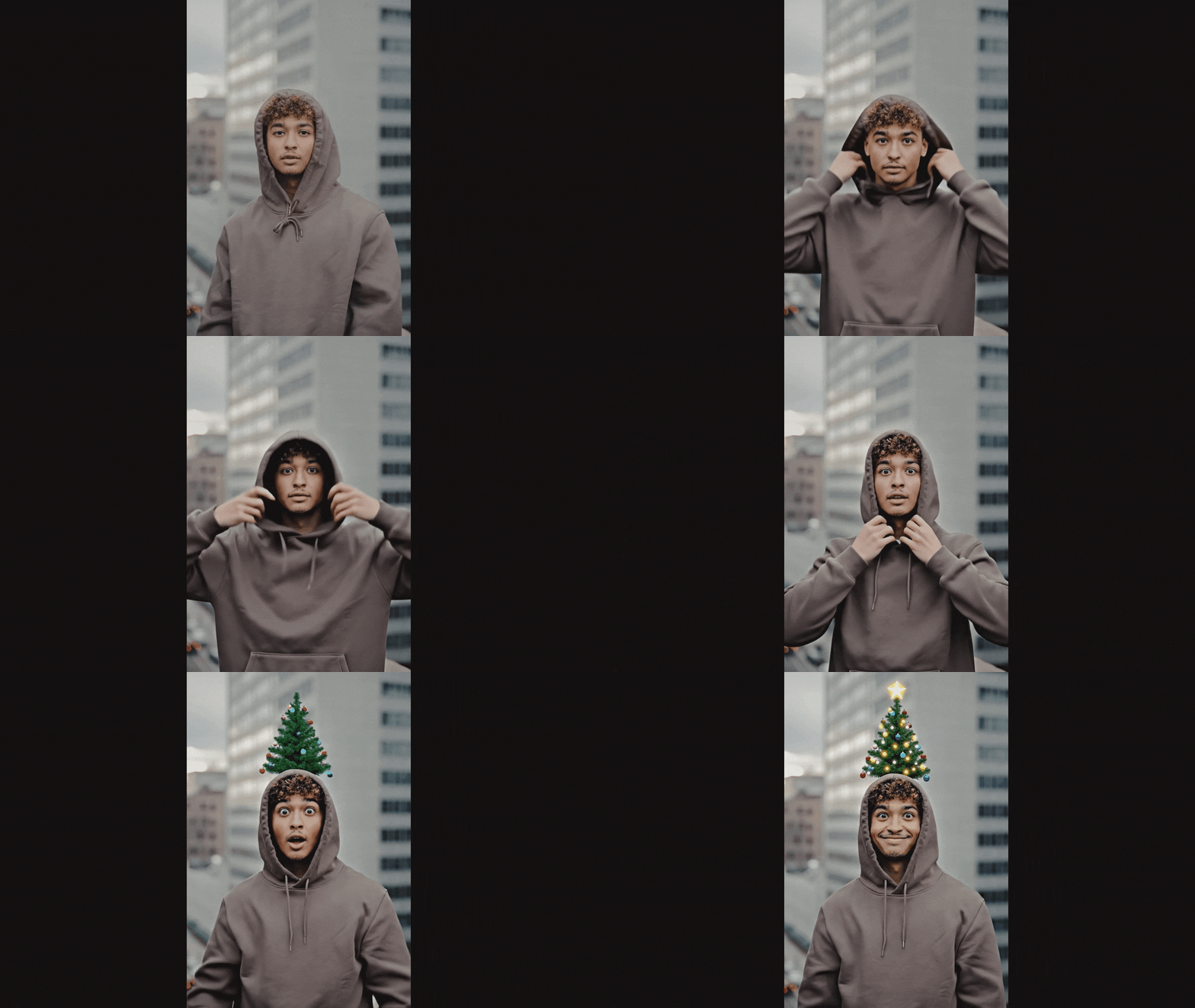
Text to Video: Create an AI Christmas tree from a prompt
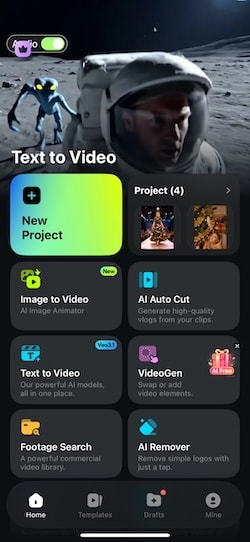
For example: “Cozy living room, glowing lights, elegant AI Christmas tree, soft snowfall outside the window.”
You can also add a reference image if you want the video style to follow a specific look. Next, select the aspect ratio, duration, and resolution. Turn on voice-over or background music if you want Filmora to generate a more complete Christmas tree video in one go. Finally, tap Generate to start.
AI Image & Text to Video in Filmora desktop
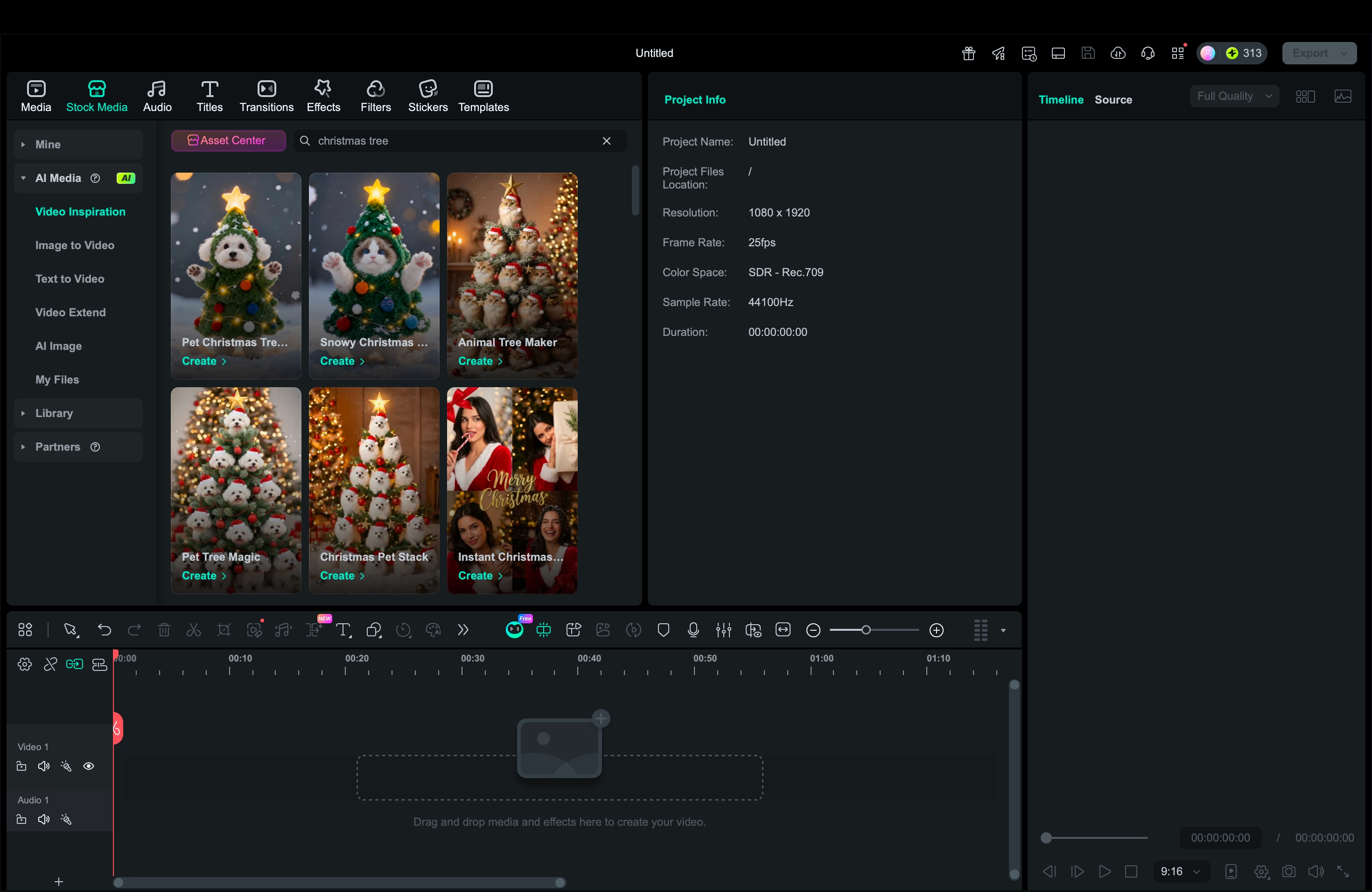
From here, you can either:
- Choose a ready-made AI Christmas tree style from Video Inspiration, or
- Start fresh in Image to Video for a more customized result.
When everything looks ready, click Generate to create your AI Christmas tree video.
Trim the timing, add a short title, and adjust the framing to keep the Christmas tree centered and visually balanced.
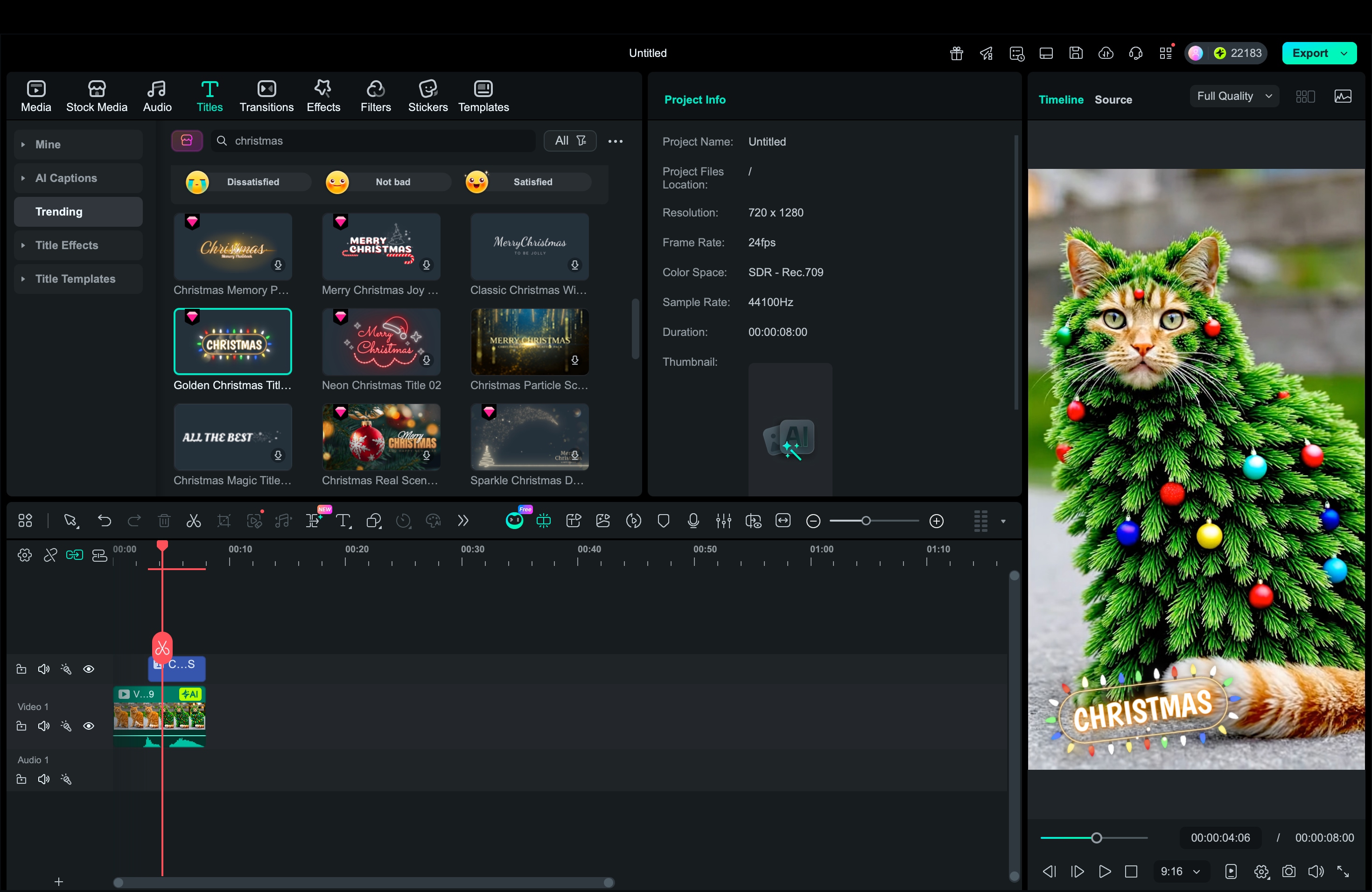
Part 2. Magical Decorations: Add "Snowflakes" and Effects to Your Christmas Tree
After your AI Christmas tree clip is ready, the next step is to give it a real holiday mood. Filmora's Effects Library helps you add festive layers to AI clips, real footage, or even a single image.
You can drop an effect on top of your video, then adjust it until it looks natural. A good snow effect Christmas tree overlay should support the tree, not hide it!
Add realistic snowflake effects
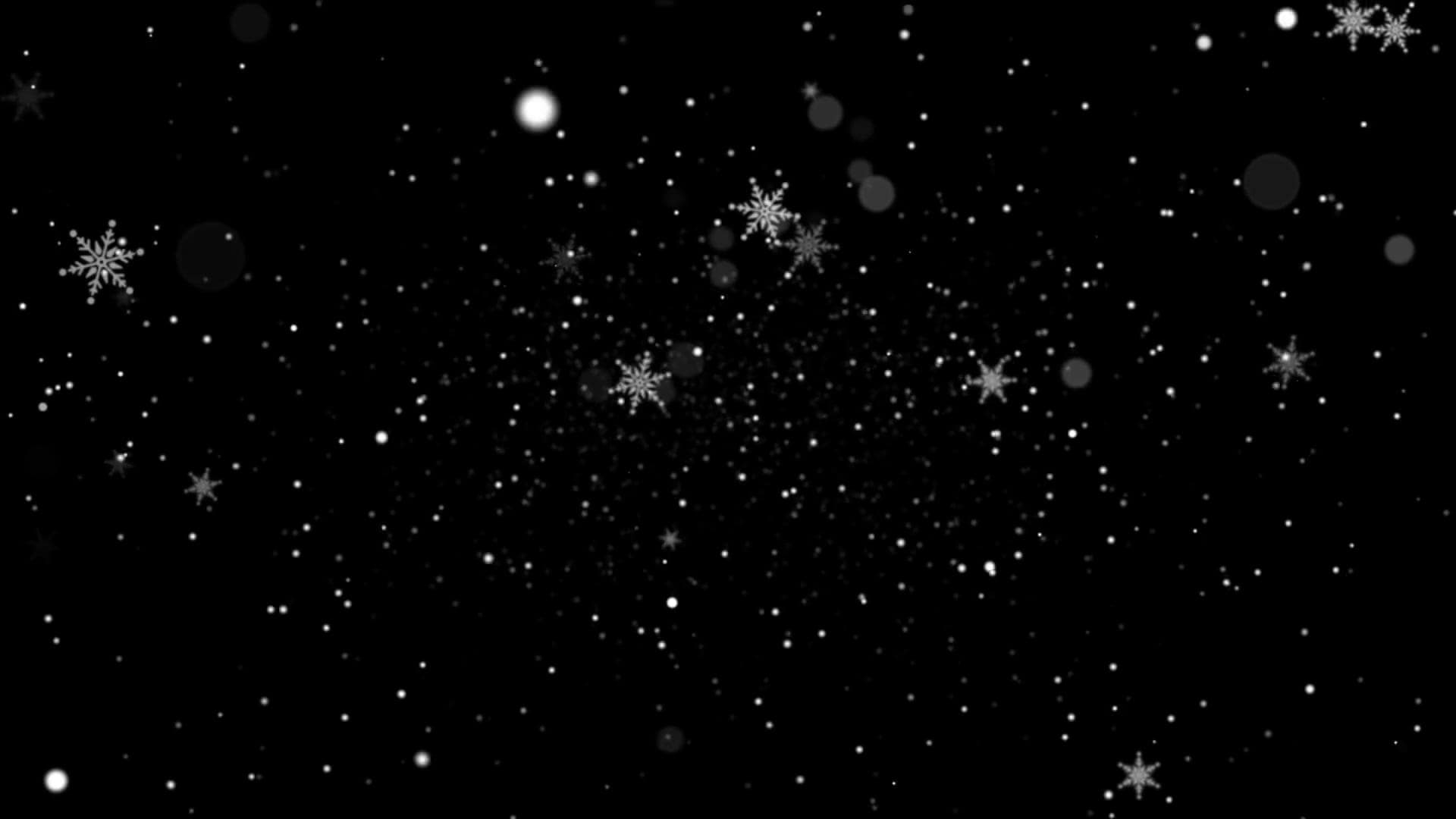
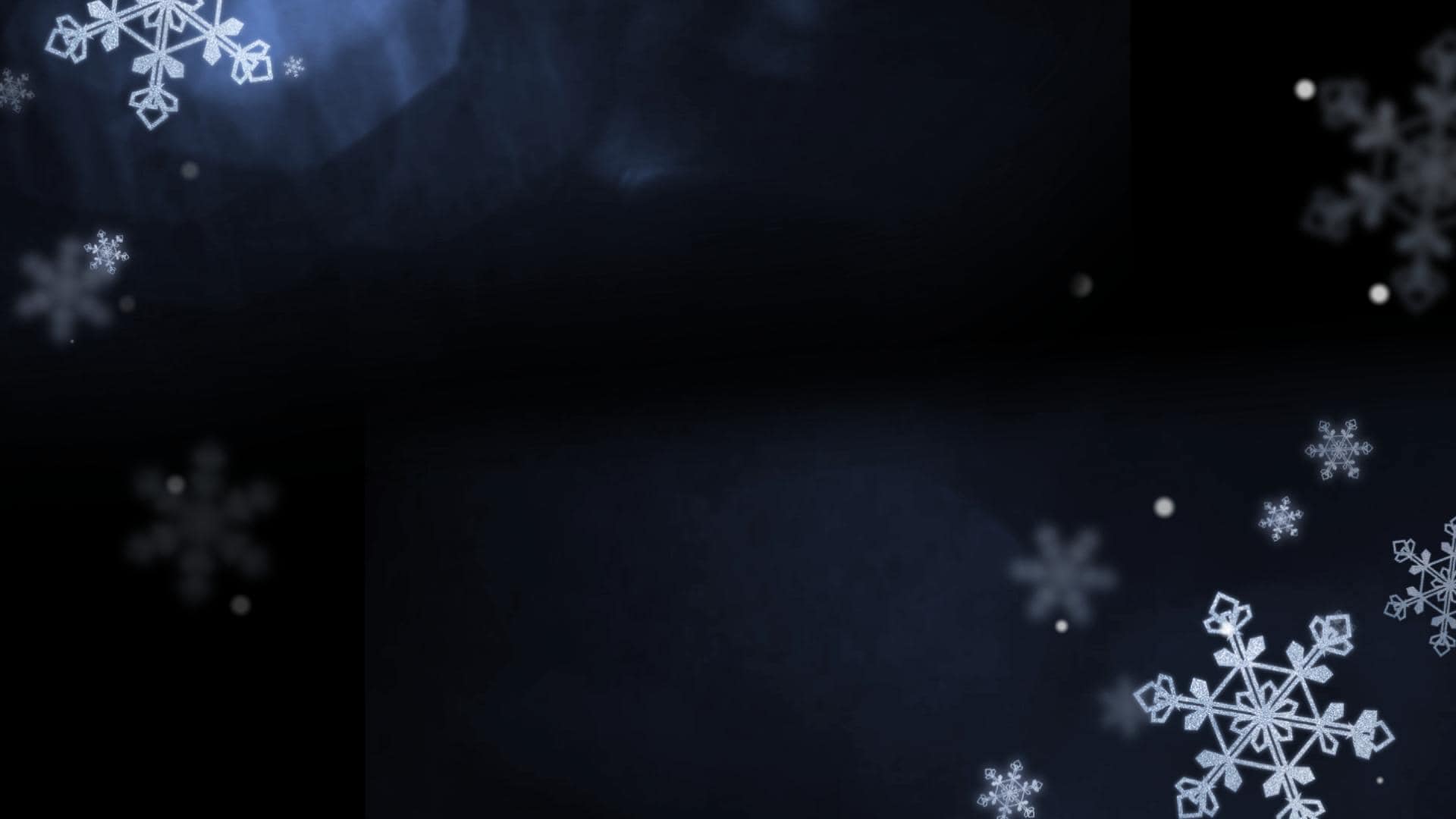
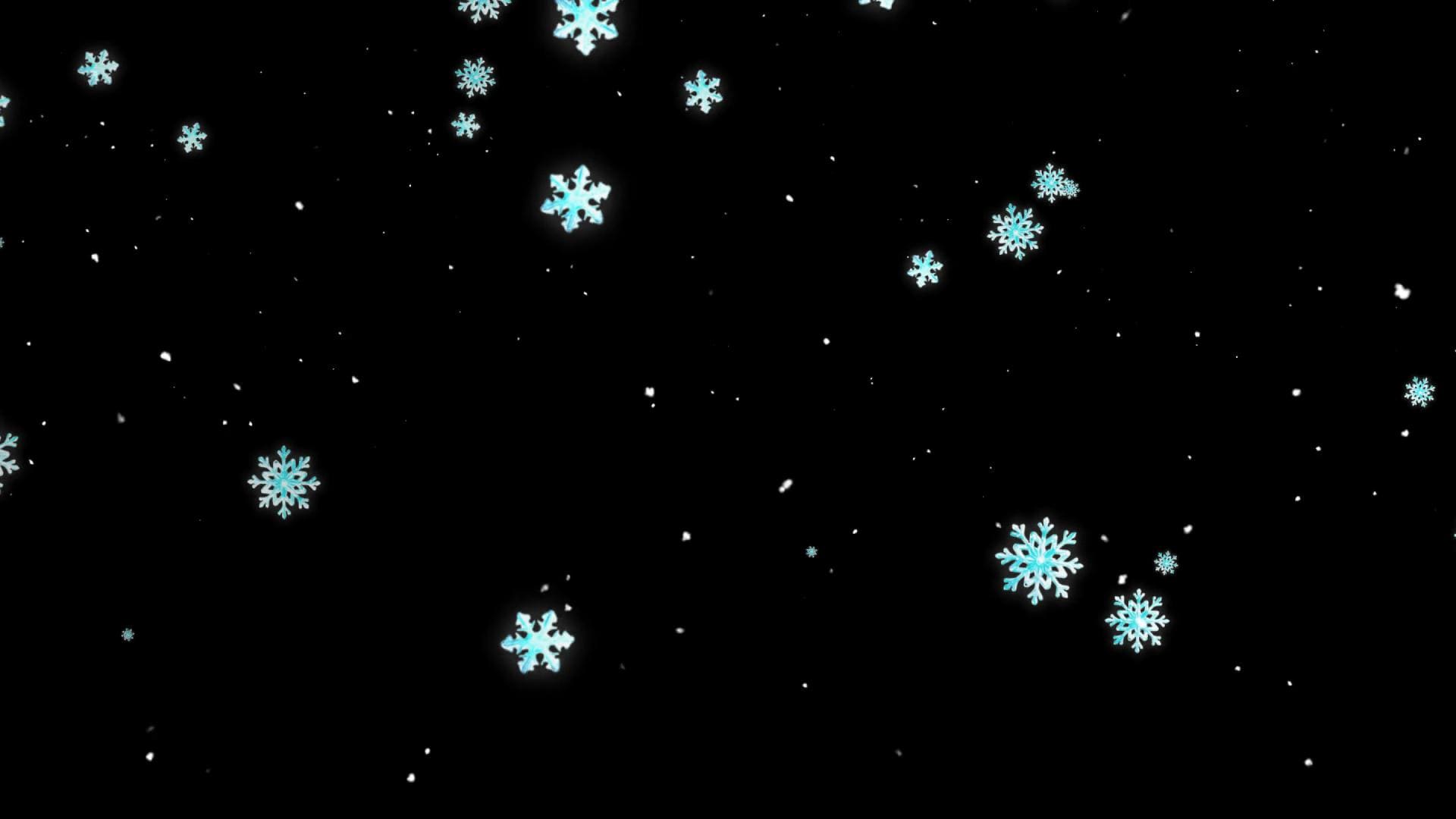
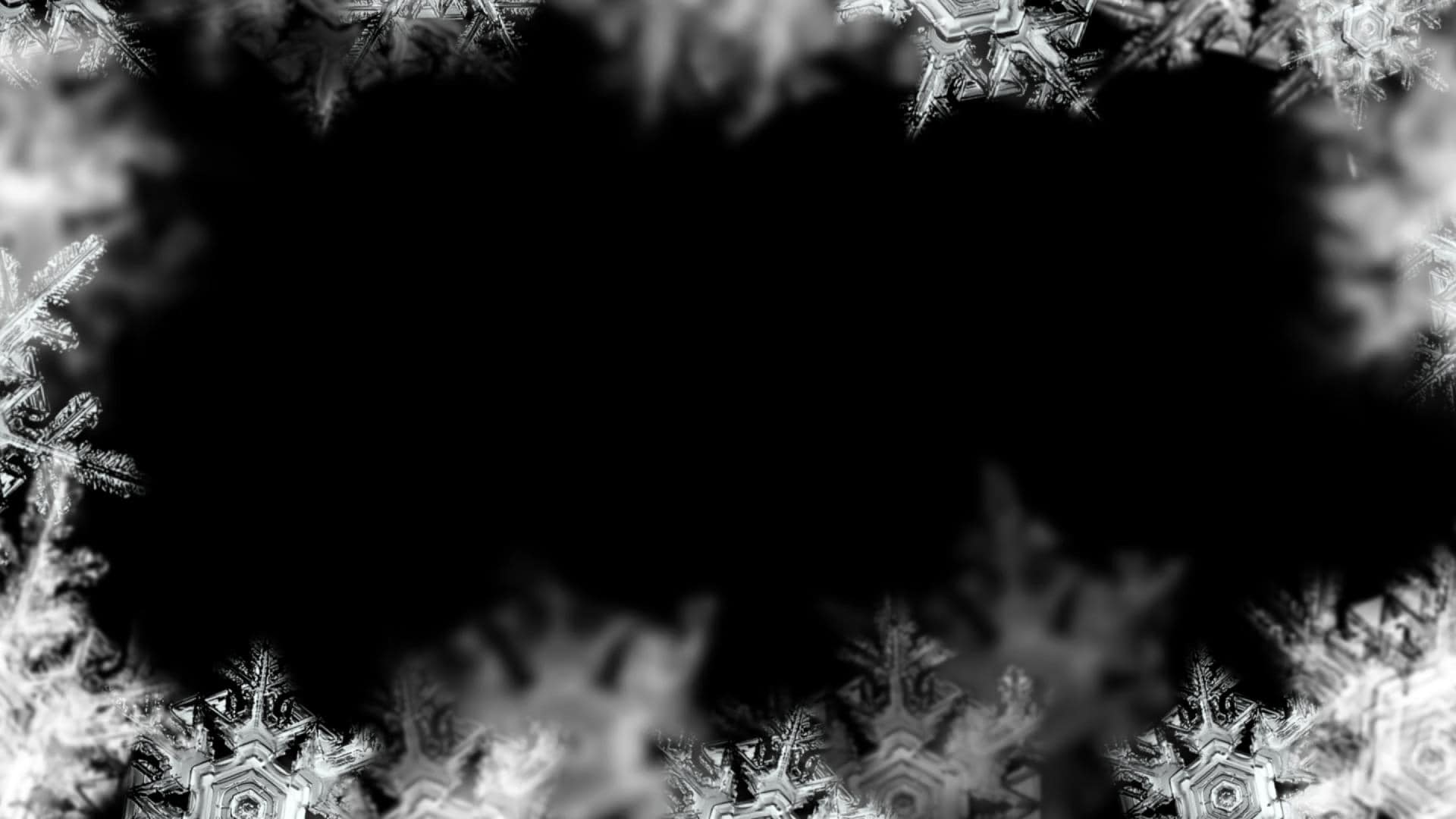
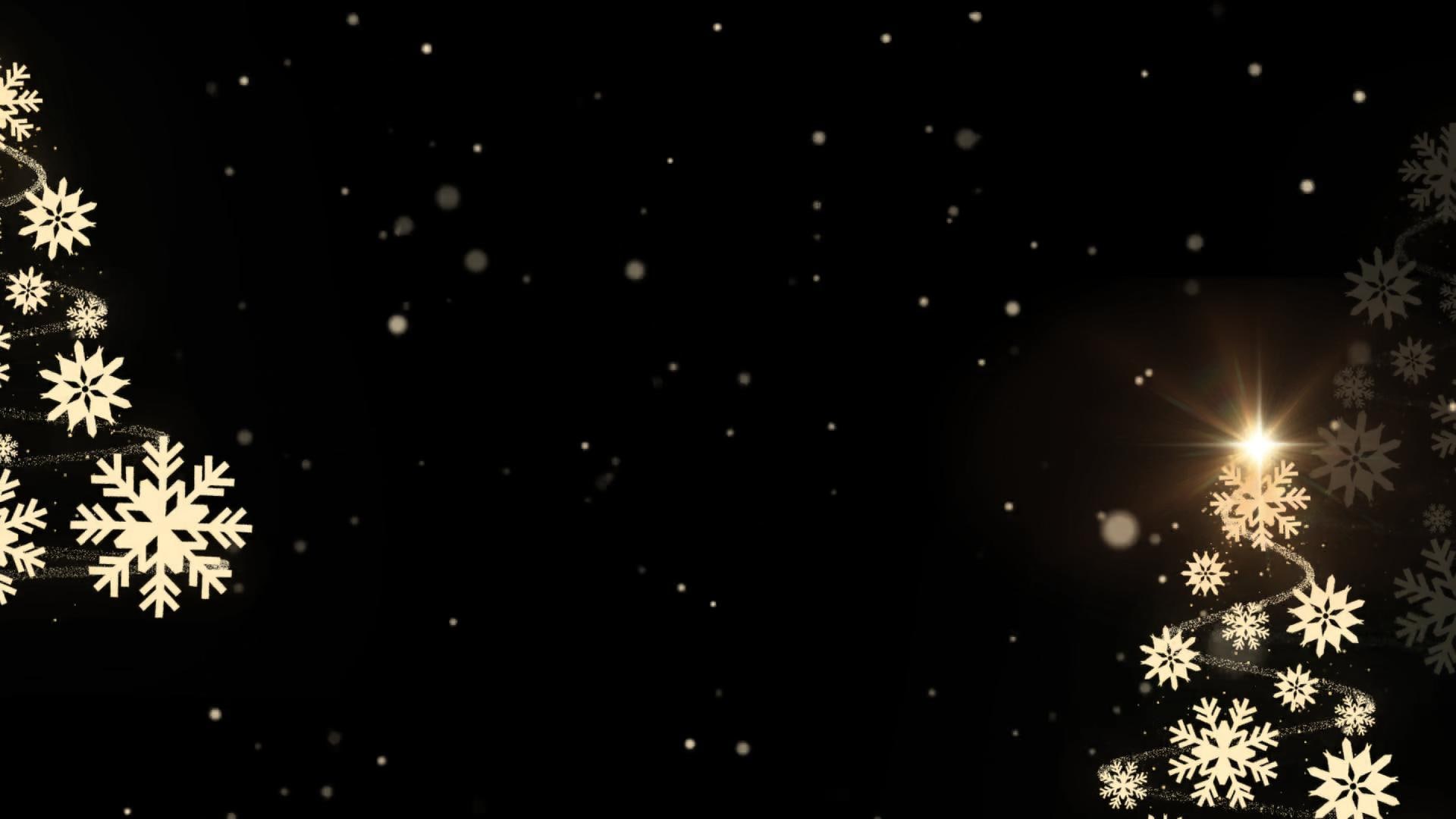

Filmora has an Effects Library that makes it easy to enhance your Christmas tree video, including realistic snow overlays that fit an AI Christmas tree or a real clip. The workflow is simple.
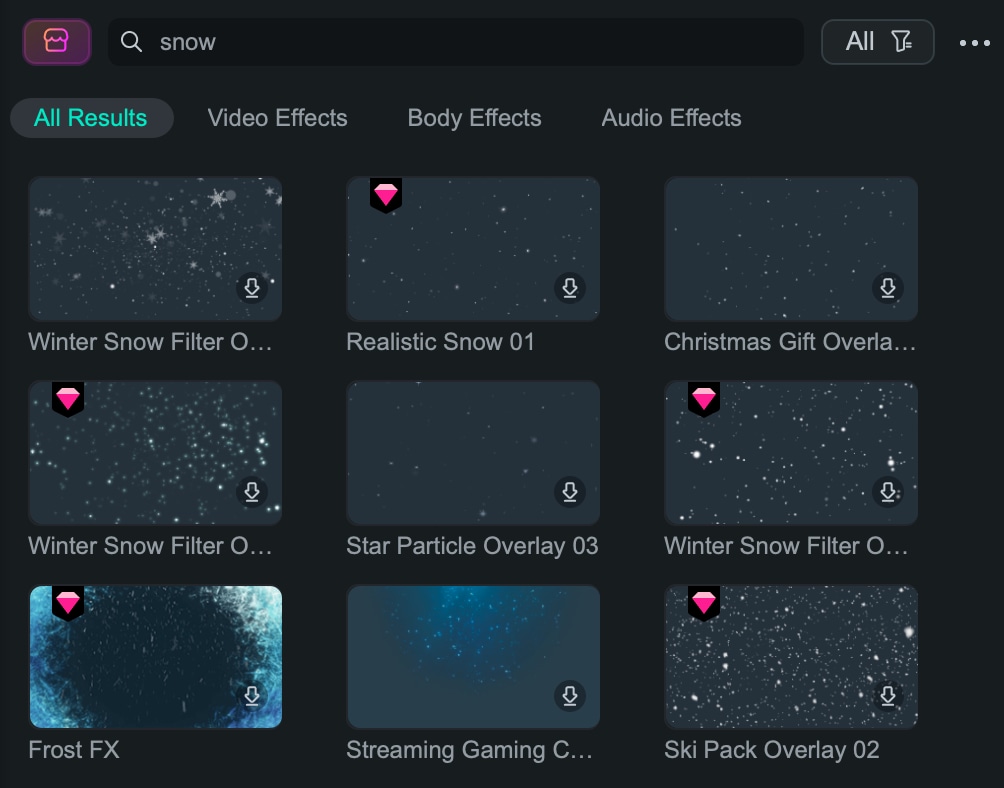
Step 1. Apply a snow overlay from the Effects Library
Add your video to the timeline, open Effects, search "snow" or "snowflake," then drag the effect onto your clip.
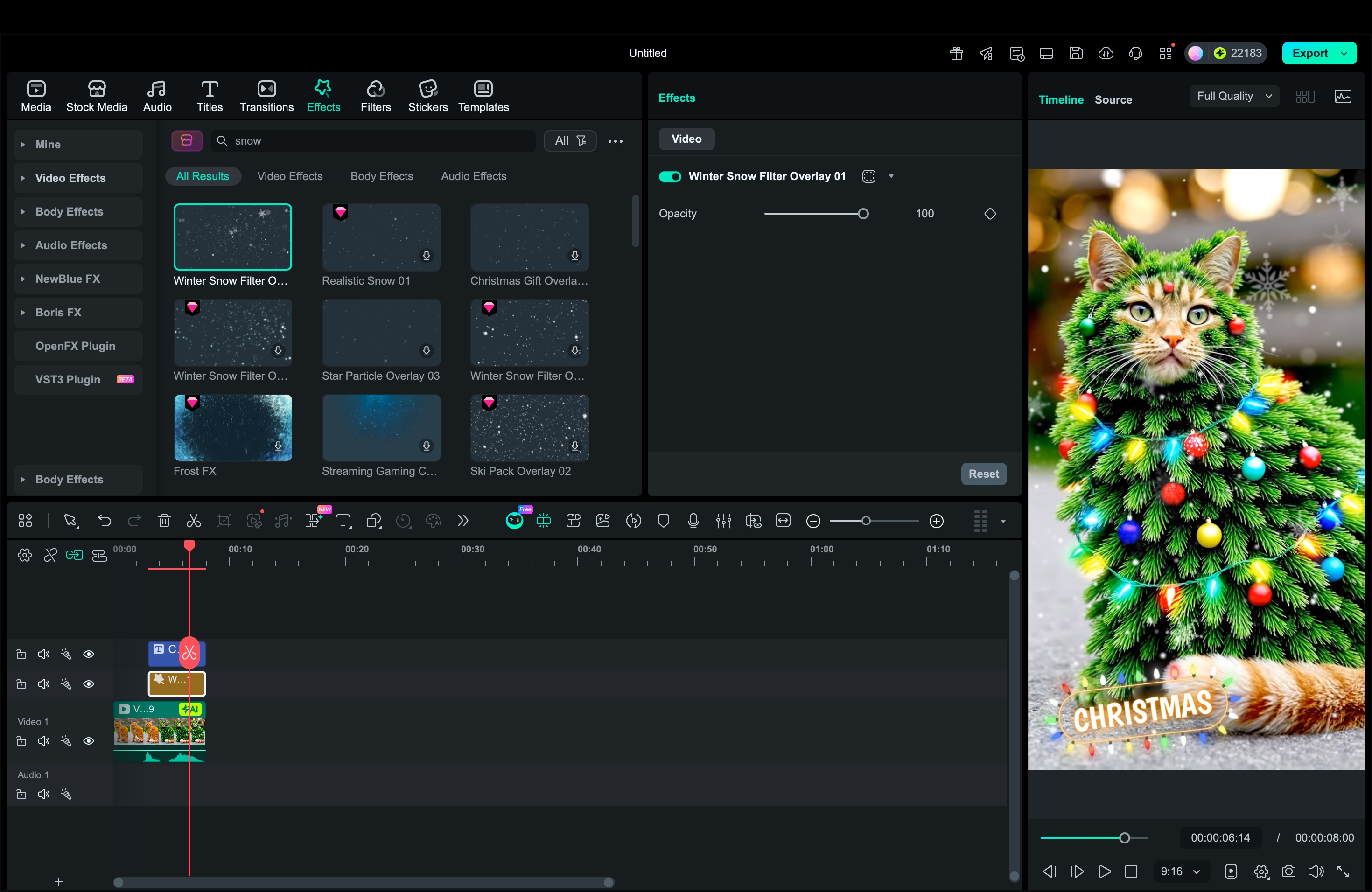
Step 2. Adjust the look so it feels natural
Tweak the strength, opacity, and speed so the snow effect on the Christmas tree looks realistic and does not hide the lights or ornaments.
Bonus: Effect recommendations
Here are a few picks from Filmora's Effects Library that work especially well for a Christmas tree video. They add seasonal mood fast, while still keeping your tree as the main focus.
- Blue Frost to add a cool winter tone
- Winter Snow Filter for a stronger snowfall layer
- Shiny Golden Effect to enhance warm holiday lights
- Sparkle Christmas Day for soft festive twinkles
- Social Media Christmas Overlay for ready-to-post frames and holiday elements

Conclusion
Filmora gives you a simple path from idea to final post. You can start with AI Creative Templates to turn a pet photo, family shot, or portrait into an AI Christmas tree look. If you want a more custom style, use Image to Video to animate a tree image, or Text to Video to generate a full Christmas tree AI scene from a prompt.
After the base clip is ready, Filmora's Effects Library helps you add a realistic snow effect on a Christmas tree. The result is a share-ready AI Xmas tree video that looks unique, not generic.