

 100% Security Verified | No Subscription Required | No Malware

This Balanced Color Correction LUT filter collection is designed for content creators who need clean, realistic color that looks great on any platform without heavy grading skills.
Use these filters to quickly fix color imbalances, enhance skin tones, and keep your footage looking consistent and professional across different cameras and lighting setups.
In this article
Daylight Essentials for Everyday Scenes
Neutral Day Balance
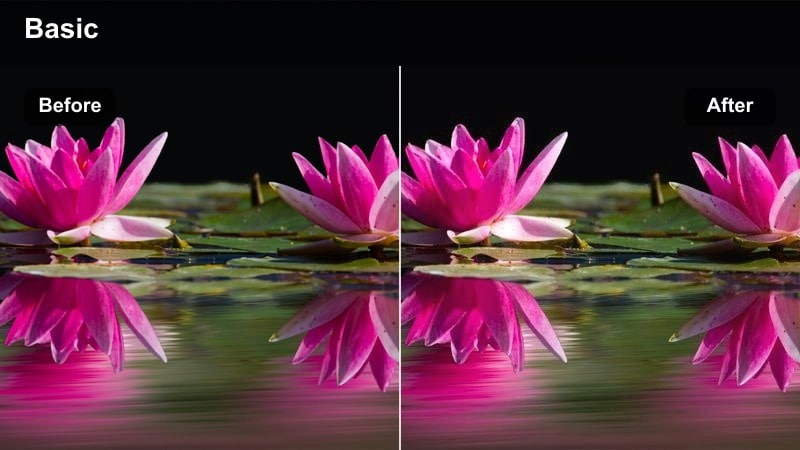
- Effect look: Soft, true-to-life color that gently neutralizes warm or cool casts in daytime footage.
- Best for: Vlogs, talking-head videos, and lifestyle B-roll shot in natural daylight.
- Editing tip: Apply first on an adjustment layer, then fine-tune exposure and contrast to taste.
Neutral Day Balance is ideal when your daylight clips feel a bit too warm or too cool straight out of camera. In Filmora, drop this filter on an adjustment layer above your footage to quickly normalize color across multiple shots so skies, pavement, and skin tones all sit in a natural range.
Once you have this reliable base grade, you can safely add contrast, saturation, or creative filters without fighting inconsistent white balance. This is especially helpful for vloggers who shoot run-and-gun content in changing outdoor conditions but still want their final video to look cohesive and polished.
Let Filmora AI Help You Find the Right Balance
Filmora's AI-driven color tools can analyze each clip and propose balanced color settings before you even start manual grading. Use AI to correct strong color casts or exposure issues, then apply a Balanced Color Correction LUT-style filter like Neutral Day Balance for a clean, unified look.
By letting AI handle the heavy lifting first, you spend less time fixing problems and more time fine-tuning the creative feel of your footage. This workflow keeps your projects fast, efficient, and consistent from scene to scene.
 secure download

Preview Balanced Filters in Real Time
Filmora lets you hover over any balanced filter in the Effects panel to preview how it transforms your current clip. This real-time feedback makes it simple to compare options like Neutral Day Balance and Soft Street Balance and instantly see which one preserves the most natural skin and background color.
Try testing several balanced looks on a single shot, then lock in your choice across the whole sequence for a consistent, professional grade that still feels authentic to the original scene.
secure downloadCombine Filters with LUTs for a Custom Grade
Filmora supports stacking filters with 3D LUTs, so you can keep your footage balanced while still adding a stylized finish. First, apply a neutral correction filter from this Balanced collection, then bring in a creative LUT at reduced intensity for a subtle, cinematic twist.
This layered approach helps you maintain realistic skin tones and consistent color across shots while still developing a distinct visual identity for your channel or brand.
secure downloadSoft Street Balance
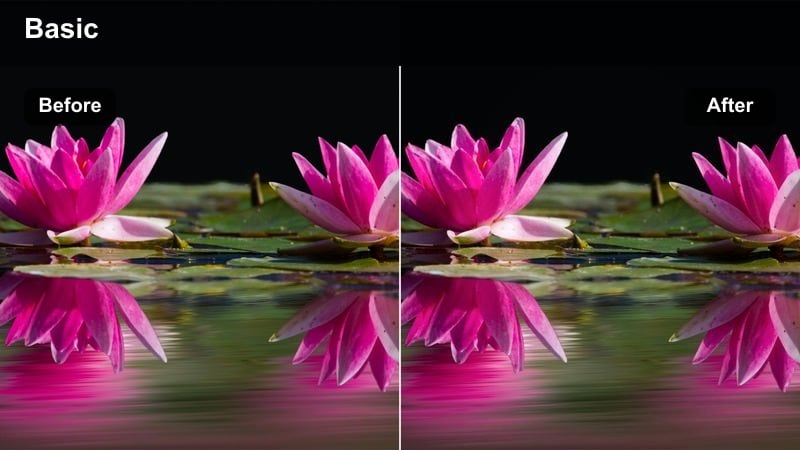
- Effect look: Gently lowered contrast with subtle saturation control for soft, balanced street scenes.
- Best for: Urban walk-and-talk videos, travel street footage, and documentary-style clips.
- Editing tip: Combine with a slight vignette to draw attention to your subject in busy environments.
Soft Street Balance is built for bright, contrast-heavy city environments where hard shadows and reflective surfaces can make footage look harsh. In Filmora, apply this filter to reduce crunchiness in midtones and highlights, giving sidewalks, buildings, and faces a smoother, more watchable feel.
This look pairs especially well with handheld walk-and-talk content, where many competing details can distract viewers. Add a subtle vignette and light stabilization in Filmora to guide the eye toward your subject while keeping the urban energy of the scene intact.
Clean Office Balance
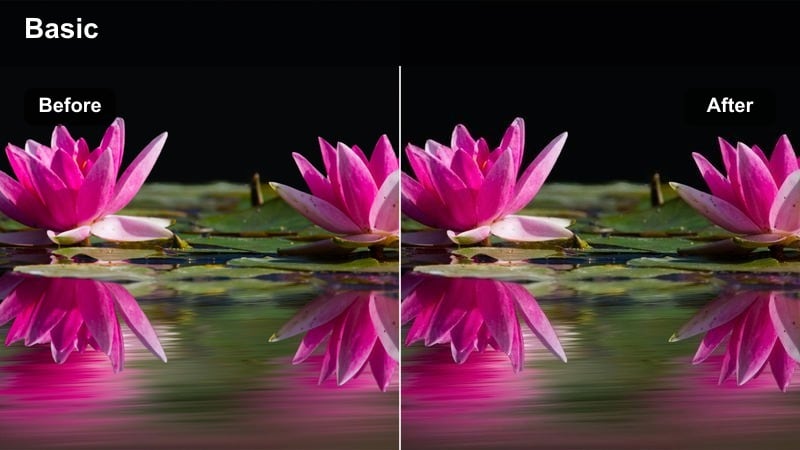
- Effect look: Neutralizes mixed fluorescent and window light for clean, modern interior color.
- Best for: Office tutorials, workspace tours, productivity videos, and desk setups.
- Editing tip: Pair with a subtle sharpening adjustment for screen recordings or tech-heavy scenes.
Clean Office Balance is tuned to fix the common problem of green or magenta casts from overhead office lighting mixed with daylight from windows. Apply it in Filmora when your desk or workspace footage looks slightly sickly or inconsistent between angles.
Once color is neutral, add a touch of sharpening and maybe a mild clarity effect to make monitors, keyboards, and small desk items pop without making skin tones look over-processed. This gives your productivity or tech content a clean, professional aesthetic that feels ready for clients or YouTube.
Skin-Tone Friendly Looks for People Shots
True Skin Neutral
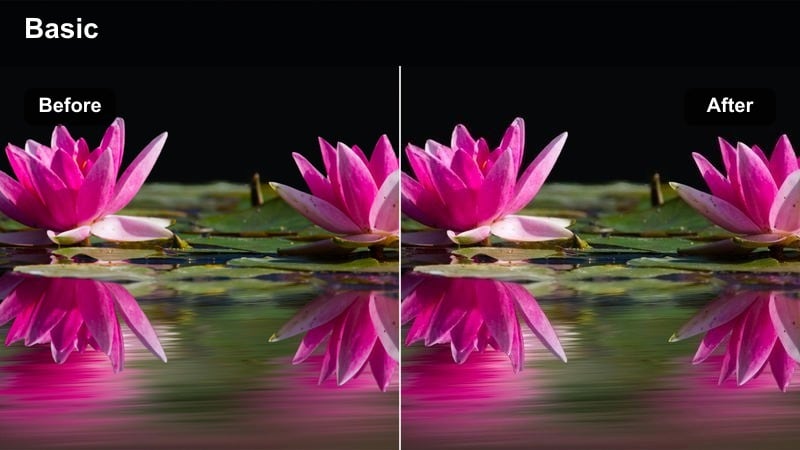
- Effect look: Refined, realistic skin tone with slightly softened highlights and controlled reds.
- Best for: Talking-head content, interviews, beauty tutorials, and livestream repurposing.
- Editing tip: Lower the filter intensity slightly if makeup colors need to remain very precise.
True Skin Neutral focuses on keeping faces natural, flattering, and consistent across varying lighting setups. In Filmora, it gently reins in aggressive reds and highlights so that complexions look smooth without losing detail or texture.
Use it on any people-first video, from educational talking heads to repurposed livestreams. If you are editing beauty content where exact lipstick or eyeshadow shades matter, simply dial down the filter intensity until color accuracy and flattering skin sit in perfect balance.
Studio Soft Balance
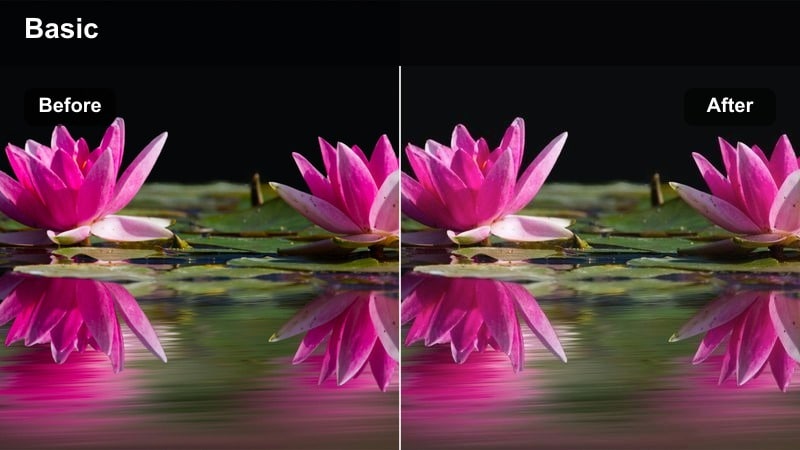
- Effect look: Soft contrast and gentle roll-off in highlights for clean studio lighting setups.
- Best for: YouTube studio shows, podcasts, and course recordings under LED panels.
- Editing tip: Combine with a slight warm white balance shift if your LEDs are very cool.
Studio Soft Balance is designed for controlled LED-lit environments where you want your set to look polished but not overly contrasty. In Filmora, it smooths highlight roll-off on foreheads and cheeks, and evens out color so different studio angles feel unified.
If your LED panels lean cool or clinical, pair this filter with a very subtle warm white balance adjustment. The result is a professional, inviting studio look that works perfectly for long-form educational content, interviews, or podcast-style shows.
Window Light Balance
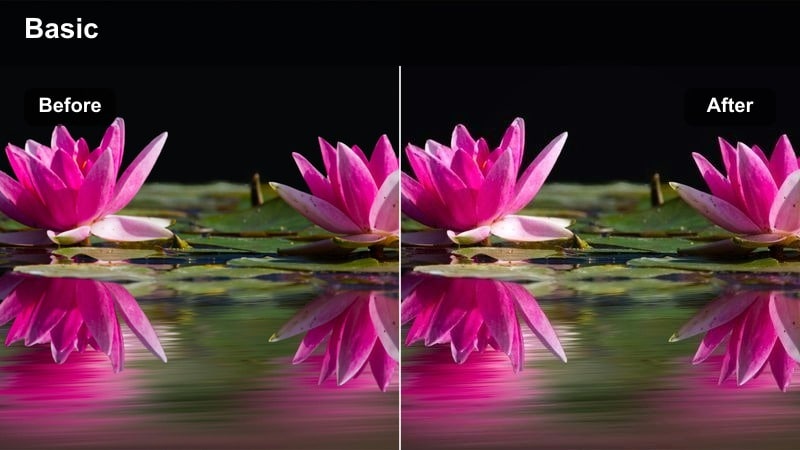
- Effect look: Balances cool window daylight with warmer room tones for natural indoor portraits.
- Best for: Casual talking-head videos, lifestyle content, and sit-down chats near a window.
- Editing tip: Reduce saturation slightly if your background includes strong accent colors.
Window Light Balance is tailored for creators who sit facing a window while interior lamps or ambient room tones add warmth behind them. In Filmora, this filter blends those cool and warm sources into a harmonious, natural-looking image.
Use it on lifestyle sit-downs, casual updates, or any home content where the primary light source is a window. If decor or accent lights in the background feel too loud after applying the filter, lightly pull down saturation so the viewer stays focused on faces.
Outdoor and Travel Scenes with Controlled Color
Cityscape Balance
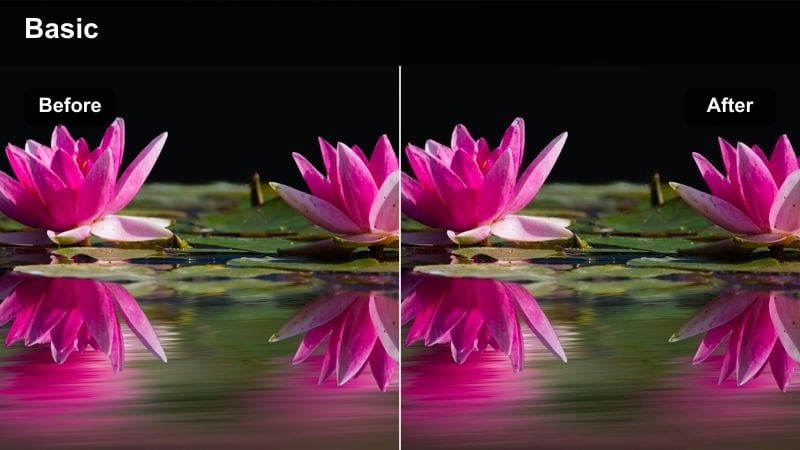
- Effect look: Balanced saturation and controlled blues for skyline, streets, and modern architecture.
- Best for: Urban travel B-roll, drone passes over cities, and architectural walkthroughs.
- Editing tip: Add a touch of clarity or texture after this filter to emphasize buildings without over-sharpening the sky.
Cityscape Balance is tuned to keep skies rich but believable while preventing windows, glass, and metal from becoming overly cyan or reflective. In Filmora, apply it to drone shots, timelapses, and B-roll of city centers for a clean, modern aesthetic.
After balancing color, you can add a slight clarity or texture boost to define building edges and details. Keep sharpening subtle so the sky stays smooth and natural, maintaining a cinematic quality in your travel or architecture edits.
Park Walk Balance
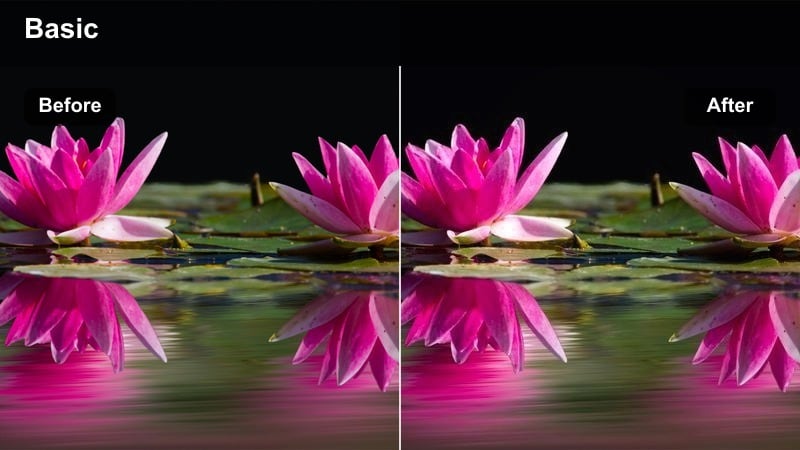
- Effect look: Natural greens and skin tones with moderate contrast for outdoor walk-and-talks.
- Best for: Walkthrough vlogs, lifestyle B-roll in parks, and outdoor interviews.
- Editing tip: Use slight stabilization with this filter on handheld walk footage to complete the polished look.
Park Walk Balance is built to prevent grass, trees, and bushes from turning neon or distracting in-camera. In Filmora, it calms down aggressive greens while keeping skin tones believable, making it perfect for outdoor vlogs and casual interviews on paths or trails.
Once color is balanced, apply gentle stabilization to smooth handheld motion and maybe a tiny bit of contrast for depth. The result is easy-to-watch outdoor footage that feels cinematic yet still true to life.
Golden Hour Balance
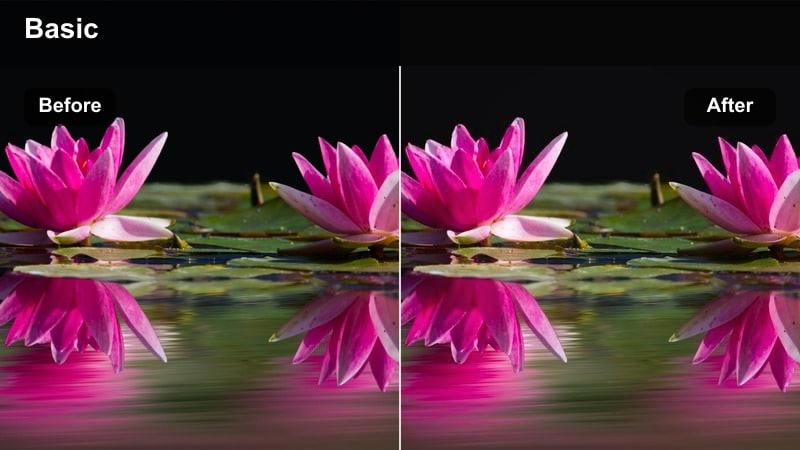
- Effect look: Balances warm sunset tones so highlights stay rich without clipping skin or skies.
- Best for: Sunset city viewpoints, rooftop vlogs, and golden-hour street photography video.
- Editing tip: Lower contrast slightly with this filter if you want a softer, dreamier golden-hour feel.
Golden Hour Balance is tuned to preserve the magic of sunset while keeping detail in faces and clouds. In Filmora, use it when your golden-hour footage looks too orange or when highlights on skin and sky start to blow out.
After applying the filter, you can gently adjust contrast and shadows to control mood. Lower contrast for a dreamy, romantic look, or keep it moderate for a crisp travel or lifestyle vibe, all while maintaining controlled, beautiful warm tones.
Night and Mixed-Light Scenes with Clean Color
City Night Balance
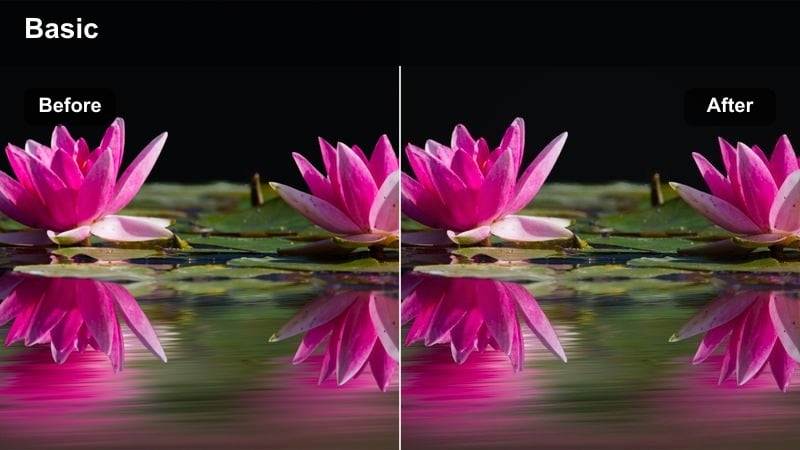
- Effect look: Balances neon signs, streetlights, and storefronts for a clean but vibrant night city look.
- Best for: Night city B-roll, street vlogs, and cinematic evening sequences.
- Editing tip: Reduce noise first, then apply this filter to prevent color artifacts from being exaggerated.
City Night Balance is crafted to tame chaotic mixed lighting from neon signs, LED panels, and sodium street lamps. In Filmora, apply noise reduction first on high ISO footage, then drop this filter on top to neutralize unwanted magenta or green shifts.
The filter keeps colors lively without letting any one hue overpower the frame. This is perfect for cinematic night walks, nightlife B-roll, or travel montages where you want energy from the lights but still need clean, watchable color.
Indoor Warm Balance
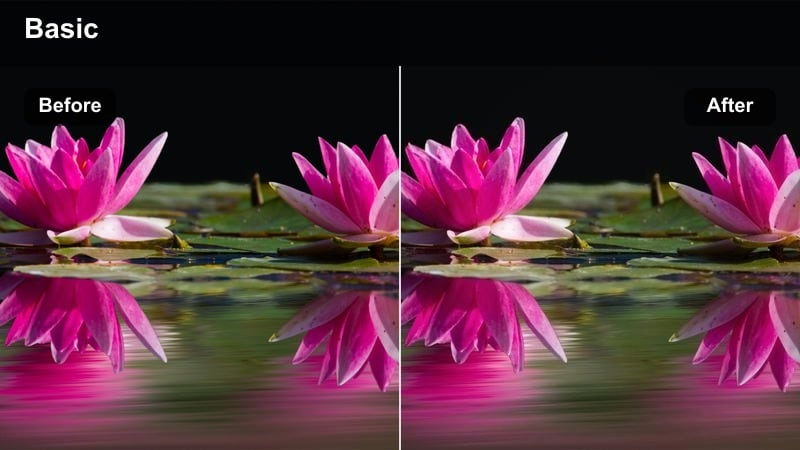
- Effect look: Tones down strong orange from tungsten or warm LED bulbs for cozy but accurate interiors.
- Best for: Evening living room vlogs, coffee shop chats, and small event coverage.
- Editing tip: If your footage still feels too warm, reduce the filter intensity instead of pushing global temperature too far.
Indoor Warm Balance is designed for living rooms, cafes, and event spaces lit by warm bulbs that can push skin into deep orange territory. In Filmora, this filter gently pulls those tones back while preserving the inviting atmosphere.
Rather than drastically shifting white balance, use the filter intensity slider to fine-tune the warmth level. This lets you keep cozy ambient light intact while ensuring faces and clothing colors look accurate and professional on screen.
Mixed Sign Balance
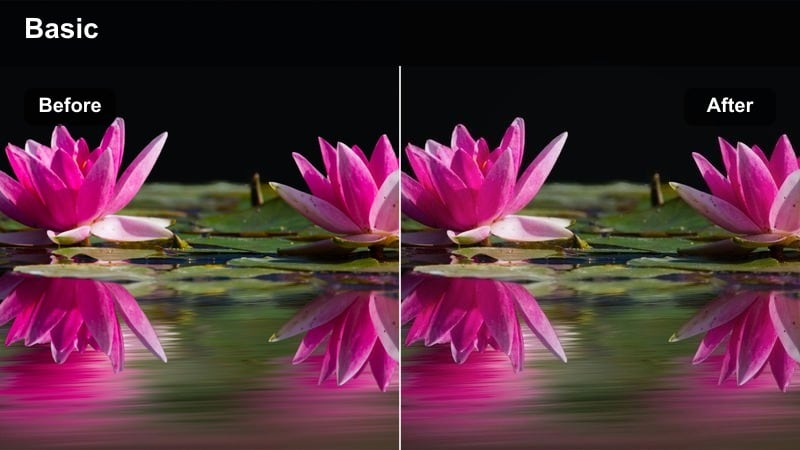
- Effect look: Controls clashing colored lights from signs, screens, and storefronts in busy environments.
- Best for: Night markets, shopping districts, indoor malls, and arcades with mixed colors.
- Editing tip: Use subtle saturation cuts after this filter if brand signage is overpowering your subject.
Mixed Sign Balance is optimized for environments packed with LEDs, billboards, and digital screens in many different colors. In Filmora, it evens out these competing light sources so they add atmosphere without stealing focus from people or products.
After applying the filter, lightly reduce global saturation or use additional Filmora tools to dim especially bright signage if needed. This keeps your subject clearly visible and helps guide the viewer's eye in even the busiest locations.
Tips for Using Balanced Color Correction Lut Filters in Filmora
- Apply a balanced correction filter before adding heavy contrast or saturation so your creative tweaks sit on a clean foundation.
- Keep filter intensity between 40 and 80 percent for most content to avoid pushing colors away from a natural look.
- Match white balance across all clips in Filmora first, then use one or two consistent filters from this collection for a cohesive grade.
- When editing people-focused content, always judge your adjustments on skin tone before making decisions based on background colors.
- Use adjustment layers in Filmora to apply balanced filters across multiple clips at once, then fine-tune individual shots only where needed.
- Export a short test clip with your chosen filter settings and review it on phones and smaller screens to confirm the look holds up everywhere.
- Combine these balanced filters with Filmora's AI and LUT tools at low opacity to add style while preserving realistic, reliable color.
Balanced color correction filters help content creators deliver cleaner, more professional-looking videos without spending hours in advanced grading tools.
Use this collection as your go-to foundation for neutral, reliable color, then layer creative styles on top whenever you want a more distinctive mood.
secure download