

 100% Security Verified | No Subscription Required | No Malware


 ChatGPT
 Perplexity
 Gemini
 Claude
 Grok
Grok
Cinematic beach video filters are essential for transforming flat seaside footage into immersive, film-quality visuals. With rich contrast, balanced skin tones, and controlled highlights on water, your waves and shorelines can instantly look like scenes from a feature film.
This guide focuses on the Cinematic Beach Filter. Epic Ocean preset and related looks tailored for filmmakers and photographers creating cinematic beach films. Explore dramatic coastal moods, subtle film look beach grades, and practical editing tips that keep your workflow fast inside Filmora.
In this article
Soft Cinematic Beach Glow Filters
Cinematic Beach Filter. Epic Ocean
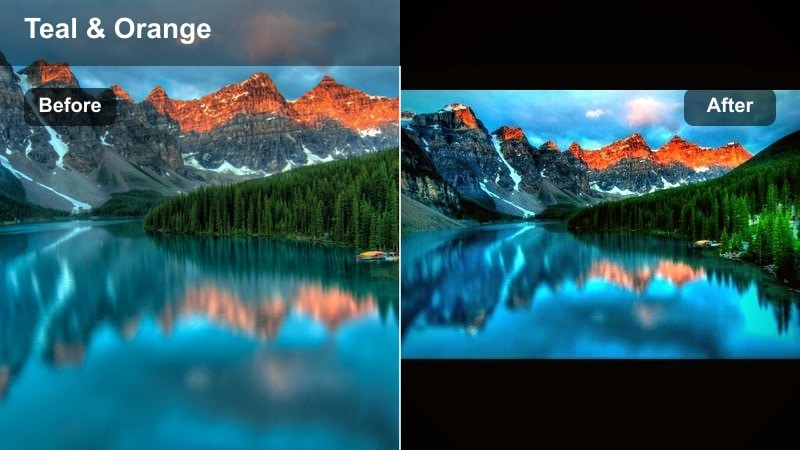
- Effect look: Soft teal-and-gold cinematic wash that deepens ocean blues, warms sand tones, and adds gentle halation around highlights
- Best for: Slow-motion waves, golden-hour walk cycles, and wide establishing shots in cinematic beach films
- Editing tip: Lower intensity to 60-75 percent for close-ups to keep skin tones natural while preserving the dramatic coastal palette
A balanced, filmic base filter that turns ordinary shore footage into an epic, theater-ready ocean scene, Cinematic Beach Filter. Epic Ocean is ideal when you want a fast cinematic upgrade without over-stylizing your colors. Teal-and-gold toning adds drama to the water and sky while keeping sand and skin flattering, so you can cut seamlessly between wide and medium shots.
Inside Filmora, drop this filter on an adjustment layer above your entire beach sequence and fine-tune intensity until the grade feels natural. From there, you can refine contrast with the Color tools, gently protect highlights on the waves, and add a touch of film grain and vignette to lock in a cohesive, film look beach aesthetic.
AI-Assisted Cinematic Beach Palettes in Filmora
Filmora’s AI color tools help you quickly test different cinematic beach video filters without rebuilding your grade from scratch. The AI engine analyzes exposure, contrast, and skin tones, then suggests a base palette that already respects the natural balance of your scene.
Once AI lays the groundwork, you can layer the Cinematic Beach Filter. Epic Ocean or other dramatic coastal presets on top, then tweak intensity and HSL values for consistency across your entire timeline. This workflow keeps your film look beach grades fast, repeatable, and professional.
 secure download

See Cinematic Beach Filters in Action
Before you commit to a single look, Filmora lets you preview multiple cinematic beach filters in real time on the same shot. You can compare soft glow, bold teal-and-gold, and moody twilight grades side by side to find the mood that best fits your story.
Use a mix of test clips, from wide ocean vistas to close-up portraits and handheld action, to be sure your chosen beach cinematic filter holds up in every lighting and framing scenario.
secure downloadCombine Filters and LUTs for a Complete Film Look
For maximum control over your cinematic beach films, Filmora lets you stack filters and LUTs in a single grade. LUTs handle the overall film curve and color science, while filters sculpt mood, micro-contrast, and local color shifts.
Start with a neutral LUT to normalize footage from different cameras, then place the Cinematic Beach Filter. Epic Ocean or another epic ocean preset above it. Adjust each layer’s strength until the result feels cinematic, cohesive, and true to the scene.
secure downloadSunlit Soft Glow
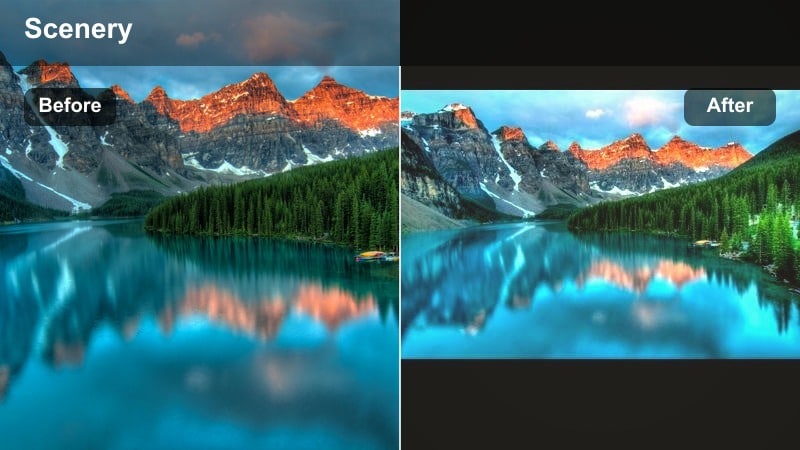
- Effect look: Low-contrast, airy highlights that give beaches a dreamy, slightly hazy cinematic glow
- Best for: Romantic beach walks, lifestyle B-roll, and soft interlude shots in narrative or wedding films
- Editing tip: Reduce clarity slightly while lifting blacks to avoid harsh edges; this keeps details visible but maintains a gentle, cinematic softness
Sunlit Soft Glow wraps your beach scenes in a romantic, ethereal halo that flatters skin and white clothing while keeping the ocean bright and inviting. Highlights roll off smoothly instead of clipping, so midday or late afternoon footage feels nostalgic rather than harsh.
In Filmora, pair this filter with subtle clarity reduction and lifted blacks in the Color panel to keep edges gentle. Use HSL to protect warm skin tones while you brighten skies and reflections, then add a light vignette to center attention on couples or lifestyle subjects.
Pastel Shoreline Cinema
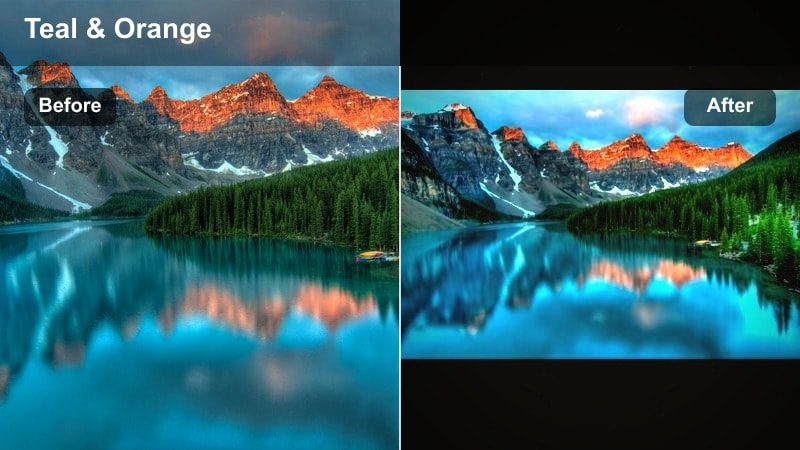
- Effect look: Muted pastel blues and pinkish highlights that turn the coast into a soft, stylized cinematic palette
- Best for: Fashion shoots on the beach, music videos, and social media edits where color styling is part of the visual identity
- Editing tip: Desaturate greens slightly and push blues towards teal to unify sky and water while keeping sand more neutral for subject separation
Pastel Shoreline Cinema gives your footage a modern, editorial vibe by toning down primary colors and pushing blues and highlights into gentle pastels. The result is a calm, stylized beach that works perfectly for fashion brands, dreamy music videos, and curated social feeds.
Inside Filmora, apply this filter and refine it with the HSL sliders by muting greens and steering blues toward teal. Keep sand near-neutral so your models, wardrobe, or key props pop, then save the combination as a custom preset for consistent branding across all your beach cinematic videos.
Dramatic Coastal Contrast Filters
Storm Breaker Coast
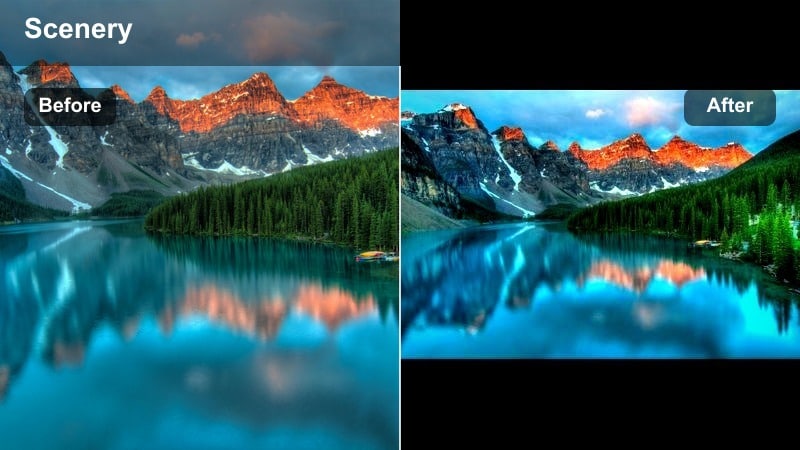
- Effect look: High-contrast, deep blues and charcoal shadows that make clouds and waves look intense and cinematic
- Best for: Stormy seascapes, thriller intros, and dramatic coastal cutaways between story beats
- Editing tip: Use a graduated mask to darken the sky more than the foreground, pulling the viewer’s eye towards the crashing waves and horizon line
Storm Breaker Coast transforms gray, threatening weather into powerful, story-driven visuals with inky shadows and bold, textured clouds. It amplifies the drama in the ocean’s surface and sky, giving you cinematic cutaways that elevate thrillers, travel films, and introspective docs.
In Filmora, combine this filter with graduated masks from the Effects or Color tools to darken skies selectively. Check your scopes to avoid crushed blacks; keep just enough detail in rocks and waves, then nudge highlights down so bright foam and clouds retain structure while still feeling ominous.
Hard Sun Cinema Beach
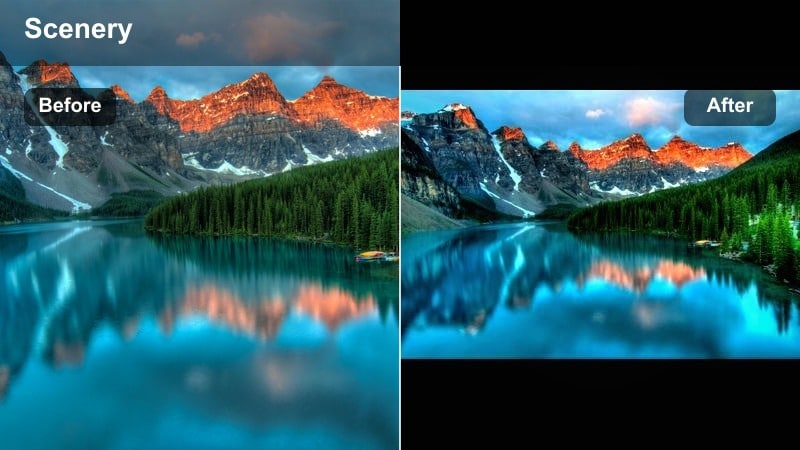
- Effect look: Punchy midday contrast with controlled highlights and slightly cooler shadows for a crisp film look
- Best for: Documentary coverage, surf action, and handheld sequences shot under harsh midday sun
- Editing tip: Lower global saturation and then selectively boost aquas to keep water vibrant without oversaturating skin and clothing
Hard Sun Cinema Beach is built for the worst lighting conditions: overhead sun, reflective sand, and blown-out surf. It reins in highlights and cools shadows slightly to deliver a crisp, controllable film look where faces remain readable and the ocean still punches through.
Use this filter in Filmora on action-heavy surf or doc footage, then reduce global saturation a bit for a cleaner palette. Bring life back to the water by boosting aquas in HSL, and neutralize color shifts with the white balance eyedropper so skin tones stay believable across multiple angles.
Golden Ridge Cinema
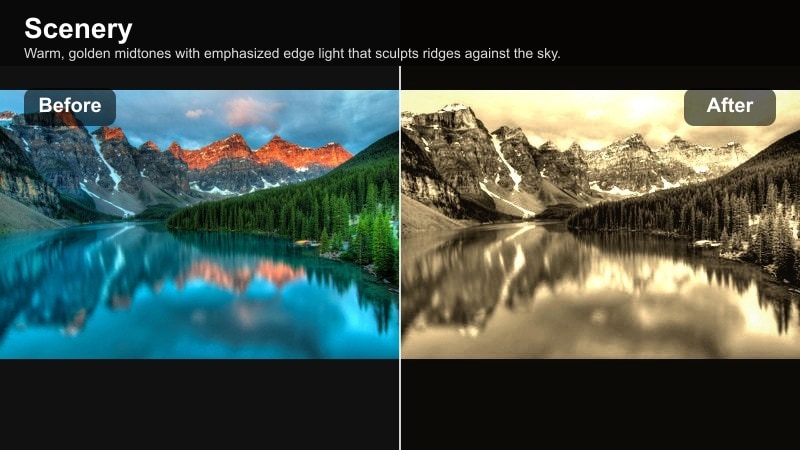
- Effect look: Rich golden highlights with cinematic shadow rolloff, enhancing contours in dunes and rocky coastlines
- Best for: Late afternoon drone shots, sweeping pans across cliffs, and establishing shots for travel films
- Editing tip: Add a subtle local contrast boost to midtones only so textures in rocks and dunes pop without making the image crunchy
Golden Ridge Cinema is designed to make golden hour look as lush and dimensional as it feels in person. It enriches warm sunlight on cliffs, dunes, and water while keeping shadows smooth, making landscapes look sculpted and naturally cinematic.
In Filmora, apply this filter to your drone and tripod shots, then increase midtone contrast slightly using the advanced Color controls. Keep an eye on skin in any cutaway portraits and, if needed, reduce warmth just on faces so you can cut between landscapes and characters without orange casts.
Moody Evening and Blue Hour Beach Filters
Twilight Coast Mood
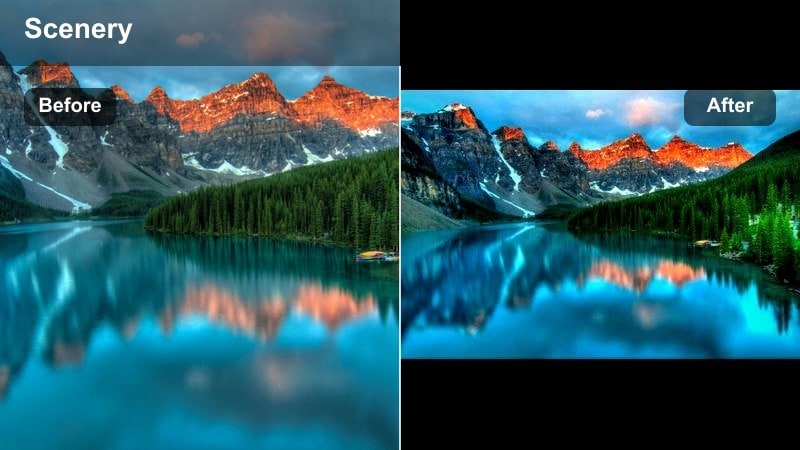
- Effect look: Cool, desaturated blues with soft contrast that mimic the calm, introspective feel of blue hour
- Best for: Reflective character moments, narrative montages, and moody beach moody filter sequences
- Editing tip: Drop saturation slightly, then reintroduce color only in midtones to keep skies subtle while preserving skin liveliness
Twilight Coast Mood leans into the quiet, contemplative feeling of blue hour with gentle contrast and subdued color. Skies and water shift towards cool blues, while faces retain enough warmth and brightness to carry emotional performances.
In Filmora, desaturate your overall image a bit and then add back color in the midtones using the Color panel, so skin stays engaging against a cool, calming backdrop. Compare a slightly more cyan version with a bluer one to fine-tune whether the scene feels peaceful, lonely, or bittersweet.
Midnight Tide Cinema
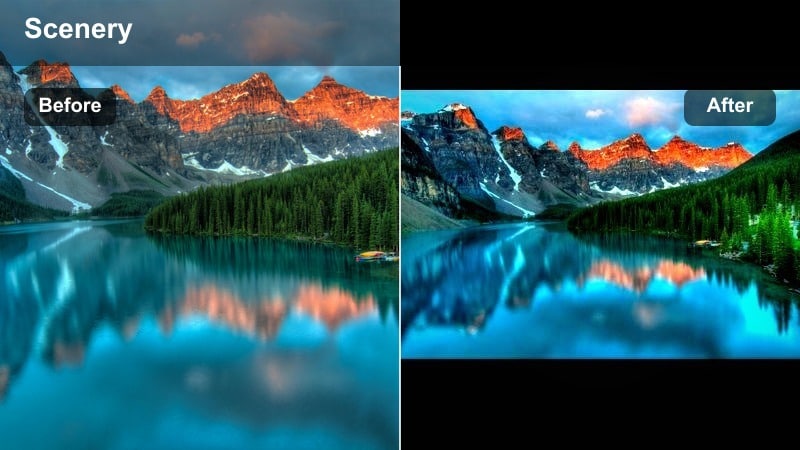
- Effect look: Deep cyan shadows with lifted blacks that keep detail in low light while suggesting night-time mystery
- Best for: Night beach scenes, suspenseful walk-and-talks, and music videos with silhouettes against the surf
- Editing tip: Lift shadows slightly to preserve texture in dark areas, then add a controlled vignette to hold focus on your subject
Midnight Tide Cinema helps you create a convincing night-on-the-beach look, even if you shot at dusk or with limited light. Shadows skew toward cyan and blacks are lifted, preserving texture in the surf and rocks while still reading as nighttime.
In Filmora, apply the filter and raise shadows gently before adding a vignette or mask to keep attention on your subjects. Run noise reduction early in your workflow, then avoid pushing exposure too far; if grain remains, blend in subtle film grain so the texture feels artistic instead of accidental.
Overcast Film Beach
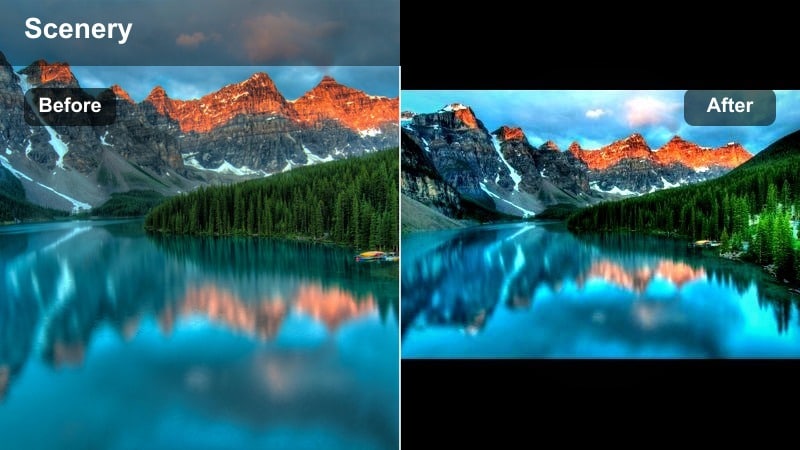
- Effect look: Neutral, slightly cool tones with gentle contrast that turn flat gray skies into a soft cinematic backdrop
- Best for: Overcast documentary shoots, vlogs, and scenes where the story matters more than flashy color
- Editing tip: Increase local contrast in midtones only and keep saturation moderate to avoid the muddy look common in cloudy beach footage
Overcast Film Beach is perfect when the sky is flat and gray, but you still need your footage to look intentional and polished. It adds a touch of coolness and controlled contrast, turning gloomy weather into a soft, cinematic canvas for your story.
Use this filter in Filmora on vlogs, doc scenes, and narrative coverage shot under clouds. Gently boost midtone contrast while keeping saturation restrained; then, if you mix shots from sunny and overcast days, use Color Match to harmonize them into a single believable visual world.
Stylized Film Look Beach Filters
Retro Film Coastline
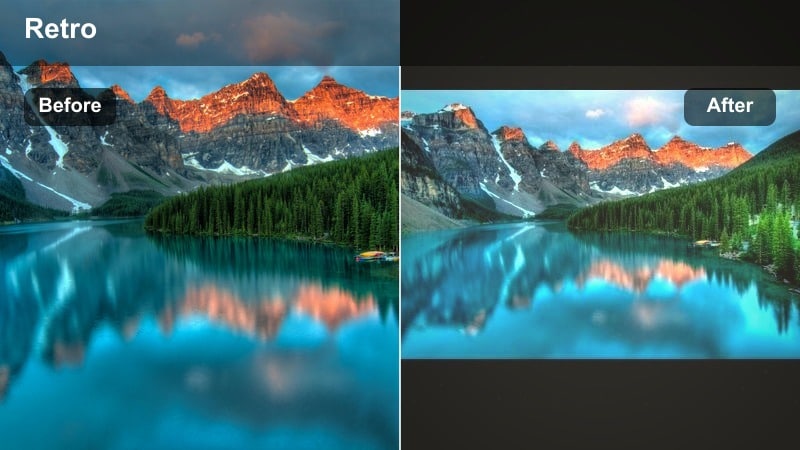
- Effect look: Warm, slightly faded colors with gentle grain that emulate classic 35mm seaside footage
- Best for: Nostalgic travel diaries, family beach memories, and retro-inspired short films
- Editing tip: Reduce clarity a touch and add a hint of halation on bright highlights to mimic older lenses and emulsions
Retro Film Coastline turns fresh digital beach clips into warm, memory-soaked frames reminiscent of 35mm vacation reels. Colors lean warm and slightly faded, and a touch of grain gives your footage a tactile, analog character.
Inside Filmora, combine this filter with reduced clarity and a halation-style glow effect on bright reflections to complete the vintage illusion. Keep titles simple and era-appropriate, and consider adding a subtle frame blur or gate weave effect for an even more authentic retro film look beach aesthetic.
Teal and Orange Surf Cinema
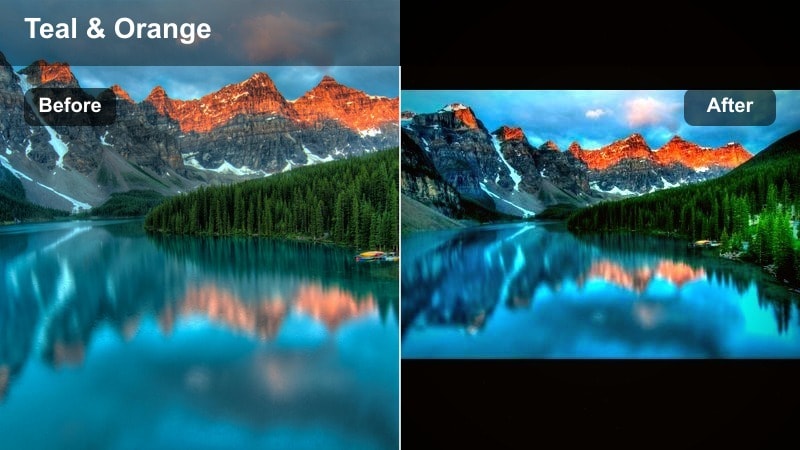
- Effect look: Bold teal waters and warm skin tones for a blockbuster-style beach color contrast
- Best for: Action-heavy surf edits, commercial beach spots, and high-energy cinematic trailers
- Editing tip: Use HSL to isolate blues and aquas, pushing them towards teal while protecting neutral areas to avoid unnatural sand color shifts
Teal and Orange Surf Cinema delivers that high-impact blockbuster contrast by separating cool oceans from warm subjects. Waves shift into rich teal, while skin and sunlit sand stay glowing and inviting, making surf tricks and dynamic movement pop.
In Filmora, apply the filter and refine it with HSL, targeting blues and aquas without contaminating whites and neutrals. Check close-ups and wide shots to ensure the teal and orange balance feels natural; if neutrals drift, dial back saturation or narrow the affected hue ranges until everything clicks.
Art House Shoreline
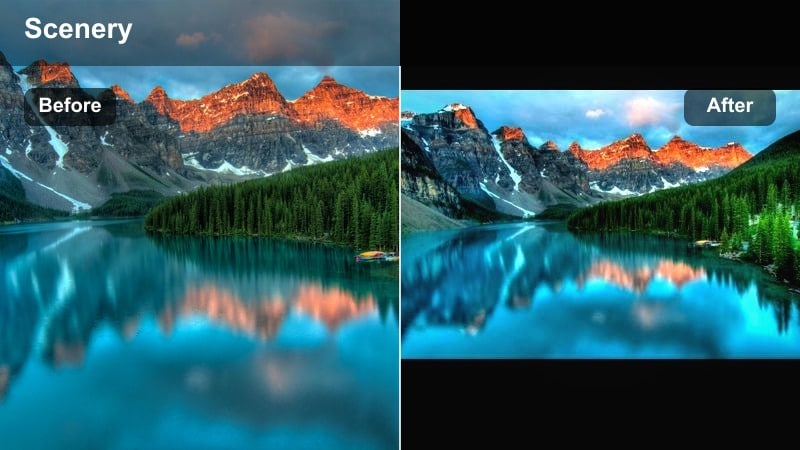
- Effect look: Muted colors, lifted blacks, and subtle split-toning for an understated festival-film aesthetic
- Best for: Indie narratives, experimental shorts, and poetic voiceover sequences on the beach
- Editing tip: Reduce saturation globally, then introduce a gentle warm tint in highlights and cool tint in shadows for nuanced emotional contrast
Art House Shoreline gives your beach footage a restrained, festival-ready look with muted hues and slightly lifted blacks. The subtle split-toning adds emotional depth without drawing attention away from performance, sound design, or pacing.
Use this filter in Filmora when you want the grade to feel invisible yet intentional. Lower overall saturation, then add a soft warm tone to highlights and cooler tint to shadows. Watch your scenes on different screens to ensure the color balance stays neutral and consistent, supporting the story rather than competing with it.
Tips for Using Beach Cinematic Filters in Filmora
- Shoot slightly flatter in-camera so cinematic beach filters have more latitude to shape contrast and color without clipping highlights.
- Use adjustment layers for global filters and clip-level corrections for problem shots like backlit silhouettes or mixed lighting.
- Match white balance between cameras before applying filters to avoid inconsistent ocean and sky colors in multi-camera edits.
- Always check your graded beach footage on both bright and dim screens to ensure details in waves and clouds remain visible.
- Create separate presets for daytime, golden hour, and blue hour so you can quickly maintain continuity across complex beach timelines.
- Save combined filter plus LUT stacks as custom Filmora presets to reuse your favorite cinematic beach looks on new projects.
- Use scopes in Filmora to keep highlights in water under control and preserve texture in bright foam and reflections.
- Test subtle variations of each beach cinematic filter on a short reference sequence before committing it to an entire film.
Cinematic beach video filters give filmmakers and photographers a fast, reliable way to turn raw coastal footage into polished, story-ready visuals. By starting with tools like the Cinematic Beach Filter. Epic Ocean and refining each shot with simple contrast and color tweaks, you can move from flat video to epic ocean sequences in minutes.
Whether you prefer dramatic coastal storms, moody twilight shores, or soft film look beach memories, Filmora’s filters and presets keep your workflow efficient and repeatable. Build a small library of go-to looks, save them as presets, and your next cinematic beach films will grade faster while looking more consistent and intentional.
secure downloadNext: Create a Beach Moody Filter Look for Emotional Coastal Stories
