

 100% Security Verified | No Subscription Required | No Malware


 ChatGPT
 Perplexity
 Gemini
 Claude
 Grok
Grok
Moody beach video filters are perfect for photographers and filmmakers who want to turn sunny shorelines into atmospheric coast scenes filled with drama and depth. By shifting colors, contrast, and clarity, you can transform ordinary beach footage into dark ocean visuals that feel cinematic and emotive.
Below you will find 12 curated filters, including the Moody Beach Filter: Stormy Shore preset, tailored for moody beach scenes. Every filter includes a clear effect description, best use case, and an editing tip to help you craft your ideal stormy shoreline aesthetic in Filmora.
In this article
Deep Coastal Tone Filters
Moody Beach Filter: Stormy Shore
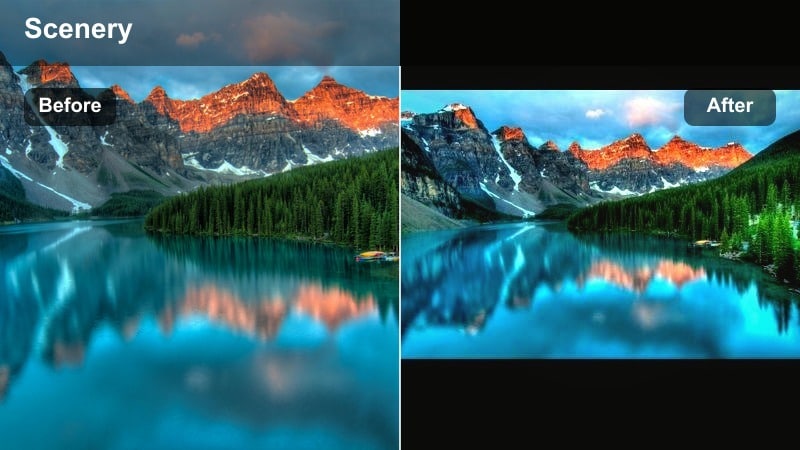
- Effect look: Desaturated sand, deep teal water, and muted skies with lifted shadows for a soft yet ominous shoreline.
- Best for: Overcast beach walks, slow-motion waves, and narrative moody beach scenes that need a cinematic base grade.
- Editing tip: Lower saturation on warm tones and slightly boost midtone contrast to emphasize texture in the surf and wet rocks.
This signature moody beach video filter turns bright coasts into softly stormy, cinematic shorelines with rich teal oceans and mellow skies. By lifting shadows and pulling back saturation, it creates a dark ocean mood without crushing detail in wet rocks, foam, or distant cliffs.
Use Stormy Shore in Filmora as your base grade for any atmospheric coast sequence, then fine-tune with HSL and curves to match different shots. It is ideal for narrative projects, travel films, or B-roll, giving you a consistent stormy shore preset that ties together wide landscapes, medium shots, and close-ups.
Pro tip: Balancing Contrast in Dark Ocean Shots
When using Stormy Shore on dark ocean footage, avoid pushing overall contrast too high or you will lose subtle wave detail in the shadows. Instead, increase local contrast with clarity or texture tools, then add a gentle vignette to keep attention on the shoreline subject.
Dial in Moody Beach Palettes with Filmora AI Tools
Filmora s AI-powered color tools can quickly push your beach footage toward an atmospheric coast look before you fine-tune with these filters. Use AI color matching to align clips from different days or cameras to a single moody reference frame.
Once your base palette is consistent, stack moody beach video filters on top and make small adjustments to contrast, saturation, and white balance. This workflow speeds up grading and keeps your entire shoreline sequence visually unified.
 secure download

Preview Moody Beach Filters in Real Time
Filmora lets you audition filters directly on your timeline so you can see how each look interacts with waves, clouds, and motion. This is especially useful when deciding between subtle melancholy and full stormy drama.
Toggle filters on and off, compare them side by side, and adjust opacity to blend different moods. You can even stack a warm filter later in the film to transition from moody beach scenes into a brighter beach warm filter look.
secure downloadCombine Filters and LUTs for Cinematic Coastlines
For more advanced grading, pair these moody beach video filters with Filmora LUTs designed for teal-and-orange, documentary, or filmic contrast curves. Start with a LUT as your technical base, then layer a filter to sculpt the emotional tone.
Adjust LUT intensity and filter strength to keep the dark ocean and sky dramatic without crushing detail. This combination gives photographers and filmmakers precise control over both color science and creative mood.
secure downloadSteel Horizon
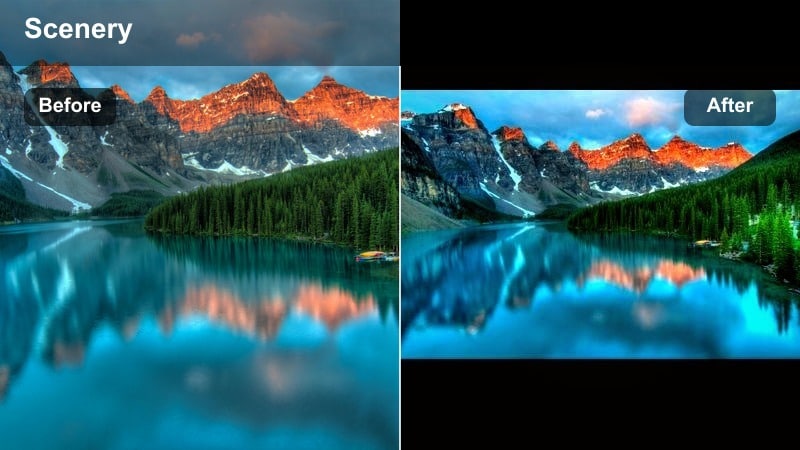
- Effect look: Cool steel-blues in the sky, slightly crushed blacks, and reduced highlights for a dusk-like coastal mood.
- Best for: Wide establishing shots of the coastline, piers, and long-lens views across a dark ocean.
- Editing tip: Use a subtle graduated mask over the sky to deepen blues further while keeping midtones on the sand legible.
Steel Horizon leans hard into cool steel-blues, taming harsh sunlight and giving even midday shots a heavy, late-evening feel. By slightly crushing blacks and reducing highlights, it smooths out high-contrast scenes and adds an introspective tone to open water and pier shots.
In Filmora, apply Steel Horizon to your establishing shots to set the mood for a moody beach sequence, then fine-tune exposure with curves or the color wheel. Use gradient masks on the sky to intensify the stormy look while keeping shoreline details clear and readable.
Pro tip: Enhancing Overcast Skies
Pair Steel Horizon with Filmora s HSL controls to subtly darken cyan and blue while lifting luminance in gray clouds. This yields a layered sky with more separation between cloud structures and the distant ocean line.
Undertow Ember
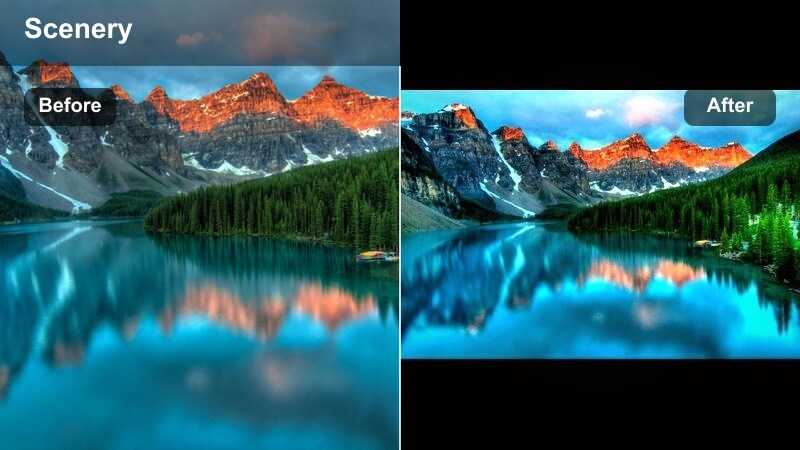
- Effect look: Cool shadows with a faint warm tint in the highlights, creating a subtle color contrast between sea and sky.
- Best for: Close-ups of waves, foam, and shoreline details where you want mood without losing warmth entirely.
- Editing tip: Add a slight fade in the blacks to give the undertow more of a filmic, low-contrast roll-off.
Undertow Ember adds a gentle push-pull between cool shadows and warm highlights, giving your beach footage a cinematic duality. The water falls into deeper, cooler hues while the light catching foam, shells, or skin retains a whisper of warmth.
Use this filter in Filmora for macro or detail shots along the tide line, especially when you want mood without fully abandoning warmth. A slight black fade and subtle split toning will help reinforce the filmic look while keeping the overall scene grounded and realistic.
Pro tip: Using Split Toning for Subtle Mood
Use split toning to add cooler hues to the shadows and gentle amber to highlights to maintain a balanced, cinematic contrast. Fine-tune saturation on both ends to avoid overpowering natural beach colors and skin tones.
Stormy Sky and Cloud Drama Filters
Tempest Veil
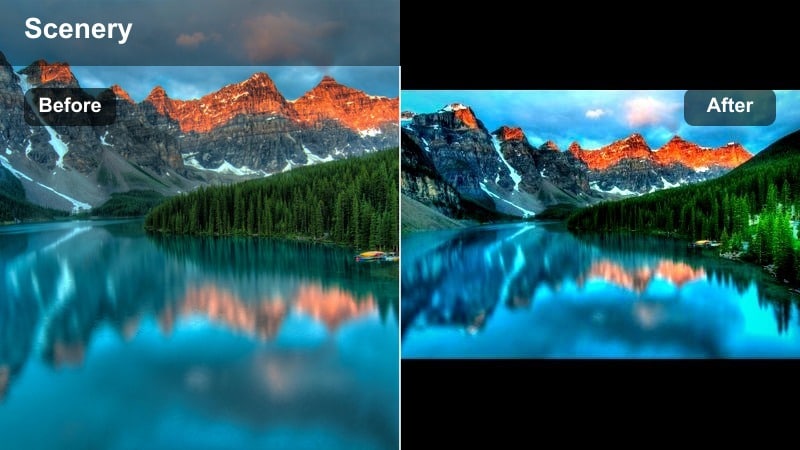
- Effect look: Darkened skies, enhanced cloud contrast, and subdued midtones that pull the frame toward an incoming storm.
- Best for: Time-lapses of storm fronts, drone passes above a moody beach, and narrative tension scenes.
- Editing tip: Combine with a slight speed ramp on wave movement to make the storm build feel more dynamic and uneasy.
Tempest Veil is built for drama, deepening skies and carving definition into clouds so every storm front feels ominous. By subduing midtones, it keeps attention on rolling cloud formations and the horizon line where weather changes are most visible.
In Filmora, use Tempest Veil for drone or tripod shots that capture big sky movement above a coastal line. Pair it with time-lapse or speed-ramped wave motion to amplify tension in trailers, narrative turning points, or travel edits that highlight the power of nature.
Pro tip: Keeping Detail in Dark Clouds
Lower highlights before increasing overall contrast so that crisp cloud edges remain visible after grading. If the clouds clip, pull back whites and use local adjustments on the brightest areas of the sky.
Gale Grey
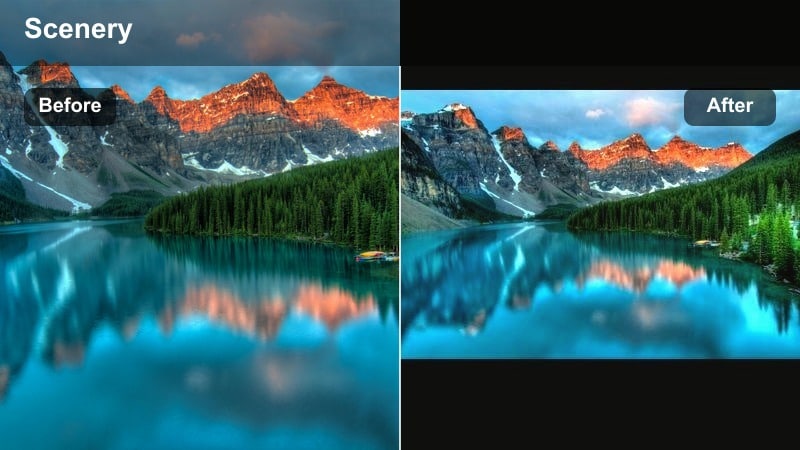
- Effect look: Soft, washed-out colors with grayish blues and gentle contrast for a melancholic, overcast shoreline.
- Best for: Quiet narrative sequences, reflective walk cycles, and minimalist beach compositions.
- Editing tip: Reduce clarity slightly to soften hard lines in the clouds, then bring back detail with subtle sharpening on the subject.
Gale Grey mutes color and contrast to create a soft, diary-like atmosphere over your coastal scenes. The result is a pale, melancholic shoreline that feels intimate and reflective rather than loud or dramatic.
Apply Gale Grey in Filmora for walking shots, slow pans, or minimalist compositions where you want emotion to feel gentle and internal. Lightly blurring or reducing clarity in the background while maintaining subject sharpness will heighten the dreamy separation between character and environment.
Pro tip: Balancing Softness and Sharpness
Use a blur or softness effect selectively on the background while masking your subject to stay crisp. This creates a dreamy coastal feel without sacrificing detail where it matters most in the frame.
Stormline Contrast
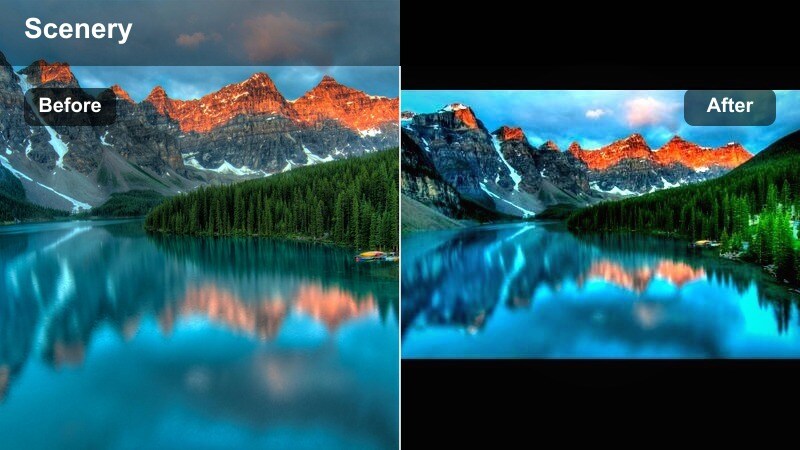
- Effect look: Punchy contrast, deep blues, and accentuated whitecaps that make the line where sea meets sky feel razor sharp.
- Best for: High-energy wave shots, surf footage, and action sequences on a darkening shore.
- Editing tip: Dial in highlight roll-off to prevent wave spray from clipping while keeping the stormline intense.
Stormline Contrast is engineered for impact, intensifying blues and adding snap to foam, spray, and the horizon where storms gather. The bold contrast makes wave shapes more graphic, ideal for surf reels and action-driven edits.
In Filmora, use Stormline Contrast on telephoto surf shots, tracking surfboards, or energetic B-roll of crashing waves. Watch your scopes as you push contrast so foam and spray stay textured, then balance overall intensity with the filter s strength slider or additional curves.
Pro tip: Protecting Whites in Rough Surf
Before applying heavy contrast, pull down highlights and whites so wave foam retains texture. After grading, use Filmora s scopes to confirm that bright areas stay just below clipping for a professional finish.
Twilight and Blue-Hour Beach Filters
Dusk Tide
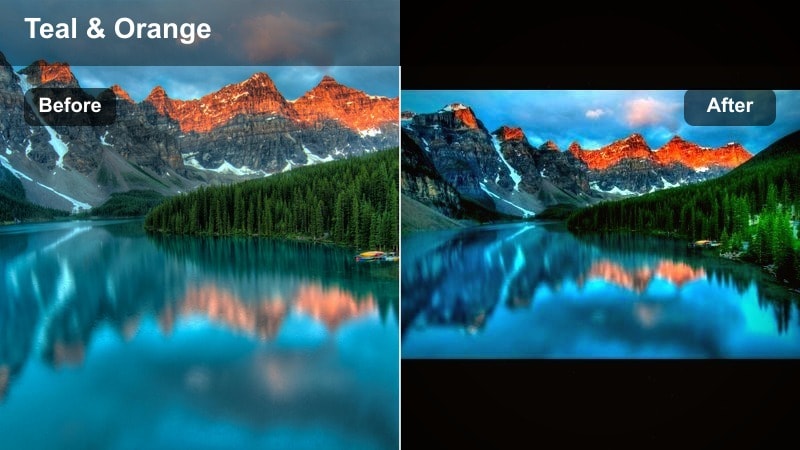
- Effect look: Deep teal shadows, subdued highlights, and gentle magenta in the sky to imitate post-sunset ambiance.
- Best for: Blue-hour shoreline walks, silhouettes against the horizon, and reflective character moments.
- Editing tip: Lower overall saturation, then selectively bring back color in skin tones to keep faces natural against a stylized sea.
Dusk Tide shifts your footage into rich teal shadows and softly colored skies that echo true blue hour, even if you shot earlier in the day. Highlights stay controlled so the scene feels calm, with just enough magenta in the upper sky to suggest lingering sunset light.
In Filmora, combine Dusk Tide with a slightly cooler white balance and reduced global saturation for convincing twilight simulation. Then use HSL or skin tone tools to restore lifelike color to faces and hands so characters remain relatable within the stylized scene.
Pro tip: Simulating Blue Hour from Daylight
Shift white balance slightly cooler and reduce warmth in the midtones before applying Dusk Tide for a more convincing twilight. If the sand looks too cyan, push yellow or red in the shadows just enough to keep it grounded and realistic.
Moonlit Breakers
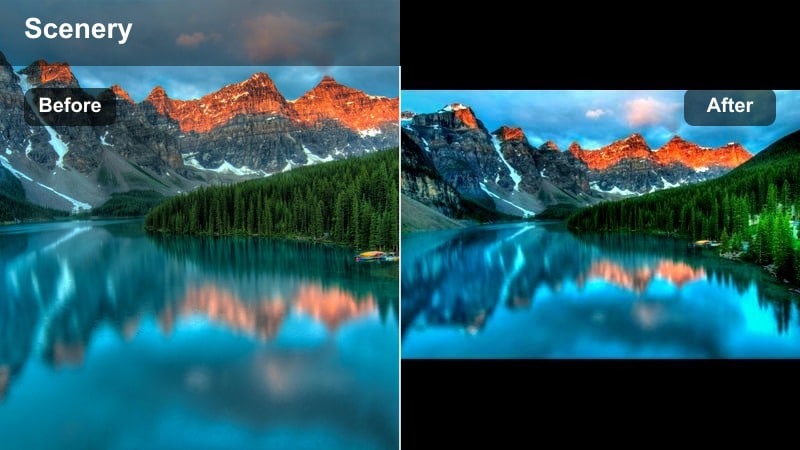
- Effect look: Cool, low-saturation tones with lifted blacks to mimic soft moonlight on water and wet sand.
- Best for: Night beach scenes, slow pans of calm waves, and quiet, poetic coastal visuals.
- Editing tip: Add a slight glow or bloom effect to highlights so reflections on the water feel like soft moonlight.
Moonlit Breakers emulates the gentle glow of moonlight by lifting blacks and draining excess color from the frame. The result is a soft, nocturnal mood where reflections on the water feel delicate rather than harsh.
In Filmora, this filter works well on slow tripod shots, low-motion pans, or contemplative scenes shot at dusk or true night. Enhance the effect with subtle glow, reduced sharpness, and cleaned-up noise so the night feels smooth and cinematic instead of grainy.
Pro tip: Creating Soft Night Atmosphere
Combine Moonlit Breakers with light noise reduction to keep shadows clean but still slightly textured. Avoid sharpening too aggressively, which can break the illusion of soft, diffused night light.
Afterglow Haze
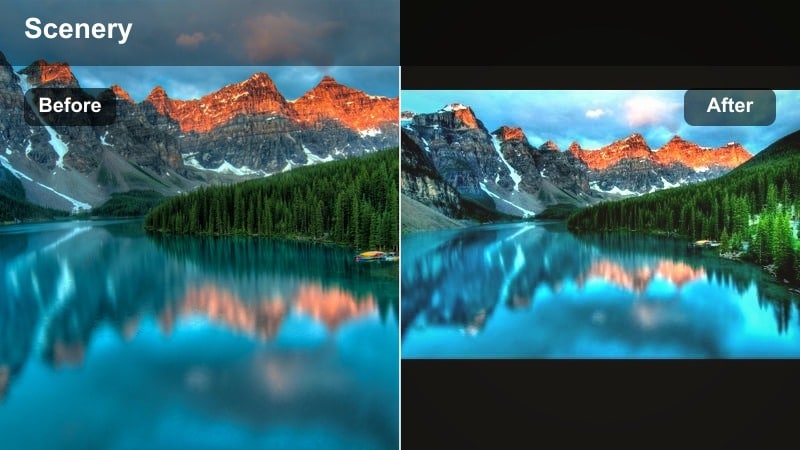
- Effect look: Muted warm highlights paired with cool shadows, giving a faded post-sunset and lightly nostalgic feel.
- Best for: End-of-day beach scenes, closing montage shots, and reflective travel vlogs by the sea.
- Editing tip: Introduce a gentle vignette and very light film grain to add texture and emotional weight to the frame.
Afterglow Haze mixes warm after-sunset tones with cooler shadows to create a bittersweet, end-of-day atmosphere. Colors feel slightly faded, echoing memory rather than real-time experience, which makes it ideal for closing chapters or reflective voiceovers.
In Filmora, place Afterglow Haze on your final coastal sequences or montage of departing shots. Add a low-strength vignette and film grain to further sell the nostalgic mood and visually signal to viewers that the story is winding down.
Pro tip: Using Grain for Emotional Depth
Keep film grain subtle so it adds character without distracting from the motion of waves and clouds. If your footage is already noisy, reduce digital noise first, then add controlled grain on top for a more intentional look.
Character-Focused Moody Beach Filters
Shoreline Solitude
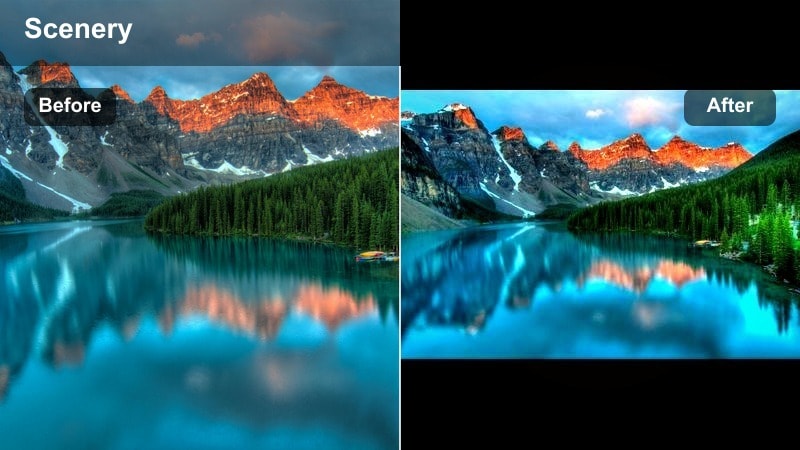
- Effect look: Neutral skin tones with cooled backgrounds, soft contrast, and gentle shadow fades around the subject.
- Best for: Portraits, fashion walks on the sand, and story-driven close-ups on a moody beach.
- Editing tip: Use a mask to slightly brighten the subject while keeping the surrounding ocean and sky darker for isolation.
Shoreline Solitude is tailored for people-first compositions, keeping skin tones realistic while cooling and muting the environment. Soft contrast and subtle shadow fades help isolate your subject against a brooding sea and sky.
Apply this filter in Filmora for fashion walks, portrait sequences, or vlog segments where emotion sits on the subject s face. Use masks and keyframes to maintain a consistent brightness on the subject as they move, while allowing the background to stay moody and desaturated.
Pro tip: Protecting Skin Tones in Cool Grades
Use HSL controls to reduce blue and cyan influence on oranges so faces remain natural even in heavy cool casts. If hands or faces still look too cold, selectively warm the midtones on those areas only.
Driftwood Cinema
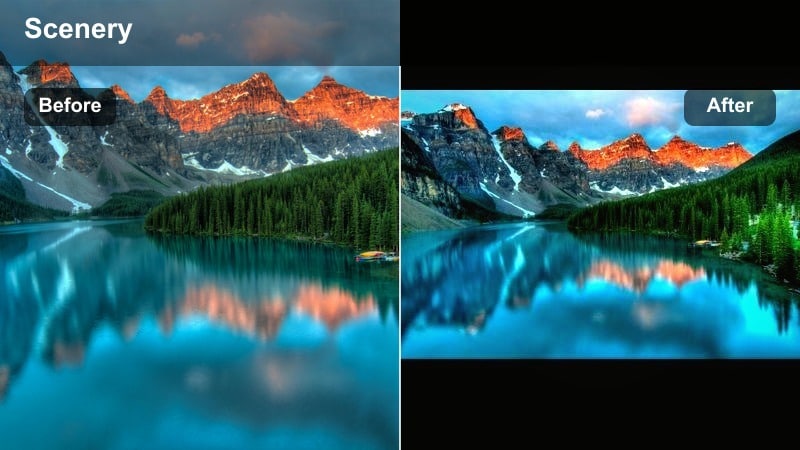
- Effect look: Earthy browns, softened blues, and filmic contrast with slight color separation between subject and sea.
- Best for: Narrative storytelling, dialogue scenes on the beach, and handheld documentary moments.
- Editing tip: Lean into handheld movement and add very subtle motion blur to enhance the cinematic, grounded feel.
Driftwood Cinema pushes your moody beach footage toward grounded, earthy tones, toning down pure blues and leaning into browns and muted cyans. The filmic contrast curve adds depth while preserving room in the highlights and shadows for grading tweaks.
In Filmora, use Driftwood Cinema for dialogue scenes, character interactions, or handheld documentary shots that need a cohesive cinematic identity. Add a touch of motion blur and stabilize only when necessary to preserve a natural, story-driven energy.
Pro tip: Matching Multiple Clips to One Look
Apply Driftwood Cinema as a base, then fine-tune exposure and white balance per clip so the sequence feels cohesive. Use Filmora s copy and paste attributes to speed up adjustments across a full coastal scene timeline.
Silent Current
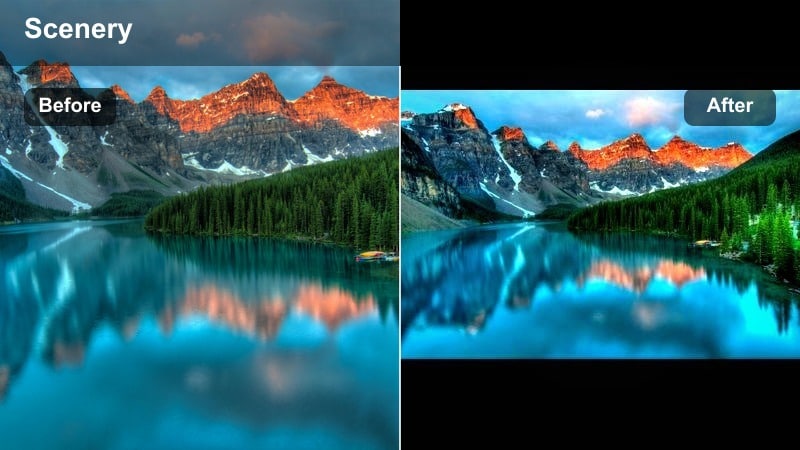
- Effect look: Low saturation, slightly raised blacks, and cool midtones that make characters feel small against a vast ocean.
- Best for: Introspective vlogs, slow-moving narrative beats, and documentary interviews by the water.
- Editing tip: Layer soft ambient wave audio and hold longer on shots to let the visual stillness carry more emotional weight.
Silent Current drains much of the color from the scene and raises blacks just enough to soften contrast, giving your footage a quiet, contemplative tone. Cool midtones and a de-emphasized palette help the ocean feel vast and distant.
Use Silent Current in Filmora for personal vlogs, interviews, or introspective narrative beats where silence and space matter as much as words. Combine the filter with longer shot durations, gentle crossfades, and minimal camera movement to let the mood breathe.
Pro tip: Using Pace to Support Moody Grades
Slow your edit pace when using Silent Current so viewers have time to absorb the subtle coastal atmosphere. Combine gentle crossfades with the filter to create a seamless, meditative flow between shots.
Tips for Using Beach Moody Filters in Filmora
- Shoot slightly underexposed at the beach to protect bright skies and wave foam, then recover detail when applying moody filters.
- Use masks or gradients to treat the sky and water separately so your dark ocean can stay dramatic without overpowering the subject.
- Keep an eye on skin tones when cooling your footage; adjust HSL or use selective color to avoid making people look overly cyan.
- Mix moody and warm beach filters across your edit to reflect emotional shifts in your story or travel vlog.
- Add subtle camera shake or stabilized handheld footage to enhance realism when combining stormy filters with heavy clouds.
- Experiment with filter strength and opacity in Filmora to balance stylized mood with natural beach colors.
- Use Filmora scopes to monitor exposure and saturation so your moody grades stay cinematic and broadcast-safe.
Moody beach video filters give photographers and filmmakers a fast, flexible way to transform ordinary shoreline footage into dark, atmospheric coast visuals. By pairing the Moody Beach Filter: Stormy Shore preset with complementary looks, you can build a cohesive visual language for your entire project.
Experiment with different levels of contrast, saturation, and color balance to find the right intensity for each scene, then refine with Filmora s AI tools and LUT options. When you are ready to shift the feeling from stormy to serene, move on to warm coastal looks to complete your beach narrative.
secure download