

 100% Security Verified | No Subscription Required | No Malware


 ChatGPT
 Perplexity
 Gemini
 Claude
 Grok
Grok
Warm beach video filters are perfect for travelers and vacationers who want their beach vacations and sunset vlogs to look as dreamy on screen as they felt in real life. With Filmora, you can quickly add golden light, soft contrast, and cozy tones that make every shoreline clip feel like a perfect holiday memory.
This guide walks you through a curated set of warm beach filters, inspired by the Warm Beach Filter. Golden Shore preset, to help you stylize golden beach days, warm coastal walks, and sunset sand scenes. Use these ideas to keep your travel videos visually consistent and ready to share on any platform.
In this article
Golden Afternoon Beach Filters
Golden Shore Glow
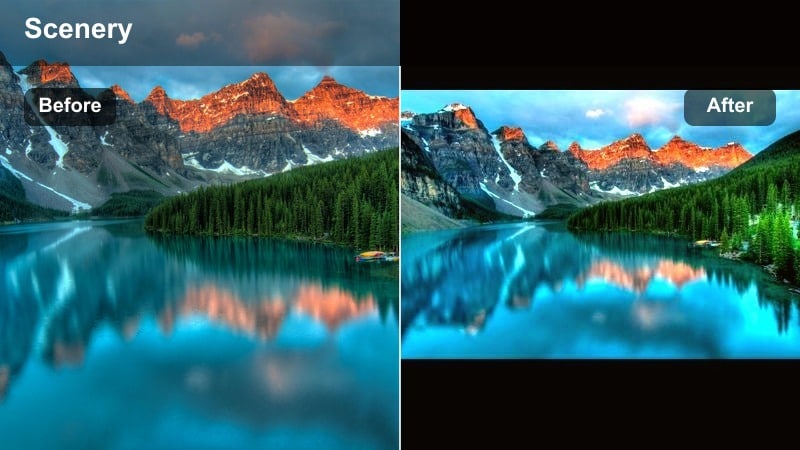
- Effect look: Soft golden wash that brightens skin tones and sand while keeping skies natural.
- Best for: Late afternoon walks along the shoreline, golden beach panoramas, and relaxed family clips.
- Editing tip: Slightly lower contrast after applying the filter to avoid losing detail in bright sand highlights.
A gentle golden beach filter that adds warmth and clarity without over-saturating your travel footage. Golden Shore Glow is ideal when you want your beach warm filter to feel natural, giving sand a soft shimmer and skin a flattering sun-kissed tone without turning the whole frame orange.
In Filmora, apply Golden Shore Glow to your golden beach clips, then fine-tune contrast and highlight levels so waves, footprints, and clouds retain texture. Use it across A-roll and B-roll to keep your warm coastal visuals consistent, and duplicate the adjusted filter to other clips for a unified travel vlog style.
Pro tip: Balance Warmth With Natural Skin Tones
When using Golden Shore Glow, keep an eye on skin tones so your travelers and vacationers do not look overly orange. Use Filmoras temperature and tint sliders to pull back intensity if people in the shot start to look unnatural.
For sunset vlogs, add a subtle vignette after this filter to guide the viewers eye toward the horizon and maintain focus on the warm coastal light.
Use AI to Build a Warm Beach Color Palette in Filmora
Filmoras AI-driven tools help you quickly create a consistent warm beach palette for all your vacation footage. Instead of guessing color settings for each clip, let AI analyze your shots and suggest adjustments that keep sand, skin, and sky in harmony.
Once you have a look you like, save it as a preset such as Warm Beach Filter. Golden Shore so you can apply the same mood to golden beach days, warm coastal adventures, and sunset sand scenes with a single click.
 secure download

See Warm Beach Filters in Action on Travel Footage
Before fully committing to a look, test several warm beach video filters on a short sequence from your latest trip. Mix clips from midday, golden hour, and night to make sure the filter holds up across different lighting conditions.
Filmora lets you preview changes in real time, so you can quickly compare a soft golden style against a richer, more contrasty look and decide what fits your channel or travel series best.
secure downloadTurn Warm Beach Filters Into Reusable LUTs
Once you are happy with your Warm Beach Filter. Golden Shore style, you can convert that look into a LUT and reuse it across future destinations. This keeps your travel brand recognizable whether you are filming at a tropical island or a mellow coastal town.
Filmora supports importing and applying LUTs, so you can also combine your warm beach look with other cinematic tones, stacking adjustments for truly unique visuals.
secure downloadSunlit Sand Soft
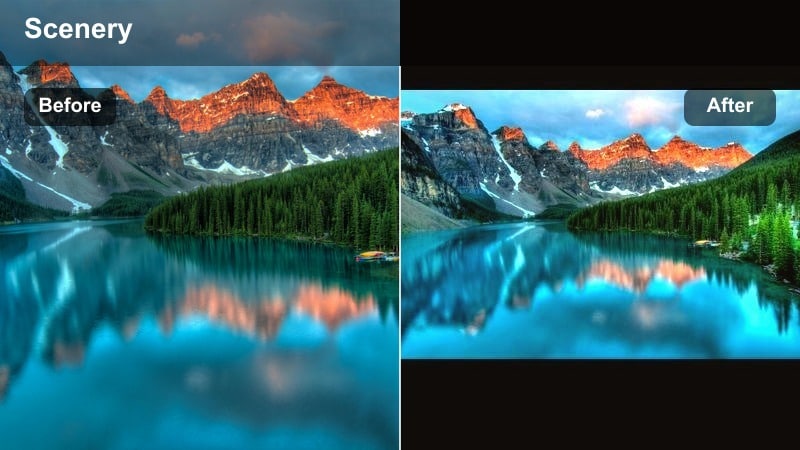
- Effect look: Creamy highlights with softened contrast that make sand and sea feel dreamy and gentle.
- Best for: Close-ups of footprints in sunset sand, detail shots of shells, and slow-motion waves.
- Editing tip: Reduce sharpness slightly to avoid harsh textures in bright sand and create a smoother cinematic feel.
A soft-focus style warm beach filter that turns everyday sand and water shots into romantic visuals. Sunlit Sand Soft smooths transitions between light and shadow so your sunset sand scenes feel calm, airy, and cinematic instead of harsh.
In Filmora, combine this look with slow-motion B-roll and gentle camera movement to emphasize texture without adding grit. After applying the filter, adjust sharpness and clarity to taste, and use it as a go-to style for beauty shots of waves, shells, and shoreline details in your travel vlogs.
Pro tip: Use Slow Motion With Soft Filters
Combine Sunlit Sand Soft with slow-motion clips of waves or footprints to highlight texture without harsh edges. This is ideal for cinematic B-roll in travel vlogs.
Keep your exposure slightly under when recording; the filter adds brightness, so starting a little darker helps preserve highlight detail in sand and sky.
Coastal Bronze Daylight
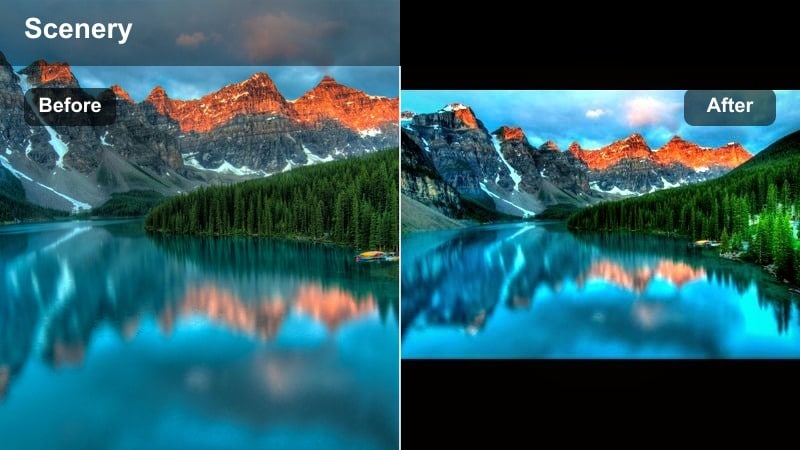
- Effect look: Bronzed warmth that deepens blues and enriches tans, creating a sun-kissed travel magazine vibe.
- Best for: Daytime beach vacations, posing by the shoreline, and lifestyle travel shots with visible skin tones.
- Editing tip: Dial back saturation on oranges if beach umbrellas or clothing become too intense after applying the filter.
A bold warm coastal filter that emphasizes tanned skin and turquoise water for high-impact vacation footage. Coastal Bronze Daylight adds punch and depth, perfect when you want your golden beach scenes to look like they belong in a holiday brochure.
In Filmora, use this style on talking-head beach vacation vlogs and wide shoreline shots, then refine saturation in the HSL panel to keep bright props and outfits from stealing attention. Apply subtle fades in the shadows to get a polished editorial feel that still looks natural on social media.
Pro tip: Control Color Cast on Whites
When Coastal Bronze Daylight is applied, watch how white clothing and towels shift in color. Use the HSL panel in Filmora to selectively desaturate yellows and oranges if whites start to look too creamy.
For a premium look in your travel vlogs, pair this filter with a slight fade in the shadows to get a polished editorial style.
Warm Sunset Beach Filters
Sunset Ember Glow
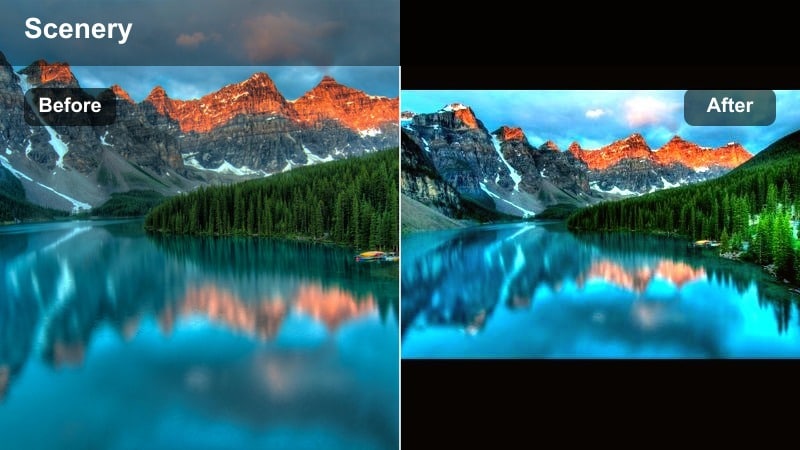
- Effect look: Deep golden and amber tones that intensify the sun and add warmth to clouds and water.
- Best for: Sunset vlogs, silhouettes on the shoreline, and time-lapse sunsets over the ocean.
- Editing tip: Lower highlights slightly to recover detail in the sun and clouds while keeping the overall glow strong.
A dramatic warm sunset filter designed to make every horizon shot feel like a postcard moment. Sunset Ember Glow enriches the oranges and reds in your sky while keeping water reflections luminous and inviting.
In Filmora, apply this look to time-lapses and static tripod shots of the sun dropping below the horizon. Then, balance highlights and shadows so silhouettes stay readable without flattening the sky, giving your sunset vlogs a powerful, cinematic finish.
Pro tip: Shoot Darker for Strong Sunsets
When you know you will use Sunset Ember Glow, underexpose your clips by about one stop in-camera to preserve the suns shape and cloud details.
After applying the filter in Filmora, gently raise the shadows so your foreground subjects are visible without flattening the dramatic sky.
Rose Gold Horizon
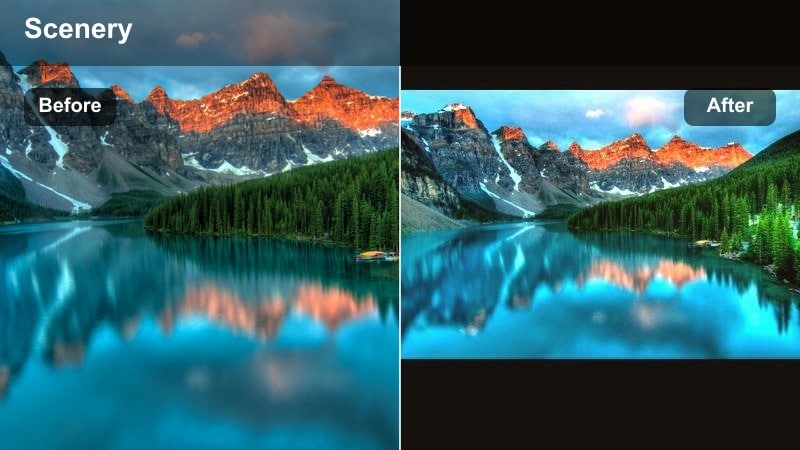
- Effect look: Soft pink and gold blend that lifts midtones and makes sky gradients feel romantic and smooth.
- Best for: Couple sunset walks, engagement-style travel content, and aesthetic B-roll of the shoreline.
- Editing tip: Use Filmoras vignette tool to frame your subjects and add subtle focus to the center of the image.
A pastel-inspired warm beach filter that mixes rose tones with soft gold for dreamy romantic sunsets. Rose Gold Horizon is perfect for storytelling around couples, proposals, and aesthetic travel reels where mood matters as much as detail.
In Filmora, pair this look with slow camera moves and medium-close framing on your subjects. Add a gentle vignette and minor sharpness boost for exports aimed at social platforms, keeping faces natural while the sky and shoreline glow with pastel warmth.
Pro tip: Keep Skin Natural With Rose Tones
Rose Gold Horizon can shift skin tones toward pink, so balance it by using the skin tone protection tools or slightly reducing magenta in the HSL panel.
For social media, export with slightly higher sharpness to keep details crisp after compression while maintaining the soft color mood.
Dune Sunset Rich
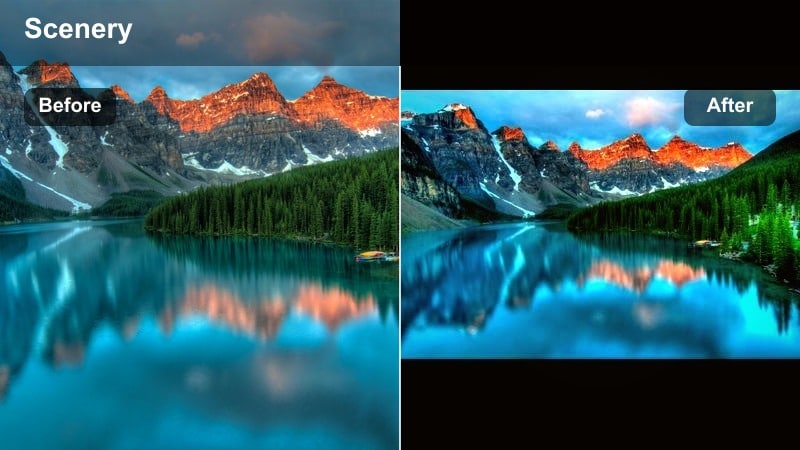
- Effect look: Strong contrast with warm golden browns that make dunes and cliffs stand out against the sky.
- Best for: Sunset hikes along coastal dunes, overlooking cliffs, and drone shots of layered sand formations.
- Editing tip: Use keyframed exposure to keep both sky and sand balanced as light changes across your clip.
A bold, high-contrast warm coastal filter that emphasizes texture in dunes and coastal landscapes. Dune Sunset Rich enhances ridges, footprints, and rocky details, turning simple landscape pans into striking hero shots.
Within Filmora, combine this effect with keyframed exposure and contrast so shifting sunset light never blows out highlights or crushes shadows. It works especially well on drone passes and wide scenic vignettes in your beach vacation edits.
Pro tip: Highlight Texture Without Noise
Dune Sunset Rich enhances texture, so avoid pushing ISO too high when recording to prevent visible noise in the shadows.
If your footage is already noisy, apply noise reduction in Filmora before color adjustments to keep the final image clean and detailed.
Midday Warm Coastal Filters
Tropical Noon Softener
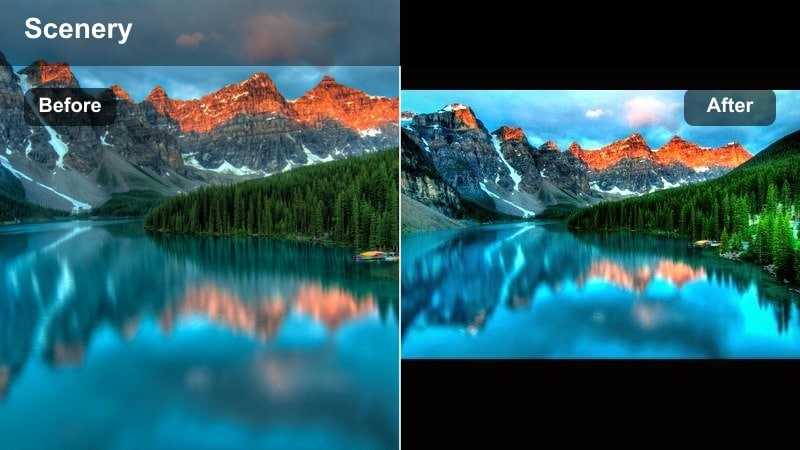
- Effect look: Subtle warmth that calms harsh midday light and evens out bright reflections on water.
- Best for: Midday beach vacations, poolside clips, and boat rides under strong sun.
- Editing tip: Lower clarity slightly to reduce hard edges caused by direct sun, especially on faces and waves.
A gentle warm coastal filter that tames overhead sunlight for softer, more flattering midday footage. Tropical Noon Softener reduces the brittle look of strong sun while keeping blues bright and sand inviting.
In Filmora, apply this filter to clips shot between late morning and early afternoon, then nudge clarity and contrast until faces look smooth but not blurry. It is a great baseline style for vlog segments filmed during tours, transfers, or pool breaks.
Pro tip: Pair Filters With Polarizing Footage
If you used a polarizing filter on your camera, Tropical Noon Softener will work even better, since reflections and glare are already controlled.
In Filmora, avoid heavy sharpening when working with harsh midday shots; let the filter and gentle contrast do the work instead.
Golden Breeze Bay
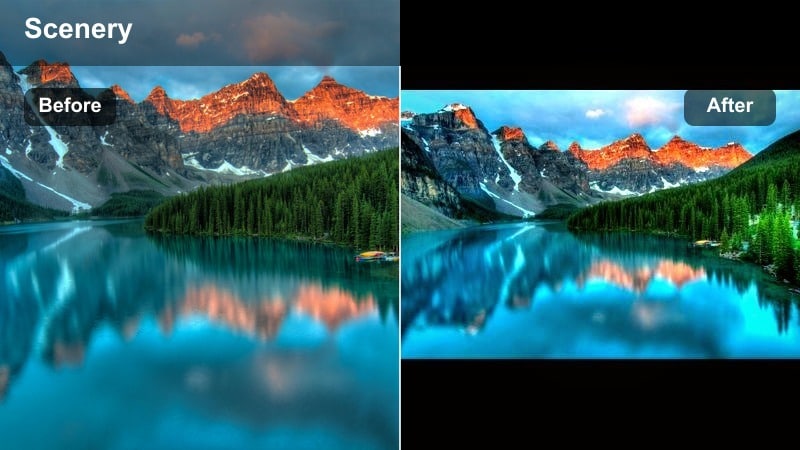
- Effect look: Balanced golden tint that warms sand and rocks while keeping ocean blues energetic and fresh.
- Best for: Handheld walking tours along the bay, vlog-style storytelling, and quick clips for social media.
- Editing tip: Stabilize your footage in Filmora first, then apply the filter to keep colors from dancing due to shake.
A versatile warm beach filter that works across many coastal scenes, ideal for everyday travel vlogs. Golden Breeze Bay adds a cohesive golden cast to your footage without muting the lively blue tones that make bays and harbors pop.
In Filmora, use this look as your signature warm coastal grade for multi-day trips. Stabilize handheld shots first, then apply the filter and save your tweaks as a custom preset, so every episode in your series maintains the same golden character.
Pro tip: Create a Consistent Vlog Look
Use Golden Breeze Bay as your base filter across a full trip so your episodes feel visually cohesive, then add minor tweaks per clip.
Save your adjustments as a custom preset in Filmora to quickly reapply the same warm coastal look to new footage from future vacations.
Harbor Honey Haze
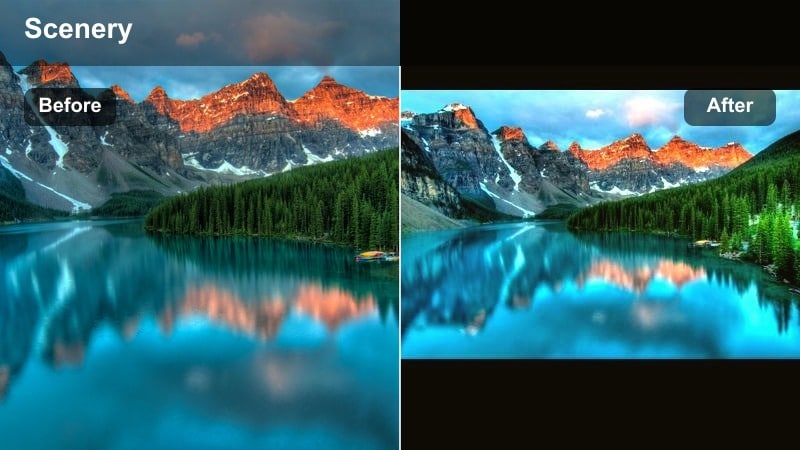
- Effect look: Honey-colored highlights with a light haze that gives harbors and marinas a nostalgic vacation feel.
- Best for: Harbor walks, dockside cafes, and boat boarding shots during bright warm hours.
- Editing tip: Use the dehaze tool sparingly if the image becomes too soft, balancing clarity with the dreamy look.
A nostalgic warm filter that wraps coastal harbors in a gentle honey haze for relaxed travel storytelling. Harbor Honey Haze is perfect for capturing lazy afternoons by the docks, seaside lunches, and boarding moments before boat trips.
In Filmora, layer this filter over medium and wide shots, then gently adjust dehaze and contrast to keep important details visible. It pairs nicely with slow pans and push-ins, giving your harbor sequences a soft, cinematic atmosphere.
Pro tip: Guide Viewer Attention With Haze
Harbor Honey Haze naturally softens edges, so enhance your subjects brightness slightly to keep them prominent in the frame.
For B-roll sequences, combine this filter with gentle push-in motions or slow pans to add a cinematic travel feel without extra gear.
Warm Evening and Night Beach Filters
Bonfire Coast Glow
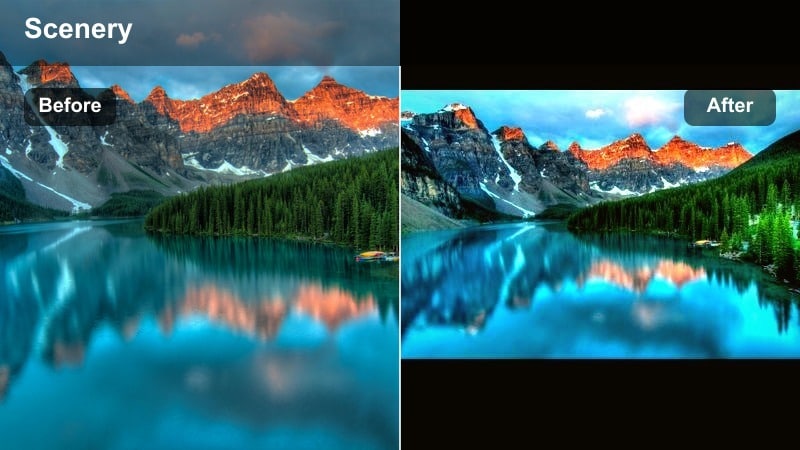
- Effect look: Rich orange and amber boost that amplifies firelight and keeps background shadows cozy.
- Best for: Beach bonfires, evening gatherings, and storytelling clips around the fire.
- Editing tip: Increase noise reduction slightly to keep low-light areas clean while preserving the warm glow.
A low-light warm filter that makes beach bonfires and evening hangouts feel inviting and intimate. Bonfire Coast Glow deepens the flames color and pulls subtle detail from the dark surroundings.
In Filmora, apply this style to close-ups and medium shots around the fire, then fine-tune noise reduction and shadow levels so faces stay clear while the environment remains moody. It is ideal for closing segments in day-in-the-life beach vlogs.
Pro tip: Protect Detail in Dark Scenes
When using Bonfire Coast Glow, avoid crushing blacks completely; keep some detail in the background so the scene feels real, not staged.
If faces are too dark, selectively brighten them using Filmoras masking tools instead of raising overall exposure and introducing noise.
Twilight Shoreline Warmth
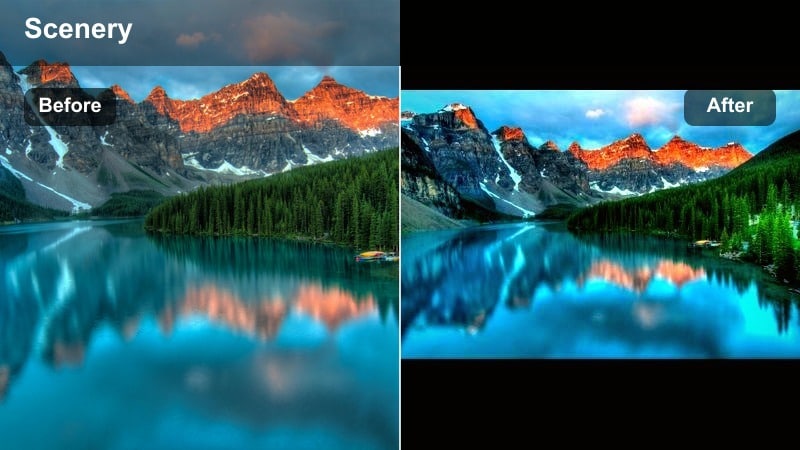
- Effect look: Gentle golden lift to shadows and midtones that warms cool blue twilight beaches.
- Best for: Blue hour walks, quiet reflective vlog moments, and calm shots after the sun dips.
- Editing tip: Use keyframes to gradually increase the filter strength as the sky darkens for a smooth mood transition.
A subtle twilight filter that keeps beach scenes warm even as natural light turns blue and cool. Twilight Shoreline Warmth is ideal for narration-heavy segments and reflective monologues recorded just after sunset.
In Filmora, keyframe the intensity of this effect so it ramps up slowly as your clip grows darker. This creates a smooth visual transition from golden hour to night while maintaining a consistent warm feeling across your beach travel vlog.
Pro tip: Blend Day and Night Clips Smoothly
Apply Twilight Shoreline Warmth to both the end of your sunset shots and the start of your night clips to help them transition more naturally.
Combine with subtle background music changes in your edit to reinforce the shift from golden hour to evening in your travel story.
Night Market Sandlight
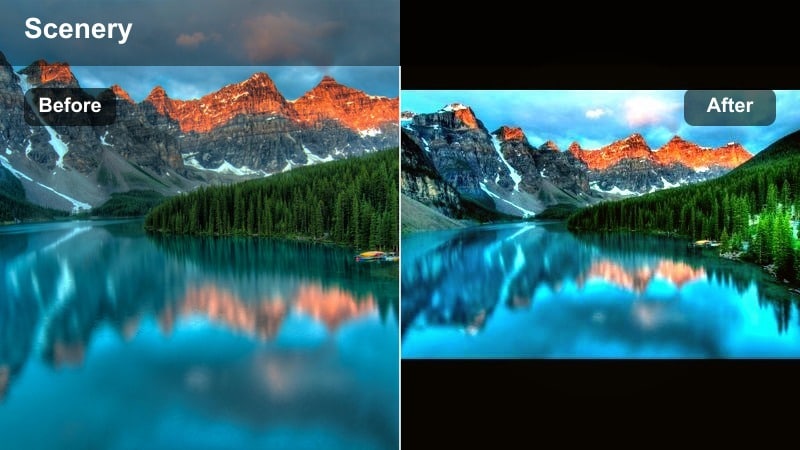
- Effect look: Warm streetlight-style glow that turns cool night beach and market lights into inviting tones.
- Best for: Beach night markets, bar strips along the sand, and handheld food vlog segments.
- Editing tip: Reduce saturation in neon colors to avoid distracting color noise while keeping overall warmth.
A lively warm filter that transforms night beach markets and bars into colorful, cozy atmospheres. Night Market Sandlight adds an amber streetlight hue that flatters skin tones and food shots under mixed lighting.
In Filmora, stabilize your handheld walkthroughs first, then apply this filter and tone down overly bright neons in the HSL controls. Use local exposure tweaks to keep food and faces attractive while preserving the warm nightlife ambience in your beach vacation vlogs.
Pro tip: Stabilize Handheld Night Footage
Night Market Sandlight works best on steady clips, so use Filmoras stabilization to smooth handheld shots captured while walking through crowds.
To keep food shots appealing, apply local exposure adjustments so plates remain bright and colorful without blowing out nearby signs.
Tips for Using Beach Warm Filters in Filmora
- Shoot slightly underexposed during bright beach days so your warm filters have room to enhance highlights without clipping.
- Keep white balance a bit cooler in camera; your warm beach video filters will add the cozy tones later without turning everything orange.
- Use different filter strengths for A-roll and B-roll so faces stay natural while landscapes look rich and golden.
- Combine a warm filter with mild vignette and subtle grain to give your beach vacations a cinematic travel-film feel.
- Preview your warm coastal presets on clips from midday, golden hour, and night to confirm the look works across every scene.
- Layer AI color tools with manual adjustments in Filmora to fine-tune sand, sky, and skin tones for each location.
- Save your favorite warm coastal look as a custom preset in Filmora so you can apply it to entire sunset vlogs with one click.
Warm beach video filters help travelers and vacationers transform everyday shoreline clips into glowing, cinematic memories filled with golden light and inviting tones.
Experiment with a few of these warm coastal styles in Filmora, then refine one signature look so your beach vacations and sunset vlogs feel consistent, polished, and ready to share.
secure downloadNext: Explore Cool Beach Filters for Breezy Coastal Blue Tones
