

 100% Security Verified | No Subscription Required | No Malware


 ChatGPT
 Perplexity
 Gemini
 Claude
 Grok
Grok
Cool beach video filters help travelers and swimmers turn bright sand, blue water, and soft skies into a relaxed, cinematic look. With the Cool Beach Filter: Ocean Breeze preset in Filmora, you can keep skin tones natural while adding a fresh coastal tint to every wave and shoreline shot.
Use these filters on beach days, ocean views, and seaside walks to cool down harsh sunlight, deepen the blue beach tones, and create a calm cool ocean mood that fits travel vlogs, vacation recaps, and swim adventures.
In this article
Soft Cool Tones for Calm Beach Days
Cool Beach Filter: Ocean Breeze
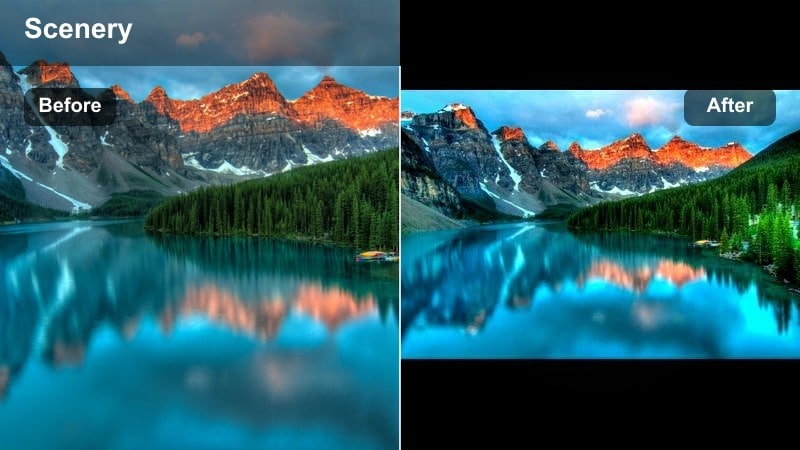
- Effect look: Soft cool teal in the water, gentle cyan in the sky, and slightly desaturated sand for a relaxed ocean breeze feel.
- Best for: Travelers filming slow walks along the shoreline, swimmers stepping out of the water, and wide ocean views at midday.
- Editing tip: Lower the filter intensity to around 60-70 percent to keep skin tones natural while still getting a fresh coastal cool-down.
This signature cool beach video filter adds a breezy teal-blue wash to your clips without making them look overly stylized. It keeps the ocean looking rich and inviting while softening harsh mids and highlights, so bright sand and skies feel gentler on the eyes.
In Filmora, drop the Cool Beach Filter: Ocean Breeze onto your beach clips, then adjust the effect strength in the Video or Effects settings to taste. For talking shots or close-ups, pull the intensity down until faces look natural, then fine-tune white balance or temperature so the ocean stays cool while people remain flattering and lifelike.
Dial in your cool beach palette with Filmora AI tools
Filmora AI-driven color tools help you quickly fix exposure and white balance before you apply any cool beach filter. This keeps your blues natural, prevents sand from turning gray, and gives Ocean Breeze and other presets a clean base to work on.
Use AI Auto Color to normalize your beach footage first, then layer the Cool Beach Filter: Ocean Breeze or other cool ocean looks. With a balanced starting point, you can keep a consistent fresh coastal palette from bright beach days to softer evening ocean views.
 secure download

Preview cool beach filters in real time
In Filmora, you can hover over any filter to preview it instantly on the selected beach clip. This lets you see exactly how each cool beach video filter shifts your blue beach and ocean tones before you apply it.
Test different strengths of the Cool Beach Filter: Ocean Breeze side by side with other fresh coastal presets. By comparing in real time, you can build a sequence where every shot shares the same cool ocean mood, even if they were filmed at different times of the day.
secure downloadCombine filters and LUTs for advanced beach aesthetics
After you apply a cool beach filter, you can layer Filmora LUTs to refine contrast and color for a more cinematic shoreline look. This is ideal when you want your cool ocean scenes to match a specific travel-film aesthetic.
Experiment with pairing the Cool Beach Filter: Ocean Breeze with a gentle LUT, then save the combination as a custom preset. Once saved, you can apply your signature cool coastal style to any new beach trip in a single click, keeping your channel or series visually consistent.
secure downloadPastel Coastal Chill
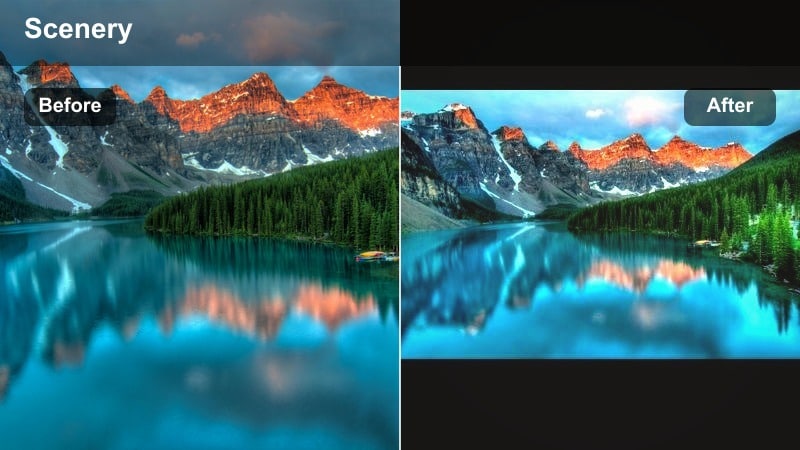
- Effect look: Soft pastel blues and mint greens with slightly lifted shadows for an airy, dreamy beach atmosphere.
- Best for: Casual beach days, sun umbrellas, beach towels, and clips with kids or friends playing near the shoreline.
- Editing tip: Increase saturation on blues only to keep the cool ocean pop while leaving skin tones and sand more neutral.
Pastel Coastal Chill creates an airy, playful coastal palette that makes beach vlogs feel light and relaxed. It smooths harsh contrast and gently cools the scene so waves, sky, and props like umbrellas and towels all share a soft pastel vibe.
In Filmora, apply this filter, then adjust HSL or color settings to push only the blues and aquas if you want more ocean emphasis. Pair it with slow-motion wave shots, hair blowing in the wind, or kids playing in the shallows, and keep text overlays minimal so the dreamy colors and motion stay in focus.
Shadowed Shoreline Cooler
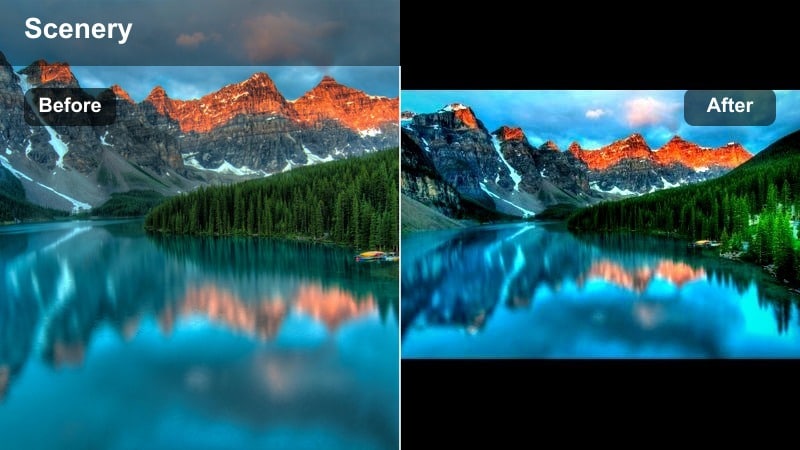
- Effect look: Cools down midtones and shadows while holding highlights, adding depth to shaded sand and wave textures.
- Best for: Clips filmed under beach umbrellas, boardwalk shadows, or rocky coves with uneven sunlight.
- Editing tip: Use Filmora exposure slider to slightly brighten after applying this filter so darker areas keep detail and do not look muddy.
Shadowed Shoreline Cooler is designed for beach clips that look too warm or flat in the shade. It targets mids and shadows, cooling them down to match your bright ocean shots while preserving highlight detail on foam and sky.
Use this filter only on shaded or partially shaded clips within a sequence to keep your color grade consistent. After applying it in Filmora, raise exposure a touch and tweak temperature so transitions between sunny and shadowed shots feel smooth, without subjects sinking into murky darkness.
Deep Blue Beach and Cool Ocean Focus
Deep Blue Coast
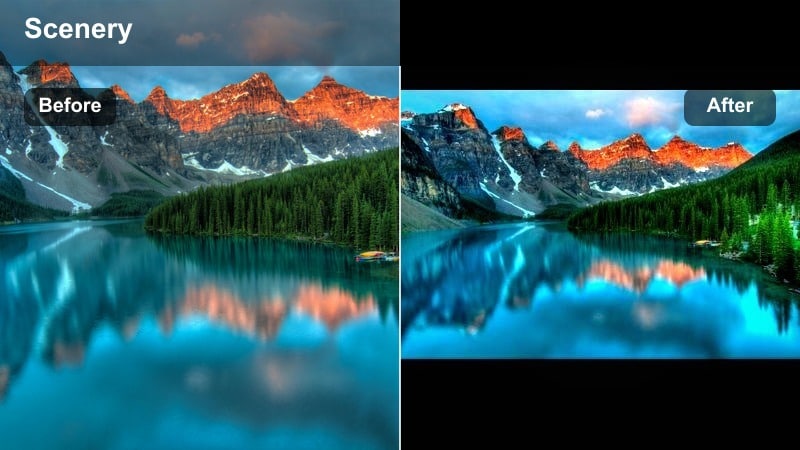
- Effect look: Rich cool ocean blues with enhanced clarity and contrast on the water surface for a crisp, vivid sea.
- Best for: Drone shots over the shoreline, elevated viewpoints, and sweeping ocean views on clear days.
- Editing tip: Use Filmora sharpness tool lightly after applying the filter to avoid over-texturing waves or noise in the sky.
Deep Blue Coast instantly turns wide ocean views into bold, cinematic statements. It saturates and deepens the blue beach water, adds clarity to wave patterns, and emphasizes the edge where shoreline meets sea.
Apply this filter in Filmora to your drone or high-angle shots, then lightly adjust sharpness and contrast so textures look crisp without becoming noisy. Use these clips as B roll cutaways between talking scenes, and layer wave sound effects to highlight the location and atmosphere.
Turquoise Tide Clarity
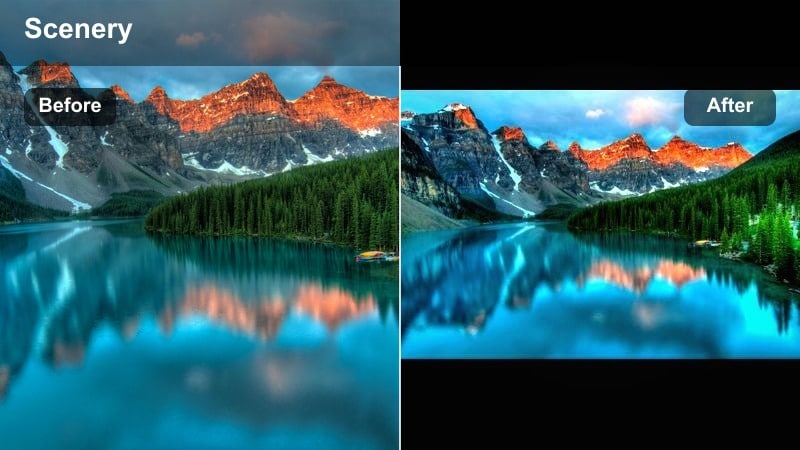
- Effect look: Bright turquoise water, softened highlights, and crisp edges around splashes for a clean, refreshing look.
- Best for: Swimmers jumping into the water, snorkeling shots near the surface, and close-ups of feet in clear shallows.
- Editing tip: Slow the clips to 0.5x speed and apply this filter to emphasize water detail, then sync splashes with music beats.
Turquoise Tide Clarity makes shallow water shots glow with crystal-clear blue-green tones. It keeps reflections tame while sharpening the edges of splashes, ripples, and underwater details so your action moments look polished and refreshing.
In Filmora, slow your water action clips to half speed, add this filter, and then time splash impacts to your soundtrack. Combine with stabilization on handheld footage, especially for half-submerged or snorkeling shots, to keep the cool turquoise look smooth and cinematic.
Cool Current Matte
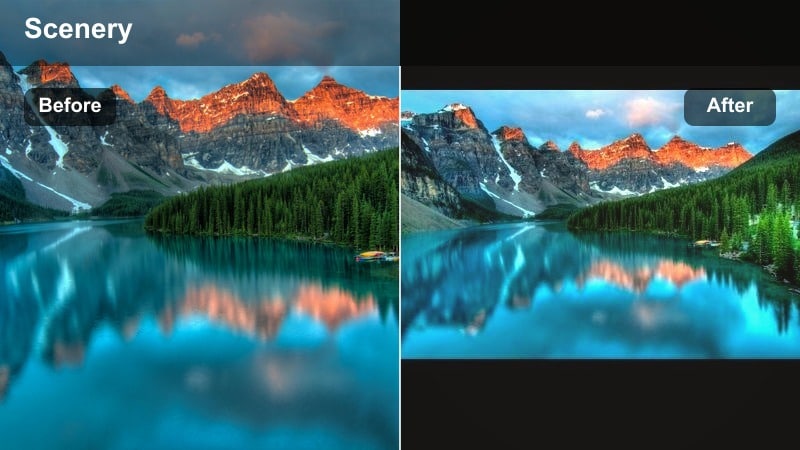
- Effect look: Matte contrast with cooler blues and slightly faded blacks, giving a modern travel-film aesthetic.
- Best for: Montage sequences, quick cuts of the shoreline, and cinematic ocean views in travel edits.
- Editing tip: Stack this filter with Filmora grain effect at low intensity to get a subtle filmic texture for your beach cool sequences.
Cool Current Matte softens contrast and fades blacks, delivering a trendy, cinematic matte look while preserving a cool ocean palette. It is ideal when you want your beach footage to feel like a stylish travel film rather than raw vacation clips.
Apply it in Filmora to your montage and establishing shots, then add a light film grain effect for texture. Use these matte-style clips at the start or between chapters of your edit to separate sections and give your blue beach visuals a cohesive, modern identity.
Fresh Coastal Filters for Lifestyle Moments
Coastal Morning Fresh
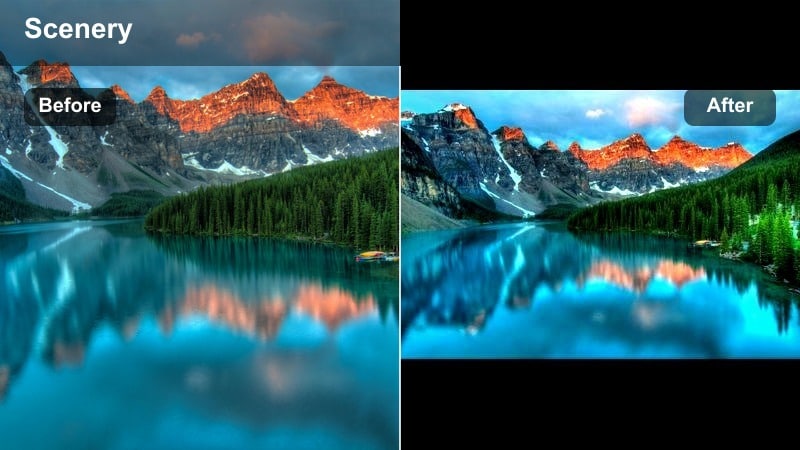
- Effect look: Cool, low-contrast tones with soft highlights, giving a quiet early-morning beach mood.
- Best for: Early walks, coffee shots near the shore, empty beaches, and calm ocean views before the crowds arrive.
- Editing tip: Lower saturation slightly after applying the filter if you want a more minimal, journal-style aesthetic.
Coastal Morning Fresh captures the gentle, quiet look of a beach before the day really starts. It cools tones and drops contrast so the scene feels soft and reflective, perfect for vlog intros, B roll of coffee by the shore, or slow, contemplative walks.
In Filmora, add this filter to your morning clips and then reduce overall saturation if you are aiming for a minimal, diary-like style. Keep transitions simple, use subtle ambient audio like soft waves, and let the low-contrast cool tones set a peaceful mood for the rest of your travel story.
Icy Sun Halo
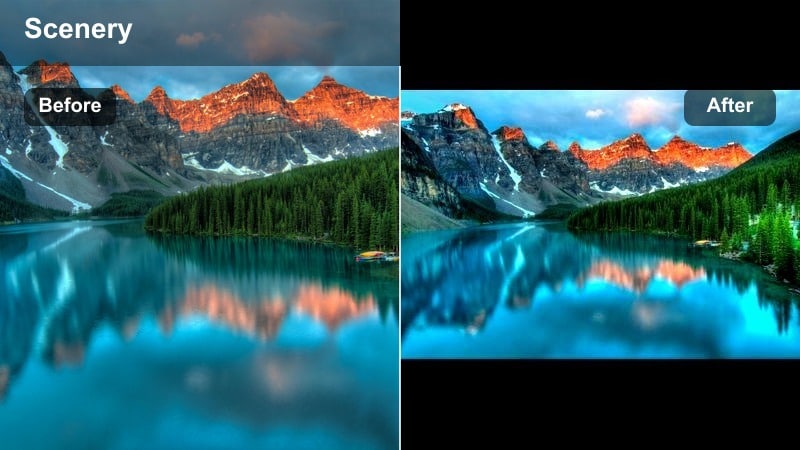
- Effect look: Bright highlights with a cool halo around the sun and gentle blue lift in the sky for glowing midday shots.
- Best for: Backlit silhouettes, sun reflections on the water, and beach yoga or stretching shots.
- Editing tip: Reduce highlight intensity in Filmora if the sun gets too bright, keeping the halo effect without clipping details.
Icy Sun Halo turns harsh midday light into a stylized, glowing cool aesthetic. It wraps the sun and bright reflections in a soft halo while tilting the sky toward cooler blues so your backlit subjects stand out in a dreamy way.
Use this filter in Filmora on silhouettes, yoga flows, or people walking toward the sun. If highlights start to clip, pull down highlight and exposure controls while leaving the filter in place, and consider layering subtle light leaks to enhance the halo without losing important detail in the scene.
Breezy Boardwalk Pop
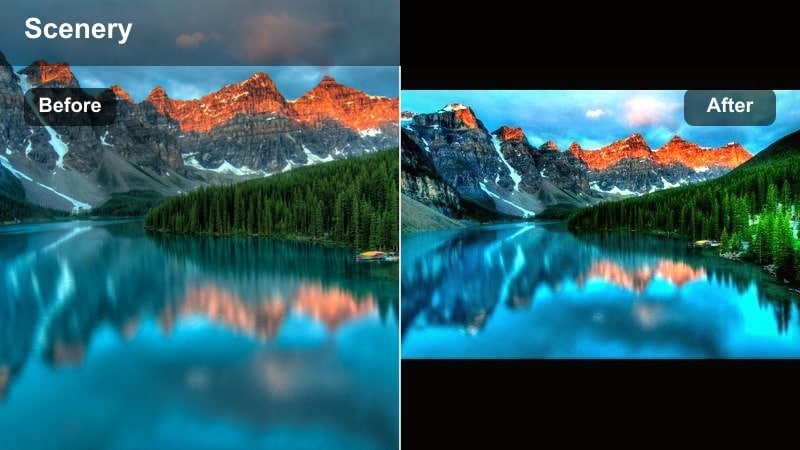
- Effect look: Cools overall color while giving a slight pop to reds and oranges for food, outfits, and boardwalk details.
- Best for: Beach cafes, ice cream shots, colorful towels, and lifestyle clips near the ocean.
- Editing tip: Use Filmora keyframing to slightly zoom during shots, making your colorful details feel more dynamic with the cool background.
Breezy Boardwalk Pop keeps the environment cool and coastal while boosting warm accent colors. This is perfect for lifestyle content where you want outfits, snacks, and signs to stand out against a relaxed blue-toned backdrop.
Apply it to vertical and horizontal clips of drinks, food, and outfits, and use Filmora keyframes to add slow zoom-ins that draw attention to the colorful subject. Keep clips short for social platforms and make sure the rest of your edit uses similar cool filters so these pops of color still match your overall beach aesthetic.
Evening and Golden-Hour Beach Aesthetic Filters
Cool Golden Horizon
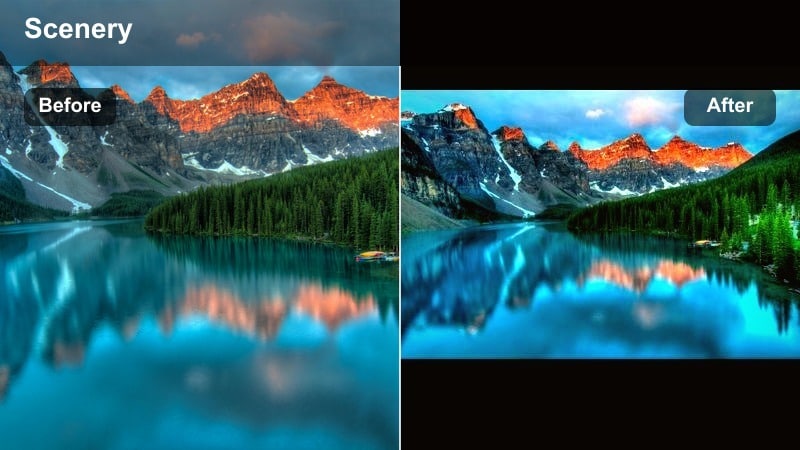
- Effect look: Balances warm sunset skies with cooler shadows in the water, mixing gold and blue for a cinematic dusk scene.
- Best for: Sunset walks, silhouettes at the shoreline, and romantic beach views with the sun low on the horizon.
- Editing tip: Use Filmora curves to slightly lift shadows if foreground subjects become too dark against the bright sky.
Cool Golden Horizon blends warm golden-hour light with cool ocean shadows for a balanced dusk look. It lets the sunset stay rich and amber while keeping the water and darker areas in a calm blue range so your coastal style does not disappear at sunset.
In Filmora, add this filter to your sunset sequences and adjust curves or shadows so people and foreground details remain visible. Place these shots toward the end of your edit to suggest the beach day is winding down, and use slow fades on music and ambient audio to create a satisfying outro.
Twilight Cool Coast
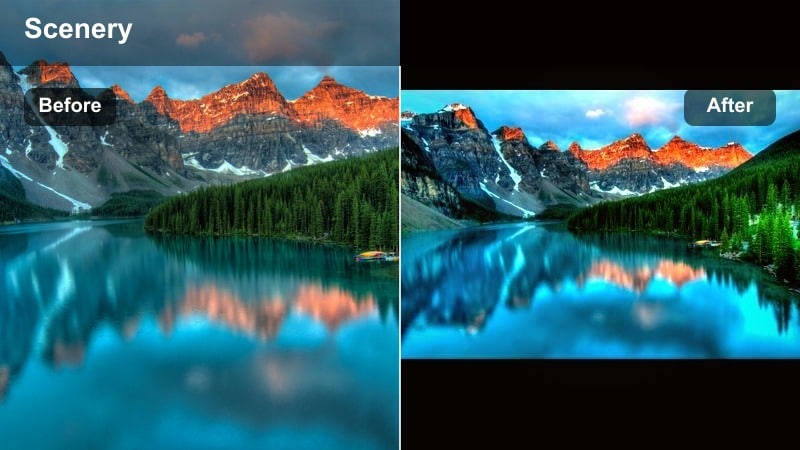
- Effect look: Leans into deep blues and purples after sunset, with softer contrast for a calm, moody twilight feel.
- Best for: Blue hour beach shots, city lights reflecting on the water, and quiet evening walks by the shoreline.
- Editing tip: Slightly reduce noise in Filmora if you shot in low light, then apply this filter to unify color and hide minor grain.
Twilight Cool Coast is made for blue hour and post-sunset shots where the sky and sea slip into deeper blues and purples. It softens contrast and pushes the palette toward moody cool tones, creating a calm, reflective atmosphere.
Use Filmora noise reduction first on low-light clips, then apply this filter to smooth out color differences between shots. Cross-dissolve from your golden-hour footage into Twilight Cool Coast clips to show time passing in a cinematic way while keeping your cool ocean aesthetic intact.
Midnight Coastal Glow
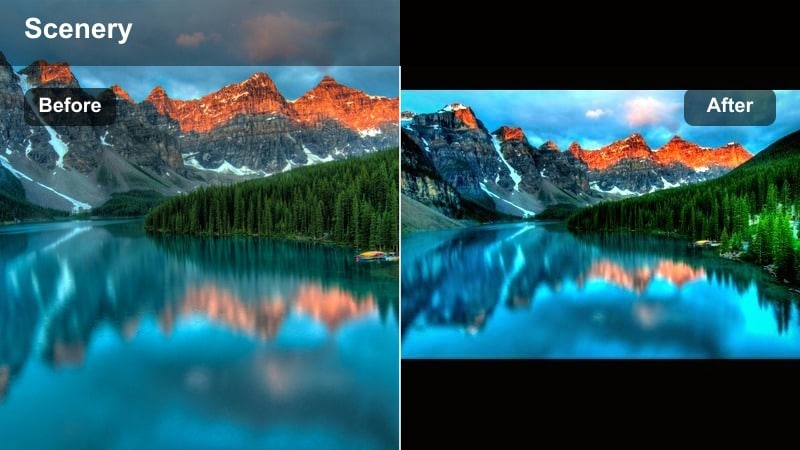
- Effect look: Darkens backgrounds while adding a subtle cool glow to highlights and reflections on the water.
- Best for: Night beach bonfires near the water, pier lights, and low-light shots with small bright sources.
- Editing tip: Raise brightness slightly on faces after applying the filter so people stay visible while the background remains moody.
Midnight Coastal Glow gives night beach scenes a stylized, intimate look by deepening shadows and enhancing cool highlights on waves and reflections. It keeps the ocean presence alive even when most of the frame is dark.
Apply it sparingly in Filmora to just a few key night clips such as bonfires or pier walks. Use masks or brightness adjustments to lift faces while letting the surroundings stay moody, and pair these shots with gentle ambient audio so the transition from daytime cool filters feels special rather than chaotic.
Tips for Using Beach Cool Filters in Filmora
- Shoot your footage slightly brighter than you think you need so cool filters have enough detail in the shadows to work with.
- Keep horizon lines level when filming ocean views so your cool beach filters and cinematic compositions look intentional, not distracting.
- Record a few seconds of still ocean footage to use as transitions or breathing-room shots between busier travel clips.
- Avoid mixing too many different color styles in one edit; pick two or three cool beach looks and repeat them for visual consistency.
- Use Filmora adjustment layers to apply the same beach cool filter to multiple clips at once instead of editing each one individually.
- Preview filter intensity on close-up shots and landscapes separately; you may need duplicate versions of the same filter at different strengths.
- Combine cool filters with subtle vignettes to keep attention on people while the ocean and sky frame the scene.
Cool beach video filters in Filmora help travelers and swimmers instantly turn raw beach days and ocean views into cohesive, fresh coastal stories. By cooling harsh sunlight and unifying your blue tones, every clip starts to feel like part of the same polished travel edit.
Start with the Cool Beach Filter: Ocean Breeze preset, adjust intensity for your footage, and build a repeatable look with your favorite Filmora LUTs and tools. Once you save your custom presets, every new trip to the coast can drop into the same consistent beach cool aesthetic in just a few clicks.
secure downloadNext: Try a soft beach aesthetic filter for warmer coastal vibes
