

 100% Security Verified | No Subscription Required | No Malware


 ChatGPT
 Perplexity
 Gemini
 Claude
 Grok
Grok
Aesthetic beach video filters can turn basic shoreline footage into soft, cinematic moments with pastel skies, gentle waves, and golden glow. In Filmora, curated coastal presets help content creators and travelers keep a consistent, dreamy look across vlogs, reels, and travel diaries.
Below you will find 12 aesthetic beach filters, including the Aesthetic Beach Filter. Dream Coast preset, designed for aesthetic beach edits that feel calm, nostalgic, and perfectly on brand for your coastal content.
In this article
Soft Coastal Glow Filters
Aesthetic Beach Filter. Dream Coast
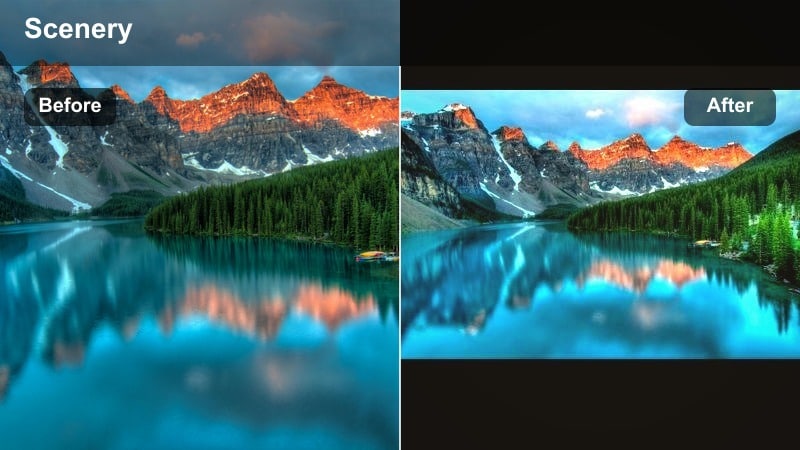
- Effect look: Soft pastel wash with lifted shadows and a gentle golden highlight on skin tones and sand.
- Best for: Sunset walking shots, gentle wave b-roll, and aesthetic beach edits with slow motion.
- Editing tip: Lower contrast slightly and nudge temperature warmer by 5-10 points to enhance peachy sky gradients.
This signature Aesthetic Beach Filter. Dream Coast preset in Filmora wraps your coastal footage in a soft pastel wash, subtly lifting shadows and adding a golden highlight to sand and skin. It is especially effective at sunset, where the filter leans into warm tones and preserves detail in both the sky and water for a calm, dreamy look.
Use it as the hero look across your travel vlogs and reels by applying it to your main walking shots, slow-motion wave clips, and close-up details. In Filmora, apply the filter, ease back contrast, and warm the temperature just a touch to get balanced peach and pink gradients. Save your customized version as a preset so every new beach clip instantly matches your established aesthetic.
Build a Consistent Beach Aesthetic with AI Color Tools
Filmora s AI color features help you keep every clip aligned to the same pastel beach, soft coastal, or gentle wave palette without manually regrading each shot. Once you find a look you love, you can quickly extend it to all your footage for a consistent visual identity.
Use AI color matching to copy the tone from your favorite coastal clip or from an edit using the Aesthetic Beach Filter. Dream Coast preset, then apply that match across your full sequence. This is ideal for travel videos shot over multiple days where light and color shift frequently.
 secure download

Preview Aesthetic Beach Filters in Real Time
Filmora lets you hover over aesthetic beach video filters and instantly preview how they will transform your footage. This makes it easy to audition pastel beach, soft coastal, and gentle wave looks without committing or rendering each time.
Drop a shoreline clip onto the timeline, open the Filter panel, and glide through different options to compare moods. Once you find a combination you like, save it as a custom preset so you can reuse the same coastal aesthetic on your next trip or reel series.
secure downloadCombine Filters and LUTs for Cinematic Beach Color
For a richer beach cinematic filter style, you can stack Filmora filters with 3D LUTs to fine tune contrast, depth, and color. Start with an aesthetic beach filter to set the mood, then add a gentle LUT to polish sky tones, aqua water, and skin without losing softness.
This layered approach is perfect for creators who want dreamy pastel looks that still feel professional. Adjust LUT intensity, then refine individual hues in Filmora to keep your coastal aesthetic cohesive across different cameras and lighting conditions.
secure downloadShell Blush Soft
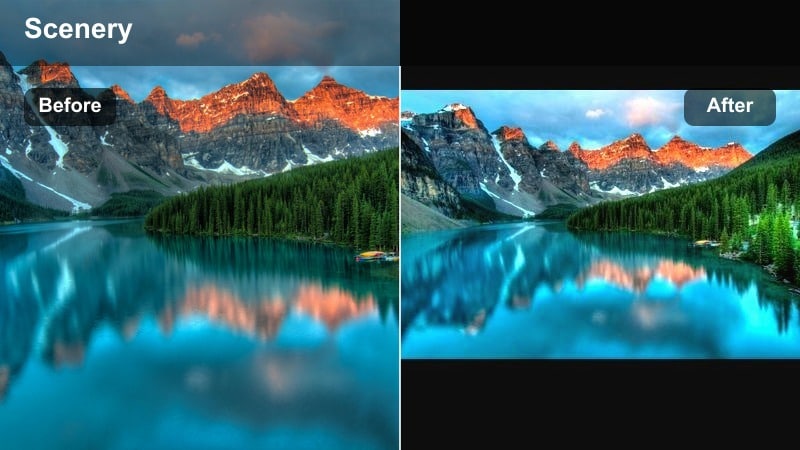
- Effect look: Muted highlights with a blush tint that makes sand and skin appear smoother and creamier.
- Best for: Close-ups of hands in the sand, aesthetic bikini shots, and lifestyle storytelling on the shore.
- Editing tip: Use Filmora s skin tone adjustment to slightly desaturate reds so the blush effect stays flattering, not too pink.
Shell Blush Soft adds a flattering blush tint that smooths out skin and sand, creating creamy, pastel beach portraits. It gently mutes bright highlights so your subject does not look washed out, even in reflective sand or light colored swimsuits.
Apply this filter in Filmora to close ups, lifestyle clips, and portrait moments where you want a gentle, editorial glow. Fine tune skin tones using Filmora s color tools to pull back reds or magentas if the blush becomes too intense, keeping your aesthetic beach video filters soft and natural looking.
Tideline Cream Haze
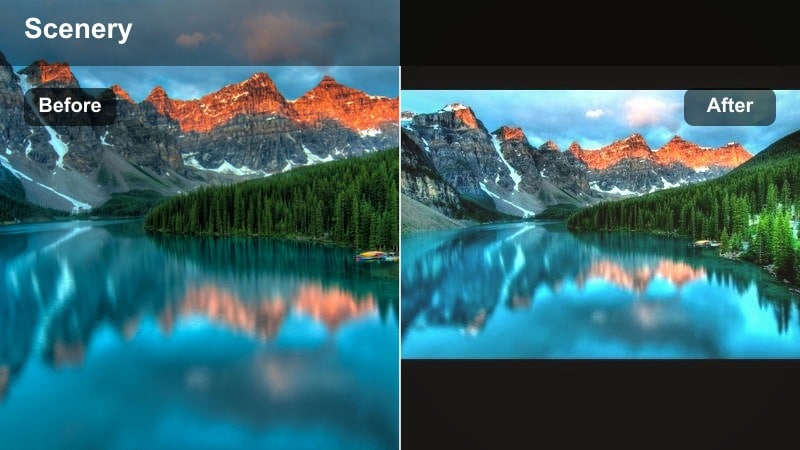
- Effect look: Creamy, low-contrast look with slightly faded blacks and a soft warm haze over the frame.
- Best for: Montage sequences, walking along the tideline, and slow pans across the coast.
- Editing tip: Add a subtle film grain in Filmora at a low intensity to give the hazy beach footage a nostalgic, analog feel.
Tideline Cream Haze mutes harsh contrast and gently fades blacks to create a creamy, nostalgic atmosphere. The soft warm haze over the frame is perfect for dreamy walking shots, establishing pans, and reflective coastal montages.
In Filmora, combine this filter with light film grain and slower-paced cuts to emphasize the relaxed, analog vibe. Use it across B roll sequences to smooth over lighting changes and tie together clips from different parts of your beach day into one cohesive soft coastal story.
Pastel Beach Tone Filters
Cotton Sky Pastel
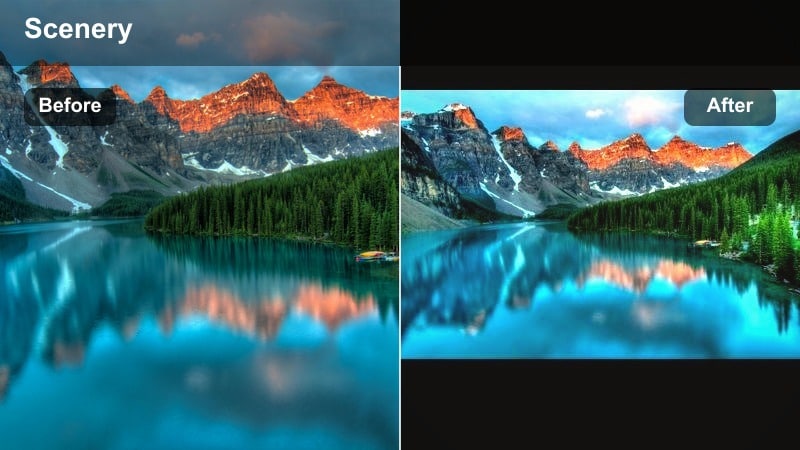
- Effect look: Cool pastel blues and lilacs in the sky with softened cyan tones in the ocean.
- Best for: Cloudy beach days, soft sunrise time-lapses, and aerial shoreline shots.
- Editing tip: Lower clarity slightly to enhance the dreamy pastel sky and use Filmora keyframes to ramp the filter strength through the clip.
Cotton Sky Pastel pushes your skies into cool blues and lilacs, turning even flat, cloudy days into soft, whimsical backdrops. The filter also softens cyan tones in the ocean, avoiding harsh or overly saturated blues that clash with a pastel beach aesthetic.
Apply this look in Filmora to sunrise time lapses, drone reveals, and shorelines where the sky dominates the frame. Lower clarity for extra softness, and keyframe the filter strength so the pastel effect gradually intensifies, giving your edits a gentle, cinematic build.
Pearl Sand Matte
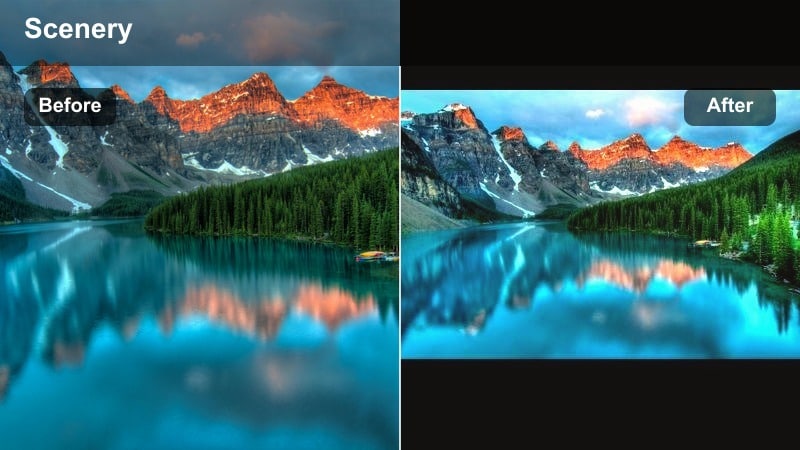
- Effect look: Matte, pearly highlights on sand with desaturated blues for a soft editorial vibe.
- Best for: Flat lay shots, towel and accessory scenes, and beach picnic vignettes.
- Editing tip: In Filmora, reduce sharpness slightly and add a subtle vignette to push the high-end editorial feeling.
Pearl Sand Matte gives beach scenes a polished, editorial finish with matte highlights and smooth textures. Blues are gently desaturated so props, outfits, and skin tones stand out without competing against bright water or sky.
Use this filter in Filmora on flat lays, picnic setups, and detail oriented shots where you want a magazine like feel. Slightly reduce sharpness and add a faint vignette to center attention on your composition, making your coastal aesthetic feel curated and brand ready.
Foam Kiss Pastel
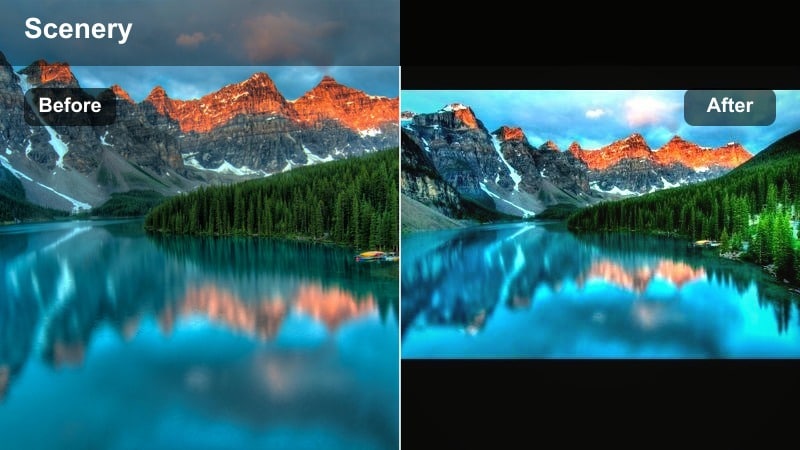
- Effect look: Pale turquoise water with softened whites in the wave foam and a slight lavender shadow tint.
- Best for: Drone shots over waves, slow-motion water rushes, and shore break clips.
- Editing tip: Use speed ramping in Filmora alongside Foam Kiss Pastel to highlight key wave impacts in a dreamy way.
Foam Kiss Pastel is designed for wave focused footage, turning water into pale turquoise and softening white foam for a gentle, airy feel. The slight lavender tint in the shadows adds depth while keeping your ocean scenes firmly in the pastel beach aesthetic.
In Filmora, pair this filter with speed ramping on drone passes and shore break clips to spotlight the most dramatic splashes in slow motion. Adjust aqua and blue saturation if needed to maintain consistency between angles, especially when mixing bright and darker water conditions.
Gentle Wave Aesthetic Filters
Whisper Wave Soft
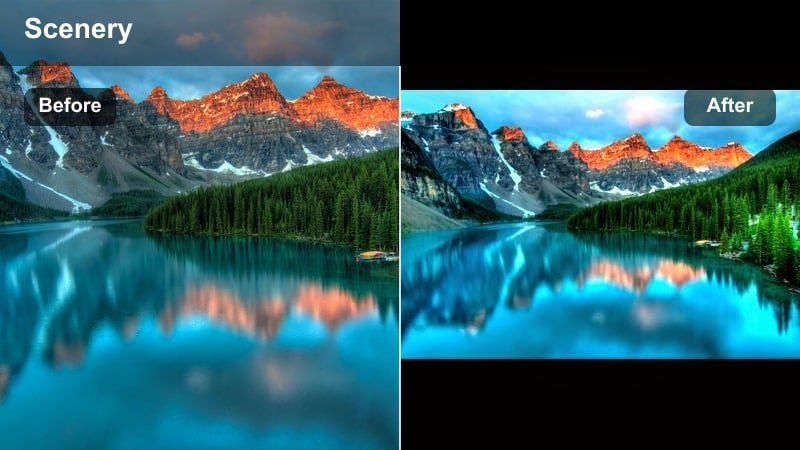
- Effect look: Soft focus feel with smoothed contrast and a subtle warm tint in the highlights.
- Best for: Slow motion wave rolls, barefoot shoreline walks, and romantic travel sequences.
- Editing tip: Combine with Filmora s slow zoom effect to create a gentle pull in that emphasizes the relaxing wave motion.
Whisper Wave Soft smooths out contrast and introduces a soft focus character that makes gentle waves feel even more calming. A touch of warmth in the highlights flatters skin tones during shoreline walks and couples shots.
Apply it in Filmora to slow motion clips of rolling water or quiet, romantic sequences. Layer a slow zoom or subtle push in to draw viewers into the scene, then use crossfades or match on action cuts to loop relaxing wave moments for reels and shorts.
Serene Current Cool
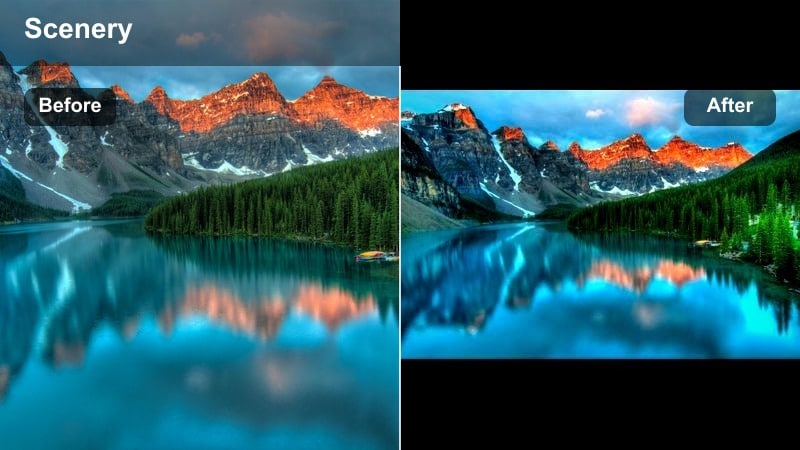
- Effect look: Cool-toned blues and teals with slightly deeper shadows to carve out water texture.
- Best for: Midday water shots, snorkeling footage, and coastal adventure vlogs needing a calm but crisp mood.
- Editing tip: Use selective color in Filmora to pull back saturation on greens if the water starts to look too neon.
Serene Current Cool leans into blue and teal tones while keeping the overall mood calm and controlled. Slightly deeper shadows reveal texture in the water, which is especially useful when shooting under bright midday sun.
Use this filter in Filmora on snorkeling footage, paddleboarding clips, or any adventure scenes where you want clarity without harshness. If tropical water pushes too green, dial back greens with selective color adjustments so the cool, serene look stays refined.
Misty Break Minimal
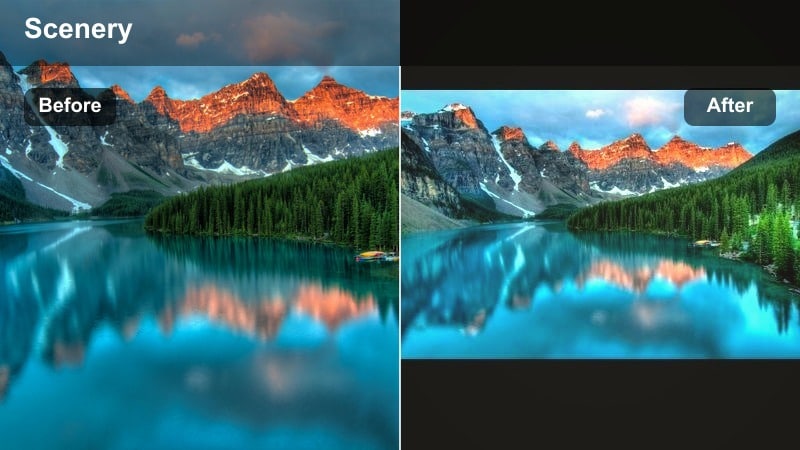
- Effect look: Low saturation with misty whites and a slight fade, creating minimalist, airy beach frames.
- Best for: Minimalist compositions, beach architecture, and negative-space shots with horizon lines.
- Editing tip: Crop to vertical in Filmora and align the horizon on a third for clean, minimal reels that highlight the filter s airy feel.
Misty Break Minimal drains some saturation and lifts whites into a soft mist, making your frames feel clean, spacious, and design forward. The subtle fade pairs well with simple compositions and lots of negative space.
In Filmora, use this filter on minimalist horizons, piers, or architectural details at the beach. Crop vertically for reels, line the horizon on the rule of thirds, and pair with simple typography to keep the minimal gentle wave aesthetic front and center.
Cinematic Coastal Vibe Filters
Golden Drift Cinematic
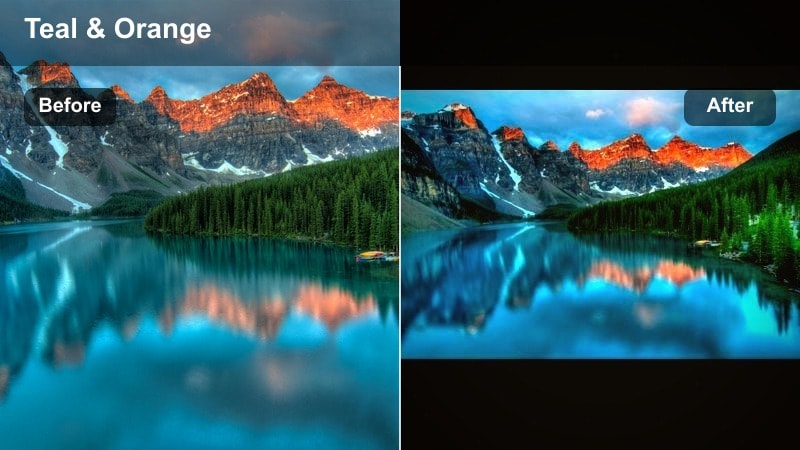
- Effect look: Warm cinematic tones with rich golden highlights and slightly teal shadows for depth.
- Best for: Golden hour story sequences, walking intros, and cinematic travel vlogs.
- Editing tip: Use Filmora s cinematic aspect ratio bars and a slow handheld stabilization to reinforce the filmic feel.
Golden Drift Cinematic brings a classic teal and gold treatment to your coastal shots while staying soft enough for an aesthetic beach vibe. Golden highlights wrap around skin and sand, while teal shadows deepen the water and background for a cinematic contrast.
Apply this filter in Filmora to golden hour intros, voiceover segments, and hero shots. Add letterbox bars, gentle stabilization, and subtle camera movement to sell the filmic look, then fine tune exposure so faces stay readable as the sun dips lower.
Dune Fade Retro
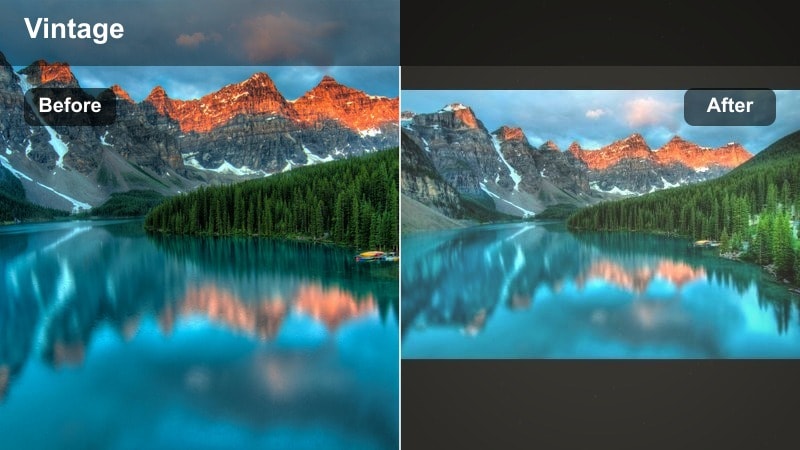
- Effect look: Faded vintage colors with softened greens and gentle grain for retro beach moods.
- Best for: Vintage-style travel diaries, film-inspired montages, and nostalgic family beach clips.
- Editing tip: Lower saturation a touch and add Filmora s film burn overlays for a full retro postcard effect.
Dune Fade Retro dials back saturation and softens greens, giving your dunes, boardwalks, and beach towns a nostalgic, film like character. A hint of grain enhances the impression of old travel postcards or home movies.
In Filmora, use this filter across diary style vlogs or memory focused edits. Stack it with film burn overlays, subtle light leaks, and slightly slower cuts to fully commit to the retro mood while keeping your beach aesthetic cohesive.
Horizon Dream Cinema
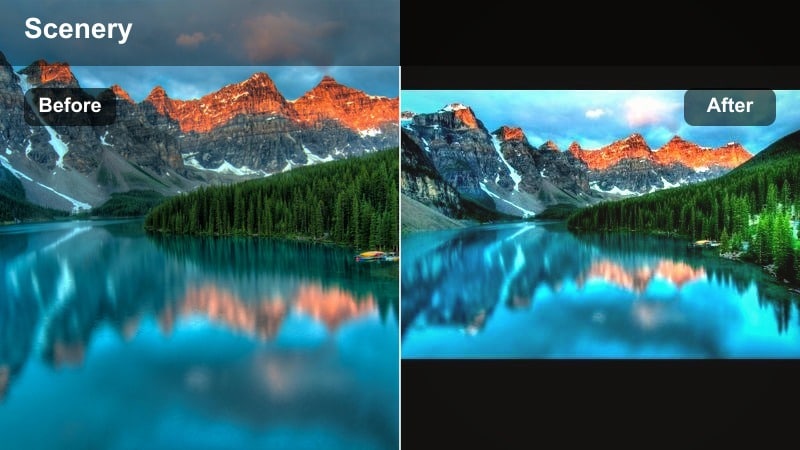
- Effect look: Soft cinematic contrast with gentle highlight bloom and slightly cool midtones.
- Best for: Opening and closing shots, drone reveals, and epic coastal transitions.
- Editing tip: Add slow push-in or pull-out keyframes in Filmora to enhance the dreamy, cinematic horizon lines.
Horizon Dream Cinema is built for big, sweeping shots where the coastline and sky take center stage. Soft contrast, subtle highlight bloom, and cool midtones give your horizons a polished, cinematic presence that works beautifully for intros and outros.
Apply it in Filmora to drone reveals, long pans, and key transition shots between scenes. Add slow push in or pull out keyframes, pair with whoosh transitions and immersive sound design, and use this filter as the visual anchor for your entire beach cinematic filter style.
Tips for Using Beach Aesthetic Filters in Filmora
- Shoot during golden hour or blue hour whenever possible to give aesthetic beach video filters soft, flattering base light.
- Keep exposure slightly under rather than over; it is easier to lift shadows in Filmora than to recover blown out skies and waves.
- Batch apply your chosen beach preset to all clips, then fine tune exposure, white balance, and saturation per clip for consistency.
- Mix a hero look like Aesthetic Beach Filter. Dream Coast with one or two secondary filters so longer vlogs do not feel visually flat.
- Use Filmora s AI color match to align clips from different cameras or days to the same pastel beach or gentle wave palette.
- Combine filters with subtle LUTs to add depth while keeping your soft coastal aesthetic intact across reels, shorts, and full videos.
- Export a short test reel first to check how your colors and contrast hold up on mobile screens and social platforms.
Using aesthetic beach video filters in Filmora makes it easy for content creators and travelers to turn simple shoreline footage into dreamy, on brand edits with pastel beach tones, soft coastal light, and gentle waves.
Pick one or two core filters from this list, build a consistent look around them, and then explore more advanced tools like LUTs and AI color matching to refine your beach cinematic filter style over time.
secure download