

 100% Security Verified | No Subscription Required | No Malware


 ChatGPT
 Perplexity
 Gemini
 Claude
 Grok
Grok
This collection of blue tone cinematic video LUT-style filters is designed for content creators who want to instantly add cool, moody, and dramatic color to their footage in Filmora.
From night streets to calm interiors, these blue-driven looks give you fast, repeatable grades that feel like full cinematic color work with just one click and a few simple tweaks.
In this article
Twilight City Scenes
Neo Noir Streets
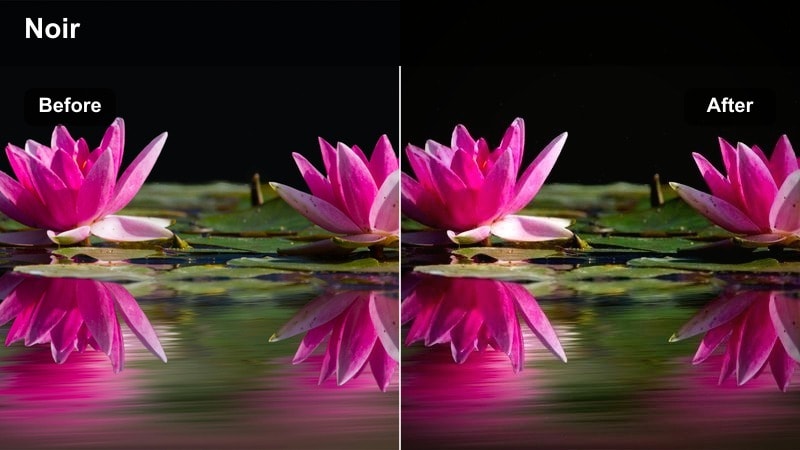
- Effect look: Deep blue shadows with desaturated mids for a moody, neo-noir street vibe.
- Best for: Night city b-roll, moody urban montages, narrative street films.
- Editing tip: Lower the filter opacity slightly, then add a gentle vignette to keep focus in the center of the frame.
Neo Noir Streets wraps your footage in deep blue shadows and muted midtones, instantly turning ordinary night streets into stylized cinematic backdrops. In Filmora, this filter is ideal for clips with strong contrast, such as wet asphalt, street lamps, and passing cars, where the cool grade can dig into the blacks without crushing important detail.
Apply Neo Noir Streets to your city b-roll, then fine-tune intensity with the Effects panel slider and adjust basic exposure so faces and key objects stay visible in the gloom. To refine the look, add a vignette and pair it with Filmora tools like noise, film grain, or letterboxing to push the sequence further toward a classic neo-noir short film style.
Let AI Find the Right Blue Tone for Your Scene
If you are not sure which blue tone cinematic video LUT-style filter fits your clip, let Filmora's AI-driven color tools quickly analyze your footage. The AI can read your contrast, lighting, and subject type, then surface blue-toned looks that feel natural for the scene instead of randomly browsing presets.
Use these AI suggestions as a starting point, then tweak intensity, contrast, and saturation until the blue grade supports your story rather than overwhelming it.
 secure download

Preview Blue Tone Filters in Real Time
Filmora lets you hover over each blue tone cinematic filter and instantly preview how it transforms your footage in the Viewer. This makes it easy to compare multiple looks side by side, especially when you are choosing between subtle teal, cyan, or deep-night blue styles.
Scrub through your clips while testing filters, then lock in the option that preserves detail in the shadows while giving your edit the mood you want.
secure download1000+ Video Filters and 3D LUTs
Beyond these blue tone cinematic styles, Filmora includes a large library of filters, overlays, and 3D LUTs you can stack for deeper control. Start with a blue tone filter for mood, then layer film looks, glow effects, or subtle texture to reach a more complex, big-screen grade.
Adjust the opacity of each layer in the Effects panel so your final result stays clean, consistent, and tailored to your channel or brand aesthetic.
secure downloadMetro Platform Chill
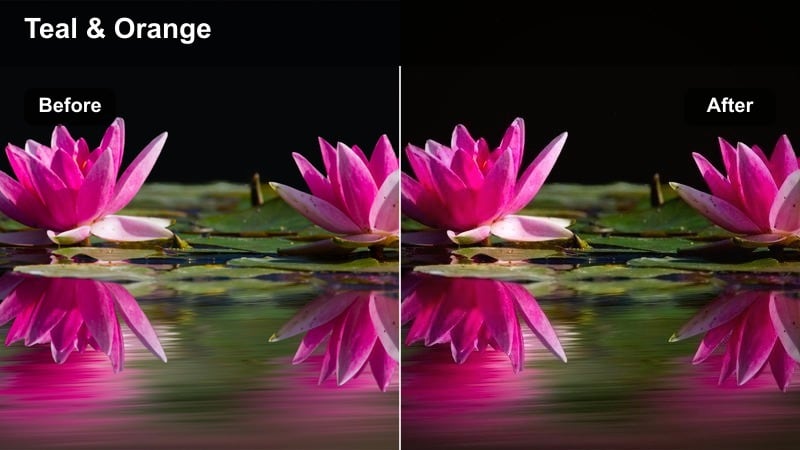
- Effect look: Cool teal-blue highlights with slightly lifted blacks for a soft, cinematic transit feel.
- Best for: Subway platforms, train rides, underground travel vlogs, urban transitions.
- Editing tip: Add subtle motion blur or speed ramps with this filter to enhance the sense of travel and movement.
Metro Platform Chill gives transit scenes a gentle teal-blue wash, brightening the darkest areas just enough to keep details in tunnels, platforms, and train interiors visible. It is especially effective on clips with fluorescent or LED lighting, where the lifted blacks and cool highlights can smooth out harsh color differences.
In Filmora, drop this filter onto your metro b-roll and then experiment with speed ramping and motion blur to emphasize arrivals, departures, and passing trains. You can also add simple text overlays or location titles on top of the graded footage to create clean, modern transitions between parts of your vlog or travel film.
Downtown Rain Glow
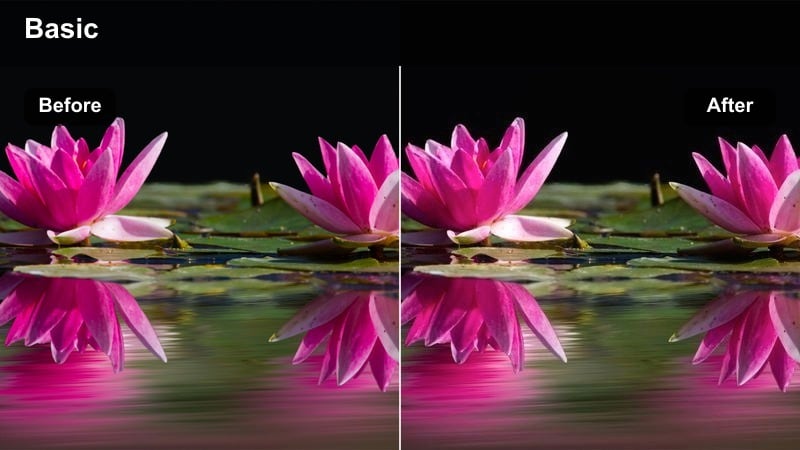
- Effect look: Rich cyan blues with boosted contrast and glowing highlights on wet surfaces.
- Best for: Rainy city nights, car window shots, reflective street surfaces.
- Editing tip: Increase highlight bloom or add a light glow effect to emphasize reflections in puddles and glass.
Downtown Rain Glow is built to enhance wet streets, puddles, and glass reflections by pushing cyan blues and boosting contrast where light hits the scene. Streetlights, signage, and car lights become vivid streaks across a darker, cooler environment, perfect for atmospheric city sequences after a storm.
Apply this filter in Filmora to rainy b-roll and then add glow or light leak overlays to intensify the reflections. By keeping exposure slightly lower and adjusting highlight roll-off in the Color panel, you can preserve texture in the roads and buildings while still getting a strong cinematic shimmer across water and windows.
Nighttime City Portraits
Cool Alley Character
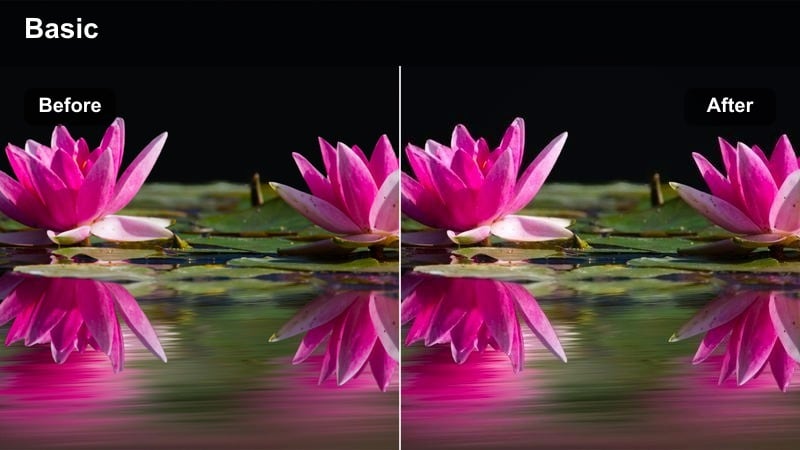
- Effect look: Muted warm tones with cool blue shadows that frame the subject in a gritty alley setting.
- Best for: Character portraits, street interviews, narrative alley scenes.
- Editing tip: Add a subtle warm tint only to skin tones after applying the filter to keep faces natural within the cool environment.
Cool Alley Character pushes shadows deeper and bluer while holding back saturation in the warm areas, shaping a gritty, narrative-ready alley look. This creates a strong contrast between your subject and the background, giving talking-heads or character moments a dramatic, story-driven tone.
In Filmora, apply the filter to your portrait shot, then use color tools or HSL adjustments to bring back a touch of warmth to skin tones only. You can combine this with a slight midtone lift and gentle sharpening so your subject remains readable and expressive even as the alley around them sinks into rich blue darkness.
Rooftop City Gaze
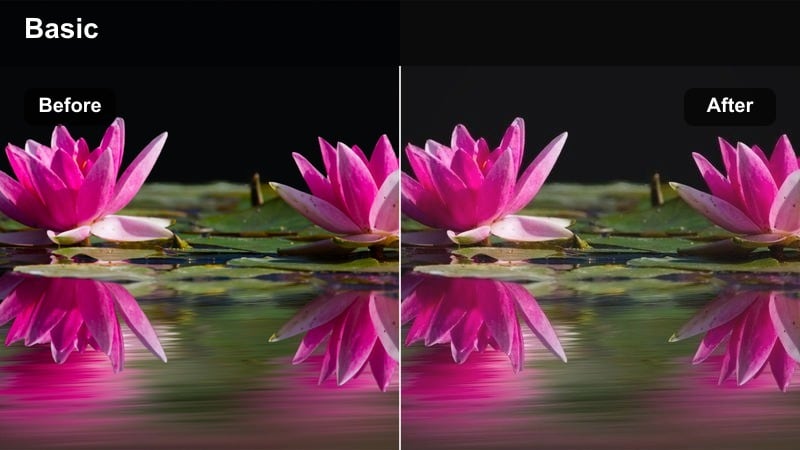
- Effect look: Soft blue grading with gentle fade in blacks for dreamy rooftop skyline views.
- Best for: Rooftop portraits, skyline b-roll, introspective vlog moments.
- Editing tip: Use slow push-in shots or subtle zooms with this filter to match the calm, cinematic feeling.
Rooftop City Gaze adds a soft blue veil over your frame while slightly fading the blacks, perfect for calm, reflective portraits above the city. It works best during blue hour or early night, when the sky still holds a gradient and city lights are just beginning to glow.
Use this filter in Filmora for introspective vlog segments or outro moments, combining it with slow push-ins, keyframed zooms, or gentle camera moves. You can lightly adjust contrast and saturation to match your channel branding, keeping the overall mood relaxed while maintaining enough clarity in both your subject and the skyline.
Neon Window Reflection
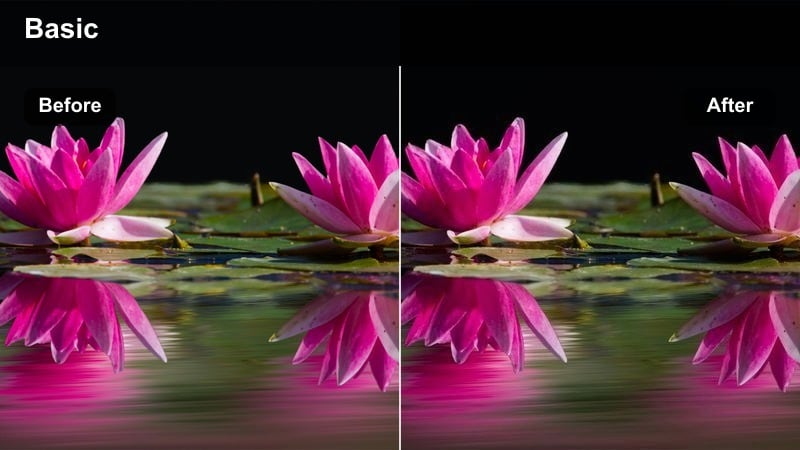
- Effect look: Intense blue and cyan tones wrapped around neon reflections with rich contrast.
- Best for: Portraits through shop windows, reflective glass, neon-lit bars or cafes.
- Editing tip: Frame your subject slightly off-center so reflections can fill the rest of the shot and complement the blue filter.
Neon Window Reflection is designed for portraits shot through glass, where reflections and signage can wrap around your subject in intense blues and cyans. The filter leans into contrast and saturation so neon details stay punchy while the rest of the frame falls into a darker, more mysterious mood.
After applying it in Filmora, adjust exposure so the subject's face is slightly brighter than the reflections, and use the Color panel to tame any over-saturated areas. Combine this with subtle camera movement, bokeh overlays, or slow motion to emphasize the layered, dreamlike feeling of looking through city windows at night.
Indoor Calm and Tech Spaces
Minimal Studio Cool
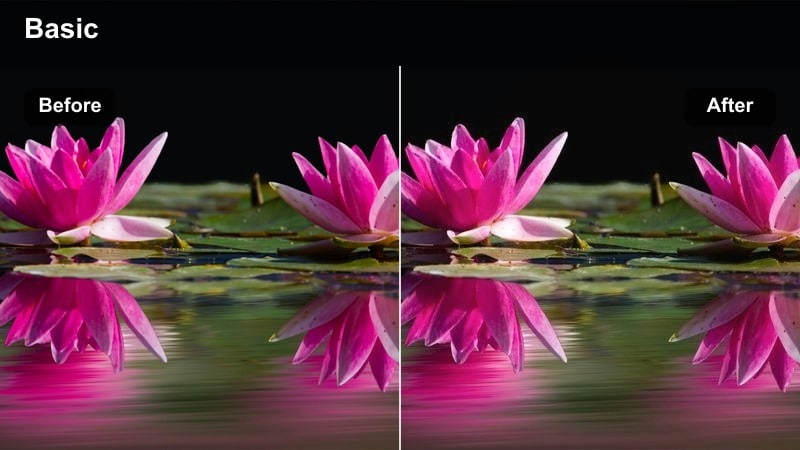
- Effect look: Clean blue cast with gentle contrast for tidy, modern interiors and desk setups.
- Best for: Talking-head videos, desk tours, productivity or tech review content.
- Editing tip: Combine this filter with a slight clarity or sharpness boost to keep text and product edges crisp.
Minimal Studio Cool adds a controlled blue cast to your studio or desk shots, giving them a modern, tech-oriented aesthetic without over-darkening the frame. Whites stay relatively clean while midtones and shadows pick up a subtle cool tint that looks professional in tutorials, reviews, and productivity content.
Apply this filter in Filmora and then tweak sharpness or clarity to keep monitors, keyboards, and on-screen text easy to read. If your set uses practical lighting, you can also slightly reduce saturation in the Color panel to avoid clashing hues and keep the overall palette consistent with your brand colors.
Tech Monitor Glow
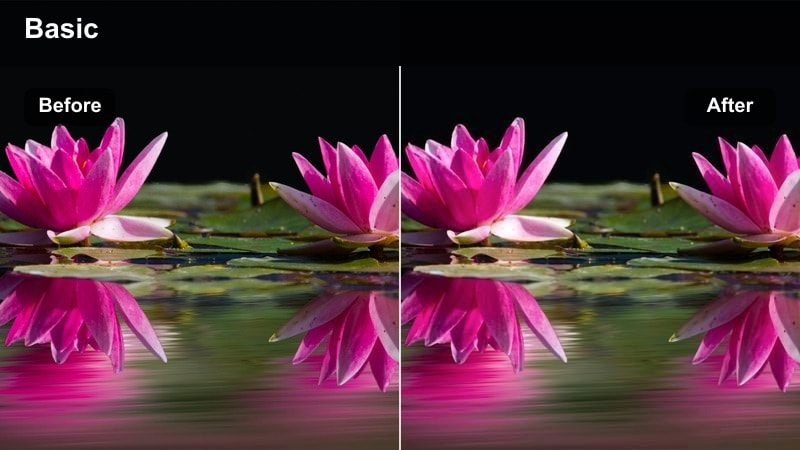
- Effect look: Blue-emphasized monitor light with slightly darkened surroundings for a focused tech vibe.
- Best for: Coding scenes, gaming setups, late-night editing b-roll.
- Editing tip: Lower overall exposure a touch so monitors and LEDs become the main source of light in the frame.
Tech Monitor Glow centers your frame around screens and LEDs, deepening the environment while letting blue monitor light define your subject. It is great for gaming, coding, or editing setups where you want the viewer's eye pulled straight to the displays and the person working in front of them.
In Filmora, darken exposure slightly after adding this filter and adjust contrast so details in the background do not distract from the monitors. You can also introduce subtle camera movement, RGB keyboard close-ups, or quick cutaways graded with the same filter to build a cohesive, late-night tech sequence.
Calm Office Evening
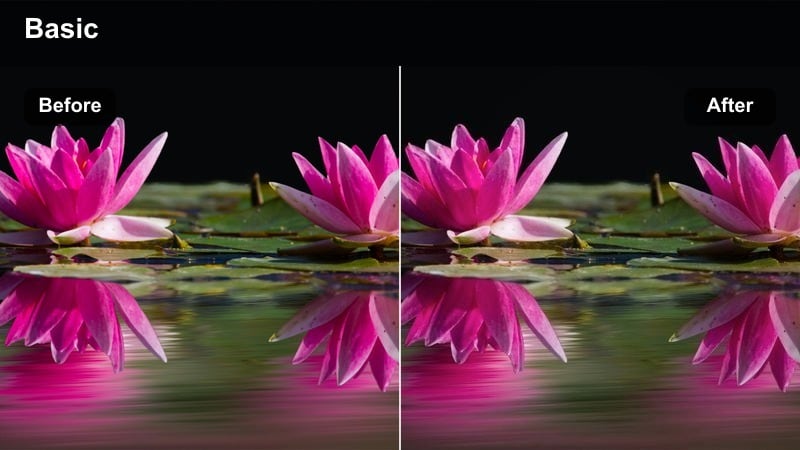
- Effect look: Subtle blue tint with softened contrast for quiet evening office sequences.
- Best for: Work montages, late-night productivity videos, cinematic office b-roll.
- Editing tip: Add slow cross-dissolves between shots to match the gentle tone of this filter.
Calm Office Evening introduces a light blue tone and softened contrast that suits quiet, focused work scenes shot near windows or desk lamps. It takes the harsh edge off practical lighting and gives your productivity montages or office b-roll a relaxed, cinematic polish.
Use this filter across multiple shots in Filmora, then smooth the edit with cross-dissolves, gentle zooms, and minimal sound design like keyboard clicks or ambient office noise. Small exposure and white balance tweaks can ensure window light stays natural while the interior leans softly into the cool evening palette.
Dusk Skylines and Transitions
City Dusk Panorama
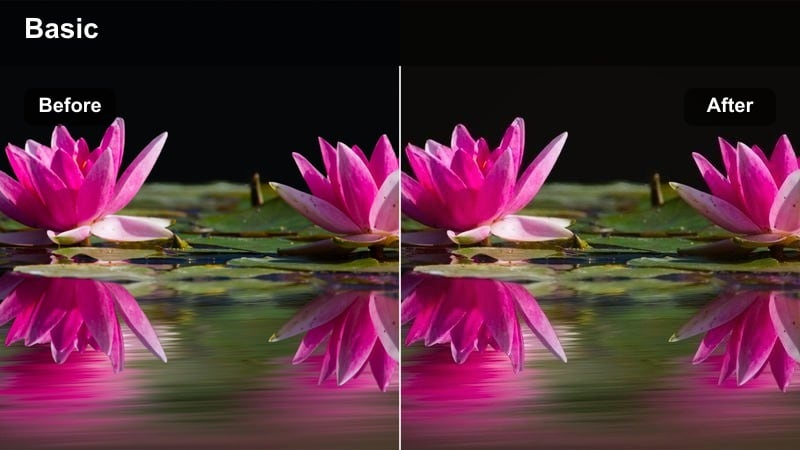
- Effect look: Gradient blue tone that deepens the sky while keeping city lights warm and inviting.
- Best for: Dusk skyline shots, day-to-night transitions, opening or closing sequences.
- Editing tip: Use slow pans or timelapse with this filter to emphasize the shift from sunset warmth to cool evening blues.
City Dusk Panorama deepens the twilight sky into richer blues while allowing city lights to stay warmly colored, creating a classic golden-to-blue hour balance. This contrast between cool sky and warm windows is ideal for establishing shots or transitions that mark the end of the day in your story.
Apply the filter in Filmora to wide skyline pans or timelapse footage, then refine exposure to avoid clipping bright signs or windows. You can also add motion blur, speed changes, or text overlays such as location titles to turn these graded skyline shots into strong openers or closers for your video.
Bridge Drive Transition
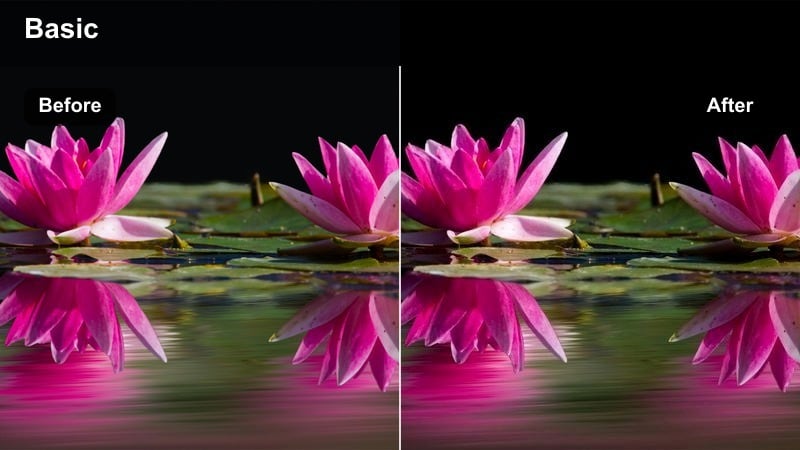
- Effect look: Strong blue in shadows with clean midtones that flatter car lights and bridge structures.
- Best for: Driving shots across bridges, car b-roll, travel transitions between city locations.
- Editing tip: Pair this filter with speed ramping and light streak effects to connect two parts of your story.
Bridge Drive Transition leans heavily into blue shadows to make bridges, highways, and city infrastructure feel sleek and dramatic, while keeping midtones clear enough to show vehicle detail. The look works particularly well on night drives where headlight and taillight streaks create natural leading lines.
In Filmora, add this filter to your driving clips, then use speed ramping and directional blur to stylize moments when you cross the bridge or enter a tunnel. Cutting these graded shots between two major scenes lets you build smooth, cinematic transitions that move viewers from one location or chapter of your story to the next.
City Overlook Timecut
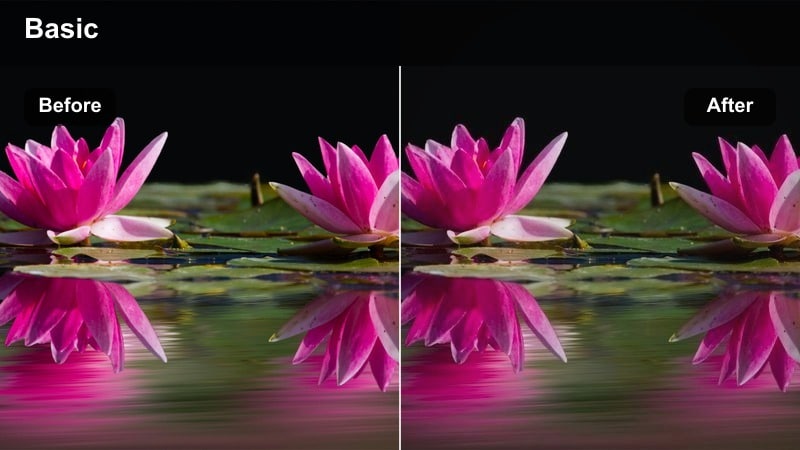
- Effect look: Cool, slightly faded blue grade that works well across time-lapse or jump-cut skyline sequences.
- Best for: Overlook vantage points, timelapses, quick-cut city montages.
- Editing tip: Keep camera angle locked between cuts so the consistent blue filter ties your time jumps together.
City Overlook Timecut applies a cool, slightly faded blue grade that smooths differences between multiple skyline shots, making it ideal for timelapses or jump-cut sequences. The softer contrast helps blend changes in light over time, so your overlook footage feels like a cohesive, stylized time progression.
Apply this filter in Filmora to all clips from the same vantage point, then cut them together with rhythmic music and precise timing. You can enhance the effect with speed changes, overlays such as light leaks, or subtle zooms so viewers feel the passage of time while the blue-toned cityscape remains your consistent visual anchor.
Tips for Using Blue Tone Cinematic Video Lut Filters in Filmora
- Shoot slightly cooler in-camera or keep your white balance neutral, then let the blue tone filter push your footage into a consistent cinematic mood.
- Always check skin tones after applying strong blue filters and gently rebalance them with Filmora's color tools so faces stay believable.
- Match filter strength from shot to shot so your edit feels like a single, unified color grade instead of a patchwork of different looks.
- Use blue tone cinematic looks mainly in shadows and midtones, keeping highlights closer to neutral to avoid a heavy, unrealistic color cast.
- When mixing day and night footage, apply subtler blue filters to daytime clips so the transition into darker scenes feels smoother and more natural.
- Combine blue tone filters with Filmora effects like vignettes, film grain, and letterboxing to reinforce the cinematic feel without overprocessing the image.
- Adjust filter opacity first, then fine-tune exposure and contrast so you maintain detail in both deep shadows and bright signage or windows.
- Save your favorite blue tone combinations as custom presets in Filmora to quickly reuse the same cinematic look across entire projects or series.
Blue tone cinematic video LUT-style filters are a fast way to give your city, tech, and nighttime stories a consistent, dramatic mood inside Filmora.
Start with the presets that best match your scene, then refine opacity, contrast, and skin tones until the blue grade feels intentional and truly supports your narrative.
secure download