

 100% Security Verified | No Subscription Required | No Malware


 ChatGPT
 Perplexity
 Gemini
 Claude
 Grok
Grok
These CapCut beauty LUTs skin tone style filters are designed for content creators who want smooth, flattering, and realistic skin tones without plastic or over-edited results.
Use these curated looks as a starting point for portrait reels, lifestyle vlogs, and beauty content so every face in your frame looks consistent, professional, and camera-ready.
In this article
Soft Daylight Portraits
Soft Glow Porch Light
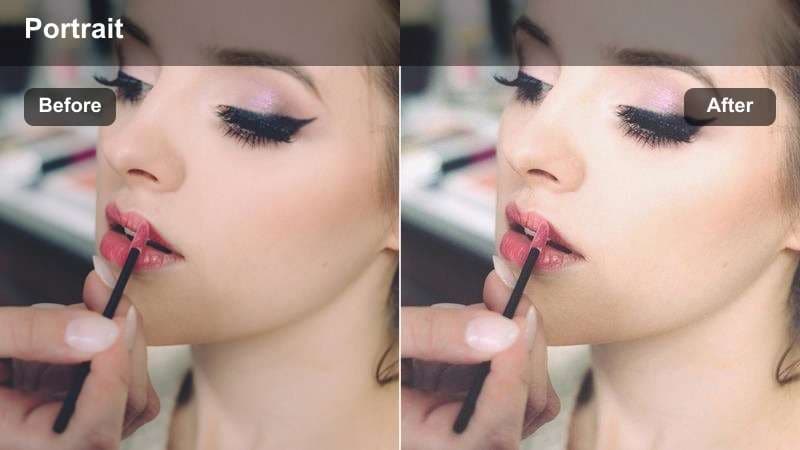
- Effect look: Gentle brightening with a soft matte finish that evens out skin while keeping natural texture visible.
- Best for: Talking-head videos and beauty tutorials shot near a window or balcony in soft daylight.
- Editing tip: Lower the filter intensity to around 60 percent and slightly increase sharpness to keep eyes and lashes crisp.
In Filmora, you can recreate a Soft Glow Porch Light feel by slightly lifting exposure, softening highlights, and adding a mild matte curve so skin looks bright but never shiny. Pair this with Filmoras skin smoothing controls at a low setting to reduce minor blemishes while preserving pores and natural texture for a believable, camera-ready look.
This style works especially well for GRWM intros, sit-down beauty breakdowns, and reaction-style content filmed near a window. After you balance exposure and contrast, fine-tune white balance to neutral so your skin tone stays true, then save the combo as a preset to quickly apply the same clean daylight portrait look across your entire series.
Let AI Find the Best Skin Tone Look for Your Footage
Filmoras AI color tools can scan your footage and automatically suggest beauty and skin tone looks that match your lighting and camera, taking the guesswork out of copying CapCut-style filters. Start with AI tone balancing to fix harsh color casts or uneven exposure before you dial in any creative beauty LUTs.
Once your base color is corrected, layer Filmoras portrait and skin tools on top to refine luminance, soften imperfections, and maintain natural complexions from clip to clip. This gives you a reliable foundation for every filter you try, whether you are working with daylight, indoor lamps, or screen light.
 secure download

Preview Beauty Filters on Real Creator Scenarios
Filmora lets you preview portrait and beauty filters on built-in sample clips, so you can see exactly how each look behaves on different skin tones before touching your own footage. Jump between vlog, cafe, and night street samples to compare how smoothing, contrast, and color grading affect faces in changing light.
As you test, pay attention to how much texture remains in cheeks, forehead, and under-eyes, then adjust intensity until the skin looks polished but still real. When you find a combination that matches your CapCut-inspired aesthetic, save it as a preset and reuse it across your entire project.
secure downloadBuild a Reusable Skin Tone LUT Library
After you dial in a beauty look that flatters your skin, you can turn it into a reusable LUT or preset in Filmora, so every future edit starts from the same skin tone baseline. Group your favorite styles into folders for daylight, indoor, and night scenes to speed up editing and keep your aesthetic consistent.
This workflow is perfect for creators who bounce between CapCut and Filmora, because you can quickly match looks across platforms with a few clicks. Any time you refine your go-to grade, simply update your preset so your entire content library evolves with your style.
secure downloadFresh Studio Chair
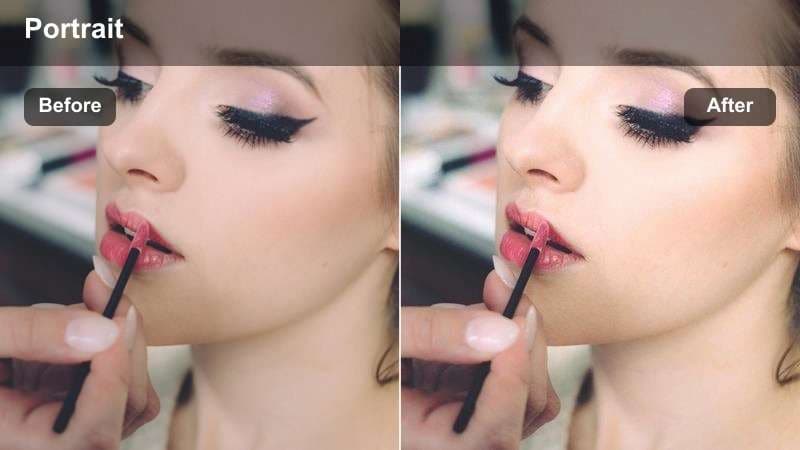
- Effect look: Clean studio-style tone with neutral color balance and light smoothing on cheeks and forehead.
- Best for: Desk setups, product reviews, and interview-style shots with ring lights or softboxes.
- Editing tip: Use the skin smoothing slider modestly, then raise clarity on hair and clothing to avoid an overall blurry look.
To mimic a Fresh Studio Chair aesthetic in Filmora, aim for neutral white balance and slightly lift midtones so your skin appears evenly lit under ring lights. Apply light skin smoothing only to facial areas, then use sharpness or clarity on edges like hair, brows, and wardrobe to keep the overall image crisp.
This look is ideal for sponsored content, tutorials, and any talking-head clip where you want a professional but approachable presence. Save your preferred smoothing and contrast settings as a preset, and combine them with consistent lighting temperatures so your studio shots match across multiple filming days.
Window Velvet Skin
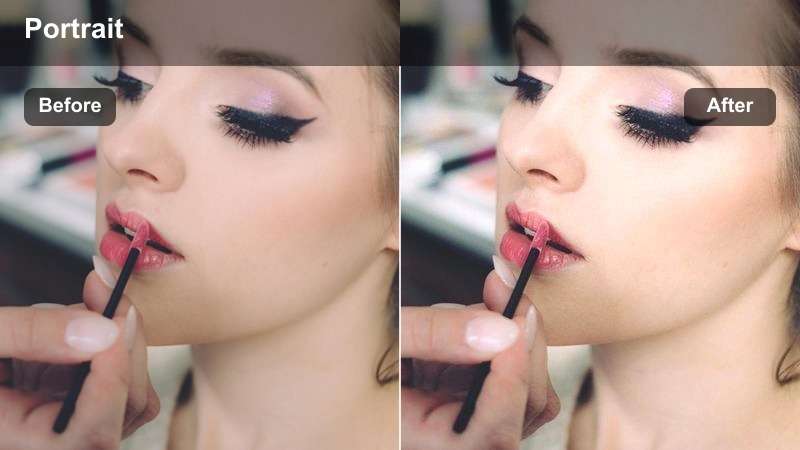
- Effect look: Soft velvety finish with mild desaturation of reds for calmer, more even complexions.
- Best for: Lifestyle clips, GRWM videos, and daily vlogs shot in bright, white interiors.
- Editing tip: If lips or blush look too muted, selectively raise vibrance on reds and pinks while keeping the rest of the frame gentle.
In Filmora, you can create a Window Velvet Skin style by lowering overall saturation slightly, then selectively reducing red and orange intensity to calm redness in cheeks and around the nose. Add a gentle matte curve and minimal skin smoothing so the complexion reads soft and velvety without losing structure.
This approach shines in minimalist, white-room setups where harsh color can be distracting. If you notice deeper skin tones losing richness, nudge midtone saturation and warmth upward just for those clips, then store the adjusted version as a separate preset for vlog sequences featuring multiple complexions.
Golden Hour Outdoors
Sunset Glow Walk
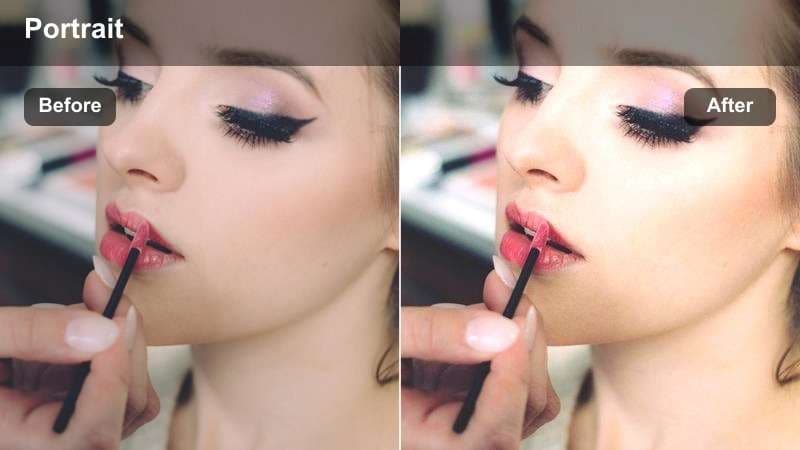
- Effect look: Warm golden cast that enhances tan and brown skin tones while softening harsh shadows.
- Best for: Golden hour walks, rooftop chats, and outdoor outfit-of-the-day shots.
- Editing tip: Dial back the warmth slightly if your background sky is very orange to keep skin from turning too yellow.
To get a Sunset Glow Walk vibe in Filmora, warm up the white balance and add a subtle orange tint in the highlights so sunlit skin looks naturally golden. Lift shadows a bit to soften lines around the eyes and mouth while keeping enough contrast to maintain definition in jawlines and hair.
This look is perfect for OOTD transitions, rooftop conversations, and cinematic B-roll where the sun is low. If the sky is very saturated, balance with Filmoras HSL controls, reducing yellow in midtones so your skin does not shift toward cartoonish orange while still preserving that rich evening light.
Park Soft Blush
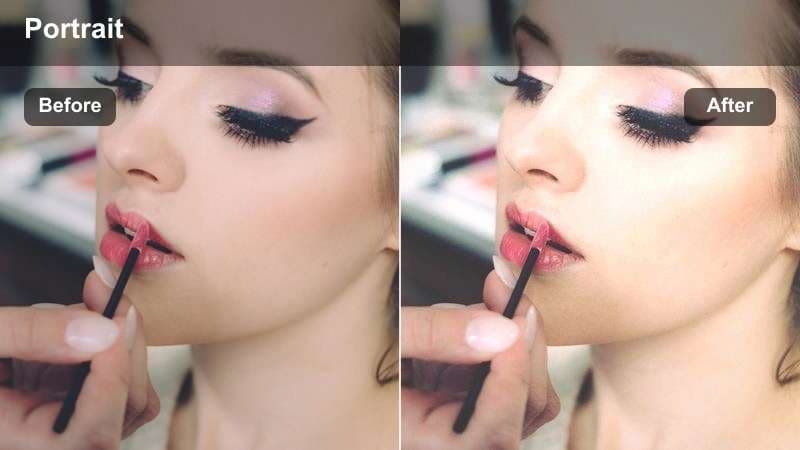
- Effect look: Soft pastel warmth with gentle rosy cheeks and reduced contrast for dreamy outdoor portraits.
- Best for: Picnic vlogs, soft aesthetic reels, and outdoor friendship clips near trees or pathways.
- Editing tip: Increase midtone contrast slightly so the face does not look hazy in brighter outdoor environments.
In Filmora, create a Park Soft Blush style by slightly lifting exposure, adding a gentle warm tint, and boosting pink hues in the midtones for natural-looking rosy cheeks. Reduce overall contrast for a dreamy, pastel feel, then reintroduce a touch of midtone contrast to keep features from looking washed out.
This filter approach is especially strong for soft-core aesthetic edits, picnic montages, and candid friendship shots under trees. Use Filmoras masking tools to keep eyes sharp and defined while the rest of the face remains soft, and save the combination as a preset so your entire outdoor series shares the same romantic tone.
City Gold Profile
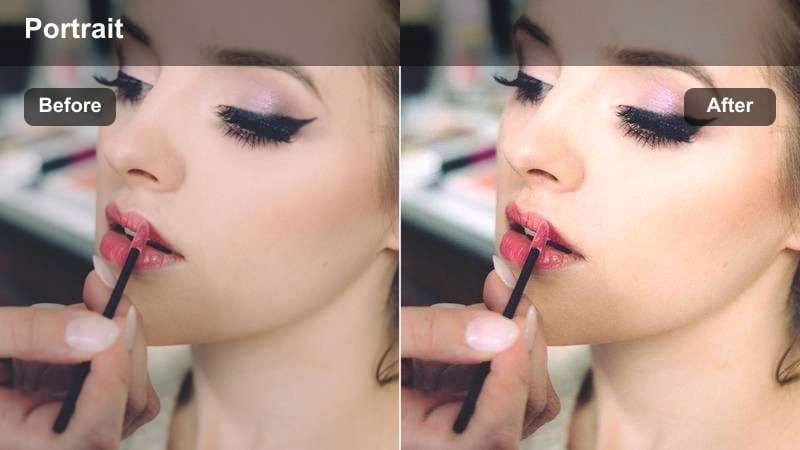
- Effect look: Rich golden highlights with balanced shadows that maintain depth on different skin tones.
- Best for: Street portraits, quick city updates, and cinematic B-roll of faces against skylines.
- Editing tip: If you film under mixed lighting, reduce green or magenta tints in color controls before applying this look.
To emulate a City Gold Profile in Filmora, boost warmth in highlights and slightly deepen shadows so skin looks dimensional against bright skies. Use the color wheels to keep midtones neutral while highlights carry the golden tint, ensuring that every skin tone in the frame maintains clarity and richness.
This works beautifully for rooftop portraits, city street reels, and skyline-facing updates where you want a cinematic edge. Clean up mixed lighting by adjusting tint toward neutral before adding your warm grade, then store your final recipe as a LUT for quick reuse on any future golden-hour city shoot.
Indoor Ambient Scenes
Soft Room Ambient
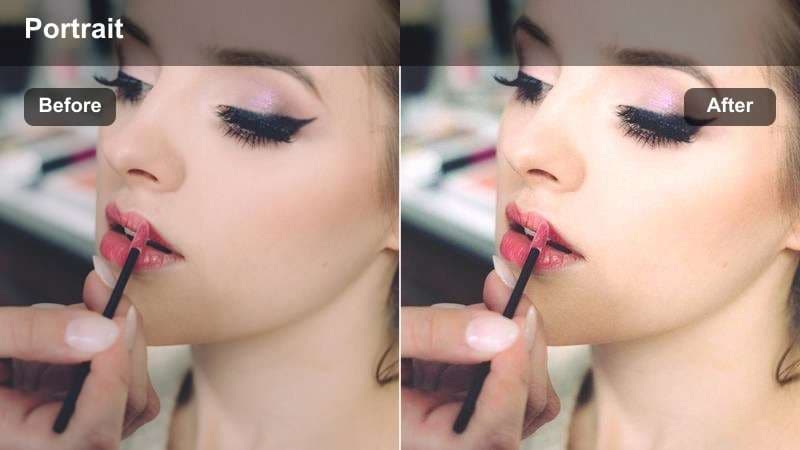
- Effect look: Neutralizing filter that removes yellow indoor casts and restores balanced skin tones.
- Best for: Bedroom vlogs, cozy night-time check-ins, and storytime clips under warm lamps.
- Editing tip: Lower saturation on orange tones to keep walls warm but skin closer to natural color.
To get a Soft Room Ambient look in Filmora, start by pulling down orange and yellow saturation so indoor bulbs stop turning your skin overly warm. Adjust white balance toward neutral, then lightly brighten midtones on the face so your features remain visible in cozy, low-contrast rooms.
This setup works well for intimate storytime vlogs or casual night updates from your bed or sofa. Keep the background slightly warm to preserve the cozy vibe, while using selective color or masking to keep skin tones closer to real life, and then save that combination as your go-to bedroom preset.
LED Glam Desktop
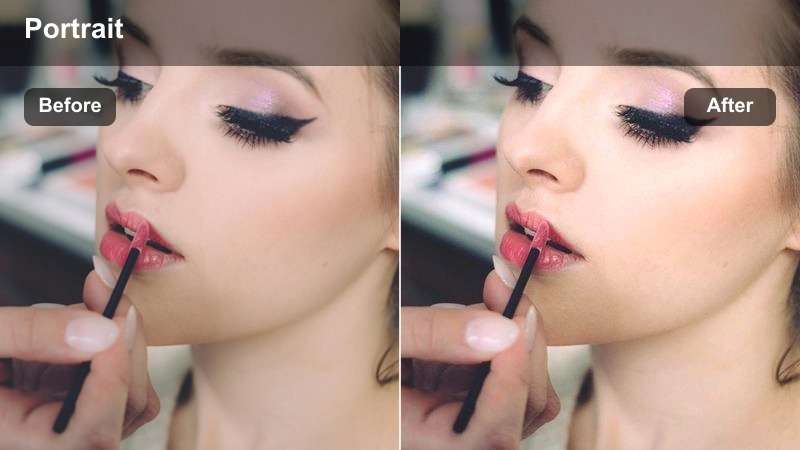
- Effect look: Balanced tone that reduces blue or magenta from RGB lights while protecting makeup detail.
- Best for: Gaming streams, beauty looks with RGB backlights, and desk setups with colored LEDs.
- Editing tip: Use selective HSL controls to keep background LEDs vibrant but pull extreme color out of skin areas.
In Filmora, an LED Glam Desktop style starts with taming the blue and magenta spill from your RGB lights using HSL to desaturate those hues in skin-tone ranges. Keep LED colors vivid in the background while applying gentle skin smoothing and clarity boosts so makeup, brows, and lashes remain sharply defined.
This look suits gaming highlights, stream recaps, and beauty tutorials filmed at a desk with neon backdrops. Use masking to isolate your face and reduce color contamination, then save the final setup as a preset so your LED-heavy scenes stay consistent even as you change background colors.
Cafe Soft Neutrals
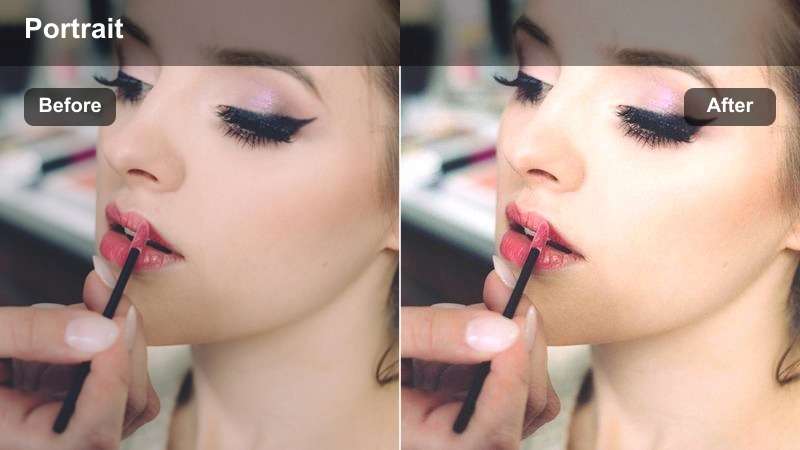
- Effect look: Low-contrast neutral palette that softens oranges and browns while keeping facial features defined.
- Best for: Cafe vlogs, remote work shots, and indoor lifestyle content with warm decor.
- Editing tip: Add subtle grain for a cinematic feel, but keep grain intensity low on close-up face shots.
To craft a Cafe Soft Neutrals look in Filmora, pull back saturation in oranges and browns so wooden tables and decor do not overpower the skin. Reduce global contrast slightly, then reintroduce detail on the face using clarity or sharpen so features remain clear within the relaxed, muted palette.
This filter style is ideal for coffee shop diaries, remote work B-roll, and travel sit-downs in warm interiors. Add a fine layer of grain for a cinematic feel, but use low intensity on close-ups to avoid noisy pores, and save the final recipe as a preset for any cafe or lounge setting you film in.
Low Light and Night Shots
Street Neon Soft
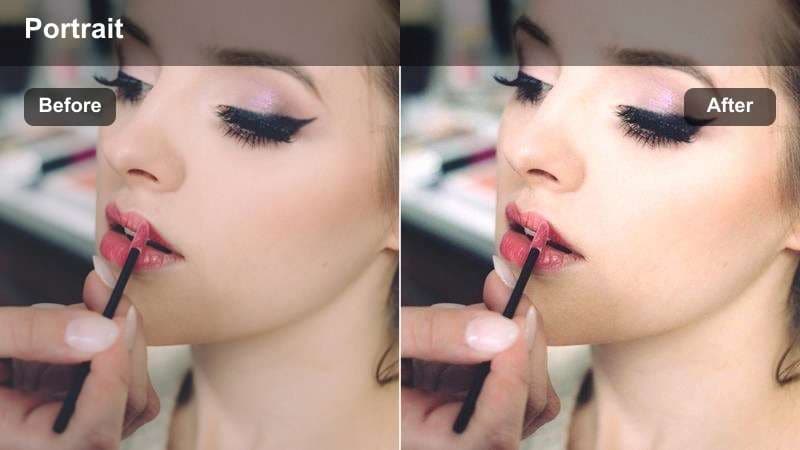
- Effect look: Smooth, slightly cool filter that keeps skin clean under neon signs and bright shop windows.
- Best for: Night street vlogs, handheld updates, and B-roll with bright city lights behind the subject.
- Editing tip: Reduce chroma noise first, then apply the filter so skin does not look blotchy in dark shadows.
In Filmora, start a Street Neon Soft grade by running denoise on your clip to reduce color speckles in shadows, then add a subtle cool tint so neon lights look intentional rather than messy. Light skin smoothing and lifted midtones will help your face stand out cleanly against colorful, high-contrast backgrounds.
This approach works well for walking vlogs, handheld story segments, and cinematic city cutaways at night. Use HSL to gently desaturate extreme blues and greens hitting your skin, then keep highlights under control so neon reflections do not blow out facial details.
City Night Glow
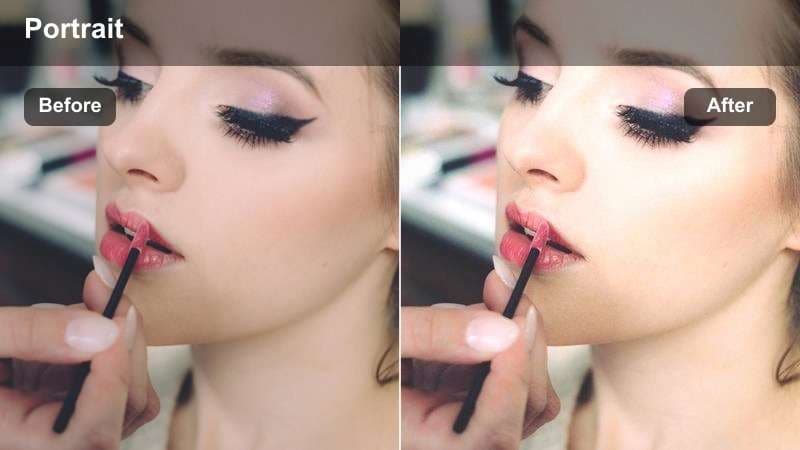
- Effect look: Warm, cinematic glow that lifts midtones so facial features stay visible in dim streets.
- Best for: Night walks, car window shots, and cinematic storytelling in low ambient light.
- Editing tip: Raise exposure on the face using a mask instead of brightening the whole frame and adding noise.
To build a City Night Glow filter in Filmora, add a soft warm tint and increase midtones so your face appears gently lit even when the environment is dark. Use masking tools to brighten only the facial area, which helps avoid pumping noise into the entire frame while still highlighting your expressions.
This cinematic tone is great for narrative monologues, late-night reflections, or car window shots lit by streetlights. Keep streetlamps and signs from clipping by avoiding excessive highlight boosts, and finish with slight sharpening around the eyes so they remain the focal point of your night scenes.
Midnight Screen Soft
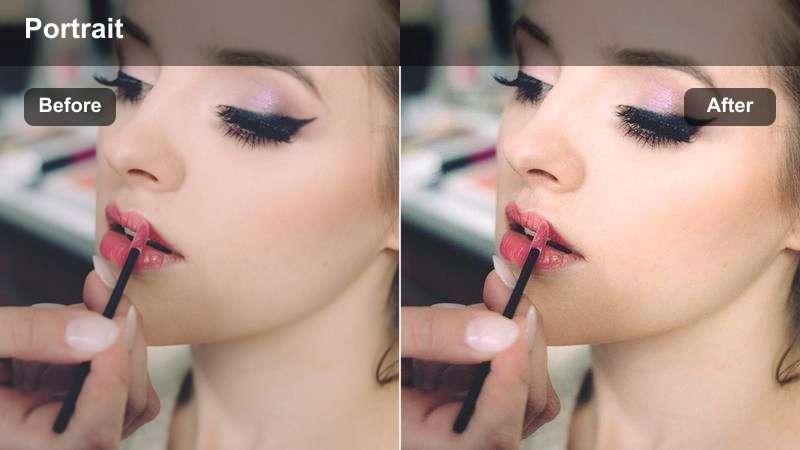
- Effect look: Cool-balanced, gentle smoothing tailored for faces lit mainly by phones or laptop screens.
- Best for: Late-night storytimes, reaction videos in bed, and screen-lit confessionals.
- Editing tip: Lower blue saturation slightly so screen light looks clean but skin does not turn icy or sickly.
For a Midnight Screen Soft mood in Filmora, lean into a soft cool balance while carefully reducing blue saturation so your skin does not look overly icy. Apply modest skin smoothing and slightly raise shadows around the face so under-eye areas and jawlines do not sink into harsh darkness.
This style is ideal for intimate confessionals, late-night reactions, and phone-lit TikTok crossposts. Use Filmoras vignette or darken the background slightly to keep attention on your face, then save the look as a preset for any screen-lit clips you film from bed or your couch.
Tips for Using Capcut Beauty Luts Skin Tone Filters in Filmora
- Always correct exposure and white balance in Filmora before applying beauty-style LUTs so skin tones remain accurate and easy to grade.
- Use masks to separate the face from the background when possible, keeping skin natural while you stylize skies, cafes, or LED-lit rooms.
- View your graded video on at least two screens, such as a phone and a laptop, to ensure skin does not look oversaturated, gray, or washed out.
- Avoid running skin smoothing at 100 percent; keep intensity moderate so pores and fine texture remain visible, especially in 4K uploads.
- When editing multi-person shots, grade for the darkest skin tone first, then make gentle adjustments for lighter complexions if needed.
- Use Filmoras HSL and color wheels to fine-tune reds, oranges, and yellows in the skin range instead of simply pushing global saturation.
- Save your favorite skin tone corrections as presets or LUTs organized by lighting type, like daylight, indoor warm, and night, to speed up workflows.
- To create the LUT versions, export compatible color adjustments from a selected clip as a standard .cube file for reuse in Filmora, DaVinci Resolve, Adobe Premiere Pro, or Final Cut Pro.
These CapCut beauty LUTs skin tone style filters give content creators a clear roadmap to smoother, more flattering complexions in every lighting situation.
Combine consistent skin tone grading with thoughtful lighting, exposure, and subtle smoothing so your viewers stay focused on your story, not your color correction.
secure download