

 100% Security Verified | No Subscription Required | No Malware


 ChatGPT
 Perplexity
 Gemini
 Claude
 Grok
Grok
You do not need a full color-grading workflow or complex LUT packs to get a cinematic look on YouTube Shorts. With Filmora filters that emulate YouTube Shorts LUTs cinematic style, you can turn simple vertical clips into moody, stylized moments that feel like scenes from a film.
Below you will find 12 cinematic-style filters, organized by scene type, so content creators can quickly match the mood of their YouTube Shorts and keep a consistent, professional look across their channel.
In this article
Moody Dusk and Night Street Scenes
Neon Noir Streets
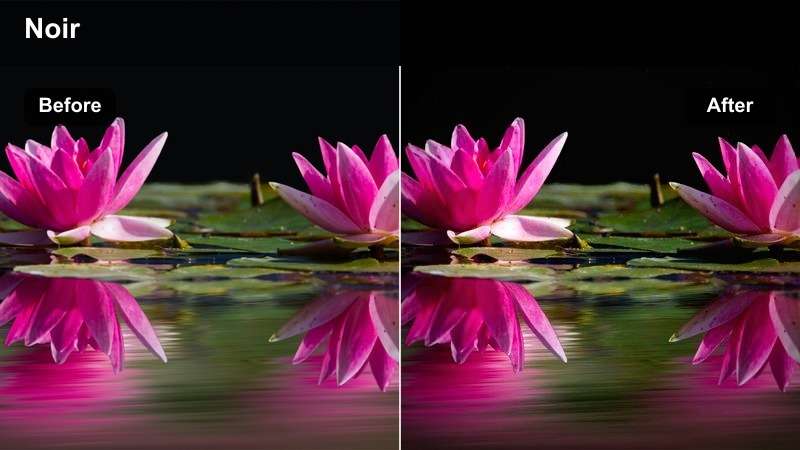
- Effect look: High-contrast cinematic grade with deep blacks and glowing neon highlights that make night city lights feel dramatic and stylized.
- Best for: Night city walks, b-roll of traffic, POV street transitions, and cinematic lifestyle Shorts set in urban nightlife.
- Editing tip: Slightly underexpose your footage in-camera, then lower shadows and add a subtle vignette to push the noir vibe.
Neon Noir Streets is ideal when you want late-night city footage to feel like a scene from a cyberpunk film. The filter pushes blacks deeper while letting neon signage and reflections bloom just enough to feel cinematic without turning into a messy glow, which is perfect for smaller vertical screens.
In Filmora, apply this filter as your base grade, then refine it with curves to control how aggressively the shadows fall off. Keep your subject central in the frame and let the filter emphasize colorful lights at the edges, turning basic street clips into stylized YouTube Shorts that still keep faces and key details readable.
Match Cinematic Color in One Click
Filmora s AI-powered color tools help you match the Neon Noir Streets look across an entire batch of Shorts without manually recreating the same adjustments on every clip. Start from this filter, then let AI unify temperature, tint, and contrast from shot to shot.
Once you lock in a mood you like, you can reuse it as the backbone of your channel s visual identity so viewers instantly recognize your Shorts in their feed.
 secure download

Preview Filters on Vertical Clips Instantly
With Filmora s real-time preview, you can swipe through cinematic filters like Neon Noir Streets, Amber Night Drive, or Steel Blue Midnight directly on vertical footage. This makes it easy to judge how each style treats neon highlights, skin tones, and dark alley details before committing.
Import a short test clip, then A/B compare multiple filters in seconds to pick the one that best fits your current story or transition sequence.
secure download1000+ Video Filters and 3D LUTs
Beyond these cinematic styles, Filmora includes a large library of video filters and 3D LUTs you can stack and fine-tune. This lets you start with a built-in filter for contrast and mood, then layer a LUT at lower intensity to nudge colors toward your preferred film look.
Use adjustment panels such as HSL and curves to refine each combination for your niche, from moody city edits to bright lifestyle Shorts.
secure downloadAmber Night Drive
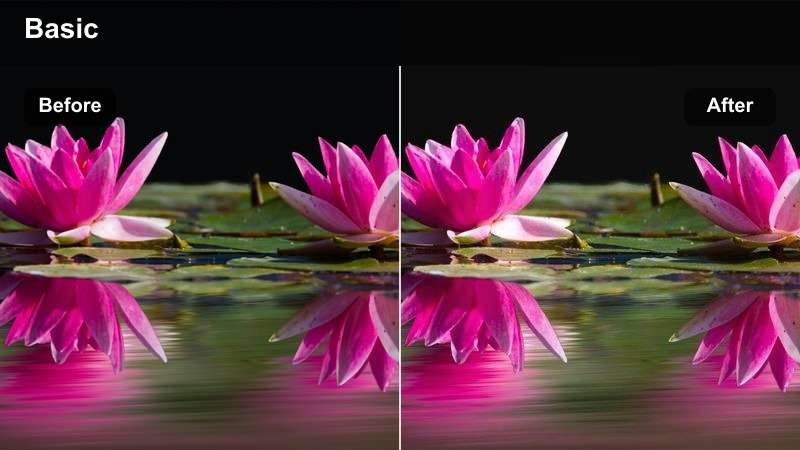
- Effect look: Warm amber cinematic glow that softens skin tones and turns car headlights and street lamps into atmospheric halos.
- Best for: In-car monologues, driving POVs, and cinematic travel Shorts shot through windshields at dusk or night.
- Editing tip: Boost clarity slightly but keep highlights tamed to avoid blown-out car lights in vertical frames.
Amber Night Drive is built to turn everyday commutes into cinematic road stories. It leans into warm tones so streetlights and dashboard reflections feel cozy and nostalgic, while preserving just enough contrast that viewers can still clearly read your expressions during in-car dialogue.
Apply this filter in Filmora to any handheld driving shots, then fine-tune highlight levels to keep headlight flares under control. Combine it with smooth transitions or subtle motion blur to create flowing travel narratives that are easy to binge in YouTube Shorts.
Steel Blue Midnight
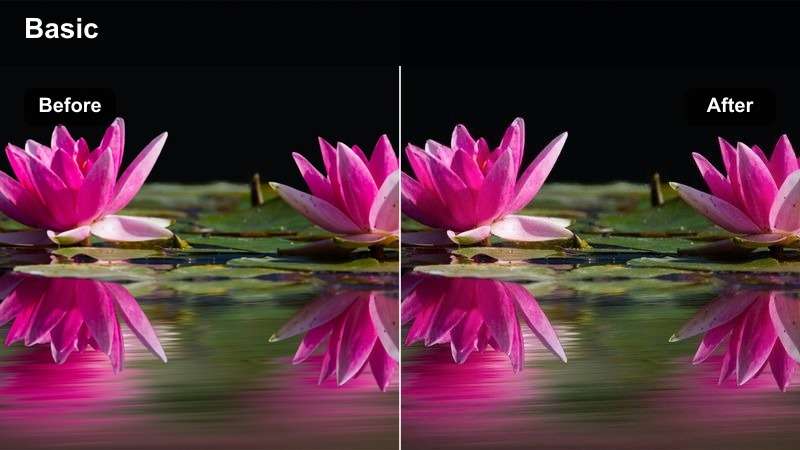
- Effect look: Cool steel-blue cinematic tone with lifted shadows that keep night scenes visible but still moody and dramatic.
- Best for: Late-night vlogs, tech-themed Shorts, moody alleyway b-roll, and futuristic city edits.
- Editing tip: Keep saturation controlled and push blue tones in the shadows while preserving neutral skin tones for the subject.
Steel Blue Midnight gives your night footage a futuristic twist, shifting the palette toward cool blues while holding onto enough shadow detail so viewers can follow the scene. It is a strong fit for tech, gaming, and sci-fi inspired Shorts where you want a clean but moody atmosphere.
Inside Filmora, use the HSL and color tools to gently warm up orange tones so faces stay natural against the colder environment. Add practical lights like LEDs or signage in the background and let the filter enhance their glow, turning simple alleys or rooftops into cinematic cityscapes.
Cinematic Golden Hour in the City
Sunset City Glow
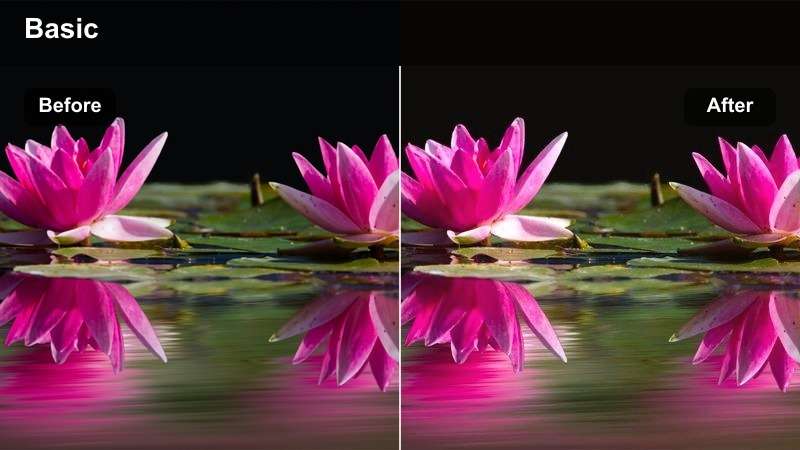
- Effect look: Soft, warm golden-hour filter with gentle contrast and a subtle bloom around bright highlights.
- Best for: Golden hour city walks, rooftop Shorts, and lifestyle b-roll with sun flares and long shadows.
- Editing tip: Slightly reduce sharpness and add a tiny amount of blur or glow to bright areas to enhance the dreamy vibe.
Sunset City Glow is designed to maximize the magic of golden hour in vertical city footage. It adds a warm, gentle bloom around the sun and bright reflections, smoothing out harsh edges so your skyline or rooftop scenes feel dreamy and cinematic instead of harsh and contrasty.
Apply it in Filmora to wide rooftop shots, slow-paced walking clips, or lifestyle vlogs captured at sunset. Then, tweak sharpness and glow in the Effects or Adjust panels to control just how soft the scene feels while keeping your main subject crisp and in focus.
Urban Copper Tone
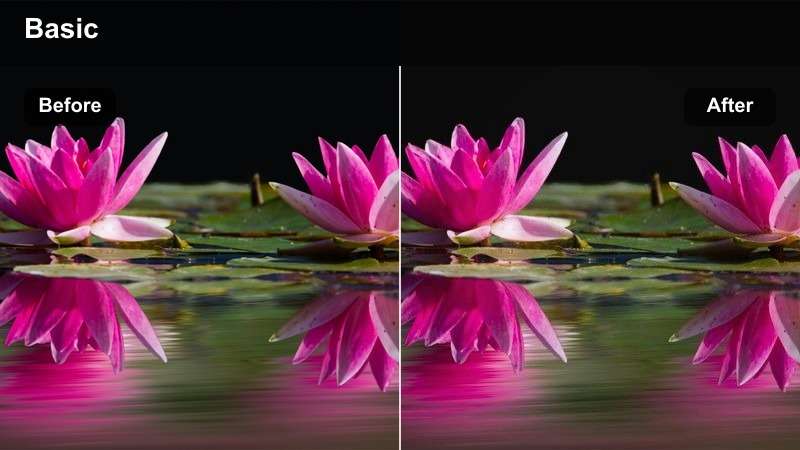
- Effect look: Cinematic copper-orange midtones with rich contrast that give buildings and streets a polished, filmic finish.
- Best for: Street fashion Shorts, aesthetic outfit-of-the-day clips, and urban portrait b-roll.
- Editing tip: Lift shadows slightly to keep detail in darker clothing while preserving deep, rich contrast in the overall frame.
Urban Copper Tone wraps your city footage in a stylish, editorial-grade warmth that flatters skin and street textures at the same time. The coppery midtones and strong contrast make outfits, crosswalks, and architecture look like they belong in a fashion campaign.
In Filmora, use this filter on portrait-style Shorts or outfit showcases, then adjust shadow levels so dark fabrics do not lose important detail. Combine it with clean framing and vertical leading lines to keep the viewer s attention locked on your subject, even when they are scrolling quickly.
Hazy Sun Flare
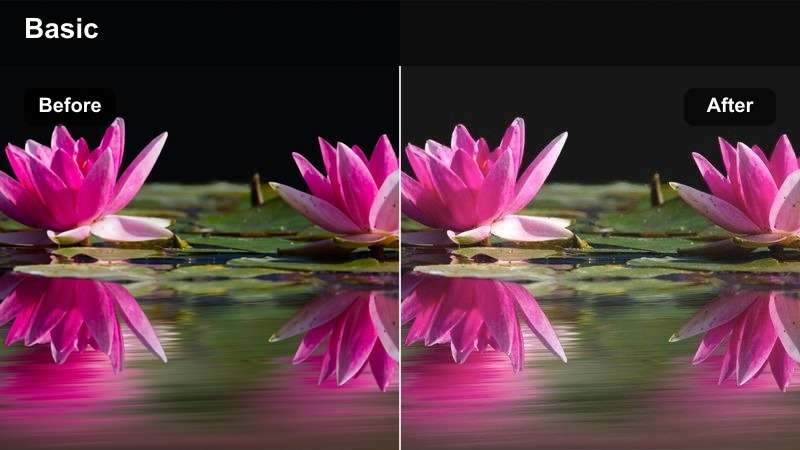
- Effect look: Soft, low-contrast pastel look with lifted blacks and dreamy sun-kissed highlights.
- Best for: Romantic city moments, slow-motion walks, and cinematic storytelling intros or outros.
- Editing tip: Reduce clarity and slightly increase exposure, then add this filter to keep the frame bright but still stylized.
Hazy Sun Flare gives your Shorts a pastel, ethereal mood that works beautifully for intros, outros, and emotional storytelling beats. It brightens the scene, lifts blacks, and softens hard lines so light flares and reflections feel romantic instead of distracting.
Use it in Filmora on backlit walking shots or gentle slow motion, then fine-tune exposure and clarity so details stay visible under the haze. The result is a soft, cinematic layer that turns ordinary city blocks into dreamy backdrops for voiceovers or text-led narratives.
Cinematic Indoor and Studio Storytelling
Soft Dialogue Cinema
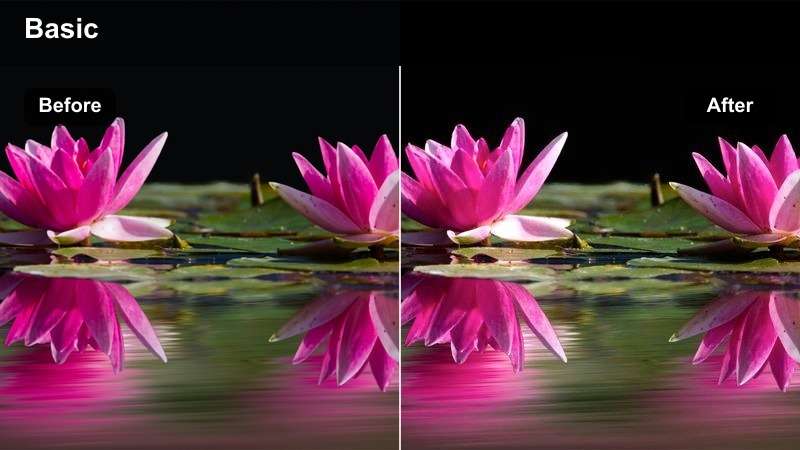
- Effect look: Neutral-warm cinematic filter with softened contrast and flattering skin tones ideal for talking-head Shorts.
- Best for: YouTube Shorts commentary, tutorials, reaction videos, and storytelling in front of a camera indoors.
- Editing tip: Expose for the face, then apply the filter and slightly lower highlights to keep background lights from distracting.
Soft Dialogue Cinema is tailored for vertical talking-head content where your face and voice carry the story. It gently warms the scene, evens out contrast, and smooths skin tones so your delivery looks polished without feeling heavily graded or artificial.
In Filmora, apply this filter after you balance exposure for your face, then bring down highlights or add a mild vignette to keep lamps and monitors from stealing attention. This setup helps tutorials, reviews, and reaction Shorts look professional while remaining quick and easy to edit.
Studio Teal Amber
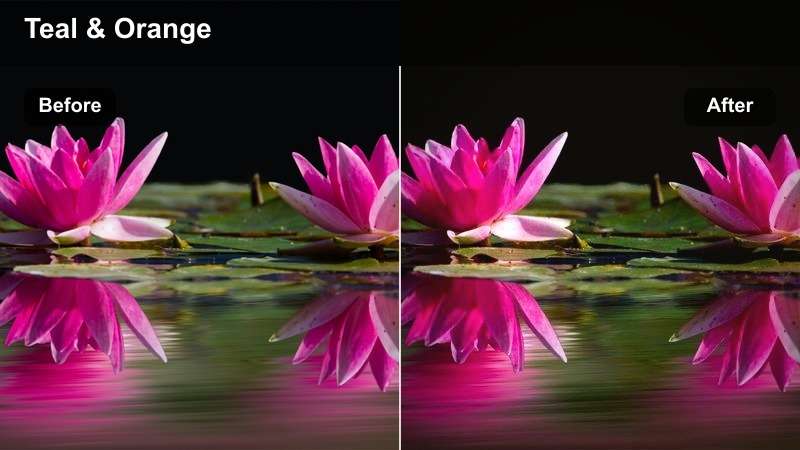
- Effect look: Modern teal-and-amber cinematic contrast with cool backgrounds and warm skin tones for a polished studio look.
- Best for: Tech reviews, creator announcements, channel trailers, and talking-head Shorts with LED or RGB backgrounds.
- Editing tip: Place cooler lights or LEDs behind you and warmer light on your face to maximize the teal-and-amber separation.
Studio Teal Amber brings the classic blockbuster teal-and-orange palette into your vertical studio setup. With cool backgrounds and warm skin tones, it instantly adds depth and separation between you and your RGB or LED-lit environment, making the frame feel high-end.
Apply this filter in Filmora to footage recorded against a lit backdrop, then tweak white balance so the teal and amber split looks intentional rather than accidental. Keep on-screen graphics minimal and clean so the dramatic color contrast remains the main visual hook in your YouTube Shorts.
Noir Window Light
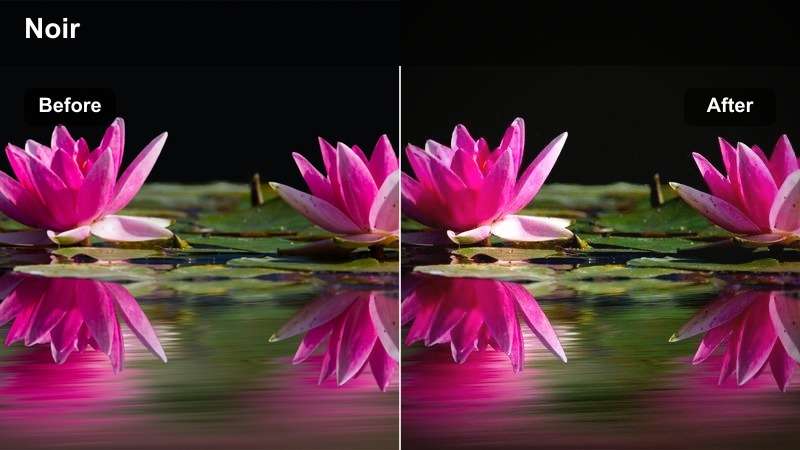
- Effect look: High-contrast, low-saturation cinematic look that leans toward monochrome while keeping subtle color in skin and highlights.
- Best for: Dramatic storytelling Shorts, moody monologues, and cinematic b-roll near windows or doorways.
- Editing tip: Position your subject sideways to a single window, then deepen blacks and reduce saturation slightly before adding the filter.
Noir Window Light is made for intimate, dramatic Shorts where shadows and silence matter as much as dialogue. By reducing saturation and pushing contrast, it creates a near-monochrome atmosphere while preserving enough color in skin and highlights to keep the scene alive.
In Filmora, start with a single window or doorway as your primary light source, then apply this filter and adjust black levels until the negative space feels intentional. Use slow, deliberate camera moves and minimal cutting so the high-contrast look supports your storytelling instead of competing with it.
Dynamic Movement and B-Roll Transitions
Run and Gun Cinema
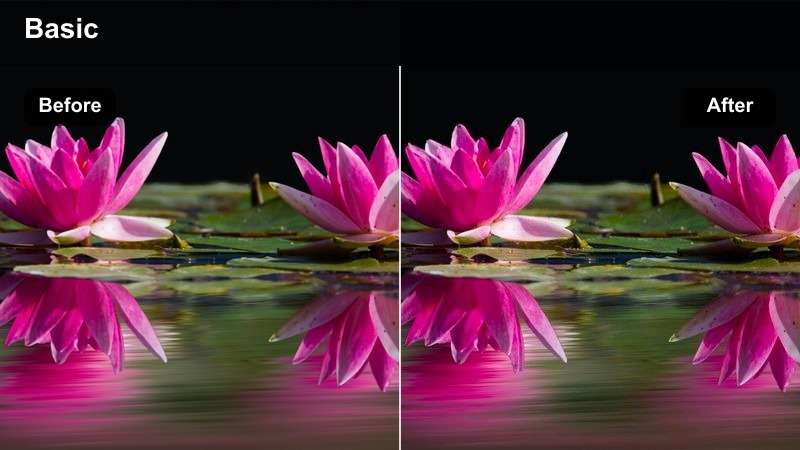
- Effect look: Punchy, high-contrast filter with slightly desaturated colors and crisp details that handle fast movement well.
- Best for: Handheld city b-roll, quick transition edits, and fast-paced YouTube Shorts montages.
- Editing tip: Use higher shutter speeds while filming for clean motion, then apply the filter and add subtle motion blur in post if needed.
Run and Gun Cinema is optimized for energetic, handheld footage where the camera never stops moving. It sharpens edges, deepens contrast, and slightly pulls back saturation so busy urban scenes stay clear and readable even when cut into one or two second clips.
In Filmora, pair this filter with whip pans, quick zooms, and match cuts for dynamic montage-style Shorts. You can stabilize slightly if needed, then add a touch of motion blur or speed ramping to keep transitions smooth while still preserving that raw, on-the-go feeling.
Smooth Travel Tracking
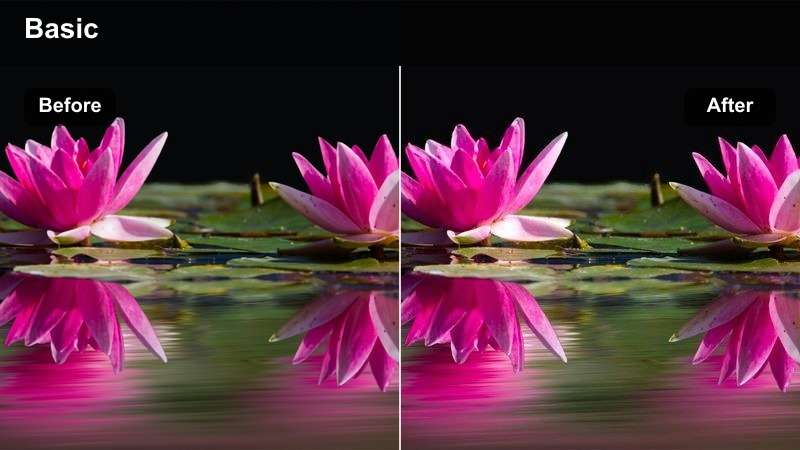
- Effect look: Clean, slightly warm cinematic look with balanced saturation and gentle midtone contrast ideal for tracking shots.
- Best for: Walk-through tours, travel reveal Shorts, escalator or subway tracking shots, and hyperlapse b-roll.
- Editing tip: Stabilize your footage in Filmora before applying the filter, then add a mild vignette to draw attention to the center.
Smooth Travel Tracking is built to make gliding camera moves feel even more immersive. It adds a soft warmth and moderate contrast that work well for walk-through tours, scenic reveals, and travel POVs, helping viewers feel like they are moving through the space with you.
Apply this filter inside Filmora after you stabilize and, if needed, speed ramp your tracking clips. Then add a subtle vignette to guide the eye through the center of the vertical frame, keeping attention on your path or subject as the environment flows by on either side.
Urban Time Slice
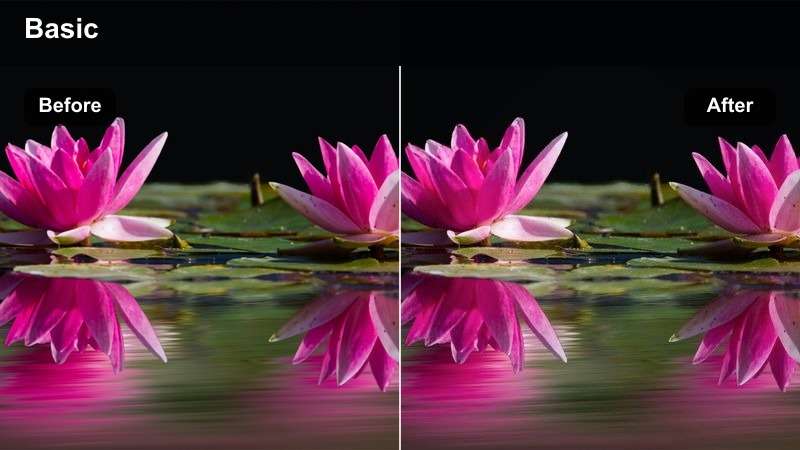
- Effect look: Stylized, contrasty filter that enhances skies and building lines while holding detail in bright signs and street lights.
- Best for: Time-lapses, hyperlapses, and quick-cut b-roll showing city traffic, crosswalks, and crowd movement.
- Editing tip: Lock your phone in one position for timelapses, then apply this filter and slightly boost saturation for the sky and lights.
Urban Time Slice is tailored to emphasize the patterns and energy of city motion, especially in timelapses and hyperlapses. It sharpens building lines, deepens contrast, and helps skies and light trails pop without blowing out billboards or street lamps.
In Filmora, use this filter on locked-off or high-angle shots of intersections, then fine-tune saturation for skies and light trails to match your desired intensity. Cut the timelapse into segments and sync each slice to the beats of your soundtrack to create a highly cinematic Short that feels tightly edited and intentional.
Tips for Using Youtube Shorts Luts Cinematic Style Filters in Filmora
- Shoot slightly flatter or with lower contrast in-camera so Filmora s cinematic filters have more room to shape your final look.
- Always frame your subject toward the center of the vertical screen to avoid important details being cut off on different phone aspect ratios.
- Use practical lights like lamps, street lights, or LED strips in the background to give cinematic filters more highlights to work with.
- Keep your YouTube Shorts under 30 seconds when using heavy cinematic grades so the visual style feels punchy, not overwhelming.
- Batch-shoot multiple Shorts in the same lighting conditions, then apply the same filter preset in Filmora to create a consistent series.
- Save your favorite filter and adjustment combo as a custom preset in Filmora so you can apply a signature cinematic style with one click.
- For use beyond Filmora presets, you can also export compatible color adjustments from a selected clip as a standard .cube LUT for other Shorts projects or collaborators using DaVinci Resolve, Adobe Premiere Pro, or Final Cut Pro.
- Test how your graded Shorts look on an actual phone screen to ensure contrast and brightness feel right for viewers in different environments.
- Combine filters with gentle vignettes, grain, or blur effects to add subtle texture that enhances the cinematic mood without distracting.
You do not need complex LUT packs or advanced color grading skills to get a YouTube Shorts LUTs cinematic style; a few well-chosen Filmora filters can quickly turn everyday vertical clips into polished, movie-like moments.
Pick one or two signature cinematic filters from this list, save them as presets in Filmora, and apply them across your Shorts so your channel instantly feels more cohesive and professional to every new viewer.
secure download