

 100% Security Verified | No Subscription Required | No Malware


 ChatGPT
 Perplexity
 Gemini
 Claude
 Grok
Grok
This guide walks content creators through natural CapCut portrait video LUT-style filters that keep skin tones true, light soft, and faces flattering without an over-edited look.
Use these presets as a starting point to build a cohesive, natural portrait style for vlogs, talking-head videos, interviews, and everyday lifestyle content.
In this article
Soft Window Light Portrait Moments
Soft Daylight Glow
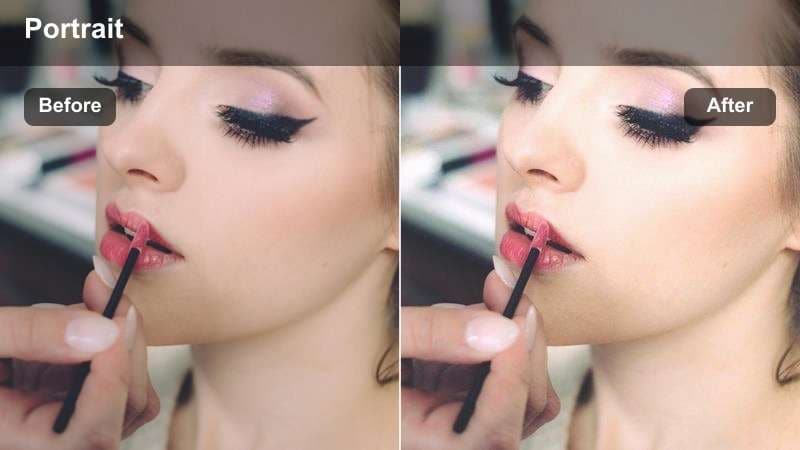
- Effect look: Gentle brightening with a soft glow that mimics diffused window light on the face.
- Best for: Sit-down talking-head videos filmed near a window or bright indoor space.
- Editing tip: Reduce the filter intensity if your background is already very bright to avoid clipping highlights around the cheeks and forehead.
Use Soft Daylight Glow when you want the classic creator look of clean, bright window light without losing realistic texture. After applying a comparable Filmora filter, nudge exposure and highlights just enough to open up the face while keeping detail in the brightest areas, especially around the forehead and nose.
In Filmora, pair this look with a subtle contrast boost and a tiny bit of clarity on facial features so eyes and lips stay defined. Keep saturation modest so skin does not drift into pastel territory, and check the scopes to make sure your whites stay neutral instead of drifting too warm or cold.
Match Natural Portrait Filters to Your Existing Style
Use Filmora's AI-powered color tools to mirror the soft, natural feel of CapCut portrait filters across all your videos. By sampling a clip you already love, Filmora can automatically guide skin tones and background hues toward a consistent, flattering baseline.
This is especially useful if you shoot in different rooms or on different days but still want your face to look like it belongs to the same series or brand.
 secure download

Preview Natural Portrait Filters in Real Time
Filmora lets you test gentle portrait-friendly filters on your footage with instant playback, so you can see how your face reacts as lighting changes. Scrub along the timeline and watch how skin tones hold up when you lean closer to the window or turn slightly away from your key light.
This helps you choose a look that stays natural from start to finish, instead of only working in one specific frame.
secure download1000+ Video Filters and 3D LUTs
Beyond soft portrait looks, Filmora includes a large library of filters and 3D LUTs so you can build a base grade in the editor and keep final tweaks for CapCut. Start with a natural LUT that locks in realistic skin, then stack lighter effects on top for specific videos or platforms.
If you like experimenting, use Filmora's color and HSL controls to fine-tune a custom look, then save it as a preset or export as a LUT to reuse across multiple CapCut projects.
When you refine the portrait color with Filmora's compatible color controls, Filmora can export those color adjustments from a selected clip as a standard .cube LUT for reuse in future footage or in DaVinci Resolve, Adobe Premiere Pro, and Final Cut Pro.
secure downloadMorning Neutral Skin
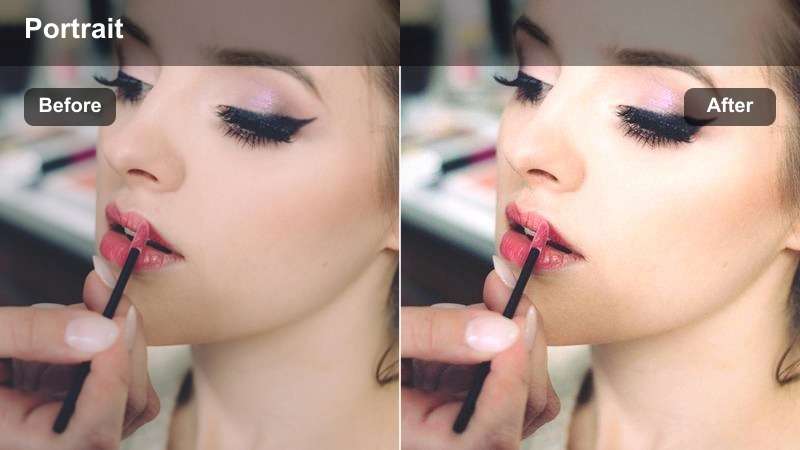
- Effect look: Neutral color balance with a slight warmth that suits early-morning indoor portrait shots.
- Best for: Morning vlog intros, coffee chat videos, and relaxed portrait clips in soft light.
- Editing tip: Fine-tune white balance after applying the filter, warming slightly if your walls are cool gray so skin does not look pale.
Morning Neutral Skin works best when your footage already has soft, indirect light and you just want a subtle lift. In Filmora, start with a neutral portrait filter or LUT, then use the color temperature slider to add a small amount of warmth that brightens the face without turning it orange.
Check how the filter affects both your skin and neutral objects like mugs, books, or walls in the frame. If they stay believable, you can gently boost midtones for extra softness, and add minimal sharpening around the eyes to keep your expression crisp for sit-down chats.
Clear Office Portrait
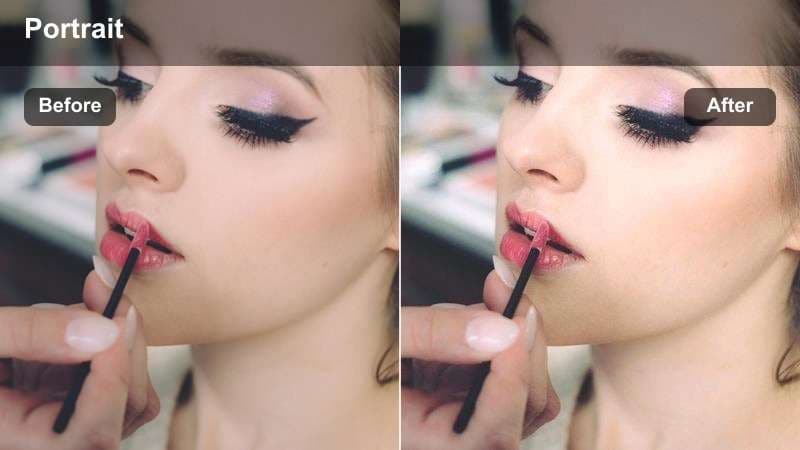
- Effect look: Crisp yet soft portrait rendering that cleans up mixed office lighting while preserving skin texture.
- Best for: Remote work calls, productivity content, and desk-based portrait shots lit by screens and overhead lights.
- Editing tip: Lower contrast slightly and increase clarity on the eyes only, so the face stays gentle but features remain sharp.
Clear Office Portrait is ideal when overhead fluorescents and monitor light create uneven tones on your face. In Filmora, combine a natural filter with selective color adjustments to tame green or blue casts in the midtones while keeping your skin neutral.
Use masking or adjustment layers to sharpen the eyes and glasses frames, letting the rest of the skin stay softer. This keeps your office footage professional and readable for long-form productivity videos, tutorials, and remote presentation edits.
Golden Hour Outdoor Portraits
Subtle Golden Wash
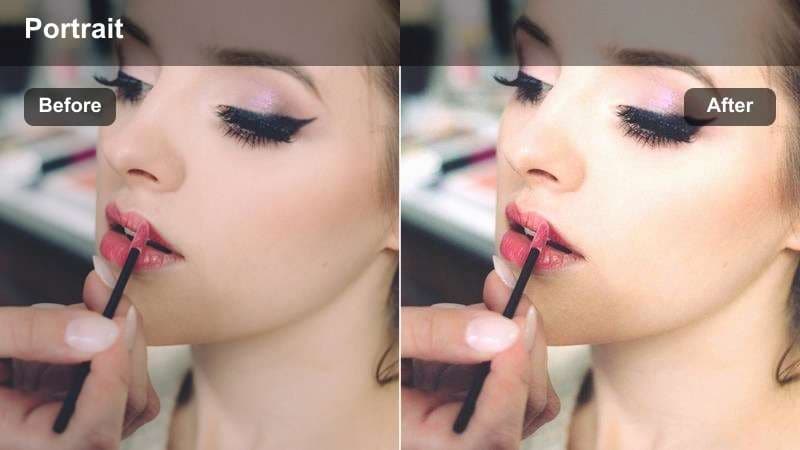
- Effect look: Soft golden cast that enriches skin while keeping whites and backgrounds from turning orange.
- Best for: Golden hour walks, outdoor lifestyle portraits, and park shots with warm sun.
- Editing tip: Dial down saturation slightly after applying the filter if your footage already has strong sunset colors.
Subtle Golden Wash enhances the warmth you already get from golden hour instead of reinventing it. In Filmora, apply a gentle warm-toned filter, then use HSL or color wheels to keep yellows and oranges under control so your face does not merge into the background.
Keep an eye on bright clothing and white objects like sneakers or shirts; if they start to go too orange, reduce saturation in the warm range only. This approach keeps the clip cinematic and romantic while maintaining realistic, flattering skin.
Backlit Soft Sun
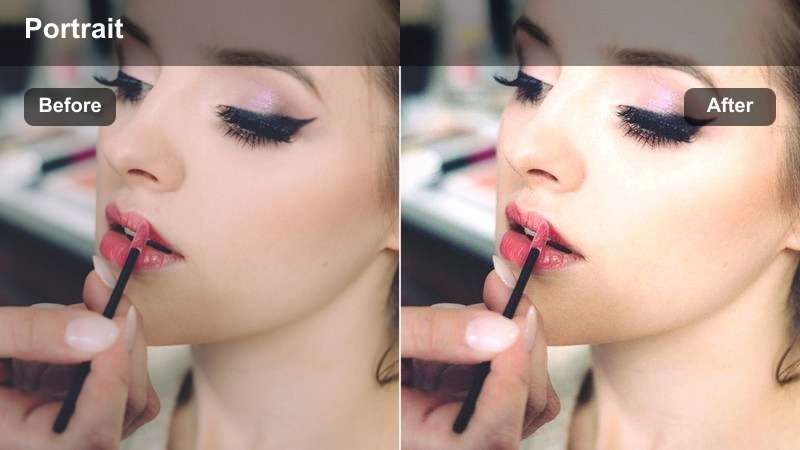
- Effect look: Lifts shadows in backlit portraits while holding a gentle halo around hair and shoulders.
- Best for: Backlit outdoor portraits where the sun is behind the subject, such as streets or open fields.
- Editing tip: Increase brightness slightly on the face using a mask while leaving the background alone for a more cinematic separation.
Backlit Soft Sun is perfect for shots where the sun is behind you, creating a halo but leaving your features dark. In Filmora, use a soft natural filter to unify colors, then add a face-focused mask to lift exposure and shadows on your skin only.
Protect the highlights by watching the histogram and avoiding aggressive global exposure boosts. This keeps the glowing rim light around hair and shoulders while ensuring that your eyes, nose, and mouth remain clearly defined for talking segments or B-roll close-ups.
Evening Street Portrait
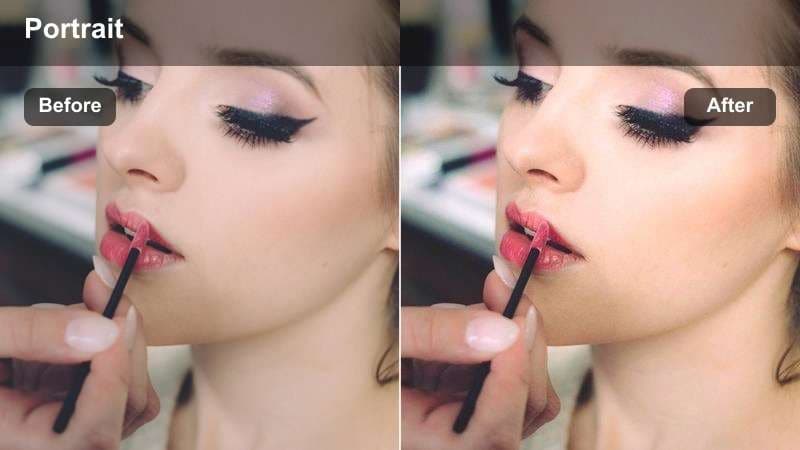
- Effect look: Cooler shadows with gentle warmth in the mids for a balanced city evening portrait feel.
- Best for: Evening city walks, rooftop portraits, and casual street talking segments.
- Editing tip: Add a slight vignette after applying the filter to draw attention back to the subject's face amid busy backgrounds.
Evening Street Portrait gives your dusk footage a balanced, modern feel where faces stay neutral and backgrounds pick up mood. In Filmora, lean on cooler shadows to reflect the blue hour atmosphere while maintaining a touch of warmth in midtones so skin does not look flat.
Once the basic tone is set, use a subtle vignette and a small sharpening boost to keep attention on your eyes and mouth, even if there are street lights and moving traffic. This makes your city walk vlogs and rooftop monologues feel cinematic but still true to life.
Indoor Creator Studio Portraits
Neutral Ring Light
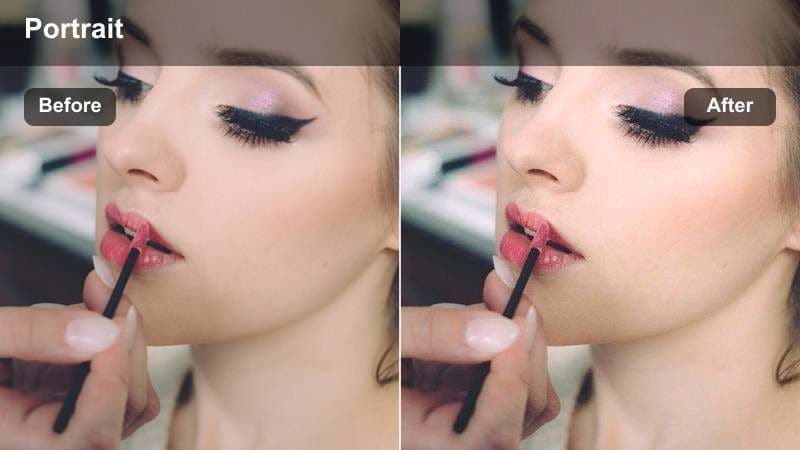
- Effect look: Smooth, neutral rendering tuned for ring lights and softboxes with minimal color cast.
- Best for: Tutorials, product explainers, and beauty portraits recorded under studio LEDs.
- Editing tip: Decrease sharpness slightly to avoid clinical-looking skin, then boost sharpness only on eyes and brows.
Neutral Ring Light is designed for the classic creator setup with a key light directly in front of you. In Filmora, use a clean portrait filter and keep white balance close to true daylight so skin appears honest and product colors stay accurate for tutorials and beauty videos.
To maintain a natural look, slightly soften global sharpness to avoid emphasizing pores, then add targeted sharpening to the eyes and brows only. This retains clarity where it matters most on camera while keeping cheeks and forehead flattering on mobile screens.
Soft Bedroom Creator
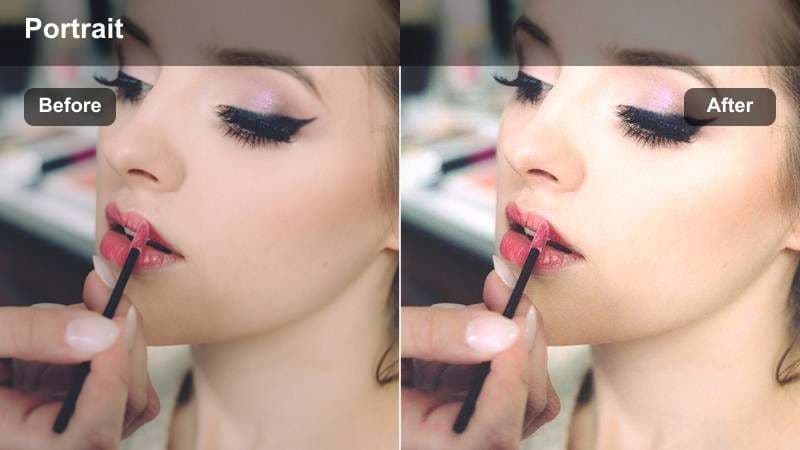
- Effect look: Slightly lowered contrast with cozy warmth that fits bedroom and small-room creator setups.
- Best for: Lifestyle vlogs, personal storytime videos, and relaxed bedroom portraits.
- Editing tip: Add a small amount of grain after the filter to hide minor noise from low-light recording.
Soft Bedroom Creator helps sell an intimate, vlog-style mood when you are filming in smaller, lived-in spaces. In Filmora, lower contrast a touch and add a mild warm tint to midtones so your skin appears gentle and inviting under weaker lamps or fairy lights.
If your camera introduces noise in these dimmer settings, apply minimal noise reduction and then a light layer of film grain. This combo smooths imperfections without making your skin look plastic, keeping the storytelling vibe authentic and emotional.
Minimal Creator Desk
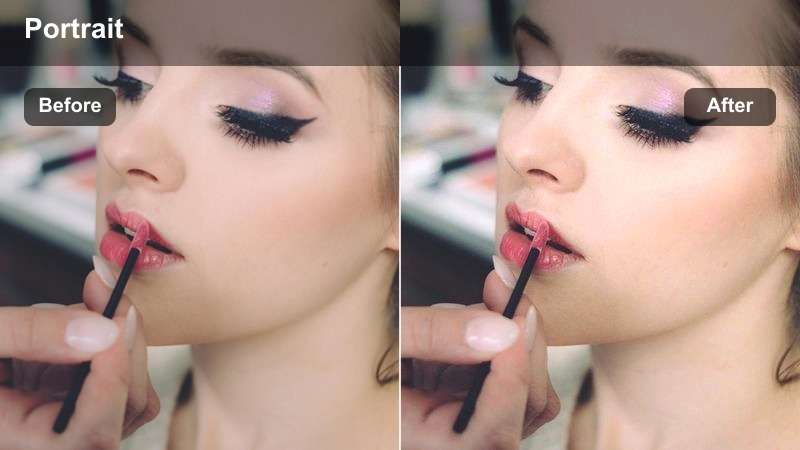
- Effect look: Clean, slightly cool rendering that cuts yellow cast from small desk lamps.
- Best for: Productivity content, tech explainers, and minimal desk portrait setups.
- Editing tip: Pull down saturation in the background only so colorful decor does not distract from your expressions.
Minimal Creator Desk is ideal when your scene revolves around a tidy workspace and neutral decor. In Filmora, use a cooler, clean filter to neutralize any yellow cast from cheap desk lamps while keeping your skin tone balanced and realistic.
Use masks or adjustment layers to lower saturation and brightness in the background so bright posters, RGB lights, or widgets do not pull focus from your face. This approach creates a clear, distraction-free frame that suits productivity channels and tech-focused explainers.
Low-Light and Night Portrait Shots
Clean Low-Light Face
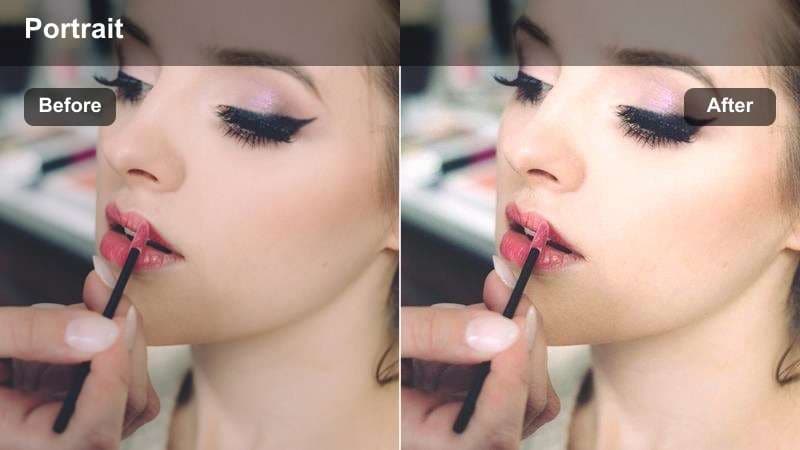
- Effect look: Gently lifts shadows and reduces contrast to keep faces visible in dim rooms.
- Best for: Night vlogs at home, late-night editing diaries, and dimly lit living rooms.
- Editing tip: Use CapCut's noise reduction lightly after applying the filter, avoiding heavy smoothing over the eyes and hair.
Clean Low-Light Face is built for situations where you want to keep the mood dark but still show your expressions clearly. In Filmora, start with a soft, low-contrast filter and subtly raise shadows and midtones so your face becomes legible without blowing out your only light source.
Combine this with gentle noise reduction and a hint of sharpening around the eyes to preserve detail. Avoid strong saturation boosts in low light, as they can accentuate noise and make skin tones look uneven or patchy.
City Neon Soft Skin
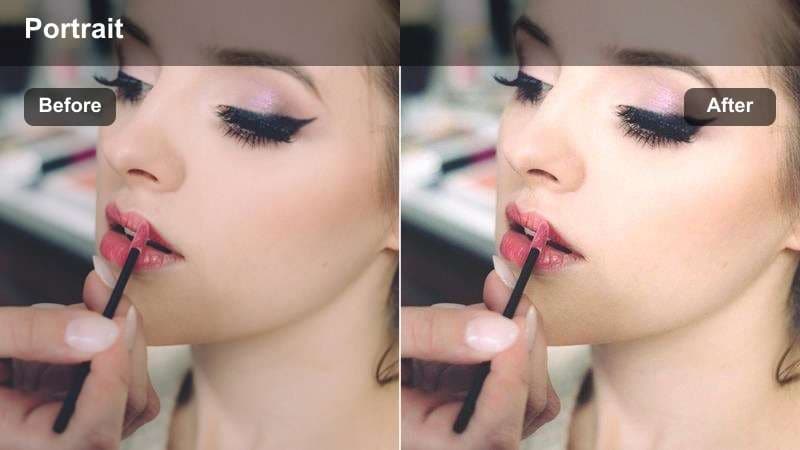
- Effect look: Softens harsh colored lights while preserving a natural-looking face in night city scenes.
- Best for: Night city walks, downtown portraits, and street vlogs near signs and storefronts.
- Editing tip: Reduce saturation only in blues and magentas if neon signs overpower the natural skin color.
City Neon Soft Skin is tailored to handle heavy color from LED signs, billboards, and shop windows. In Filmora, apply a natural base filter, then selectively pull back saturation in the blue and magenta ranges so your skin returns to a believable tone.
Use a slight softening effect on the highlights to keep neon reflections pleasing rather than harsh. You can then raise overall exposure just enough to reveal facial details while preserving the colorful energy of the night streets in the background.
Warm Night Indoors
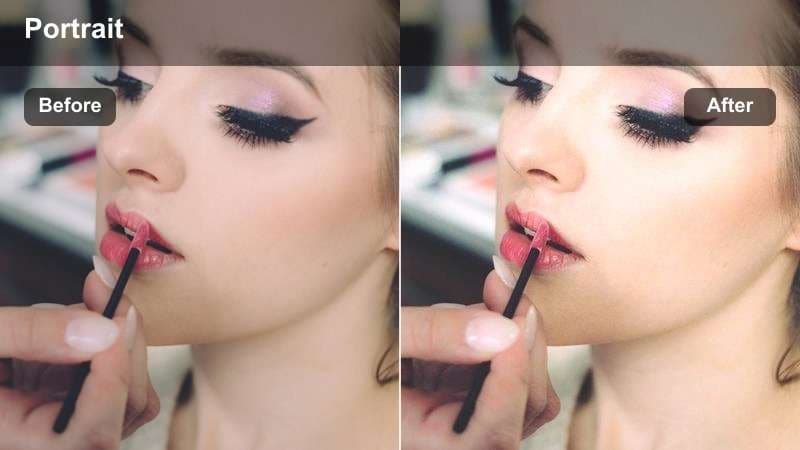
- Effect look: Adds a gentle amber tone that mimics cozy lamp light while protecting skin from looking too orange.
- Best for: Nighttime living room chats, late podcast clips, and intimate indoor portraits.
- Editing tip: Apply the filter, then pull saturation down just a bit on oranges only if faces start to look overly tanned.
Warm Night Indoors is great for couch talks, podcast clips, or reflective monologues lit by a single lamp. In Filmora, use a warm-toned filter focused on midtones and highlights to enhance the cozy feeling while guarding against over-saturated orange skin.
Check the color of your walls and furniture; if they already lean yellow, slightly reduce orange saturation or shift hue toward a softer tone. This keeps the frame intimate and inviting without sacrificing the natural look of your face.
Tips for Using Capcut Portrait Video Luts Natural Filters in Filmora
- Test your portrait filters on at least three lighting scenarios in Filmora: bright window light, indoor lamp light, and low-light clips to confirm consistent skin color.
- Keep saturation changes subtle so lips, cheeks, and shadows stay true to real life and do not shift into cartoonish tones after export.
- Use Filmora's scopes and white balance tools to nail neutral whites before you fine-tune warmth for style.
- Apply sharpening locally to the eyes, brows, and hairline instead of globally to avoid emphasizing pores and fine lines.
- Build a reusable preset or LUT in Filmora once you find a natural portrait look you like, then carry that base into CapCut for final tweaks.
- Check your graded footage on both a phone and a larger monitor, making sure skin looks natural at different screen sizes and brightness levels.
- When stacking multiple filters or LUTs, lower the intensity of each layer so the final effect remains soft and believable.
- Revisit older videos with your new natural portrait preset in Filmora to gradually unify your channel's overall visual style.
Natural CapCut portrait video LUT-style filters work best when lighting and exposure are already close, then gently refine skin tones and contrast.
Use these presets as starting points, then fine-tune intensity, white balance, and sharpening so your portraits stay flattering and authentically you.
secure download