

 100% Security Verified | No Subscription Required | No Malware


 ChatGPT
 Perplexity
 Gemini
 Claude
 Grok
Grok
Clean product videos are all about neutral color, soft contrast, and clutter-free visuals that keep viewers locked on what you are selling. With the right clean-style filters in CapCut, you can mimic professional LUTs and give your product shots a consistent, modern brand feel.
Below are 12 scene-based, clean CapCut product video filters that work like LUT presets for everything from desk setups to premium cosmetics. Use them as starting points, then tweak intensity, exposure, and color temperature to match your brand palette.
In this article
Clean Studio and Desk Setup Product Shots
Minimal Desk Soft White
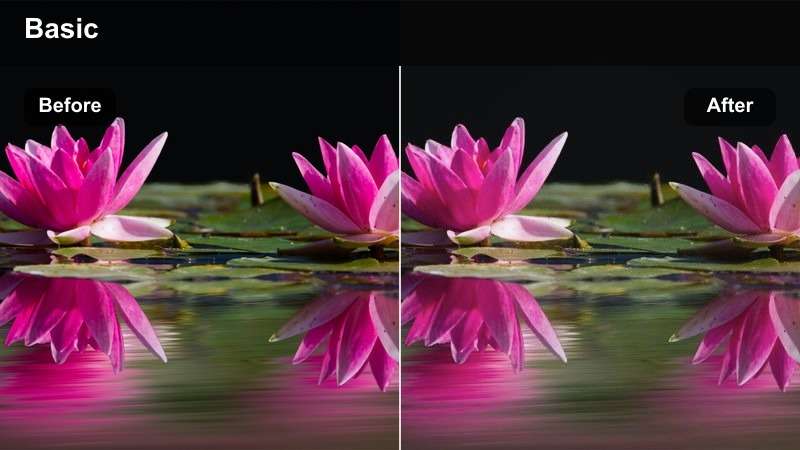
- Effect look: Soft, low-contrast white balance with clean highlights and gentle shadows that keep desk products looking crisp without harsh edges.
- Best for: Laptop accessories, keyboards, mouse pads, and small tech gadgets on white or light gray desks.
- Editing tip: Lower saturation on background colors and slightly boost clarity on the main product to keep the frame clean but detailed where it matters.
In Filmora, you can recreate the Minimal Desk Soft White feel by combining a mild contrast reduction with a subtle white balance adjustment toward neutral or slightly warm tones. Reduce saturation in the HSL panel for background hues like blues and greens so the desktop remains calm, then add a touch of clarity or sharpen to your hero product layer to keep logos and edges readable.
This clean style works especially well for tech promos, SaaS explainer b-roll, and ecommerce ads that rely on top-down or 45-degree desk shots. Keep your compositions simple, use consistent overhead lighting, and save your color adjustments as a custom preset in Filmora so every new desk scene drops into the same soft, premium look with one click.
Match Clean Product Filters to Your Brand Colors
In Filmora, use color tools alongside an AI-driven color palette workflow to sample your logo and packaging, then nudge temperature, tint, and HSL values until whites, grays, and brand accents line up perfectly. This keeps your clean CapCut-style looks from drifting too warm or too cool across different scenes.
Once your palette is locked in, apply the same settings to every hero shot and cutaway. Your product videos will feel like one polished campaign instead of a mix of unrelated clips.
 secure download

Preview Clean Product Filters Before Committing
Filmora makes it easy to stack short clips on separate video tracks and apply different clean filter settings to each one, so you can compare looks for your product in seconds. Test cooler vs warmer whites, stronger vs softer contrast, and see how each version treats labels, edges, and skin tones.
When you audition multiple variations side by side, it is easier to find a clean style that supports your product design and platform requirements, whether you are delivering for TikTok, YouTube, or a web store.
secure download1000+ Video Filters and 3D LUTs
Beyond recreating clean CapCut product video LUTs, Filmora includes a large library of filters and 3D LUTs you can stack and customize. Start with a subtle base look, then layer additional effects like glow or vignette in small doses to keep your commercial shots polished yet restrained.
Save your favorite combinations as presets so you can reuse the same clean product aesthetic across new launches, seasonal campaigns, and multi-platform edits without rebuilding your grade from scratch.
secure downloadGlass Top Crisp Lines
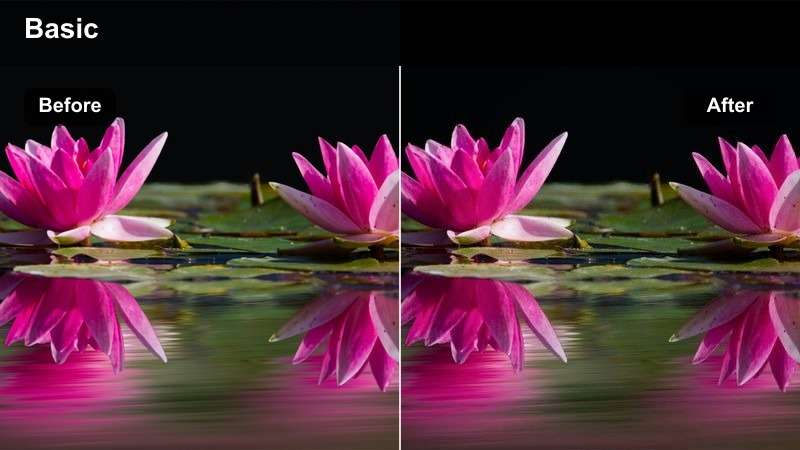
- Effect look: High clarity with subtle contrast and cool-neutral whites that highlight reflections on glass or glossy surfaces.
- Best for: Monitors, phones, smartwatches, and premium tech staged on a glass table in a studio setting.
- Editing tip: Increase sharpness slightly and apply a light vignette so the reflections do not distract from the main product frame.
To build a Glass Top Crisp Lines style in Filmora, start by cooling your white balance just a touch, then raise clarity and sharpness to emphasize device bezels and typography. Use the highlights and whites sliders to keep glare in check, and add a very soft vignette so the viewer stays focused on the main product area rather than stray reflections.
This look is ideal for hero product reveals, slow slider moves across a glass desk, or rotating platform shots. Pair it with smooth motion blur transitions and minimal text overlays to keep the aesthetic luxurious and editorial without overwhelming your clean, reflective surfaces.
Monochrome Desk Focus
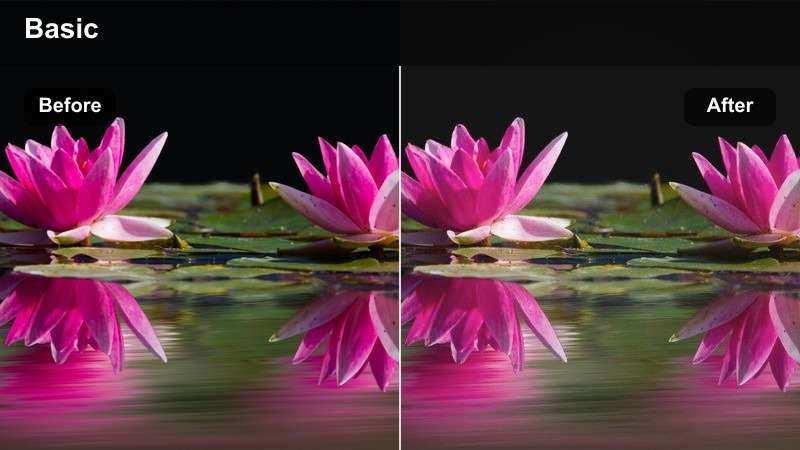
- Effect look: Muted background colors with a slight fade, keeping the frame nearly monochrome while preserving natural product tones.
- Best for: Brand videos where the product color must stand out on a black, white, or gray minimal desk layout.
- Editing tip: Use selective color tools to pull saturation down on everything except the main product hue, then apply this filter at 60–80 percent intensity.
In Filmora, you can get the Monochrome Desk Focus effect by using the HSL tool to desaturate all non-brand colors, leaving only your chosen product hue rich and vivid. Combine this with a light fade in the curves or tone settings to soften contrast in the background while maintaining clean, true color on the product itself.
This approach is powerful for branding: unboxings, quick desk b-roll, or short social ads where a single color should instantly signal your company. Save your HSL and contrast adjustments as a preset so every new scene automatically supports that color hierarchy, keeping your feed visually consistent.
Bright Beauty and Cosmetics Product Close-Ups
Vanity Soft Neutral
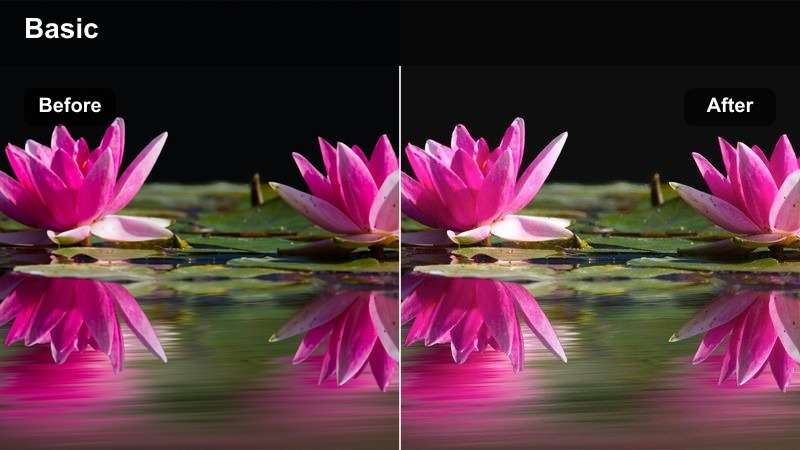
- Effect look: Warm-neutral whites with gentle skin-friendly contrast and a subtle glow that keeps packaging and hands looking smooth.
- Best for: Cosmetics, skincare bottles, and makeup tools showcased on a vanity or bathroom counter.
- Editing tip: Reduce texture slightly on skin areas and lift shadows around labels so the product text remains readable in motion.
To emulate Vanity Soft Neutral in Filmora, nudge the color temperature slightly warm while keeping the tint close to neutral so whites stay clean. Use mild contrast and a touch of highlight glow, then apply Filmoras skin retouch or blur selectively on hands and faces to keep them flattering without looking over-processed.
This look works perfectly for GRWM clips, how-to demos, and texture close-ups of skincare products. Combine it with soft, slow-motion shots and minimal on-screen text so the creamy tones of packaging and skin remain the main visual focus throughout the video.
Acrylic Stand Clear
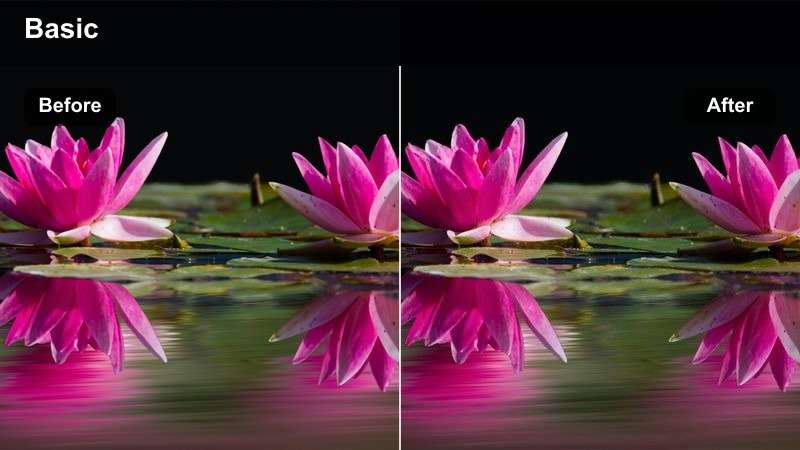
- Effect look: Clean, bright exposure with slightly boosted midtones that make transparent stands and bottles appear sharp and premium.
- Best for: Perfume, serums, and small luxury products displayed on clear acrylic blocks or risers.
- Editing tip: Keep shadows soft by lifting blacks a little, then apply this filter to add definition without losing that airy cosmetics feel.
In Filmora, raise your midtones and overall exposure until the acrylic elements feel luminous but not blown out, then slightly lift the blacks slider to keep shadows velvety and soft. Add a modest clarity or sharpen adjustment to help glass edges, logos, and refractions stand out with a high-end, editorial polish.
Use this filter style when you want to highlight transparency, reflections, and layering in your product staging. Pair it with simple camera moves like vertical tilts or slow zoom-ins, and consider adding a subtle, clean title animation to introduce product names without covering the elegant acrylic geometry.
Bathroom Tile Pristine
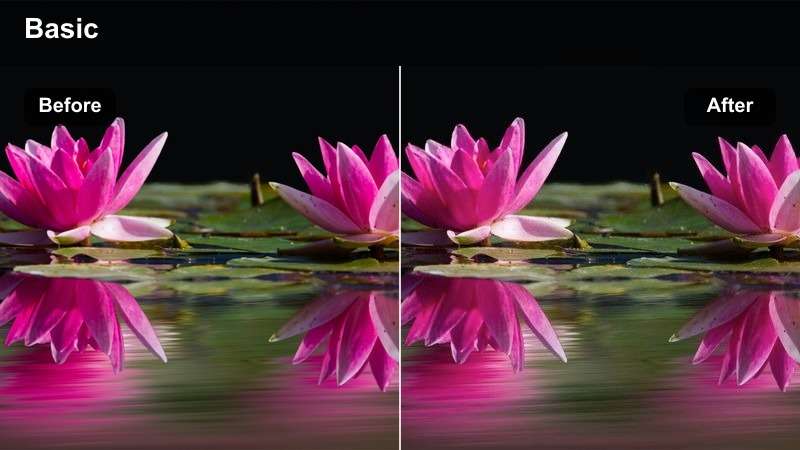
- Effect look: Cool-clean whites with desaturated backgrounds that make tile lines and product silhouettes crisp and sanitary.
- Best for: Skincare tubes, soaps, and hygiene products shown against bathroom tiles or minimal shower scenes.
- Editing tip: Dial down saturation on blues and greens in the background while preserving the product's key brand color.
To achieve Bathroom Tile Pristine in Filmora, correct white balance so tile grout and ceramics look truly white, then cool the image slightly for a hygienic, clinical feel. Use HSL to desaturate background blues and greens, leaving only your brand hue or product accent colors fully vivid so they pop against the neutral environment.
This style is ideal for routine demos, before-and-after sequences, or close-ups of product application in the shower or sink area. Keep motion minimal, use clean cuts, and consider adding subtle on-screen icons or checkmarks to reinforce the clean, trustworthy, and functional aesthetic of the scene.
Ecommerce Flatlays and Unboxing on Neutral Surfaces
Neutral Board Flatlay
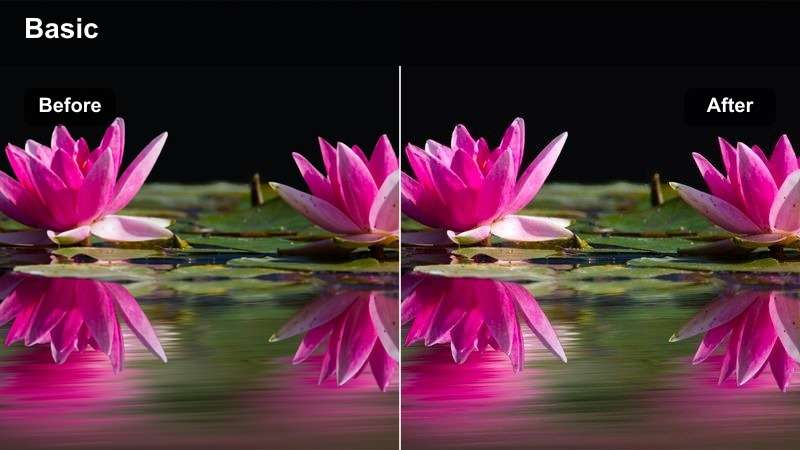
- Effect look: Balanced exposure with soft contrast and slightly warm neutrals that keep flatlay items clear and organized.
- Best for: Ecommerce product flatlays on beige, light wood, or neutral backdrops where detail and legibility matter.
- Editing tip: Align key items along simple grids, then use this filter at 80 percent strength to tie colors together without losing depth.
Recreate Neutral Board Flatlay in Filmora by slightly warming the white balance and lowering contrast just enough to soften transitions between items. Adjust exposure to keep every product readable, then use the HSL panel to keep neutral tones cohesive so wood, paper, and fabric all feel part of the same palette.
This look is perfect for product sets, bundles, or lifestyle kits you want to showcase in one overhead shot. Combine it with top-down camera moves, simple push-ins, and overlay text labels that match your brand fonts, turning a single flatlay clip into a scroll-stopping ecommerce highlight.
Unboxing Soft Daylight
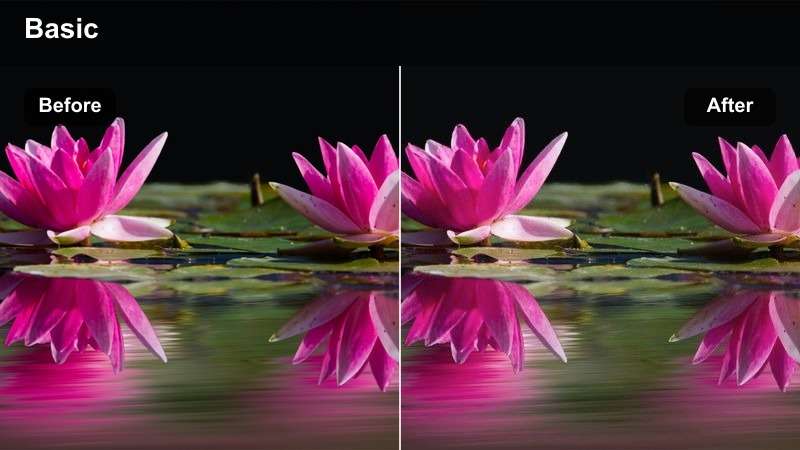
- Effect look: Natural-feeling daylight with slightly lifted shadows and controlled highlights to keep boxes and hands evenly lit.
- Best for: Unboxing sequences shot near a window with product packaging, inserts, and accessories laid out on a table.
- Editing tip: Stabilize shaky clips, then apply this filter and adjust exposure so the logo on the box is always readable.
In Filmora, enhance unboxing shots by using stabilization first, then lift shadows slightly to reveal details inside boxes and around labels. Reduce highlight intensity so white packaging and tape do not clip, and keep color temperature close to neutral daylight for an honest, real-life feel that viewers trust.
Use this look for full unboxing sequences, from opening the outer package to revealing small accessories. Cut out pauses, add gentle background music, and drop in simple text callouts at key moments, all while maintaining the same soft daylight grade across every clip for a cohesive, binge-worthy experience.
Catalog Page Matte
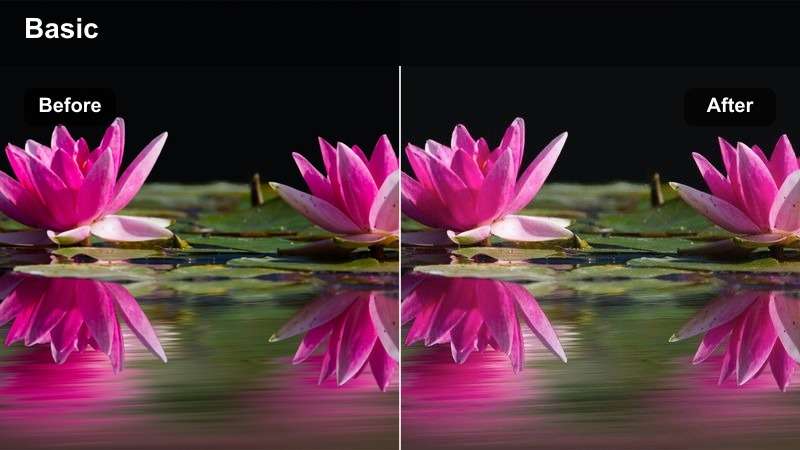
- Effect look: Low-glare, matte finish with reduced specular highlights, giving products a printed catalog feel on screen.
- Best for: Printed goods, stationery, and boxed items where reflectivity needs to be controlled for a uniform ecommerce style.
- Editing tip: Bring highlights down and clarity up before applying this filter so edges stay sharp while shine is kept minimal.
To craft a Catalog Page Matte effect in Filmora, pull highlights and whites down until shiny areas stop drawing attention, then increase clarity and sharpness so edges remain crisp. Add a small amount of fade in the curves or tone controls to simulate the flat, controlled look of printed catalog photography.
This is a strong choice for product grids, pricing breakdown videos, or looping background visuals for your online store. Keep camera angles simple, rely on top-down or straight-on framing, and use consistent transitions so your video feels like a moving extension of your product listing photos.
Minimal Workspace and Lifestyle Product Scenes
Workspace Airy Neutral
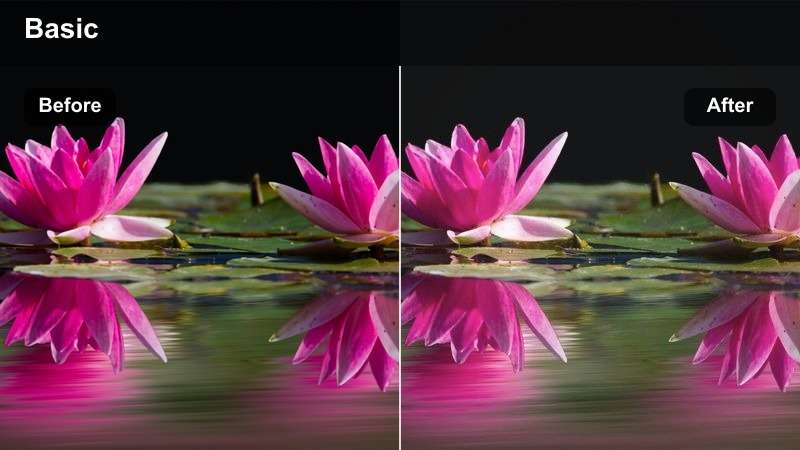
- Effect look: Light, airy exposure with gentle highlights and a neutral color profile that makes workspaces feel tidy and modern.
- Best for: Office products, planners, and productivity tools in lifestyle desk or co-working space shots.
- Editing tip: Keep saturation modest and subtly raise exposure so the environment feels open without washing out key product details.
In Filmora, push exposure slightly higher than usual while keeping highlights controlled so windows and white walls do not overpower the scene. Maintain a neutral color balance and moderate saturation, letting only key accent items like planners, pens, or devices carry stronger color for a clean, focused workspace look.
Apply this style to lifestyle b-roll for productivity apps, digital tools, or office accessories. Combine it with smooth camera moves, soft background music, and minimalist text overlays that reinforce clarity and organization, mirroring the airy feel of the visuals.
Living Room Minimal Shelf
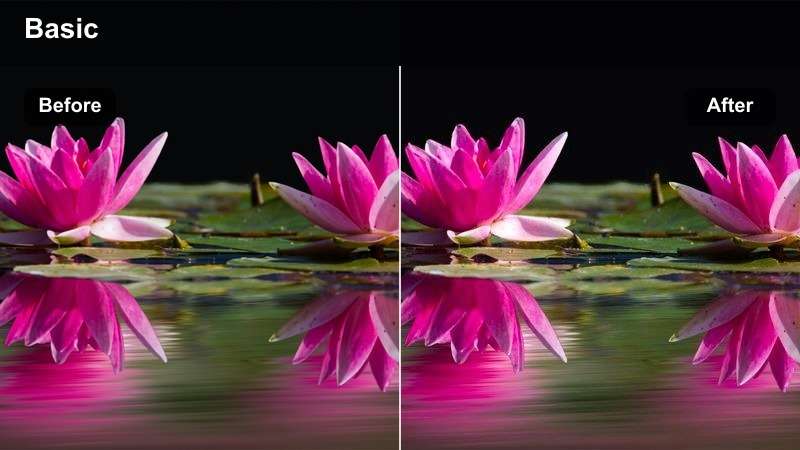
- Effect look: Soft contrast with slightly warm midtones that keep shelves, decor, and lifestyle products feeling cozy but uncluttered.
- Best for: Home goods and decor products featured on simple shelves or media units in a tidy living room.
- Editing tip: Crop in to avoid busy corners, then use this filter to unify tones across wood, fabric, and plastic surfaces.
To build a Living Room Minimal Shelf look in Filmora, gently warm your midtones and apply soft contrast so decor elements feel inviting without becoming visually noisy. Use the crop and transform tools to remove clutter at frame edges, and adjust saturation a bit lower on background objects so the hero product remains the clearest point of focus.
This filter style suits candles, vases, small electronics, or storage solutions placed on shelves or media units. Pair it with slow pans, subtle depth-of-field shots if your footage allows, and simple title cards that mirror your website or catalog style for a cohesive home-brand feel.
City Loft Setup
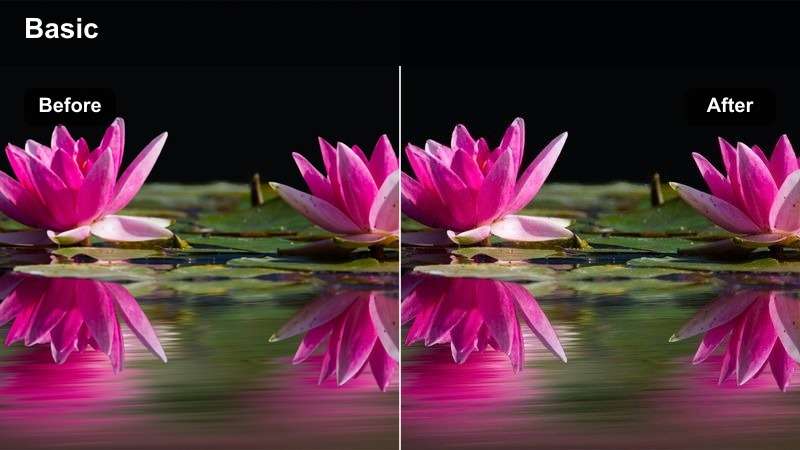
- Effect look: Cool-clean city light with defined edges and gentle contrast that keeps loft windows and furniture lines sharp.
- Best for: Urban lifestyle products like speakers, bags, and gadgets shown in a modern loft or city apartment.
- Editing tip: Balance exposure between window light and interior, then add this filter to maintain a polished, metropolitan vibe.
In Filmora, start by exposing for the brightest parts of your loft windows, then lift shadows to bring back detail in furniture and the featured product. Add a slight cool tone and maintain moderate contrast so brick, metal, and glass lines all look crisp, creating that polished city editorial style without feeling overgraded.
This look is ideal for premium gadgets, audio gear, or fashion accessories photographed against skyline views or industrial interiors. Use steady gimbal shots or slow handheld movement, add clean lower-thirds, and keep your color work subtle so the natural architecture and product design do most of the storytelling.
Tips for Using Capcut Product Video Luts Clean Filters in Filmora
- Shoot against simple, neutral backgrounds so clean filters can minimize distractions without heavy corrections.
- Set white balance in-camera as close as possible before editing to avoid color casts in whites and packaging.
- Keep exposure slightly under rather than over; clean product looks are easier to brighten than to fix blown highlights.
- Use one primary clean look for an entire video to maintain consistency between hero scenes and close-ups.
- Reduce saturation on background elements so brand colors on the product stay dominant and recognizable.
- Save your favorite Filmora color settings as presets so you can quickly match CapCut-style clean LUT looks across projects.
- Test different clean grades on a short clip reel before editing the full video so you lock in the best look up front.
Clean CapCut product video filters work like lightweight LUTs that keep your colors honest, your backgrounds calm, and your products at the center of attention.
Save the looks that fit your brand best, apply them consistently across campaigns, and your product videos will instantly feel more premium and professional.
secure download