

 100% Security Verified | No Subscription Required | No Malware


 ChatGPT
 Perplexity
 Gemini
 Claude
 Grok
Grok
Cinematic street portrait filters translate the texture of real city light into a film-grade look, giving faces more depth, mood, and story in every frame. With the right combination of contrast, color separation, and soft halation, your urban portraits can feel like stills from a movie rather than simple snapshots.
Whether you are building cinematic street films, narrative portrait videos, or documentary content, these Filmora-ready filters help you move quickly from flat footage to polished, stylized frames. Use them as a starting point, then fine-tune exposure, skin tones, and grain so each character feels grounded in the streets you film.
In this article
Soft Cinematic Urban Portrait Filters
Golden Dusk Glow
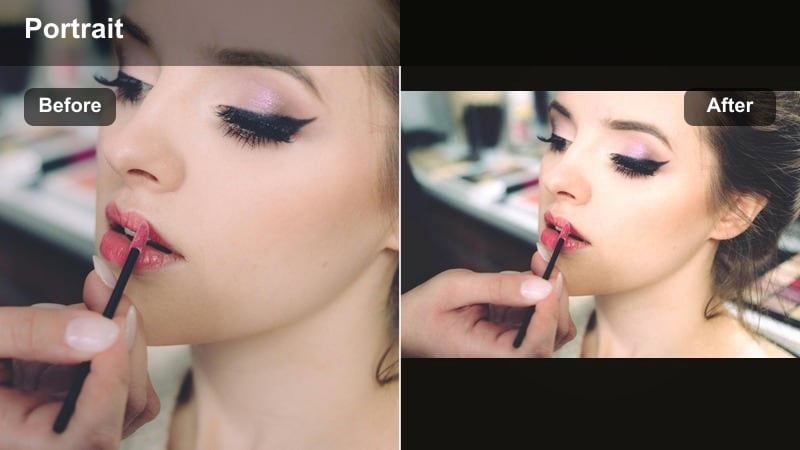
- Effect look: Warm, low-contrast film glow that wraps around skin tones for a late-afternoon street vibe.
- Best for: Cinematic street portrait filters on golden hour walks, reflective character moments, and slow-moving narrative shots.
- Editing tip: Lower contrast slightly and protect highlights with curves, then add a subtle vignette to center attention on the face.
Golden Dusk Glow is designed to mimic the natural diffusion and warmth you get when the sun drops behind urban skylines. In Filmora, this filter softens edges, gently lifts shadows, and adds a warm halo around highlights so your subject feels bathed in late-afternoon light even if you shot a little earlier or later than true golden hour.
Use this filter on handheld walk-and-talks, quiet stairway portraits, or reflective pauses at crosswalks. Fine-tune curves to keep highlights from clipping on foreheads and cheeks, then add a subtle vignette so the viewer stays locked on your subject. If needed, use Filmora masks to keep eyes sharper while the surrounding frame stays dreamily soft.
Pro tip: Balance glow with clean skin detail
If the glow makes your image feel too hazy, dial back bloom in Filmora and compensate with a touch of clarity on the subject s face only.
Use a mask to keep eyes and key facial features crisp while allowing the rest of the frame to stay soft and dreamy.
AI-Assisted Color Palettes for Street Portrait Stories
Filmora s AI tools can quickly analyze your footage and suggest starting palettes that match the mood of your scene, from muted documentary realism to bold neon fantasy. When you pair these AI color suggestions with cinematic street portrait filters, you get to a cohesive look much faster.
Use the AI palette as your base, then refine with Filmora s color wheels, HSL, and curves. This lets you lock in consistent skin tones while pushing creative color into lights, alleys, and skies so every street portrait feels intentional and filmic.
 secure download

See Cinematic Street Portrait Filters in Action
To really judge how each cinematic street portrait filter shapes mood, drop a few sample clips into Filmora and compare them side by side. You will see how soft, pastel looks shift the emotional tone versus gritty, high-contrast grades, especially around faces and city lights.
By toggling between presets, you can quickly decide which filter best supports your character and environment. Save your favorites and build a small look library for day, dusk, and night portraits so you can grade much faster on future projects.
secure download1000+ Video Filters and 3D LUTs
Filmora includes a large library of built-in filters and 3D LUTs that you can stack with these cinematic street portrait presets. Start with a camera-matching LUT or a film-emulation LUT to normalize your footage, then layer creative filters to add personality to each portrait.
This combination makes it easy to keep visuals consistent across different cameras, lenses, and shooting days while still tailoring color and contrast to the emotions of each scene.
secure downloadPastel City Veil
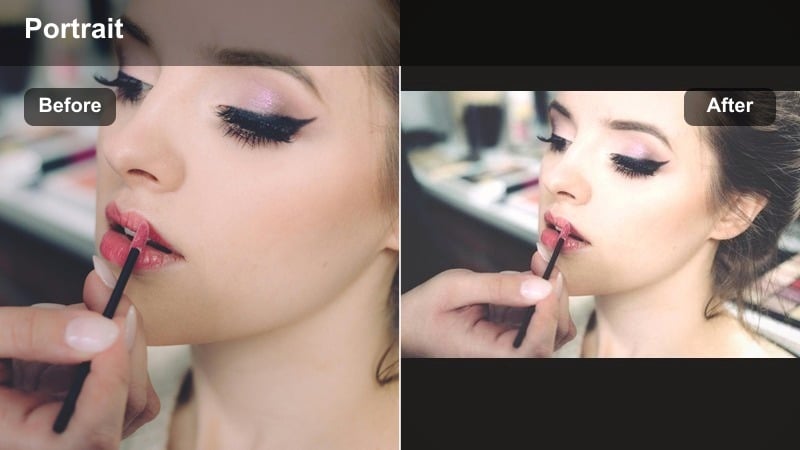
- Effect look: Soft pastel palette with lifted blacks and gentle halation, reminiscent of dreamy indie film portraits.
- Best for: Narrative portrait videos with romantic or introspective tone, soft documentary moments, and slow-motion street details.
- Editing tip: Lift blacks in the color wheels but keep midtone contrast on the face so expression and eye detail remain clearly readable.
Pastel City Veil shifts harsh city tones into a gentler, film-inspired palette. By lifting blacks and slightly desaturating primary colors, it wraps your subject in a delicate haze that is ideal for introspective walks, rooftop scenes, and soft-focus moments in busy streets.
In Filmora, use HSL to separate skin-friendly hues from signs and traffic lights so faces do not blend into the environment. You can apply a gentle S-curve to midtones only, preserving expression and eye clarity while keeping the rest of the frame light and airy.
Pro tip: Preserve color separation in pastels
Use Filmora s HSL to slightly separate yellows and reds so skin, signage, and street lights do not blend into one flat tone.
If the image feels washed out, bring back micro-contrast with a gentle S-curve applied only to midtones.
Neon Soft Focus
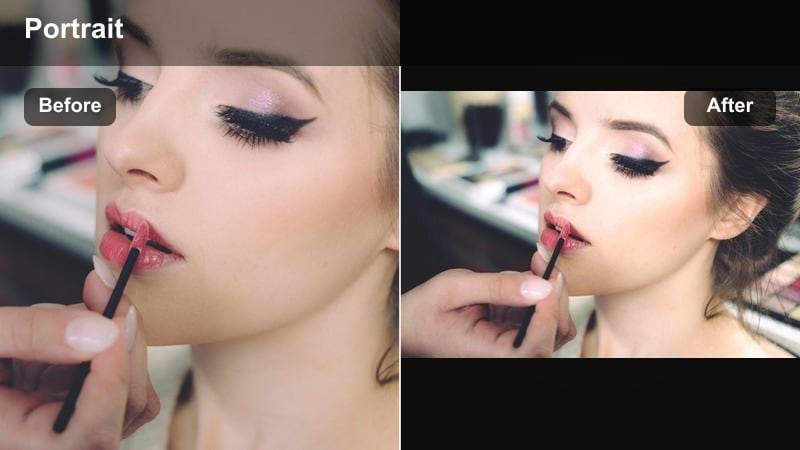
- Effect look: Glowing neon highlights with softened focus and cooler shadows for night-time urban portraits.
- Best for: Cinematic street films under neon lights, late-night character studies, and music-driven portrait sequences.
- Editing tip: Use Filmora s color masking to keep skin tones neutral while letting neon signage push into saturated blues and magentas.
Neon Soft Focus leans into the electric color of nightlife while protecting your subject from garish casts. The filter softens fine detail in the background, boosts neon glow, and cools shadows so city signs and reflections feel like they belong in a music video or stylized drama.
In Filmora, apply color masks to isolate skin tones and keep them relatively neutral, then allow blues, magentas, and cyans in the environment to saturate for a stronger cinematic effect. Use a subtle blur or negative clarity on the background layer to separate your subject clearly from the busy nightscape.
Pro tip: Control neon bloom around the subject
If neon glow spills too much onto the face, reduce highlight bloom and add a subtle negative clarity outside your subject mask.
Balance blue and magenta in the shadows to avoid muddy tones while preserving a clean film-inspired color separation.
Gritty Film Look Street Portrait Filters
Urban Grain 35mm
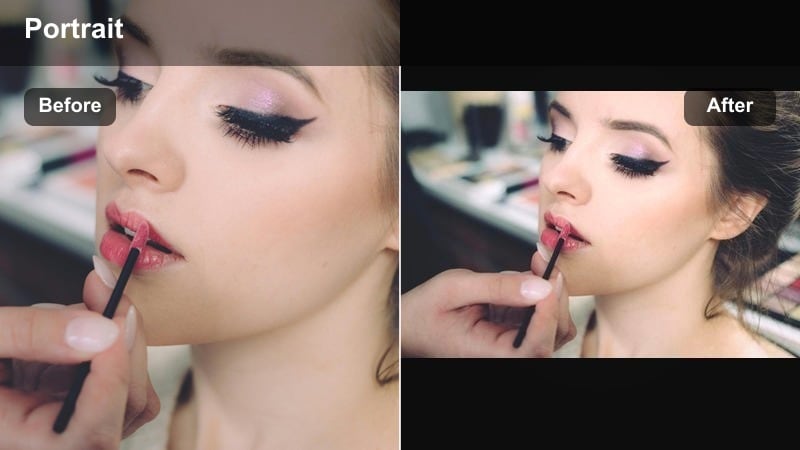
- Effect look: Textured 35mm-style grain with rich contrast and slightly muted saturation for a classic film street portrait.
- Best for: Documentary content, character-driven street interviews, and gritty narrative portrait inserts.
- Editing tip: Apply grain at the end of your grade in Filmora and keep intensity lower on bright skin areas to avoid a noisy, rough look.
Urban Grain 35mm adds tactile, analog character to modern digital footage. The filter deepens contrast, slightly rolls off saturation, and lays a 35mm-style grain pattern across your frame so interviews and character portraits feel rooted in real streets rather than overly clean studio setups.
In Filmora, complete your color and exposure adjustments first, then add the grain effect as a final step. Use masking to reduce grain strength on highlights and faces while keeping it more prominent in walls, pavements, and backgrounds for that authentic documentary feel.
Pro tip: Match grain strength to resolution
When working with 4K footage, lower grain size slightly so it looks like organic film texture rather than digital noise.
For 1080p projects, keep grain size modest and increase softness a bit to avoid chunky pixels on faces.
Mono Noir Urban
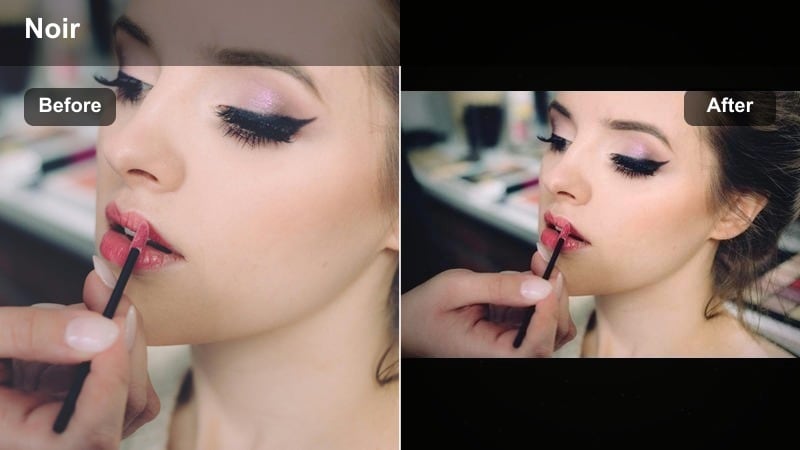
- Effect look: High-contrast monochrome with deep shadows and crisp highlights for a noir-inspired city portrait.
- Best for: Narrative portrait videos with suspenseful tone, dramatic city alleys, and moody documentary B-roll.
- Editing tip: Use Filmora s luminance curves to control how midtones roll off into black so you do not lose eye detail in harsh contrast.
Mono Noir Urban strips away color to focus entirely on shape, light, and emotion. The filter emphasizes hard shadows, bright streetlights, and the geometry of alleys, making faces look sculpted and dramatic perfect for thriller-style portraits or reflective late-night sequences.
Inside Filmora, carefully refine your luminance curve so that eyes and key facial features retain detail even as you push backgrounds into deep black. Local contrast adjustments with masks can help carve cheekbones and jawlines, while a slight global softening during export protects shadow detail from streaming compression.
Pro tip: Shape light for dramatic faces
If your original image is flat, add local contrast with masks in Filmora to carve out cheekbones, jawline, and eyes.
Slightly soften the global contrast when exporting for web so streaming compression does not crush your shadows entirely.
Faded Asphalt Matte
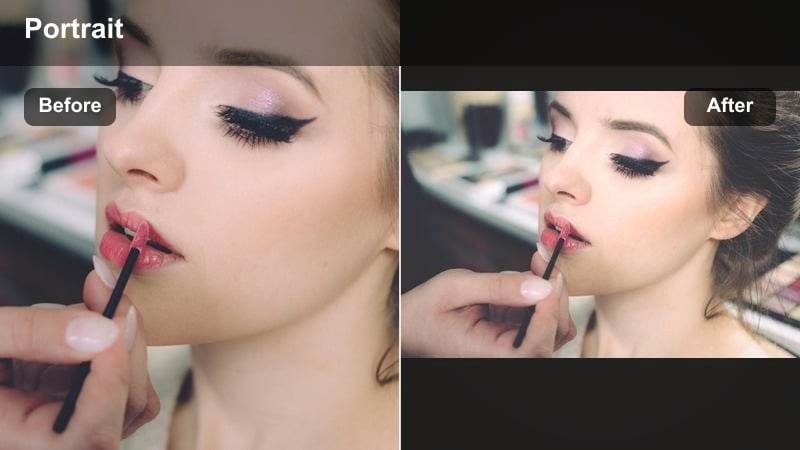
- Effect look: Desaturated tones with a matte shadow floor and subtle cyan push in the blacks for a modern, gritty film feel.
- Best for: Cinematic street portrait filters for overcast days, underpasses, and documentary sequences with a subdued mood.
- Editing tip: Raise the shadow floor carefully so you keep enough depth in clothing textures and hair while still getting the matte look.
Faded Asphalt Matte turns flat, gray cityscapes into stylish, contemporary backdrops. By lifting the shadow floor and nudging blacks toward cyan, it produces a cool, understated mood that works beautifully for overcast days, tunnels, and urban corners where natural light is limited.
In Filmora, start by balancing exposure, then slowly raise the shadow level until you see a clear matte effect without losing definition in hair and clothing. Use HSL to keep skin tones slightly warmer and more neutral so your subject stands out against the cooler city environment.
Pro tip: Anchor skin tones in a neutral range
When pushing cyan into shadows, keep skin tones slightly warmer by isolating oranges and reds in the HSL panel.
If your subject blends into the background, add a tiny warmth shift to their midtones while leaving the environment cool.
Color-Rich Cinematic Urban Filters
Teal Rust Contrast
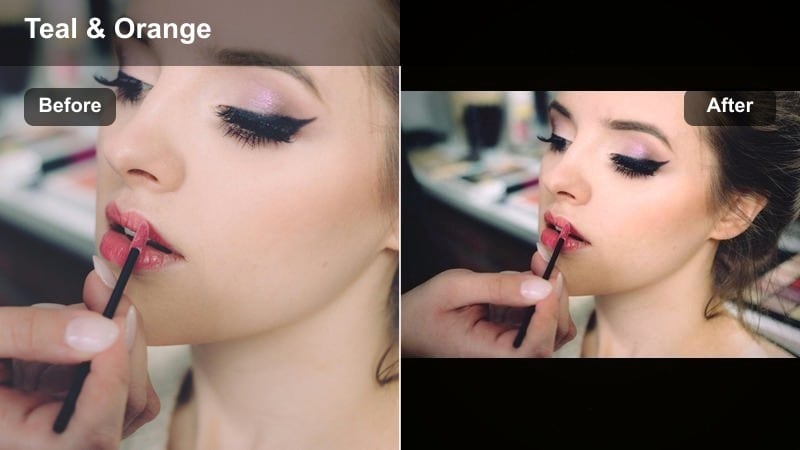
- Effect look: Bold teal shadows with warm rust highlights that create a classic blockbuster-style contrast on the streets.
- Best for: Cinematic street films with strong production design, colorful alleyways, and stylized narrative portrait beats.
- Editing tip: Push teal into shadows but keep saturation under control; then gently warm midtones to protect realistic skin color.
Teal Rust Contrast builds that familiar blockbuster palette directly into your urban portraits. Shadows and backgrounds lean toward teal, while skin, signage, and key highlights shift warmer, creating an eye-catching complementary contrast that reads instantly cinematic.
In Filmora, apply this filter, then fine-tune saturation so teal areas do not overpower the frame. Adjust the warmth of midtones until faces look believable but still slightly stylized, and keep an eye on mixed lighting sources so orange and blue light do not create unnatural skin patches.
Pro tip: Protect mixed lighting skin tones
When shooting under mixed street lights, use Filmora s white balance and HSL tools to neutralize green casts before applying strong teal shifts.
If highlights clip on the face, pull them back slightly and let the teal in the shadows carry most of the visual drama.
Chrome City Pop
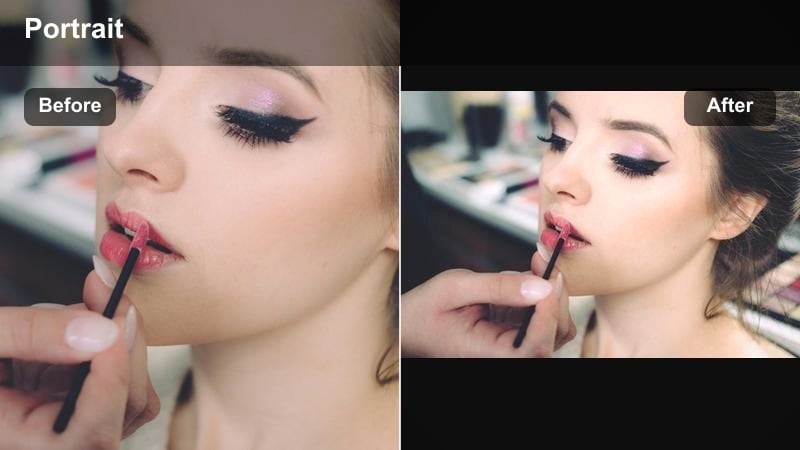
- Effect look: High-saturation chrome look with crisp micro-contrast and vibrant city colors that still hold a filmic edge.
- Best for: Music-driven street portrait edits, fashion-led narrative portraits, and energetic documentary interludes.
- Editing tip: Use selective saturation to boost blues, reds, and yellows while keeping greens more controlled for a polished cinematic palette.
Chrome City Pop is built for energy. It amplifies graffiti, street art, clothing, and signage while keeping enough cinematic contrast and grain that your footage does not feel like raw, over-sharpened video. This makes it ideal for fashion pieces and music-driven edits.
In Filmora, increase saturation selectively, prioritizing blues, reds, and yellows while taming greens for a cleaner palette. Slightly lower saturation and raise luminance in the orange channel to protect skin from looking plastic, then consider adding a light grain overlay for an organic finish.
Pro tip: Avoid plastic-looking skin in bold colors
Once the background is saturated, slightly decrease saturation in the orange channel and raise midtone luminance for more natural faces.
Add a touch of film grain so clean digital color feels more organic and less like over-sharpened video.
Sunset Concrete Hues
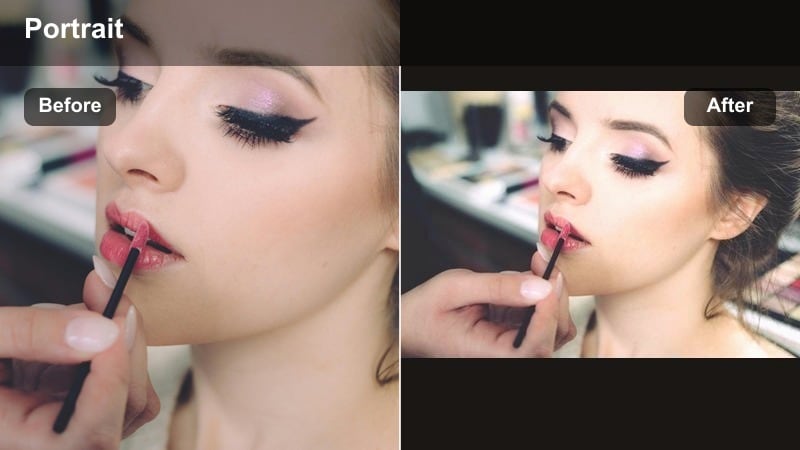
- Effect look: Warm, amber-toned highlights with soft magenta shifts that turn gray streets into cinematic sunset backdrops.
- Best for: Narrative portrait videos at blue hour, handheld character walks, and reflective documentary vignettes.
- Editing tip: Warm the highlights but keep shadows closer to neutral so the face stays believable and not overly tinted.
Sunset Concrete Hues is perfect when you want to transform neutral concrete and glass into a softly glowing evening scene. The filter warms highlights and adds a gentle magenta tint that suggests the last light of day wrapping around your subject.
In Filmora, push warmth mainly into highlights while keeping shadows and midtones closer to neutral. This keeps skin tones believable and prevents the entire frame from skewing orange. Adjust intensity depending on emotion: a stronger warm shift feels nostalgic and hopeful, while a subtler grade reads more ambiguous.
Pro tip: Use color to underline emotion
Increase warmth slightly in scenes meant to feel hopeful or nostalgic and reduce it for more ambiguous emotional beats.
Check skin tone consistency across your edit by comparing frames side by side in Filmora s timeline before export.
Stylized Character-Driven Portrait Filters
Character Close-Up Cinema
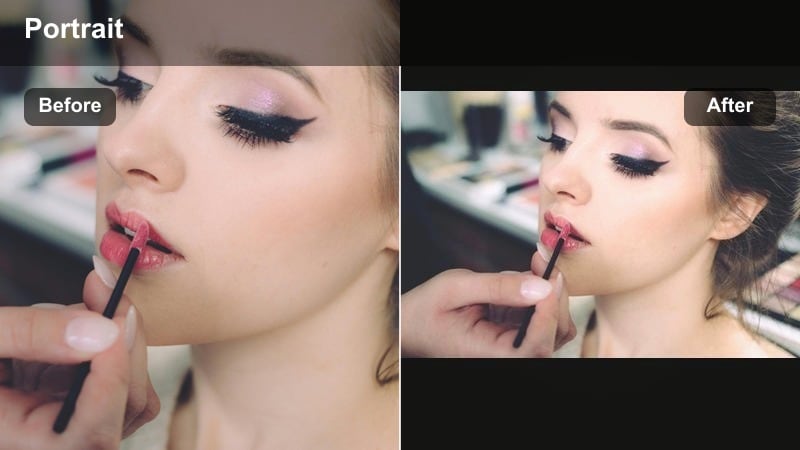
- Effect look: Subtle film contrast with soft roll-off on highlights and a gentle focus falloff tuned for emotional close-ups.
- Best for: Intimate character interviews, emotional narrative close-ups, and quiet documentary portrait moments.
- Editing tip: Add a slight vignette and pull saturation down a touch, then use Filmora s face-enhancement tools sparingly to keep texture.
Character Close-Up Cinema prioritizes emotion over environment. It smooths highlights, maintains gentle contrast, and uses soft focus falloff to make eyes and micro-expressions the clear center of attention, while the city recedes into a subtle backdrop.
In Filmora, combine this filter with a light vignette and modest saturation pullback to keep attention on the subject. Apply face-enhancement tools carefully so you retain real skin texture; then add a small clarity or sharpening boost on the eyes using masks for maximum impact.
Pro tip: Guide the viewer straight to the eyes
Use a subtle sharpen or clarity boost only on the eyes while keeping cheeks and background smoother for cinematic focus.
If your background is busy, reduce saturation outside a circular mask so the face remains the clear focal point.
Documentary Natural Grade
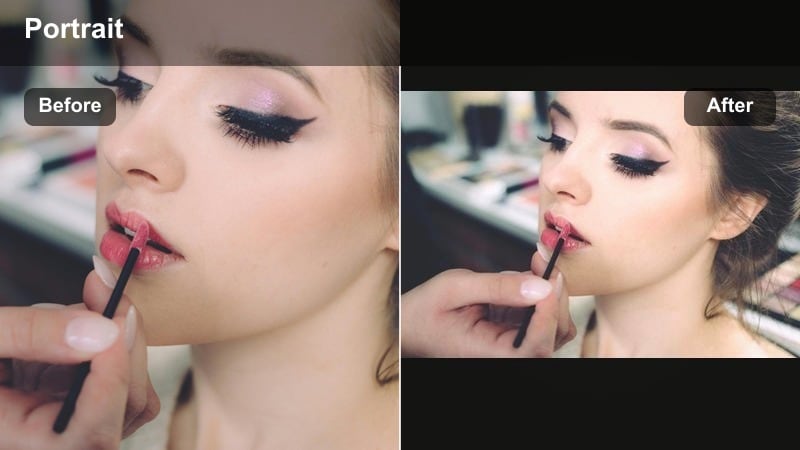
- Effect look: Balanced, low-saturation film look with honest skin tones and gentle contrast, ideal for unobtrusive documentary portraits.
- Best for: Documentary content, street interviews, and observational portrait sequences where authenticity matters.
- Editing tip: Prioritize white balance and skin tone correction first, then apply just enough contrast and grain to feel cinematic.
Documentary Natural Grade keeps your portraits grounded and truthful while still giving them a cinematic polish. It gently refines contrast and saturation, supports realistic skin tones, and adds just enough texture for a filmic impression without calling too much attention to the grade.
In Filmora, correct white balance and skin tones before touching creative looks. Once the image feels honest, lightly increase contrast and add a subtle grain layer so that handheld or available-light footage sits comfortably next to more stylized scenes in your project.
Pro tip: Let story drive the strength of the grade
If your scene is sensitive or intimate, keep the grade lighter and avoid aggressive color shifts that distract from the subject.
For more energetic or confrontational moments, you can deepen contrast slightly while maintaining honest skin tones.
Anamor City Flare
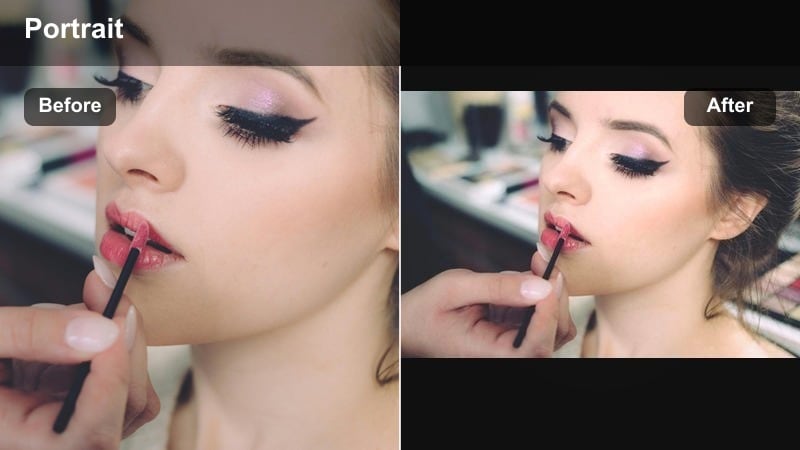
- Effect look: Simulated anamorphic flares with horizontal streaks and cinematic contrast tuned for wide street portraits.
- Best for: Stylized cinematic urban filter work, hero shots in narrative street films, and music video portrait sequences.
- Editing tip: Use flares sparingly on key beats and align them with practical light sources in the frame to keep the effect believable.
Anamor City Flare imitates the horizontal streaks and contrast profile of anamorphic lenses, giving your wide street portraits a big-screen feel. Flares align with streetlights, car headlights, and signs, adding spectacle and scale without needing specialty glass on set.
In Filmora, synchronize flare positioning with real light sources and use keyframes if the camera or subject is moving. Keep intensity moderate so that faces remain readable, and pair the look with a consistent contrast curve so flare-heavy shots still match the rest of your timeline.
Pro tip: Keep flares from overpowering faces
If a flare runs through your subject s eyes, reduce its opacity or reposition it slightly so expressions stay easy to read.
Combine mild flares with a consistent film contrast curve so the look feels cohesive across the entire sequence.
Tips for Using Street Portrait Cinematic Filters in Filmora
- Shoot slightly flatter in-camera so your cinematic street portrait filters have enough latitude for contrast and color shaping.
- Expose for skin first and let backgrounds run a bit brighter or darker; you can pull city details back in Filmora during grading.
- Use masks and keyframes to keep faces protected while pushing creative color into shadows, highlights, or neon signs.
- Save custom variations of each filter as presets for day, dusk, and night so you can keep a cohesive look across your project.
- Regularly toggle your grade on and off to ensure the story and emotion still land without the effect getting in the way.
- Test your final look on both desktop and mobile screens from inside Filmora s export previews to confirm contrast and color hold up everywhere.
Cinematic street portrait filters give filmmakers, cinematographers, and creative portrait photographers a fast path from flat urban footage to a polished, story-first film look.
Build a small toolkit of favorite filters in Filmora, refine them to your camera and city, and you will be ready to grade cinematic street films, narrative portraits, and documentary content with confidence and consistency.
secure downloadNext: Explore Aesthetic Street Portrait Filters for Stylized Urban Stories
