

 100% Security Verified | No Subscription Required | No Malware


 ChatGPT
 Perplexity
 Gemini
 Claude
 Grok
Grok
Aesthetic street portraits live in the space between candid city energy and dreamy, soft-focused storytelling. With the right filters, every sidewalk, subway corner, or neon alley can turn into a cinematic frame that matches your personal urban style.
This Filmora preset guide is designed for aesthetic photographers, urban creative influencers, and portrait artists who want to elevate street shots with subtle tones, soft light, and a touch of dreamy atmosphere. Explore these aesthetic street portrait filters to build a cohesive city look for feeds, campaigns, and personal projects.
In this article
Soft Glow Urban Portrait Filters
Soft Cream City
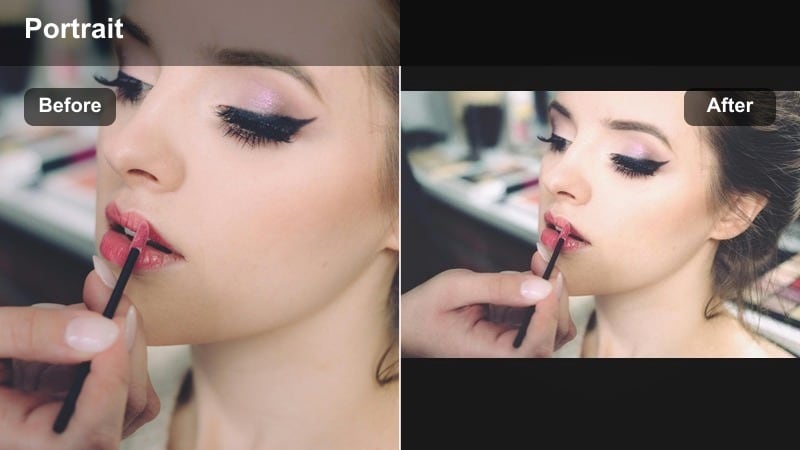
- Effect look: Gentle creamy highlights with softened contrast for flattering skin in busy streets
- Best for: Aesthetic street portraits in open shade, soft light city shoots, lifestyle content for social feeds
- Editing tip: Lower clarity slightly to enhance the soft street portrait effect, then add a touch of vibrance to keep city details alive.
Soft Cream City wraps your subject in a gentle glow that smooths harsh urban edges and creates dreamy yet natural skin tones. In Filmora, you can combine lowered clarity with subtle highlight roll-off so traffic, signs, and sidewalks fade into a creamy backdrop while your subject remains the visual anchor.
Use this filter on clips shot in open shade or overcast city conditions to avoid harsh shadows on the face. In Filmora, add a touch of vibrance instead of global saturation so colorful details like crosswalk lines or street signs stay present without overpowering the soft street portrait aesthetic.
Pro Tip - Balance softness with structure
Use Soft Cream City on clips with simple backgrounds so the creamy glow does not overpower complex textures like wires or signage.
Mask the subject’s eyes and lips to keep them slightly sharper; this contrast against a soft frame will make your portrait feel more intentional and cinematic.
Let Filmora’s AI refine your aesthetic street palette
Filmora’s AI-powered color tools help you match filters to each location, whether you are shooting in neon alleys, concrete courtyards, or pastel neighborhoods. Instead of guessing white balance and exposure for every clip, AI auto adjustments give you a clean, unified base that flatters both skin tones and city backdrops.
Use AI auto color balance as a starting point, then layer your favorite aesthetic street portrait filters so skin looks natural and the city mood stays consistent across every clip. This workflow keeps your dreamy street portrait aesthetic cohesive from wide scenes to close-up details.
 secure download

See dreamy street portrait filters in action
Load a short street portrait sequence into Filmora and test filters side by side using duplicate tracks or split-screen previews. This lets you compare soft glow looks, moody palettes, and pastel city tones directly on the same clip.
By viewing multiple versions in real time, you can decide which aesthetic urban filter fits your narrative, whether you are building a casual vlog, an editorial reel, or a cinematic short. Adjust intensity and color balance while you preview to lock in your signature city look.
secure downloadSave your favorite looks as reusable LUT-style presets
Once you have dialed in your ideal aesthetic urban filter in Filmora, save the combination of color, contrast, and glow as a custom preset. This lets you recreate the same dreamy street portrait feel across new shoots without rebuilding the grade from scratch.
Turning your adjustments into LUT-style presets is especially helpful for creators who post frequently. A saved preset keeps your portraits, reels, and shorts visually consistent so your audience instantly recognizes your signature street portrait aesthetic.
secure downloadHazy Window Light
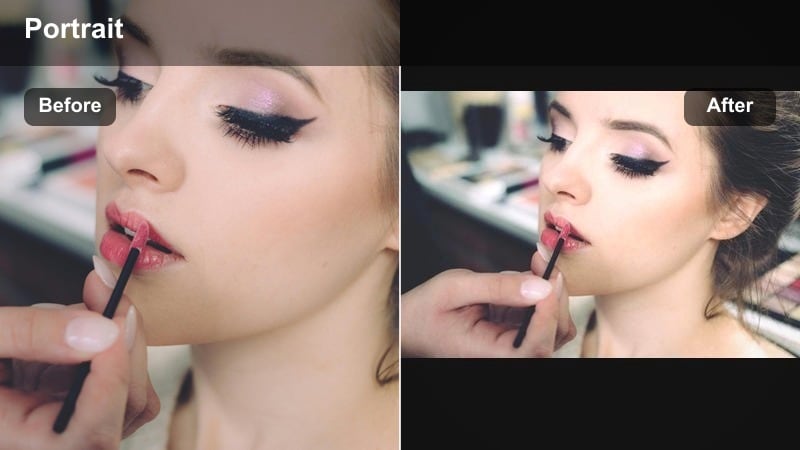
- Effect look: Airy haze with lifted blacks and subtle bloom around highlights, like shooting through a window
- Best for: Dreamy street portrait moments at cafes, bus stops, and storefront reflections during overcast days
- Editing tip: Increase highlight glow sparingly, then fine-tune the blacks slider so the image stays dreamy but does not look washed out.
Hazy Window Light is perfect when you want your street portraits to feel like quiet scenes from a movie. By lifting blacks and adding a hint of highlight bloom in Filmora, you can mimic the look of shooting through foggy glass or light mist without losing detail in your subject.
Apply this filter to clips taken near windows, bus stops, or reflective shop fronts to amplify natural reflections already in your footage. In Filmora, adjust the glow intensity so light sources bloom softly while facial features remain clear, keeping your dreamy street portrait grounded and cinematic.
Pro Tip - Use reflections to tell the story
Frame the subject near glass, cars, or wet streets so the haze blends naturally with reflections instead of just softening the entire frame.
Layer subtle light leaks or Filmora lens flares near existing windows to keep the dreamy street portrait grounded in real light sources.
Buttery Sidewalk Glow
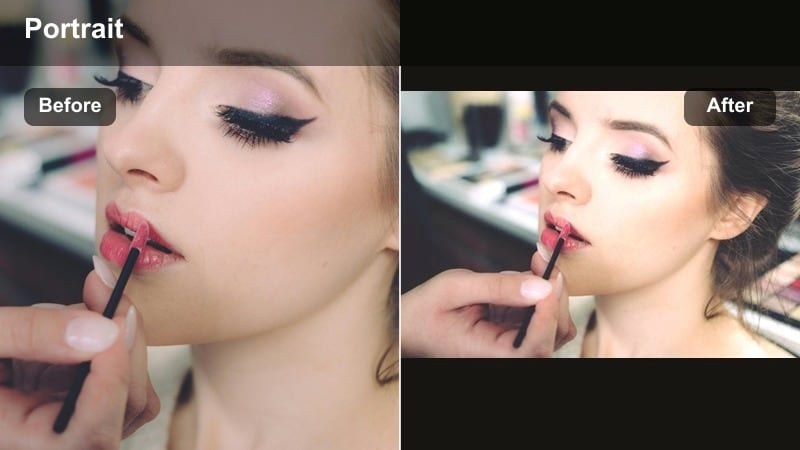
- Effect look: Warm, buttery midtones with smooth roll-off in highlights and slightly muted shadows
- Best for: Soft light city shoots at golden hour, walking portraits, and warm lifestyle vlogs
- Editing tip: Use subtle vignette to pull focus to the subject and mildly desaturate greens so urban foliage does not distract from skin tones.
Buttery Sidewalk Glow adds a romantic, golden finish to casual city walks and lifestyle content. By shifting midtones warmer and smoothing highlight transitions in Filmora, you can turn ordinary sidewalks into cinematic paths that flatter skin across different complexions.
This filter works especially well at golden hour, when natural sunlight already leans warm. Reduce the saturation of greens and blues slightly so street trees, signs, or cars do not compete with your subject, then add a soft vignette to guide viewers toward the face at the center of the frame.
Pro Tip - Protect skin while warming the scene
Use Filmora’s HSL tools to target yellows and reds so you can warm buildings and street lights without oversaturating the subject’s skin.
If the image turns too orange, pull back saturation and gently shift the hue toward softer peach tones for a more editorial street portrait aesthetic.
Dreamy City Color Filters
Dusty Pastel Streets
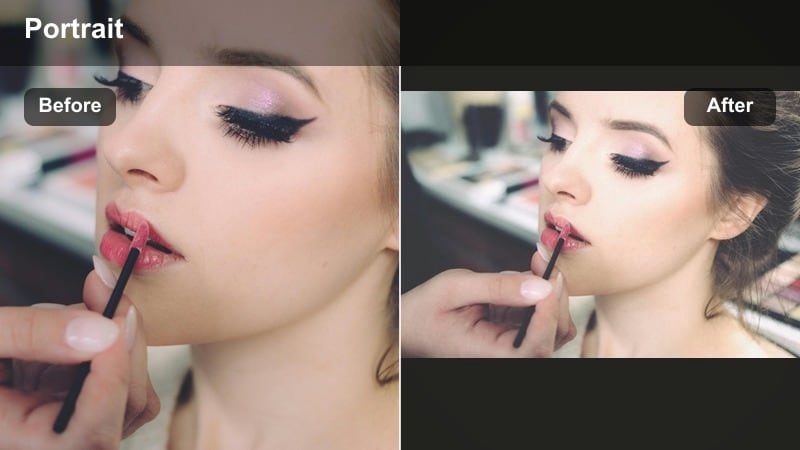
- Effect look: Soft pastel color shift with lowered saturation and slightly lifted shadows for a film-like city mood
- Best for: Dreamy urban photography in bright neighborhoods, fashion street portraits, aesthetic reels
- Editing tip: Dial down primary saturation and use split toning to tint shadows with soft teal while keeping highlights warm and gentle.
Dusty Pastel Streets transforms loud city colors into gentle, film-inspired tones ideal for fashion and editorial portraits. Lowering saturation and slightly lifting shadows in Filmora creates a washed, pastel mood that still retains enough depth for your subject to stand out.
Use split toning to add a whisper of teal into the shadows while keeping highlights warm, giving your street portraits a subtle color-graded style. This is perfect for bright alleys, painted walls, and colorful storefronts where you want the environment to support, not overpower, your subject.
Pro Tip - Shape pastel tones with wardrobe
Encourage neutral or light-colored outfits so the pastel filter feels cohesive instead of fighting with strong primary colors.
If backgrounds feel too flat, locally increase contrast on the subject only, letting the city remain soft and dreamy around them.
Muted Urban Film
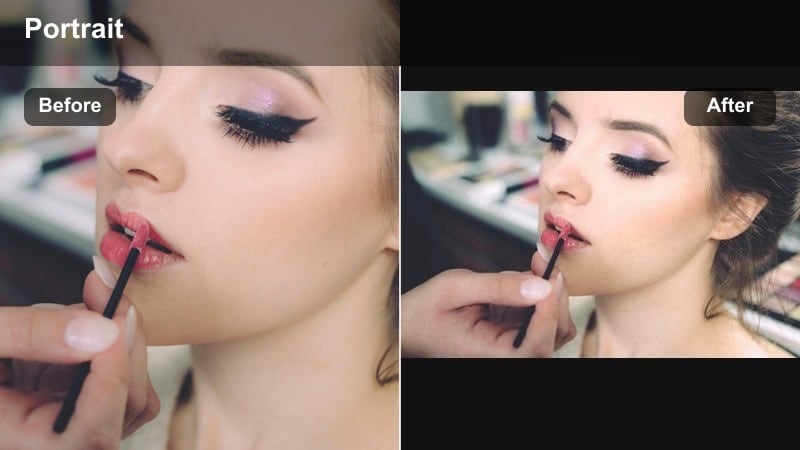
- Effect look: Desaturated cinematic palette with cool shadows and gentle grain for a modern film emulation
- Best for: Editorial aesthetic street portraits, lookbook videos, subtle brand campaigns in city settings
- Editing tip: Keep saturation low but boost midtone contrast to avoid a dull image; add minimal film grain for texture without heavy noise.
Muted Urban Film calms intense city hues into a controlled, cinematic color palette. By cooling shadows and gently reducing saturation in Filmora, you can emulate modern film stock that feels stylish and intentional rather than overly filtered.
This filter is ideal for editorial portraits and branded work where you need a mature, polished look. Add a hint of film grain for texture, then raise midtone contrast so faces and clothing stay crisp even as the overall scene becomes calmer and more minimalist in tone.
Pro Tip - Protect key brand colors
If shooting for a brand, mask logos or products and restore a bit of saturation there so the film look does not wash out their identity.
Combine this filter with a subtle letterbox crop to instantly give your urban portraits a narrative, cinematic feel.
Peachy Skyline Portrait
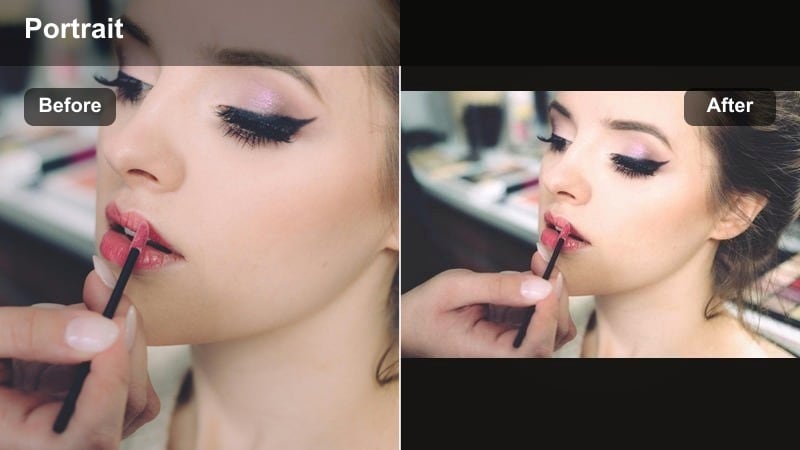
- Effect look: Warm peach highlights with soft cyan shadows and slightly diffused contrast
- Best for: Rooftop portraits, skyline overlooks, and soft light city shoots during late afternoon
- Editing tip: Use color wheels to push highlights slightly warmer while cooling only the deepest shadows for a subtle duotone effect.
Peachy Skyline Portrait adds gentle romance to city overlooks by pairing peach highlights with cool cyan shadows. In Filmora, this duotone style is easy to build using the color wheels, keeping skin luminous while the skyline behind your subject takes on a modern, atmospheric cast.
Use this filter on rooftops, balconies, and open city vistas where the sky and skyline occupy a large part of the frame. Slightly diffused contrast keeps the mood soft and dreamy, making the filter perfect for couple portraits, reflective solo shots, and aesthetic reels at golden hour.
Pro Tip - Lean into negative space
Compose with extra sky or open city space above the subject so the peach and cyan color blend has room to breathe.
For video, use slow camera moves or gentle push-ins so the soft tonality matches the pacing of your motion.
Moody Aesthetic Urban Filters
Shadow Lane Portrait
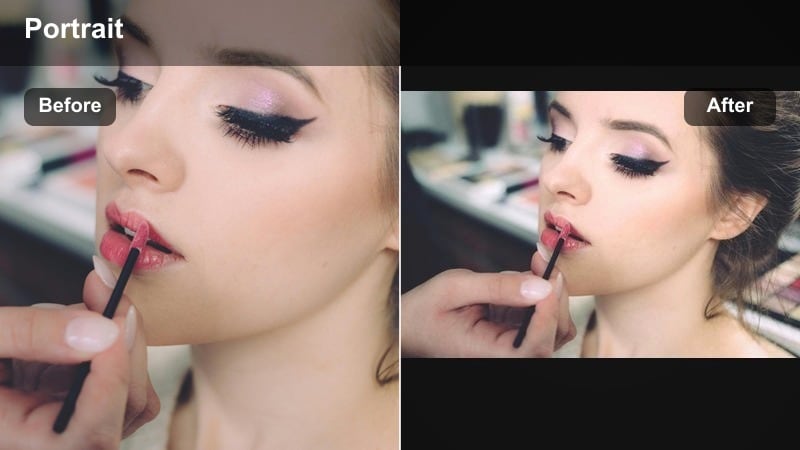
- Effect look: Deepened shadows with rich midtones and a subtle cool cast for moody street portraits
- Best for: Alleyway portraits, underpasses, and late afternoon walks where contrast naturally appears
- Editing tip: Increase local exposure on the subject’s face while letting background shadows stay darker for a cinematic spotlight feel.
Shadow Lane Portrait sculpts your scene with deeper shadows and concentrated midtones, ideal for dramatic alleyway shots. In Filmora, cooling the overall cast slightly while preserving midtone richness adds tension and depth without crushing important detail.
Apply this filter whenever you want the city to feel mysterious around a well-lit subject. Use local exposure and masking tools to brighten the face and key clothing areas, letting doorways, tunnels, and side streets recede into darker tones for a cinematic, spotlight-style portrait.
Pro Tip - Shape light for drama
Use vignettes and radial masks to subtly darken corners and pull focus toward the subject’s eyes.
If the image starts to feel too heavy, lift the blacks just slightly to keep detail in the deepest parts of the frame.
Noir Neon Soft
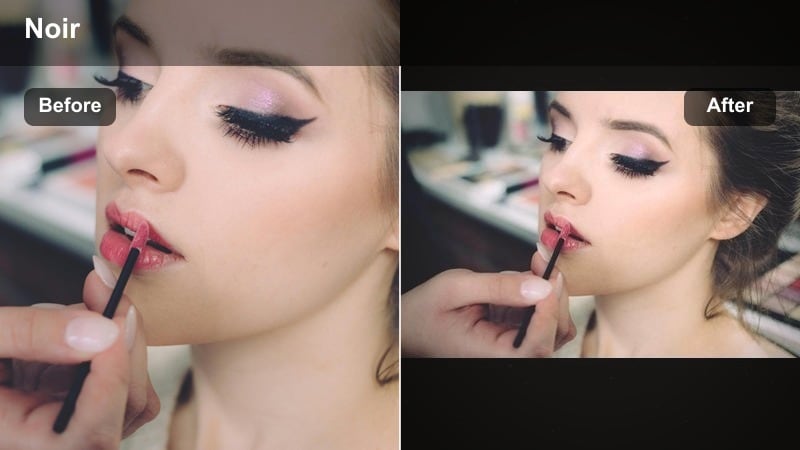
- Effect look: Soft contrast noir with emphasized neon colors and gently faded blacks
- Best for: Night street portraits, neon signs, rainy sidewalks, and reflective puddles
- Editing tip: Increase saturation only in magentas and blues to let neon pop while keeping skin and background tones smooth.
Noir Neon Soft blends classic noir mood with modern neon glow, perfect for night-time street portraits. By softening contrast and fading blacks slightly in Filmora, you keep details in the shadows while neon signs and reflections become the visual stars of the frame.
Focus your saturation boosts on blues, magentas, and cyans so neon accents pop without turning skin tones artificial. This filter excels on rainy sidewalks, reflective puddles, and storefronts, where light bounces naturally and enhances your dreamy night aesthetic.
Pro Tip - Control color chaos at night
Use Filmora’s color masking to selectively boost only the neon tones that support your mood palette.
If mixed lighting creates strange skin tones, gently nudge the white balance warmer while preserving cool neon in the background.
Copper Midnight Gaze
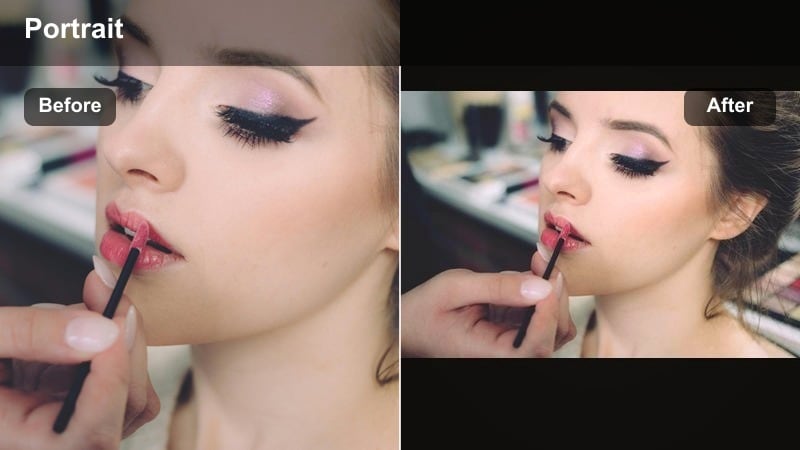
- Effect look: Warm copper highlights contrasted with deep cool blues for a cinematic night-owl feeling
- Best for: Evening city shoots, moody street portrait filters for nightlife, bar fronts, and crosswalk scenes
- Editing tip: Use split toning to push highlights toward copper and shadows toward navy, then fine-tune saturation so the look stays elegant.
Copper Midnight Gaze leans into a classic teal-and-orange inspired palette, refined for nightlife portraits. In Filmora, push highlights toward copper tones while deepening shadows into navy, creating a polished color contrast that still feels sophisticated and cinematic.
This filter works best near bar fronts, crosswalks, and busy intersections where practical lights illuminate your subject. Keep saturation controlled so the copper and blue interplay feels elegant, then add a touch of grain to bind the colors together into a cohesive night aesthetic.
Pro Tip - Find practical light sources
Position your subject near street lamps, shop signs, or car headlights so the copper highlight tint has real light to grab onto.
If noise appears in the shadows, reduce digital noise first and then add a subtle grain layer to keep the texture cohesive.
Minimal, Clean Urban Aesthetic Filters
Clean City Portrait
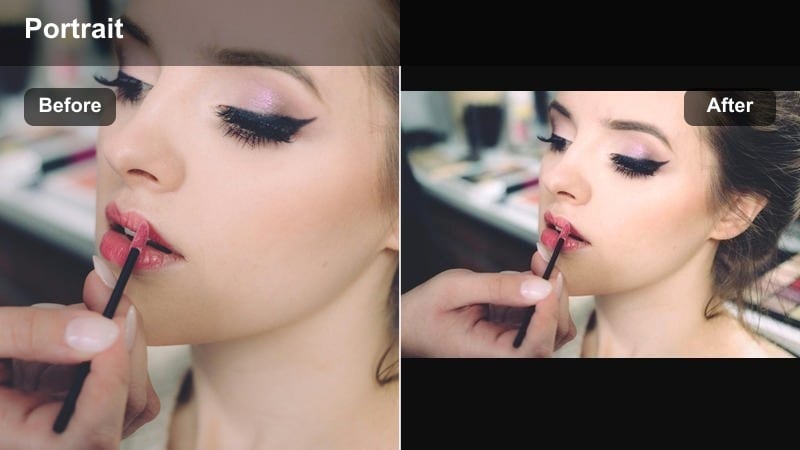
- Effect look: Neutral, bright aesthetic with crisp edges and slightly softened skin transitions
- Best for: Brand portraits, influencer content, and minimal aesthetic street portraits in neutral locations
- Editing tip: Keep saturation balanced, then add a tiny boost to clarity around the subject’s clothing details to maintain a modern, sharp feel.
Clean City Portrait delivers a bright, neutral base that works across almost any platform or campaign. In Filmora, maintain natural color while brightening exposure and gently softening skin transitions so your subject looks polished but not over-retouched.
This filter is ideal for minimal backgrounds like light walls, curated storefronts, or modern architecture. Keep saturation moderate and sharpen only key details such as clothing seams and accessories, so the image feels crisp while faces remain flattering and smooth.
Pro Tip - Preserve a timeless base look
Use this filter as a starting point when you need a versatile aesthetic that works across multiple platforms and campaigns.
Export a short LUT-style preset of your final adjustments so you can apply the same clean city look to future shoots quickly.
Soft Concrete Dream
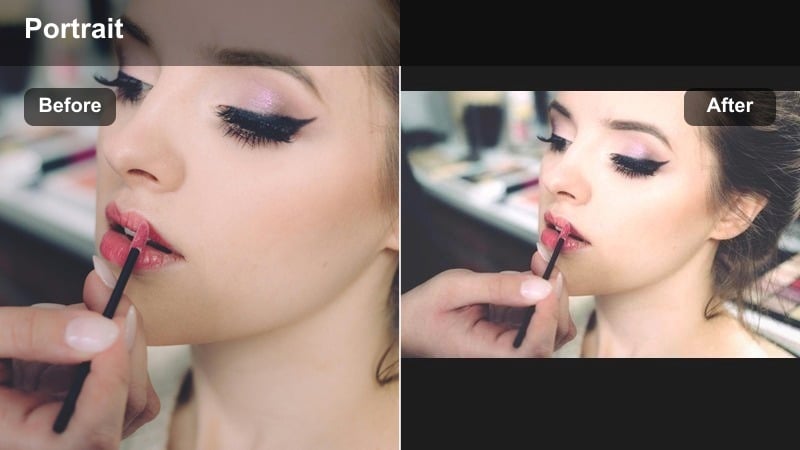
- Effect look: Gentle matte finish with softened highlights and slightly cooled concrete tones
- Best for: Soft street portrait effect against walls, staircases, parking structures, and modern architecture
- Editing tip: Lower contrast a touch and lift the shadows for a matte look, then sharpen only around eyes to keep expression clear.
Soft Concrete Dream is designed to tame hard architectural backdrops and turn them into calm, aesthetic frames. In Filmora, lower overall contrast and lift shadows for a subtle matte finish that reduces the harshness of concrete, stone, and metal surfaces.
Cool the background tones slightly while preserving natural skin color so your subject separates gently from the environment. A small increase in sharpness around the eyes keeps emotion and connection strong, even as the rest of the scene softens into a design-forward backdrop.
Pro Tip - Use lines as a design element
Compose with strong architectural lines and let the matte look soften the mood while the shapes stay graphic.
If the scene feels too flat, reintroduce a bit of contrast in the midtones only, so highlights and shadows remain gentle.
Subtle Urban Glow
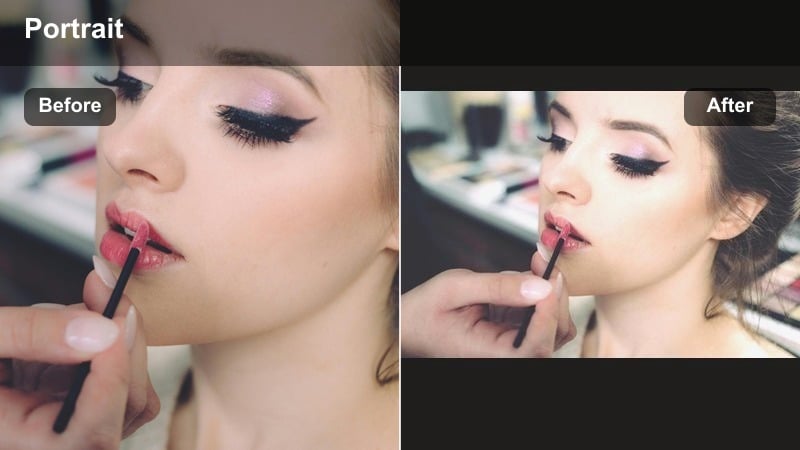
- Effect look: Light, airy glow with minimal color shift and polished skin rendering
- Best for: Everyday city vlogs, social portraits, and quick influencer content where you need an instant upgrade
- Editing tip: Do a quick skin-tone check: adjust white balance until neutral areas feel clean, then let the glow filter add final polish.
Subtle Urban Glow is your go-to filter when you need fast, flattering results on a busy content day. In Filmora, it adds a light, airy glow and gentle skin polishing without heavily altering colors, keeping your city scenes believable and easy to grade alongside other clips.
Use it on handheld vlogs, quick portraits, and social reels to instantly uplift flat footage. Start by dialing in white balance so neutrals look clean, then apply the glow filter at moderate strength to give faces a fresh, camera-ready finish with minimal editing time.
Pro Tip - Keep it fast for content days
Save this preset as a default filter in Filmora so you can batch-apply it across multiple clips on high-volume shooting days.
For a cohesive grid, keep this glow as your base and layer seasonal tweaks like temperature or saturation instead of changing filters completely.
Tips for Using Street Portrait Aesthetic Filters in Filmora
- Shoot in soft light whenever possible so your aesthetic filters enhance skin tones instead of fighting harsh shadows.
- Keep a consistent white balance across your footage before applying filters to avoid color shifts from clip to clip.
- Use masks to apply stronger effects to backgrounds while keeping the subject’s face more natural and flattering.
- Stack subtle adjustments rather than extreme ones; dreamy street portrait looks work best when the effect feels effortless.
- Export still frames from your edit to fine-tune the filter on key hero shots, then apply those settings to the rest of the sequence.
- Save your most successful grades as custom presets in Filmora so you can quickly build a consistent urban portrait series.
- Test how your filters look on both photos and video clips to ensure your aesthetic street portrait style translates across formats.
- Regularly compare your graded clips on different screens to confirm that skin tones and city colors remain pleasing everywhere.
Aesthetic street portrait filters turn everyday urban moments into cohesive visual stories, whether you are capturing dreamy sidewalk scenes or moody neon nights.
Experiment with these Filmora presets, refine them to match your personal palette, and carry your signature look into your next set of moody street portrait filters for even deeper city atmospheres.
secure downloadNext: Explore Moody Street Portrait Filters for Deeper Urban Atmosphere
