

 100% Security Verified | No Subscription Required | No Malware


 ChatGPT
 Perplexity
 Gemini
 Claude
 Grok
Grok
Cool city video filters give your urban travel footage a polished, modern tone that highlights glass, steel, and neon without losing natural detail. With the right filter, even everyday streets and architecture can feel cinematic and intentional.
This guide showcases Filmora filters built around the Cool City Filter. Urban Blue preset, perfect for travelers and vloggers who want crisp blues, clean contrast, and a cohesive city aesthetic across skyscrapers, night lights, and architectural details.
In this article
Cool Filters for Daytime City Vlogs
Cool City Filter. Urban Blue
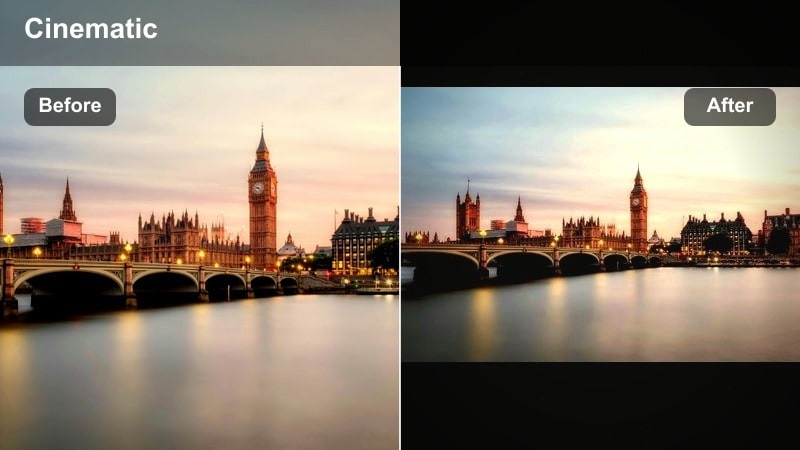
- Effect look: Soft teal-blue highlights with lifted shadows and subtle clarity for glass and steel buildings
- Best for: Modern city walk-throughs, travel vlog intros, and architecture reveal shots on bright days
- Editing tip: Lower saturation on warm hues slightly so skin tones stay natural while keeping the blue city look strong in the background
Cool City Filter. Urban Blue is the signature cool urban look in Filmora, designed to push blues and cyans while keeping contrast smooth and flattering. It lifts shadows just enough to preserve detail in glass, steel, and concrete, giving your daytime city footage a clean, modern tone without feeling harsh or overprocessed.
Use this preset on walk-and-talk segments, establishing shots of skyscrapers, or any clip where you want a unified urban blue aesthetic. In Filmora, apply the filter, then fine-tune saturation for oranges and yellows so faces remain natural while backgrounds stay boldly cool. This balance keeps your subject inviting on screen while the city around them feels polished and cinematic.
Pro tip: Balance skin tones with a blue city look
After applying Cool City Filter. Urban Blue, fine-tune skin tones using HSL or skin-tone sliders so your subject does not look too cold or desaturated.
Keep blues and cyans more saturated than other colors to preserve the bold urban vibe while the subject remains warm and inviting on screen.
Dial In a Consistent Cool City Palette with AI
Filmoras AI tools help you keep every clip in your city vlog within the same modern tone so your blues, shadows, and skin tones stay cohesive from arrivals to rooftop outros. Instead of adjusting each shot individually, you can establish one hero look and let AI bring everything else in line.
Use AI color matching to copy the Cool City Filter. Urban Blue look from one well-graded clip across the rest of your timeline, then make small manual tweaks where needed. This saves time while maintaining a professional cool city aesthetic from start to finish.
Open your favorite city shot in Filmora, apply your preferred cool filter, and let AI match that style across your vlog.
 secure download

Preview Cool Urban Looks in Real Time
Filmora lets you hover over filters to preview cool city video looks directly in the viewer before you commit. This makes it simple to compare subtle variations of blue city aesthetics and quickly decide which grade best suits a specific scene or location.
You can switch between daytime, blue hour, and architecture-focused filters in seconds, testing how each option affects contrast, saturation, and mood. This workflow helps you refine a clear visual style faster, without endless trial-and-error.
Load a short sequence of city clips and test several cool filters back-to-back to find a look that fits your channels identity.
secure downloadCombine Filters and LUTs for Signature City Styles
Filmora includes 1000 plus video filters and 3D LUTs you can mix to build a signature city look that fits your brand. Filters handle contrast, clarity, and basic color balance, while LUTs can push tones and mood in a more stylized direction.
By stacking one cool urban filter with a complementary LUT, you can create repeatable presets for different cities or series on your channel. Save your favorite combinations as custom presets so your cool blue aesthetic stays consistent every time you edit new travel footage.
Experiment with layering one cool filter and one LUT, then save the combination as a preset for future city trips.
secure downloadGlass Tower Cool
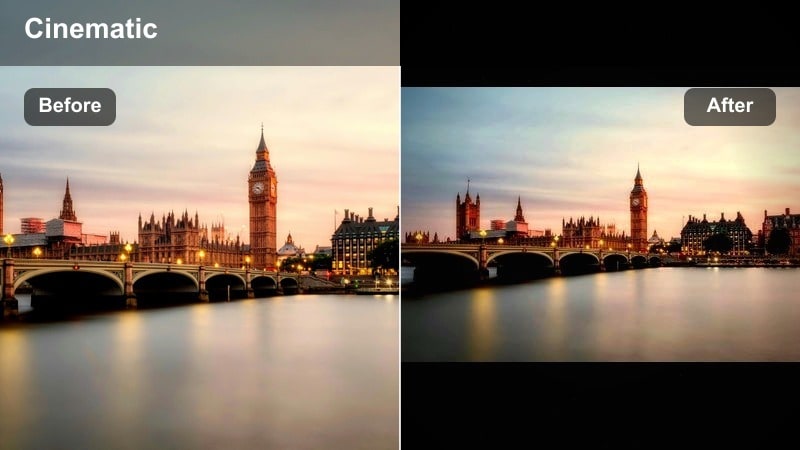
- Effect look: High clarity, cool temperature, and boosted midtone contrast to make skyscraper lines pop
- Best for: City skyline b-roll, architecture showcases, and office tower exteriors on clear days
- Editing tip: Add a gentle vignette and slightly lower exposure to prevent bright glass reflections from blowing out your highlights
Glass Tower Cool pushes clarity and midtone contrast so skyscrapers feel sharp and structural, while a cooler temperature unifies windows, metal, and sky. It works especially well on wide shots where strong verticals and reflections define the frame.
In Filmora, apply this filter to skyline b-roll, tilt or pan shots of tall buildings, and office tower exteriors. Then tame bright reflections by nudging exposure down and adding a soft vignette around the edges, keeping viewers focused on the core geometry of your shot.
Pro tip: Use leading lines for city impact
When using Glass Tower Cool, compose shots where building edges lead toward your subject or the horizon to maximize the strong structural look.
Combine this filter with slow pans or tilts so the sharpened lines feel smooth rather than jittery, especially in 4K exports.
Minimalist City Soft Blue
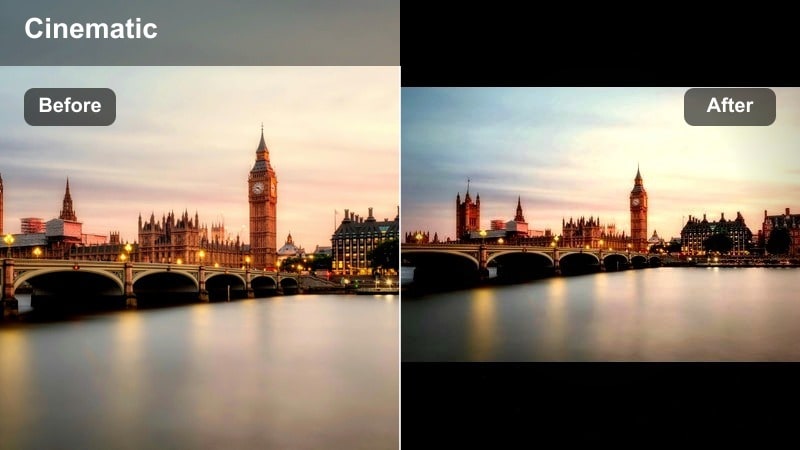
- Effect look: Gentle cool tint with softened contrast, slightly muted colors, and a clean, minimal city aesthetic
- Best for: Lifestyle city vlogs, cafe hopping, and slow-paced urban exploration with lots of white and neutral tones
- Editing tip: Lower saturation of reds and yellows to keep the palette simple and let blues and neutrals define the frame
Minimalist City Soft Blue adds a light cool tint and reduces contrast for a calm, airy city feel that suits lifestyle vlogs and aesthetic b-roll. Colors are subtly muted so whites, grays, and pastel blues dominate, giving your footage a modern, minimal mood.
Use this filter in Filmora for coffee shop visits, quiet streets, or interiors with plenty of negative space. After applying it, reduce red and yellow saturation to avoid distractions from signage or clothing, letting your composition and gentle blue tones carry the style.
Pro tip: Match your filter to minimal compositions
This filter works best when you avoid visual clutter, so frame clean walls, open plazas, and simple lines whenever possible.
Use slower cuts and longer shots so viewers have time to appreciate the restrained palette and calm urban mood.
Cool City Filters for Blue Hour and Evening
Blue Hour Aesthetic
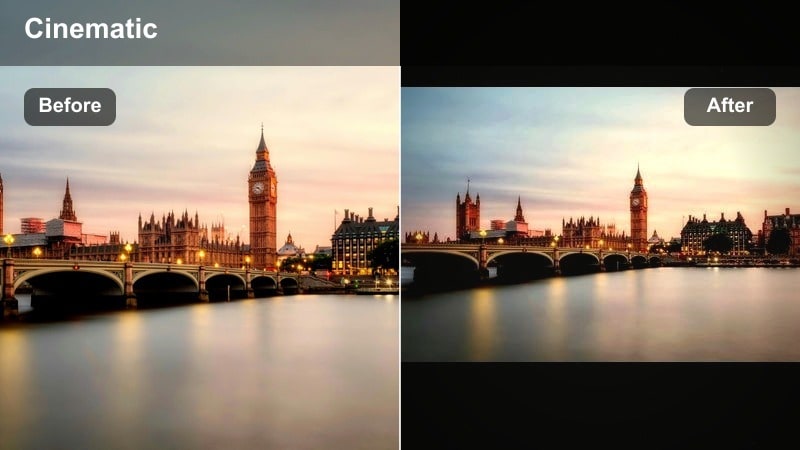
- Effect look: Deep blues with soft highlights and gentle contrast that protects detail in shadows
- Best for: Blue hour skyline shots, riverfront city views, and rooftop vlogs just after sunset
- Editing tip: Slightly raise shadows while pulling down highlights to keep neon signs visible and the sky rich and smooth
Blue Hour Aesthetic intensifies the natural blues in the sky while keeping highlights soft, so city lights and windows glow without clipping. Its gentle contrast maintains detail in both buildings and shadows, ideal for that short window just after sunset.
Apply this filter in Filmora to rooftop outros, riverside panoramas, and city-overview shots. Fine-tune the look by lifting shadows a touch and lowering highlights, preserving the richness of the sky and the legibility of neon and window lights.
Pro tip: Shoot early in blue hour
Start recording right after the sun sets while there is still luminance in the sky so this filter has more color data to enhance.
Lock your white balance in camera to avoid color shifts as the light changes, then rely on the filter for consistent style.
Cool Urban Neon
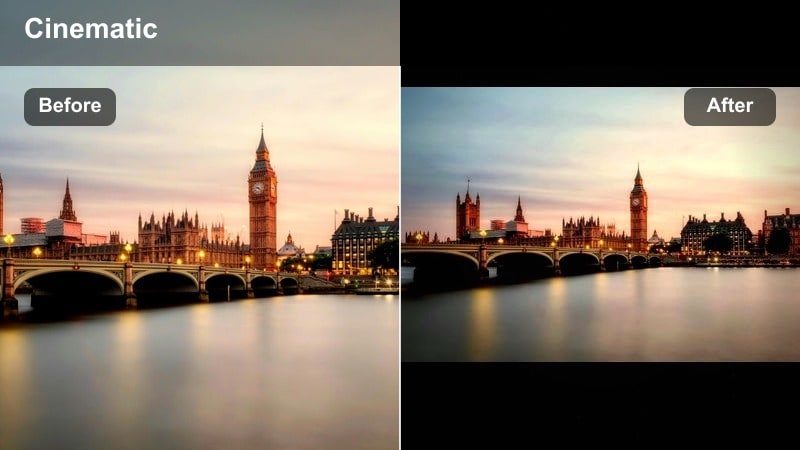
- Effect look: Punchy blues and cyans with vivid neon accents and slightly darker shadows
- Best for: Night street footage, neon-lit markets, and city nightlife b-roll with moving lights and signs
- Editing tip: Reduce noise with a light denoise pass before applying sharpening so dark areas look clean and intentional
Cool Urban Neon is tuned for nightlife, strengthening blues and cyans while letting pinks, purples, and other neon colors pop. Darker shadows deepen the mood without swallowing important detail, giving your night streets a stylized, energetic edge.
In Filmora, run a light denoise on high-ISO clips, then apply this filter to market streets, bar districts, and moving traffic scenes. Add a bit of sharpening afterward so signs and reflections feel crisp while the noise remains controlled and cinematic.
Pro tip: Expose for highlights at night
When filming neon scenes, slightly underexpose in camera so signs and screens keep their detail under this stronger contrast filter.
Later in Filmora, raise midtones only, so people and side streets become visible without washing out the neon glow.
Riverfront City Glow
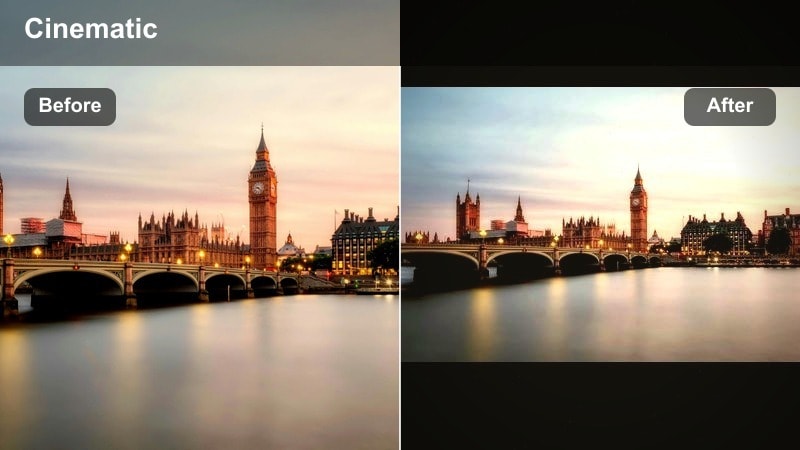
- Effect look: Cool reflective blues on water with warm city lights and gentle bloom around highlights
- Best for: City river walks, harbor skylines, and bridge shots with reflections after sunset
- Editing tip: Slow your clips to 60 percent or 70 percent speed where possible so reflections and light trails feel smoother
Riverfront City Glow cools down water and sky while preserving warm window and streetlight tones for a pleasing color contrast. A soft bloom effect around highlights enhances the dreamy feel of reflections, especially on calm rivers or harbors.
Use this filter on tripod shots of bridges, waterfront promenades, or cityscapes across the water. In Filmora, slow your clips slightly so ripples, reflections, and light trails move smoothly, reinforcing the relaxed, cinematic atmosphere.
Pro tip: Use tripod shots for reflections
Mount your camera or phone on a stable surface to keep the horizon straight and let reflections form consistent patterns.
Combine this filter with subtle push-ins or digital zooms in Filmora to create movement without breaking the calm mood.
Filters for Architecture and Urban Details
Modern Architecture Cool
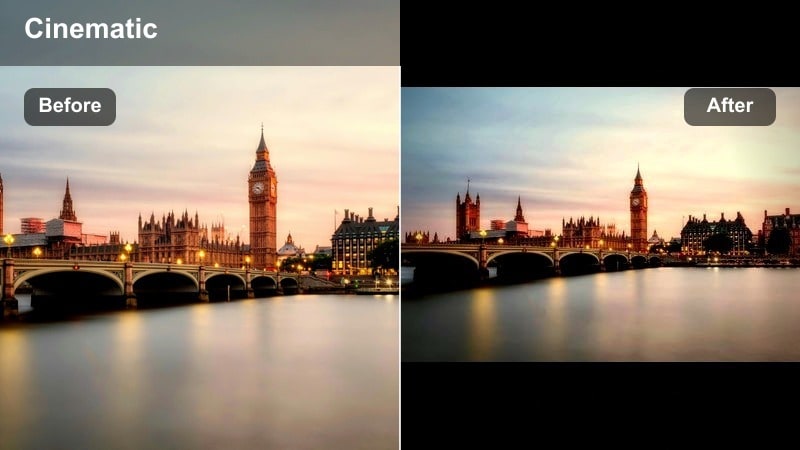
- Effect look: Neutral to cool color shift with boosted micro-contrast to define shapes, patterns, and textures
- Best for: Close-ups of building facades, interior lobbies, and design-focused architecture tours
- Editing tip: Use tighter crops and slow push-ins so the added texture from the filter does not feel overwhelming or busy
Modern Architecture Cool increases micro-contrast to bring out lines, patterns, and materials in contemporary buildings, while a subtle cool tone keeps everything aligned with a modern city palette. It is ideal for design-focused shots where texture and geometry are the stars.
In Filmora, pair this filter with close-ups of facades, staircases, and lobby interiors. Use tighter framing and gentle push-ins so the enhanced detail feels intentional, avoiding overly busy compositions that can distract from your main subject.
Pro tip: Look for repeating patterns
Seek out staircases, windows, and panels that repeat so the enhanced contrast adds rhythm rather than chaos.
Cut between wide establishing shots and pattern close-ups using the same filter to keep a cohesive cool city narrative.
Urban Texture Blue
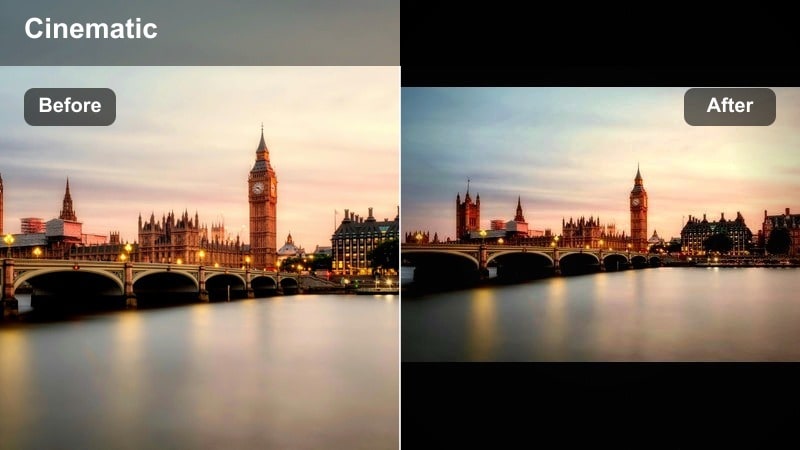
- Effect look: Cool shadows with desaturated midtones and slightly roughened texture for walls and streets
- Best for: Alleyway details, street art, staircases, and underground passages in modern cities
- Editing tip: Pair with handheld shots or slight camera shake to keep the gritty look feeling natural instead of sterile
Urban Texture Blue leans into grit by cooling shadows, desaturating midtones, and subtly emphasizing surface texture. It gives alleys, underpasses, and older corners of the city a moodier, documentary feel that contrasts nicely with cleaner skyline shots.
Apply this preset in Filmora to b-roll of street art, stairwells, and textured walls. Combine it with handheld footage or slight camera motion to keep the rough look organic, then intercut with smoother, cleaner city clips for visual contrast.
Pro tip: Blend gritty b-roll with clean main shots
Use Urban Texture Blue mainly for cutaway shots between cleaner cool city clips, so it adds character without taking over your whole vlog.
Keep audio smooth and consistent while the visuals change mood to maintain a professional, cohesive feel.
City Museum Modern Tone
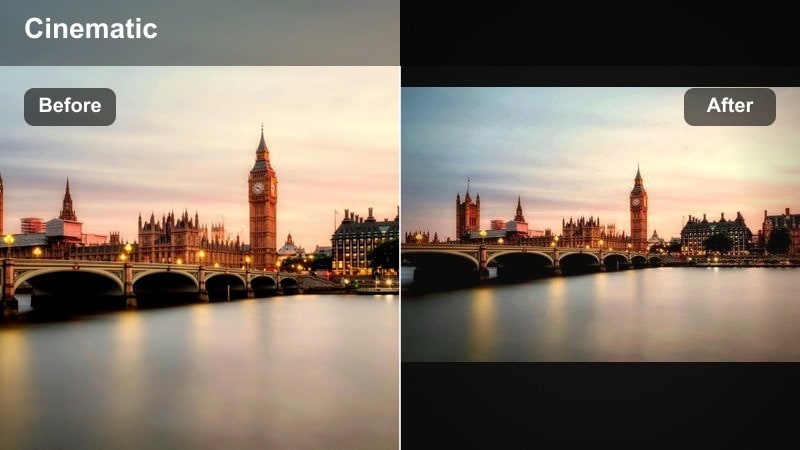
- Effect look: Cool, slightly matte finish with controlled highlights to flatter interior architecture and exhibits
- Best for: Museums, galleries, and stylish interior spaces inside modern city buildings
- Editing tip: Lower overall contrast if you are filming under mixed lighting so artworks, walls, and floors stay readable
City Museum Modern Tone is tailored for interiors, adding a cool, matte finish and carefully controlling highlights so bright spots do not overpower art and architecture. It helps unify mixed lighting sources, from windows to spotlights, into a polished, gallery-ready look.
Use this filter on walkthroughs of museums, galleries, and modern public spaces. In Filmora, reduce overall contrast slightly if your lighting is uneven, ensuring that details in artwork, floors, and walls remain clear and comfortable to watch.
Pro tip: Stabilize indoor walkthroughs
Use a gimbal or Filmora stabilization for museum or gallery shots so the smooth cool tone matches smooth motion.
Cut to static detail shots using the same filter to give viewers a rest from constant movement while keeping the aesthetic consistent.
Building a Cool City Story in Your Travel Vlog
Arrival Intro Cool
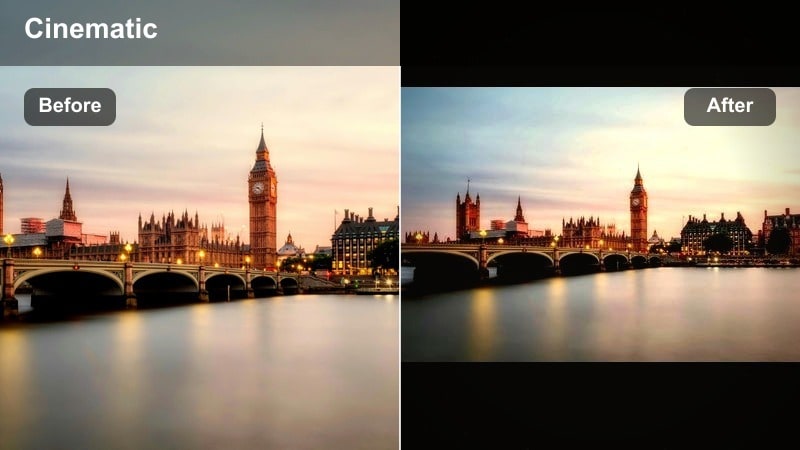
- Effect look: Clean, lightly cool tone with medium contrast and natural skin tones
- Best for: Airport arrivals, train platforms, taxi rides, and first impressions of the city
- Editing tip: Keep transitions simple and let this softer filter ease viewers into your stronger blue city looks later in the vlog
Arrival Intro Cool sets a gentle, modern base grade that nudges your footage toward a cool city look while keeping skin tones natural and approachable. It is ideal for first-impression clips where viewers are just meeting the city and getting introduced to your story.
Apply this filter in Filmora to airport, train, or taxi scenes and early street walks. Use simple cuts and basic transitions so the understated color grade does the work, preparing the audience for stronger urban blues later in the vlog.
Pro tip: Plan a filter progression
Begin your vlog with gentler cool filters like Arrival Intro Cool, then move into stronger urban blues as you reach the city center.
This visual progression mirrors your journey and keeps viewers engaged as the look slowly becomes more stylized.
City Rush Cool Urban
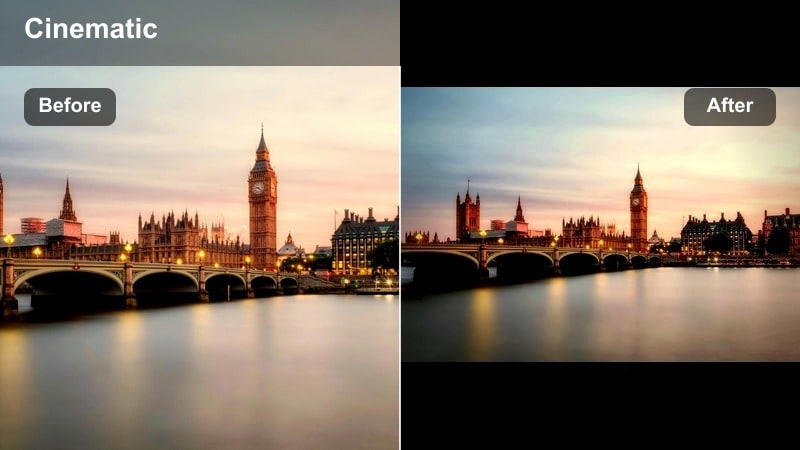
- Effect look: Dynamic cool tone with slightly higher saturation in blues and greens and punchy midtones
- Best for: Busy intersections, crosswalks, metro shots, and timelapses of traffic and crowds
- Editing tip: Use jump cuts, speed ramps, and music synced cuts with this filter to match the energetic city feeling
City Rush Cool Urban boosts saturation in blues and greens and adds punch to midtones, making movement-heavy scenes feel vibrant and kinetic. It works best when there is a lot of visual energy, like crowds, vehicles, and metro activity.
In Filmora, pair this filter with timelapses, speed-ramped traffic, and quick-cut sequences of city rush. Sync your cuts to the beat of your soundtrack so the energetic color treatment and edit rhythm reinforce each other for maximum impact.
Pro tip: Shoot for motion, edit for rhythm
Capture a mix of wide, medium, and detail shots of city movement, then let this filter unify their look in the timeline.
Cut on beats in your soundtrack so the energetic color and the edit rhythm work together instead of competing.
Rooftop Outro Modern
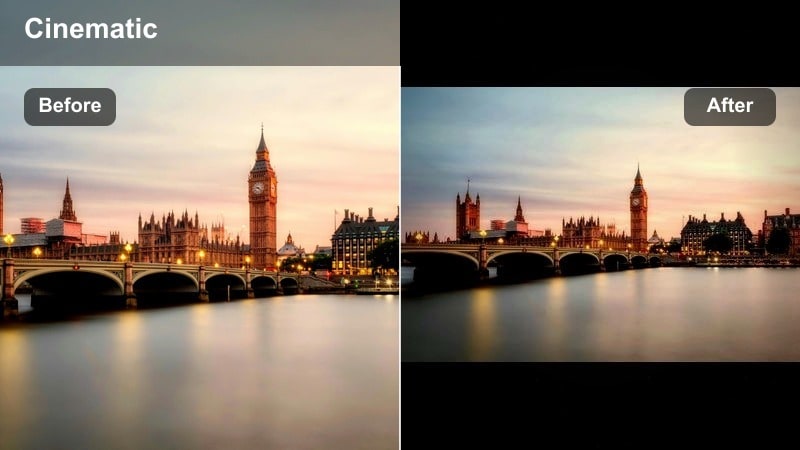
- Effect look: Polished modern cool grade with slightly cinematic contrast and clean highlights on the skyline
- Best for: Rooftop outros, city view reflections, and closing monologues looking over the skyline
- Editing tip: Add a gentle fade-in and fade-out and keep this filter consistent for all final shots to create a clear ending mood
Rooftop Outro Modern delivers a refined cool blue look with cinematic contrast, designed to give your final shots a memorable, polished feel. It enhances skyline detail while keeping your face well-lit and flattering, perfect for sign-off monologues.
Use this filter on all your ending clips in Filmora, from rooftop views to reflective moments overlooking the city. Keep the grade consistent across these shots and add simple fades to signal clearly that viewers have reached the end of the story.
Pro tip: Close your story with a stable look
Use a tripod or stable surface for your outro shots so the viewer can focus on your message and the city view.
Return to elements from your opening shots, like the same building or bridge, now in this final filter, to visually complete your city journey.
Tips for Using City Cool Filters in Filmora
- Shoot with a slightly neutral in-camera profile so cool filters have more latitude to push blues and contrast.
- Organize city clips into groups like daytime, blue hour, night, and interiors before applying different cool filters.
- Use the same two or three cool city filters throughout a vlog instead of many different looks to keep the story visually unified.
- Adjust white balance first, then apply cool filters so temperature changes stay predictable across all scenes.
- Always check your skin tones on a human subject after pushing blues and cyans to avoid unnatural, overly cold faces.
Cool city video filters give travelers and vloggers a simple way to turn everyday streets, skylines, and architecture into a cohesive modern visual story.
Start with the Cool City Filter. Urban Blue preset in Filmora, then mix in a few complementary filters for blue hour, details, and outros to build a recognizable cool urban style across your entire channel.
secure download