

 100% Security Verified | No Subscription Required | No Malware


 ChatGPT
 Perplexity
 Gemini
 Claude
 Grok
Grok
Transform everyday streets into dreamy timelines with aesthetic city video filters that soften harsh light, add pastel tones, and give your urban clips a cinematic glow. Whether you are filming on a quick city break or crafting a full travel vlog, the right filter can turn raw footage into a cohesive visual story.
This guide walks content creators and travelers through 12 Filmora filters inspired by the Aesthetic City Filter. Dream Urban preset, designed for aesthetic city edits that feel pastel, soft, and gentle while still keeping the citys character and detail intact.
In this article
Soft Urban Mornings
Hazy Pastel Sunrise
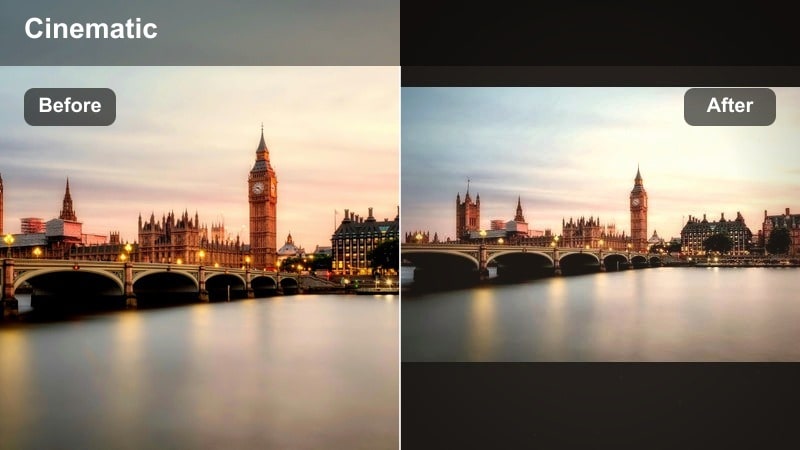
- Effect look: Soft, low-contrast glow with gentle pastel highlights that smooth out hard city lines for early morning street shots.
- Best for: Morning walks, cafes opening, quiet streets, subtle city lifestyle reels where you want a dreamy, slow-start mood.
- Editing tip: Lower contrast slightly and nudge temperature warmer to emphasize soft sunlight while keeping shadows light and airy.
Hazy Pastel Sunrise is ideal for turning ordinary early-morning city footage into soft, cinematic establishing shots. It lightly blurs harsh edges, lifts shadows, and wraps buildings and pavements in a pastel haze so your clips feel calm and unhurried, perfect for intros or mood-setting B-roll.
In Filmora, apply this filter to your timeline, then fine-tune contrast and warmth in the Color panel to match the exact sunrise vibe of your city. Use it across multiple clips from the same morning shoot to create a consistent, dreamy look that flows smoothly between street views, coffee shots, and quiet moments.
Pro tip: Balance haze with detail
If your image looks too foggy, add a slight clarity boost around 5-10 to keep architectural lines visible without breaking the soft vibe. Combine this filter with subtle vignette reduction to avoid dark corners that can ruin the light, floating morning atmosphere.
Use Filmoras AI Tools to Shape Your City Palette
Pair these aesthetic city video filters with Filmoras AI color tools to quickly match tones from your favorite reference clips or photos. The AI can analyze colors and help you create a consistent pastel, soft urban palette across multiple videos.
Once you dial in a look you love, save it alongside the Aesthetic City Filter. Dream Urban preset so you can apply the same mood to future travel vlogs, city reels, and cinematic edits with one click.
 secure download

Preview Aesthetic City Filters on Your Footage
Import a short test clip of your city footage into Filmora and drag different aesthetic city video filters onto it to compare looks. Pay attention to how each filter treats skies, skin tones, and shadows in busy streets.
Toggle filters on and off or duplicate your clip on separate tracks to see side-by-side comparisons. This helps you decide which filter best fits your story, from pastel city walks to dreamy golden hour transitions.
secure downloadTurn Your Favorite City Aesthetic into Reusable LUTs
After fine-tuning an aesthetic city filter, export your grading adjustments as a LUT so you can quickly apply the same soft urban look to future projects. This is especially useful if you film in multiple cities but want a consistent visual identity.
Store your LUTs in a dedicated urban pack alongside the Aesthetic City Filter. Dream Urban preset, labeled by mood like pastel, gentle, or cinematic night, so you can grab the right vibe in seconds.
secure downloadGentle Street Glow
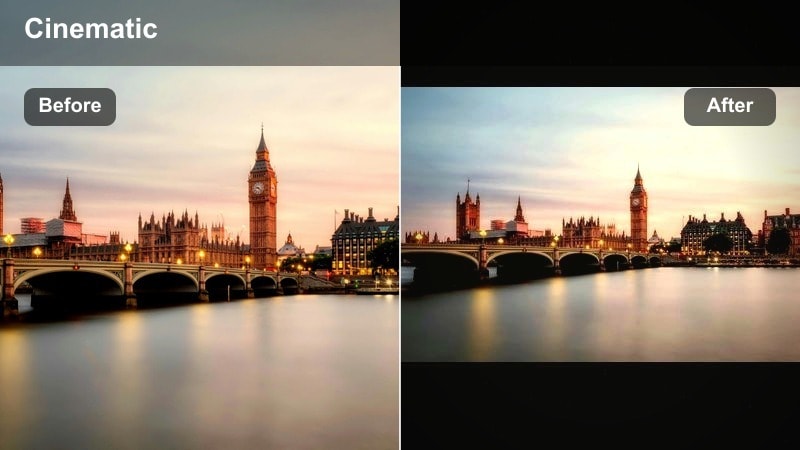
- Effect look: Soft glow around highlights with muted midtones, giving pavements and building fronts a polished but relaxed finish.
- Best for: B-roll of crosswalks, slow-motion walking clips, handheld vlog intros in clean, modern neighborhoods.
- Editing tip: Reduce sharpness slightly, then increase saturation by a small amount to keep skin tones flattering but still dreamy.
Gentle Street Glow adds a subtle halo to bright areas like windows, signs, and sky openings, smoothing hard edges for an elegant city aesthetic. It keeps contrast calm and midtones muted so your street scenes feel polished without looking overly edited.
In Filmora, layer this filter onto your walking B-roll and vlog intros, then fine-tune sharpness and saturation to keep faces natural. Use it across an entire sequence of crosswalks, escalators, and storefronts to maintain a soft, cohesive glow that flatters both architecture and people.
Pro tip: Use glow to guide the eye
Frame your subject near natural light sources like windows, shop fronts, or sky gaps so the glow subtly pulls attention toward them. For Instagram reels, keep clips short and use the same filter across the sequence to make your feed grid feel cohesive.
Muted Brick Pastel
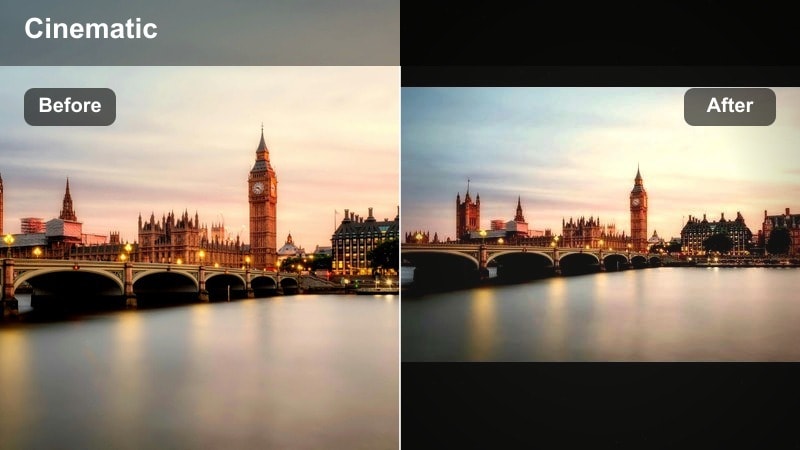
- Effect look: Desaturated reds and oranges with lifted blacks, turning brick and stone into soft pastel surfaces without losing texture.
- Best for: Historic streets, alleyways, and vintage neighborhoods where you want a calm, film-inspired palette.
- Editing tip: Slightly lift blacks and shadows, then fine-tune red and orange saturation to avoid overly dull skin tones.
Muted Brick Pastel is perfect for calming strong brick and terracotta tones into a more delicate, filmic palette. It lifts dark areas so alleys and side streets feel open and airy, while buildings keep their texture and character.
Apply this filter in Filmora to shots of old towns, laneways, and stone facades, then adjust reds and oranges in the color controls to balance bricks with natural skin tones. Use it for story-driven vlogs or city diaries where you want a quiet, nostalgic mood throughout the edit.
Pro tip: Keep skin tones alive
If people look too pale, add a subtle warmth boost and selectively raise orange saturation so faces stay natural in pastel scenes. Try pairing this look with slower footage and gentle camera moves like slow pans to match the relaxed city mood.
Pastel City Afternoons
Cloudy Pastel Walk
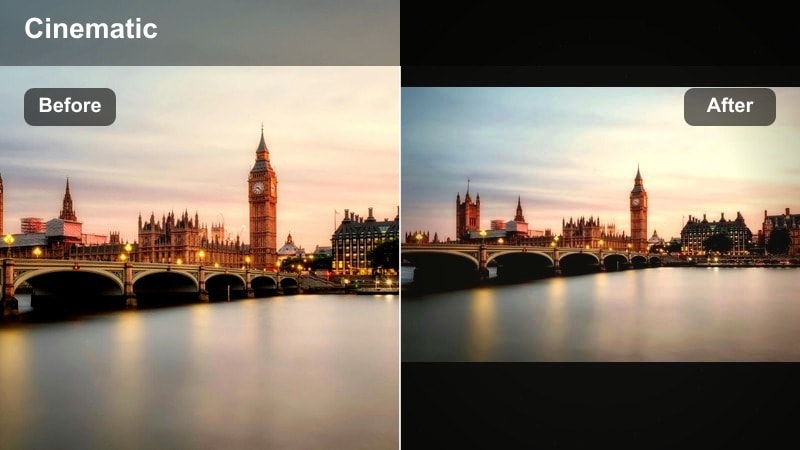
- Effect look: Flattens harsh shadows and shifts colors into creamy pastels, especially in skies and building facades on overcast days.
- Best for: Cloudy city explorations, casual travel vlogs, and aesthetic B-roll when the weather is flat or grey.
- Editing tip: Raise exposure slightly and add a hint of vibrance instead of saturation to keep tones soft but not washed out.
Cloudy Pastel Walk rescues flat, grey weather by turning dull tones into soft pastels and gently lifting overall brightness. It smooths out contrast so clouds, sidewalks, and buildings look intentional and stylized instead of lifeless.
Inside Filmora, drop this filter onto overcast clips from your city walks and then fine-tune exposure and vibrance to keep the mood gentle. Use it across a full cloudy-day vlog so your footage feels cohesive, even if you filmed on multiple streets with changing light.
Pro tip: Rescue grey footage
Use this filter as your base when the sky looks lifeless, then gently adjust HSL blues and cyans for a pleasing pastel sky. Keep movement smooth with stabilization so the soft tonal look matches equally soft camera motion.
Cream and Concrete
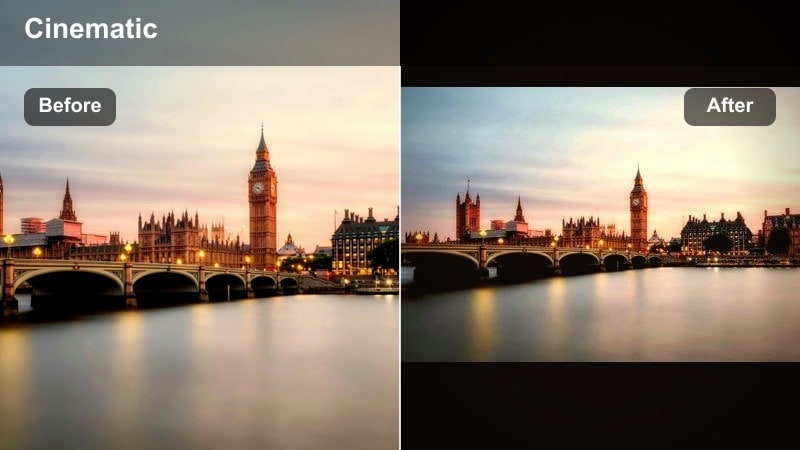
- Effect look: Warms neutrals and softens concrete textures, turning hard grey structures into creamy, inviting backdrops.
- Best for: Modern city centers, glass-and-steel districts, minimalist outfit videos against urban backdrops.
- Editing tip: Keep whites clean by slightly reducing highlight saturation so buildings stay crisp, not yellowed.
Cream and Concrete is made for sleek architectural shots and outfit clips in modern neighborhoods. It softens cold concrete and steel, warming neutrals into creamy tones that flatter skin, clothing, and minimalist compositions.
In Filmora, apply this filter to your fashion reels, brand content, or lifestyle vlogs filmed among tall buildings and wide plazas. Tweak highlight saturation and white balance so whites stay bright and clean while the rest of the frame leans into a soft, creamy urban mood.
Pro tip: Match outfits to the palette
Plan neutral or pastel outfits that complement the creamy tone so your subject feels blended into the aesthetic rather than fighting it. For TikTok or Reels, use this filter across multiple outfit transitions to give your style content a recognizable signature look.
Soft Boulevard Bloom
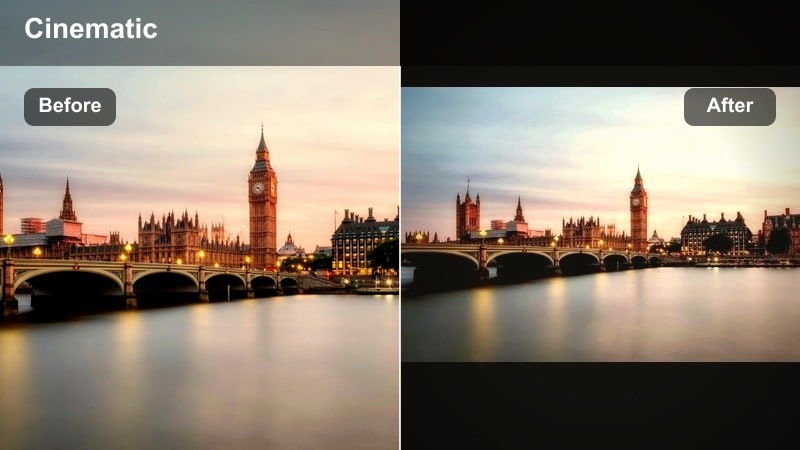
- Effect look: Gentle color lift with subtle magenta and peach tones in highlights, making trees, flowers, and shopfronts softly pop.
- Best for: Tree-lined streets, cafe terraces, parks that blend into the city, lifestyle B-roll along boulevards.
- Editing tip: Fine-tune greens and yellows in HSL to keep foliage soft and slightly pastel instead of neon.
Soft Boulevard Bloom adds a delicate bloom to colorful details like trees, terrace flowers, and signs while keeping the city base calm. It is ideal for romantic city walks and date-style vlogs, giving boulevards a gentle, inviting glow.
Use this filter in Filmora on clips that mix greenery with storefronts or outdoor seating, then adjust HSL for greens and yellows to avoid oversaturated foliage. Sequence several boulevard shots together with this same look to build a dreamy, park-meets-city storyline.
Pro tip: Control color pops
If a single color stands out too much, selectively lower its saturation to keep the frame balanced and easy on the eyes. Pair this filter with slower frame rates or light slow-motion to emphasize the dreamy, floating feeling of city walks.
Dream Urban Golden Hour
Golden Hush
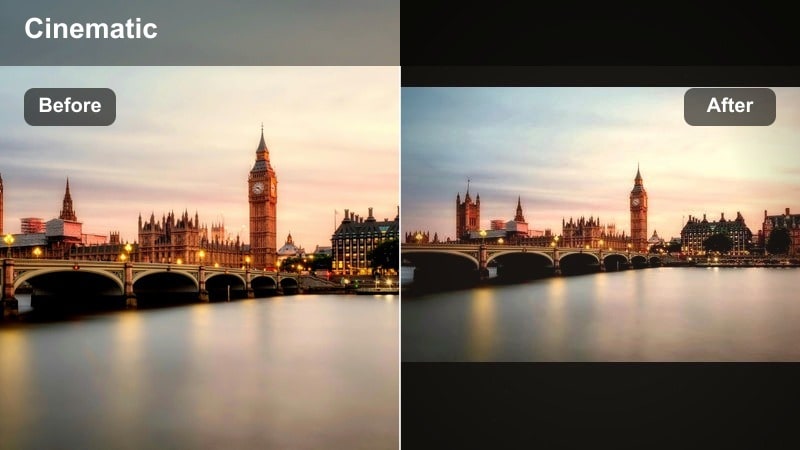
- Effect look: Warm golden highlights with gentle fade in shadows, ideal for cinematic golden hour across rooftops and riverfronts.
- Best for: Rooftop shots, skyline bridges, sunset reflections on glass and water in the city.
- Editing tip: Protect skin tones by using mild warmth and adjust saturation mainly in yellows and oranges, not overall.
Golden Hush wraps your city skyline and rooftop shots in soft, glowing sunset tones without pushing contrast too hard. It fades shadows slightly so buildings keep detail, and reflections in glass or water gain a subtle cinematic sheen.
In Filmora, apply this filter to your golden hour B-roll, then refine yellows and oranges in the color settings so skies and reflections glow while faces remain natural. Use it as your main look for all sunset sequences to create a consistent, dreamy transition from day into night.
Pro tip: Shoot into the light
Position the sun behind your subject to create beautiful backlit edges that this filter will enhance without harsh flares. Use subtle lens flares or light leaks sparingly to reinforce the dreamy mood without hiding the city details.
Peach Skyline Wash
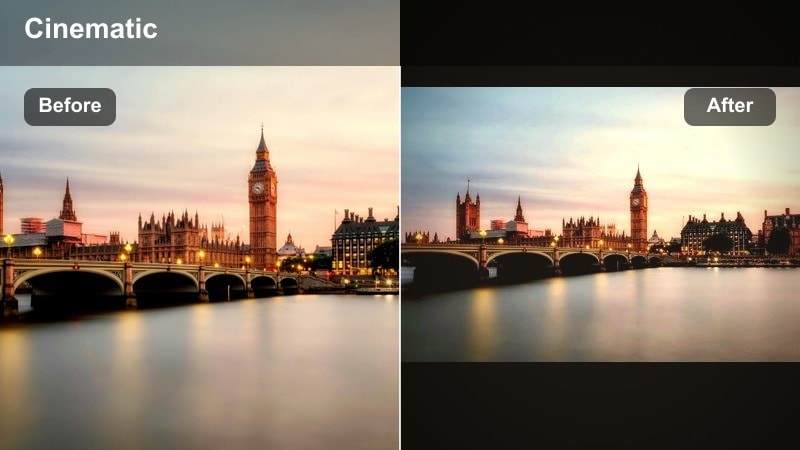
- Effect look: Peachy tint in highlights and midtones, softening blue hour transitions and giving city skies a romantic gradient.
- Best for: High vantage points, riverside walks, elevated train views with open sky in frame.
- Editing tip: Slightly lower blues in saturation so the peach tint blends smoothly without clashing hues.
Peach Skyline Wash is built for open-sky compositions where the horizon and buildings share the frame. It introduces a gentle peach cast to midtones and highlights, turning ordinary dusk into a soft, romantic gradient.
Drop this filter on your balcony shots, bridges, and elevated train views in Filmora, then tune blue saturation to keep the blend between sky and city smooth. Use it together with wider compositions that leave lots of negative space so the pastel sky can set the mood of the whole scene.
Pro tip: Use negative space creatively
Leave more sky in your composition so the pastel peach gradient has room to breathe and set the overall mood. For montage sequences, alternate wide skyline shots with closer street details while keeping this same filter for cohesion.
Soft Reflection City
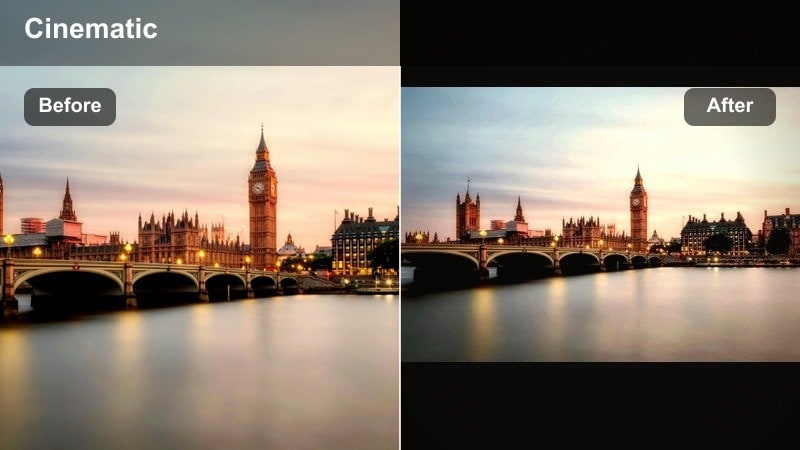
- Effect look: Smooths out reflections in windows and water, adding gentle glow to bright spots and mellowing harsh contrast.
- Best for: Rivers, canals, shop windows, car reflections, and mirrored buildings during late afternoon and evening.
- Editing tip: Dial back highlights slightly and add a bit of dehaze if reflections become too foggy or unclear.
Soft Reflection City is perfect for any shot where glass, water, or shiny surfaces are key to the composition. It softens and slightly blurs reflections, turning them into painterly patterns that support a dreamy city aesthetic.
Apply this filter in Filmora to riverside, storefront, and rainy-street clips, then fine-tune highlights and dehaze to keep reflections readable. Combine it with slow camera moves or static frames so viewers can appreciate the gentle motion and glow within the reflections.
Pro tip: Look for natural mirrors
Compose around puddles, bus stops, or shiny walls so the filter has more reflective surfaces to enhance. Cut between reflections and direct views of the same subject to build a dreamy, layered storytelling style.
Nighttime Soft Urban
Gentle Neon Dream
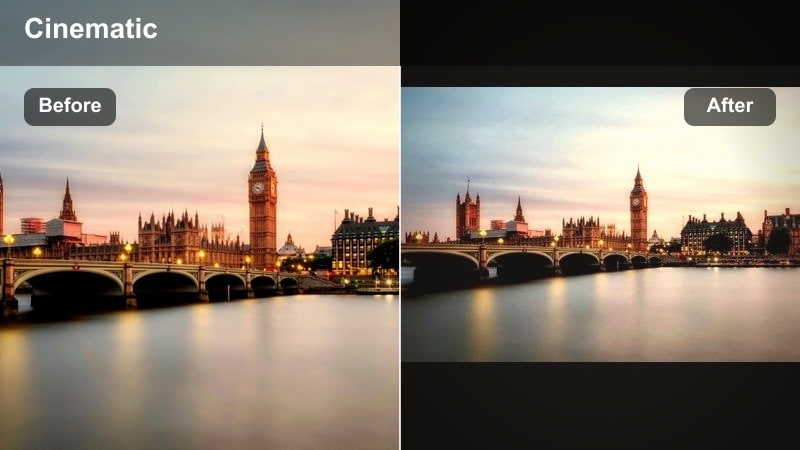
- Effect look: Softens neon lights and signboards into smooth glows, toning down harsh saturation for a pastel cyber-city feel.
- Best for: Night markets, neon streets, busy intersections where lights dominate the frame.
- Editing tip: Reduce overall saturation and boost vibrance slightly so the most important colors still stand out.
Gentle Neon Dream transforms intense city-night signage into soft washes of color, removing the harsh, overexposed look many neon scenes have. It shifts bold tones into smoother gradients, ideal for aesthetic night walks, markets, and cyber-inspired edits.
In Filmora, use this filter on handheld or tripod-based nighttime footage, then balance saturation and vibrance to highlight only the key hues. Keep it consistent across street sequences so your neon cityscape feels cohesive and gentle rather than chaotic.
Pro tip: Avoid blown highlights
Expose slightly darker than usual when filming so this filter can lift shadows without turning neon signs into bright white blocks. Combine with slow camera moves or static frames to let the glowing colors be the main movement in the shot.
Midnight Soft Trails
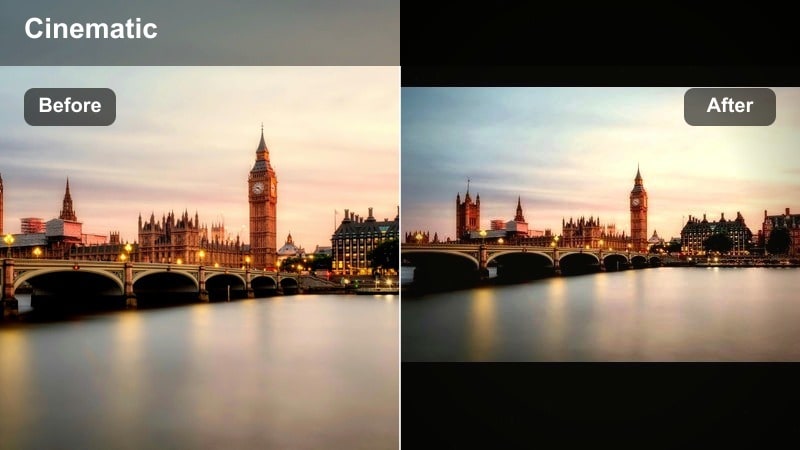
- Effect look: Smooth light trails and car lights while gently lifting shadows, creating creamy night streets with cinematic contrast.
- Best for: Long exposure traffic shots, bridges, elevated viewpoints over busy roads, metro lines at night.
- Editing tip: Increase contrast slightly but keep blacks lifted to avoid crushed details in dark areas.
Midnight Soft Trails is tailored for traffic and long-exposure style visuals, turning car lights into creamy, continuous ribbons. It softens deep shadows just enough so buildings and street details remain visible without killing the cinematic night feel.
Apply this filter in Filmora to timelapses and overpass shots, then adjust contrast and black levels so your trails glow without losing foreground texture. Use it for transitions between city districts or as looping backgrounds for titles and credits.
Pro tip: Stabilize for clarity
Use a tripod or strong stabilization so the filters softening effect does not combine with camera shake and reduce clarity too much. Pair time-lapse or long-exposure style clips with calmer music to lean into the dreamy, floaty city-at-night feeling.
Late Night Pastel Lane
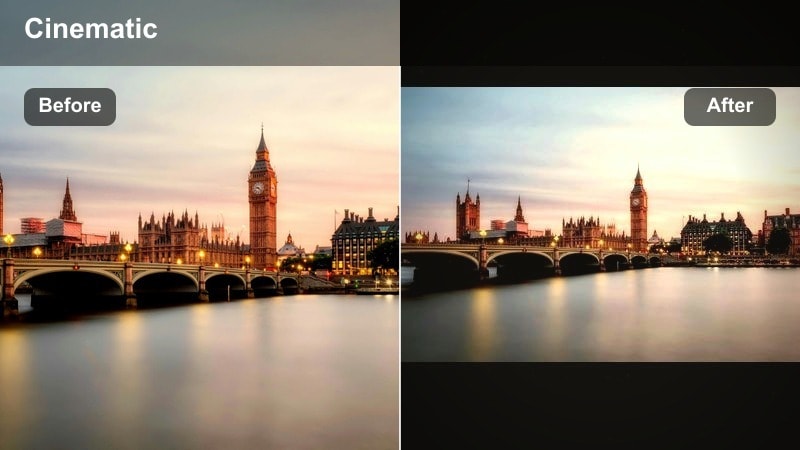
- Effect look: Shifts cool shadows slightly toward teal and warms highlights to peach, creating a pastel contrast between dark streets and warm lights.
- Best for: Quiet side streets, alleyways, and late-night walks with warm lamps and cooler pavement tones.
- Editing tip: Use subtle split toning and avoid strong sharpening to keep the pastel balance intact.
Late Night Pastel Lane creates a stylized teal-and-peach palette that instantly gives side streets and alleys a cinematic character. Shadows lean cool while lamps and windows glow warm, producing a pleasing pastel contrast that still feels grounded in reality.
In Filmora, apply this filter to your quieter night scenes, then keep sharpening low so the soft color contrast stays smooth. It works especially well in story segments where your subject walks through calmer backstreets, adding mood without overpowering the narrative.
Pro tip: Lean into contrast of warm and cool
Compose shots where warm light sources hit your subject while the background stays cool so the filters color contrast feels intentional. Use slower, deliberate cuts for storytelling so viewers can enjoy the subtle color separation across the frame.
Tips for Using City Aesthetic Filters in Filmora
- Shoot slightly flatter in-camera so aesthetic city video filters have more room to shape contrast and color.
- Keep your white balance consistent during a shoot to avoid drastic color shifts when applying city filters.
- Use one primary filter across an entire sequence to maintain a cohesive pastel city mood.
- Mix wide shots of skylines with close-up details like signage or coffee cups to show the citys personality.
- Stabilize handheld footage so the soft urban look feels intentional and cinematic, not shaky.
- Reduce heavy grain or noise before applying gentle city filters, especially for night footage.
- Avoid over-saturating neon signs; let the filter keep them smooth and pastel for a softer vibe.
- Export a short test version of your edit and check it on your phone to see how the filter feels on small screens.
With the right mix of pastel, soft urban, and gentle city filters, even quick handheld clips from your travels can look cinematic and intentional. These 12 Filmora looks inspired by the Aesthetic City Filter. Dream Urban preset give you everything you need to turn everyday streets into dreamy timelines.
Experiment with a few favorites, tweak them to match your style, and save them as your go-to aesthetic city video filters so every new trip, reel, or vlog carries the same cohesive, dreamy urban mood.
secure download