

 100% Security Verified | No Subscription Required | No Malware


 ChatGPT
 Perplexity
 Gemini
 Claude
 Grok
Grok
Moody city video filters are perfect for photographers and filmmakers who want to turn everyday streets into dark, cinematic worlds. With the Moody City Filter. Dark Streets preset and other Filmora looks, you can quickly craft atmospheric city scenes without heavy manual grading.
Below you will find a curated set of moody city filters organized by style, from deep noir alleys to hazy neon nights, so you can match the exact tone of your urban storytelling and keep a consistent visual identity across your projects.
In this article
Deep Noir Streets
Moody City Filter. Dark Streets
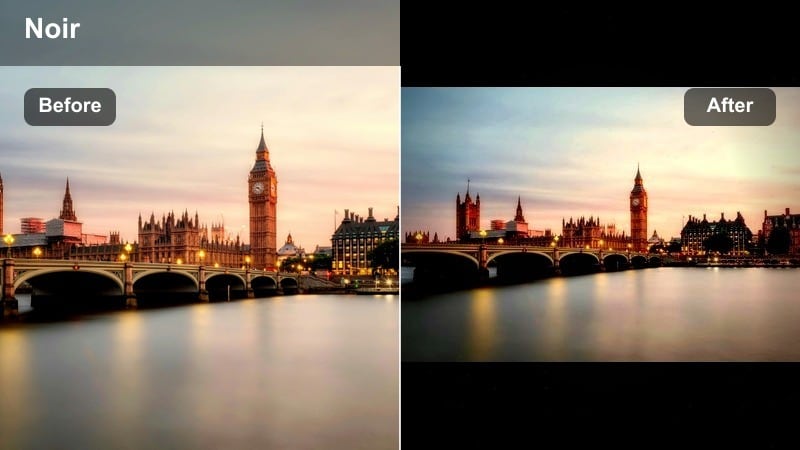
- Effect look: Crushed blacks with muted midtones and a cool blue cast over streetlights for a classic noir city feel.
- Best for: Night walks, empty intersections, lone subjects under harsh street lamps, and rainy alley shots.
- Editing tip: Lower contrast slightly and raise shadows a touch if you need more detail in black coats and building facades.
This signature dark urban filter turns ordinary streets into brooding noir environments with rich shadows and subtle blues. In Filmora, it quickly pushes your footage toward a dramatic, high-impact look that emphasizes silhouettes, negative space, and reflective wet asphalt without requiring intricate manual color work.
Use the Dark Streets preset as a base, then refine it with Filmora color tools to match your scene. Add a gentle vignette to frame your subject, and if faces disappear into the darkness, keyframe exposure or brightness on close-ups rather than brightening the whole sequence. This keeps the city moody while maintaining clear, readable characters through the urban gloom.
Build a Consistent Moody City Palette with Filmora AI
Filmora’s AI color tools help you lock in a consistent moody palette across every shot, even when your footage was captured under mixed street lights and changing weather. Instead of manually matching each clip, you can set one strong reference look and let Filmora handle the rest.
Use AI-driven color matching to align your A-roll, B-roll, and cutaway details to the same moody city baseline, then layer the Moody City Filter. Dark Streets preset or other looks for final polish. This workflow keeps your entire timeline cohesive, whether you are cutting from bright storefronts to deep alleys or from neon signs to muted side streets.
 secure download

Preview Moody City Filters in Real Time
In Filmora, you can hover over filters in the Effects panel to preview moody city looks directly on your clip before you commit. This immediate feedback lets you test how different deep noir styles, neon treatments, and overcast grades interact with your existing exposure and framing.
This makes it fast to compare deep noir styles, neon-night treatments, and softer overcast grades so you can find the one that best serves your story. You can scrub through a sequence and quickly see which filter keeps faces clean, protects highlights, and best matches the emotional tone of your scene.
secure downloadCombine Filters with LUTs for Advanced Urban Grading
Moody city video filters are powerful on their own, but pairing them with LUTs gives you finer control over contrast curves and color separation. A well-chosen LUT can establish a cinematic base while Filmora filters push the mood into specific directions like noir, neon, or foggy melancholy.
Apply a base LUT first for overall tonality, then stack a Filmora filter like Moody City Filter. Dark Streets on top to push the mood into your desired direction. Once your foundation is set, you can fine-tune exposure, saturation, and HSL so your city scenes remain stylized but still natural where it matters, especially on faces.
secure downloadCold Asphalt Night
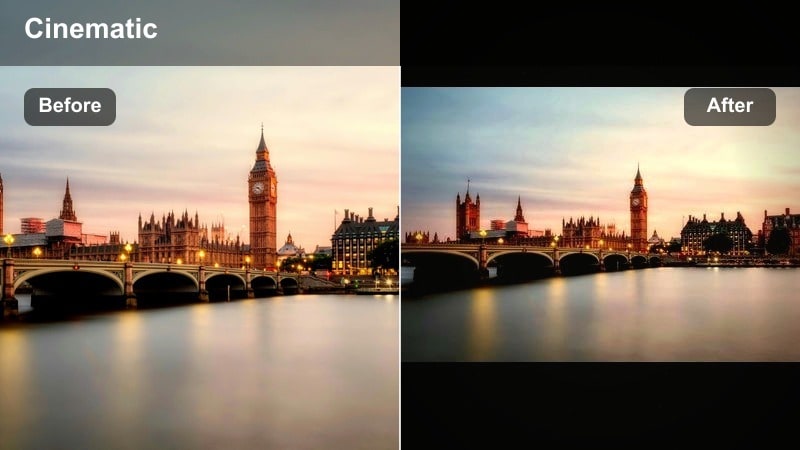
- Effect look: Low-saturation blues and steely grays that make asphalt and concrete feel icy and distant.
- Best for: Overcast evenings, parking garages, bridges, and architectural shots with lots of concrete and metal.
- Editing tip: Reduce saturation of warm tones in the color tools to keep skin realistic while preserving the cold street atmosphere.
Cold Asphalt Night strips warmth out of your frame and replaces it with a stark blue-gray palette, perfect for stories about isolation and emotional distance. Streetlights feel harsher, asphalt looks slick and unfriendly, and metal structures gain a clinical, almost industrial tone.
Inside Filmora, apply this filter to parking garages, underpasses, and bridge scenes to tie together shots captured under different lamps. Use HSL to selectively protect skin tones while everything else shifts colder. Slow camera moves and strong leading lines in your compositions will amplify the detached, lonely mood this grade creates.
Shadow Lane Noir
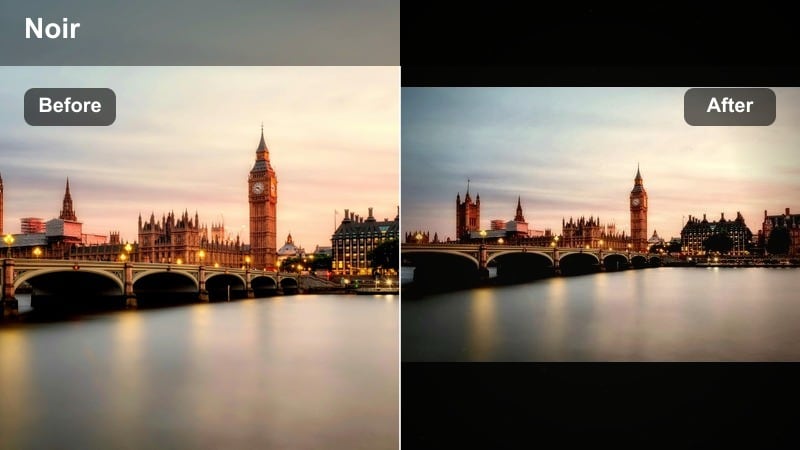
- Effect look: High contrast, lifted grain, and faint green undertones for a gritty retro noir vibe.
- Best for: Backlit alleys, fire escapes, side streets, and handheld documentary-style sequences.
- Editing tip: Add a slight film grain and reduce sharpness to avoid a too-digital look and keep highlights from appearing harsh.
Shadow Lane Noir leans into texture and grit, ideal for urban stories that feel rough, tense, or documentary-like. The high contrast and subtle green undertones push your footage toward classic crime-thriller territory, especially when paired with tight framing and practical light sources.
In Filmora, combine this filter with additional film grain and a small sharpness reduction to avoid clinical digital edges. Slightly underexpose in-camera to preserve highlight details around streetlights and signs, then fine-tune highlights after the filter is applied so your brightest points glow instead of clipping into pure white blocks.
Neon Nights
Electric Neon City
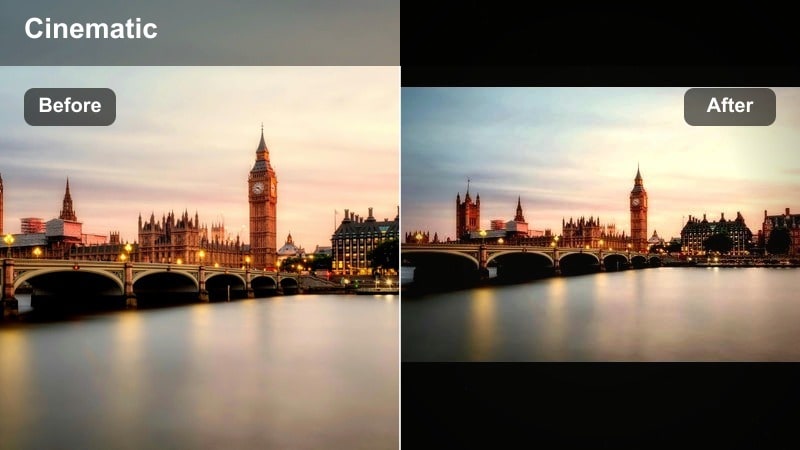
- Effect look: Punchy contrast with saturated magentas and cyans that make neon signs and reflections pop.
- Best for: Busy nightlife districts, wet sidewalks with reflections, and handheld city vlogs at night.
- Editing tip: Use keyframes on saturation to subtly increase color during establishing shots, then ease back during close-ups.
Electric Neon City turns nightlife scenes into vivid, glowing corridors of color, separating magentas and cyans so neon signs and reflections explode off the screen. This filter is perfect when you want high energy and a sense of bustling streets, whether you are shooting travel vlogs or stylized B-roll.
Within Filmora, apply this look to wide shots of neon streets, then keyframe saturation to slightly reduce intensity on close-ups so skin tones stay flattering. Use HSL controls to tame magentas in the skin range, and consider adding a subtle warm overlay or light leak on faces to keep them grounded against the hyper-saturated environment.
Purple Haze Boulevard
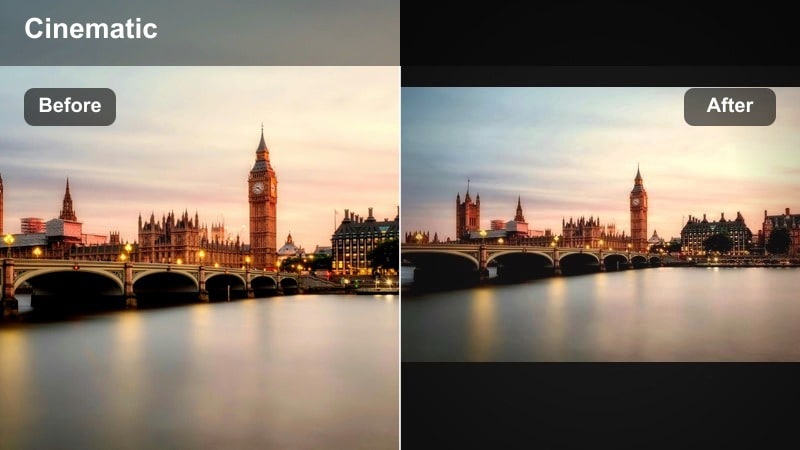
- Effect look: Soft contrast with purple and teal bias, creating dreamy, surreal neon corridors.
- Best for: Slow-motion walking shots, music videos, and stylized fashion content in neon-lit streets.
- Editing tip: Reduce clarity and increase a subtle glow or bloom effect to push the dreamy, out-of-reality feeling.
Purple Haze Boulevard wraps your city in an ethereal mix of purples and teals, ideal for dream sequences, music videos, or romantic walks under neon lights. The softer contrast keeps shadows from feeling too harsh, helping your footage drift into a hazy, cinematic atmosphere.
In Filmora, pair this filter with slow-motion clips and smooth camera movements from gimbals or sliders. Slightly reduce clarity and add a gentle glow or bloom effect around highlights for an out-of-reality feel. Let shots linger a bit longer in the edit so viewers can soak in the color transitions and drifting neon light.
Neon Rain Reflections
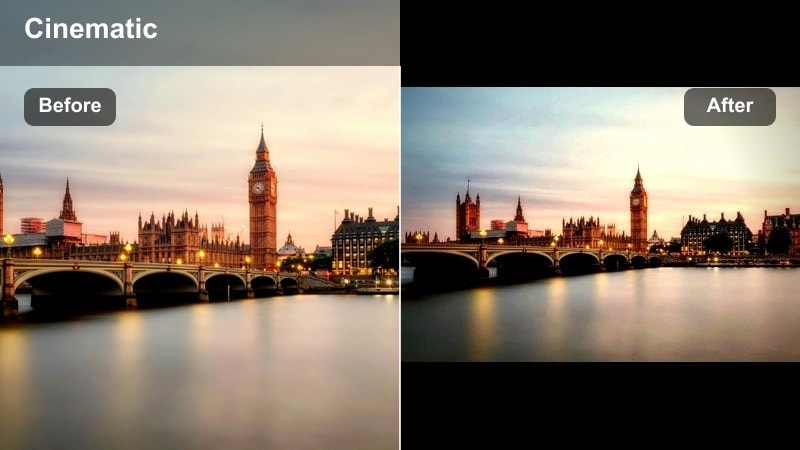
- Effect look: Moody low-contrast grade focusing on saturated puddle reflections and glowing highlights.
- Best for: Rainy nights, post-storm sidewalks, car hood reflections, and tracking shots along wet roads.
- Editing tip: Lower overall exposure slightly to prevent neon reflections from clipping and increase vibrance for the reflected areas.
Neon Rain Reflections is built for those iconic wet-street shots where puddles and glossy asphalt become canvases for neon color. The grade keeps overall contrast gentle so reflections feel rich and smooth, not blown out or overly harsh.
When editing in Filmora, drop your exposure slightly to preserve detail in the brightest reflections, then boost vibrance so the colors in puddles and car hoods stand out. Shoot low and angle your camera toward the ground to fill the frame with reflected light, and add slow tracking or dolly moves so the reflected colors feel like shifting streams beneath your subject.
Foggy Mornings and Overcast Days
Concrete Fog Drift
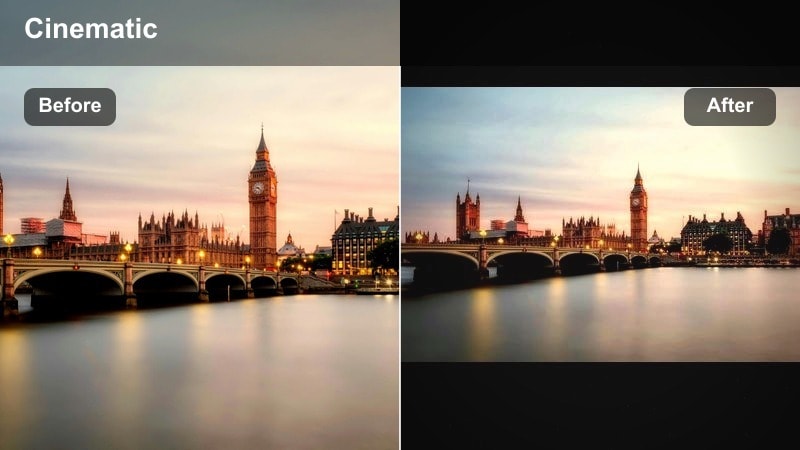
- Effect look: Muted colors with lifted blacks and gentle cool tones that soften hard city edges.
- Best for: Foggy bridges, early-morning streets, industrial skylines, and lone figures walking through mist.
- Editing tip: Add a subtle fade to the blacks while keeping midtones sharp so your subject remains defined within the haze.
Concrete Fog Drift is designed to make fog and haze feel thick and cinematic, turning bridges, overpasses, and industrial skylines into quiet, atmospheric spaces. Colors are muted and blacks are gently lifted so the mist becomes part of the storytelling rather than a distraction.
Inside Filmora, apply this filter to early-morning or low-contrast footage to enhance the sense of distance and isolation. Add a small fade to the blacks for a filmic touch, but keep midtones crisp so your subject does not disappear inside the haze. Composing with lots of negative space and distant skylines will help the fog dominate the frame and heighten the mood.
Dusky City Pastel
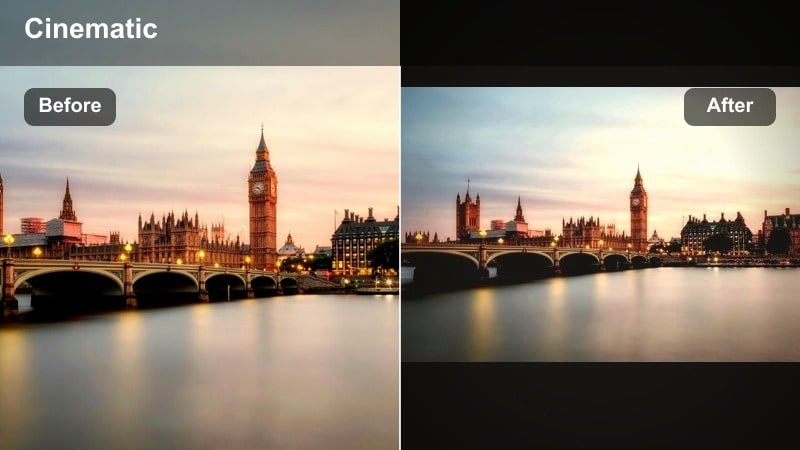
- Effect look: Low contrast pastel grade that turns overcast skies into a soft, melancholic dome over the skyline.
- Best for: Blue hour rooftops, quiet intersections, and static city portraits on cloudy days.
- Editing tip: Reduce clarity slightly and keep saturation moderate so the city feels washed yet still readable.
Dusky City Pastel reimagines gray city days as soft, melancholic scenes with gentle pastel toning. Overcast skies become a uniform, cinematic canopy, and buildings soften just enough to convey calm without losing structure.
Use this filter in Filmora for rooftop scenes, slow pans across skylines, or character portraits framed by cloudy horizons. Slightly reduce clarity and avoid aggressive saturation so the palette stays washed and cohesive. Shooting during blue hour will naturally complement this grade and give the sky a subtle color lift that the filter can enhance.
Overcast Steel Frame
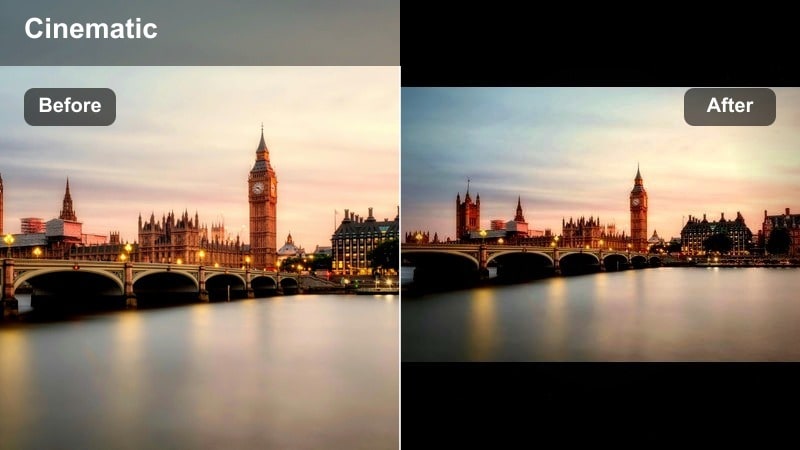
- Effect look: Desaturated steel blues with subtle contrast that emphasize glass and metal surfaces.
- Best for: Skyscraper exteriors, financial districts, and minimalist architectural compositions.
- Editing tip: Increase micro-contrast in the midtones to make lines and patterns pop without making the image harsh.
Overcast Steel Frame focuses on cool metallic tones, ideal for showcasing glass towers, steel beams, and modern architecture. The desaturated steel blues give your footage a clean, corporate edge that works well for city montages, brand pieces, or architectural B-roll.
In Filmora, combine this filter with simple, geometric compositions and longer focal lengths to compress perspective and emphasize repeating shapes. Increase midtone contrast slightly to make windows, rails, and structural patterns stand out, while keeping overall saturation low so the mood remains controlled and minimal.
Warm City Glow (Transitioning to City Warm Filter)
Amber Window Glow
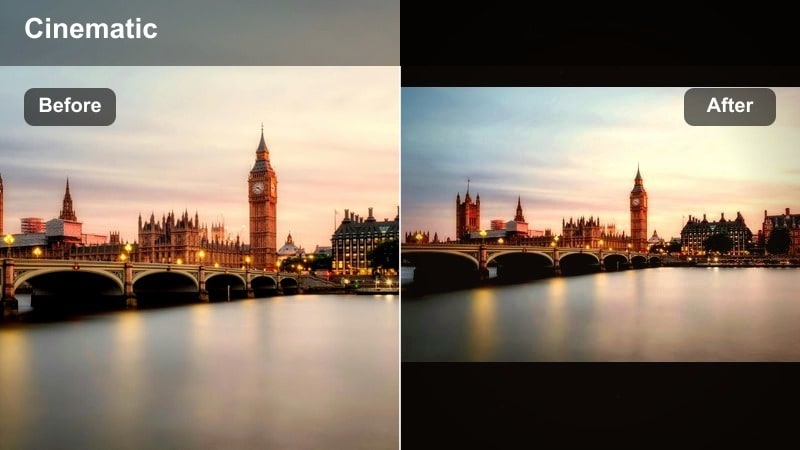
- Effect look: Warm amber highlights with gentle shadows that make interior windows and street lamps feel inviting.
- Best for: Apartment exteriors, cafes at dusk, and narrative scenes that shift from outside chill to inside warmth.
- Editing tip: Increase warmth in the highlights only so the sky and streets stay neutral while windows radiate a cozy glow.
Amber Window Glow is a transitional warm filter that keeps the city environment relatively cool while letting windows, lamps, and interiors radiate comforting warmth. It is perfect for shots that contrast the harshness of outside streets with the safety or intimacy of indoor spaces.
When grading in Filmora, target warmth in your highlights so building exteriors stay neutral but windows and lamps bloom with amber light. Use this look between very dark street sequences and fully warm interior scenes, and gradually raise color temperature across the edit to make the audience feel the emotional shift from cold to cozy.
Sunset Brick Haze
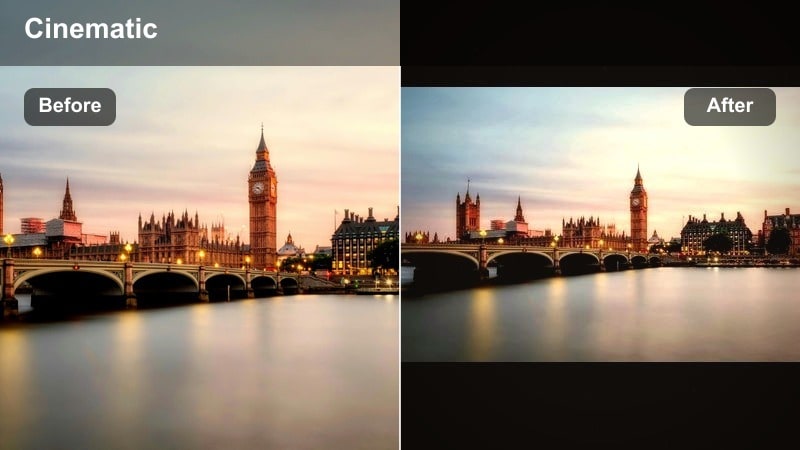
- Effect look: Soft warm highlights with slightly lifted blacks that make brick and stone feel nostalgic and cinematic.
- Best for: Golden hour alleyways, side streets with brick facades, and character-focused walking scenes.
- Editing tip: Raise shadows carefully to keep detail in dark bricks while maintaining a gentle, hazy warmth over the frame.
Sunset Brick Haze wraps older city blocks and alleys in a nostalgic golden tone, enhancing the texture of brick and stone. Lifted blacks and soft highlights create a romantic, late-afternoon mood that works beautifully for character-driven scenes and reflective walk-and-talk moments.
In Filmora, apply this filter to golden hour footage and angle your camera toward the sun to capture natural flares and haze. Raise shadows just enough to preserve brick details without flattening the image, and consider partial silhouettes of your subject to maintain mood while their outline remains distinct against the warm sky.
City Warm Filter Bridge
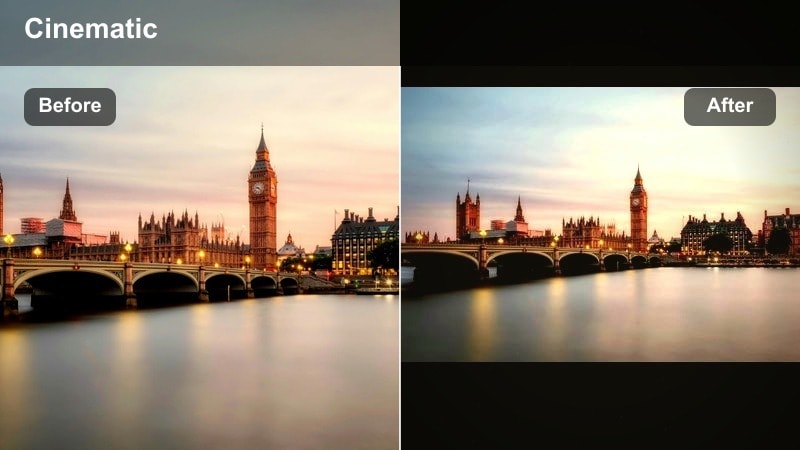
- Effect look: Balanced warm tone with preserved contrast that gradually lifts the city from cold moody shadows into a cozy glow.
- Best for: Narrative transitions, establishing shots before night scenes, and city montages that end on hope instead of darkness.
- Editing tip: Animate the temperature and tint slightly over a sequence so each cut feels like a step closer to full warmth.
City Warm Filter Bridge is designed as a turning-point grade, easing your story from dark, moody streets into a more hopeful, warm city atmosphere. It maintains contrast so the urban environment still feels grounded, but introduces enough warmth to signal an emotional shift.
Use this filter in Filmora around key story beats: morning after a long night, characters reconciling, or a hopeful final montage. Animate temperature and tint across sequences so each scene feels like one step closer to full warmth. Keeping shot direction and lighting consistent will make this gradual color evolution feel intentional and story-driven rather than like a mismatch between clips.
Tips for Using City Moody Filters in Filmora
- Shoot with a slightly flatter profile in-camera so Filmora’s moody city filters have more room to shape contrast and color.
- Keep ISO as low as possible at night to avoid noisy shadows when you deepen blacks with dark urban looks.
- Use leading lines like roads, rails, and building edges to guide the viewer’s eye through complex city frames.
- Match your camera movement style to the mood: slow and steady for melancholic scenes, handheld for tense or gritty urban moments.
- Always check how filters affect skin tones and adjust HSL or temperature locally so subjects stay natural within stylized grades.
- Test several filters in Filmora’s Effects panel with hover preview to quickly compare noir, neon, foggy, and warm looks on the same clip.
- Save your favorite filter, LUT, and exposure combinations as Filmora custom presets so future city projects start from a consistent baseline.
Moody city video filters give photographers and filmmakers a fast path to dark, atmospheric urban looks without losing control over storytelling. By mixing deep noir, neon, foggy, and warm transitional grades, you can sculpt the emotional arc of your city pieces directly in Filmora.
Experiment with the Moody City Filter. Dark Streets preset first, then layer other filters and subtle LUTs to refine contrast and color. Once you find a combination you love, save it as a custom preset so every future city project starts with your signature mood already in place.
secure download