

 100% Security Verified | No Subscription Required | No Malware


 ChatGPT
 Perplexity
 Gemini
 Claude
 Grok
Grok
Cool street portrait filters are perfect when you want steel-blue shadows, crisp skin tones, and an icy city atmosphere in a single click. With the right Filmora presets, you can take any casual street shot and turn it into a moody, editorial-style portrait that feels straight out of a magazine spread.
This guide walks minimalist photographers, urban cool aesthetic creators, and editorial portrait makers through a curated set of cool-toned filters. Use them to style winter street shoots, minimalist city photography, and night portraits with clean, blue urban energy.
In this article
Steel City Basics: Essential Cool Street Portrait Filters
Steel Mist Portrait
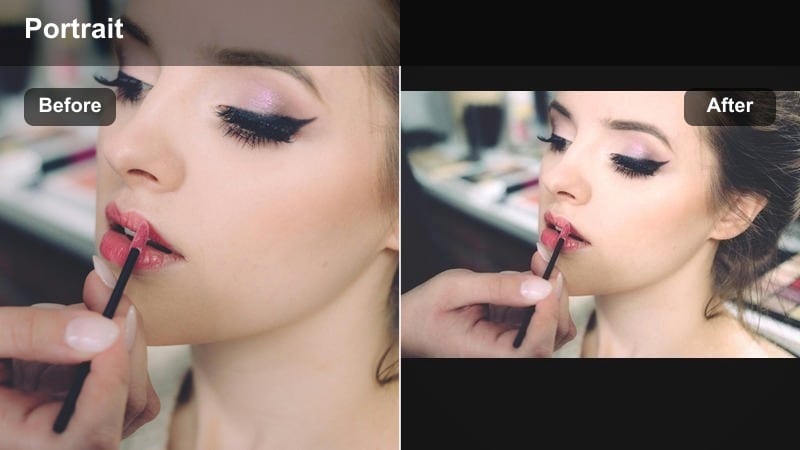
- Effect look: Soft, misty contrast with cool shadows and a gentle cyan lift in the highlights for polished urban portraits.
- Best for: Minimalist daytime city portraits with neutral outfits and clean architectural backgrounds.
- Editing tip: Lower the filter intensity to around 60-70 percent, then add a touch of clarity to keep eyes and hair sharp without over-texturing skin.
Steel Mist Portrait is a soft, cool base filter that wraps your street portraits in subtle steel-blue tones while keeping skin tones natural and flattering. In Filmora, it works especially well when your subject is surrounded by glass, concrete, or metal, because the gentle cyan lift in the highlights gives those surfaces a polished editorial sheen.
Apply Steel Mist as your first step, then fine-tune in the Color panel. If skin starts to look too cold, slightly warm the midtones rather than reducing overall filter strength. This keeps the city background icy and cinematic while faces stay natural and healthy, giving you a balanced, minimal urban look that is ready for social feeds or portfolio spreads.
Pro tip: Balance cool shadows with natural skin
If skin starts to look too cold, counterbalance the filter by slightly warming the midtones in Filmora’s Color panel instead of reducing the filter strength.
This keeps the urban background icy and cinematic while preserving a natural, healthy look on faces.
Dial in Cool Street Tones with Filmora’s AI Color Tools
Filmora’s AI color correction and AI-powered presets make it simple to keep your cool street portrait filters consistent across an entire shoot. You can quickly balance exposure, correct white balance drift between clips, and match your favorite icy hero frame to the rest of your sequence.
Once you have a cool look you love, save it as a custom preset so you can reapply the same steel-blue palette to future projects in a single click, locking in a recognizable urban cool aesthetic across your work.
 secure download

Preview Cool Street Portrait Filters in Real Time
Filmora lets you hover over filter thumbnails to preview how each cool tone will affect your clip before you apply it. This instant feedback makes it easy to see which preset works with your subject’s outfit, background architecture, and available light.
Use the real-time preview together with quick before-and-after toggles so you can dial in filter intensity, avoid over-processing skin, and lock in the most flattering version of your chosen cool street portrait filter.
secure downloadBlend Filters with LUTs for Signature Cool Styles
For more advanced control over your cool tone street portrait, try stacking a subtle filter with a creative LUT in Filmora. Let the filter define the overall mood and coolness, then use the LUT to refine contrast curves and nuanced color shifts.
When you arrive at a combination that fits your brand or series, save it as a custom preset. This way, you can apply the same icy, editorial look across multiple shoots and keep your social grid or portfolio feeling cohesive and intentional.
secure downloadUrban Ice Portrait
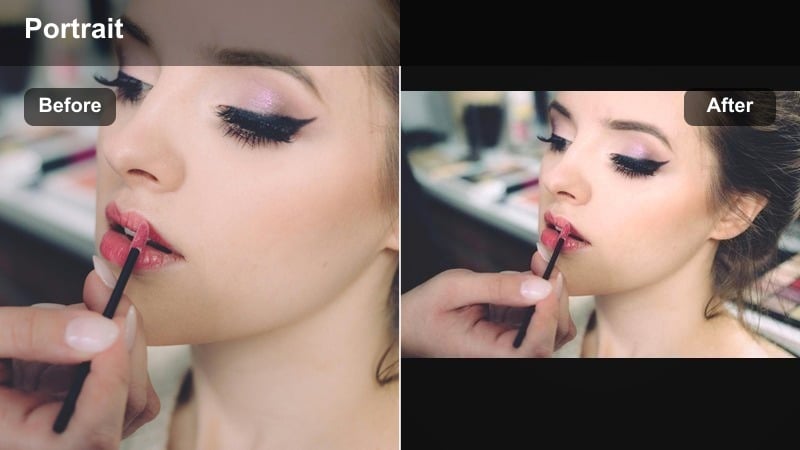
- Effect look: Crisp blue urban filter with lifted blacks and cool highlights for a graphic, editorial finish.
- Best for: Street portraits shot against glass, metal, or neon signs in overcast or evening light.
- Editing tip: Use a subtle vignette after applying the filter to pull focus toward the subject’s face and away from busy city details.
Urban Ice Portrait gives your frames a stronger, graphic cool tone street portrait look by emphasizing blue and teal in buildings, windows, and reflections. In Filmora, it is ideal for close-ups and half-body portraits where the city’s metal and glass can act as bold design elements around your subject.
After applying the filter, add a gentle vignette and adjust the Highlights and Shadows sliders to control how much the environment competes with the face. Position your subject near windows, parked cars, or railings so the enhanced reflections create layered depth and make the cool tones feel intentional instead of like a flat color cast.
Pro tip: Lean into reflective surfaces
When using Urban Ice, position your subject near windows, parked cars, or metal railings to amplify the cool reflections the filter enhances.
Reflections add layered depth to your portraits and make the cool tones feel intentional rather than like a global color cast.
Concrete Cool Minimal
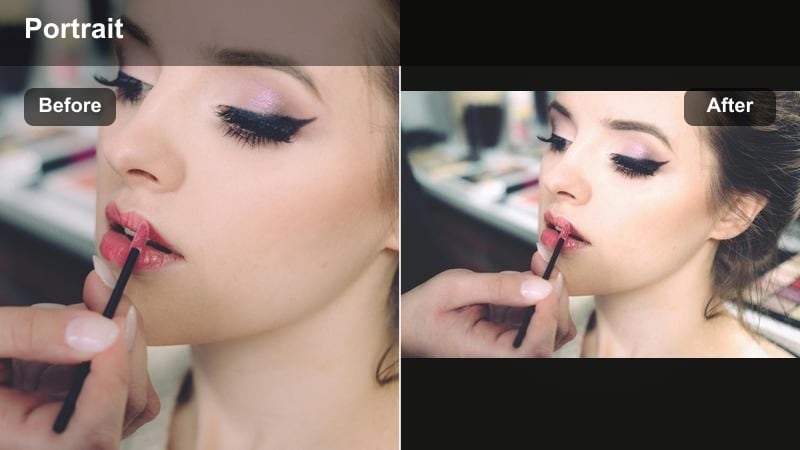
- Effect look: Flat, low-saturation cool city portrait filter with gentle contrast and muted colors for a minimalist mood.
- Best for: Minimalist city photography, wide portraits with lots of negative space, and architectural backdrops.
- Editing tip: Slightly reduce saturation on warm colors only, so skin stays believable while your environment remains calm and desaturated.
Concrete Cool Minimal is designed for photographers who like clean compositions, large concrete walls, and subtle styling. The filter adds cold gray-blue tones, softens saturation, and introduces a sleek editorial feeling that suits lookbooks, campaigns, and portfolio covers.
In Filmora, it shines when your subject is small in the frame and surrounded by empty sidewalks, blank walls, or simple geometry. Apply the filter, then use the HSL or Color Tuning controls to gently desaturate warm background hues while keeping skin and key wardrobe elements realistic, so the image feels intentional but not overly stylized.
Pro tip: Use negative space as a design tool
Frame your subject small in the composition and let the cool-toned environment dominate for a minimalist editorial look.
Combine this filter with leading lines and empty sidewalks to keep the aesthetic quiet, sleek, and intentional.
Blue Hour Portraits: Night and Neon Cool Filters
Neon Frost Glow
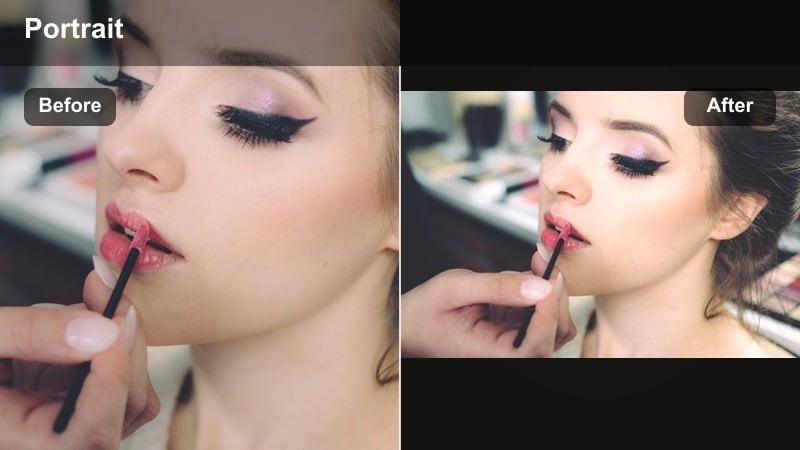
- Effect look: Punchy blue and magenta mix with cool shadows and glowing neon highlights for cinematic night portraits.
- Best for: Nighttime street portraits near neon signs, storefronts, and city lights with reflective surfaces.
- Editing tip: Drop overall brightness slightly, then increase highlight roll-off to avoid clipped neon signs while keeping faces visible.
Neon Frost Glow turns city lights into dramatic accents that wrap around your subject with icy blue and magenta reflections. It is ideal for late-night shoots around shops, billboards, and LED signage where color contrast is part of the story.
In Filmora, apply the filter and then slightly lower the exposure or brightness so highlights do not clip, especially in neon typography. Next, fine-tune the highlight roll-off and use masks or keyframes to ensure faces remain bright enough. Having your subject stand close to the brightest sign will maximize the cinematic gradient the filter is designed to emphasize.
Pro tip: Pose close to light sources
Ask your subject to stand within a meter of neon signs or storefront windows so the Neon Frost filter can emphasize the colored light on their face.
Turning the face slightly toward the brightest sign creates a natural key light and a dramatic cinematic gradient across the skin.
Blue Hour Silk
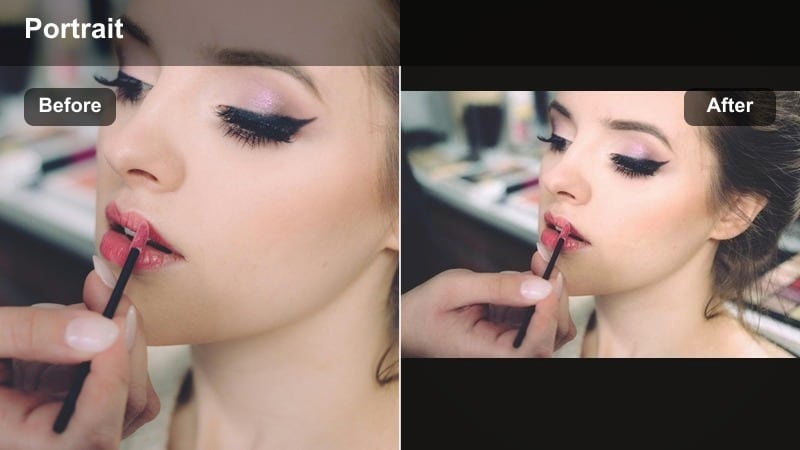
- Effect look: Smooth, low-noise blue tone with soft contrast for dreamy dusk and early night portraits.
- Best for: Golden hour transitioning to blue hour, rooftops, and riverside walkways with visible sky.
- Editing tip: Slightly raise the blacks to soften any grain, then add just a bit of sharpen to eyes so the soft look still feels intentional.
Blue Hour Silk is built for that short window when the sky turns deep blue and city lights just begin to glow. The filter smooths noise, cools the overall color, and softens contrast to create a dreamy, romantic atmosphere that still feels urban.
In Filmora, start by slightly underexposing in-camera or via basic correction so you preserve sky detail, then apply Blue Hour Silk to lift midtones on your subject. Gently raise the black levels to hide noise in darker areas and add subtle sharpening to eyes and lashes, keeping the overall softness intentional and flattering.
Pro tip: Expose for the sky, fix faces with the filter
When shooting for Blue Hour Silk, slightly underexpose to keep color in the sky, then let the filter lift your subject’s midtones.
This prevents blown-out backgrounds and maintains the atmospheric cool gradients the preset is designed to enhance.
Metro Chrome Cool
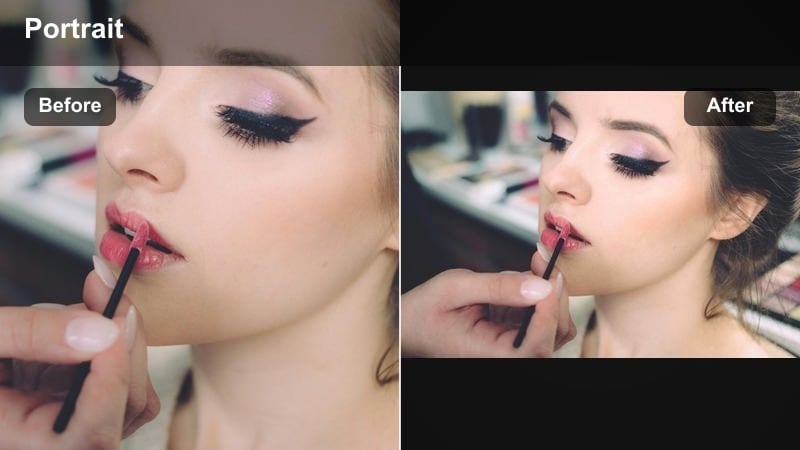
- Effect look: High-contrast, chrome-like blue tones with deep shadows and crisp edges for graphic late-night portraits.
- Best for: Subway platforms, parking garages, and gritty alleys with strong directional light.
- Editing tip: Use Filmora’s masking to keep faces slightly brighter than the environment so the bold contrast does not overpower expressions.
Metro Chrome Cool brings a bold, cinematic energy to night portraits with deep blue shadows and strong highlights that feel like movie stills. It works best in locations with visible light direction, such as overhead station lamps or tunnel lights.
In Filmora, apply the filter and then use masks or adjustment layers to locally brighten eyes, cheekbones, and key facial features so they are not lost in the contrast. You can also add a subtle vignette and sharpen edges for a gritty, graphic effect while leaving midtones protected for skin detail.
Pro tip: Control contrast locally
After applying Metro Chrome Cool, use local adjustments to gently raise the exposure on eyes and cheeks only.
This keeps the dramatic city shadows but ensures your subject remains the visual anchor in the frame.
Winter Street Editorial: Cold City Portrait Filters
Icy Sidewalk Portrait
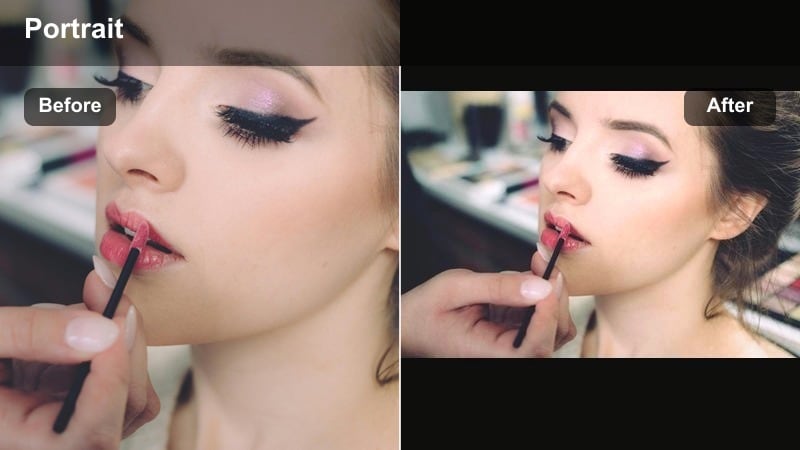
- Effect look: Bright, crisp cold city portrait filter with bluish whites and clean, desaturated backgrounds.
- Best for: Overcast winter street shoots, snowy sidewalks, and neutral outfits like black, gray, and white.
- Editing tip: Pull back the blue saturation a touch if snow looks electric, keeping the feeling cold but believable.
Icy Sidewalk Portrait is made for overcast winter days when streets are gray and snow acts as a giant reflector. The filter brightens whites, cools them with a slight blue cast, and desaturates the surroundings so the scene feels airy and crisp rather than dull.
In Filmora, apply the filter to even out color in snow and clouds, then adjust saturation in the blue channel if the snow edges start to glow unnaturally. Encourage neutral wardrobe in-camera, or use the Color tools to tame any overly bright clothing so the attention remains on your subject’s expression and pose.
Pro tip: Simplify your color palette on set
Encourage subjects to wear solid neutrals so the Icy Sidewalk filter can focus on sculpting light instead of clashing with bold colors.
A minimal wardrobe pairs perfectly with this preset’s muted palette and keeps the attention on expression and pose.
Frozen Crosswalk Edit
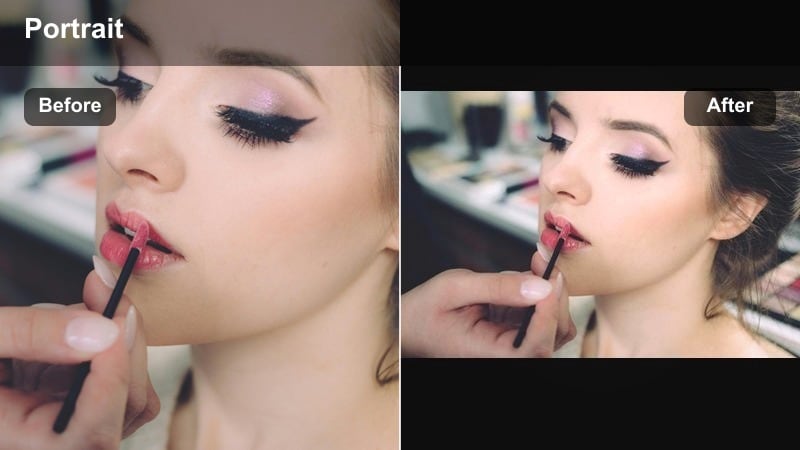
- Effect look: Cool, slightly grainy film-style filter with lowered saturation and a tiny green shift for a documentary edge.
- Best for: Candid winter street portraits at crosswalks, bus stops, and busy corners.
- Editing tip: Increase local contrast on the subject only while leaving the background softer for a subtle editorial separation.
Frozen Crosswalk Edit leans into a documentary, film-inspired mood with muted colors, visible texture, and a gentle green shift that feels candid and cinematic. It is perfect for walk-and-shoot sessions where the city is active and backgrounds are full of motion.
In Filmora, apply the filter, then use local contrast or sharpening on your subject to subtly separate them from softer, cooler surroundings. Shooting through traffic or crowds adds natural motion blur that the preset will unify with its cold palette, making even busy scenes feel cohesive and editorial instead of chaotic.
Pro tip: Shoot through traffic and crowds
Use foreground elements like passing cars or people to add motion blur that the Frozen Crosswalk filter will cool and unify.
This layered approach makes your portraits feel like authentic city moments rather than staged setups.
Snowline Minimal Cool
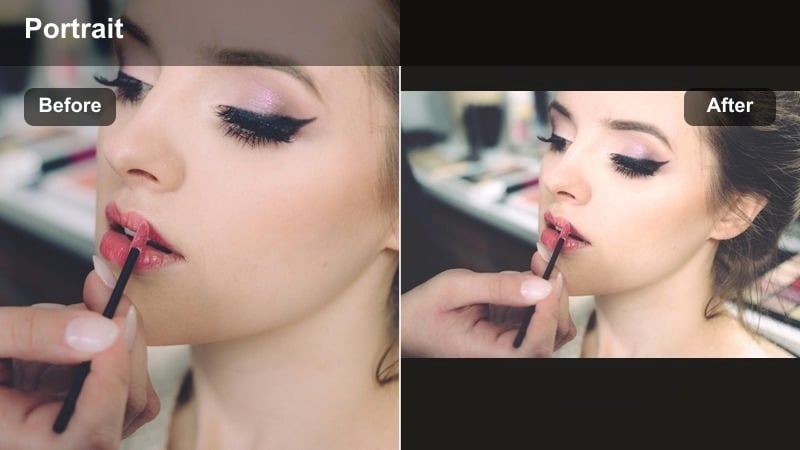
- Effect look: Soft matte finish with gentle blue grays and controlled highlights for calm winter portraits.
- Best for: Quiet residential streets, small parks, or rooftops after snowfall when the city feels still.
- Editing tip: Reduce clarity slightly on the background only to emphasize the calm, foggy atmosphere while keeping the face sharp.
Snowline Minimal Cool is a peaceful winter preset that slightly flattens contrast and shifts tones toward blue-gray, giving your portraits a dreamy, editorial stillness. It suits locations where snow and sky create large, simple shapes in the frame.
In Filmora, apply the filter and then selectively lower clarity or sharpness in the background while boosting detail on the subject’s face. This contrast in texture, paired with the matte finish, keeps your subject prominent without breaking the calm atmosphere that makes the preset so effective for magazine-style winter edits.
Pro tip: Use simple compositions in winter scenes
Let large blocks of snow or sky take up most of the frame so the Snowline Minimal Cool filter can create smooth tonal gradients.
A solitary subject in this environment instantly feels editorial, especially when paired with clean lines and negative space.
Minimal Urban Aesthetic: Cool Tones for Clean City Lines
Gridline Cool Geometry
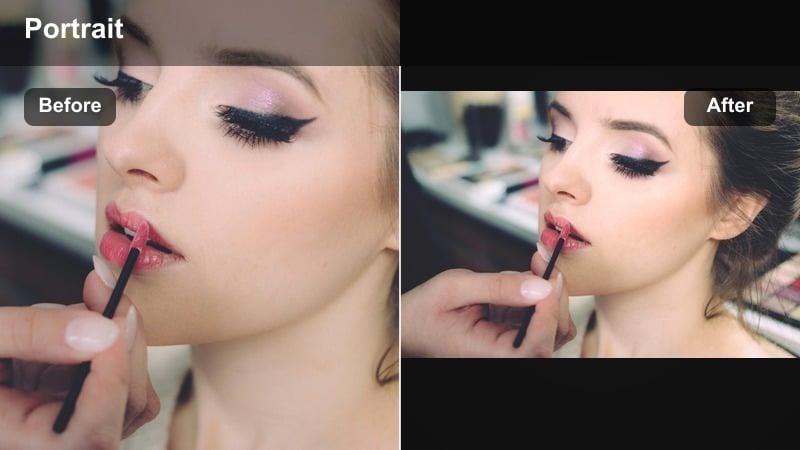
- Effect look: Strong linear contrast with cool midtones that highlight architectural edges and repeating patterns.
- Best for: Portraits framed by stairs, railings, window grids, and minimalist facades.
- Editing tip: Straighten your horizon and verticals before applying the filter so the graphic lines feel intentional.
Gridline Cool Geometry is built for photographers who treat architecture as part of the portrait. The filter accentuates edges, lines, and repeating patterns while cooling midtones, creating a structured, modern vibe that pairs well with minimalist styling.
In Filmora, correct your framing first by straightening horizons and verticals so that stairs, railings, and window frames align cleanly. After applying the filter, fine-tune contrast to emphasize the geometry without crushing detail in shadows, ensuring your subject remains clearly separated from the strong structural elements.
Pro tip: Align lines with the frame edges
Use Filmora’s grid overlay when shooting and editing so railings and window frames run parallel to the image borders.
The Gridline Cool Geometry filter responds best to clean compositions where structure and symmetry are clearly visible.
Glass Breeze Portrait
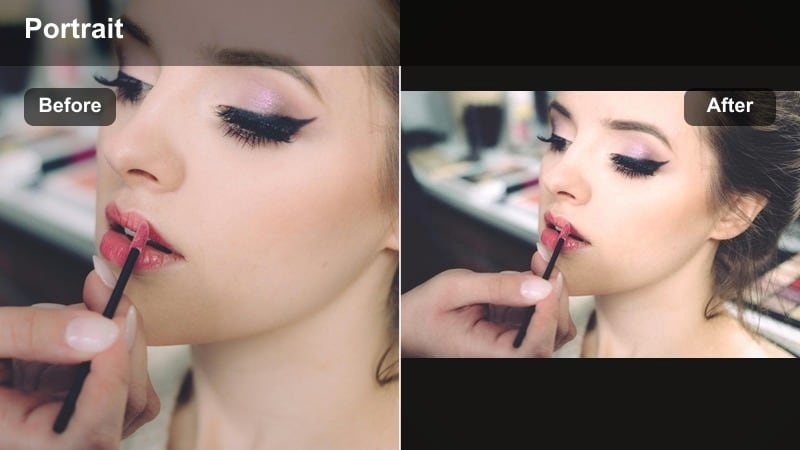
- Effect look: Bright, cool highlights with subtle teal shadows and soft reflections for airy glass-front portraits.
- Best for: Portraits next to office towers, cafes with big windows, and minimalist malls during daytime.
- Editing tip: Reduce highlight saturation slightly so reflections stay detailed and do not overpower facial features.
Glass Breeze Portrait enhances reflections and transparency, making glass act as both a framing tool and a light source. With bright, cool highlights and gentle teal shadows, it delivers an airy, editorial feel that works well in modern commercial areas.
In Filmora, apply the filter and then tweak highlight saturation to keep window reflections detailed instead of blown out. Shooting at an angle to the glass and letting reflections overlap your subject’s face gives the preset more to work with, producing stylish, layered compositions that feel ready for magazine covers or campaign imagery.
Pro tip: Play with shooting through glass
Position the camera at an angle to the window so Glass Breeze can layer reflections over your subject’s face for depth.
This approach gives an editorial feel and pairs perfectly with the clean, modern color balance of the filter.
Mono Blue Minimalist
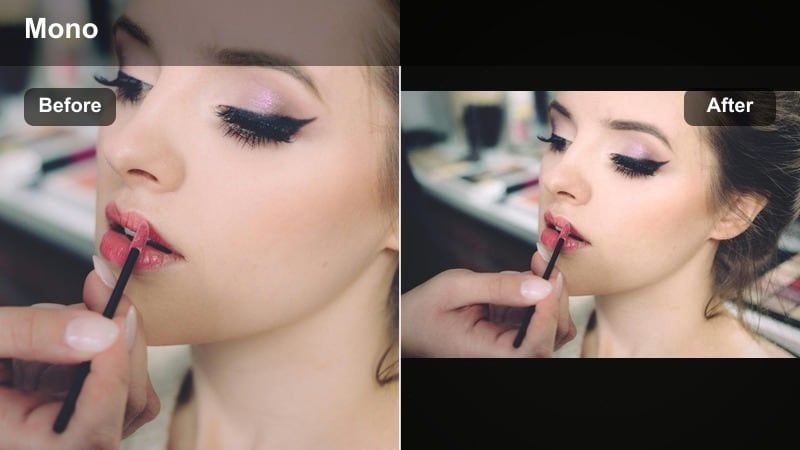
- Effect look: Almost monochrome cool tone with a subtle blue tint, low saturation, and gentle contrast.
- Best for: Editorial portrait makers who want a timeless, gallery-ready street portrait look.
- Editing tip: Crop slightly tighter around the subject to lean into the minimalist aesthetic and avoid distracting color pops at the edges.
Mono Blue Minimalist strips your city scenes down to nearly monochrome blue-gray, turning distracting color clutter into a calm, unified palette. It is perfect for editorial projects, gallery sets, or cohesive Instagram rows where consistency matters.
In Filmora, apply the filter, then adjust crop and framing to remove stray color pops or branding elements. Because the preset unifies mixed lighting into one cool tone, it is especially useful for sequences shot across several locations, allowing you to present them as a single continuous visual story.
Pro tip: Use this preset to unify mixed lighting
When your scene has mixed light sources, Mono Blue Minimalist flattens the color differences into a cohesive palette.
This is ideal for editorial sequences where you want multiple locations to feel like one continuous visual story.
Tips for Using Street Portrait Cool Filters in Filmora
- Shoot in slightly underexposed RAW or high-quality video so cool filters have more highlight detail and sky information to work with.
- Avoid mixing too many bright primary colors in outfits when using icy filters; stick to neutral tones and a limited palette.
- Use leading lines like crosswalks, railings, and building edges to guide the viewer’s eye directly toward your subject.
- Keep eyes sharp by adding a small amount of targeted sharpening even when you lean into soft, matte cool filters.
- Always adjust filter intensity first; subtle applications usually feel more cinematic and less obviously edited.
- Match your filter to the light: softer filters for overcast days, stronger contrast presets for neon nights and hard city light.
- Add a slight vignette after applying cool filters to pull attention away from bright corners and busy background details.
- Calibrate white balance before applying filters so skin tones stay believable within the overall cool color palette.
Cool street portrait filters are a fast, reliable way to give your urban portraits a cohesive icy mood without losing natural skin tones or important details. By pairing the right preset with location, wardrobe, and light, every frame can feel intentional and editorial.
Open Filmora, apply a few of these presets to your latest street shoot, and save your favorite combinations as custom filters so your cool city portrait style becomes a consistent visual signature across all your projects.
secure downloadNext: Level Up with Lifestyle Video Filters for Everyday Urban Stories
