

 100% Security Verified | No Subscription Required | No Malware

The Deep Shadow Color LUT filter collection in Filmora is designed for content creators who want bold contrast, rich blacks, and cinematic depth without spending hours color grading.
These filters push shadows deeper, shape highlights, and fine tune color tones so you can quickly craft dramatic, story driven visuals across city nights, interiors, and atmospheric landscapes.
In this article
Night City Streets and Neon Drama
Noir Alley Deep Shadow
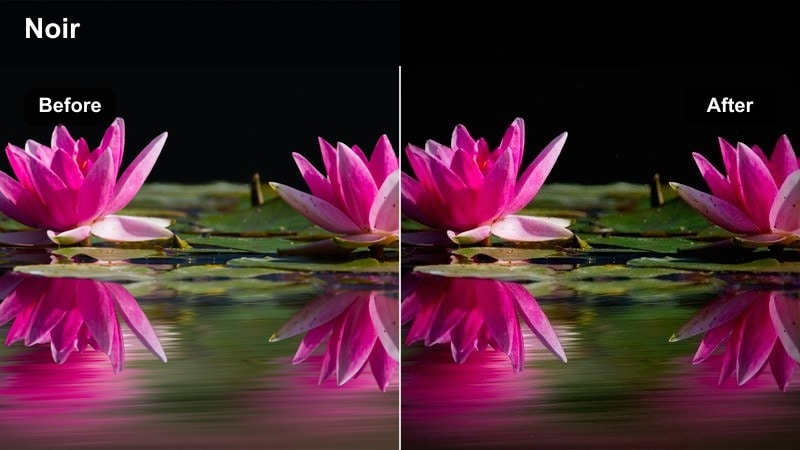
- Effect look: High contrast monochrome leaning toward cool shadows with crushed blacks and subtle film grain.
- Best for: Urban alleyways, street documentaries, and dialogue scenes that need a classic film noir mood.
- Editing tip: Lower overall exposure slightly, then lift midtones to keep faces readable while preserving deep, inky shadows.
Noir Alley Deep Shadow gives your footage a classic film noir character by pushing blacks deep and cool while keeping highlights crisp and controlled. In Filmora, this LUT style is ideal when you want to strip away distractions and let shape, light, and shadow carry the story in your night city scenes.
Apply the filter to alleyways, street corners, or moody dialogue shots, then fine tune exposure with Filmoras curves or basic color controls so your subjects remain legible against the dense background. For extra refinement, follow the pro tip by brightening faces with local masks and let everything else fall off into rich darkness to heighten suspense.
Speed up grading with AI assisted deep shadow looks
Filmoras AI tools can quickly analyze your clips and suggest a balanced starting grade that pairs perfectly with deep shadow color LUT filters. This reduces the time you spend wrestling with exposure and white balance so you can focus on refining mood and storytelling.
Use the AI suggested base as a foundation, then layer your preferred deep shadow LUT on top to lock in dramatic contrast in just a few clicks. Small adjustments to shadows, highlights, and saturation afterward are usually all you need for a polished, cinematic result.
 secure download

Preview deep shadow filters in real time
Filmoras filter panel lets you hover over Deep Shadow Color LUT presets and instantly preview how they reshape contrast and color on your clips. This real time feedback makes it easy to compare several dramatic shadow looks without committing to heavy manual grading.
Apply a few different deep shadow presets to test shots, then use split screen preview to compare before and after. From there, tweak exposure, highlights, and saturation until you have the exact level of mood and clarity you want.
secure downloadCombine filters and LUTs for layered depth
For the most nuanced results, combine Deep Shadow Color LUT filters with additional LUTs and effects in Filmora. By stacking subtle color adjustments, you can keep skin tones natural while deepening backgrounds and enhancing specific color ranges like neon signs or warm window light.
Experiment with gentle secondary LUTs, HSL tuning, and curves on top of your deep shadow base to create unique looks you can save as custom presets. This layered approach keeps your videos stylized yet still clear and comfortable to watch on any screen.
secure downloadNeon Depth Shadow Boost
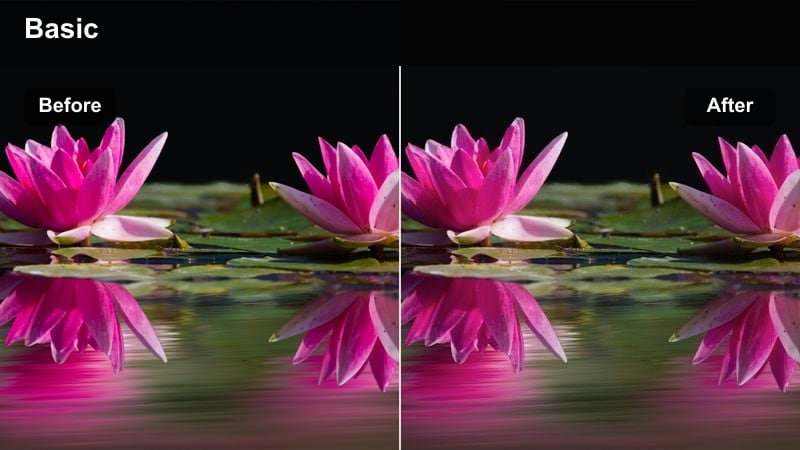
- Effect look: Deepened shadows with vivid neon saturation and cool midtones that make signs and screens pop.
- Best for: Night cityscapes, cyberpunk vlogs, and B roll featuring neon lights and LED billboards.
- Editing tip: Increase saturation slightly only in specific neon colors using HSL, and reduce overall luminance to avoid clipping highlights.
Neon Depth Shadow Boost is built to make glowing signs, billboards, and screens leap out of the frame while the environment recedes into rich darkness. In Filmora, this filter quickly gives your night city footage a cyberpunk edge by intensifying color contrast between neon hues and deep, cool toned shadows.
Apply it to street walks, handheld B roll, or travel vlogs, then fine tune specific neon tones with Filmoras HSL controls so reds, blues, and magentas stay punchy but not blown out. Combine highlight recovery and gentle curves adjustments to protect detail inside signs and screens, keeping text readable and motion clean even in high contrast scenes.
Subway Gloom Contrast
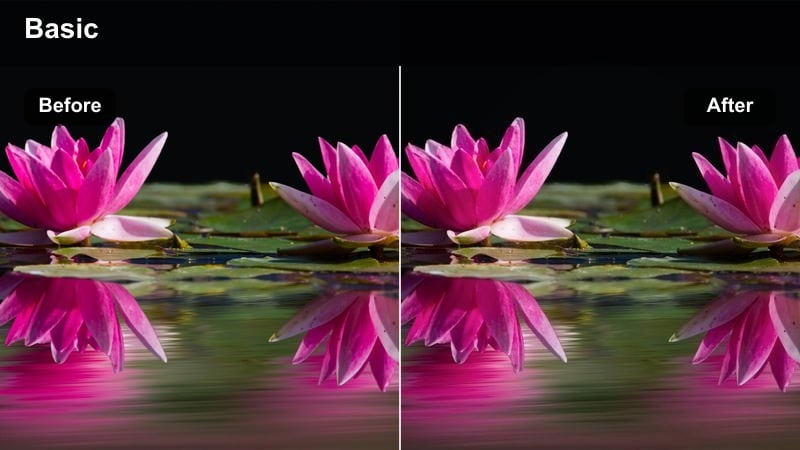
- Effect look: Muted colors with dense blacks, cool greenish shadows, and slightly lifted highlights for overhead lights.
- Best for: Subway platforms, underground walkways, parking garages, and transitional B roll shots.
- Editing tip: Add a light vignette and reduce clarity a touch to accentuate the gritty, underground atmosphere.
Subway Gloom Contrast gives underground locations a tense, cinematic energy by cooling shadows and pushing blacks into a dense, atmospheric layer. The LUT softens harsh fluorescent light just enough to feel stylized while keeping the unmistakable underground mood.
In Filmora, use this filter on platforms, tunnels, and garages, then introduce a gentle vignette and a small clarity reduction to keep attention on leading lines and silhouettes. Let the deepest areas fall away into near black so tracks, walls, and commuters emerge as graphic shapes that guide the viewer through your transitions and travel sequences.
Indoor Drama and Story-Driven Scenes
Window Silhouette Shadow
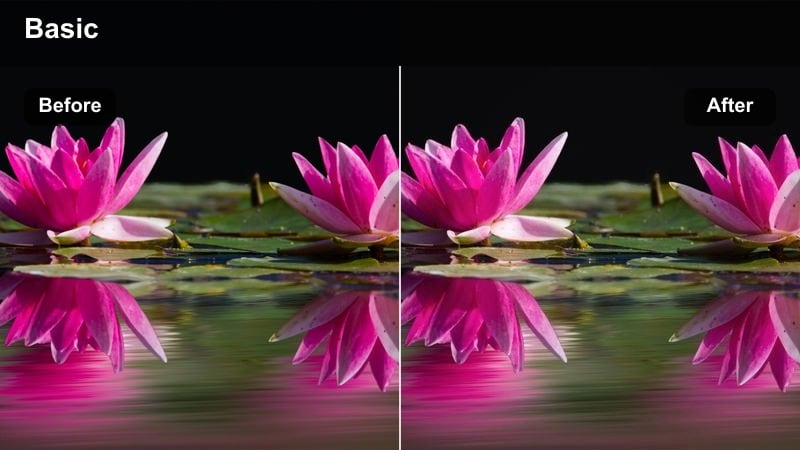
- Effect look: Backlit silhouettes with very deep shadows and gentle warm highlights around windows or doors.
- Best for: Emotional dialogue scenes by windows, profile shots, and reflective character moments.
- Editing tip: Expose for the bright window first, then let the filter pull subjects into semi silhouette to accent mood.
Window Silhouette Shadow is designed to let bright windows and doors become expressive light sources that frame your characters in shadow. The LUT warms highlights slightly while deepening interiors, creating a strong shape based silhouette that instantly feels cinematic.
When editing in Filmora, start by protecting window detail with lower exposure, then apply the filter so your subject falls into a carefully controlled semi silhouette. Use masks to bring back a hint of detail in faces if needed, and soften highlights slightly so the glowing window feels natural rather than harsh or distracting.
Room Corner Depth
- Effect look: Soft, low key lighting with plush blacks and warm midtones that isolate subjects in dark corners.
- Best for: Interviews, talking head content, and narrative scenes set in small rooms or studios.
- Editing tip: Place your subject away from the wall, then let the filter drop the background into gentle darkness to create depth.
Room Corner Depth is tailored for intimate indoor setups where you want the viewer focused entirely on a subject while the room falls away. It enhances low key lighting, deepens corners, and adds warmth to midtones so skin tones remain appealing against a darker backdrop.
In Filmora, apply this LUT to interviews, talking head videos, or narrative scenes, then adjust exposure and contrast to keep the face clearly readable. Position your subject several feet from the wall when shooting, and let the filter naturally sink the background into soft shadow, giving your frame a layered, professional look without complicated lighting rigs.
Office Thriller Shadows
- Effect look: Cool, desaturated office tones with heavy contrast, deep shadows, and slightly teal highlights.
- Best for: Corporate thrillers, tense office vlogs, or late night workspace B roll.
- Editing tip: Dial back saturation in blues and cyans so computer screens and overhead lights do not overpower faces.
Office Thriller Shadows turns ordinary office environments into suspenseful, high contrast spaces reminiscent of corporate thrillers. The LUT cools the palette, lifts contrast, and deepens unlit areas, allowing screen light and practical lamps to take center stage.
Use it in Filmora on late night working sequences, story driven vlogs, or dramatic cutaways in meeting rooms. After applying the filter, slightly reduce overall saturation and specifically tame blues and cyans so monitors and overhead lights stay intense without washing out faces or important details in your frame.
Moody Exteriors and Twilight Moments
Twilight Ridge Shadow
- Effect look: Rich twilight blues with darkened foregrounds and gentle highlight roll off near the horizon.
- Best for: Evening skyline shots, rooftop scenes, and quiet exterior transitions at dusk.
- Editing tip: Slightly underexpose in camera so the filter can push blues deeper without crushing all detail in the skyline.
Twilight Ridge Shadow enhances the natural drama of blue hour by deepening skies and foregrounds while keeping a smooth highlight roll off near the horizon. This LUT is perfect for skyline silhouettes, rooftops, and contemplative city views that bridge day and night.
In Filmora, apply the filter to dusk establishing shots and adjust exposure so skyline outlines remain defined against the sky. Fine tune contrast and saturation to keep blues rich but not overly electric, and consider adding a gentle curve to preserve detail in building edges and cloud gradients for a polished, cinematic transition.
Underpass Heavy Shadow
- Effect look: Crushed lower mids with dark concrete textures and selective warm highlights on passing cars or lamps.
- Best for: Underpasses, bridges, tunnels, and moody street level B roll sequences.
- Editing tip: Use slow motion if possible, then let the filter intensify dark structural shapes for a gritty urban feel.
Underpass Heavy Shadow is aimed at turning everyday bridges and tunnels into gritty, cinematic environments. It pushes lower midtones down, emphasizes concrete texture, and lets small pools of warm light from cars or lamps stand out in contrast.
When editing in Filmora, combine this LUT with slow motion clips of vehicles or pedestrians moving through patches of light. Adjust contrast carefully so structural lines remain visible while most of the frame stays in shadow, and keep color grading on midtones restrained to preserve the tactile, realistic feel of the concrete and steel.
Backstreet Mist Shadows
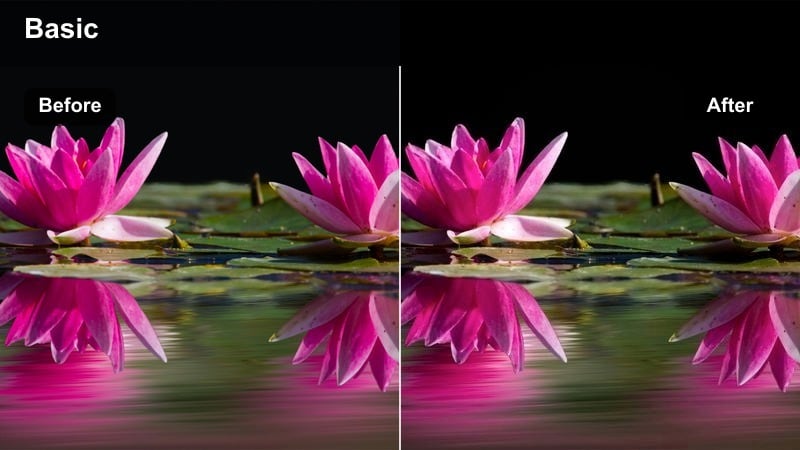
- Effect look: Soft, low contrast haze in highlights with deep, cool shadows hugging building edges and alleyways.
- Best for: Foggy backstreets, rainy alleys, and atmospheric establishing shots for crime or mystery content.
- Editing tip: Add a subtle glow or bloom on streetlights, then let the filter darken everything else to keep the frame moody.
Backstreet Mist Shadows pairs deep, cool shadows with a gentle highlight haze to capture the feel of foggy or rainy nights. Streetlights and signage take on a soft glow while buildings and alleyways sink into layered darkness, ideal for crime, mystery, or introspective scenes.
In Filmora, apply this LUT to narrow streets, wet pavement, and long lens city shots, then add a touch of glow or bloom to bright light sources. Keep movement in frame slow and minimal, using sound design to complement the visuals while the filter shapes shadows and mist into a cohesive, cinematic atmosphere.
Creative Stylized Shadow Experiments
Graphic Stairwell Contrast
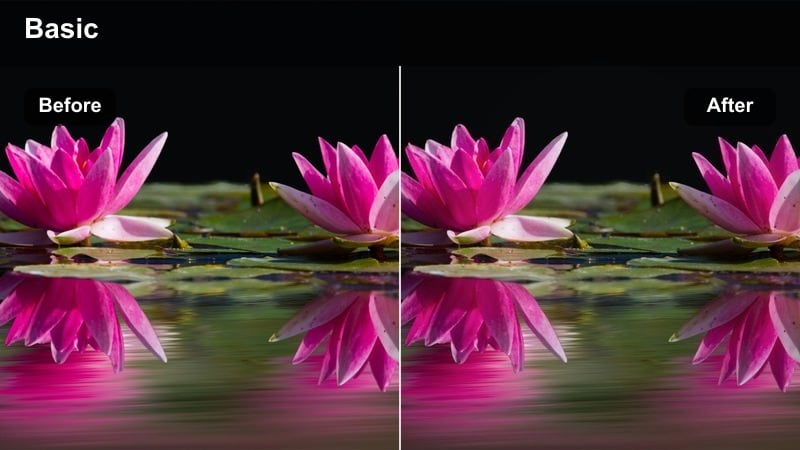
- Effect look: Hard edged shadows with punchy contrast and slightly desaturated colors for an almost graphic novel feel.
- Best for: Stairwells, fire escapes, parking decks, and any architecture with strong lines and railings.
- Editing tip: Increase contrast locally around leading lines and let everything else fall into deep shadow for a bold composition.
Graphic Stairwell Contrast turns architectural spaces into bold, almost illustrated compositions. By combining hard edged shadows, reduced saturation, and strong contrast, this LUT makes rails, steps, and beams read as powerful visual shapes on screen.
Use it in Filmora on stairwells, fire escapes, and parking decks, then push contrast locally with masks or curves around your main lines to intensify their impact. Keep color accents minimal so a single sign, stripe, or piece of clothing pops against mostly monochrome shadows, giving your shot a deliberate, design driven aesthetic.
Profile Split Shadow
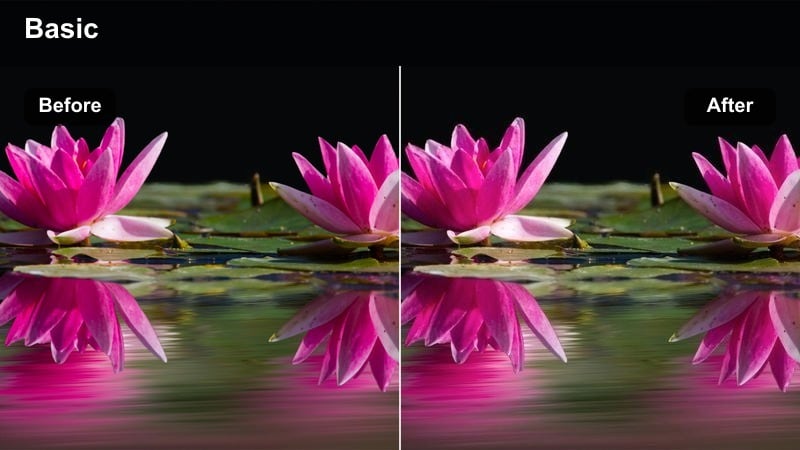
- Effect look: Half lit faces with one side nearly black and the other side holding neutral, detailed skin tones.
- Best for: Character introduction shots, dramatic monologues, and intense podcast or commentary framing.
- Editing tip: Position your key light at ninety degrees to the subject and let the filter deepen the unlit side into a crisp split.
Profile Split Shadow is built for high drama character work, carving a clear line between light and darkness on your subjects face. The LUT keeps the lit side neutral and detailed while driving the shadow side toward rich black, emphasizing duality and tension.
In Filmora, apply this look to interviews, monologues, and podcast style framing shot with a strong side key light. Fine tune exposure so the bright side retains texture without clipping, avoid adding fill on the dark side, and let the filter define a sharp split that guides the viewer to the illuminated eye and expressions.
Shadow Steps Motion
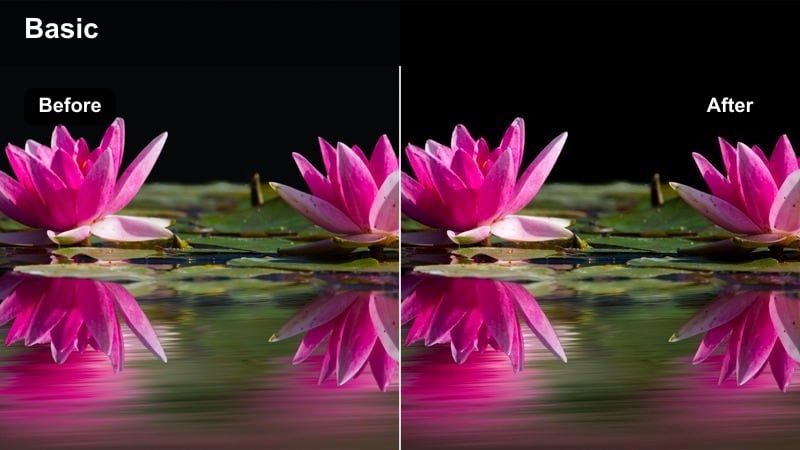
- Effect look: Deep stair and sidewalk shadows with slightly blurred motion and cool toned highlights on moving subjects.
- Best for: Run and gun street B roll, skate clips, and walk and talk sequences with lots of movement.
- Editing tip: Introduce a tiny bit of motion blur in post so movement streaks through the darker areas and feels more dynamic.
Shadow Steps Motion is tailored for kinetic street footage, making moving subjects cut through layered stair and sidewalk shadows. The LUT cools highlights slightly, deepens patterned shadows, and works especially well when motion blur adds streaks of energy through darker areas.
In Filmora, apply this filter to walk and talk shots, skate clips, or handheld B roll of people moving through city steps. Add a subtle motion blur effect and time your cuts around moments when subjects pass through the deepest shadows, letting the LUT keep backgrounds subdued so the eye locks onto the brightest, moving elements.
Tips for Using Deep Shadow Color Lut Filters in Filmora
- Shoot with a slightly flatter picture profile in camera so you have more latitude to deepen shadows and protect highlights when applying deep shadow LUT filters.
- Use masks and keyframes in Filmora to keep important faces or products a bit brighter while the rest of the scene falls into rich darkness.
- Avoid pushing noise reduction too hard in very dark areas, since heavy denoising combined with strong contrast can smear fine textures.
- Mix wide establishing shots with tighter close ups in the same location to show how deep shadows change mood and focus from scene to scene.
- Regularly check scopes in Filmora after applying deep shadow looks to ensure black levels are close to zero but not clipped beyond recovery.
- Add subtle film grain on top of deep shadow grades so heavily darkened scenes feel organic and cinematic rather than digitally crushed.
- Keep color temperature consistent across your edit so transitions between different deep shadow shots feel smooth and cohesive.
- Experiment with reducing music and emphasizing sound design alone on your most dramatic shadow sequences to maximize impact.
Deep Shadow Color LUT filters in Filmora give content creators a fast way to dial in dramatic, high impact contrast and mood across city nights, interiors, and stylized sequences.
Experiment with stacking, masking, and subtle exposure tweaks so these deep shadows support your story rather than overpowering it, then move on to explore warm orange tone video filters for a softer, glowing style.
secure download