

 100% Security Verified | No Subscription Required | No Malware


 ChatGPT
 Perplexity
 Gemini
 Claude
 Grok
Grok
This Evening City Skyline Cinematic LUT-inspired filter collection in Filmora is designed for content creators who want to turn ordinary urban sunsets and blue-hour skylines into richly graded, film-style visuals with minimal effort.
Use these filters to shape mood, color, and contrast across your city footage, from glowing downtown high-rises to moody rooftop views, so every evening city skyline shot feels cohesive and cinematic.
In this article
Golden Hour Rooftops and Warm Skyline Glows
Sunset Amber Glow
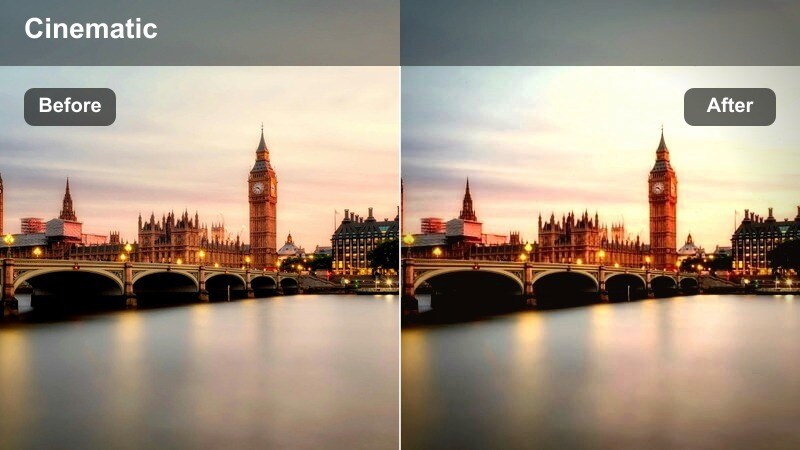
- Effect look: Soft, warm amber tint that wraps skyscrapers and clouds in a cinematic dusk glow.
- Best for: Rooftop B-roll, vlogs filmed at sunset, and skyline establishing shots facing the setting sun.
- Editing tip: Lower saturation on reds slightly and add a subtle vignette to keep attention on the glowing horizon line.
Sunset Amber Glow is ideal when you want your evening city skyline to feel like a classic golden-hour movie scene without spending time on complex grading. In Filmora, this filter smooths the transition between warm skies and cooler buildings so your rooftop shots look cohesive, even if they were recorded on different cameras or days.
Use this style on intros, outros, and key establishing shots where the sun is still visible or just below the horizon. If the amber tones push skin or streetlights too far, balance them with Filmora color controls by dialing back yellows while keeping mids warm, and add a vignette effect to center the viewers eye on the glowing skyline.
Golden City Haze
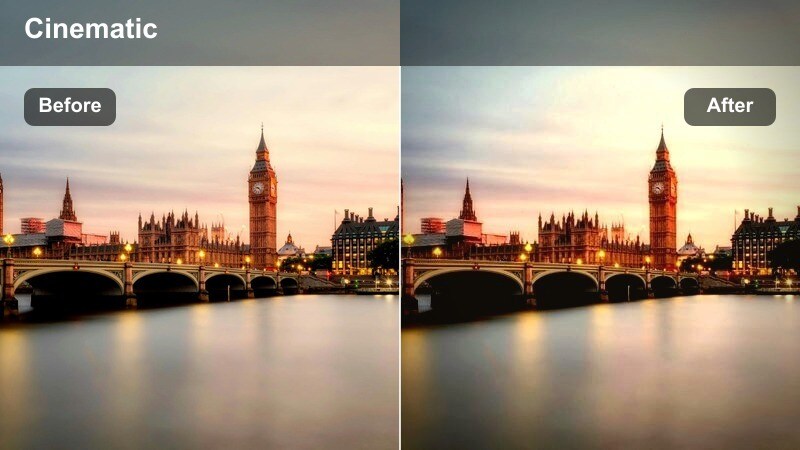
- Effect look: Soft haze with lifted blacks and golden mids that smooths harsh contrast in skyline silhouettes.
- Best for: Handheld city walk footage, travel reels, and lifestyle B-roll captured just before the sun dips below the buildings.
- Editing tip: Add a moderate clarity boost only in the midtones to keep windows and building edges crisp against the softened shadows.
Golden City Haze is designed to rescue slightly harsh or shaky evening clips by wrapping them in a soft, cinematic warmth. In Filmora, it gently lifts the darkest parts of the frame, so silhouettes become more legible while still retaining the feeling of a fading sun behind the skyline.
Apply this filter across handheld street walks, rooftop hangouts, or quick travel montages to hide exposure differences between shots. Then, in the detail controls, raise clarity or sharpness selectively in the midtones so architecture stays crisp while the haze smooths out noise and rough edges in the shadows.
Filmora's AI-assisted color tools make it easier to keep all your skyline shots looking like they came from the same cinematic sequence. You can quickly match the warm, amber style of your favorite filter to new clips with just a few clicks.
Use AI color matching to build a consistent evening city skyline cinematic LUT workflow, then save that look as a reusable preset for future uploads.
 secure download

Preview these evening city skyline filters directly in Filmora to see how each one changes mood, contrast, and color in your footage. Toggling them on and off helps you quickly decide which look fits your channel or project best.
Once you find a combination that works, save it as a custom preset so you can reapply the same cinematic style to future city shoots in seconds.
secure downloadFilmora includes 1000 plus video filters and 3D LUTs you can stack with these evening city skyline looks for more advanced grades. Start with a cinematic LUT to set the tone, then add stylized filters to refine contrast, glow, and color balance.
This layered approach keeps your workflow fast while still giving you professional-level control over how your city sunsets and skylines appear on screen.
secure downloadCopper Sunline Contrast
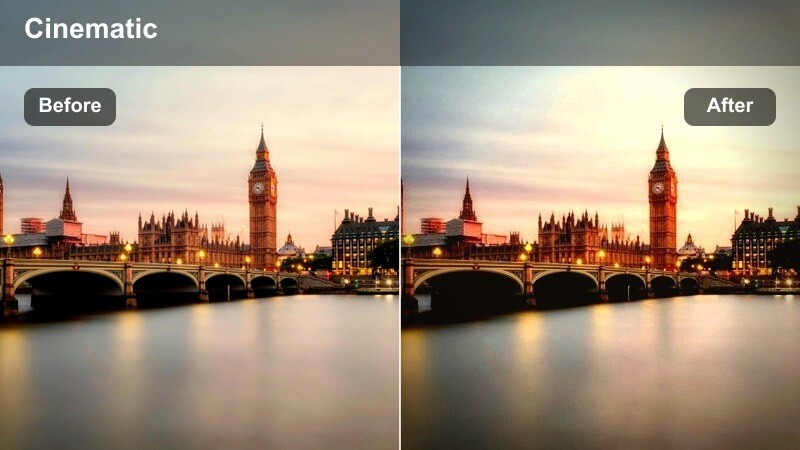
- Effect look: Punchy contrast with copper-toned highlights and deep, rich shadows for bold sunset skylines.
- Best for: Dramatic time-lapses of the city, skyline intros for cinematic edits, and drone shots facing the sun.
- Editing tip: Increase local contrast in the lower half of the frame to emphasize building shapes while keeping the sky smooth and gradient-like.
Copper Sunline Contrast is built for drama, turning your skyline into a strong, graphic silhouette with glowing copper highlights. In Filmora, it boosts contrast to make building edges and sun-kissed clouds stand out, perfect for time-lapses or motion graphics intros.
Use it on drone or tripod shots where the sun rims the tops of skyscrapers, and tweak curves to keep midtones readable. If the shadows get too dark, slightly lift the blacks and protect highlight detail so your skyline does not lose the subtle color transitions around the sun.
Blue Hour Downtown Streets and Skyline Blends
Cobalt Skyline Tone
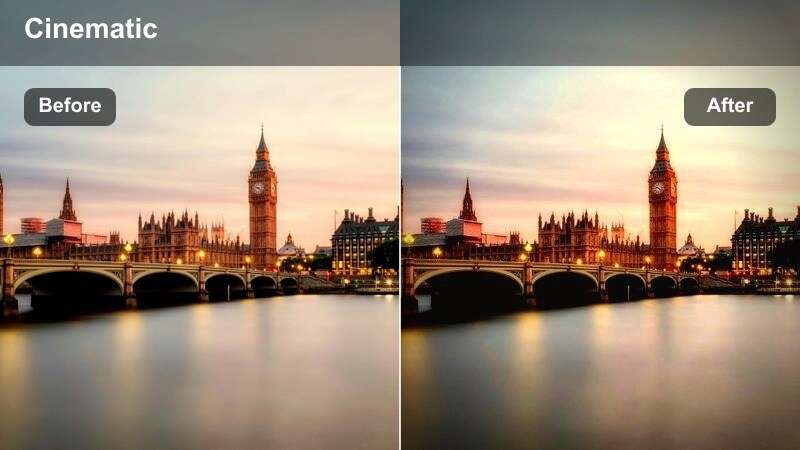
- Effect look: Cool cobalt blues in the sky with neutral buildings, ideal for crisp blue-hour skyline shots.
- Best for: Cityscape B-roll, intros for tech or urban lifestyle content, and static tripod shots of the skyline after sunset.
- Editing tip: Add a subtle saturation boost to blues and cyans but keep skin tones warm by using selective color controls.
Cobalt Skyline Tone emphasizes the rich blues that appear just after sunset, while keeping building tones natural and clean. In Filmora, it is great for giving tech or modern city videos a polished, professional look that still feels grounded in reality.
Apply this filter to locked-off skyline shots, time-lapses, or title backgrounds where the deep cobalt sky acts as a canvas. Fine-tune the look by adjusting HSL controls to boost blues and cyans without shifting skin tones or interior lights, so people and signage remain inviting and realistic.
Neon Windows Pop
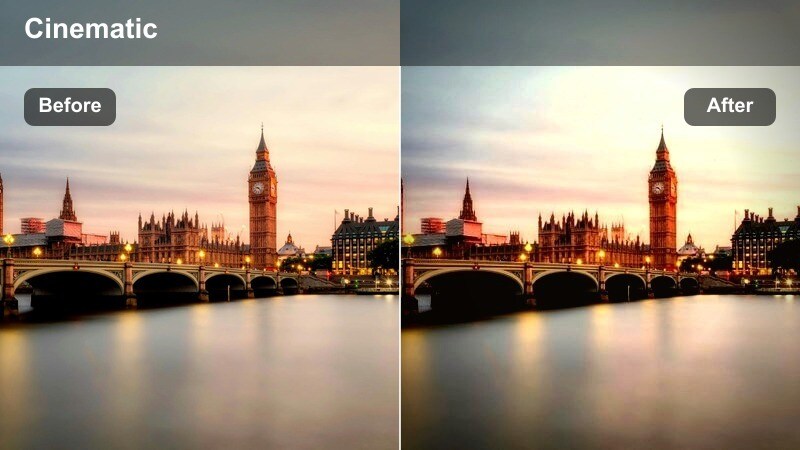
- Effect look: Cool shadows with saturated yellows and cyans in windows and signage for a subtle neon vibe.
- Best for: Downtown office towers, timelapses of lights turning on, and B-roll of busy central districts at blue hour.
- Editing tip: Slightly reduce global contrast to keep neon areas from clipping, then selectively sharpen building edges.
Neon Windows Pop turns office towers and city signs into vibrant focal points by boosting cyans and yellows in lit areas. In Filmora, this filter works well for capturing the transition from day to night, when windows start to glow and streets fill with color.
Use it on timelapses and moving shots through downtown districts, and temper overall contrast so the brightest windows do not blow out. Then apply selective sharpening or masking to enhance building edges and key neon signs, guiding the viewer's eye through your urban scene.
Steel Blue City Matte
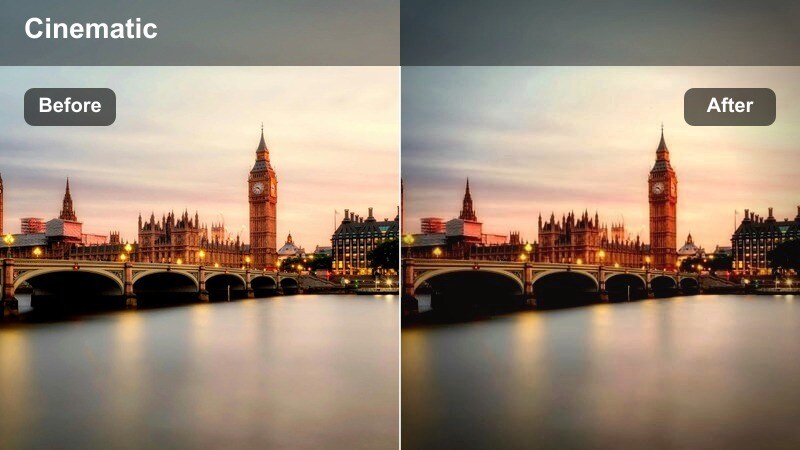
- Effect look: Desaturated steel-blue tones with a matte finish that gives the skyline a cinematic, understated mood.
- Best for: Story-driven vlogs, moody travel films, and narrative scenes that take place around dusk in the city.
- Editing tip: Lift the blacks subtly and lower overall saturation, then restore just a hint of color in key highlights like streetlights.
Steel Blue City Matte gives your skyline a reserved, filmic quality by muting colors and softening contrast. In Filmora, it is a strong choice when you want the focus to be on voiceover, story, or music rather than bright, punchy visuals.
Apply it to longer narrative sequences or reflective vlogs shot around dusk, lifting the blacks slightly for a matte feel. Then bring back a touch of color in streetlights, signs, or car tails using masks or selective saturation so the image feels cinematic instead of flat.
Twilight Bridges, Rivers, and Wide Skyline Frames
Violet Horizon Fade
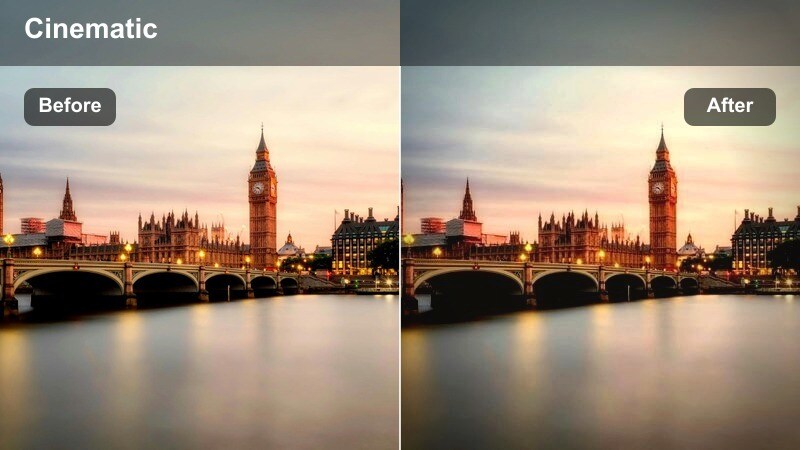
- Effect look: Gentle violet gradient in the sky with smooth fading tones over water reflections and distant buildings.
- Best for: Wide shots of riverside skylines, bridges at twilight, and calm city time-lapses from across the water.
- Editing tip: Use a graduated mask to limit the violet shift to the upper half of the frame and keep the city lights neutral.
Violet Horizon Fade adds a delicate purple tint to the sky, enhancing sunsets and twilight moments over rivers and harbors. In Filmora, it subtly shifts the upper part of your frame without overpowering the natural colors of the skyline and water.
Use it on wide riverfront compositions or static timelapses where the sky and reflections carry most of the mood. Apply a gradient or shape mask so the violet hue stays in the sky, then fine-tune exposure and saturation on the lower half to keep city lights and water reflections natural and cinematic.
Bridge Lights Clarity
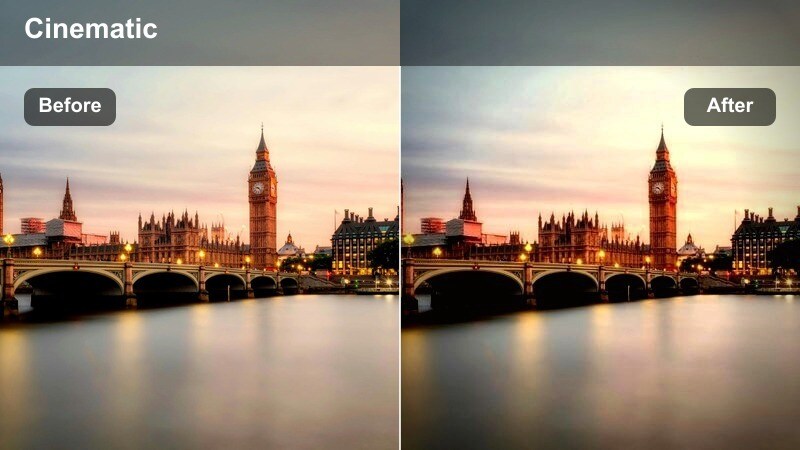
- Effect look: High clarity on structures with crisp white highlights that make bridge lights and cables stand out against the skyline.
- Best for: Walkthrough shots on city bridges, hyperlapses, and hero frames featuring bridges framing the skyline.
- Editing tip: Apply additional sharpening only to the luma channel so bright bridge lights stay clean without colored halos.
Bridge Lights Clarity focuses on structure, sharpening bridge rails, cables, and light fixtures so they stand out cleanly against your evening skyline. In Filmora, it helps emphasize leading lines and architectural detail without overly boosting saturation.
Use it on handheld or gimbal shots crossing bridges, or any hero angle where the bridge frames the city. Reduce color noise and apply sharpening to luminance only where possible, so bright lights remain crisp and halo-free, and the skyline behind them stays smooth and cinematic.
Cinematic River Glow
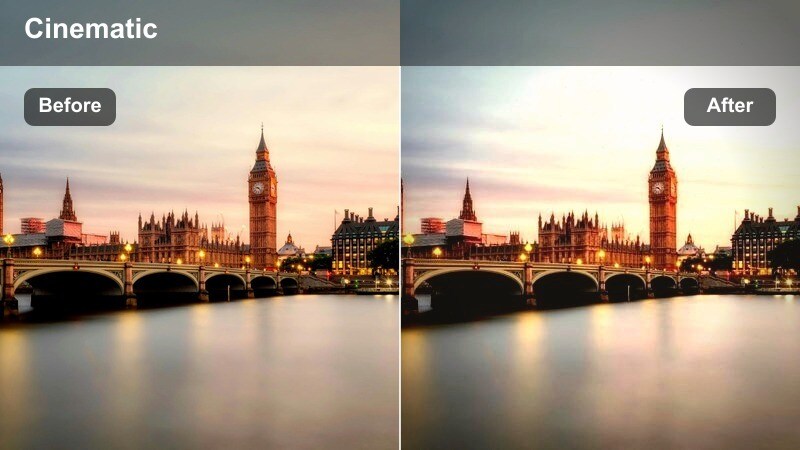
- Effect look: Soft, filmic glow on city lights reflected in the water with slightly lifted midtones for a dreamy feel.
- Best for: Slow pans along waterfront promenades, date-night vlogs, and cinematic B-roll of boats moving under the skyline.
- Editing tip: Reduce highlights just enough to keep reflected lights from clipping, then add a tiny bit of blur to the reflections layer if needed.
Cinematic River Glow adds a gentle bloom to light sources and their reflections, giving riverfront skylines a dreamy, romantic vibe. In Filmora, it is especially effective on slow pans or tracking shots where the shimmering reflections can really be seen.
Use it on waterfront promenades, boat shots, or balcony views over water and keep highlight levels in check so reflections do not blow out. If needed, duplicate your clip, blur the duplicate slightly and blend it with Screen or Add modes to enhance the glow, while keeping the main skyline layer sharper and well-defined.
Nightfall High-Rises and Deep Evening Skylines
Noir City Contrast
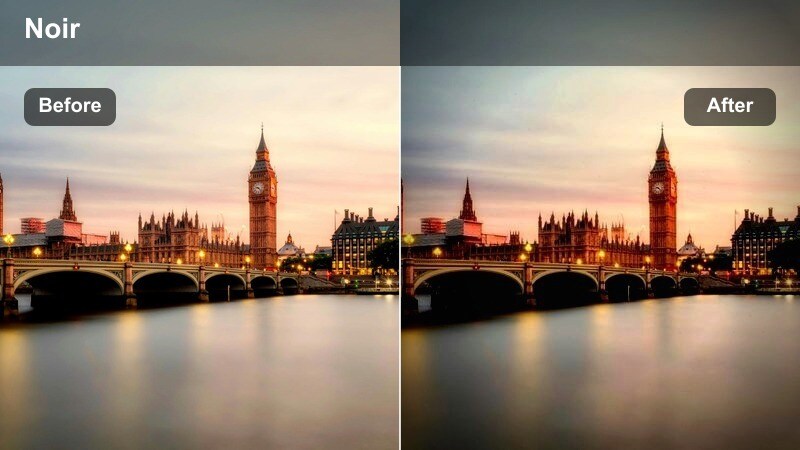
- Effect look: High-contrast, near-monochrome style with deep blues in the shadows and bright, crisp highlights.
- Best for: Crime-drama inspired edits, narrative sequences, and stylized B-roll of skyscrapers after dark.
- Editing tip: Crush shadows slightly but retain detail around windows and rooftop edges to keep the skyline readable.
Noir City Contrast brings a moody, graphic feel to night skylines by pushing shadows deep while keeping windows and highlights razor sharp. In Filmora, it is great for cinematic sequences inspired by thrillers, crime dramas, or futuristic city tales.
Apply it on tripod or slow-moving shots of skyscrapers after dark, and watch how window grids and rooftop antennas become stark silhouettes. Use curves to preserve just enough midtone detail around windows, and manage exposure on bright billboards before raising contrast so you maintain a stylish but legible image.
Emerald Night Grid
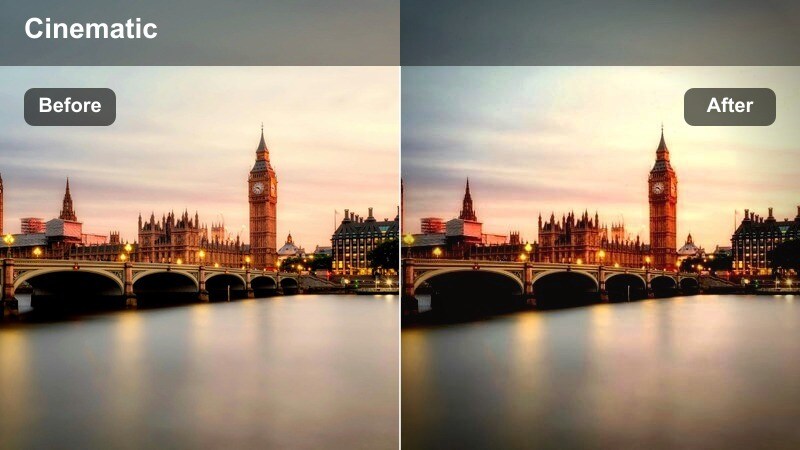
- Effect look: Cool emerald tint in midtones with clean whites for a futuristic grid-like look across high-rise windows.
- Best for: Tech-themed edits, cyberpunk-inspired reels, and drone shots overlooking dense city blocks.
- Editing tip: Increase micro-contrast so the repeating window patterns become a stronger graphic element in the frame.
Emerald Night Grid infuses your cityscape with a sleek, futuristic glow by tinting windows and midtones with a cool emerald hue. In Filmora, it is perfect for tech, gaming, or cyberpunk-inspired edits where the city itself becomes a luminous circuit board.
Use it on high-angle or drone shots of dense clusters of high-rises, then boost local contrast or texture to emphasize repeating window patterns. If you include people in the frame, use selective color tools or masks to keep skin tones neutral while preserving the emerald grid effect across the buildings.
Soft Focus City Dream
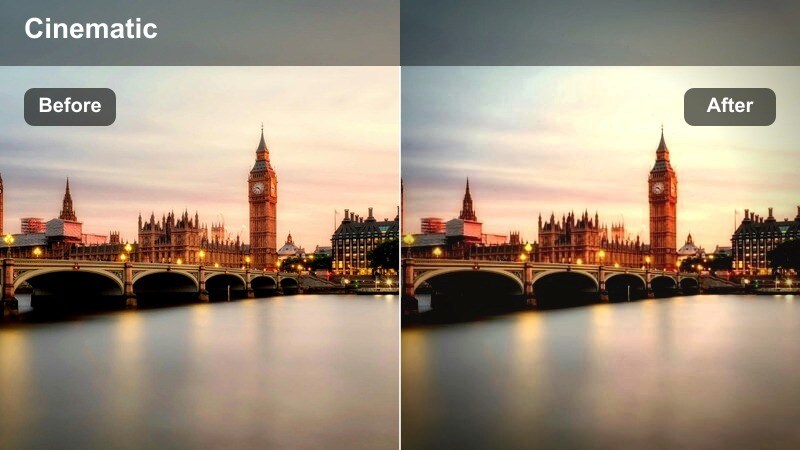
- Effect look: Low-contrast, soft-focus style with gentle blooming around bright lights and signage.
- Best for: Romantic evening montages, reflective vlogs, and slow-motion shots of the skyline from balconies or terraces.
- Editing tip: Keep sharpness slightly reduced and add a minor vignette so glowing lights in the distance feel like they are floating.
Soft Focus City Dream creates a hazy, emotional look by softening detail and adding bloom around bright city lights. In Filmora, it is a strong choice for montages, reflective monologues, or romantic evening sequences where the skyline acts as a dreamy backdrop.
Apply it to balcony views, terrace angles, or slow-motion pans of the city, gently reducing overall sharpness to make lights appear as glowing orbs. To keep the effect intentional, mix in a few cleaner, sharper shots elsewhere in your edit and use a subtle vignette so the viewer's attention stays on the softly glowing skyline.
Tips for Using Evening City Skyline Cinematic Lut Filters in Filmora
- Film your evening skyline sequences during blue hour and early night in a single session so lighting and sky color remain consistent across all filtered clips.
- Lock white balance in-camera to prevent color shifts when switching between different cinematic filters and LUTs in Filmora.
- Capture a mix of wide skyline vistas and tighter shots of windows, streets, and bridges so each filter has distinct elements to enhance.
- Keep ISO as low as possible to minimize noise, which can become more obvious when you add contrast-heavy or high-clarity city filters.
- Organize your Filmora timeline by scene type, such as rooftops, riverside, and downtown streets, then batch apply the most suitable filter to each group.
- Use Filmora keyframing and masks to confine strong color shifts, like violet or emerald tones, to specific areas such as the sky or windows.
- Combine a base evening city skyline cinematic LUT with these filters, then fine-tune exposure and saturation for each shot to avoid overprocessing.
- Preview filter changes on a calibrated monitor or reliable display so your final skyline colors look accurate on YouTube, Instagram, and other platforms.
With the right combination of Filmora filters, you can turn any evening city skyline into a cohesive, cinematic sequence that fits your channel's style and story.
Test a few of these looks on your next urban shoot, then refine your favorites into a custom evening city skyline cinematic LUT workflow you can reuse across future projects.
secure download