

 100% Security Verified | No Subscription Required | No Malware

This guide gives content creators a set of faded film color grading LUT-inspired filters that deliver soft contrast, gentle highlights, and nostalgic tones for cinematic storytelling in Filmora.
Use these scene-based ideas as a starting point to build your own faded film color grading LUT presets, then customize grain, contrast, and color balance to match your brand and channel style.
In this article
Golden Hour Street Stories
Dusty Sunset Boulevard
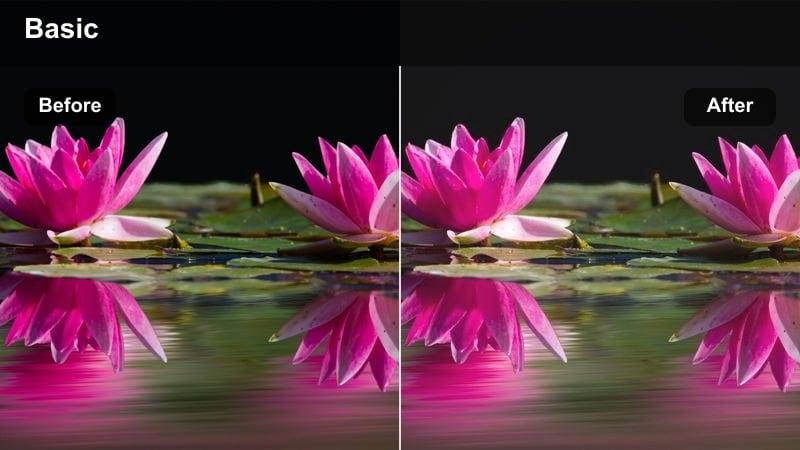
- Effect look: Soft, low-contrast street colors with warm, dusty highlights that feel like an old film print shot at sunset.
- Best for: Travel vlogs, everyday B-roll of walking through city streets, lifestyle montages captured during late afternoon light.
- Editing tip: Lower global contrast slightly, lift the blacks, and add a subtle warm tint in the highlights while keeping saturation muted.
In Filmora, Dusty Sunset Boulevard works beautifully when your footage already has natural golden hour light. Start by applying a basic color correction, then use Color Curves to gently lift shadows and compress highlights so the image feels softly washed. Add a warm tone to the highlight wheel while keeping midtones neutral, which mimics the look of slightly faded film stock and keeps skin tones flattering.
For street vlogs and B-roll, combine this look with a light vignette so the viewer focuses on the subject moving through the scene. If your camera introduced harsh contrast, reduce it with the Contrast and Dehaze sliders, then add a subtle Film Grain effect to reinforce the analog vibe. Save the finished adjustments as a custom preset to reuse on all your sunset city sequences.
Build Your Own Faded Film Palette with AI
Use Filmoras AI-powered color tools to quickly test different nostalgic palettes, from warm, dusty sunsets to cooler, moody fades. Let the AI suggest starting points, then refine contrast, saturation, and split-toning until the frame feels cinematic but still true to your footage.
Once your palette fits your channel style, save it as a custom preset so you can turn it into a repeatable, LUT-style faded look across vlogs, B-roll, and cinematic shorts.
 secure download

Preview Faded Film Filters in Real Time
In Filmora, stack soft focus, vignettes, curves, and color tools to preview a complete faded film style directly on your timeline. Scrub through your edit and adjust intensity in real time so your nostalgic grade stays consistent across clips and lighting conditions.
Use split-screen or side-by-side previews to compare multiple versions of your faded look, then lock in the one that feels clean, cinematic, and on-brand before you export.
secure download1000+ Video Filters and 3D LUTs
Filmora includes a large library of built-in filters and 3D LUTs you can combine to design your own faded film signatures. Layer creative looks with HSL, curves, and color wheels to refine skin tones, control highlights, and dial in soft, retro-inspired palettes.
After you create a look you love, save it as a reusable preset or LUT-style configuration so every new project starts with the same cinematic, faded baseline.
secure downloadHazy Crosswalk Memories
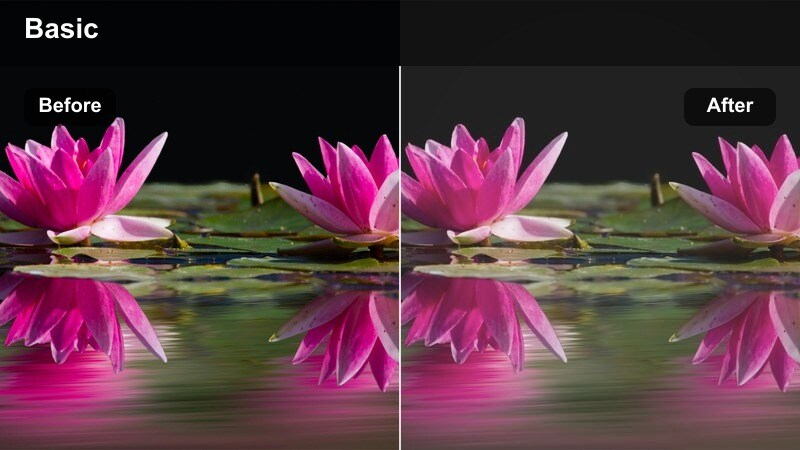
- Effect look: Gentle fade with lifted blacks, pale street colors, and a light haze that softens edges and bright spots.
- Best for: Candid city moments, street photography reels, and reflective voice-over scenes with people crossing roads.
- Editing tip: Reduce clarity or sharpness slightly, add a soft vignette, and keep saturation low on reds and yellows for a calmer palette.
To build Hazy Crosswalk Memories in Filmora, start by slightly lifting the blacks in the Color panel to give shadows a matte feel. Reduce overall saturation and use the HSL controls to specifically tone down intense reds and yellows so signage and traffic lights do not distract from your subjects.
Add a soft focus or Glow effect with low intensity to mimic haze, focusing it on bright areas like sky, headlights, and crosswalk stripes. A subtle vignette and a small reduction in sharpness will help the scene feel like a half-remembered moment, perfect under voice-over or gentle music.
Retro Neon Fade
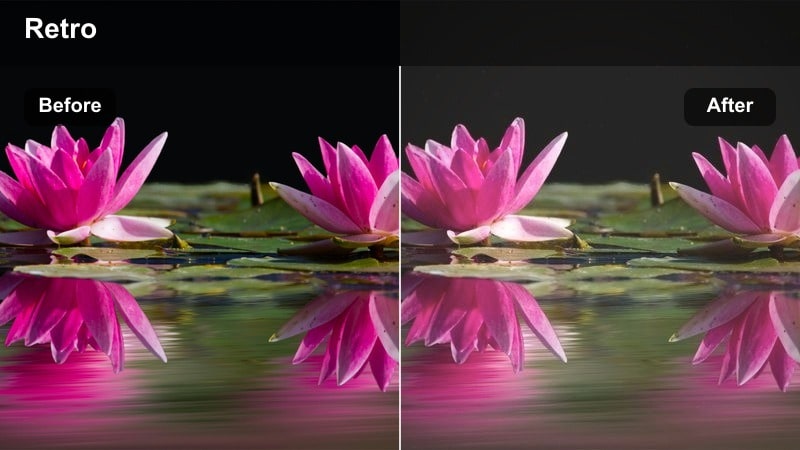
- Effect look: Muted neon signs with washed-out blacks and slightly pastel colors that echo old film scans of city nights.
- Best for: Night city B-roll, cinematic intros, and nostalgic sequences featuring neon signage and reflections.
- Editing tip: Dial down saturation of blues and greens, gently lift shadows, and add a touch of magenta to highlights for a retro film feel.
Retro Neon Fade in Filmora is all about turning harsh digital neon into soft, dreamy hues. Use the Color curves to lift shadows and roll off the brightest highlights, then push a small amount of magenta into highlights to get that vintage scan character.
With HSL, pull back the saturation of blues and greens so signs and reflections become more pastel and less glaring. If your clip includes faces, add a separate adjustment layer or mask to protect skin tones while the rest of the frame gets the faded neon treatment. A bit of film grain completes the retro city-night aesthetic.
Quiet Indoor Vignettes
Soft Window Reel
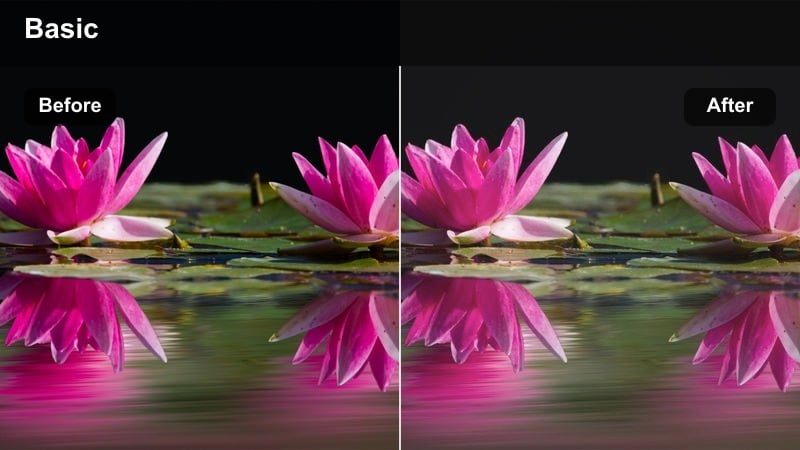
- Effect look: Gentle, low-contrast indoor tones with slightly blown, soft window highlights and a subtle filmic fade.
- Best for: Talking head videos, sit-down storytelling, journaling clips, and aesthetic desk setups near a window.
- Editing tip: Pull highlights back just enough to keep detail at the window, then lower contrast and slightly desaturate background colors.
For Soft Window Reel, begin with exposure balancing in Filmora to ensure your subject is properly lit while the window stays bright and airy. Use the highlights control to prevent hard clipping, then soften further using curves so window whites bloom gently, recreating a film-like roll-off.
Reduce global contrast and lightly desaturate background elements so the subject remains the main point of interest. Add a subtle vignette and a touch of glow on the brightest window areas only, leaving facial features sharp. This creates a calm, cinematic talking-head look that feels perfect for slow, reflective content.
Coffee Table Journal
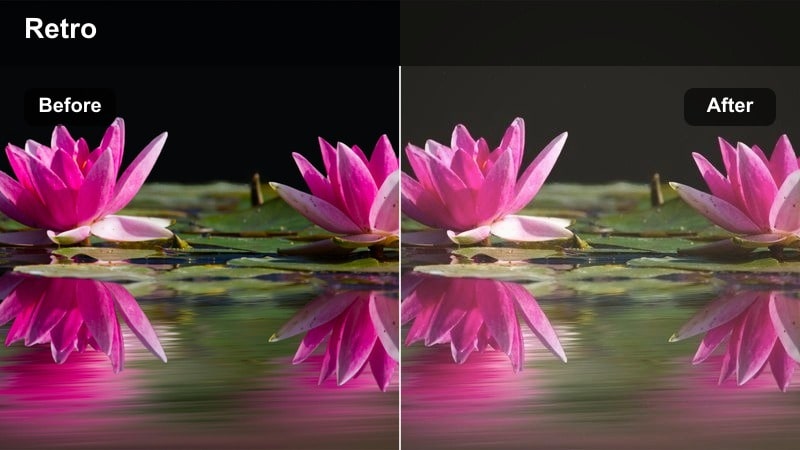
- Effect look: Creamy browns, soft neutral shadows, and lightly faded contrast that mimic cozy analog photo albums.
- Best for: Study-with-me videos, productivity vlogs, creative planning sessions, and quiet lifestyle montages at home.
- Editing tip: Shift the midtones slightly warm, reduce saturation in strong accent colors, and lift shadows to remove harsh edges.
To create Coffee Table Journal in Filmora, focus on warm midtones and smooth, gentle contrast. Use the Color wheels to nudge midtones toward warm orange or brown while keeping highlights and shadows relatively neutral for a natural, cozy palette.
Lift shadows a bit to eliminate hard edges on notebooks, mugs, and hands, then reduce saturation of any bold accent colors so nothing overpowers the frame. If there is text on the page, apply local sharpening or contrast via a mask so it stays crisp while the rest of the image remains softly faded and nostalgic.
Living Room Daydream
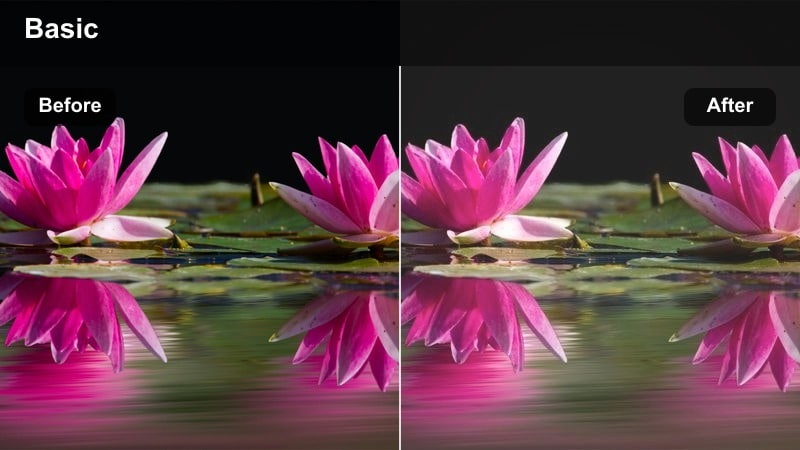
- Effect look: Subtle matte shadows, pastel-like midtones, and slightly cool highlights for a softly nostalgic living room mood.
- Best for: Home vlogs, casual family clips, DIY tutorials, and behind-the-scenes content shot in everyday interiors.
- Editing tip: Lift the black point for a matte finish, gently cool highlights, and keep overall saturation moderate for a calm palette.
Living Room Daydream starts with a matte curve in Filmora. Lift the black point in the Color Curves panel to soften shadow depth, then slightly cool the highlights to give window light a pale, airy feel while keeping midtones pastelly and comfortable.
Maintain moderate saturation so skin tones and decor look natural, not overly stylized. This grade works well on handheld home footage, so combine it with stabilizer and a tiny bit of grain to suggest a soft, cinematic memory rather than a raw home video.
Suburban Strolls and Park Walks
Pastel Sidewalk Steps
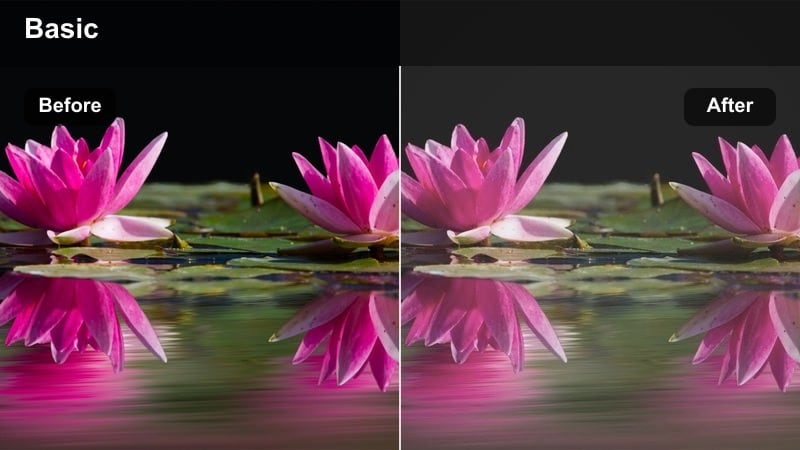
- Effect look: Soft, pastel sidewalk and building colors with reduced saturation and slightly lifted midtones for a dreamy film walk.
- Best for: Daytime walking shots in quiet neighborhoods, POV gimbal clips, and slow lifestyle B-roll outdoors.
- Editing tip: Lower saturation of greens and blues, keep skin tones intact, and apply a light matte curve for a gentle fade.
For Pastel Sidewalk Steps, begin with a light matte curve in Filmora to soften contrast and lift midtones. Then use HSL to tone down greens and blues, transforming grass, sky, and house paint into muted pastel shades that feel like stills from an old photo book.
Protect skin tones with targeted HSL adjustments or masks so faces remain natural against the softened surroundings. Add a touch of stabilization and a subtle vignette, and save the look as a preset that you can drop onto any suburban walk or POV gimbal footage to keep your visual storytelling consistent.
Muted Park Afternoon
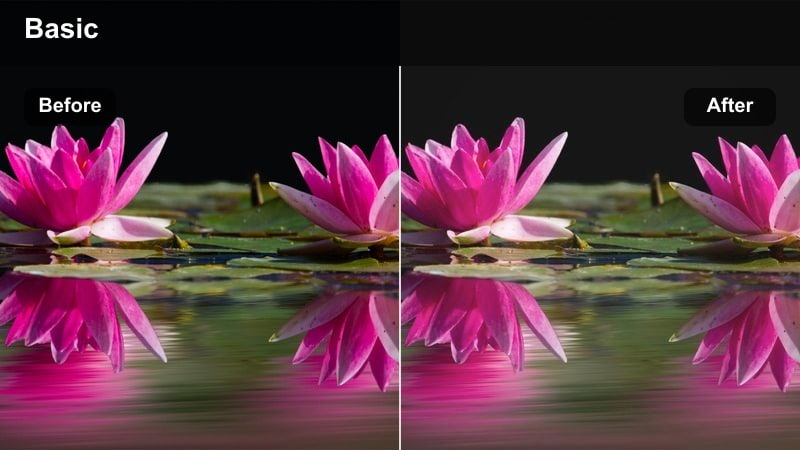
- Effect look: Gently desaturated greens and yellows with lowered contrast that emulate slightly aged outdoor film stock.
- Best for: Park vlogs, jogging or walking sequences, and slow-motion shots of pathways and benches.
- Editing tip: Pull back green saturation, warm midtones slightly, and lift shadows just enough to avoid heavy contrast under trees.
Muted Park Afternoon aims to calm bright greens and create a relaxed, slightly aged mood. In Filmora, use the HSL panel to lower green saturation and shift them just a bit toward more neutral tones, preventing foliage from dominating the frame.
Warm midtones slightly to keep skin tones and wooden benches inviting, then lift shadows under trees so your footage does not feel harsh or contrasty. For jogging or walking clips, pair this grade with slow motion or gentle music to reinforce the laid-back, nostalgic feel.
Overcast Driveway Film
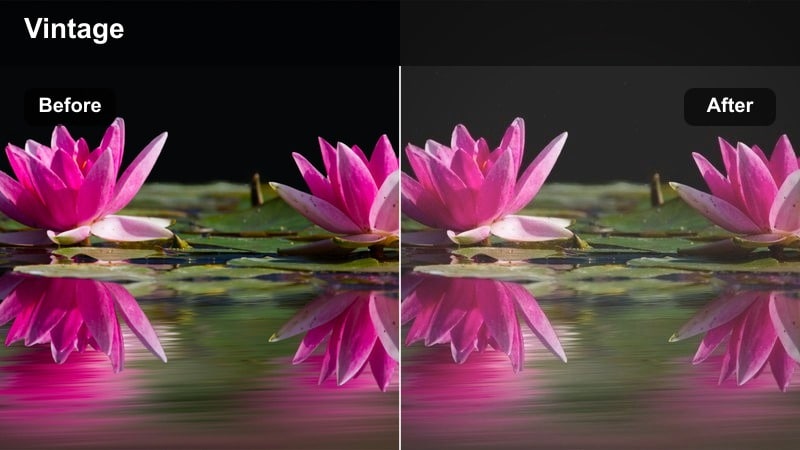
- Effect look: Low contrast, cool-tinted highlights, and muted grays that capture the feel of an overcast day on vintage film.
- Best for: Car B-roll in residential areas, establishing shots of houses, and transitional clips between scenes.
- Editing tip: Cool the white balance slightly, add a small blue push to shadows, and reduce contrast to keep the mood soft and introspective.
To build Overcast Driveway Film in Filmora, slightly cool your white balance to emphasise the gray, cloudy atmosphere. Add a subtle blue tint into the shadows and keep highlights controlled, avoiding strong whites that would break the moody feel.
Reduce overall contrast and saturation so cars, pavement, and houses settle into a soft, reflective palette. This style works especially well for transitional shots or quiet B-roll between scenes, and becomes even more effective when you add a light film grain layer to give texture to large flat areas like sky and asphalt.
Urban Nights and Interior Glow
Soft Highlight City Glow
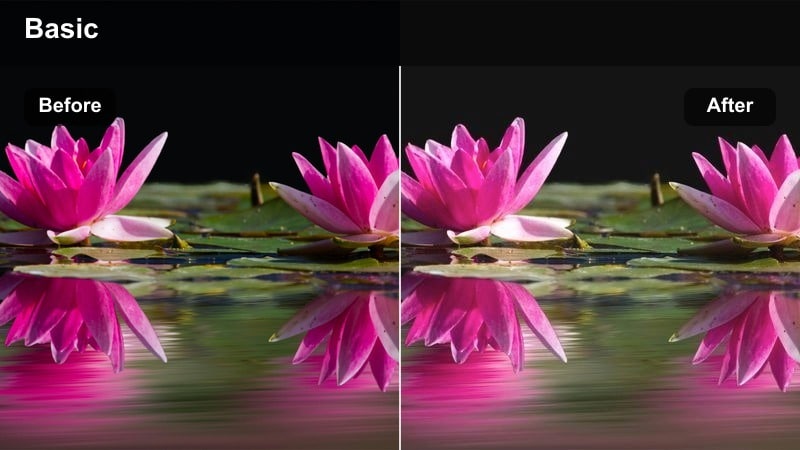
- Effect look: Soft glowing streetlights and window reflections with a faded, slightly warm film tone and gentle highlights.
- Best for: Night city montages, bokeh-heavy shots from car windows, and romantic urban storytelling sequences.
- Editing tip: Lower contrast, add a mild glow only to the brightest areas, and avoid over-saturating oranges to preserve the soft highlight feeling.
Soft Highlight City Glow turns sharp night footage into a dreamy, cinematic sequence. In Filmora, first lower contrast and lift shadows a little so dark areas do not crush, then add a Glow or Soft Focus effect targeting only bright points like lamps, car lights, and windows.
Keep orange and yellow saturation under control using HSL so warm lights stay gentle instead of neon-bright. Pair this look with a slow camera move or bokeh-heavy lensing, and consider adding a warm overall tint to the highlights while keeping midtones more neutral for a romantic, cinematic finish.
Metro Platform Fade
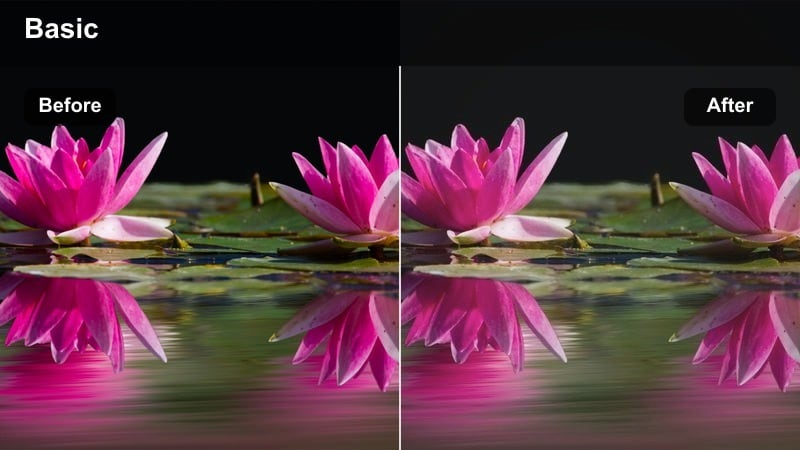
- Effect look: Muted industrial colors, flattened contrast, and subtle film grain for underground or station environments.
- Best for: Subway platform scenes, commute vlogs, timelapses of trains arriving and leaving, and travel transitions.
- Editing tip: Reduce saturation in strong reds and yellows, lightly lift the black point, and add a hint of grain to keep textures interesting.
Metro Platform Fade uses a soft, desaturated treatment to turn ordinary commute shots into cinematic interludes. Start by flattening contrast in Filmora with curves and lifting the black point, giving the footage a slightly washed, filmic base.
Lower saturation of harsh reds and yellows on signs and trains so the scene feels more subdued, then overlay a low-strength grain effect to keep concrete, tiles, and metal surfaces from looking too flat. This style is especially effective on timelapses or wide establishing shots that bridge between major story beats.
Cafe Window Night Fade
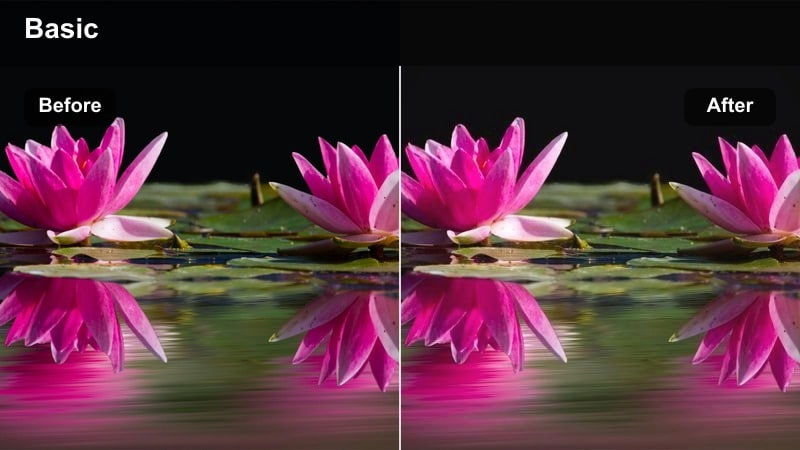
- Effect look: Warm indoor lamp tones with dark, gently faded streets outside the window, mimicking intimate film stills.
- Best for: Nighttime cafe scenes, sit-down conversations, reflective monologues, and B-roll shot from inside looking out.
- Editing tip: Warm the interior midtones, cool the exterior shadows, then lower global contrast and add a subtle vignette for intimacy.
Cafe Window Night Fade relies on contrast between cozy interior lighting and cooler, faded exteriors. In Filmora, use color wheels or separate adjustment layers to warm the midtones of the interior while adding a cool tint to the darker areas outside the window.
Reduce global contrast and add a soft vignette to pull attention toward your subject at the table. If necessary, use masks to treat the interior and exterior differently so both remain readable once you apply the faded look. This makes intimate conversations and reflective monologues feel like stills from an art-house film.
Tips for Using Faded Film Color Grading Lut Filters in Filmora
- Shoot in a slightly flatter picture profile when possible so you have more headroom to apply faded curves without crushing shadows or clipping highlights.
- Keep a close eye on skin tones and, if needed, adjust them separately with HSL or masks so faces stay natural even when backgrounds are heavily desaturated.
- Use a subtle vignette on low-contrast grades to keep the viewers attention centered when edges of the frame feel very soft.
- Add a light layer of film grain to restore texture in smooth, faded areas of sky, walls, or skin and to sell the analog illusion.
- Create separate faded presets for day, golden hour, and night so your LUT-inspired styles stay consistent but still fit each lighting setup.
- Test your favorite faded looks on multiple cameras and locations, then fine-tune white balance and exposure per clip before saving a final preset.
- Combine faded color grades with gentle motion blur and stabilization so the softness in the image feels intentional and cinematic, not like a technical flaw.
By combining low contrast, gentle highlights, and muted colors, these scene-based filters give you a flexible roadmap for building your own faded film color grading LUT in Filmora. You can match each look to specific shooting conditions, from golden hour streets to quiet indoor vlogs and moody night sequences.
Save your favorite variations as presets, test them across different projects, and refine the palette until it feels like a recognizable, cinematic signature for your content. Over time, this consistent faded style becomes part of your brand identity and helps your audience recognize your videos at a glance.
secure download