

 100% Security Verified | No Subscription Required | No Malware


 ChatGPT
 Perplexity
 Gemini
 Claude
 Grok
Grok
These Fashion Brand Video LUT-inspired filters are designed for content creators who need consistent, cinematic color across lookbooks, campaigns, and brand reels.
Use these presets to keep your fashion videos on-brand, from clean studio campaigns to gritty streetwear edits and moody, editorial portraits.
In this article
Clean Studio Campaigns for Polished Fashion Brands
Minimal Studio Glow
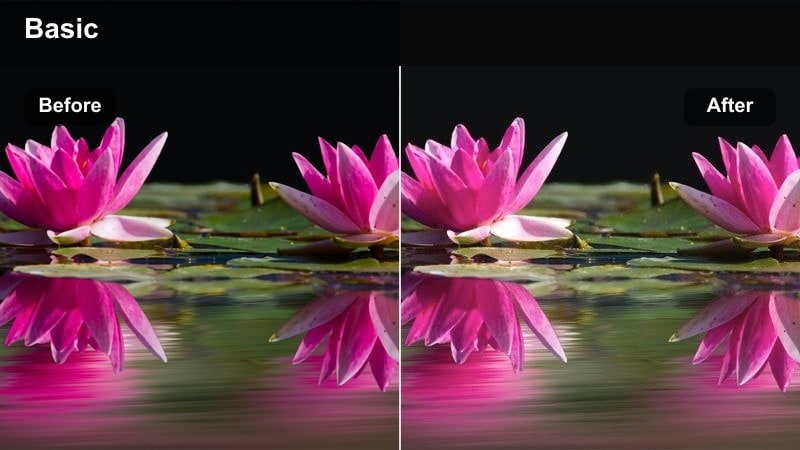
- Effect look: Soft, bright studio contrast with subtle skin smoothing and neutral whites.
- Best for: High-end lookbooks, studio try-on hauls, and clean fashion brand intros.
- Editing tip: Slightly lower saturation on bold outfits so the clothing still pops without clipping colors.
Minimal Studio Glow gives your studio shoots a polished, editorial finish with bright yet controlled highlights and flattering skin tones. Whites stay clean and neutral, which is ideal for brands that rely on pristine cycloramas, minimalist backdrops, and premium product styling.
In Filmora, start by applying this filter to your primary A-roll, then fine-tune exposure and highlights so fabrics and white backdrops retain texture. If outfits feature intense or neon colors, gently pull back saturation in the Color panel so the look remains high-end rather than oversaturated.
Keep Your Fashion Brand Video LUT Look Consistent with AI Color Tools
Filmora AI color tools help you match shots from different cameras and lighting setups so your Fashion Brand Video LUT-inspired grades stay consistent across an entire lookbook or campaign. Instead of manually tweaking every clip, you can build a base grade once and roll it out to your whole timeline.
Use AI color matching to copy the look from your best-lit studio shot, then apply that match to B-roll, close-ups, and secondary angles. Once your base look is unified, stack these fashion filters on top to refine warmth, contrast, and saturation to match your brand identity.
 secure download

See Fashion Filters in Action on Real Brand Footage
Before committing a look to an entire campaign, preview how each fashion filter behaves on a short test sequence that mixes portraits, full-body frames, and detail shots. Watching filters side by side makes it easier to spot which options flatter skin, fabrics, and brand colors the most.
In Filmora, import 15 to 30 seconds of recent footage, duplicate the sequence on the timeline, and apply different filters to each copy. Toggle visibility on and off or export draft comparisons so your team can quickly decide which treatment best fits your editorial direction.
secure downloadCombine Fashion Brand Video LUTs with Creative Filters
If you already have a signature Fashion Brand Video LUT that defines your color identity, Filmora filters can sit on top to fine-tune mood for specific shoots. This lets you adapt to studio, street, and runway environments without losing the core look your audience recognizes.
Load your LUT in Filmora and reduce its intensity so it does not overpower your footage. Then experiment with one or two filters from this collection to adjust contrast, warmth, or saturation to fit each campaign, keeping your brand aesthetic unified yet versatile.
secure downloadNeutral Brand Consistency
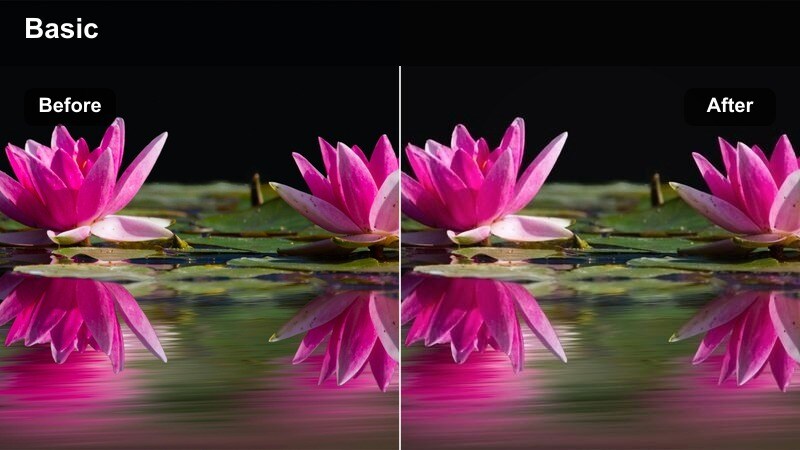
- Effect look: Balanced contrast with soft warmth and true-to-life clothing colors.
- Best for: Brand overviews, about-page videos, and multi-outfit collection reels.
- Editing tip: Match this filter across every camera angle in your edit to keep the brand feel cohesive.
Neutral Brand Consistency is designed as an everyday, on-brand look that flatters skin while keeping product colors accurate. It adds a slight warmth and balanced contrast so your fashion pieces appear true to life, which is crucial for e-commerce and campaign videos where buyers expect color fidelity.
Apply this filter to every camera angle in Filmora, then use the Color Match or manual color controls to align exposure and white balance across clips. Once your base look is unified, you can add small per-clip tweaks like adjusting shadows or midtones to handle tricky lighting without disrupting the overall brand aesthetic.
Crisp Product Detail
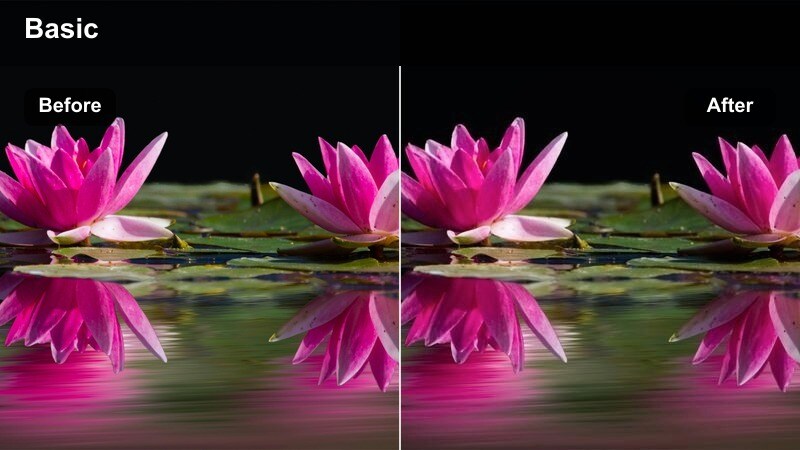
- Effect look: Cool-neutral tones with boosted micro-contrast to highlight fabric and stitching.
- Best for: Close-up product shots, fabric details, and accessory-focused sequences.
- Editing tip: Combine with a subtle vignette so the viewer's eye stays on the featured piece or accessory.
Crisp Product Detail enhances micro-contrast and clarity so textures like denim, knitwear, leather, and tailoring stand out on screen. The cool-neutral tone keeps colors refined while sharpening seams, buttons, and accessories so viewers can almost feel the materials.
In Filmora, apply this filter to close-ups and cutaway shots, then add a light vignette in the Effects panel to guide attention to the product center frame. Use subtle sharpening and noise reduction to keep the look premium, especially if you plan to showcase these detail shots on large displays or in paid ads.
Streetwear and Urban Fashion Vibes
Gritty Streetwear Pop
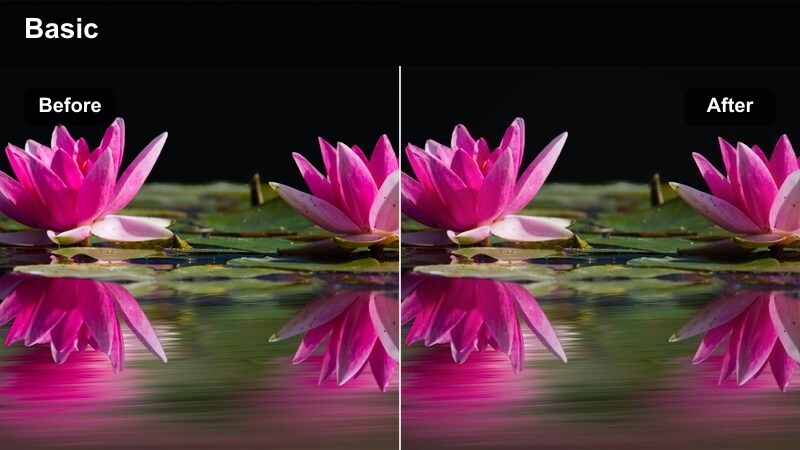
- Effect look: Punchy contrast with rich blacks and saturated urban colors.
- Best for: Streetwear lookbooks, city walk-throughs, and alleyway outfit transitions.
- Editing tip: Lower shadows slightly to deepen city backdrops while using masks to keep faces from going too dark.
Gritty Streetwear Pop amplifies the energy of city backdrops with rich blacks, bold saturation, and music-video style contrast. Graffiti walls, concrete textures, and signage take on a cinematic edge that pairs perfectly with oversized fits and layered streetwear styling.
After dropping this filter onto your clips in Filmora, use color masks or the HSL panel to protect skin tones so faces stay natural against darker surroundings. If your footage was shot under harsh sunlight, slightly reduce highlights and tame the brightest areas to keep the look dramatic but controlled.
Neon Night Fashion
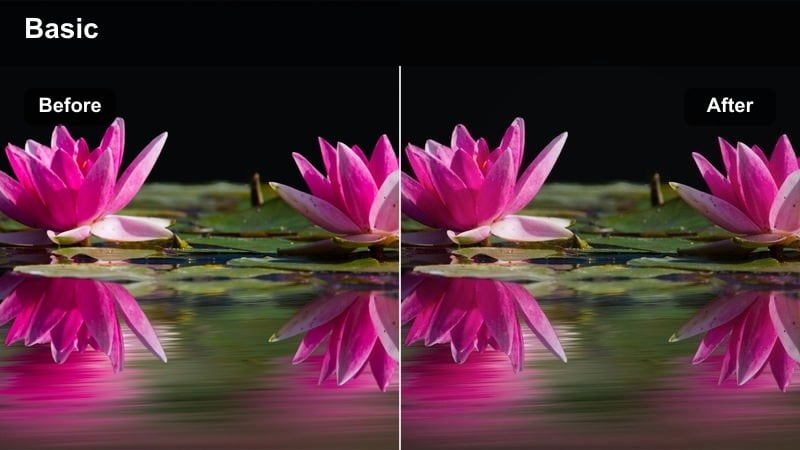
- Effect look: Moody, cool shadows with vivid neon signs and glowing city lights.
- Best for: Nighttime city shoots, rooftop parties, and neon-lit fashion reels.
- Editing tip: Expose slightly brighter in-camera and let this filter bring back depth and color for a clean neon look.
Neon Night Fashion is tuned for low-light city environments, keeping neon signage vibrant while preserving detail in darker outfits. Cool shadows and rich magenta or blue highlights create a cinematic nightlife aesthetic that works well for party looks and bold streetwear.
In Filmora, pair this filter with gentle noise reduction before increasing contrast to avoid grain creeping into dark fabrics. Slightly lift shadows if your brand leans heavily on black clothing so silhouettes remain readable against bright neon backgrounds on mobile screens.
Urban Film Matte
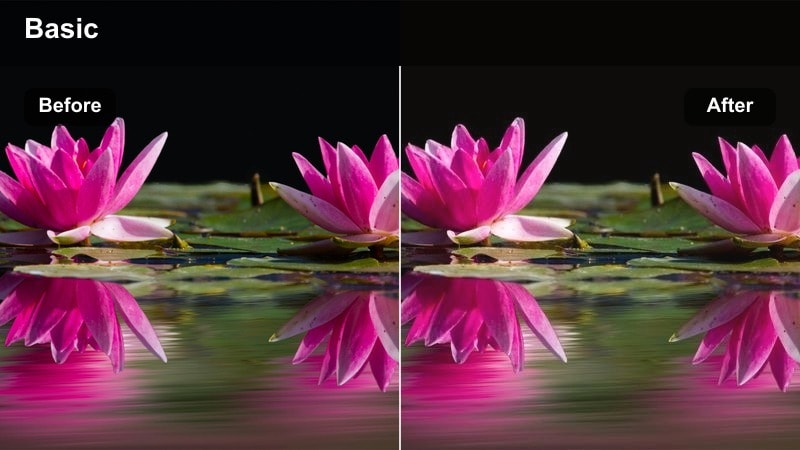
- Effect look: Soft matte blacks with gentle desaturation and a subtle film-inspired vibe.
- Best for: Editorial street sequences, look transitions, and moody brand teasers.
- Editing tip: Use slower cuts and cross-dissolves with this filter to lean into its calm, cinematic pacing.
Urban Film Matte softens blacks and slightly desaturates colors to create a relaxed, editorial city tone. It suits brands that want their street content to feel more like a fashion film than a music video, with a focus on mood, negative space, and intentional composition.
Apply this filter in Filmora to walking shots, slow pans, and transitional B-roll, then use longer cross-dissolves to reinforce its cinematic feel. For extra polish, combine it with subtle slow motion and stabilized clips so viewers focus on silhouettes, lines, and styling rather than rapid movement.
Editorial Portrait Campaign Moments
Editorial Portrait Soft
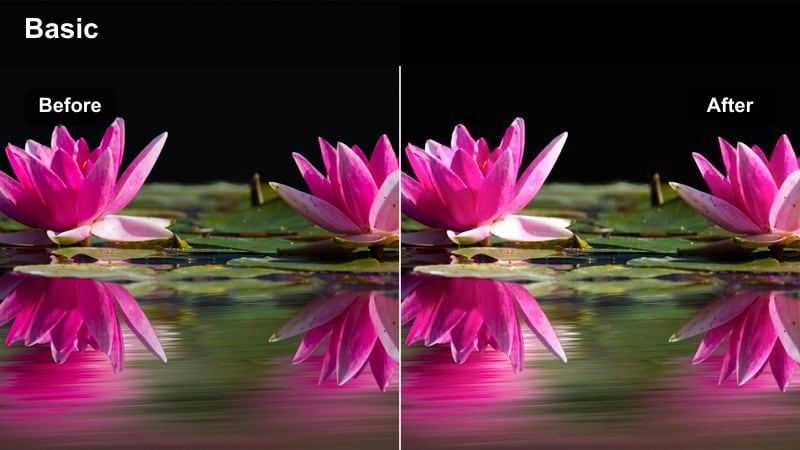
- Effect look: Creamy highlights, soft contrast, and gentle warmth in skin tones.
- Best for: Slow-motion portrait shots, hero model close-ups, and banner intros.
- Editing tip: Keep depth of field shallow so the filter's softness focuses attention on eyes and key accessories.
Editorial Portrait Soft wraps skin tones in a gentle glow, smoothing contrast and adding a hint of warmth for a luxurious, campaign-ready finish. It is ideal for hero shots where you want viewers to connect with the model, makeup, and key accessories without harsh edges.
In Filmora, use this filter on close-ups and slow-motion segments, then fine-tune white balance so the warmth matches your overall brand palette. Avoid heavy global blur effects and instead let the color grade provide the softness, keeping eyes, jewelry, and makeup sharply in focus.
Monochrome Editorial Contrast
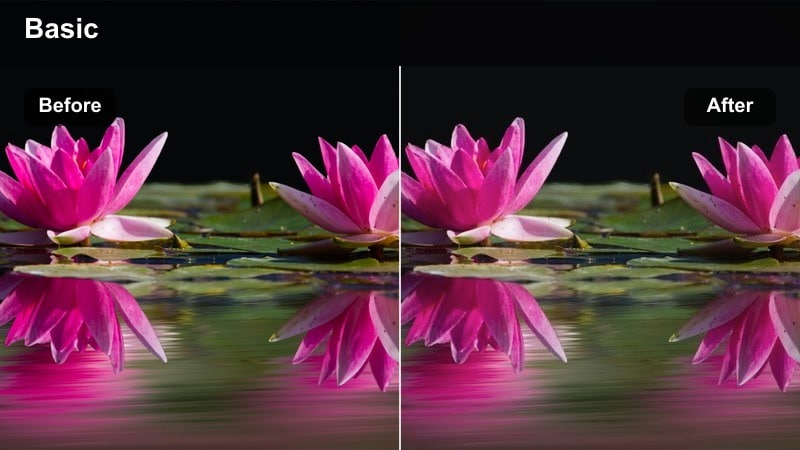
- Effect look: High-contrast black-and-white with deep shadows and bright highlights.
- Best for: Timeless brand teasers, dramatic portrait moments, and collection reveals.
- Editing tip: Use sharp, minimal backgrounds like walls or staircases so silhouettes and tailoring stand out.
Monochrome Editorial Contrast strips away color to emphasize tailoring, structure, and pose. Deep shadows and bright highlights create bold, gallery-style visuals that work perfectly for iconic teaser clips, campaign reveals, or elevated social posts.
Apply this filter selectively in Filmora to specific moments in your edit, such as a reveal of a new suit or coat, and keep backgrounds minimal to avoid visual clutter. You can mix monochrome shots with color footage in the same timeline to create contrast and draw extra attention to key campaign moments.
Warm Editorial Sunset
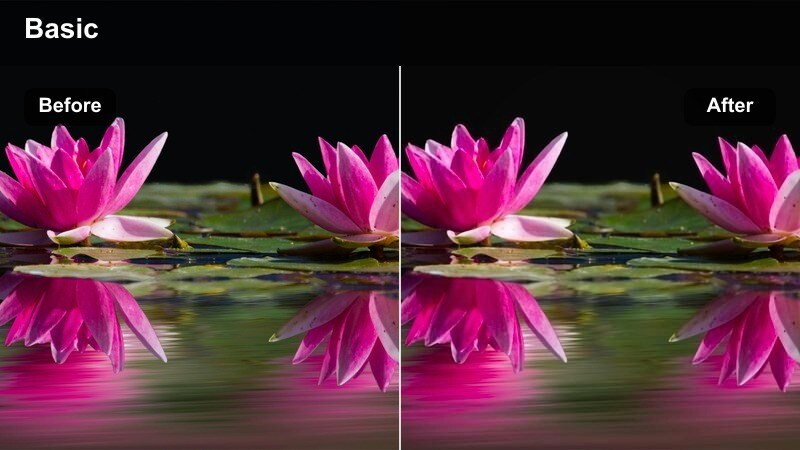
- Effect look: Golden highlights with softly lifted shadows and warm, cinematic tones.
- Best for: Golden hour portrait sessions, rooftop campaigns, and outdoor lookbooks.
- Editing tip: Reduce orange saturation a bit if your outfits already feature bold warm tones to avoid color overload.
Warm Editorial Sunset amplifies the natural glow of golden hour with rich highlights and lifted shadows, ideal for rooftop shoots and outdoor campaigns. The filter adds cinematic warmth that flatters skin and hair while still preserving detail in fabrics and accessories.
In Filmora, apply this filter only to clips actually shot in warm natural light so your overall feed stays coherent. If your outfits are already heavy on orange, rust, or tan, use the HSL controls to slightly lower orange saturation, keeping the look romantic and cinematic rather than overly intense.
Social Reels and Fast-Paced Brand Recaps
Dynamic Reel Boost
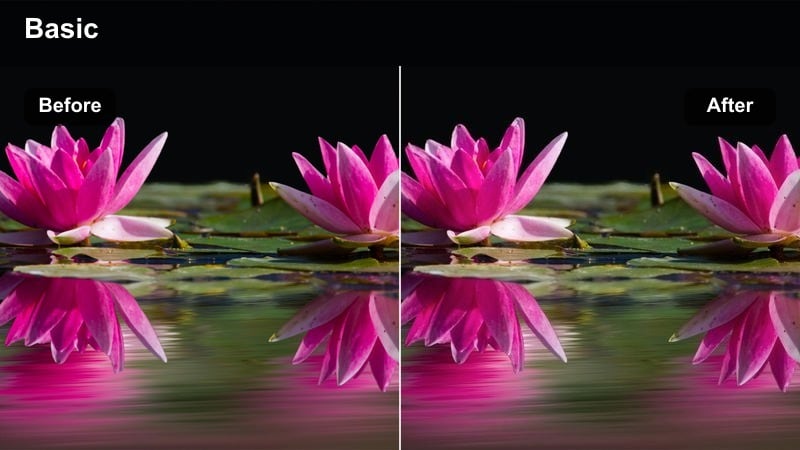
- Effect look: Lively saturation, slightly boosted contrast, and crisp highlights for scroll-stopping clips.
- Best for: Vertical outfit transitions, styling tips, and fast-paced fashion reels.
- Editing tip: Pair this filter with punchy music and snappy cuts to maximize engagement in the first three seconds.
Dynamic Reel Boost is built to grab attention on Reels, Shorts, and TikTok with extra punch in color and contrast. It makes outfits, props, and backgrounds pop without completely distorting brand colors, which is key when viewers decide in seconds whether to keep watching.
In Filmora, apply this filter after you have trimmed your vertical sequence to its most engaging beats, then tweak exposure so highlights stay crisp and not blown out. Keep text overlays bold and minimal, positioning them away from the brightest parts of the frame so they remain easy to read on small screens.
Soft Brand Story
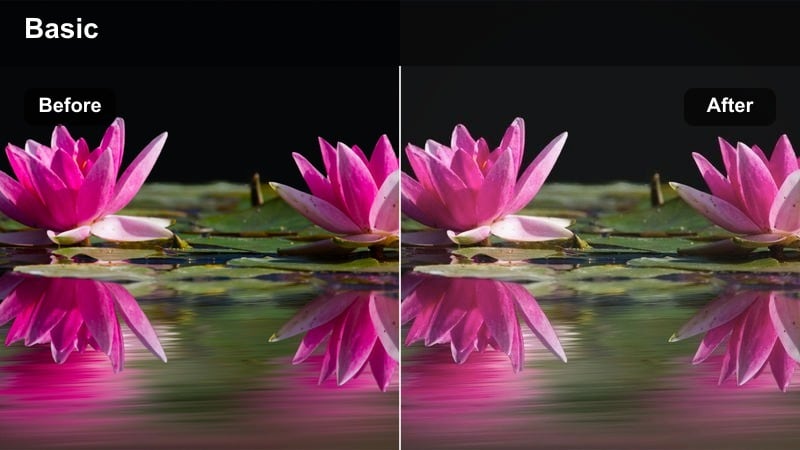
- Effect look: Muted saturation, gentle contrast, and a subtle pastel cast for calm narratives.
- Best for: Behind-the-scenes clips, founder stories, and slow brand recaps.
- Editing tip: Use longer clips and simple camera moves so the soft color grade enhances emotional moments.
Soft Brand Story dials down saturation and contrast to create a calm, trust-building visual tone. It is ideal for behind-the-scenes content, studio moments, and storytelling pieces where you want the audience to focus on your process, values, and message rather than intense colors.
In Filmora, pair this filter with slower cuts, minimal camera movement, and gentle background music to underline the intimate feel. Keep dialog tracks clear and slightly louder than the music so the soft visuals and sound work together to strengthen your brand narrative.
Runway Recap Cinema
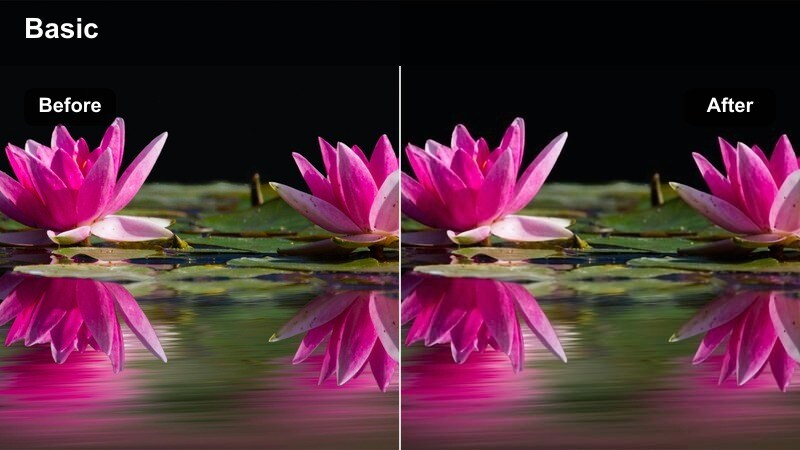
- Effect look: Cinematic contrast with richer shadows and spotlight-style midtones.
- Best for: Runway recaps, pop-up event highlights, and fashion week stories.
- Editing tip: Stabilize handheld shots first, then apply this filter so the cinematic feel comes from both motion and color.
Runway Recap Cinema transforms event footage into dramatic, filmic highlight reels with deep shadows and strong midtone emphasis. Spotlights, stage lighting, and audience silhouettes take on a refined, cinematic look that feels at home in fashion week coverage and branded recaps.
In Filmora, stabilize handheld runway clips before adding this filter so your shots feel polished rather than chaotic. Adjust exposure per clip to keep the model and outfit properly lit under changing stage lights, and consider adding speed ramps synced to music for extra impact.
Tips for Using Fashion Brand Video Lut Filters in Filmora
- Decide on a primary Fashion Brand Video LUT or filter and use it as your base look across most uploads so your channel and campaigns feel visually cohesive.
- Always preview your graded footage on both mobile and desktop screens to confirm that outfits, brand colors, and skin tones remain accurate and flattering.
- Shoot slightly flatter and a bit brighter in-camera so these filters and LUTs have room to add contrast and richness without crushing details or blowing highlights.
- Create separate preset variations in Filmora for studio, street, and event lighting so you can quickly swap to the best version for each location.
- Use Filmora AI color matching or color correction tools to align white balance and exposure across cameras before stacking your favorite fashion filters.
- Save your most successful combinations of LUT intensity, filters, and minor color tweaks as custom presets so your Fashion Brand Video LUT style is one click away.
- When testing new looks, export short comparison clips with different filters applied and review them on your phone to see which version best fits your brand.
By choosing a handful of Fashion Brand Video LUT-inspired filters that fit your aesthetic, you can keep every campaign, reel, and runway recap instantly recognizable as part of your brand.
Experiment with these looks in Filmora, then refine them into a small set of go-to presets that make your fashion content faster to edit and stronger as a visual identity.
secure download