

 100% Security Verified | No Subscription Required | No Malware


 ChatGPT
 Perplexity
 Gemini
 Claude
 Grok
Grok
These Fashion Portrait Cinematic LUT-style filters are designed for content creators who want their fashion videos to look like editorial campaigns and high-end lookbooks.
Use these filters to shape light, color, and contrast so your fashion portraits feel cinematic, consistent, and on-brand across social platforms.
In this article
Golden Hour Runway Moments
Sunlit Soft Glam
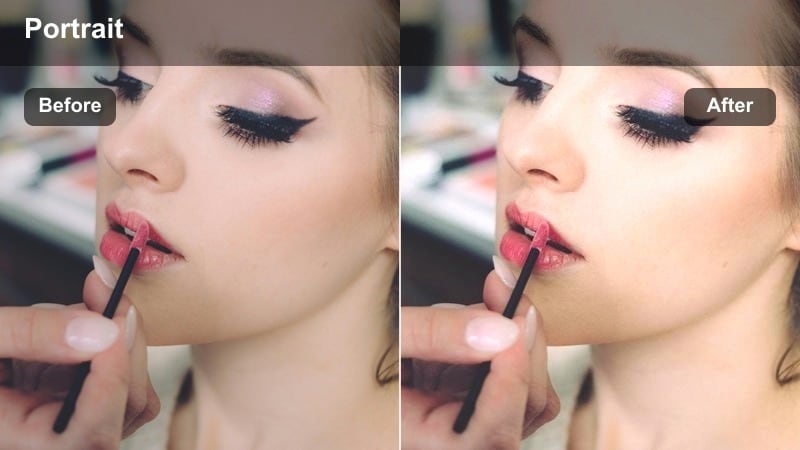
- Effect look: Warm, glowing skin tones with gentle contrast and a soft cinematic roll-off in the highlights.
- Best for: Golden hour fashion portraits, street-style lookbooks, and slow-motion hair or fabric shots.
- Editing tip: Lower the filter intensity to around 60-70 percent and slightly reduce highlights to prevent bright skies from clipping.
Sunlit Soft Glam wraps your subject in a warm editorial glow that flatters skin and softens transitions between light and shadow. In Filmora, this LUT-style filter is ideal when you shoot backlit at golden hour and want the sun to feel like a natural diffuser instead of a harsh spotlight.
Apply the filter on an adjustment layer above your fashion clips so you can fine-tune its strength per shot without losing consistency. Add light skin smoothing and a subtle vignette, then nudge highlight and white sliders down until the sky holds detail while the model remains luminous and center stage.
Match Fashion Portrait Colors with AI
Use Filmoras AI-driven color tools to quickly normalize exposure and white balance before you apply any fashion portrait cinematic LUT-style filter. Correcting these basics first gives your filters more room to deliver clean skin tones and consistent brand colors.
Once your base look is balanced, experiment with different fashion filters to decide how much warmth, contrast, or mood fits your campaign imagery across platforms.
 secure download

Preview Fashion Filters on Test Clips
Before committing to a full fashion edit, drop a short test clip on the Filmora timeline and cycle through multiple portrait filters. Split-screen preview lets you compare warm, neutral, and matte interpretations of the same shot so you can see which look best matches your brand identity.
Once you lock in your favorite mood, apply that filter across the full sequence to maintain a cohesive editorial style from the first frame to the last transition.
secure downloadBuild a Signature Fashion LUT Look
After you craft a grading combo you love, save your filter, color, and contrast adjustments as a reusable preset in Filmora. This turns your favorite cinematic fashion portrait treatment into a one-click LUT-style look for future campaigns.
Use this preset as the starting point for every new shoot, then make minor tweaks per location or outfit so your brand aesthetic stays recognizable but flexible.
secure downloadRunway Dusk Glow
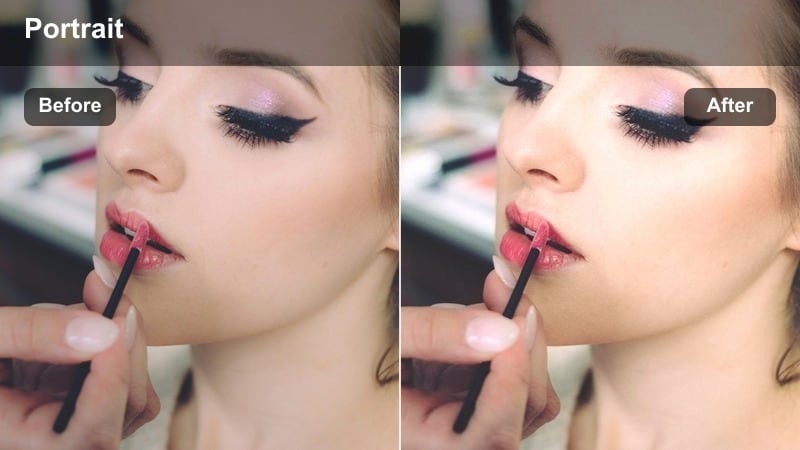
- Effect look: Neutral shadows with a soft amber tint in the highlights that keeps skin luminous after sunset.
- Best for: Twilight runway walk-throughs, rooftop fashion scenes, and silhouette-style portraits.
- Editing tip: Boost midtones slightly and add a touch of film grain to give the scene a premium editorial finish.
Runway Dusk Glow is designed to keep your model glowing even when natural light starts to fade. It preserves detail in the city skyline and darker wardrobe pieces while gently warming highlights so skin still looks fresh and expensive.
In Filmora, place this filter on an adjustment layer over your dusk sequences and expose for the brightest parts of the frame, such as city lights or the sky. Then raise midtones and add light grain for a refined, editorial texture that feels like a magazine cover brought to life.
Amber Skin Vibe
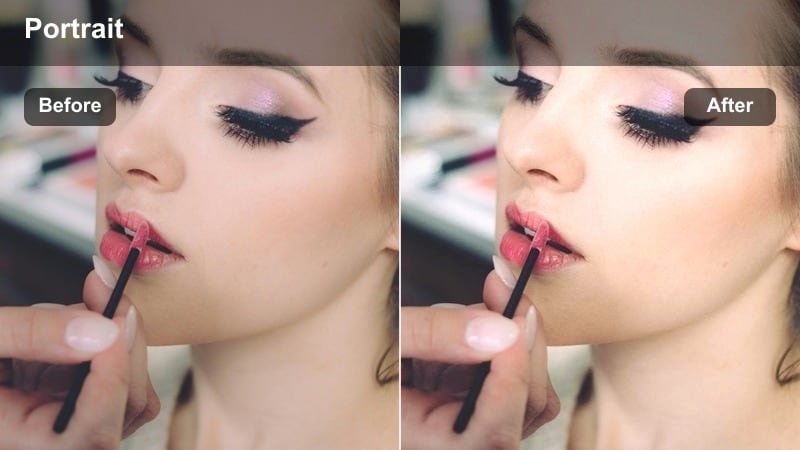
- Effect look: Rich amber cast that adds warmth and depth to skin while protecting white clothing from turning yellow.
- Best for: Warm-toned fashion portraits, neutral outfit reels, and high-key editorial studio shots with sunlight.
- Editing tip: Use temperature to cool the clip slightly if the outfit includes bright reds or oranges to avoid over-warming.
Amber Skin Vibe gives models a luxurious editorial tan without sacrificing the true color of white or beige clothing. It subtly deepens skin and midtones, creating a cinematic glow that works beautifully for sunlit windows, terraces, and neutral-toned lookbooks.
Apply this filter in Filmora, then fine-tune white balance until whites and metallic accessories remain clean and neutral. If your wardrobe features intense reds or oranges, cool the temperature slightly and selectively desaturate orange tones so skin stays flattering and never looks oversaturated.
Urban Editorial Street Style
City Chrome Fashion
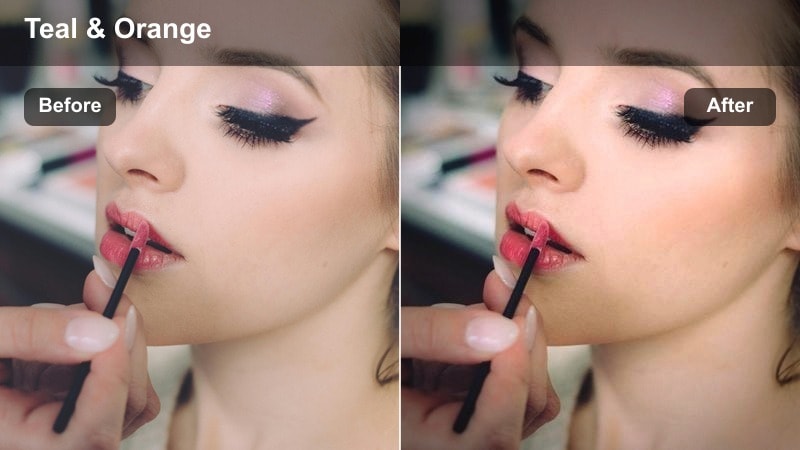
- Effect look: Cool, metallic shadows with crisp detail and subtle teal accents in the urban background.
- Best for: Street-style fashion reels, city crosswalk portraits, and fashion vlog intros.
- Editing tip: Increase sharpness and add a tiny bit of clarity to make fabric textures and accessories stand out.
City Chrome Fashion turns crowded streets into a sleek, cinematic backdrop while keeping your outfits front and center. The cool, metallic shadows push buildings and pavement into a stylized space, while your model and wardrobe retain strong, true-to-life color.
In Filmora, pair this filter with a slight boost in sharpness and clarity to highlight denim, leather, and jewelry details. If the background blues feel too intense, gently lower blue saturation so the wardrobe remains the boldest color element against the chrome-toned cityscape.
Neon Editorial Curve
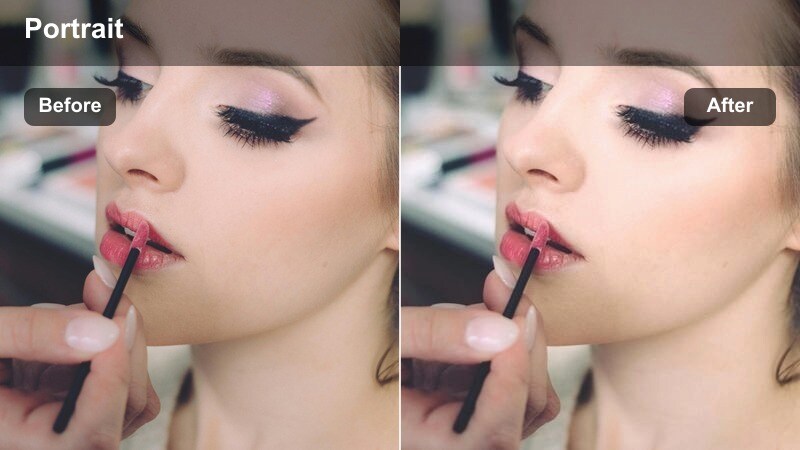
- Effect look: Soft contrast with lifted blacks and emphasized neon signs that wrap the subject in colored light.
- Best for: Nighttime fashion portraits in shopping districts, neon-lit alleys, and cinematic walk-by shots.
- Editing tip: Underexpose slightly in-camera and then raise shadows with this filter so neon signage retains its glow.
Neon Editorial Curve brings out the atmosphere of busy nightlife while keeping your model bright and glamorous. By lifting blacks and gently softening contrast, it helps neon signs, LED screens, and reflective glass paint your subject with colorful, cinematic light.
When editing in Filmora, start with shots that are a touch underexposed so highlights in signs do not clip. Apply the filter, then raise shadows to recover detail in the outfit and environment, and use masks or keyframed exposure to keep your model's face at the perfect brightness in darker streets.
Concrete Editorial Matte
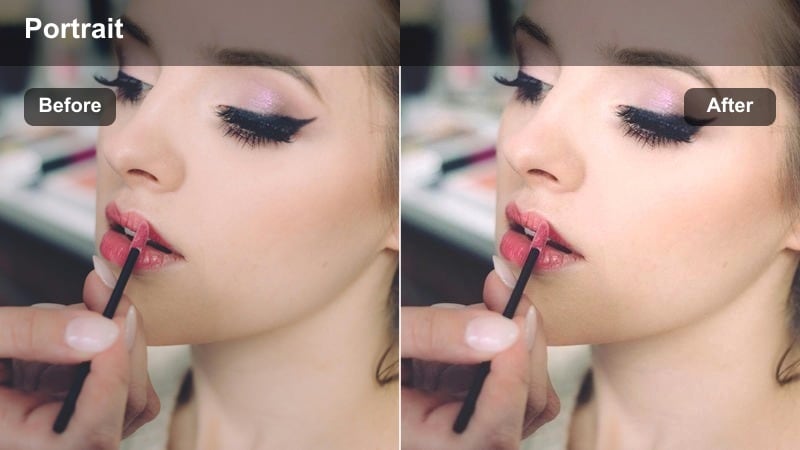
- Effect look: Muted city palette with a modern matte finish that softens harsh sunlight on street corners.
- Best for: Daytime street shoots, lookbook walks, and stairway or parking lot fashion portraits.
- Editing tip: Drop contrast slightly more and fine-tune blacks to avoid crushing detail in dark clothing.
Concrete Editorial Matte turns stairwells, parking lots, and sidewalks into a minimal, high-fashion canvas. The muted color palette tones down busy backgrounds, while the matte contrast softens harsh midday light that would otherwise create unflattering shadows on skin and clothing.
Use this filter in Filmora when strong outfit colors or bold silhouettes are the hero of the frame. After applying, slightly reduce contrast and adjust blacks until you see texture in dark fabrics and hair, then add a mild vignette so the viewer's eye naturally stays on the model instead of the architecture.
Studio Editorial Close-Up Portraits
Studio Skin Cinema
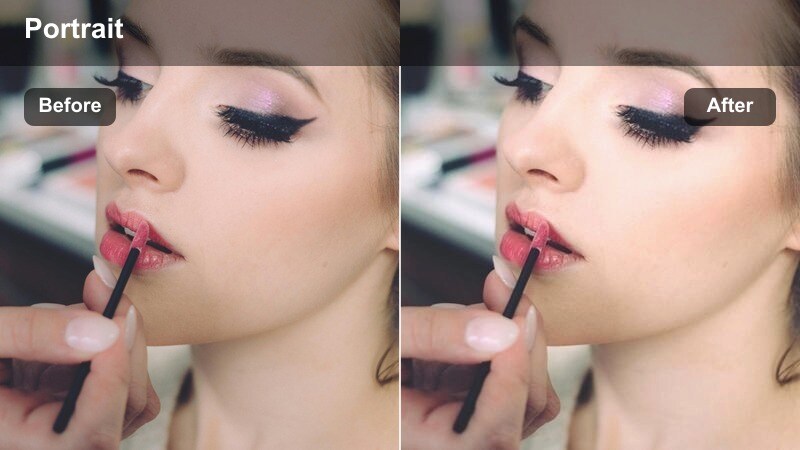
- Effect look: Clean, balanced tones with gentle contrast and soft highlight roll-off ideal for beauty close-ups.
- Best for: Close-up fashion portraits, beauty campaigns, and product-focused fashion reels.
- Editing tip: Reduce saturation just a touch and use Filmoras skin tone tools for perfect complexion control.
Studio Skin Cinema is tuned for flawless beauty shots where every detail of makeup, jewelry, and fabric must look premium. It offers balanced color and gentle contrast that keep skin smooth yet dimensional, avoiding both flatness and harshness under studio lights.
In Filmora, apply this filter to your close-ups, then slightly lower overall saturation so lips, eyeshadow, and accessories do not overpower the face. Use skin tone controls to nudge complexions toward your preferred hue, and add subtle sharpening only to eyes and jewelry for a high-end editorial finish.
Monochrome Fashion Focus
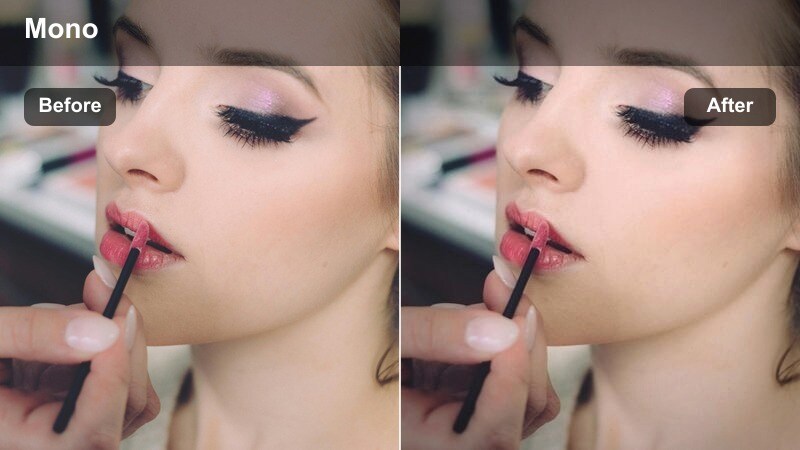
- Effect look: High-end black-and-white rendering with deep shadows and smooth midtone detail for dramatic portraits.
- Best for: Editorial black-and-white fashion campaigns, dramatic headshots, and mood reels.
- Editing tip: Use the color mix controls before converting to monochrome to shape how different fabrics and skin tones render.
Monochrome Fashion Focus strips away color so texture, silhouette, and expression carry the image. It deepens shadows for drama while preserving midtone detail, creating a luxurious black-and-white aesthetic reminiscent of classic fashion editorials.
Before or after adding this filter in Filmora, adjust individual color channels so fabrics, hair, and skin separate clearly in grayscale. Fine-tune contrast to avoid clipping highlights on reflective materials, and add a modest vignette to draw attention to the face and the structure of the outfit.
Soft Cream Editorial
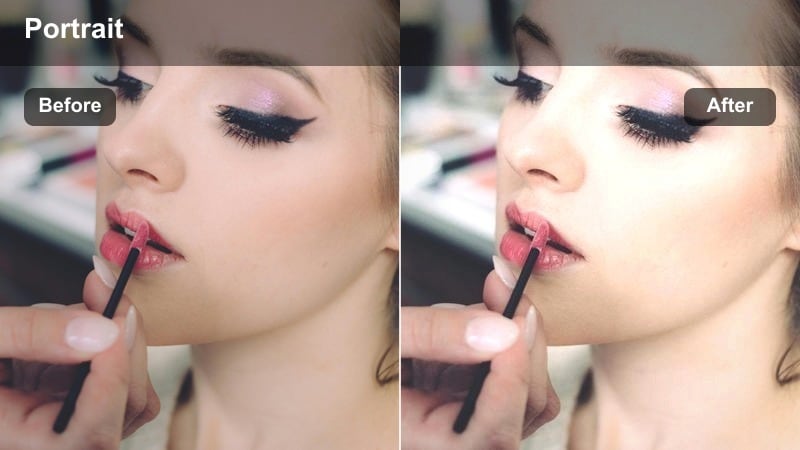
- Effect look: Creamy highlights, lowered contrast, and a subtle pastel wash for dreamy studio portraits.
- Best for: Soft fashion campaigns, bridal-inspired portraits, and high-key studio reels.
- Editing tip: Raise exposure slightly and keep backgrounds simple so the pastel wash feels intentional and modern.
Soft Cream Editorial creates a delicate, airy look that feels perfect for bridal, luxury, and romantic fashion content. Highlights become creamy instead of sharp, and a gentle pastel wash makes skin and fabrics appear soft, polished, and ethereal.
When editing in Filmora, start with a bright, evenly lit base image, then apply this filter and nudge exposure up just enough to maintain a high-key mood. If white or beige garments lose texture, lower highlights slightly and add a touch of midtone contrast so your dreamy aesthetic still retains detail in lace, silk, and layered fabrics.
Runway Motion and Lookbook Stories
Runway Cinema Punch
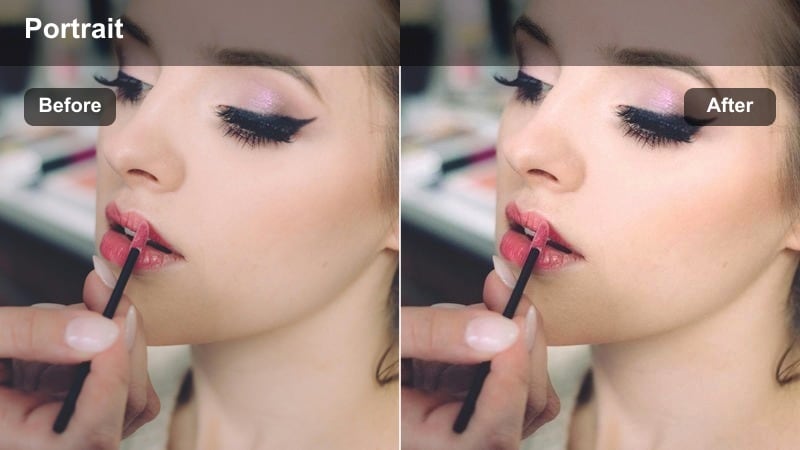
- Effect look: Bold contrast, slightly cooler shadows, and energized saturation for dynamic walking shots.
- Best for: Runway walk edits, lookbook transitions, and dynamic TikTok or Reels fashion cuts.
- Editing tip: Combine with smooth speed ramps and beat-synced cuts to maximize the energy of the colors and contrast.
Runway Cinema Punch is built for motion-heavy fashion edits where every step and turn should feel powerful. The filter adds strong contrast and cool-tinted shadows that transform standard catwalk or studio walks into high-impact cinematic sequences.
In Filmora, apply this filter across your runway timeline, then integrate speed ramps and quick cuts synced to music accents. If skin starts to look overly contrasty, reduce the filter strength slightly and add a gentle softening or skin-smoothing adjustment just on the face using masks.
Lookbook Film Fade
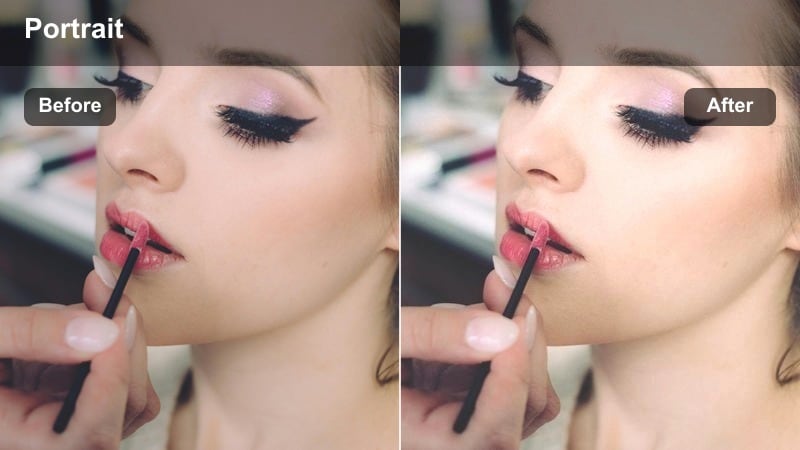
- Effect look: Subtle film-like fade in the blacks with gentle color shifts for a nostalgic campaign feel.
- Best for: Lookbook sequences, slow outfit reveals, and narrative fashion mini-films.
- Editing tip: Add a slight vignette and light film grain to fully sell the retro editorial atmosphere.
Lookbook Film Fade introduces a soft, nostalgic character that makes modern fashion content feel like a timeless campaign. The raised blacks and subtle color shifts calm down harsh edges, giving your transitions and outfit reveals a smooth, story-driven flow.
When grading in Filmora, apply this filter across the entire lookbook to unify clips shot in different spaces. Add light grain, mild vignetting, and subtle camera-movement effects like slow push-ins so each outfit feels like another chapter in a cohesive editorial narrative.
Motion Portrait Focus
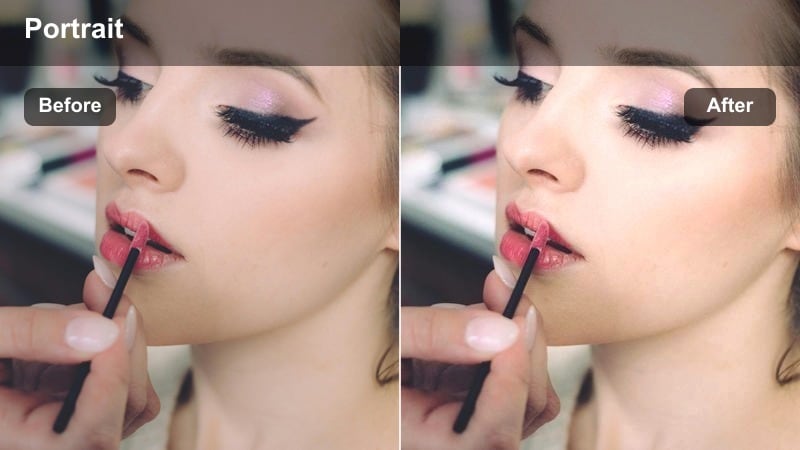
- Effect look: Balanced cinematic contrast optimized for handheld shots, with stable skin tones in quick movement.
- Best for: Handheld fashion portraits, behind-the-scenes clips, and motion-heavy outfit transitions.
- Editing tip: Use stabilization first, then apply this filter and adjust exposure with keyframes during quick lighting changes.
Motion Portrait Focus is tuned for BTS videos, quick transitions, and high-energy social clips where the camera and model are constantly moving. It keeps contrast and color balanced so skin tones look natural from frame to frame, even in mixed or changing light.
In Filmora, stabilize your handheld footage before applying this filter, then refine overall exposure and white balance. Use keyframes on exposure or brightness when your model passes through shadows and highlights, ensuring their face and outfit stay readable and cinematic throughout the movement.
Tips for Using Fashion Portrait Cinematic Lut Filters in Filmora
- Shoot with consistent lighting and color temperatures so your fashion portrait cinematic LUT filters apply cleanly across all scenes and cameras.
- Check skin tones first in Filmora, then adjust saturation and HSL for outfits and backgrounds to align with your brand palette.
- Apply filters on adjustment layers or separate tracks so you can fine-tune intensity and color per scene while keeping a unified overall look.
- Use Filmoras scopes and preview window at 100 percent scale to avoid clipping highlights and crushing blacks when pushing contrast.
- Export in a high bitrate and avoid stacking multiple heavy compressions so subtle gradients, glows, and matte finishes stay smooth.
- Create a visual reference board with favorite fashion campaigns and place the Filmora preview beside it while grading for closer style matching.
- Mix filter presets with local adjustments like masks and keyframes to keep faces, logos, and key outfit details perfectly exposed.
These Fashion Portrait Cinematic LUT-style filters help you turn simple fashion clips into polished editorial stories with consistent color, contrast, and mood. Whether you are shooting street style, studio campaigns, or fast-paced runway edits, you can build a cohesive visual identity that feels premium across platforms.
Combine your favorite presets with thoughtful lighting, framing, and motion to create a signature look that audiences instantly associate with your brand. With Filmoras adjustment layers, AI-powered tools, and custom preset options, you can refine these filters into a personalized cinematic style for every new collection.
secure download