

 100% Security Verified | No Subscription Required | No Malware


 ChatGPT
 Perplexity
 Gemini
 Claude
 Grok
Grok
If you shoot fashion content, color is everything. These free LUT-style filters in Filmora help creators and editors instantly give fashion videos a polished, on-brand look without complex grading.
Below are 12 curated filters designed for lookbooks, studio shoots, streetwear clips, and runway shows so you can match the vibe of each outfit, location, and platform in just a few clicks.
In this article
Soft Studio Lookbook and Catalog Vibes
Cream Soft Glam
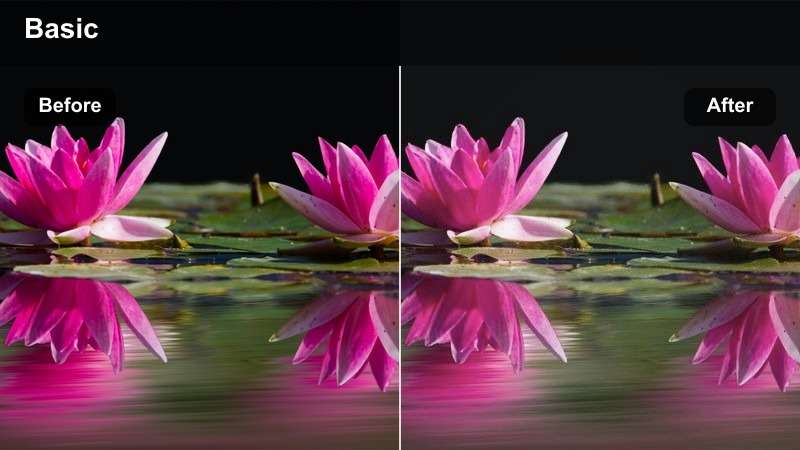
- Effect look: Creamy, slightly desaturated tones with gentle skin-softening and subtle highlight bloom.
- Best for: Indoor studio fashion lookbooks, clean catalog shots, neutral and pastel wardrobes.
- Editing tip: Lower contrast slightly for airy catalog feels, or add a tiny bit of clarity to restore detail on fabrics with heavy texture.
Cream Soft Glam gives studio fashion footage a silky, commercial-ready finish that flatters both skin and fabric. The soft bloom in the highlights smooths harsh lighting while the gentle desaturation keeps whites, beiges, and pastels looking refined instead of flat.
In Filmora, apply this filter to your whole lookbook sequence, then fine-tune with the basic color controls. Nudge contrast down for e-commerce style catalogs or bring up clarity and sharpness to make textured knits, lace, and tailoring details stand out in closeups.
Powder Matte Editorial
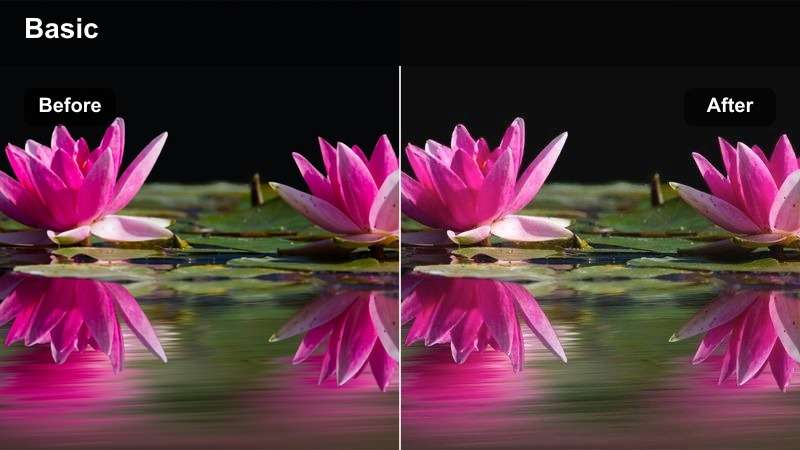
- Effect look: Flat matte contrast with subtle cool shadows and refined skin tones for editorial styling.
- Best for: Beauty close-ups, editorial poses, and studio fashion reels that need a print-magazine style finish.
- Editing tip: Drop saturation a touch and add mild vignette to make the framing feel like a magazine cover or campaign spread.
Powder Matte Editorial dials back harsh contrast and adds a tasteful coolness to your shadows, creating a beauty counter or magazine cover mood. Skin looks polished and expensive, while makeup colors and metallic accessories remain defined.
Inside Filmora, pair this filter with tight-framed shots, slow camera moves, and subtle vignettes from the Effects panel. Slightly reduce saturation and lift shadows for that flat, editorial style, then use keyframes to gently push in on hero shots for a true print-campaign feel.
 secure download
 secure downloadsecure download
Pastel Showroom Bright
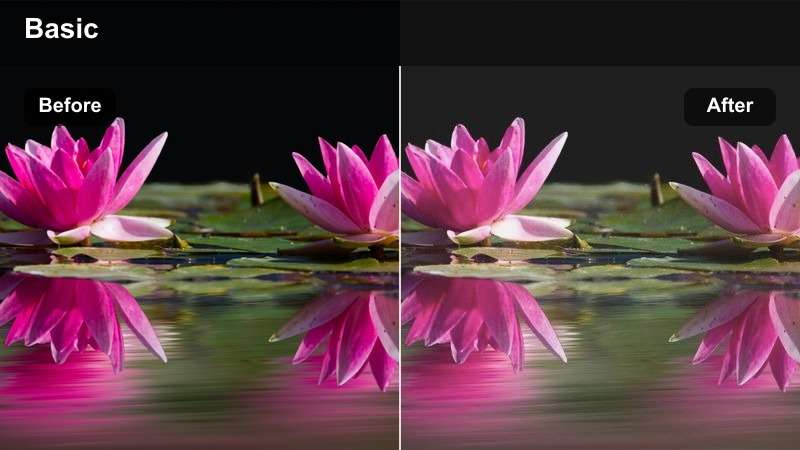
- Effect look: High-key brightness with pastel-shifted colors and soft contrast that flatter bright wardrobes.
- Best for: Spring and summer collections, pastel wardrobes, and showroom-style fashion walkthroughs.
- Editing tip: Increase exposure slightly but protect highlights so white outfits keep detail and do not wash out completely.
Pastel Showroom Bright enhances airy interiors and colorful racks by lifting exposure and gently nudging hues into a playful pastel range. It keeps edges smooth and friendly, which is perfect for upbeat lookbook tours and collection overviews.
In Filmora, apply this filter to your full showroom sequence, then check scopes or highlight warnings when boosting exposure so white dresses and shirts keep texture. If some colors get too candy-like, use HSL or color tuning to slightly pull back individual hues while preserving the overall bright mood.
Urban Streetwear and City Fashion Scenes
Gritty Street Contrast
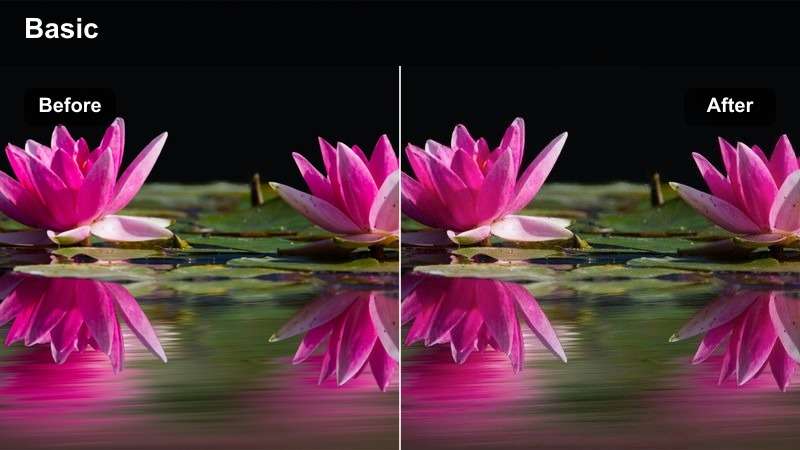
- Effect look: Punchy contrast with rich blacks, crisp edges, and a slight cool cast for a gritty city vibe.
- Best for: Streetwear lookbooks, urban fashion walks, and alleyway or rooftop photoshoot videos.
- Editing tip: Lean into handheld or quick cuts; this look loves motion, lens flares, and textured city backgrounds like brick or concrete.
Gritty Street Contrast deepens blacks and adds a cool tint that makes concrete, metal, and graffiti feel cinematic. Bold sneakers, oversized fits, and graphic prints really pop against the darker, more aggressive mood.
Inside Filmora, combine this filter with fast cuts, whip pans, and speed ramps to match the urban energy. If faces start to lose detail in the shadows, lift midtones slightly or add a touch of exposure in the color panel while keeping those rich blacks locked for maximum impact.
Neon City Pop
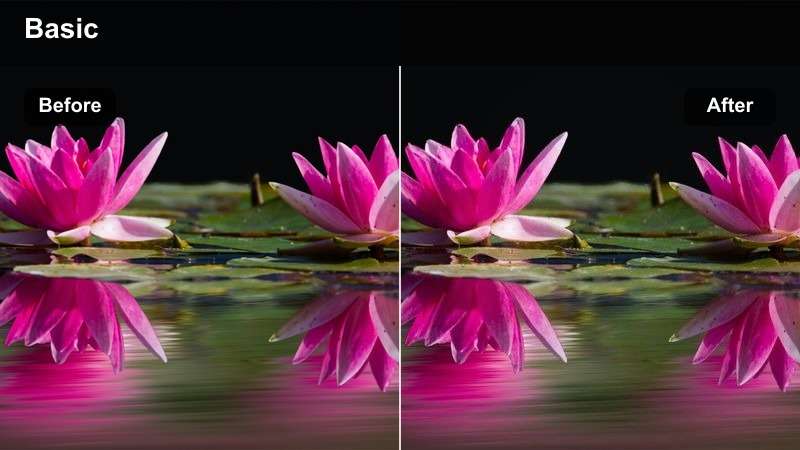
- Effect look: Vibrant saturation that boosts neons, glowing signage, and colorful street lights while keeping skin tones balanced.
- Best for: Nighttime fashion shoots, neon streetwear, and city videos with billboards or LED backgrounds.
- Editing tip: Slow down your shutter or use speed ramps in the edit so neon light streaks complement the bold color treatment.
Neon City Pop is built for after-dark shoots, pushing saturation in signs and LEDs so every color block feels electric. It carefully protects skin tones, which keeps models looking natural even when surrounded by mixed, intense lighting.
In Filmora, drop this filter on night sequences that feature LEDs, shop windows, and light trails, then tweak saturation if certain colors clip on social platforms. Pair the look with subtle slow motion, speed ramps, and music-synced cuts so each burst of neon lines up with transitions and beats.
Urban Film Fade
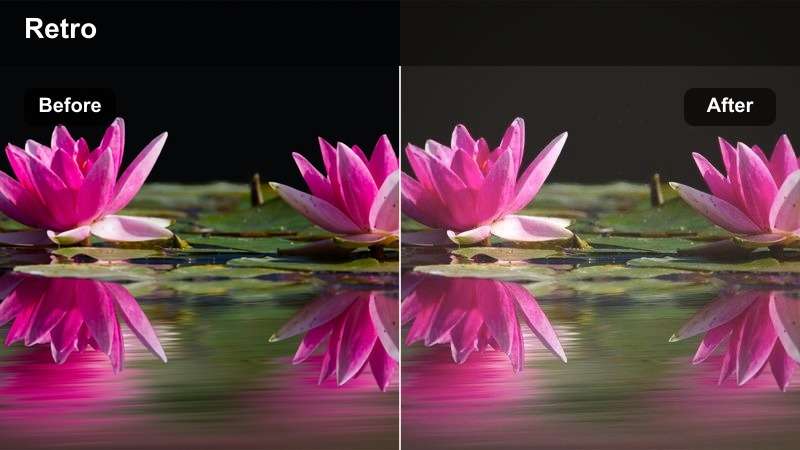
- Effect look: Faded film-style shadows with warm highlights and a subtle grainy feel for nostalgic city fashion edits.
- Best for: Vintage-inspired street style, retro denim campaigns, and analog-feel Instagram fashion reels.
- Editing tip: Add a 4:5 or 9:16 crop for social and keep camera moves simple so the filmic fade stays the star.
Urban Film Fade lifts blacks, warms highlights, and mimics the softness of processed film, transforming sharp digital city footage into something dreamy and nostalgic. It is ideal for retro denim, leather jackets, and classic silhouettes styled against crosswalks and old brick.
In Filmora, apply this filter, then add light grain and a vignette from the effects library to complete the analog feel. Keep movements minimal and use straight cuts or gentle cross dissolves, allowing the filmic fade and wardrobe styling to carry the storytelling without flashy transitions.
Runway Shows and Fashion Event Highlights
Runway Spotlight Clean
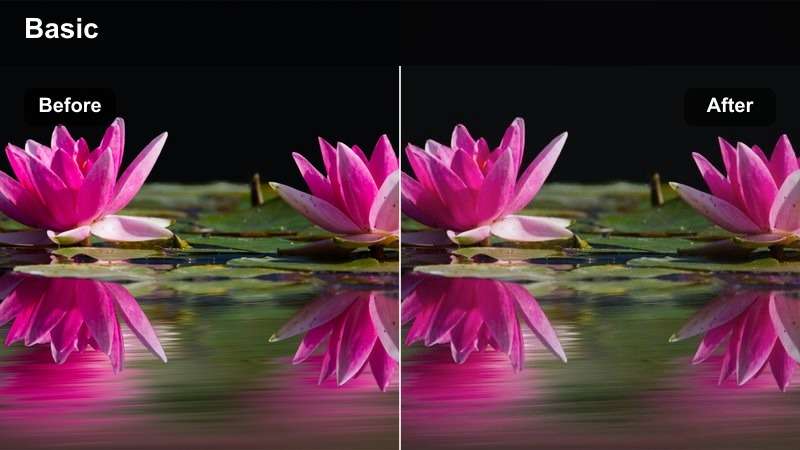
- Effect look: Clean, bright highlights with neutral tones and slightly boosted clarity to emphasize fabrics and movement.
- Best for: Runway shows, backstage walkouts, and event recaps shot under stage spotlights.
- Editing tip: Stabilize shaky shots and trim to the beat so each walk, turn, and pose lands on music accents.
Runway Spotlight Clean evens out harsh stage lighting and adds just enough clarity to show every pleat, sequin, and fabric ripple. Colors stay neutral and accurate, which is crucial when designers expect true-to-life representation of their collections.
In Filmora, use this filter across all runway camera angles to build a consistent master look, then apply stabilization and speed adjustments on clips that feel shaky or off-tempo. Cut on beats or crowd reactions so the clean grade and smooth pacing give your final runway reel a broadcast-level polish.
Backstage Warm Glow
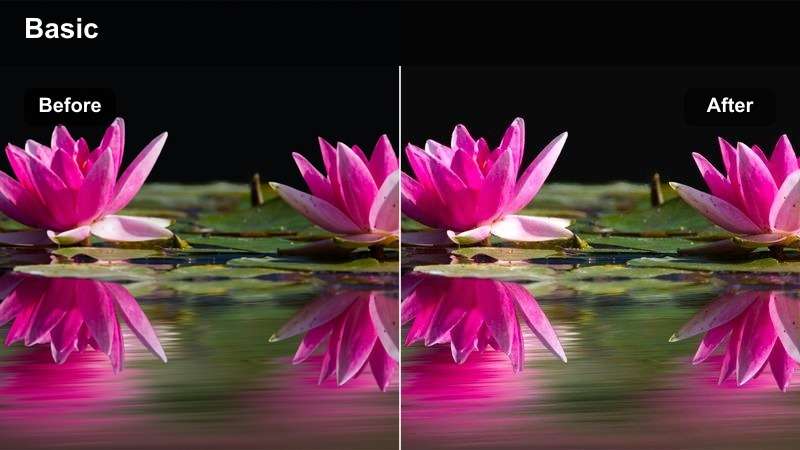
- Effect look: Soft warm highlights with gentle contrast that turns backstage chaos into inviting, cinematic moments.
- Best for: Behind-the-scenes dressing rooms, makeup touch-ups, and candid designer interactions.
- Editing tip: Shoot at slightly higher frame rates for smoother slow motion on hair flips, fabric swishes, and laughter moments.
Backstage Warm Glow adds a flattering golden tint and controls contrast so busy prep areas look intimate rather than chaotic. It smooths mixed lighting from mirrors, bulbs, and overhead fixtures, giving faces and fabrics a cohesive, cinematic warmth.
In Filmora, place this filter on candid clips and slow them down slightly to emphasize gestures, smiles, and last-minute adjustments. Mix in a few natural sound bites under gentle music, and fine-tune warmth with the temperature slider until skin tones feel rich but not overly orange.
Fashion Press Recap
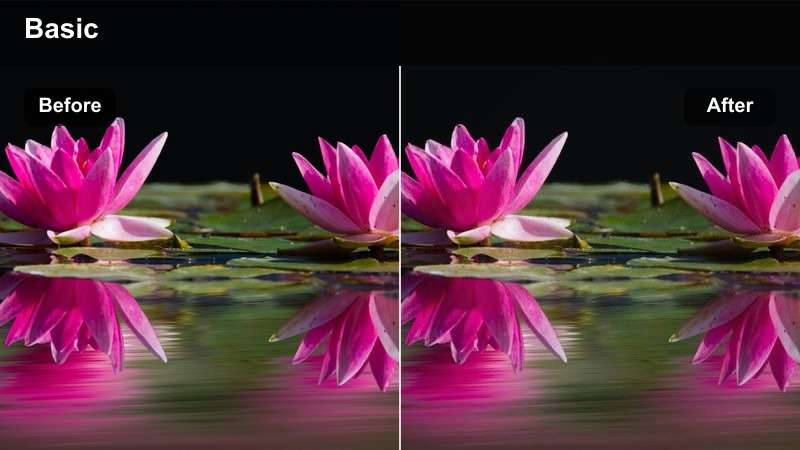
- Effect look: Balanced event-friendly color with modest contrast and slight sharpness for clear media-style coverage.
- Best for: Red carpet entrances, step-and-repeat walls, designer interviews, and media recaps.
- Editing tip: Keep transitions clean and simple so the footage feels like a polished press reel rather than a stylized music video.
Fashion Press Recap is tuned for documentation: it keeps contrast moderate, colors natural, and details sharp so logos, patterns, and faces all read clearly. The look mirrors what you would expect from TV or online press coverage, which makes it ideal for clients and PR teams.
In Filmora, use this filter across all event angles and interviews, then adjust exposure or white balance slightly per clip to fix any camera mismatches. Stick with straight cuts, lower-third titles, and restrained motion graphics so the footage feels professional and ready for media distribution or brand channels.
Vertical Reels and Social-First Fashion Content
Minimal Brand Clean
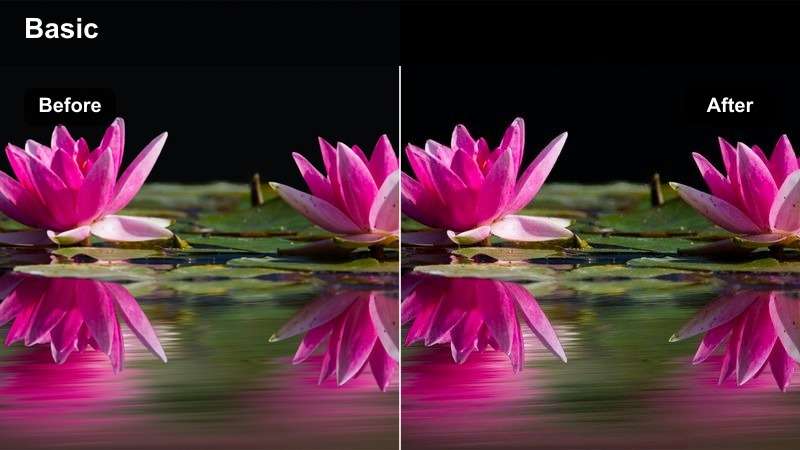
- Effect look: Crisp whites, true-to-life colors, and mild contrast for a polished but natural social brand look.
- Best for: Try-on hauls, outfit-of-the-day vertical videos, and brand-focused social posts.
- Editing tip: Shoot against simple walls or seamless paper so this clean grade keeps attention on outfit shapes and brand logos.
Minimal Brand Clean keeps everything bright and honest, which is perfect for sponsored posts and daily outfit content where accurate color matters. Whites stay crisp without clipping, and garments hold their original hue so viewers trust what they see.
In Filmora, apply this filter to vertical sequences, then crop to 9:16 and preview on a phone to check brightness. If your room is dark, raise exposure and shadows slightly while watching for blown highlights, and use simple text labels or chapter cards so the focus always returns to the clothes.
Vintage Reels Softfade
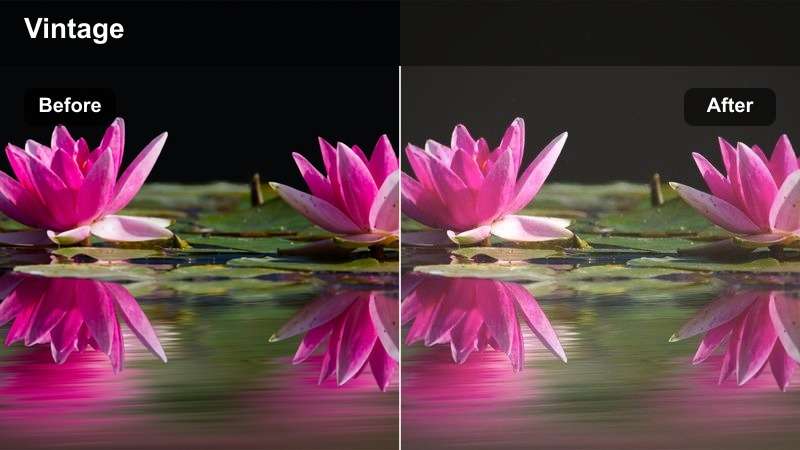
- Effect look: Soft faded contrast with warm midtones and a gentle vignette tailored to vertical, nostalgic fashion reels.
- Best for: Thrift hauls, vintage outfit transformations, and nostalgic trend videos.
- Editing tip: Use jump cuts and text overlays that reference eras like 90s or 2000s so the grade supports your storytelling.
Vintage Reels Softfade mutes contrast and warms midtones to create a lived-in, memory-like feel that works beautifully with thrifted finds and retro styling. The subtle vignette pulls attention to the center of the frame, which is perfect for mirror shots and styling demos.
Within Filmora, combine this filter with retro fonts, subtle film burns, or dust overlays to sell the throwback aesthetic. Edit in vertical, stack quick outfit changes with jump cuts, and time them to nostalgic tracks so the color grade, pacing, and audio all point to the same era.
Bold Social Pop
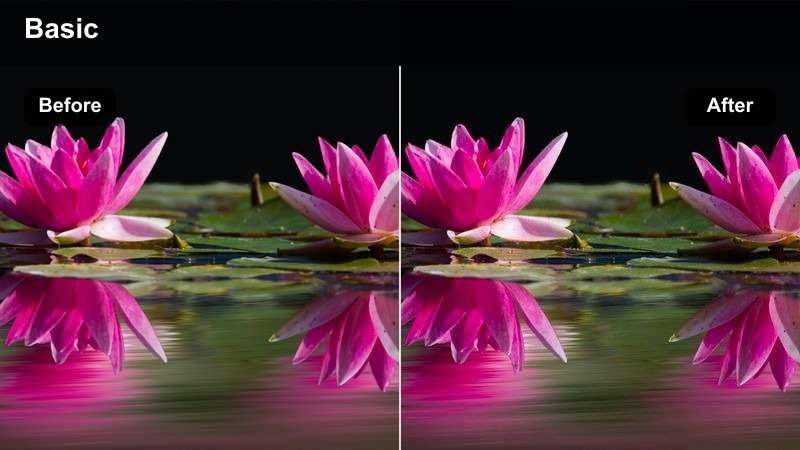
- Effect look: High saturation with contrasty midtones and crisp edges that help outfits stand out on busy feeds.
- Best for: Trend-driven TikTok and Reels edits, quick outfit transitions, and dynamic styling challenges.
- Editing tip: Use this filter on clips with bold colors or graphic prints, and time outfit swaps exactly to beat drops.
Bold Social Pop is tuned to stop thumbs: it pushes saturation, sharpens edges, and boosts midtone contrast so every frame feels punchy. This makes bright sets, color blocking, and graphic prints explode on small phone screens without looking too harsh.
In Filmora, apply this filter to energetic sequences and adjust intensity if skin tones begin to look oversaturated. Combine it with quick transitions, snap zooms, and beat-perfect cuts, and always preview your export on mobile to be sure details stay crisp and colors do not clip on high-brightness displays.
Tips for Using Free Luts For Fashion Video Filters in Filmora
- Shoot a short white balance reference at the start of each setup so every filter sits more consistently across scenes and locations.
- Group these filters mentally by use case studio, street, runway, and social to speed up your selection process in Filmora.
- Always test a filter on at least one close-up of skin and one clip featuring your key garment colors before grading an entire project.
- Use Filmora timelines with duplicate layers so you can compare two or three filters side by side on the same outfit sequence.
- Adjust exposure, contrast, and temperature after applying a filter instead of before to see how the LUT-style look actually behaves.
- Save frequently used combinations of filter, exposure, and color tweaks as custom presets to keep series, campaigns, and client work consistent.
- Export test clips and review them on both desktop and mobile screens to confirm that skin tones and brand colors remain accurate.
- When mixing cameras or phones, match exposure and white balance first, then apply the same filter so your final fashion edit feels cohesive.
With a handful of free LUT-style filters tailored to studio, street, runway, and social content, you can give every fashion video a fast, polished grade in Filmora.
Save your favorite combinations as presets, keep lighting consistent on set, and your fashion edits will look cohesive and professional across every platform you post to.
secure downloadNext: Free LUTS for Gym Video
