

 100% Security Verified | No Subscription Required | No Malware


 ChatGPT
 Perplexity
 Gemini
 Claude
 Grok
Grok
These 12 Filmora filters are designed to help content creators turn dark, noisy night footage into moody, cinematic Instagram Reels with rich shadows, deep color, and dramatic contrast.
Whether you shoot neon-lit streets, late-night city drives, or quiet rooftop moments, you can quickly match your clips to a cohesive Instagram reels night LUTs moody tone using the styles below.
In this article
Neon City Nights: Streetlights and Signs
Midnight Neon Glow
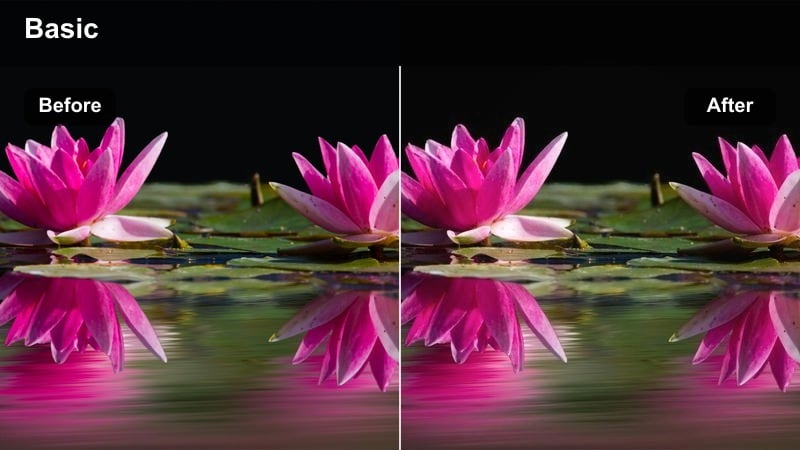
- Effect look: Soft contrast with boosted neon blues and magentas that keep the scene dark but vibrant.
- Best for: Handheld street walks under neon signs, storefronts, and illuminated billboards.
- Editing tip: Lower overall exposure slightly, then increase saturation of blues and magentas to intensify the glow while preserving the moody tone.
Midnight Neon Glow is ideal when you want neon signs to feel rich and cinematic without blowing out highlights or losing detail in the shadows. In Filmora, this style turns everyday city streets into stylized frames where neon tubes, LED boards, and reflected colors in puddles all pop against a darker base.
Apply this filter to your Instagram Reels night clips, then fine-tune exposure and saturation in the Color panel so skin tones remain natural while blues and magentas carry the mood. For sequences with multiple angles of the same street, copy and paste your color settings between clips in Filmora to lock in a consistent, moody neon look.
Match a Consistent Night Mood with AI Color Tools
Use Filmora s AI-driven color tools to keep your Instagram reels night LUTs moody tone consistent across clips filmed in different parts of the city. Even if one shot is under cool neon and the next under a warmer streetlamp, AI suggestions help align contrast, temperature, and tint.
After choosing a favorite filter like Midnight Neon Glow, open the Color Match or AI Color Palette features to harmonize your timeline. This makes every cut feel intentional, so your reel plays like a single cinematic night sequence instead of mismatched scenes.
 secure download

Preview Filters on Night Reels in Real Time
Filmora lets you hover over each filter and preview the effect on your night footage instantly in the Viewer. This is perfect when you are deciding between a neon-heavy glow, a colder cyan wash, or a softer rooftop mood for your Instagram reel.
Import a few seconds of your clip, then scroll through the filter panel to audition different looks before committing. Once you find your favorite moody tone, apply it across the rest of the timeline for a unified style.
secure downloadBlend Filters with LUTs for Deeper Night Color
Combine Filmora filters with subtle LUTs to push blues, cyans, and shadow tones for a richer Instagram reels night LUTs moody tone. The filter gives you the base style, while the LUT adds that final cinematic polish across the whole reel.
Apply your chosen filter first, then add a gentle LUT in the Color section and adjust opacity so skin stays natural but the environment feels deeper and more dramatic. This layered workflow helps your night clips stand out without looking overprocessed.
secure downloadDark Alley Cyan
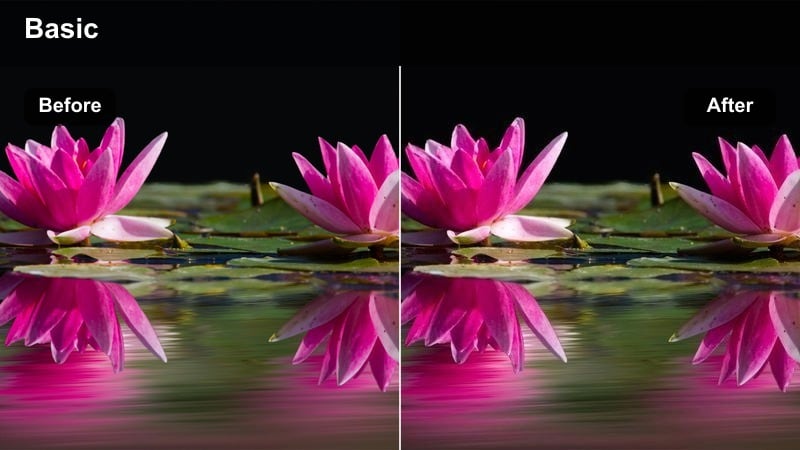
- Effect look: Deep shadows shifted toward cyan and teal with muted warm tones for a cold, tense atmosphere.
- Best for: Back alleys, side streets, and dimly lit corners where you want a mysterious, cinematic feel.
- Editing tip: Drop blacks for richer contrast, then slightly desaturate yellows and oranges so the cyan cast becomes the dominant mood.
Dark Alley Cyan is built for scenes where you want the environment to feel slightly unsettling and hyper-stylized. In Filmora, this filter cools off your shadows and mids while nudging warm tones into the background, creating a strong teal emphasis that works well with wet pavement, brick walls, and metal railings.
Use it on tracking shots down alleys, slow-motion walks, or static frames that rely on strong leading lines. After applying, fine-tune the Color settings to control how crushed your blacks are, making sure key details like your subject s outline or key props remain visible against the cyan-tinted dark.
Sodium Vapor Noir
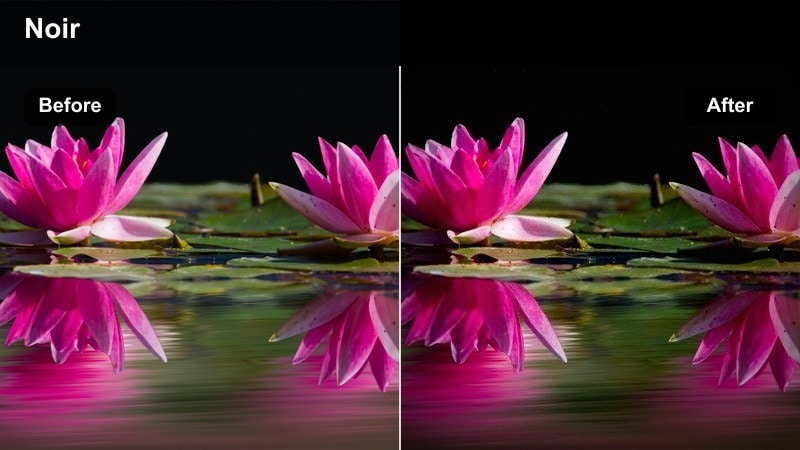
- Effect look: Desaturated colors with strong orange streetlamp highlights and slightly crushed blacks for a noir-inspired feel.
- Best for: Roadside sidewalks, parking lots, and intersections lit by old sodium streetlights.
- Editing tip: Dial down saturation of greens and blues, then slightly lift shadows to keep faces visible while maintaining deep contrast elsewhere.
Sodium Vapor Noir leans into the vintage orange glow of older streetlights and turns them into a design element in your reel. In Filmora, this filter mutes most other hues and keeps skin tones and streetlamp pools of light as the main points of focus against near-black surroundings.
Apply it to shots of people walking under lamps, standing in empty parking lots, or crossing streets at night. After applying, use Filmora s curves or basic adjustments to carefully balance crushed blacks with just enough lifted shadow detail so motion and silhouettes stay readable on mobile screens.
Urban Night Drives and Car Scenes
Dashboard Noir
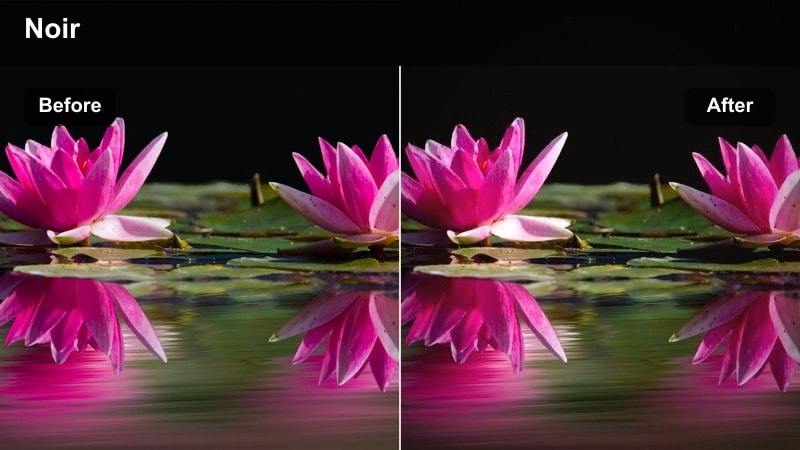
- Effect look: Low-key, contrasty image with subtle blue shadows and gentle skin smoothing inside the car cabin.
- Best for: Talking-to-camera clips, POV rides, and B-roll from inside a moving car at night.
- Editing tip: Expose for your face using the dashboard light, then apply the filter and slightly vignette the frame to keep attention on you.
Dashboard Noir is tuned for in-car lighting, where the brightest thing in frame is usually your instrument panel or infotainment screen. The filter helps your face stay readable and smooth while the interior and exterior fall off into moody, blue-tinted darkness in Filmora.
Use it for vlog-style night drives, storytelling monologues, or aesthetic POV clips. After applying, adjust vignette and exposure to make sure the brightest part of the shot is your face, not the dashboard, so viewers focus on your expression while the city lights outside stay soft and atmospheric.
Highway Light Trails
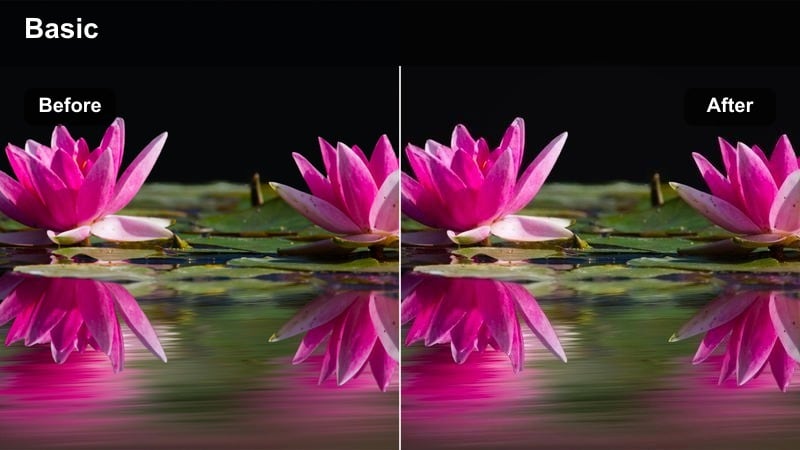
- Effect look: Slight motion blur emphasis with boosted reds and warm highlights that make passing car lights streak dramatically.
- Best for: Time-lapses, overpass shots, or driving reels that show continuous highway traffic at night.
- Editing tip: Speed up your footage slightly and add this filter, then increase highlight saturation to accentuate the red and white light trails.
Highway Light Trails is designed to turn ordinary road traffic into graphic streaks of color that give your reels a sense of speed and flow. In Filmora, it enhances warm tones in headlights and brake lights, working especially well with time-lapses or sped-up clips shot from bridges or passenger seats.
Apply it to stable clips where cars move through the frame, then use Filmora s speed controls to create smoother trails and rhythmic motion. Combine the filter with light sharpening and controlled contrast so the roads and city outlines stay visible while the streaks of light pull viewers eyes across the frame.
Rearview Midnight
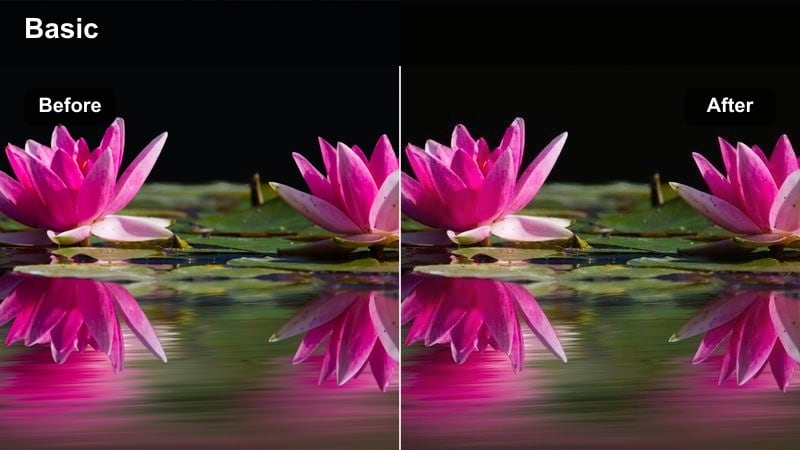
- Effect look: Cool-toned highlights with gently lifted blacks to keep details in the dark while reflections pop in mirrors and windows.
- Best for: Rearview mirror shots, reflections on car windows, and aesthetic b-roll of city lights behind you.
- Editing tip: Frame your subject in the rearview mirror and slightly crop in, then add the filter and reduce clarity a touch for a dreamy feel.
Rearview Midnight focuses on reflective surfaces, making the city behind you appear soft and luminous while the inside of the car stays subtle. In Filmora, this filter works especially well on close-ups of mirrors and glass, adding a cool cast that enhances bokeh and blurred light sources.
Use it for short story beats where reflections reveal more than the direct view, such as passing building lights or friends in the back seat. After applying, adjust clarity and sharpness to fine-tune how dreamy or crisp you want the reflection to be, and stabilize handheld shots to keep the mood smooth and cinematic.
Rooftop Views and City Skylines
Midnight Skyline Fade
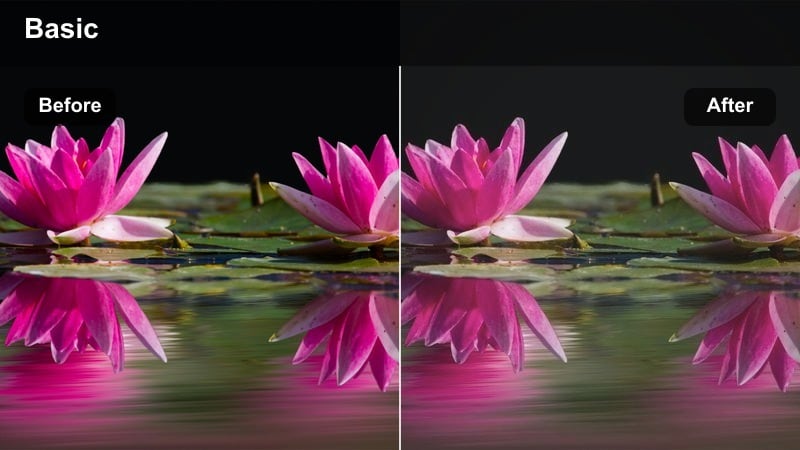
- Effect look: Soft, low-contrast image with slightly lifted blacks and gentle blue tint that gives city skylines a dreamy haze.
- Best for: Wide rooftop shots, establishing clips, and slow pans across the city at night.
- Editing tip: Slow your pan speed, then add the filter and reduce sharpness slightly to keep the city feeling distant and atmospheric.
Midnight Skyline Fade is ideal for introspective or cinematic establishing shots where the city becomes a hazy backdrop to your story. In Filmora, this filter lowers contrast and adds a cool blue layer, softening harsh edges so buildings and windows feel more like a painting than a technical capture.
Use it for opening or closing shots of your Instagram Reel, or to bridge between more intense scenes. After applying, adjust sharpness and saturation in Filmora to taste, keeping the skyline soft enough that your titles, overlays, or foreground subject stand out clearly in the frame.
Roofline Contrast Pop
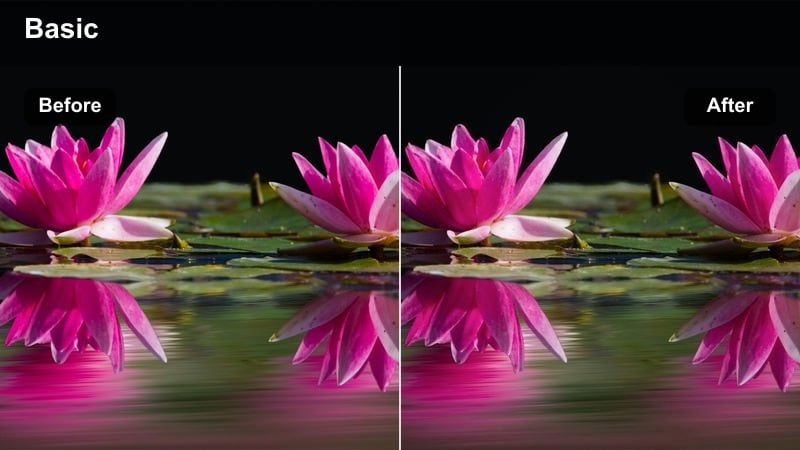
- Effect look: Crisp, high-contrast filter with cooler shadows, bright window lights, and defined building edges.
- Best for: Sharp skyline time-lapses, hyperlapses, and tripod shots of downtown cores at night.
- Editing tip: Stabilize your clip first, then apply the filter and boost clarity; finish by gently lowering saturation for a classy, modern city style.
Roofline Contrast Pop is built for shots where you want architectural lines and bright windows to feel clean and powerful. In Filmora, it increases overall contrast and clarity while keeping shadows cool, giving skyscrapers and high-rises a bold, polished look that reads well on mobile screens.
Apply it to locked-off tripod shots or time-lapses of busy city centers. After applying, run Filmora s stabilization if needed, then fine-tune clarity and saturation so detail remains sharp without introducing noise, preserving that sleek, modern mood in your Instagram Reels night skyline sequences.
Lonely Rooftop Amber
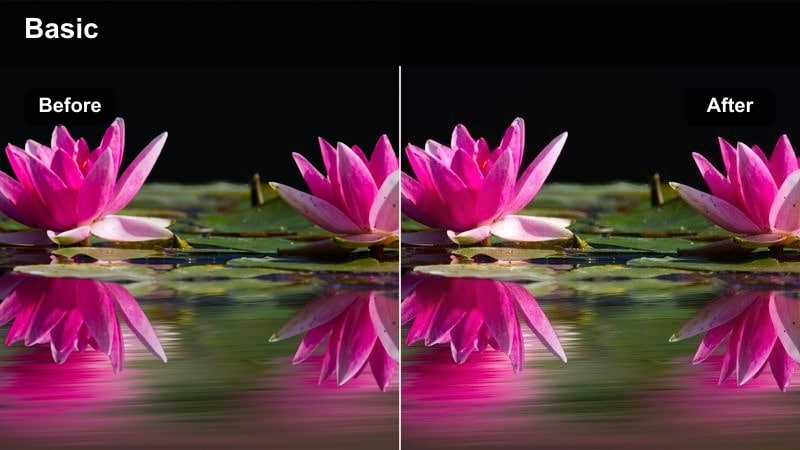
- Effect look: Warm amber highlights on the subject with cooler blue tones in the distant city, giving a gentle dual-tone contrast.
- Best for: Solo shots sitting on rooftops, leaning on railings, or looking over the city at night.
- Editing tip: Place a small warm light source near your subject, then use the filter and slightly deepen shadows to push the background further away.
Lonely Rooftop Amber creates a cinematic two-tone look, where your subject feels warm and present while the city behind them fades into cooler blues. In Filmora, this filter is perfect for emotional or reflective moments, drawing the viewer s attention to the person in the frame rather than the skyline.
Use it for reels about late-night thoughts, music overlays, or storytelling voiceovers. After applying, tweak exposure and shadow levels so the subject remains clearly visible while the background stays soft and subdued, and consider adding a gentle vignette to further center the mood on your subject.
Night Lifestyle, Cafes, and Chill Moments
Coffee Window Gloom
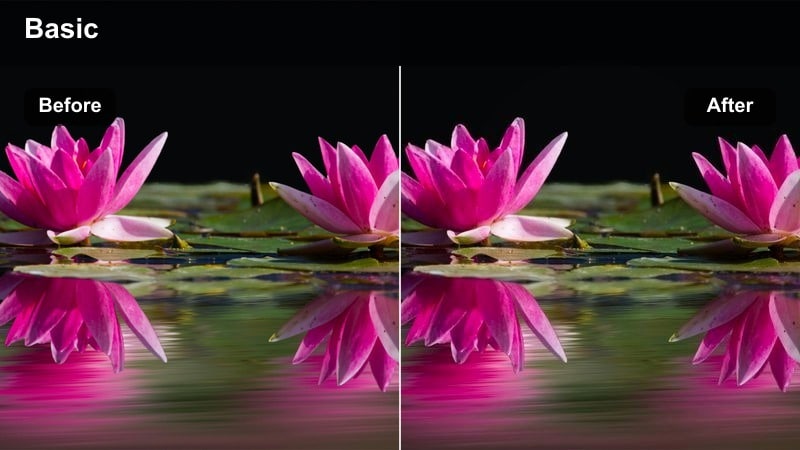
- Effect look: Muted colors with warm interior highlights and cooler tones outside the window to emphasize cozy isolation.
- Best for: Night cafe reels, laptop sessions by the window, or reflective mood shots indoors facing the street.
- Editing tip: Expose for the interior, then apply the filter and slightly reduce vibrance to keep the cafe warm but still moody and understated.
Coffee Window Gloom is tailored for intimate interior scenes where you want the cafe to feel like a warm bubble separated from the cooler, quieter street outside. In Filmora, it softly mutes saturation while keeping warm highlights on faces, mugs, and laptops, giving your shots a cinematic, introspective quality.
Use it for B-roll of typing, journaling, or gazing out at passing cars at night. After applying, fine-tune vibrance and white balance so the interior remains cozy without turning overly orange, and adjust brightness to balance reflections on the glass with your subject s face and hands.
Underpass Haze
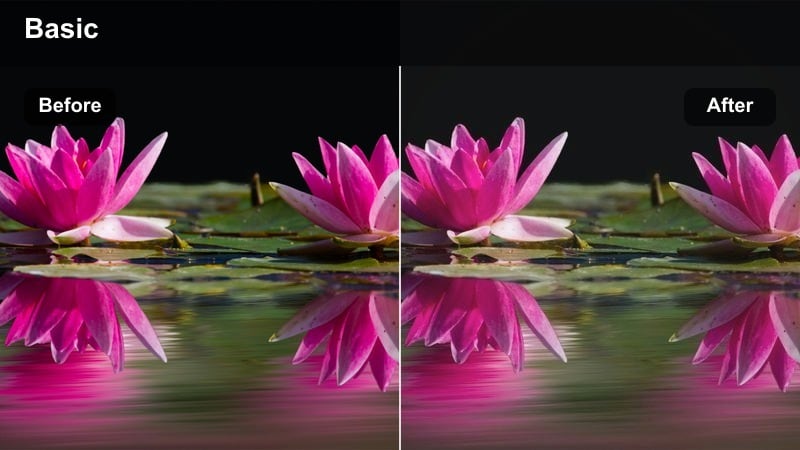
- Effect look: Softened highlights with lowered clarity and a slight green-blue shift, creating a hazy, urban underpass mood.
- Best for: Skate clips, walking shots, or fitness warm-ups captured under bridges and overpasses at night.
- Editing tip: Add a slight slow-motion effect and keep camera movement smooth; then apply the filter and lower contrast just enough to keep details visible in the shadows.
Underpass Haze is designed for concrete-heavy locations with repeating structures, where light pools and shadows create interesting depth. In Filmora, this filter softens bright overhead lights and adds a subtle green-blue shift that makes the environment feel dreamy and a bit surreal.
Use it for skating lines, running drills, or moody walking clips under bridges and flyovers. After applying, use Filmora s speed controls for gentle slow motion, and dial in contrast and clarity so the haze feels intentional while your subject s outline and motion stay clear against the background.
Late Night Platform
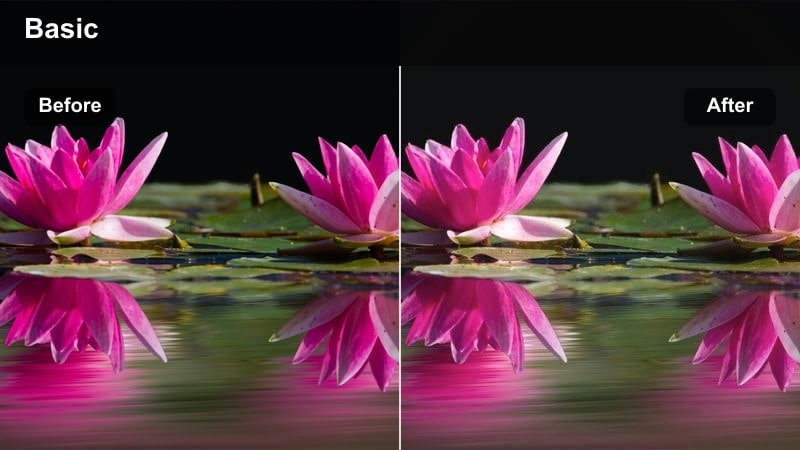
- Effect look: Clean, cool highlights with slightly faded shadows that flatter skin while keeping the station environment subdued.
- Best for: Subway or train station reels, waiting-on-the-platform shots, and travel storytelling at night.
- Editing tip: Frame yourself near a station light, then use the filter and lightly raise midtones to keep facial details clear while the background fades gently.
Late Night Platform creates a balanced, cinematic transit look where overhead lights feel cool and controlled instead of harsh. In Filmora, this filter slightly fades shadows and cleans up highlights so your skin looks flattering and the station around you feels calm and quiet.
Use it to document late-night travel, solo waits, or city commute stories. After applying, adjust midtones and exposure to ensure your face is well lit without losing the subdued atmosphere of the tracks, trains, and signs in the distance, then cut together short clips into a cohesive journey-based reel.
Tips for Using Instagram Reels Night Luts Moody Tone Filters in Filmora
- Shoot slightly brighter than you think at night, then darken in Filmora so your filters and LUTs have more clean data to work with.
- Lock your white balance while recording so different night clips do not shift colors when you apply the same moody filter preset.
- Use practical lights like streetlamps, car headlights, shop signs, and cafe lamps as intentional key lights to sculpt your subject.
- Stabilize handheld night footage in Filmora before adding filters so the moody tone feels smooth and cinematic instead of shaky.
- Keep grain and noise reduction subtle; a little texture can enhance the cinematic night look without smearing fine detail.
- Build a custom filter and LUT preset in Filmora once you find a night look you love, then reuse it on all your Instagram Reels for a consistent style.
- For a portable version of the color grade, Filmora can also export compatible color adjustments from a selected clip as a standard .cube LUT for reuse in Filmora, DaVinci Resolve, Adobe Premiere Pro, or Final Cut Pro.
With the right Filmora filters, your Instagram Reels night footage can shift from flat and noisy to rich, moody, and cinematic in just a few clicks. Each style in this guide is tuned for a different kind of night scene, from neon streets to quiet rooftops and late-night train platforms.
Experiment with these filters, tweak exposure and color to taste, and save your favorites as presets so every future night reel drops into your signature dark, atmospheric tone instantly. Over time, your followers will recognize your night look the moment your reel appears in their feed.
secure download