

 100% Security Verified | No Subscription Required | No Malware


 ChatGPT
 Perplexity
 Gemini
 Claude
 Grok
Grok
Cool landscape video filters are perfect for photographers and travelers who want clean blue tones, crisp air, and a calm aesthetic in every shot. With the Cool Landscape Filter: Serene Sky preset in Filmora, you can turn ordinary mountain views and coastal scenes into fresh, cinematic visuals in just a few clicks.
This guide walks you through a curated set of cool tone landscape filters, how they reshape colors in your blue landscapes, and when to use each style for your trips. From icy alpine mornings to misty sea horizons, you will find a filter that fits your footage and keeps your nature storytelling consistent.
In this article
Signature Cool Landscape Filter Styles
Cool Landscape Filter: Serene Sky
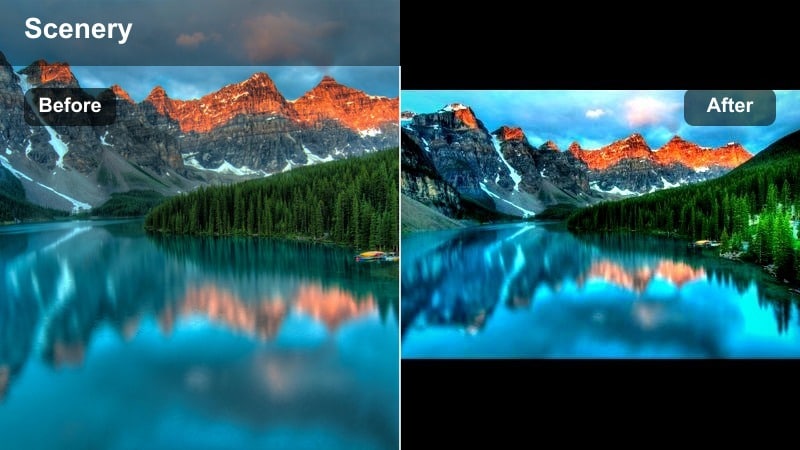
- Effect look: Soft cool contrast with bright skies, slightly lifted shadows, and gentle teal-blue in open landscapes.
- Best for: Open mountain views, coastal scenes at midday, and wide-angle drone shots over nature.
- Editing tip: Lower saturation on greens slightly to emphasize the blue landscape mood without making foliage look artificial.
Cool Landscape Filter: Serene Sky is your go to preset in Filmora when you want a clean, modern cool tone without losing realism. It brightens and freshens the sky, adds a subtle teal cast to distant hills, and gently lifts shadows so details in rocks, trees, and buildings remain visible even in high contrast scenes.
Use this filter on wide landscape clips from your camera, phone, or drone, then fine tune intensity with Filmoras Adjust or Opacity controls for effects. If skin tones appear slightly cool in travel vlogs, nudge the temperature slider a bit warmer while keeping the filter active so your blue skies stay crisp and cinematic.
Use Filmora’s AI Tools to Refine Cool Landscape Tones
After you apply the Cool Landscape Filter: Serene Sky or any other cool landscape video filter, Filmoras AI color palette tools can quickly balance exposure, contrast, and color cast. This helps you keep a consistent blue landscape aesthetic across mountain views, forests, and coastal scenes, even if they were shot at different times of day.
Let Filmora analyze your clip and suggest base corrections, then fine tune temperature, tint, and saturation so your cool tones feel natural. You can use AI adjustments as a starting point, then gently tweak individual sliders to match the look of other clips in the same travel project.
 secure download

Preview Cool Landscape Filters on Your Travel Clips
Filmora lets you preview multiple cool landscape filters in real time so you can instantly compare how each preset changes skies, water, and foliage. This is perfect when you are deciding between a subtle cool wash for a vlog or a stronger teal look for a cinematic travel montage.
Drop a short mountain or coastal clip onto the timeline, hover over or apply different cool tone presets, and see the results in the Preview window. Once you find a look you like, save it as a custom preset so future clips from the same trip can match in just a couple of clicks.
secure downloadCombine Filters with LUTs for a Cinematic Cool Aesthetic
For an even more polished landscape look, you can combine Filmoras built in cool filters with 3D LUTs. Start by applying a filter like Serene Sky to define your main blue tone, then add a subtle LUT on top to introduce film like contrast or a signature color style.
Keep LUT intensity low so it does not overpower the cool filter. In many cases, adjusting LUT strength between 10 percent and 30 percent is enough to add depth, roll off highlights more smoothly, and give your mountain and coastal footage a cohesive cinematic finish.
secure downloadCrisp Mountain Breeze
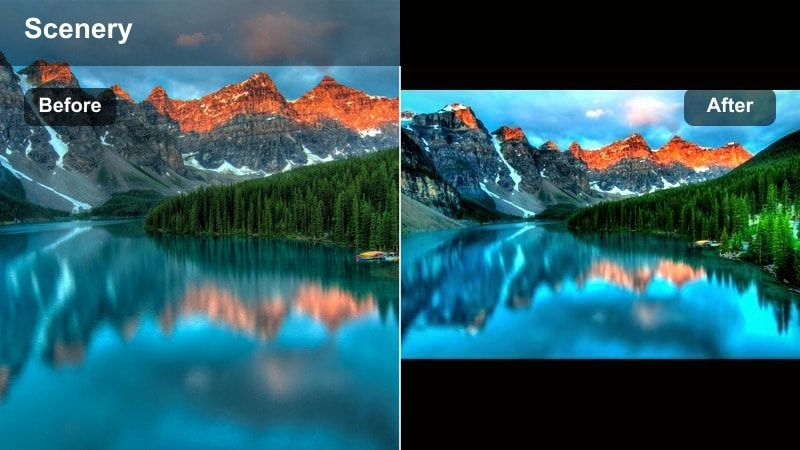
- Effect look: High-clarity cool tone with extra micro-contrast in rock textures and a pale blue sky.
- Best for: High-altitude mountain views, glacier hikes, and early morning ridge lines with thin air.
- Editing tip: Reduce clarity slightly when people are in the frame to avoid accentuating skin imperfections against the harsh mountain backdrop.
Crisp Mountain Breeze is built to enhance the sharp, cold feeling of alpine environments. It adds punchy micro contrast to rocks and snow, shifts skies toward a pale blue, and cools down warm color casts that often come from sunrise or sunset light reflecting on peaks.
Apply this filter to static tripod shots or sweeping drone clips of mountain ranges, then adjust the clarity slider in Filmora to taste. When your scene includes hikers or portraits, dial clarity down a bit and use Filmoras skin tone and HSL controls to keep faces smooth while the mountains remain detailed and crisp.
Pacific Coast Chill
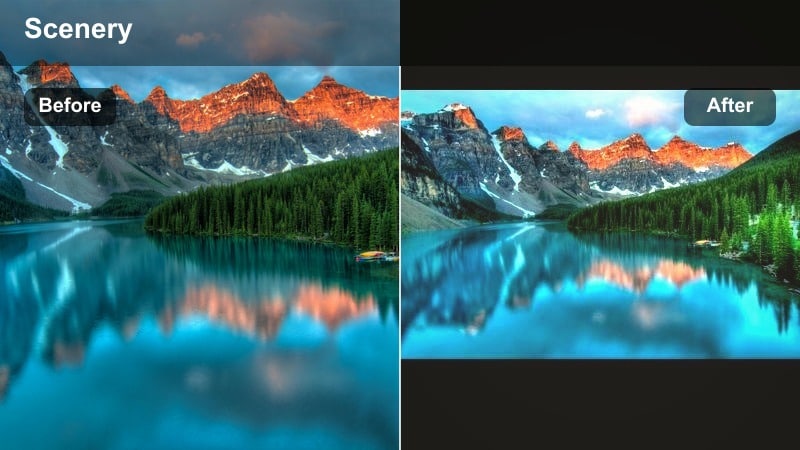
- Effect look: Muted warm tones with deep teal seas, misty blues, and gentle fade in the shadows.
- Best for: Overcast coastal scenes, cliffside road trips, and rocky beaches at golden hour turning blue.
- Editing tip: Add a subtle warm tint in midtones if skin tones look too cold while keeping shadows firmly in teal.
Pacific Coast Chill brings teal depth to oceans and softens harsh coastal contrast for a moody, cinematic feel. It mutes yellows and oranges in sand and cliffs, enhances mist and haze, and applies a faint fade to shadows so your footage feels relaxed rather than crunchy.
Use it on car montages along the coast, drone shots of waves, and handheld footage on cloudy days. If you are filming people on the beach, slightly warm the midtones using Filmoras Color panel and selectively brighten faces with masks to keep the teal aesthetic without making subjects look lifeless.
Blue Landscape Variations for Different Light
Dawn Glacier Blue
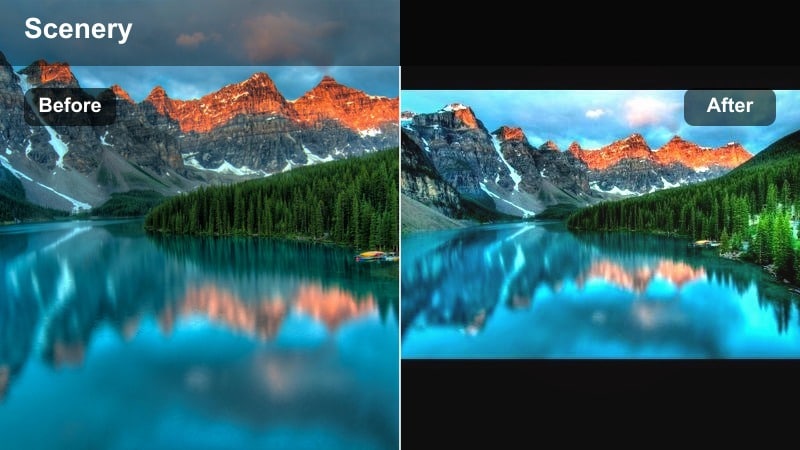
- Effect look: Soft pastel blues with lifted blacks and subtle magenta highlights in snow and ice.
- Best for: Pre-sunrise glacier fields, icy lakes, and frosty meadows during blue hour.
- Editing tip: Lower highlight brightness if snow clips too quickly, then boost midtones for a dreamy ice glow.
Dawn Glacier Blue is tuned for the delicate, low contrast light you get just before sunrise or after sunset on snow and ice. It lifts blacks to remove harsh shadows, adds pastel blues to the scene, and introduces gentle magenta highlights that make ice and frost look ethereal.
Before applying this preset in Filmora, pull back blown highlights using the Highlights and Whites sliders so you retain snow detail. After the filter is active, raise midtones slightly for a soft glow, then fine tune saturation so blues stay pastel instead of neon, especially if you shot in very clear conditions.
Deep Lake Cobalt
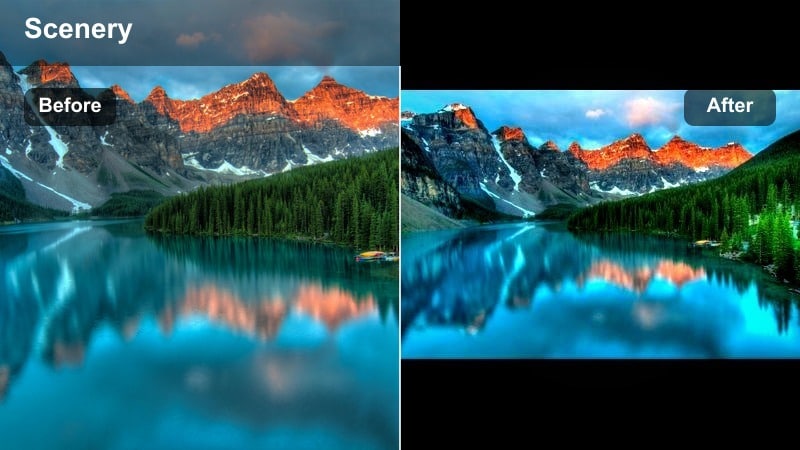
- Effect look: Rich cobalt water, denser blues in the midtones, and slightly darker overall exposure.
- Best for: Mountain lakes, fjords, and deep reservoirs under midday or slightly overcast light.
- Editing tip: Raise shadows to keep tree lines readable while preserving the sense of depth in the water.
Deep Lake Cobalt focuses on deepening the color and mood of water while keeping surrounding landscapes natural. It enriches midtone blues, slightly darkens the overall frame, and cools greens along the shoreline so the lake or fjord becomes the visual anchor of the shot.
Apply it to clips where water dominates the composition, then use Filmoras Shadows control to bring back detail in forests and mountains without flattening the lake. If the blue becomes too intense, reduce blue saturation a touch and adjust luminance instead to maintain a realistic, immersive feeling.
Misty Ridge Aqua
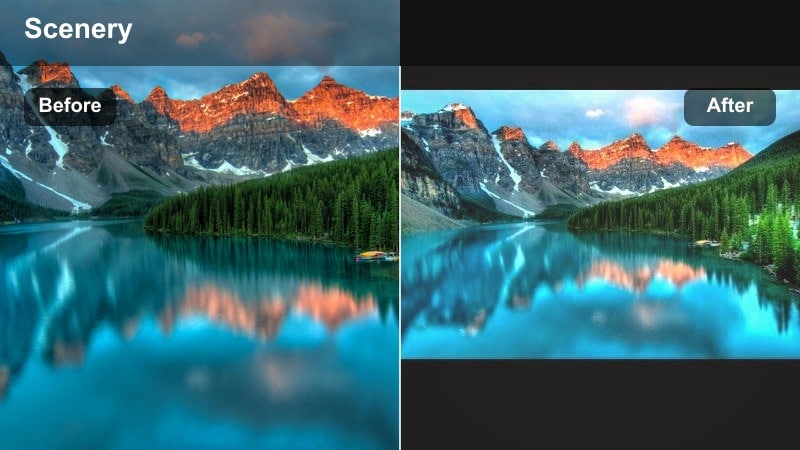
- Effect look: Light aqua in distant hills, faded contrast, and soft bloom in highlights.
- Best for: Hazy mountain layers, rainy valley shots, and cloudy forest vistas.
- Editing tip: Reduce dehaze instead of adding clarity to keep the misty mood the filter creates.
Misty Ridge Aqua is tailored for low contrast, hazy landscapes where depth is created by overlapping ridgelines. It cools distant hills into aqua and blue, softens overall contrast, and adds a subtle glow to bright areas, giving your footage a watercolor like look.
Use this filter on telephoto clips of layered mountains or drone shots on rainy days. Instead of increasing clarity, lower the Dehaze control in Filmora to preserve the dreamy fog effect, then selectively boost local contrast on foreground elements with masks if you need a sharper anchor point in the frame.
Fresh Nature Filters with Cool Tones
Evergreen Fresh Air
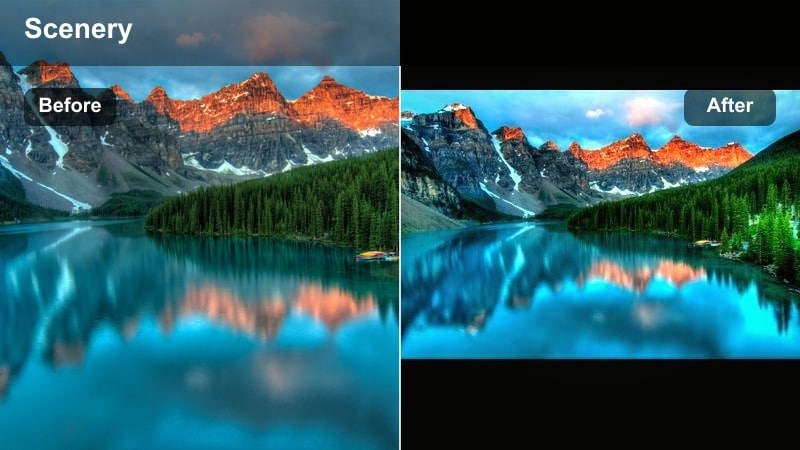
- Effect look: Clean, cool greens with a touch of cyan and bright, breathable highlights.
- Best for: Forest hikes, riverside trails, and waterfalls under dappled light.
- Editing tip: Pull down yellow saturation slightly so foliage stays fresh rather than warm and muddy.
Evergreen Fresh Air cools down yellow heavy foliage and turns it into crisp, modern greens that work well for outdoor adventure videos. Highlights are lifted to feel airy, and a slight cyan tint is added to greens so forests look fresh rather than overly warm or muddy.
Apply this filter to handheld forest walks, waterfall B roll, and riverside scenes, then refine with Filmoras HSL panel by reducing yellows and slightly boosting green luminance. If people are in the frame, create a mask around faces and gently warm midtones there to keep skin tones flattering while the forest remains cool.
Riverbed Clarity Cool
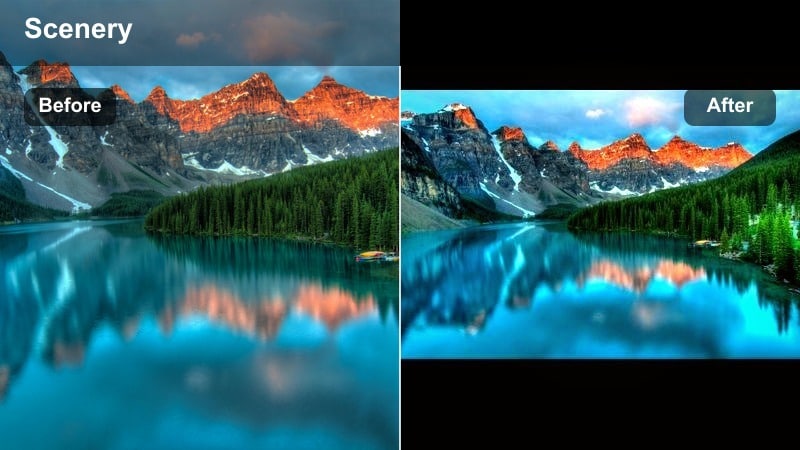
- Effect look: Increased local contrast in rocks with clear cyan-blue water and reduced warm reflections.
- Best for: Shallow rivers, rocky streams, and river crossings with visible stones below the surface.
- Editing tip: If stones feel too harsh, soften clarity but keep the cool white balance shift for a clean water look.
Riverbed Clarity Cool makes shallow rivers and streams look glassy and clean by boosting micro contrast in stones and shifting water toward a pure cyan blue. It also dials down warm reflections that can make water appear muddy or brown, especially in midday sun.
Use it for macro style shots of ripples, rocks, and feet crossing streams. In Filmora, balance the clarity slider to control how crunchy the stones appear, and consider adding a small vignette to focus attention on the center of the water flow for relaxing, ASMR friendly B roll in your edits.
Alpine Meadow Breeze
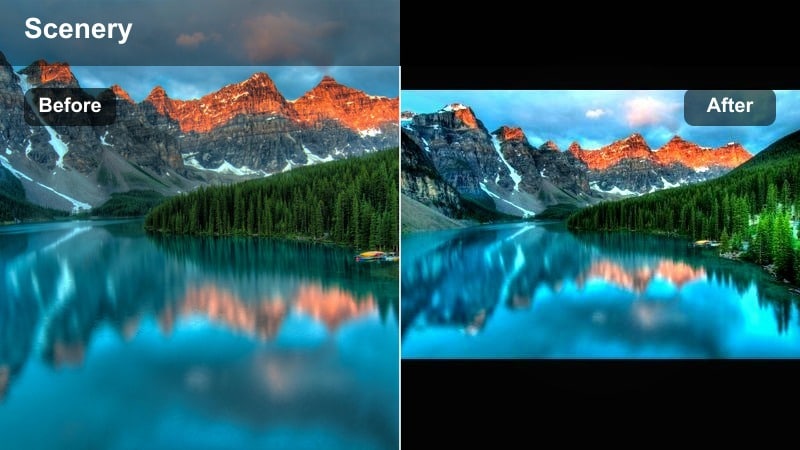
- Effect look: Cool daylight balance with slightly desaturated greens and bright, airy skies.
- Best for: Open meadows, rolling hills, and countryside shots with moving grass and flowers.
- Editing tip: Add a little saturation back to specific accent colors like wildflowers for subtle pops in an otherwise cool palette.
Alpine Meadow Breeze is ideal for open, sunlit landscapes where you want a breezy, relaxed atmosphere. It cools overall color temperature, gently desaturates greens, and keeps skies bright, which is perfect for scenic travel montages and countryside vlogs.
Apply it to wide shots of fields, hills, and rural paths, then selectively boost saturation of accent colors like flowers, clothing, or cabins in Filmoras HSL section. This way, your main palette stays cool and minimal while key details still catch the viewers eye.
Cool Tone Aesthetic for Coastal Travel Footage
Harbor Blue Hour
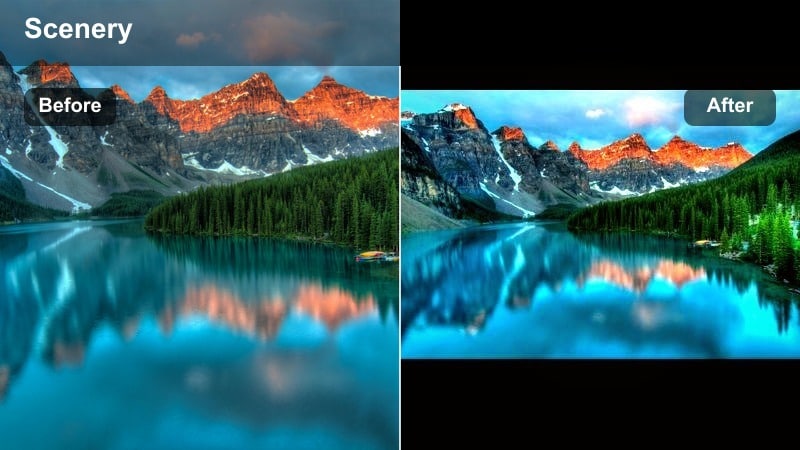
- Effect look: Deep navy blues with gently glowing highlights on water and city lights.
- Best for: Blue hour harbors, marinas, and seaside towns just after sunset.
- Editing tip: Increase saturation in oranges slightly so warm lights stand out against the cool harbor water.
Harbor Blue Hour pushes water and sky into rich navy tones while preserving the warmth of city lights and street lamps. It is designed for the short window after sunset when the sky is still blue but artificial lights are already glowing, creating a balanced, cinematic contrast.
Use it on tripod or gimbal shots of boats, reflections, and waterfront promenades. In Filmora, raise orange and yellow saturation slightly so windows and lamps pop against the cool water, and consider stabilizing handheld clips to keep reflections smooth and visually pleasing.
Sun-Bleached Coastline Cool
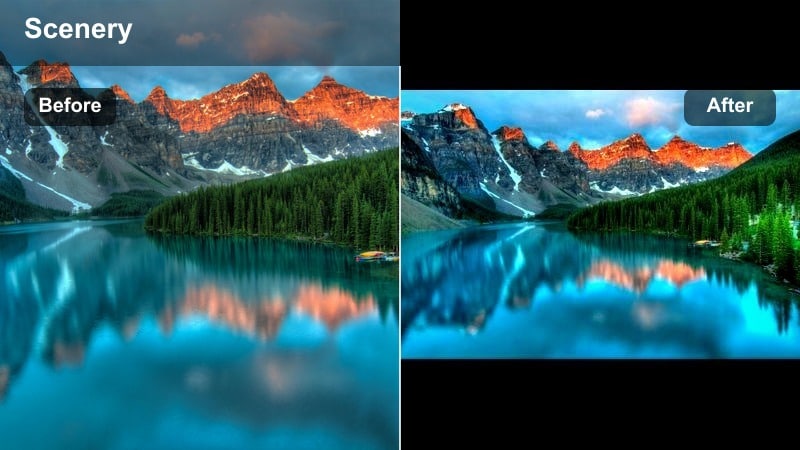
- Effect look: Lowered saturation in sand with bright teal water and cool, crisp whites.
- Best for: Harsh midday beach scenes, cliffside overlooks, and bright coastal roads.
- Editing tip: Pull exposure down slightly and recover highlights to avoid losing texture in bright sand and surf.
Sun-Bleached Coastline Cool helps tame harsh midday sun by muting sand tones, cooling whites, and turning water into a bright teal. It reduces the yellow cast that often makes beach footage look dated, replacing it with a modern, clean coastal look.
Apply this filter to drone flyovers, highway pull offs above the sea, and classic beach scenes shot at noon. Adjust exposure and highlights in Filmora so foam and sand retain detail, and warm midtones a touch for any people in the frame to prevent washed out skin against the cool surroundings.
Seaside Minimal Teal
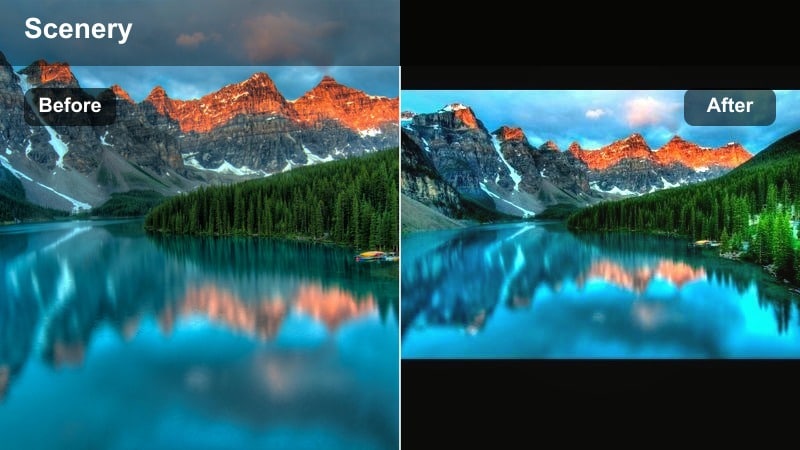
- Effect look: Clean teal-and-white minimal palette with reduced contrast and gentle fade.
- Best for: Minimalist seascapes, pier silhouettes, and architecture near the ocean.
- Editing tip: Avoid over-sharpening; let the soft contrast and teal tone carry the aesthetic for social-friendly clips.
Seaside Minimal Teal reduces your scene to a calm mix of teal and white, with low contrast and a soft fade in shadows. It is perfect for design forward shots of piers, breakwaters, and modern buildings by the sea where simplicity and negative space are part of the composition.
Use it on shots with strong lines and large blocks of sky or ocean, and resist the urge to add too much sharpening in Filmora. If you want an even more cinematic presentation, add subtle letterboxing and keep camera moves slow and deliberate to highlight the minimalist cool tone palette.
Tips for Using Landscape Cool Filters in Filmora
- Set white balance slightly warm in camera so cool filters have more natural headroom to push blues without crushing skin tones.
- Bracket exposures for high contrast mountain and coastal scenes so Filmora filters have enough detail to work with.
- Keep ISO as low as possible to avoid amplifying noise when you increase clarity and contrast in cool tone filters.
- Shoot in flat or log like picture profiles when available to maximize flexibility for cool color grading later.
- Use leading lines like shorelines, trails, or ridges to guide the viewers eye through your cool toned landscapes.
- Add gentle motion, such as slow pans or drone reveals, to showcase gradient transitions in sky and water.
- Avoid over saturating blues; increase luminance before pushing color intensity for more realistic landscapes.
- Save your favorite Filmora filter settings as custom presets labeled by location or weather for fast reuse.
Cool landscape video filters in Filmora make it easy for photographers and travelers to turn raw mountain views and coastal scenes into cohesive, cinematic stories. By choosing the right preset for your light and location, you can quickly build a calm blue palette that feels fresh and professional.
Start with the Cool Landscape Filter: Serene Sky for versatile results, then explore more specialized blue landscape and fresh nature filter styles for glaciers, forests, and seaside towns. With a few thoughtful tweaks to exposure and color, your cool tone landscapes will stand out across social feeds, portfolios, and travel films.
secure downloadNext: Discover the Best Landscape Aesthetic Filters for Travel Footage
